
Partitioning drives with different file systems often complicates file access when running both Windows and Linux on the same machine. Windows primarily uses NTFS or FAT32, while Linux typically relies on Ext4 or other Linux-native formats. This setup can create obstacles to seamless file management, especially when you need to move documents, media, or project files between the two operating systems. Direct access to files from both sides not only saves time but also reduces the risk of data duplication and version conflicts.
Using a Shared NTFS Partition for File Management
Creating a dedicated NTFS partition is the most reliable way to share files between Windows and Linux in a dual-boot configuration. NTFS is natively supported by Windows and modern Linux distributions, allowing both operating systems to read and write files without additional drivers or tools. This method avoids the risk of file corruption that can occur when accessing Windows system partitions directly from Linux.
WIN+X and selecting Disk Management from the menu. This utility displays all available partitions and unallocated space on your drives.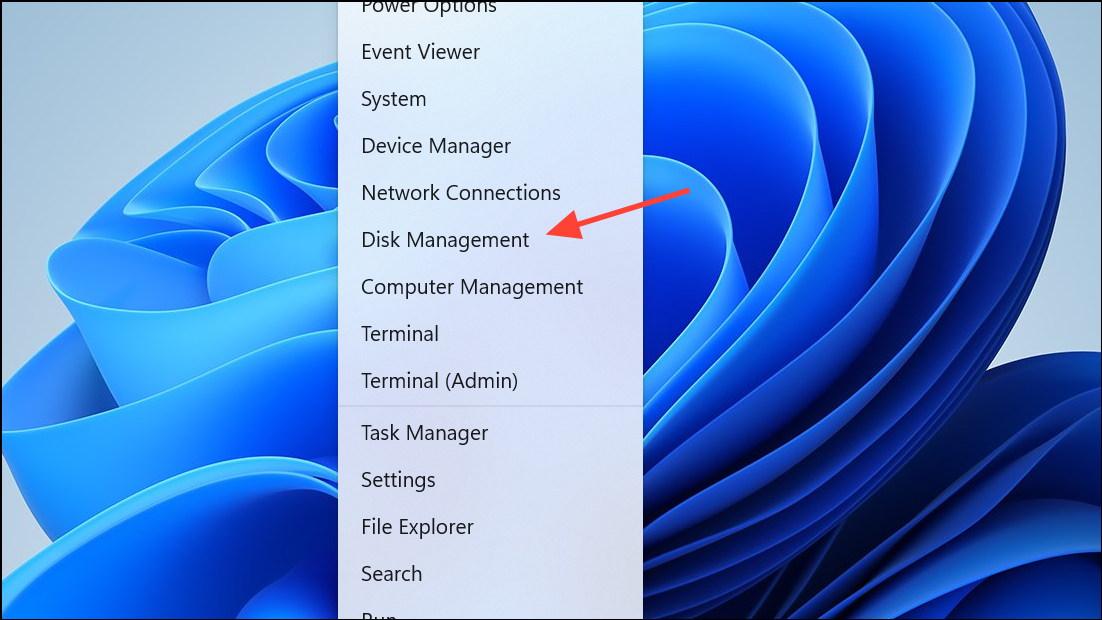
C: drive. Right-click on it and choose Shrink Volume. Specify the amount of space to shrink in megabytes, ensuring you leave enough space for Windows to function smoothly. Click Shrink to create unallocated space.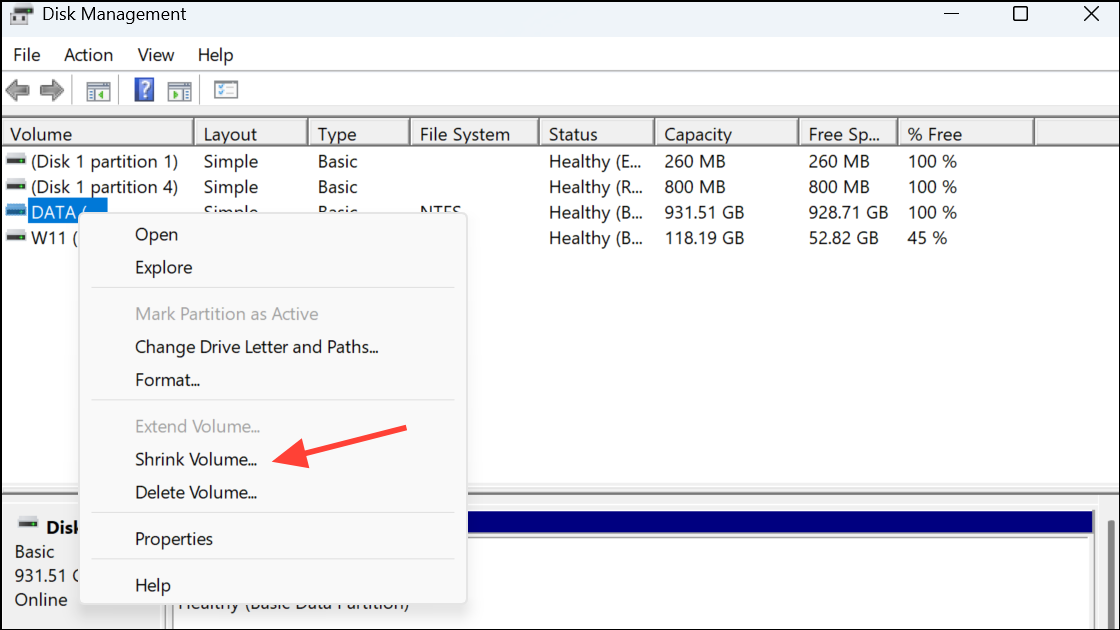
New Simple Volume. Follow the wizard prompts to assign a drive letter, set the volume size, and choose NTFS as the file system. Name the partition (for example, Shared), then complete the process by clicking Finish.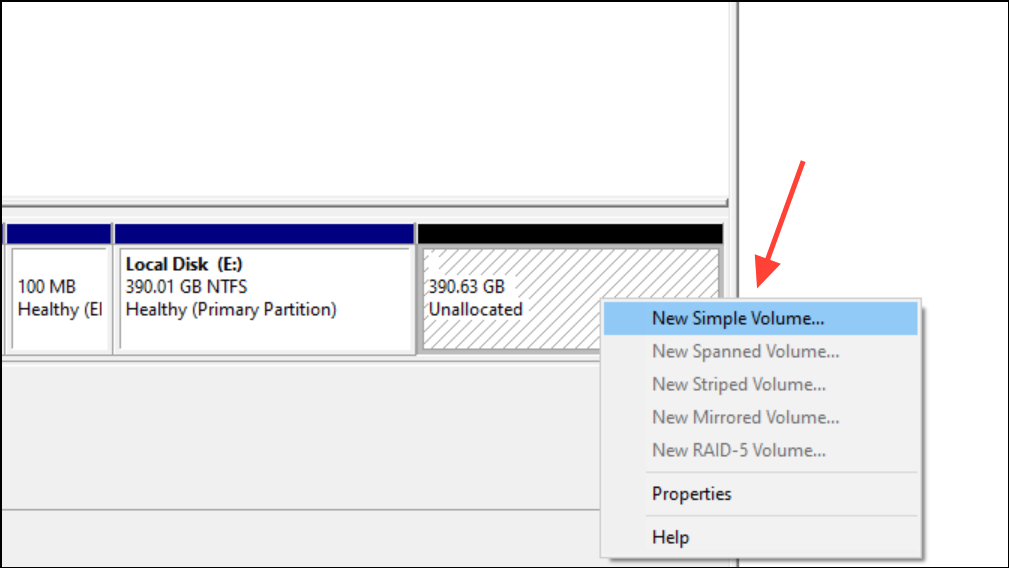
Other Locations or /mnt to locate the new NTFS partition. Most modern Linux distributions, such as Ubuntu, automatically mount NTFS partitions and provide full read/write access. You can now access, edit, and save files in the shared partition from Linux.This approach allows you to transfer files between operating systems without needing external devices or cloud storage. It also minimizes the risk of accidental system file modification, which can occur when accessing Windows system partitions from Linux.
Accessing Linux Files from Windows
Windows does not natively recognize Linux file systems like Ext4, which can make retrieving files stored on Linux partitions challenging. To solve this, third-party tools such as Ext2Fsd enable Windows to mount and access Linux partitions.
Ext2, Ext3, and Ext4 volumes.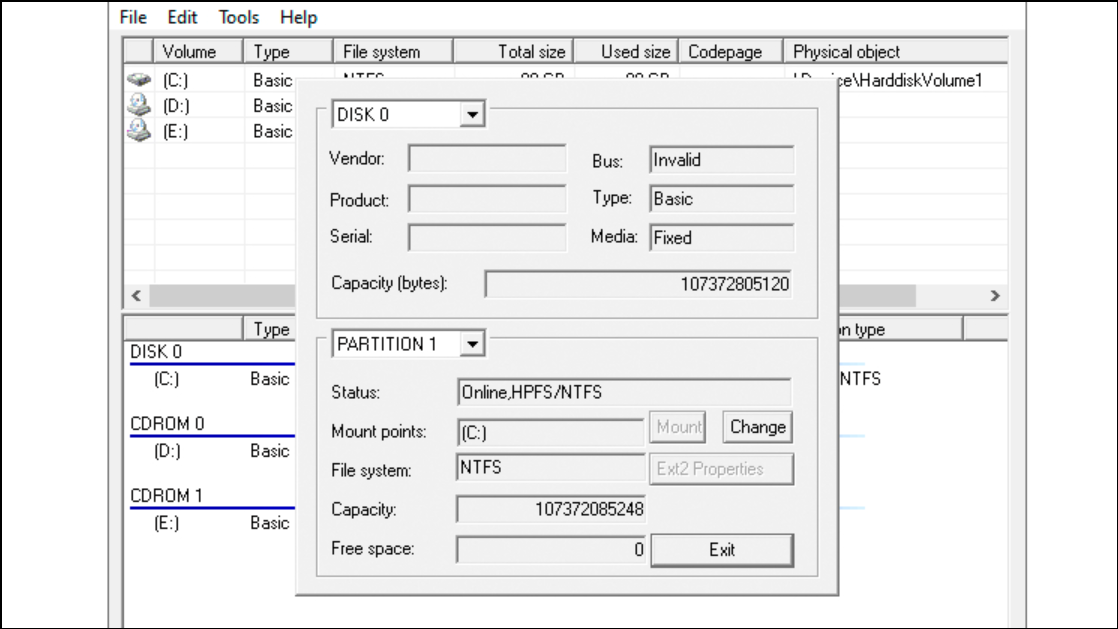
Mount volume in read-only mode to prevent accidental changes. Optionally, enable Automatically mount via Ext2Mgr for persistent access.Apply. The Linux partition will appear as a new drive letter in Windows File Explorer, allowing you to browse and copy files as needed.Using External Storage Devices
USB drives and external hard disks formatted with FAT32 or exFAT file systems provide a portable solution for file sharing. Both Windows and Linux support these formats, making them ideal for transferring files between systems without modifying internal partitions.
FAT32 or exFAT, use the built-in formatting tools in Windows (Format in File Explorer) or Linux (GParted or Disks utility) to prepare the drive.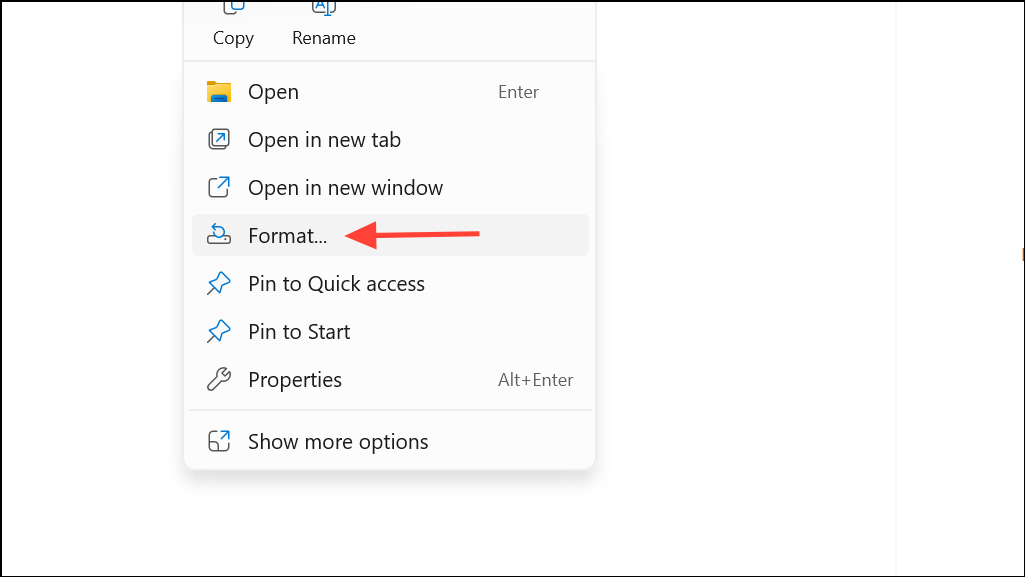
This method is effective for quick, ad-hoc transfers, especially when working with large files or when network access is unavailable.
Cloud Storage Solutions for Cross-Platform File Access
Cloud services such as Google Drive, OneDrive, and Dropbox offer device-independent file sharing. Both Windows and Linux users can upload and download files via web browsers or dedicated applications, streamlining access without the need for physical storage.
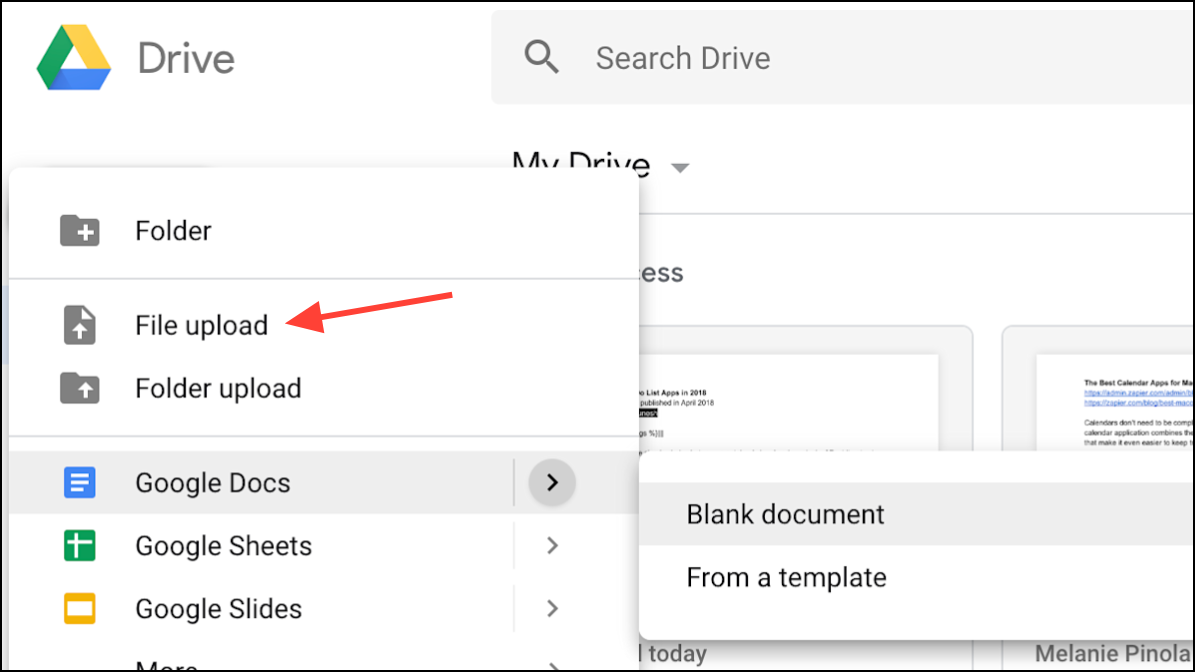
While cloud storage provides convenience and scalability, it does require an internet connection and may be subject to storage limits or subscription fees for larger capacities.
Additional Compatibility and Maintenance Tips
- Always back up important data before modifying partitions or file systems.
- Disable Windows Fast Startup and BitLocker encryption if you encounter issues accessing NTFS partitions from Linux.
- Be cautious when writing to system partitions of either OS to avoid corruption.
- Keep your Linux and Windows systems updated to maintain compatibility with NTFS and exFAT drivers.
- For time synchronization, configure both systems to use UTC or local time to prevent clock discrepancies.
Managing files in a dual-boot setup is straightforward when you use a shared NTFS partition, external storage, or cloud services. With the right tools and a bit of planning, you can move files between Windows and Linux smoothly and avoid common compatibility pitfalls.





