Resolve Roblox Secure Channel Support (0x8007sd7d) Error in Windows
Address the Secure Channel Support (0x8007sd7d) error in Roblox on Windows by updating system security protocols and troubleshooting network settings.
Address the Secure Channel Support (0x8007sd7d) error in Roblox on Windows by updating system security protocols and troubleshooting network settings.
by Pallav Pathak
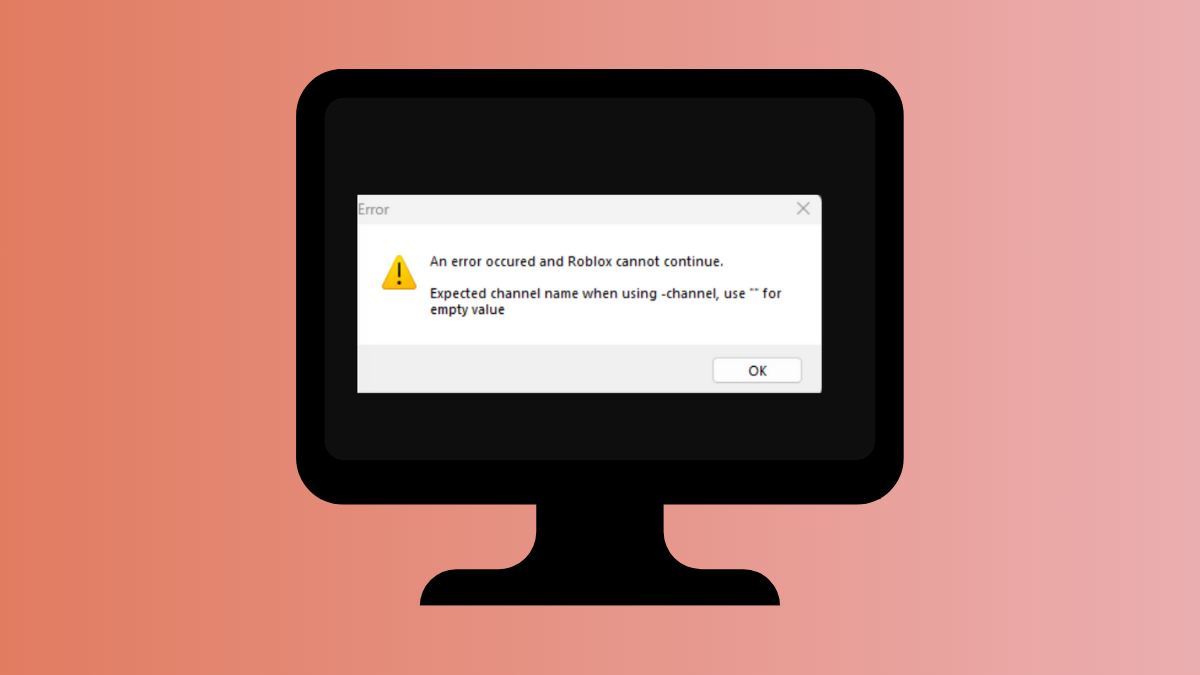
Roblox displays the Secure Channel Support (0x8007sd7d) error on Windows systems when secure internet protocols required for safe communication are missing or disabled. This error interrupts access to Roblox servers and prevents normal gameplay or account operations. Addressing this issue involves updating Windows security components and verifying network configurations to restore secure connections.
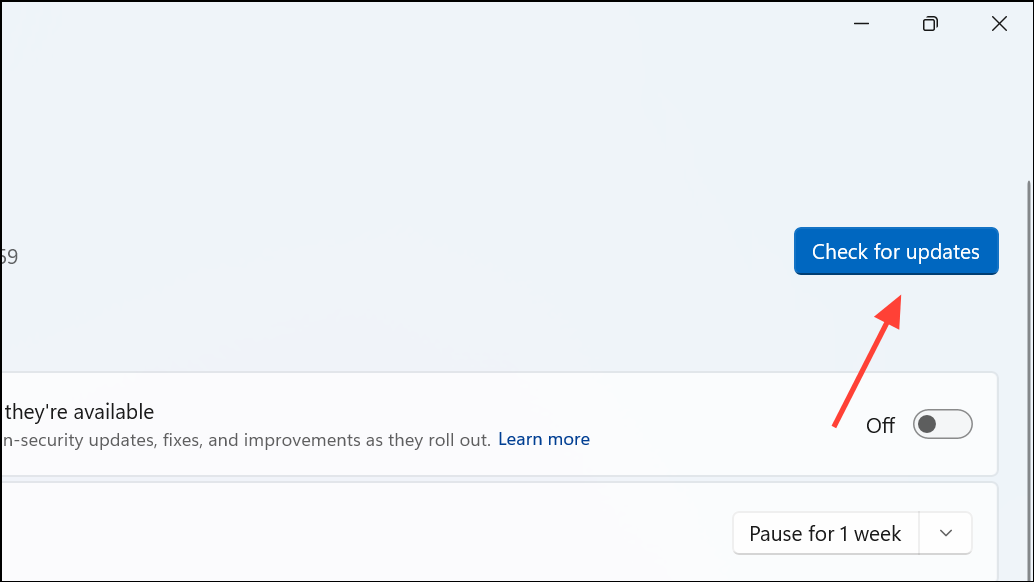
Open the Windows Update settings by pressing Windows Key + I and selecting Update & Security or Windows Update. Click Check for updates to download and install any available Windows updates. These updates often include security protocol improvements required by Roblox.
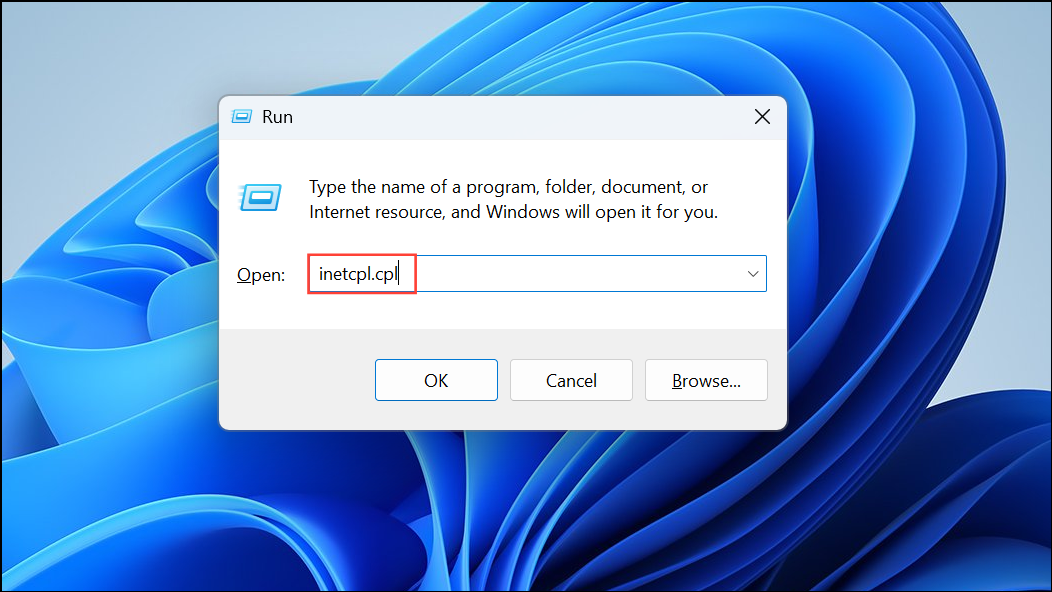
Ensure that your system supports and enables the latest versions of the Transport Layer Security (TLS) protocol. Open the Internet Options panel by typing inetcpl.cpl in the Windows search bar and pressing Enter.
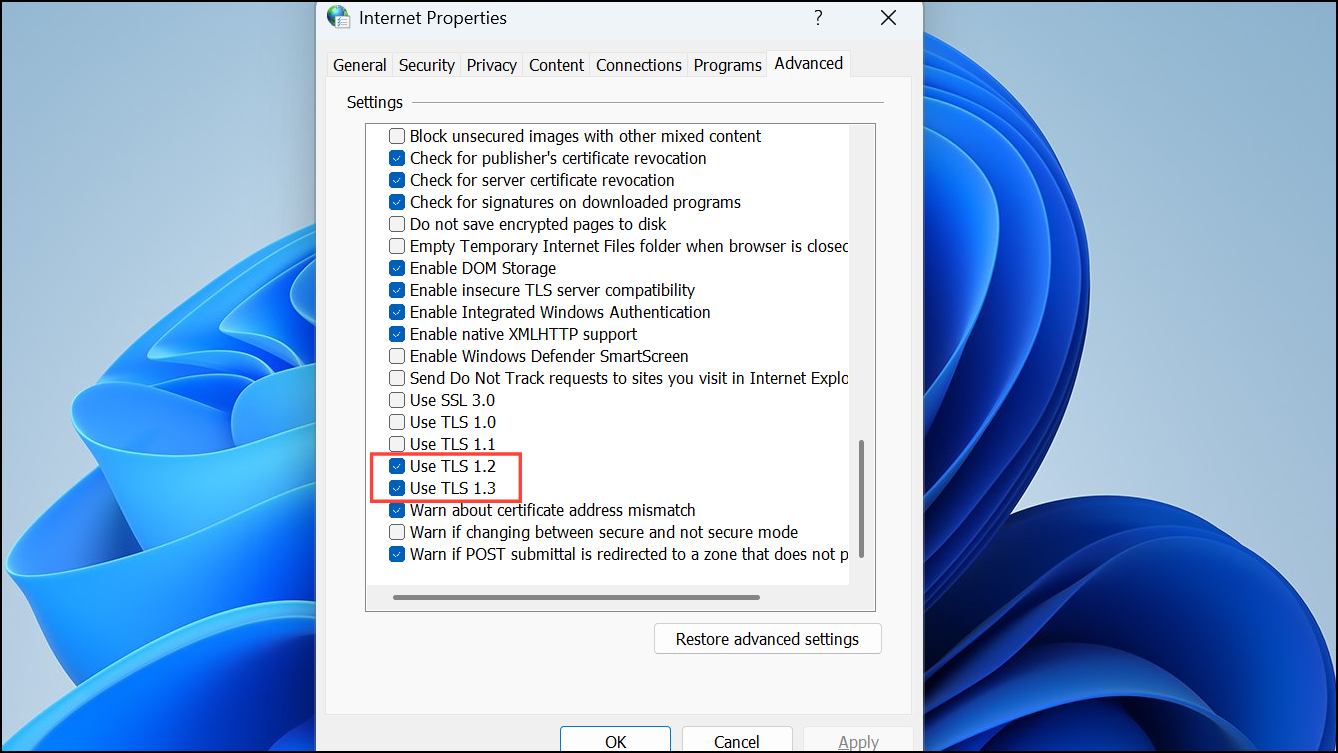
Go to the Advanced tab and scroll down to the Security section. Make sure the checkboxes for TLS 1.2 and TLS 1.3 (if available) are checked. Click Apply and then OK.
Restart your computer to apply changes and attempt to launch Roblox again. Enabling modern TLS protocols allows Roblox to establish secure connections and resolves most Secure Channel Support errors.
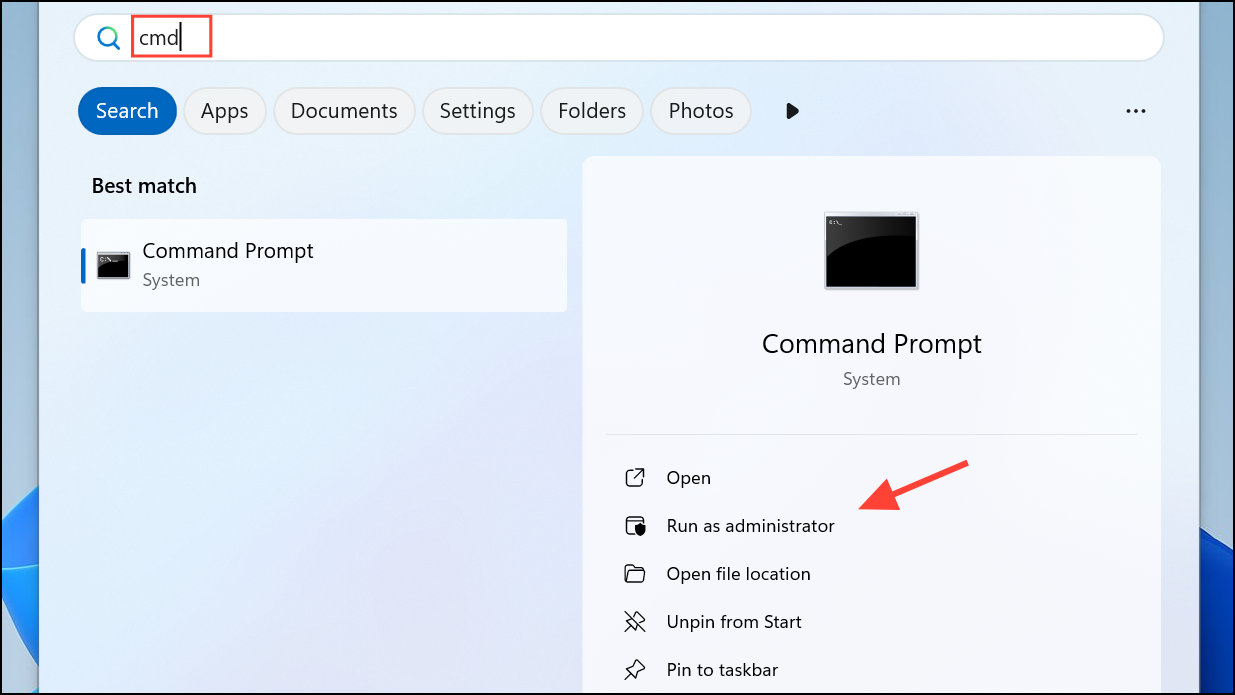
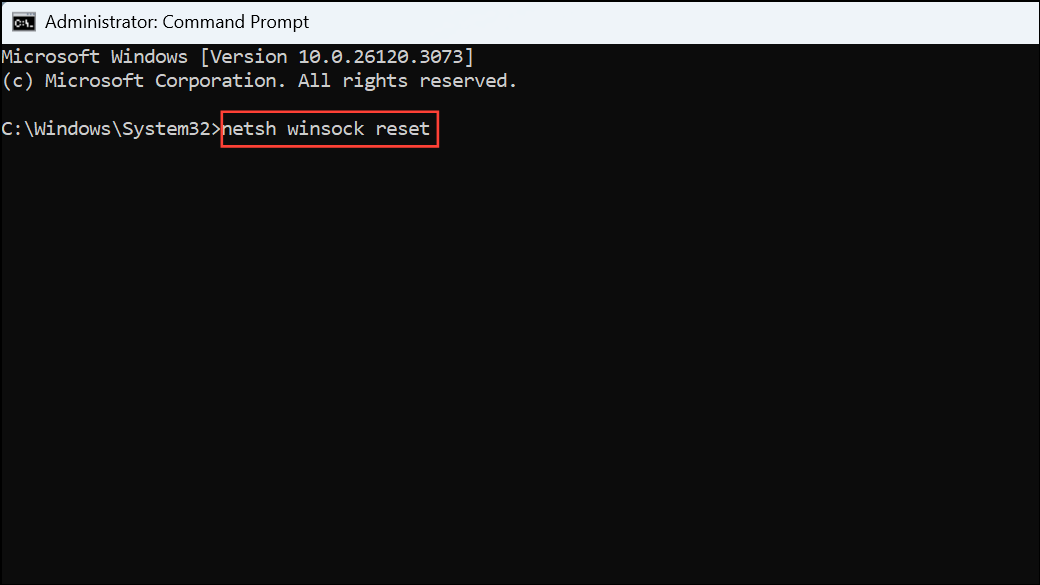
Open the Command Prompt as an administrator by searching for cmd in the Windows search bar, right-clicking Command Prompt, and selecting Run as administrator.
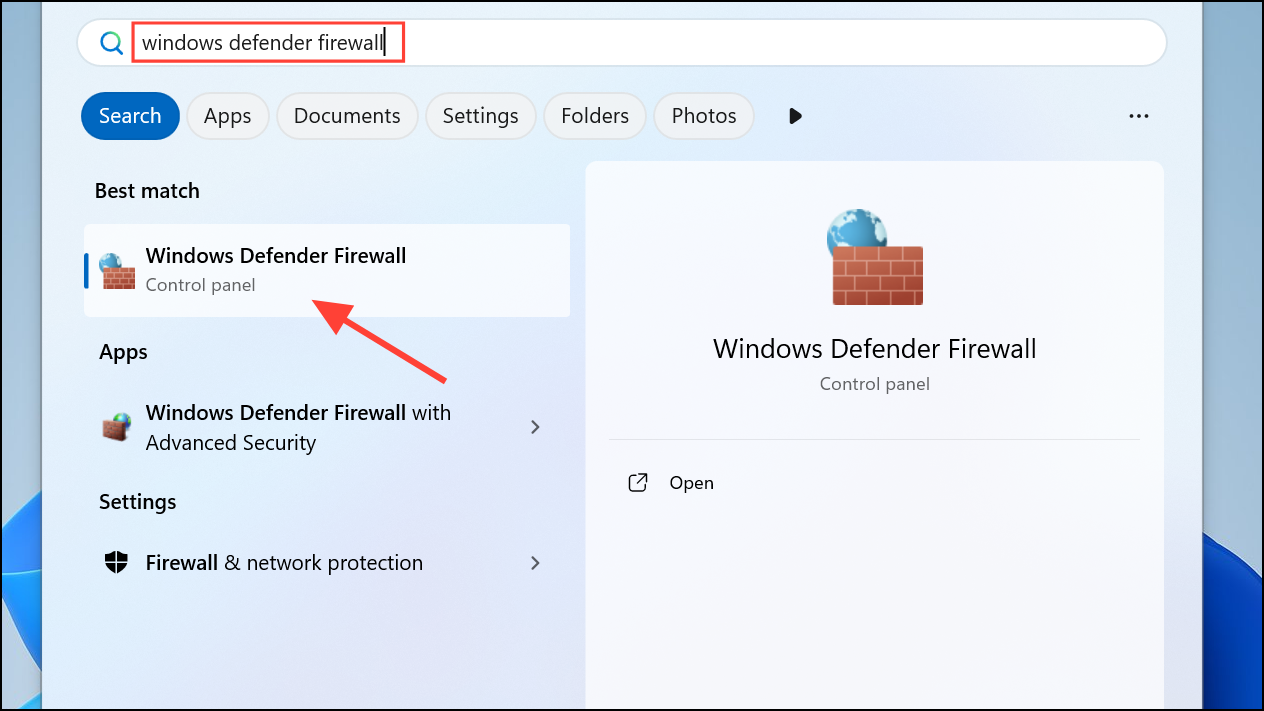
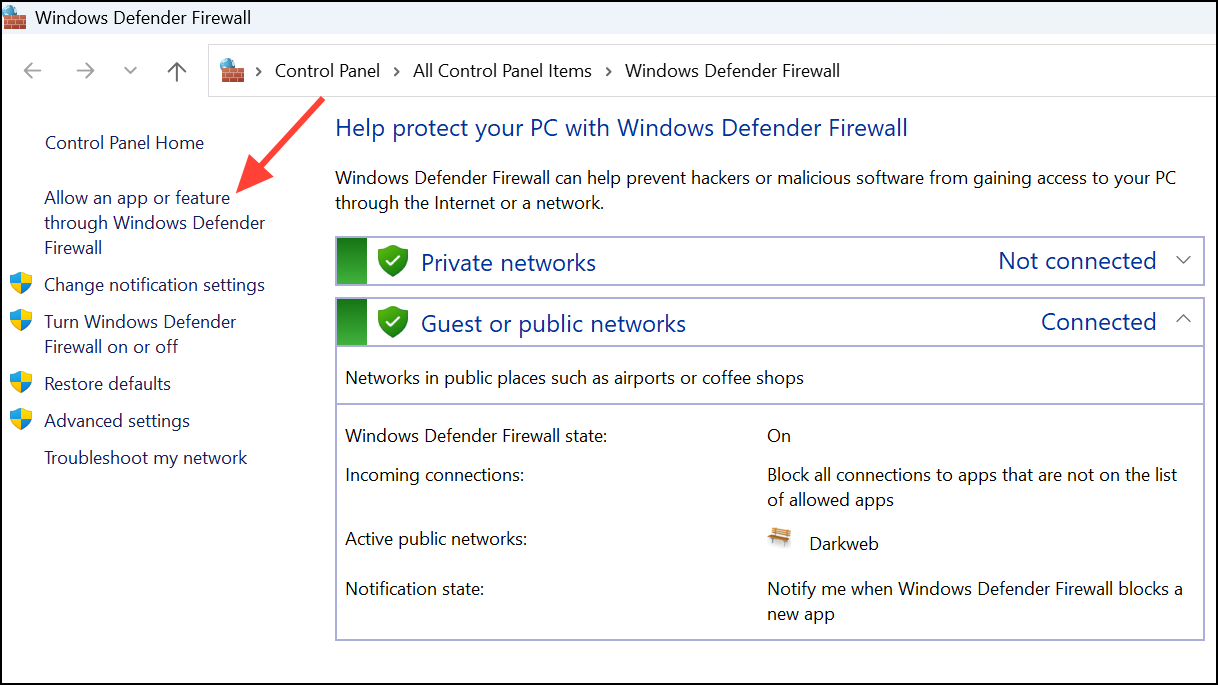
Open your antivirus or internet security software and review its settings. Some security programs may block or interfere with secure connections required by Roblox. Temporarily disable the antivirus firewall or add Roblox as an exception to allow its network traffic.
Uninstall the existing Roblox client by opening Apps & Features from the Windows Settings menu. Locate Roblox in the list, click it, and select Uninstall.
Download the latest Roblox installer from the official Roblox website. Install the client following the on-screen prompts. This process ensures you have the most recent version, which may include necessary security updates and fixes for secure channel errors.
Launch Roblox to verify that the error no longer appears.
Keeping Windows updated, enabling proper security protocols, and maintaining network settings ensures Roblox can connect securely and prevents Secure Channel Support (0x8007sd7d) errors from recurring.