

Microsoft Store relies on certain Windows Update services and system components to function correctly. When Windows Update is disabled or the Store becomes corrupted, installing or updating apps through the Store interface may fail. This situation disrupts access to essential productivity and security apps, so finding alternative installation methods is critical for maintaining a functional system.
Using PowerShell to Install Microsoft Store Apps
Windows + X and select Windows PowerShell (Admin) or Terminal (Admin) from the menu. This step is necessary to grant the required permissions for installing system apps.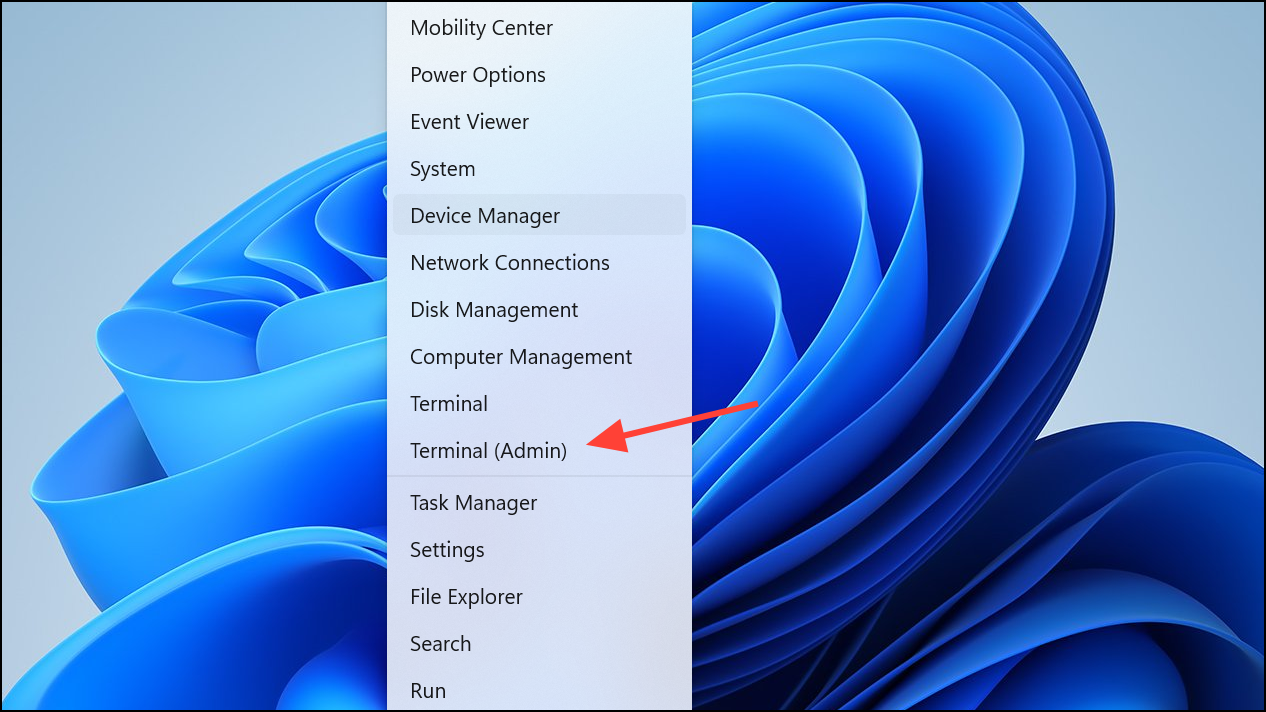
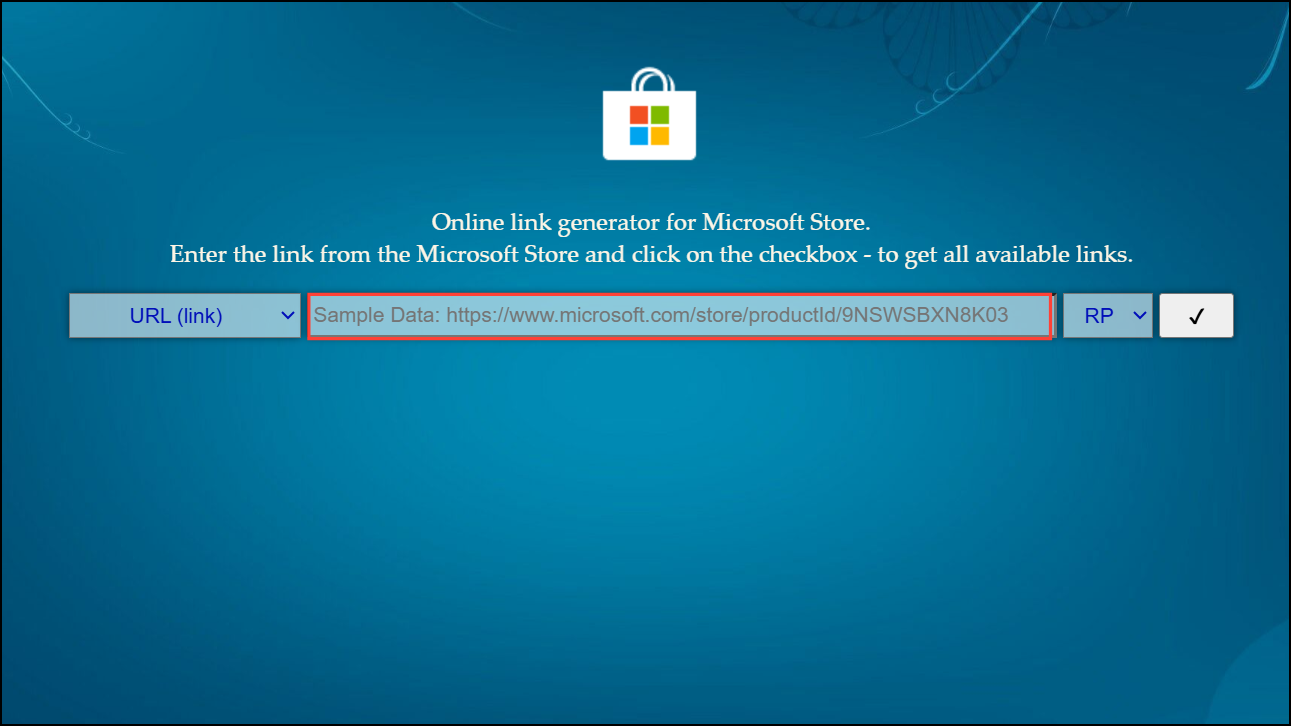
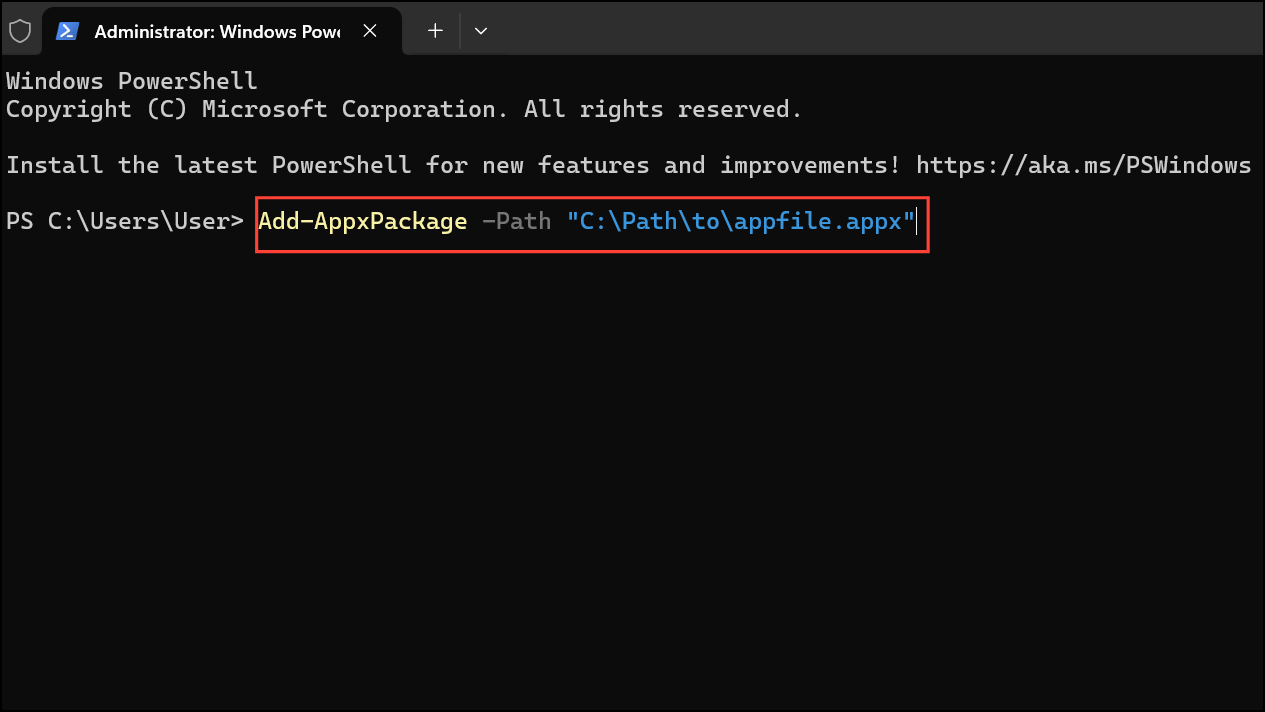
Path\to\appfile.appx with the actual file path:Add-AppxPackage -Path "C:\Path\to\appfile.appx"This command manually installs the app package, bypassing the Microsoft Store interface. If the app requires dependencies, download and install those packages first using the same method.
Restoring Microsoft Store Functionality
Windows + R, type wsreset.exe, and press Enter. A command prompt window will briefly appear, clearing the Store cache and attempting to fix minor issues.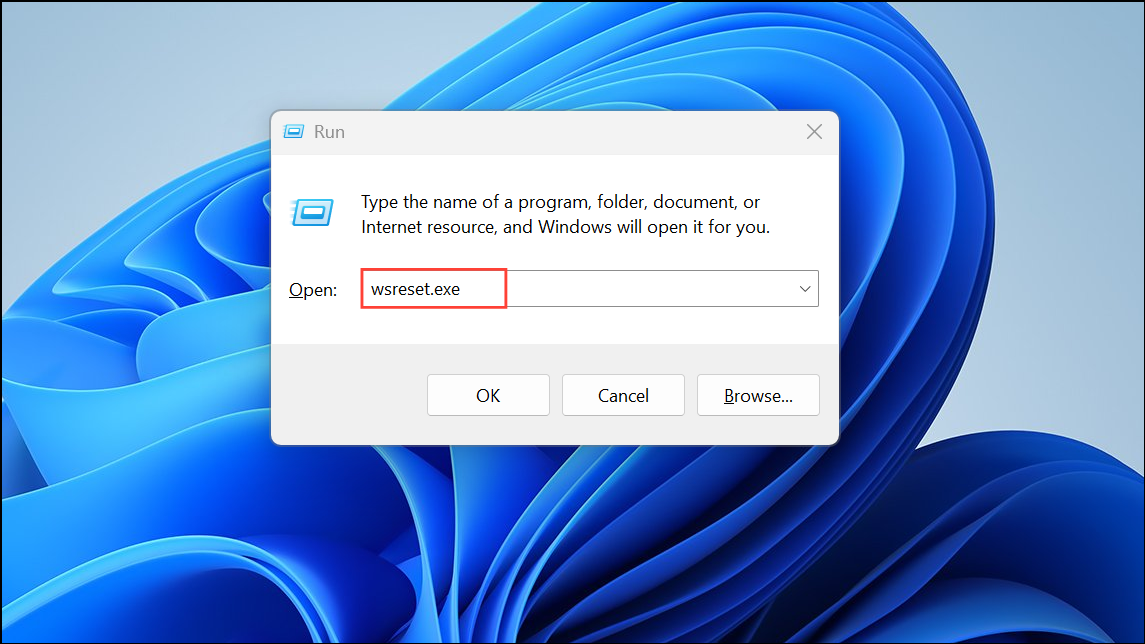
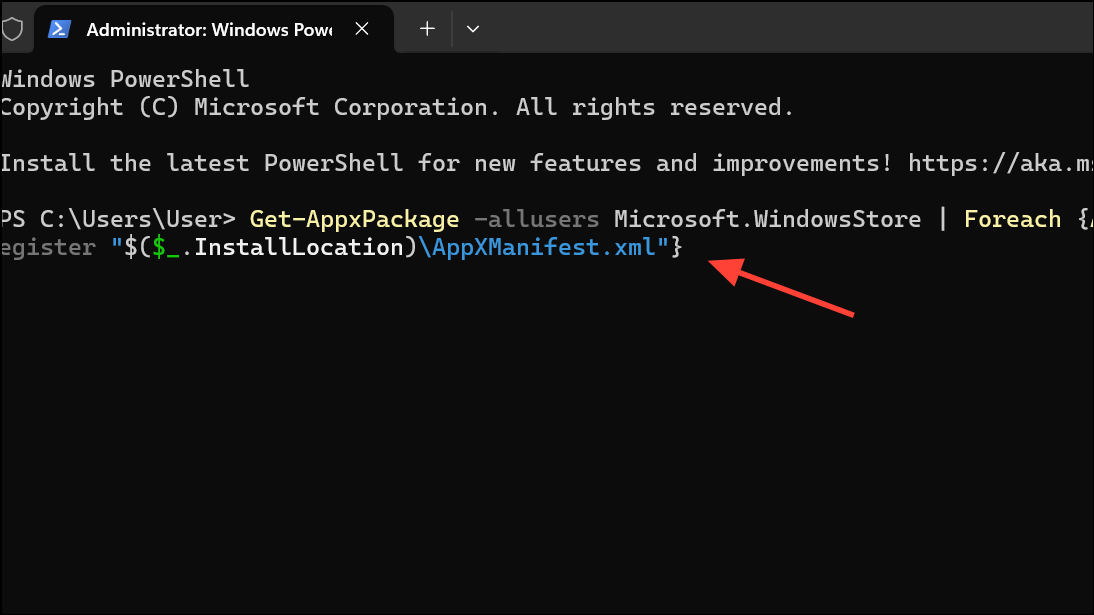
Get-AppxPackage -allusers Microsoft.WindowsStore | Foreach {Add-AppxPackage -DisableDevelopmentMode -Register "$($_.InstallLocation)\AppXManifest.xml"}This command reinstalls the Store app for all users, which can resolve deeper corruption or missing files.
Using Third-Party App Installers
winget install 7zip.7zip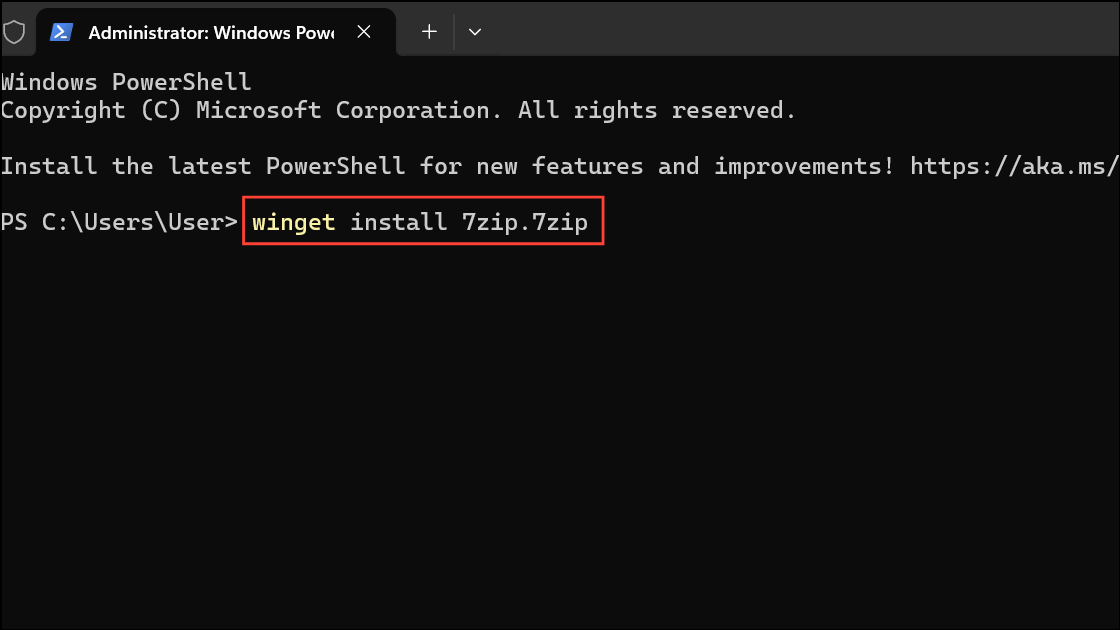
Third-party package managers offer a wide catalog of apps, though not all Microsoft Store-exclusive apps will be available. Always review the list of available packages and verify their sources before installing.
Enabling Essential Windows Update Services Temporarily
Windows + R, typing services.msc, and pressing Enter.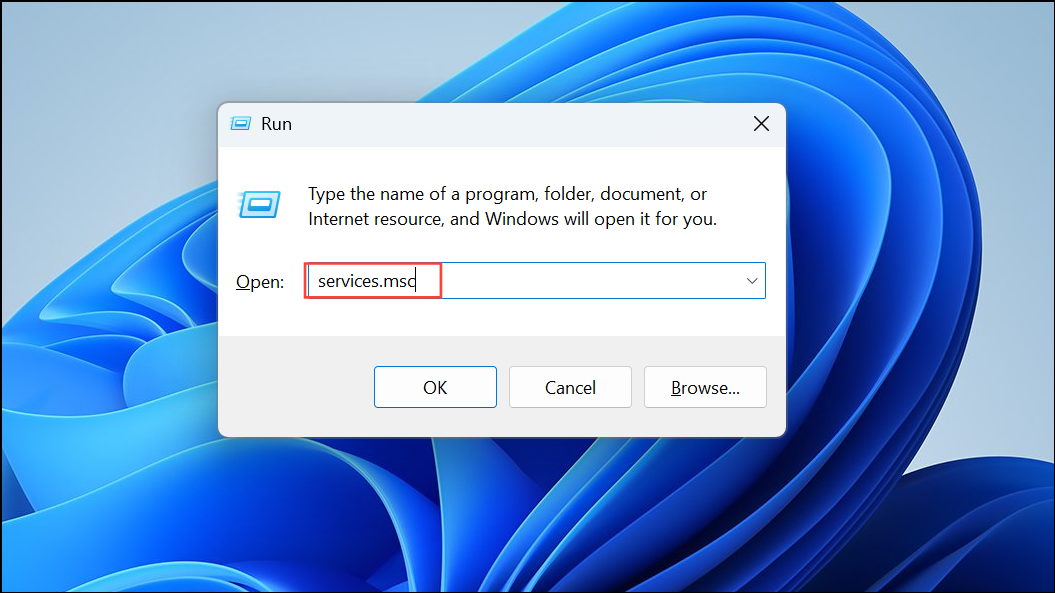
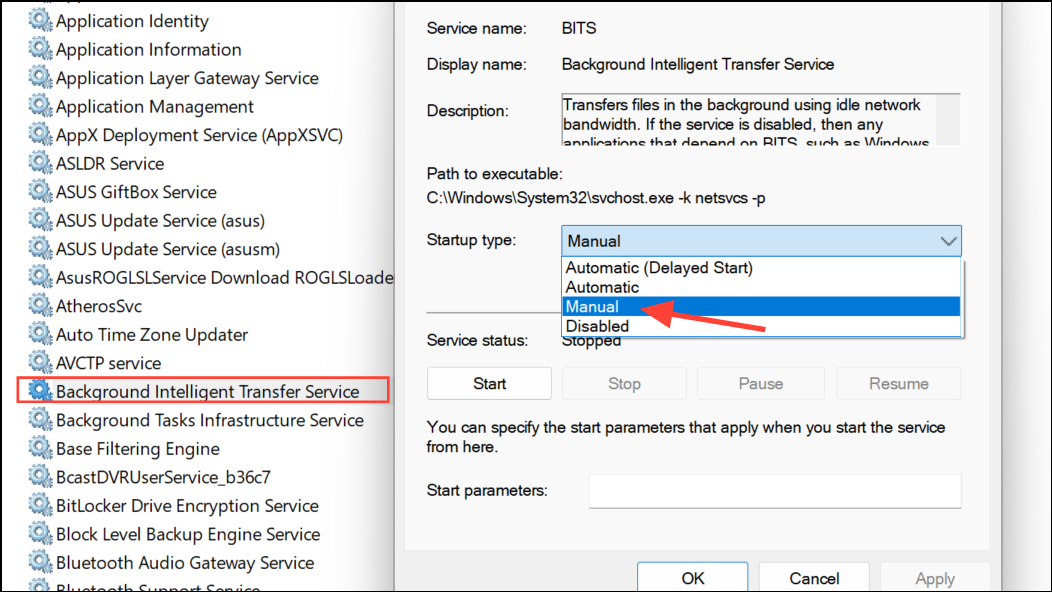
- Windows Update
- Background Intelligent Transfer Service (BITS)
- Microsoft Store Install Service
Right-click each service, select Start, and set the Startup Type to Manual or Automatic as needed. Enabling these services temporarily can allow Store app installation, after which you can return them to their previous state for security or policy compliance.
By using these methods, you can continue installing or restoring Microsoft Store apps even when Windows Update is disabled or the Store is corrupted. Regularly check for app updates and system integrity to maintain smooth operation.





