

Mac Ventura systems may be unable to access symlinked folders when connecting to network file shares hosted by Windows Server 2016. This problem disrupts workflows that rely on symbolic links for organizing shared resources, resulting in missing directories or access errors in Finder and other applications. Addressing this issue requires adjustments on both the Windows Server and Mac client sides to ensure proper handling of symlinks over SMB (Server Message Block) protocol.
Enable Symlink Support on Windows Server 2016 SMB Shares
Windows + R, typing gpedit.msc, and pressing Enter. This tool allows you to configure advanced security and sharing options.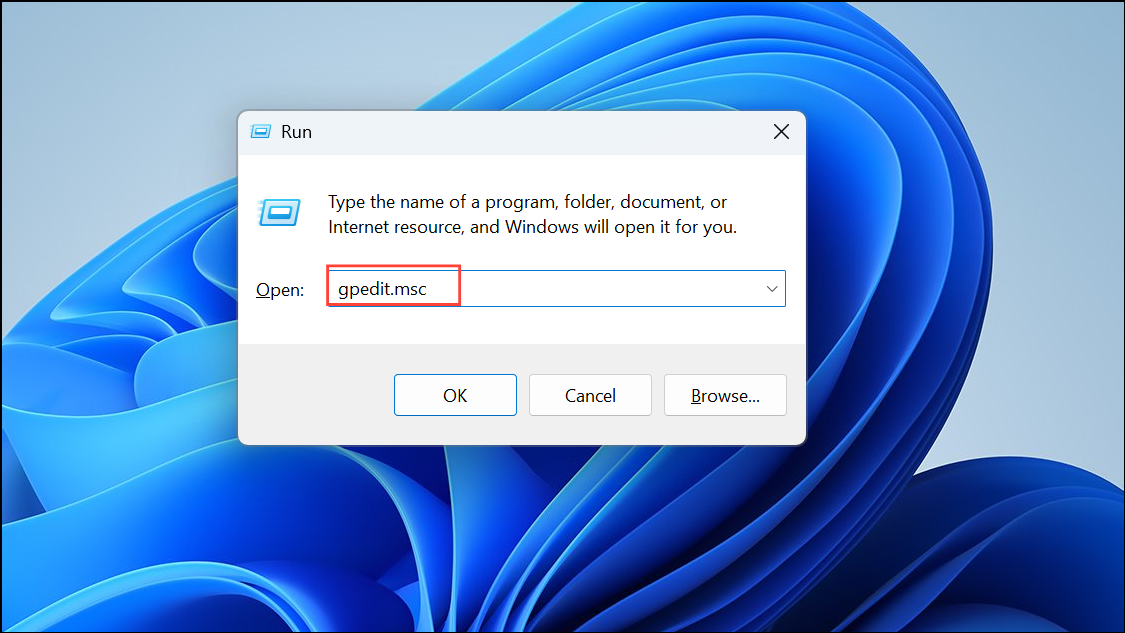
Computer Configuration > Windows Settings > Security Settings > Local Policies > User Rights Assignment. Locate the policy named Create symbolic links.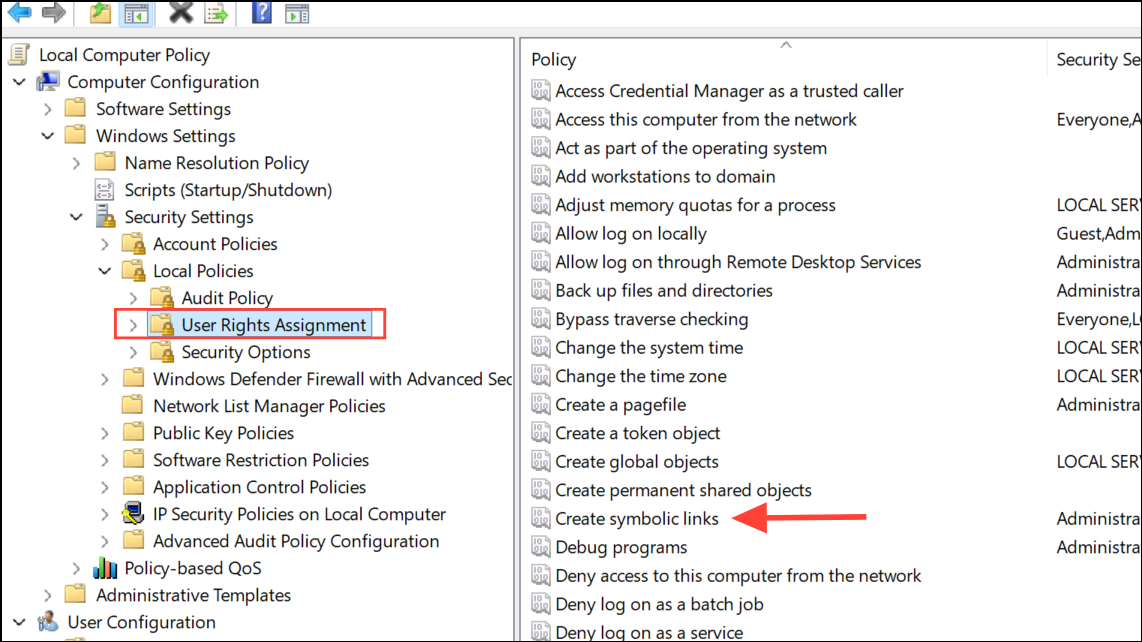
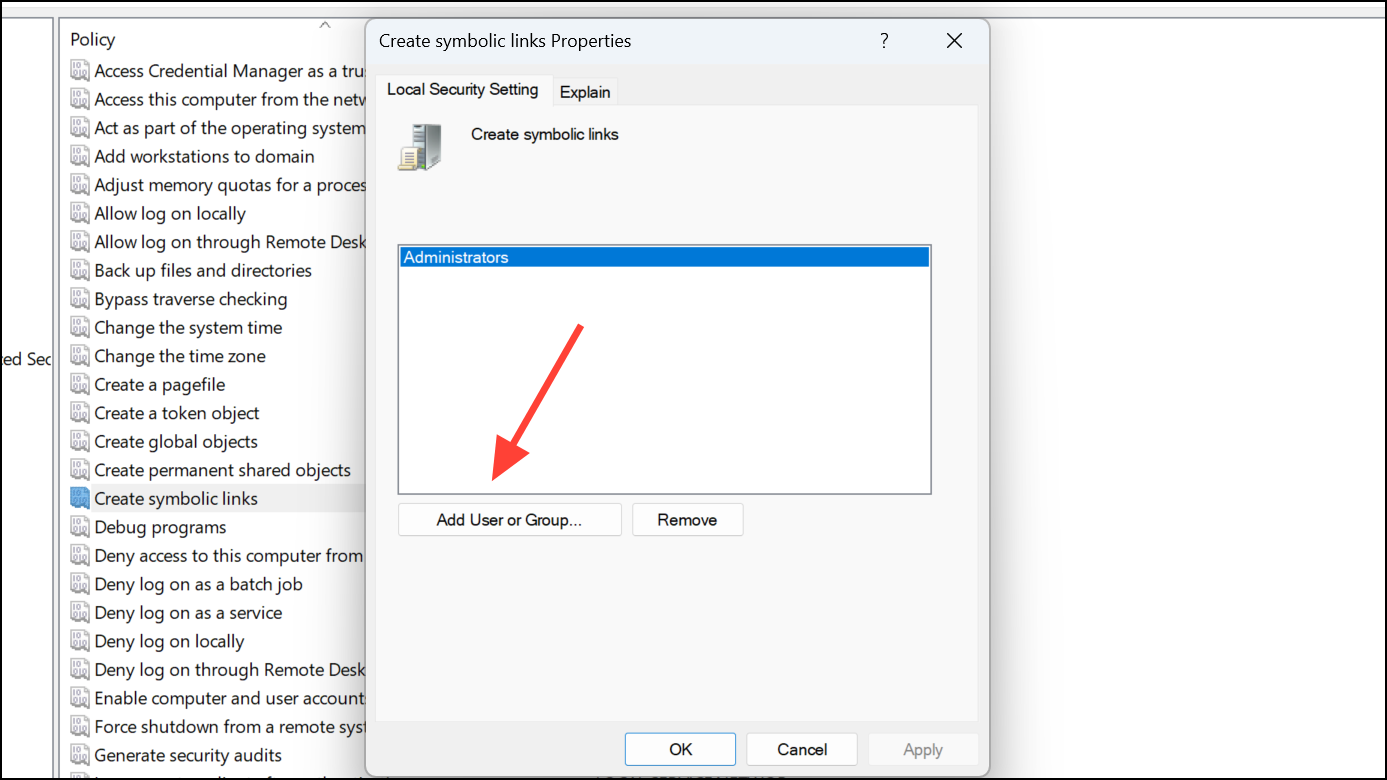
gpupdate /force in a Command Prompt to apply the new group policy settings immediately.Adjust SMB Settings on Windows Server 2016
Command Prompt (Admin) or Terminal (Admin).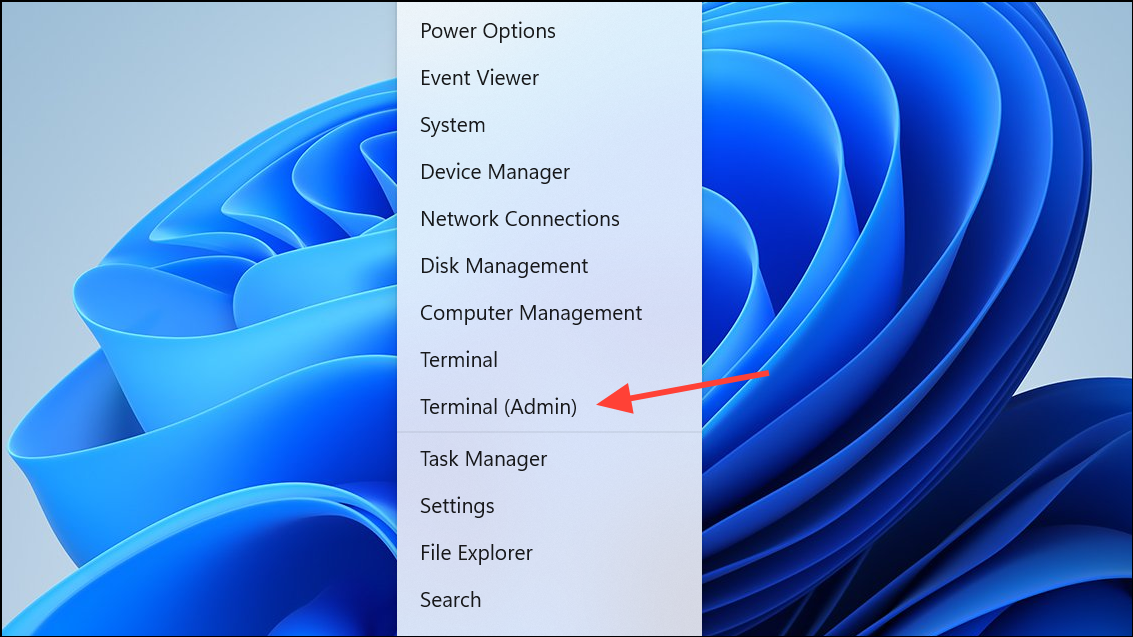
Get-SmbServerConfiguration | Select EnableSMB2Protocol, EnableSMB1Protocol, RejectUnencryptedAccess, EnableSMBDirsymlink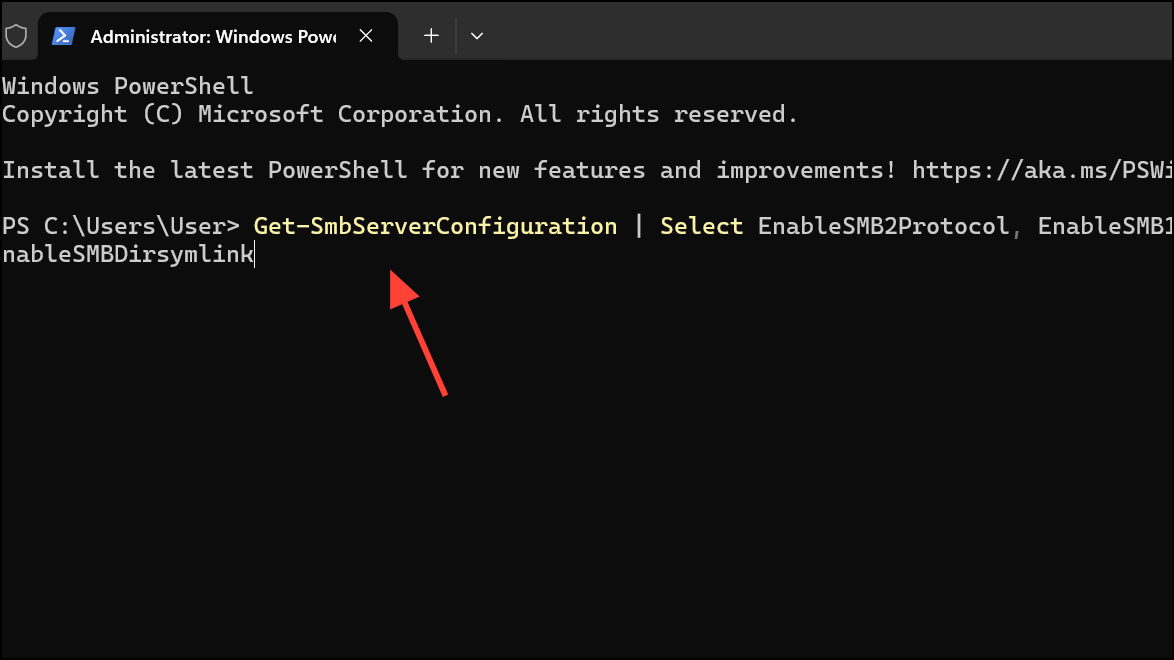
Set-SmbServerConfiguration -EnableSMBDirsymlink $true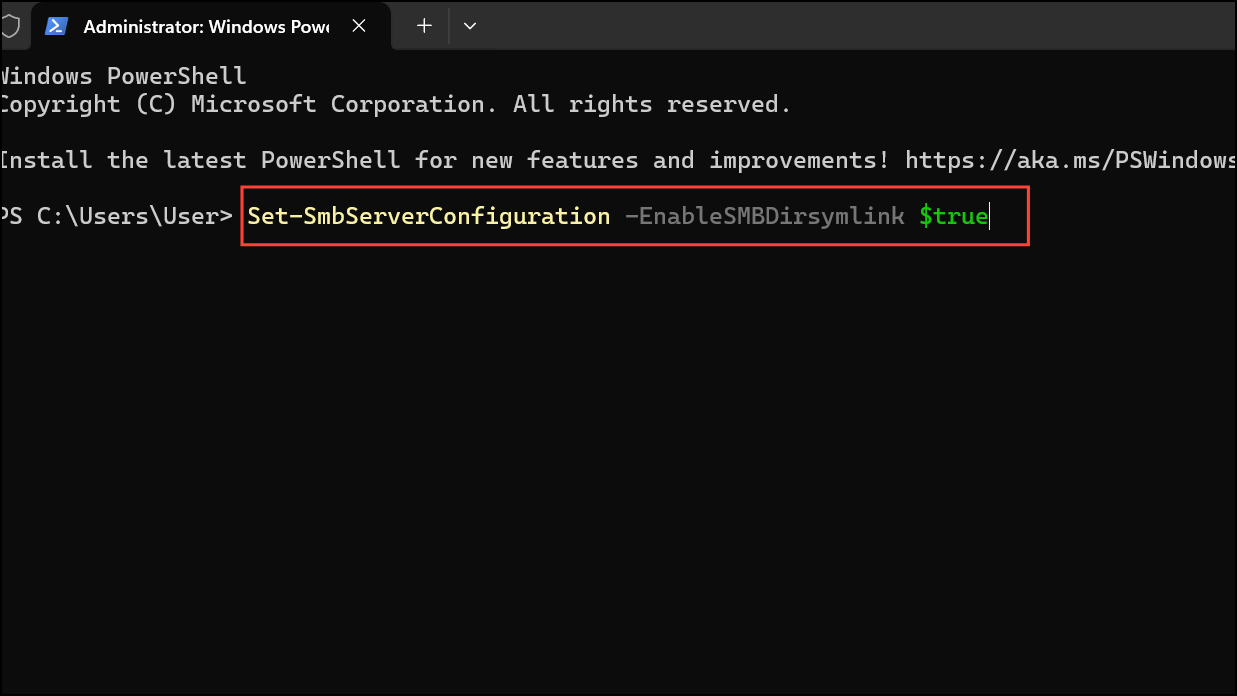
This setting allows the SMB server to support directory symlinks, making them visible and accessible to clients like Mac Ventura.
Restart-Service -Name 'LanmanServer'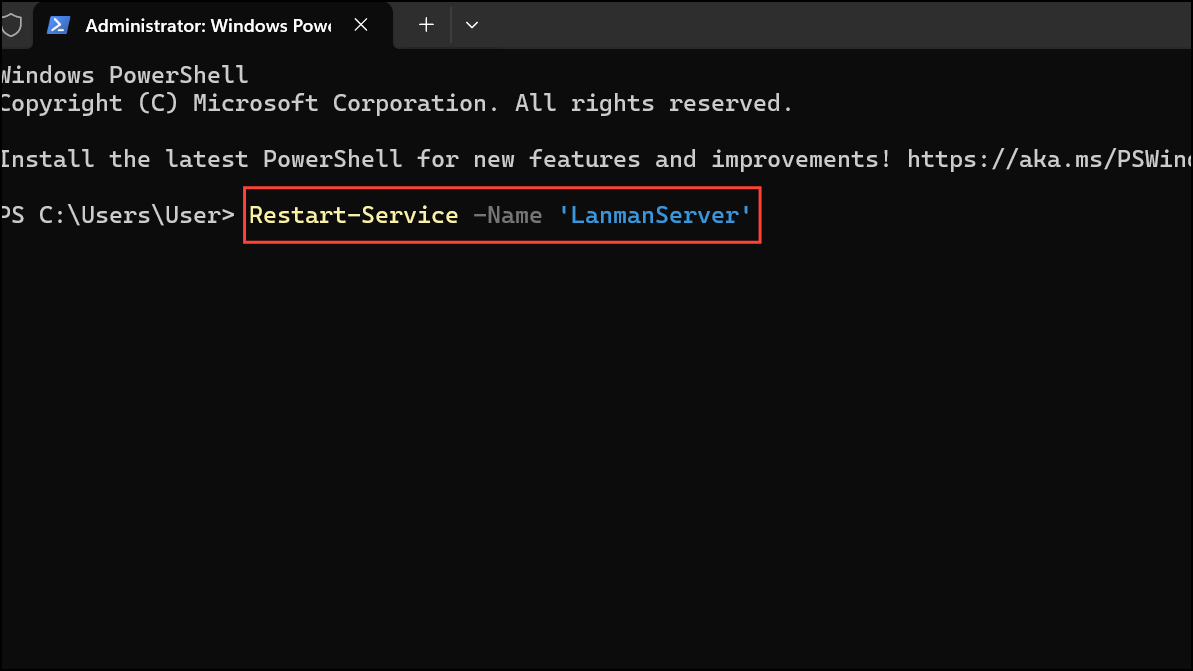
Connect to the SMB Share Using the Correct Protocol on Mac Ventura
Go in the menu bar and select Connect to Server... or press Command + K.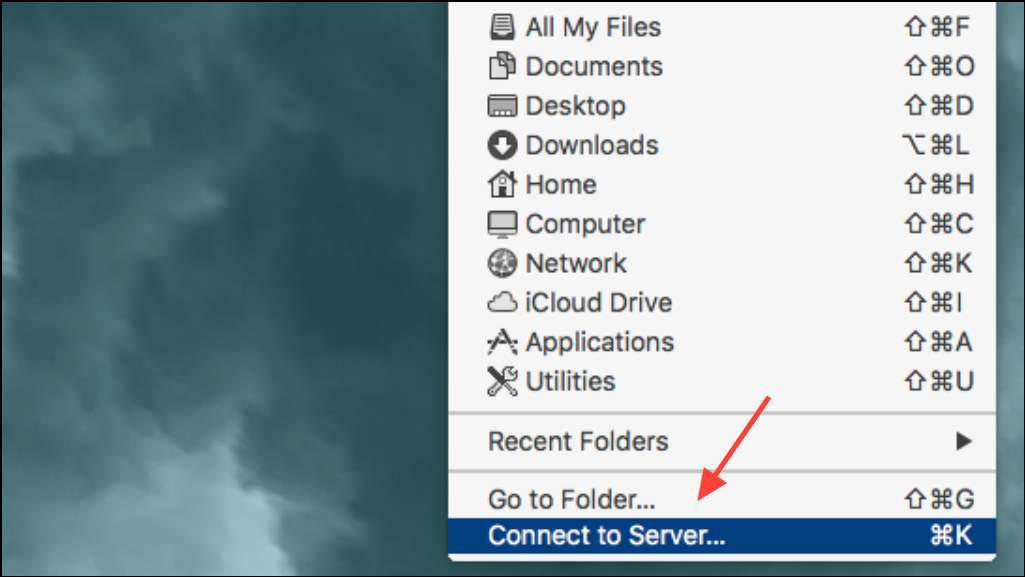
smb:// prefix (for example, smb://servername/sharename).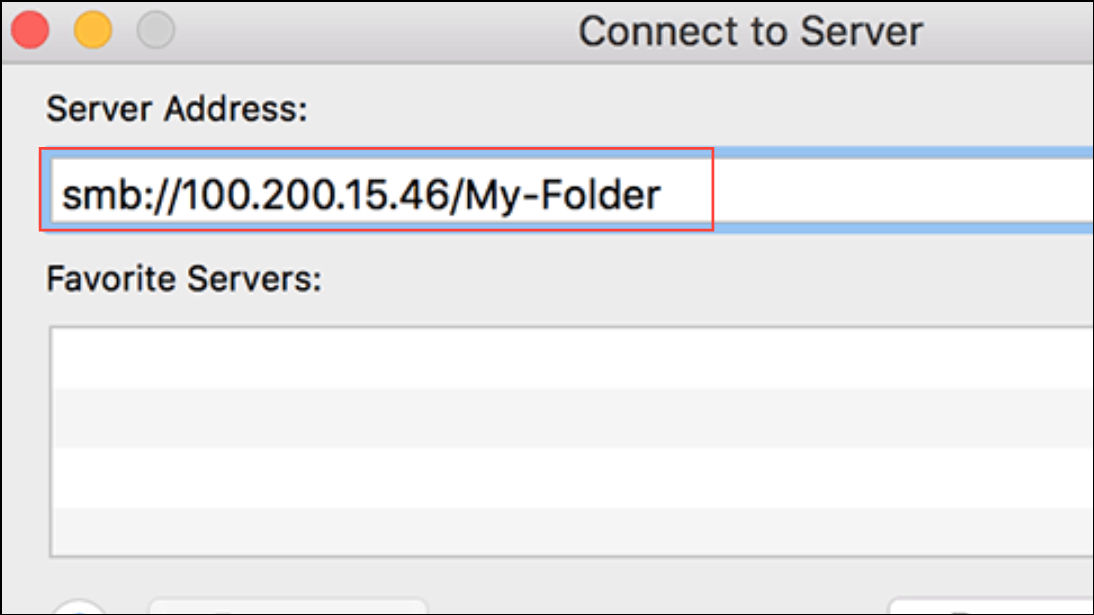
Connect and enter your credentials if prompted. The share should now mount, and symlinked folders should appear if server-side changes were applied correctly.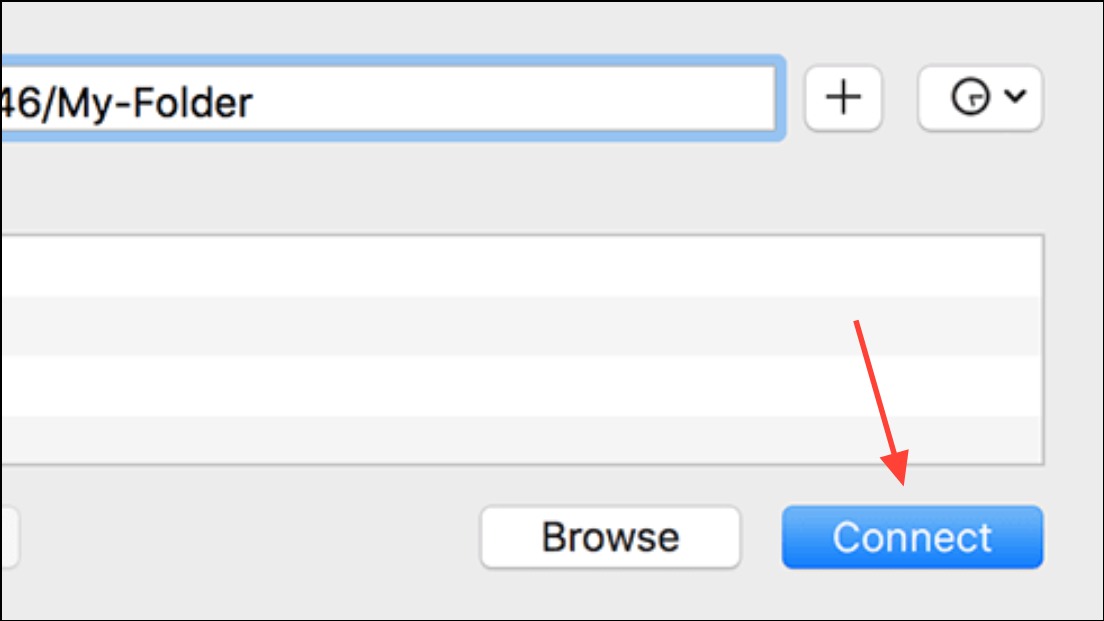
Alternative Workaround: Replace Symlinks with NTFS Directory Junctions
Mac Ventura may not support certain Windows symlink types over SMB due to protocol differences. Using NTFS directory junctions instead of symbolic links can provide better compatibility.
mklink /J "C:\Shared\JunctionFolder" "C:\Target\ActualFolder"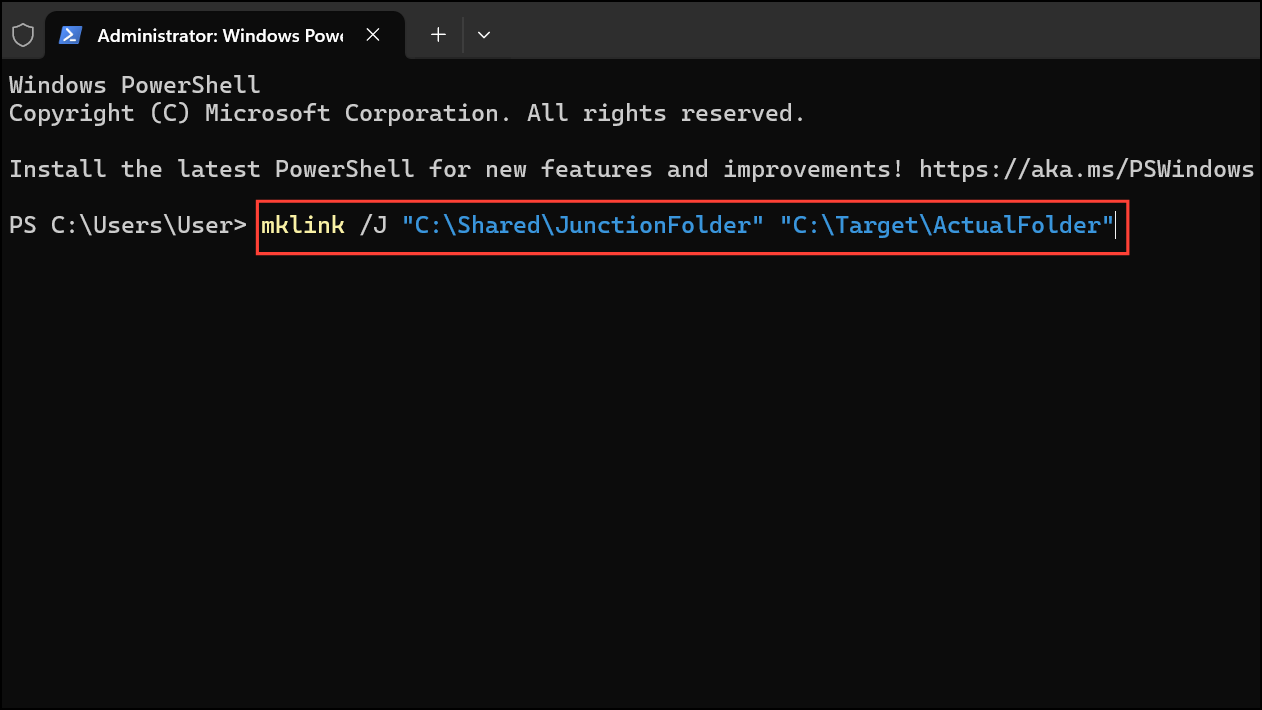
Resolving Mac Ventura’s inability to access symlinked folders on Windows Server 2016 SMB shares involves configuring server-side permissions and settings, as well as considering alternative link types for maximum compatibility. If issues persist, verifying SMB protocol versions and testing with directory junctions can help streamline access for Mac users.





