
Windows offers several ways to transfer everything from one machine to another, including built-in tools and third-party solutions. Migrating data, applications, and settings ensures your new device mirrors your previous setup, minimizing downtime and reducing the risk of missing important files. Starting with Microsoft’s recommended method provides the most reliable and complete transfer.
Using Windows PC Migration Tools
Settings app on both the source and destination computers. Navigate to Accounts > Windows Backup. This feature is available on Windows 10 and Windows 11, and it allows you to back up files, settings, and some application data to your Microsoft account.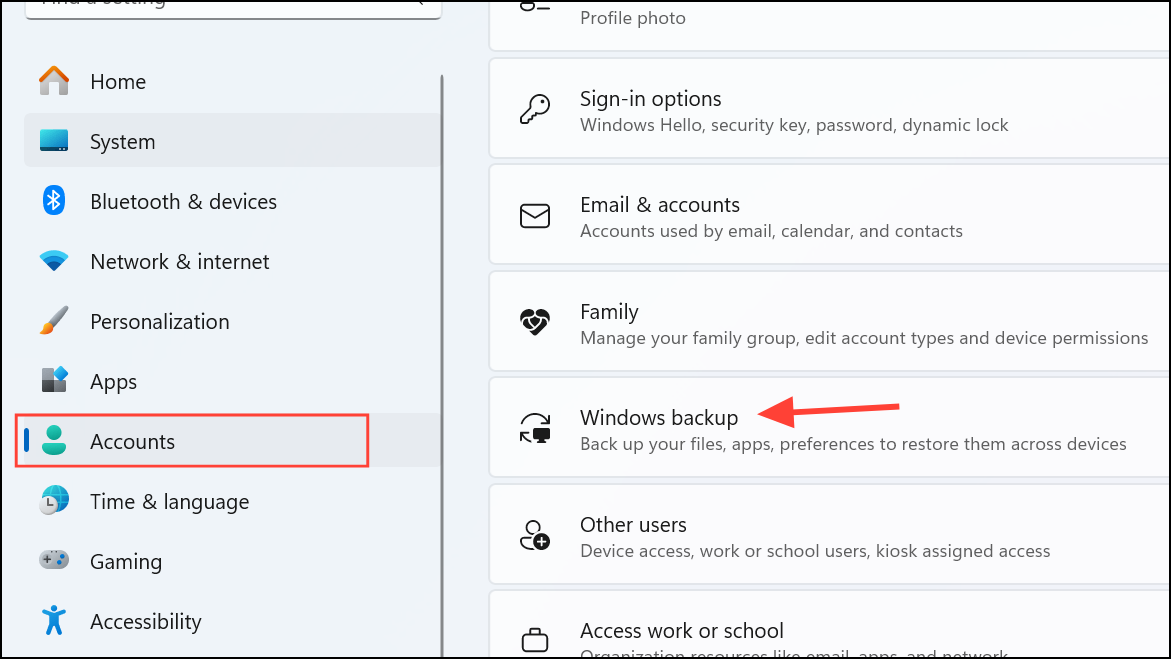
Settings > Accounts > Windows Backup menu, choose to restore from your previous device. Windows will automatically download your files, supported apps, and settings, replicating your old environment.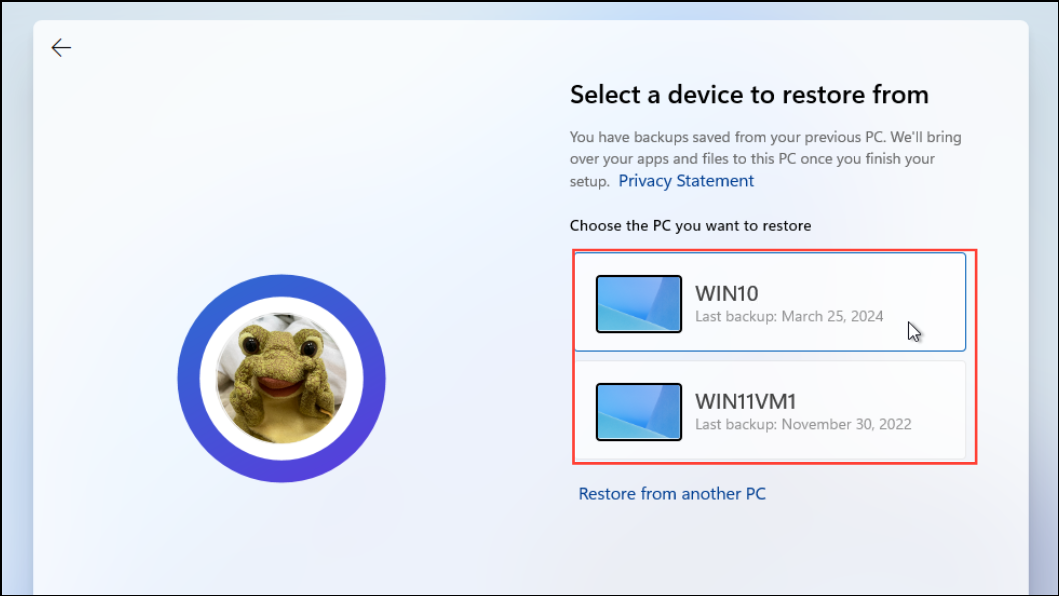
This method streamlines the migration process, especially if you use Microsoft services. It also reduces manual steps and ensures your essential data is securely transferred. Note that some third-party apps may require manual reinstallation, and files outside selected folders may not transfer automatically.
Transferring Data with External Storage
Documents, Pictures, Desktop, and any custom folders.This approach is reliable for files but does not migrate installed programs or system settings. You will need to reinstall the software manually and adjust preferences as needed. Use this method for large files or when network transfer is impractical.
Using a Local Network or Direct Connection
Properties > Sharing > Share. Choose the user or set permissions for Everyone for easier access.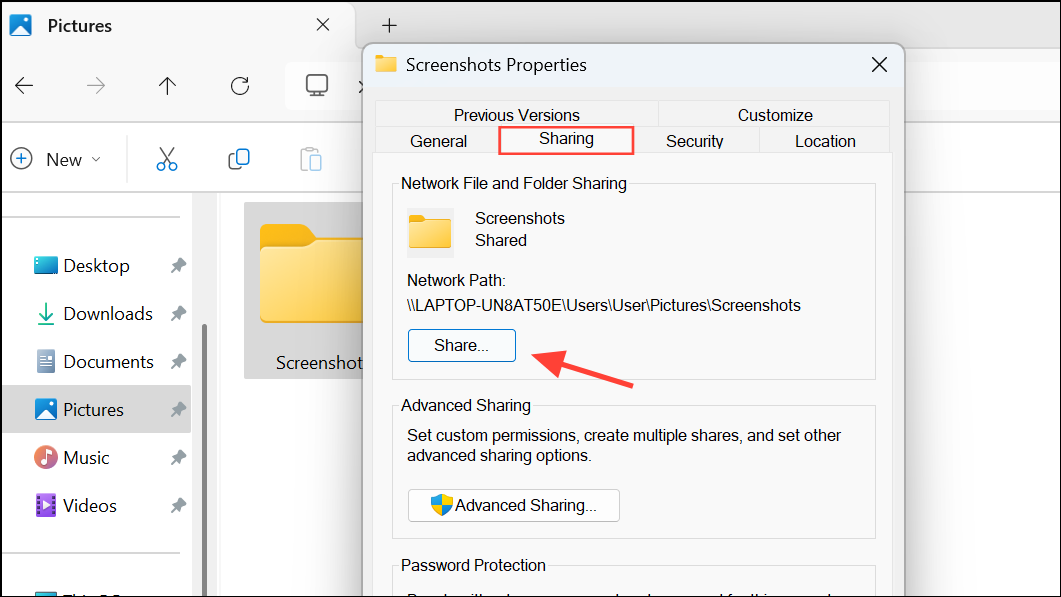
Network, and locate the source computer. Double-click to access shared folders and copy files to your preferred locations.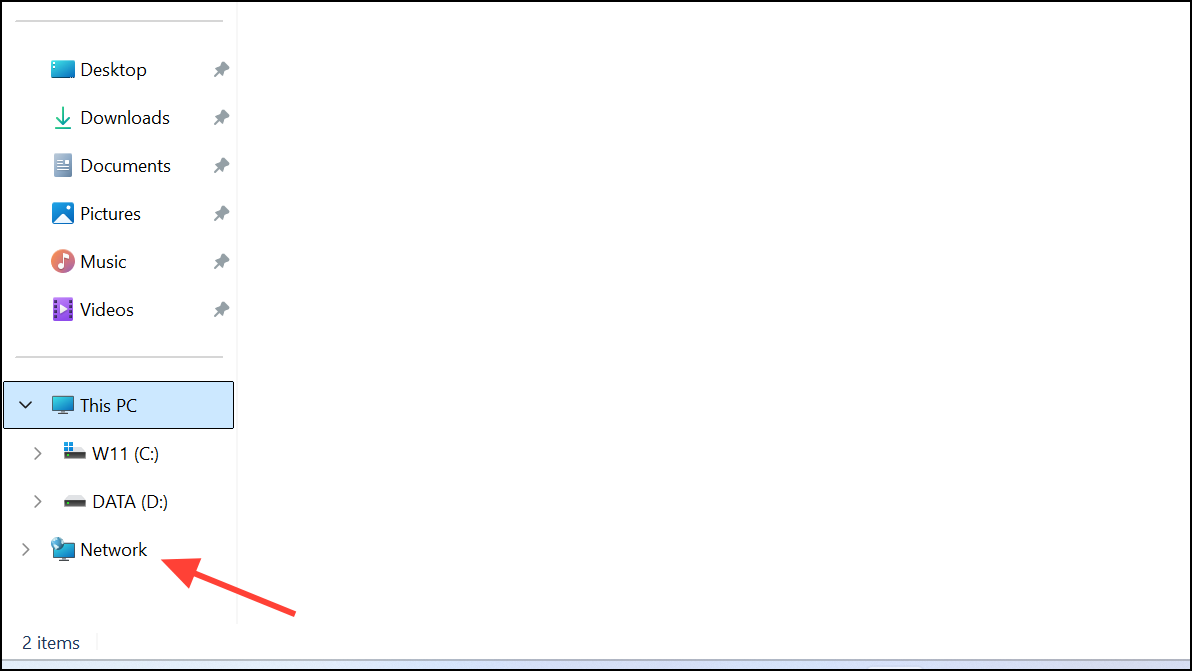
This method is useful for transferring large amounts of data without external drives. However, it does not move applications or system settings. For security, remove sharing permissions when the transfer is complete.
Third-Party Transfer Software
Third-party tools can simplify complex migrations, especially when moving a large number of applications or custom settings. Always choose software from trusted vendors and review privacy policies before use.
Completing a full transfer between Windows machines saves time and reduces setup headaches, letting you get back to work faster on your new device. Double-check your files and settings to ensure everything moved as expected, and keep backups until you’re confident nothing was missed.





