
Windows assigns desktop backgrounds and slideshows to your monitors through its Personalization settings. By default, activating a slideshow affects all connected displays, but you can configure the system to show a slideshow on just one monitor while keeping the other monitor’s background unchanged. This setup is especially useful for workstations where you want dynamic visuals on one screen and a distraction-free workspace on the other.
Configuring Slideshow on Only One Monitor Using Windows Settings
Personalize. This opens the Personalization menu, where you can adjust your background settings.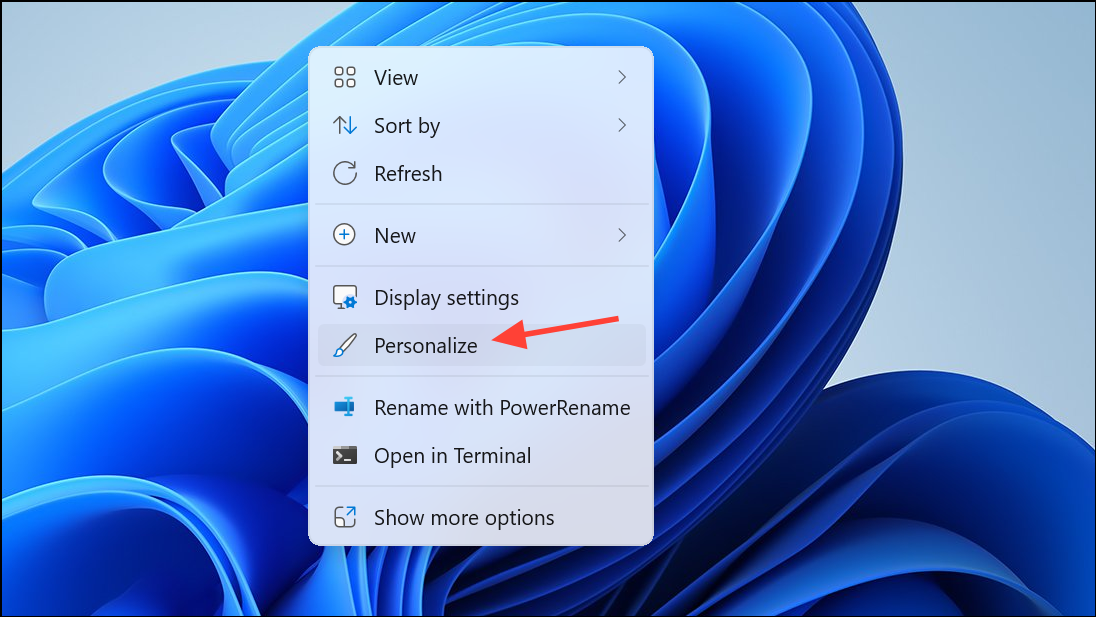
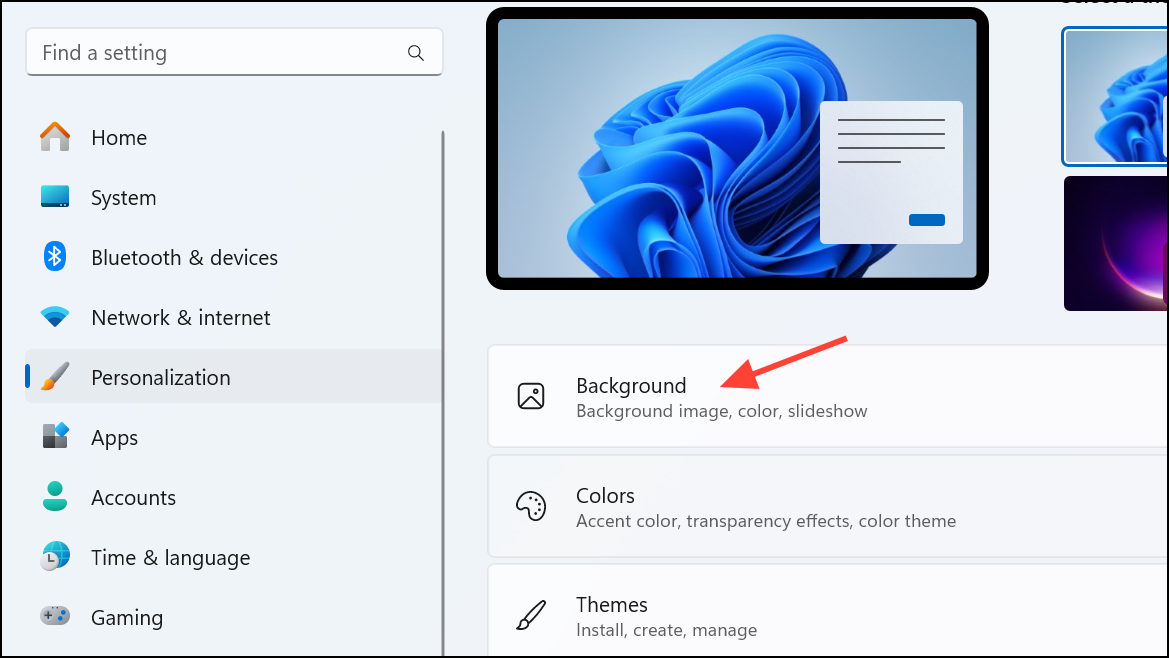
Background drop-down menu, select Slideshow. This enables slideshow mode for your desktop backgrounds.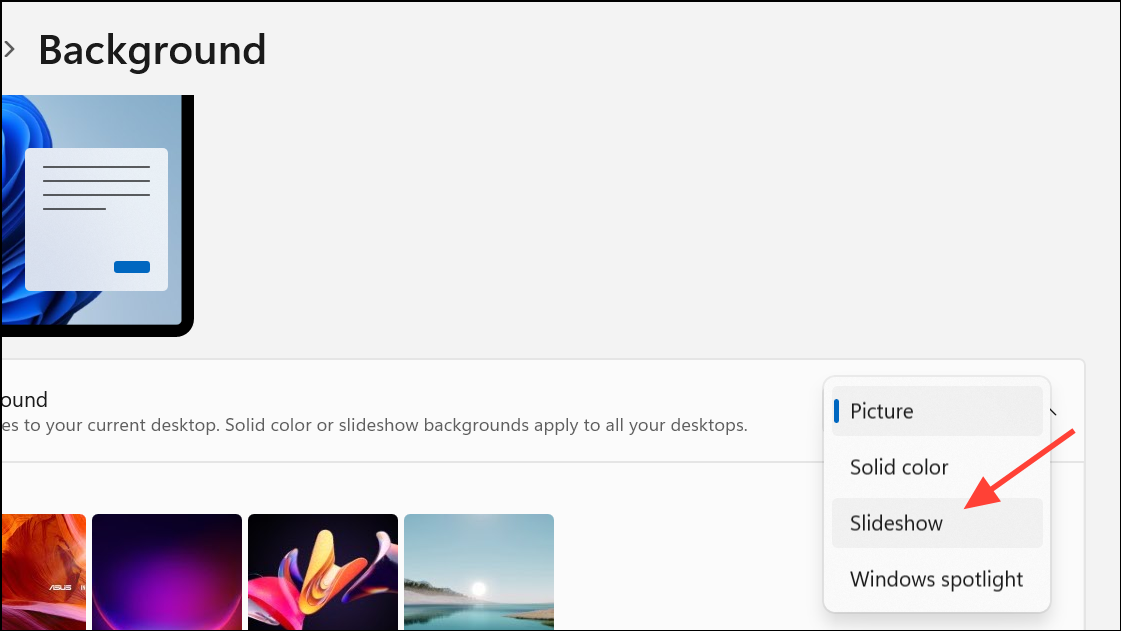
Browse to choose the folder containing the images you wish to use for your slideshow. Pick the desired folder, then click Choose this folder.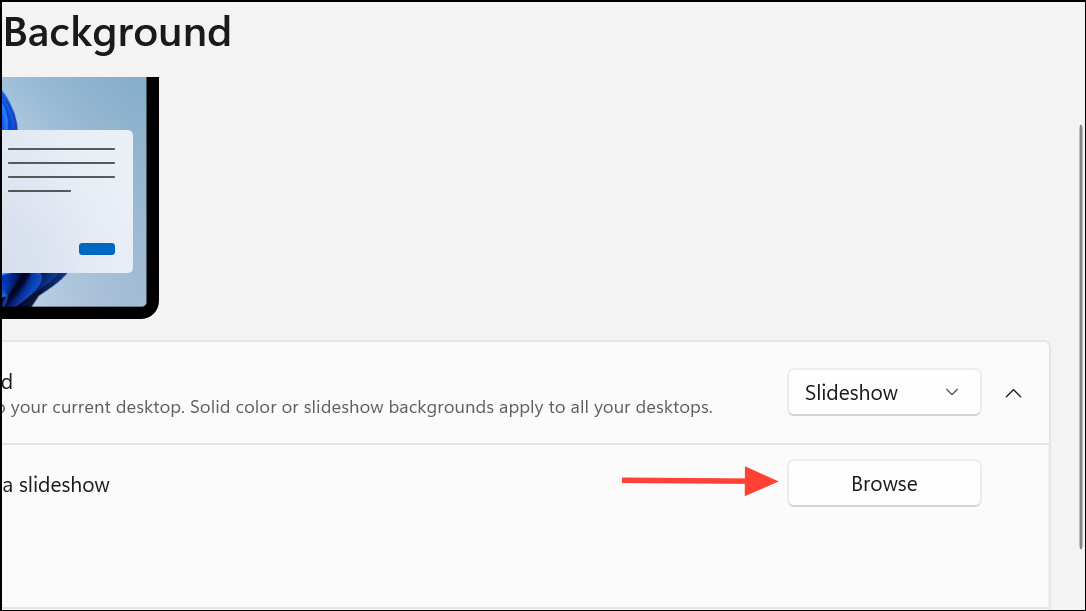
Change picture every and Shuffle as needed. These control how often the images change and whether they appear in random order.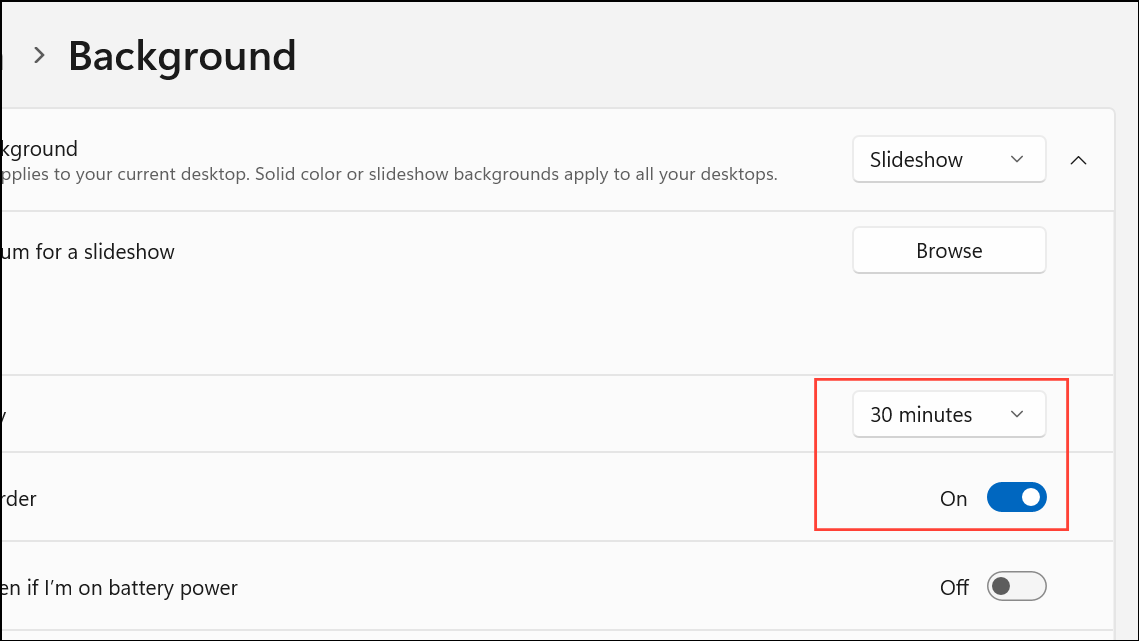
Choose your picture section, then select Set for monitor 1 or Set for monitor 2 depending on which screen should show the slideshow. Assign a static image to the other monitor by right-clicking a different image and choosing Set for monitor [number].This method uses built-in Windows functionality and does not require third-party software. However, Windows may sometimes synchronize backgrounds across both monitors, so double-check your setup after applying these changes.
Using Third-Party Wallpaper Managers for Advanced Control
For more granular control or if Windows Settings do not behave as expected, third-party wallpaper managers such as DisplayFusion or Wallpaper Engine can assign slideshows to individual monitors.
Slideshow as the background type, then choose your desired image folder and adjust slideshow timing and transitions.Third-party tools often provide more reliable separation between monitors and may include extra features like multi-monitor taskbars or advanced image effects.
Manual Method: Setting a Static Background on One Monitor
If you want to avoid third-party software and the Windows slideshow assignment is inconsistent, you can manually set a static background on one monitor and a slideshow on the other by following these steps:
- Set up the slideshow as described in the first method.
- Right-click on the desktop background thumbnail for the non-slideshow monitor and select a single image as its background.
- This may need to be repeated if Windows resets the backgrounds after a system restart or update.
This approach is less reliable but works for simple, temporary setups.
Configuring a slideshow on only one monitor in a dual monitor setup streamlines your workflow by keeping one display dynamic and the other distraction-free. Check your configuration after system updates, as Windows settings may occasionally revert.





