Local web development workflows depend on accessing localhost to test applications. When Firefox cannot reach localhost but Edge and Chrome work as expected, the issue often relates to browser-specific network settings, proxy configurations, or security restrictions. Addressing these differences restores reliable local testing in Firefox.
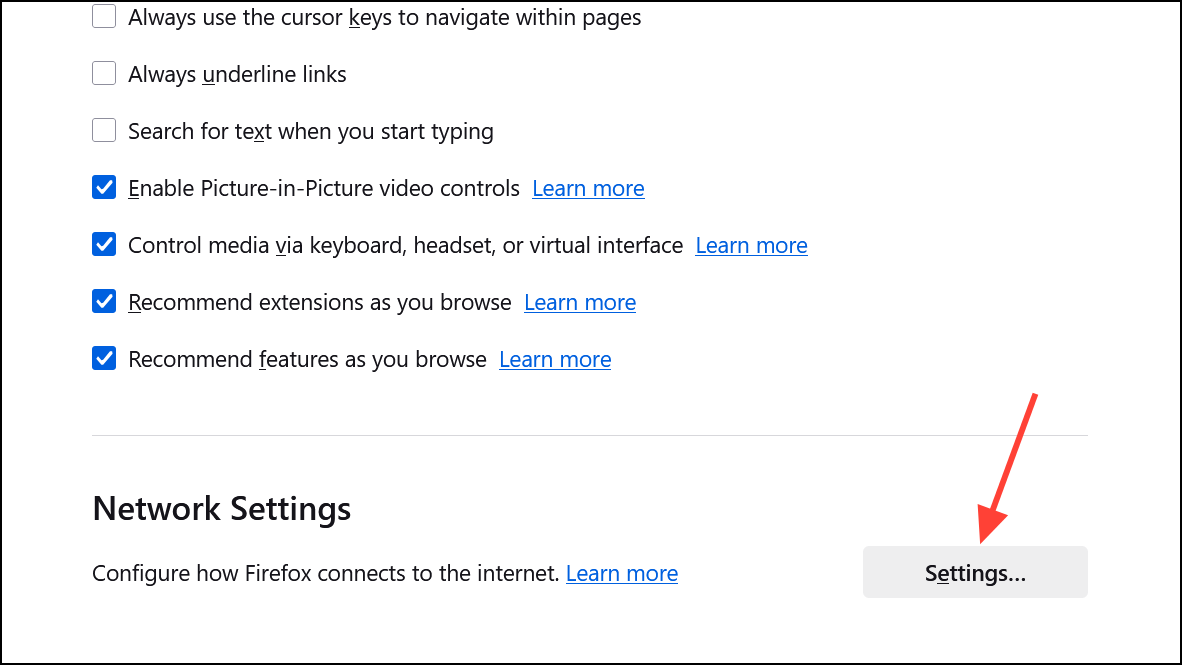
Check Firefox Proxy Settings
Settings from the dropdown.
No proxy or Use system proxy settings is selected. If Manual proxy configuration is enabled, verify that localhost and 127.0.0.1 are listed under No Proxy for. This bypasses the proxy for local addresses.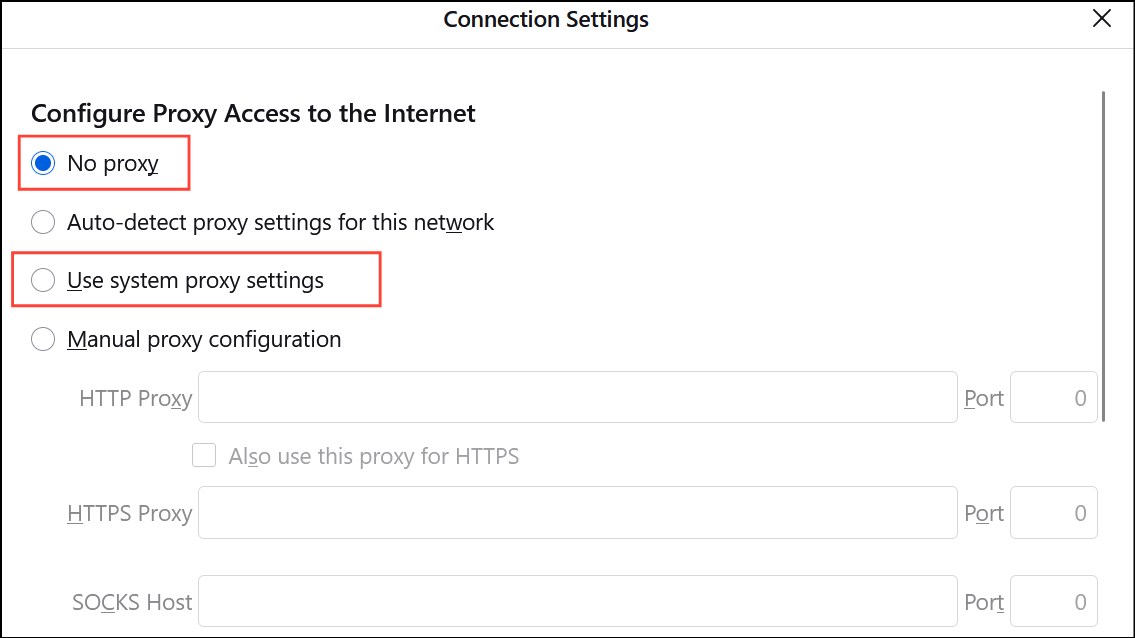
Allow Insecure Connections to Localhost
Firefox blocks certain insecure connections by default, especially when accessing https://localhost with self-signed certificates. This can cause a refusal to connect.
Advanced on the error page.Accept the Risk and Continue to bypass the warning for local development. This adds a security exception for your local server.Settings, search for Certificates, and click View Certificates. Under the Servers tab, you can remove or modify exceptions as needed.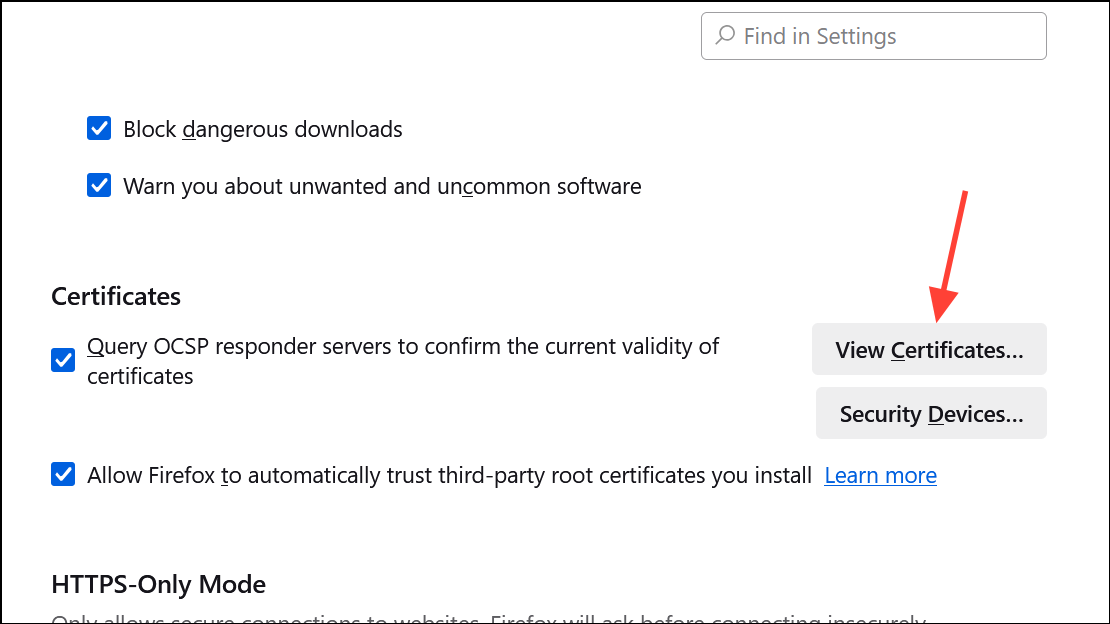
Temporarily Disable Enhanced Tracking Protection
Firefox’s Enhanced Tracking Protection (ETP) may interfere with localhost access, particularly if your development environment uses cookies or custom headers.
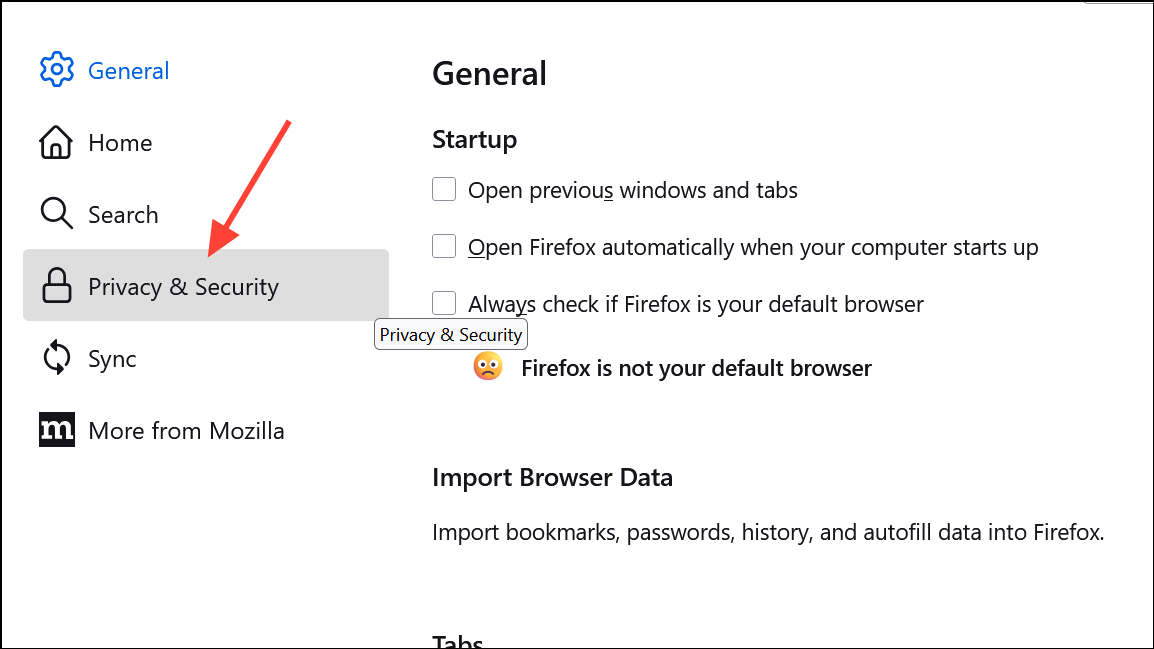
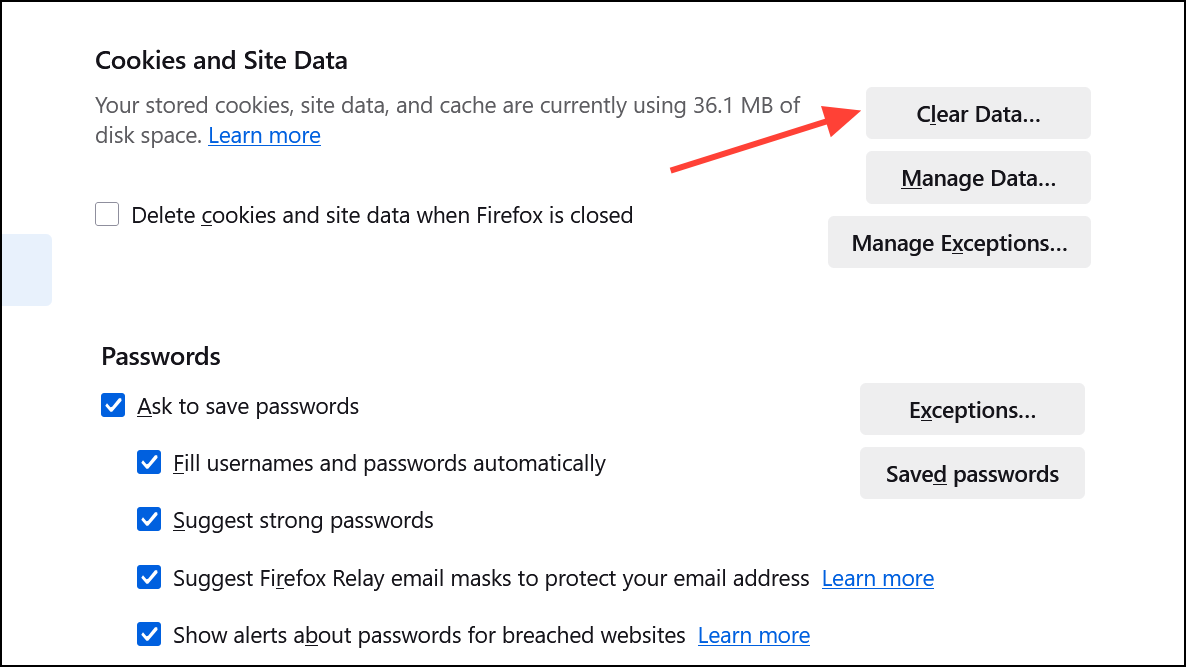
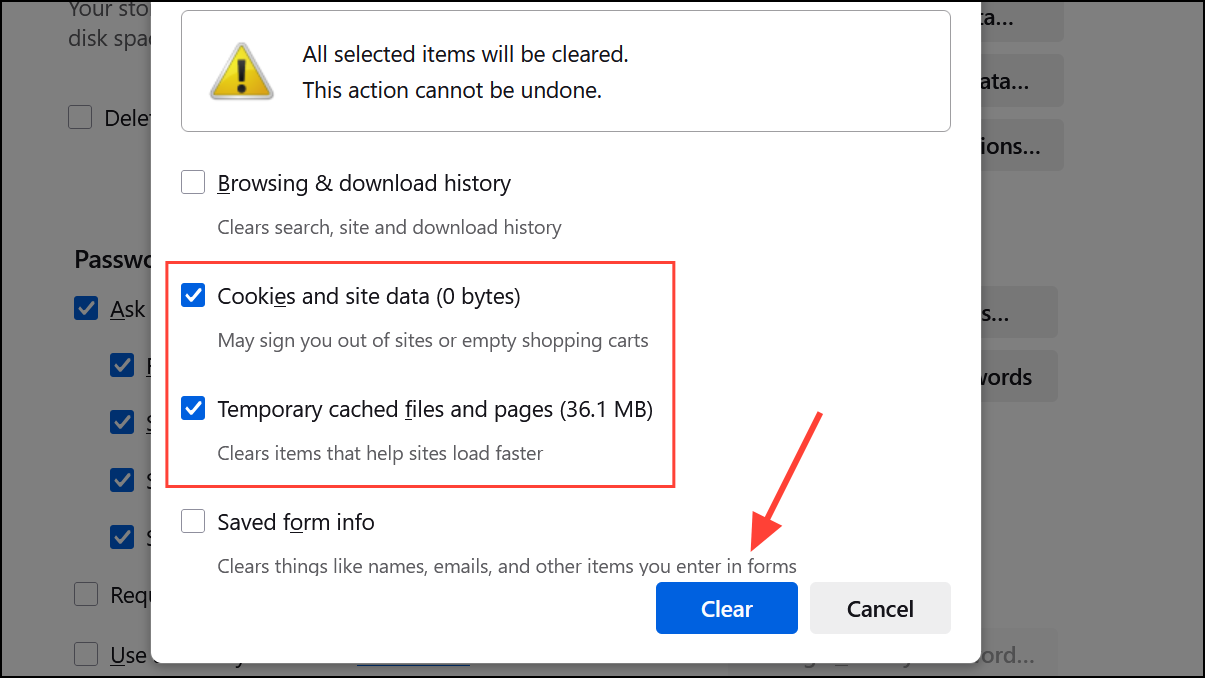
Clear Firefox Cache and Cookies
Corrupted cache or cookies can prevent Firefox from properly loading localhost resources.
Check Windows Firewall and Antivirus Settings
Some security software may block Firefox from connecting to local addresses while allowing other browsers. Adjusting these settings can restore access.
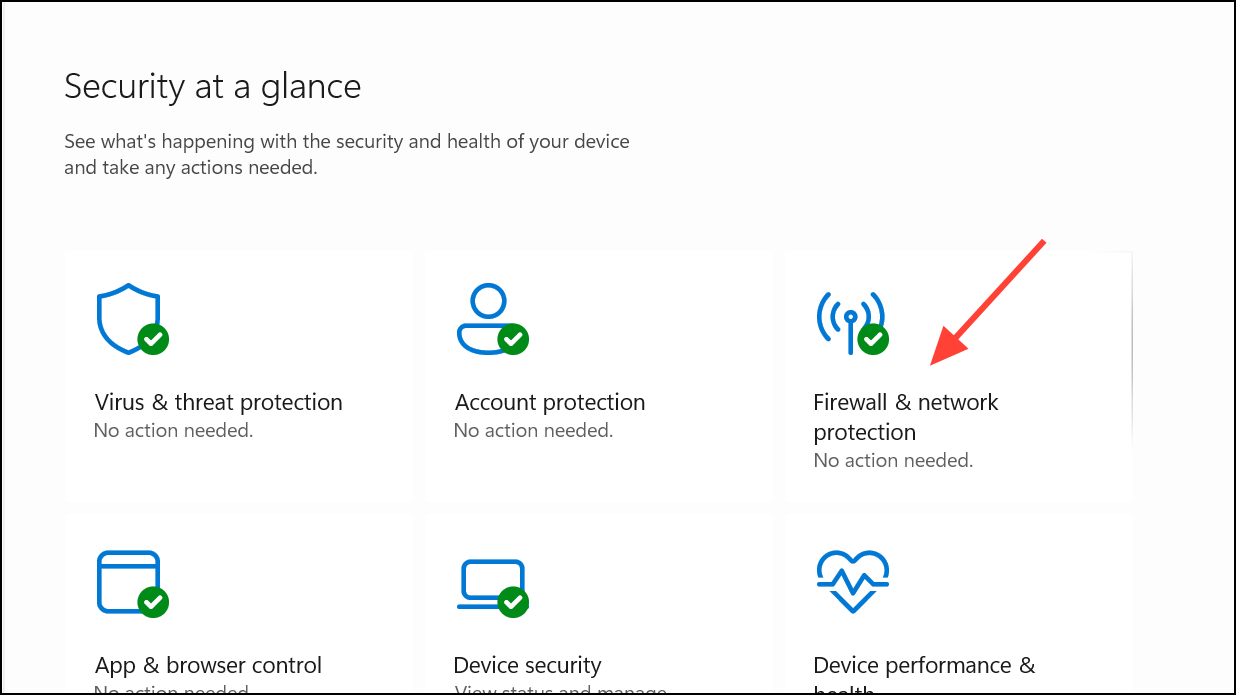
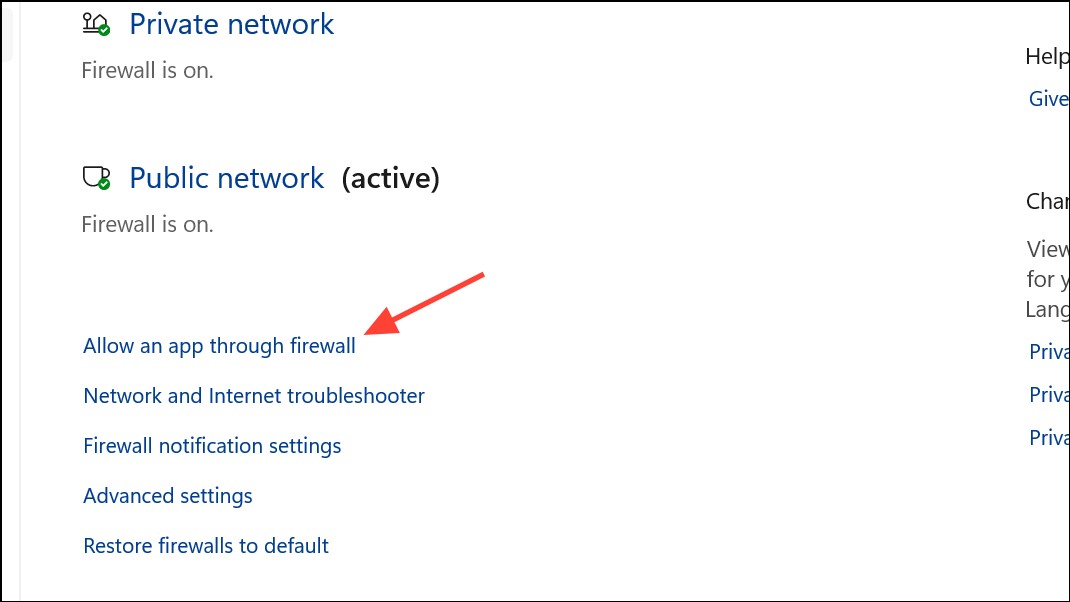
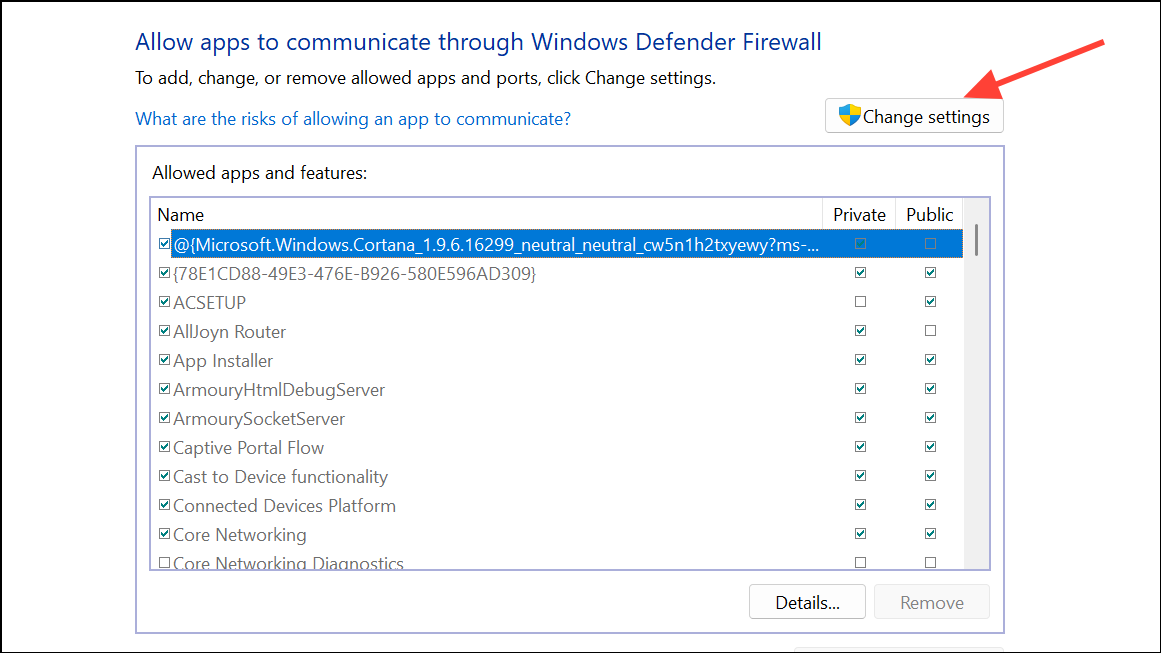
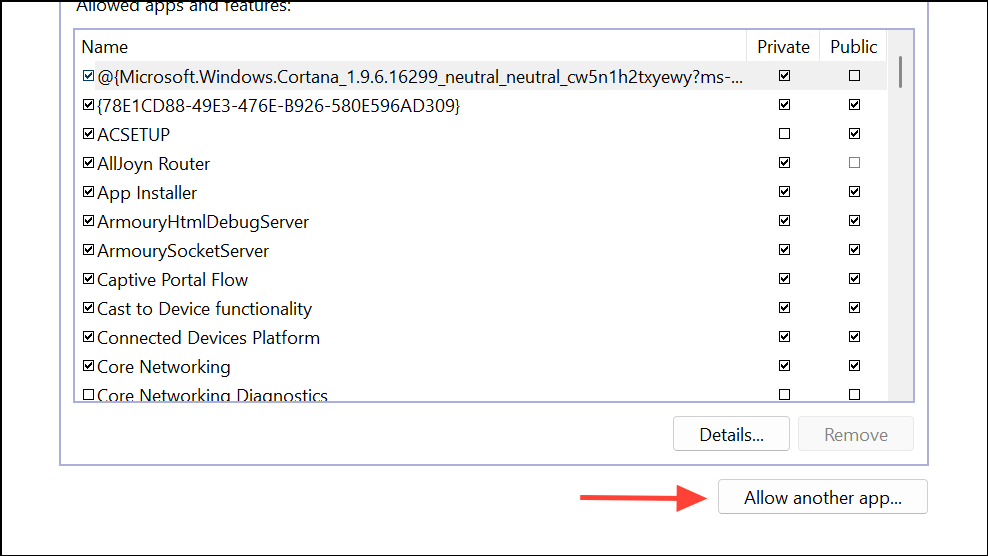
Mozilla Firefox and select it. Ensure it is checked for both Private and Public networks.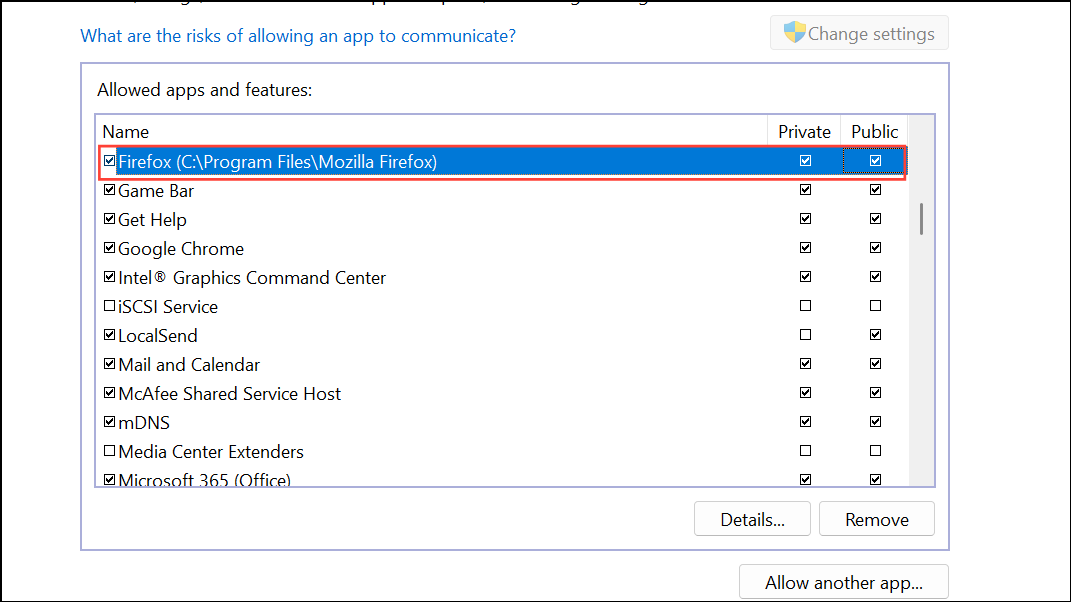
Reset Firefox Network Settings
If none of the above steps resolve the issue, resetting Firefox’s network settings can resolve persistent misconfigurations.
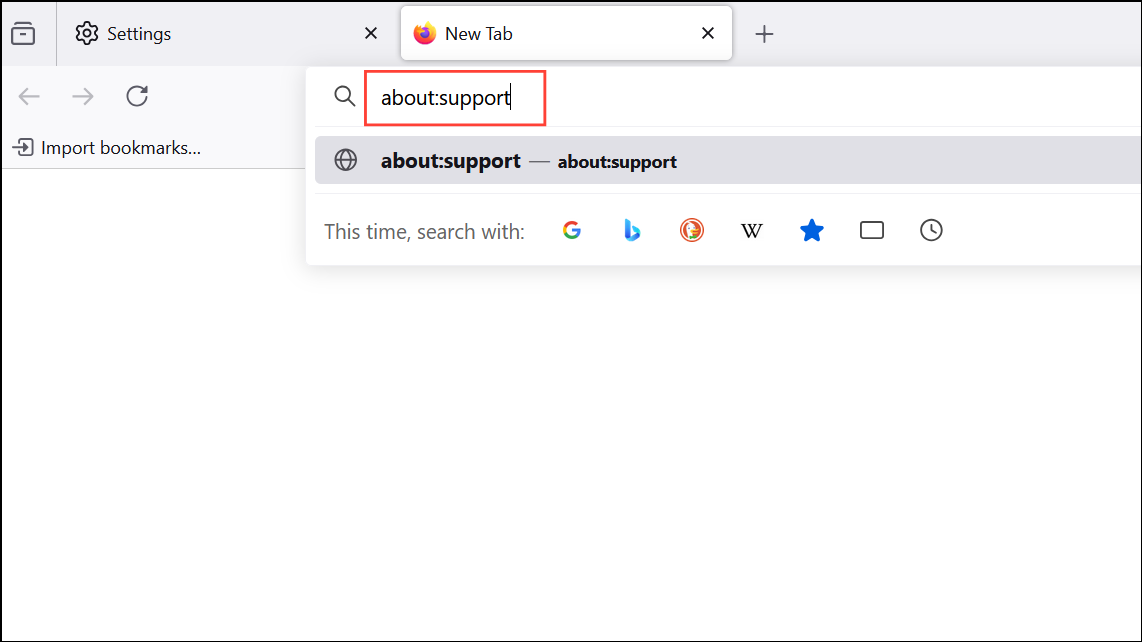
Refresh Firefox… in the upper right corner. This will restore Firefox to its default state, removing add-ons and custom settings.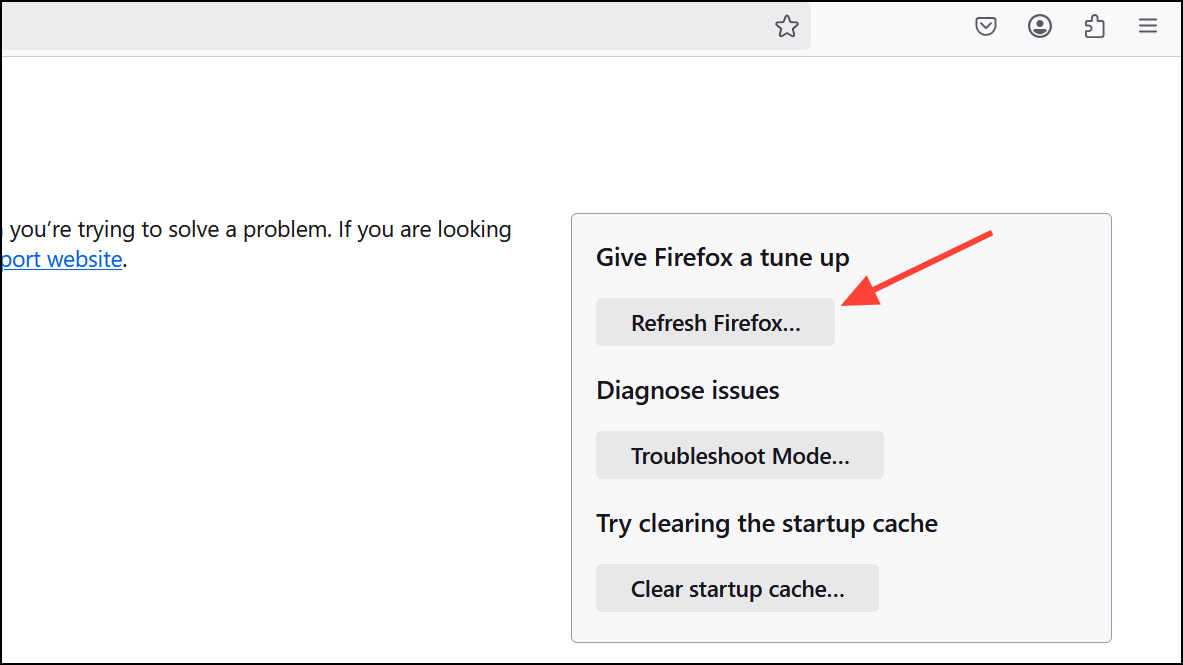
Addressing these browser-specific settings and security restrictions usually restores localhost access in Firefox, streamlining your development process alongside Edge and Chrome.