
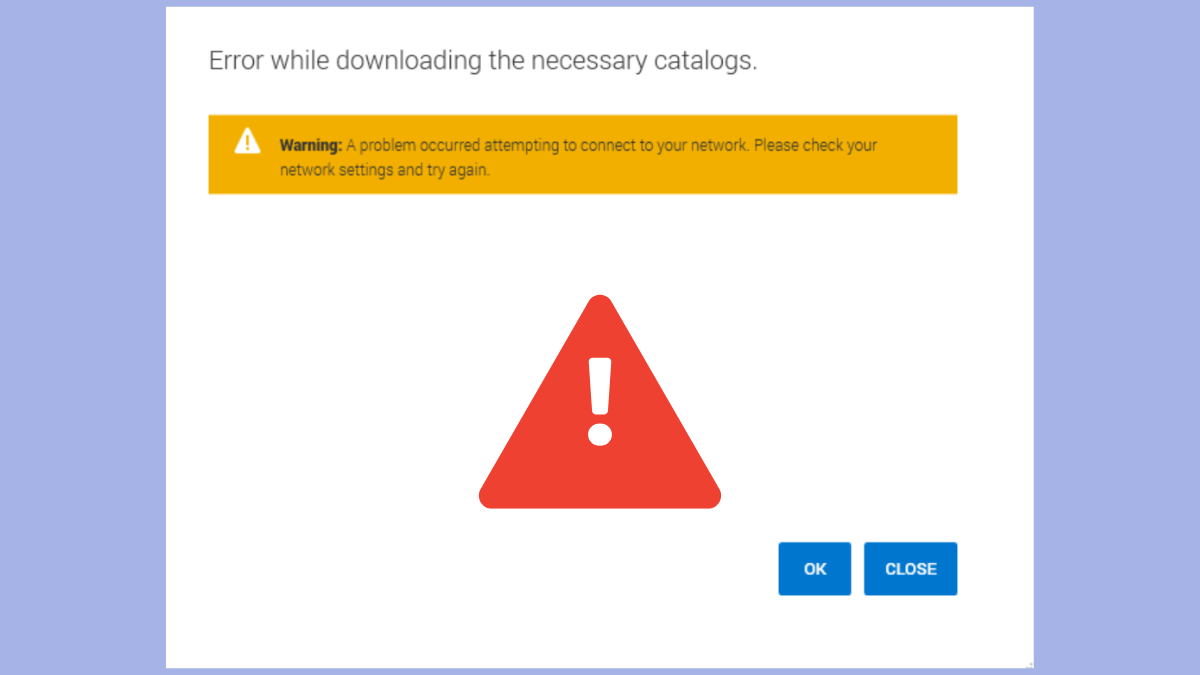
Dell Command Update is a crucial utility for maintaining your Dell system’s drivers, firmware, and BIOS up-to-date. However, encountering an error like “error while downloading the necessary catalogs” can prevent updates and leave your system vulnerable or running suboptimally. This issue typically arises due to network misconfigurations, outdated software, or incorrect system settings. Fortunately, you can resolve this issue quickly by following the methods described below.
Method 1: Check and Update Your Dell Command Update Software
The most effective solution to the Dell Command Update catalog download error is ensuring you are running the latest version of the software. Older versions may experience compatibility issues with Dell’s servers, resulting in errors.
Control Panel > Programs > Programs and Features.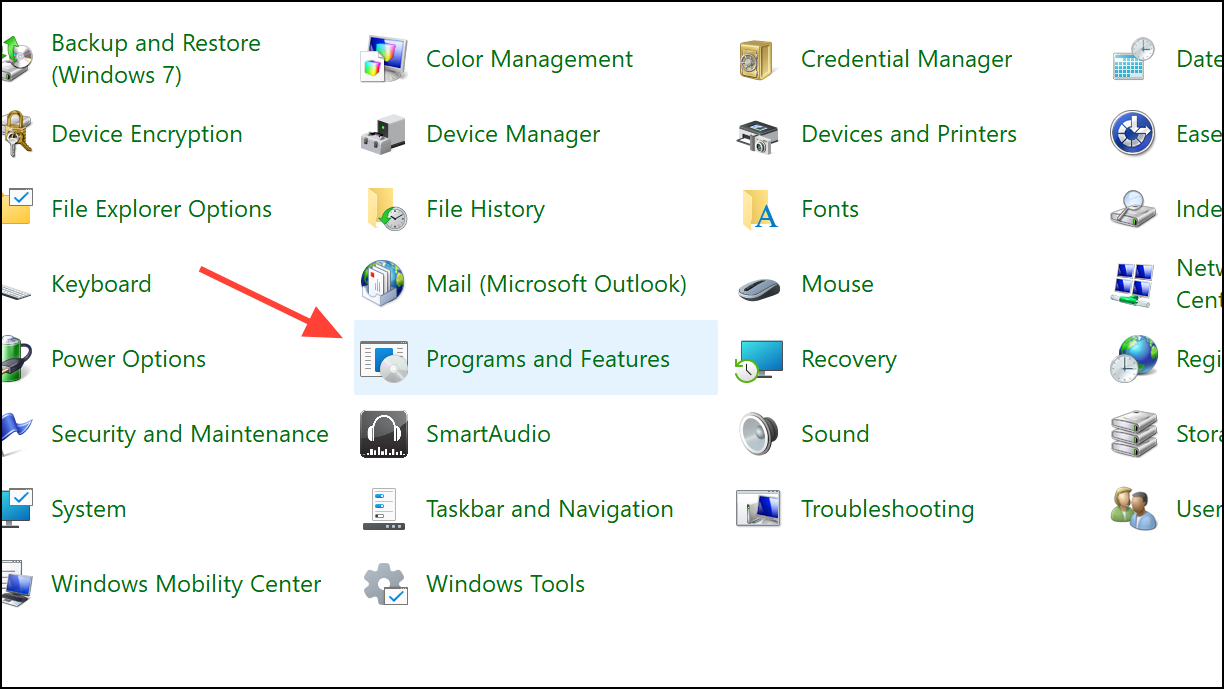
Method 2: Verify Network Connectivity and Firewall Settings
Network connectivity issues or firewall restrictions can also trigger this error. Confirming your network stability and adjusting firewall settings can resolve the issue.
Method 3: Use Dell Command Update Logs to Diagnose Issues
If the above methods do not resolve the issue, examining the Dell Command Update logs can provide valuable insights into the specific cause of the error.
Service.log file with a text editor like Notepad. Look for specific error messages such as “HTTP status 404” or other network-related errors.Method 4: Contact Dell Support for Personalized Assistance
If none of the above methods resolve your issue, Dell’s support team can provide tailored assistance based on your specific system configuration.
Keeping Dell Command Update running smoothly ensures your Dell system stays secure and performs optimally. Regularly updating the software, checking network settings, and promptly addressing errors will help maintain your system in top condition.





