
The PAGE_FAULT_IN_NONPAGED_AREA error is a common Blue Screen of Death (BSOD) issue on Windows 10 and 11 systems. It typically indicates a problem with memory management, often related to faulty drivers, memory modules, corrupted system files, or disk errors. If your PC frequently crashes and displays this error message, try the following solutions to resolve the problem.
Update Device Drivers
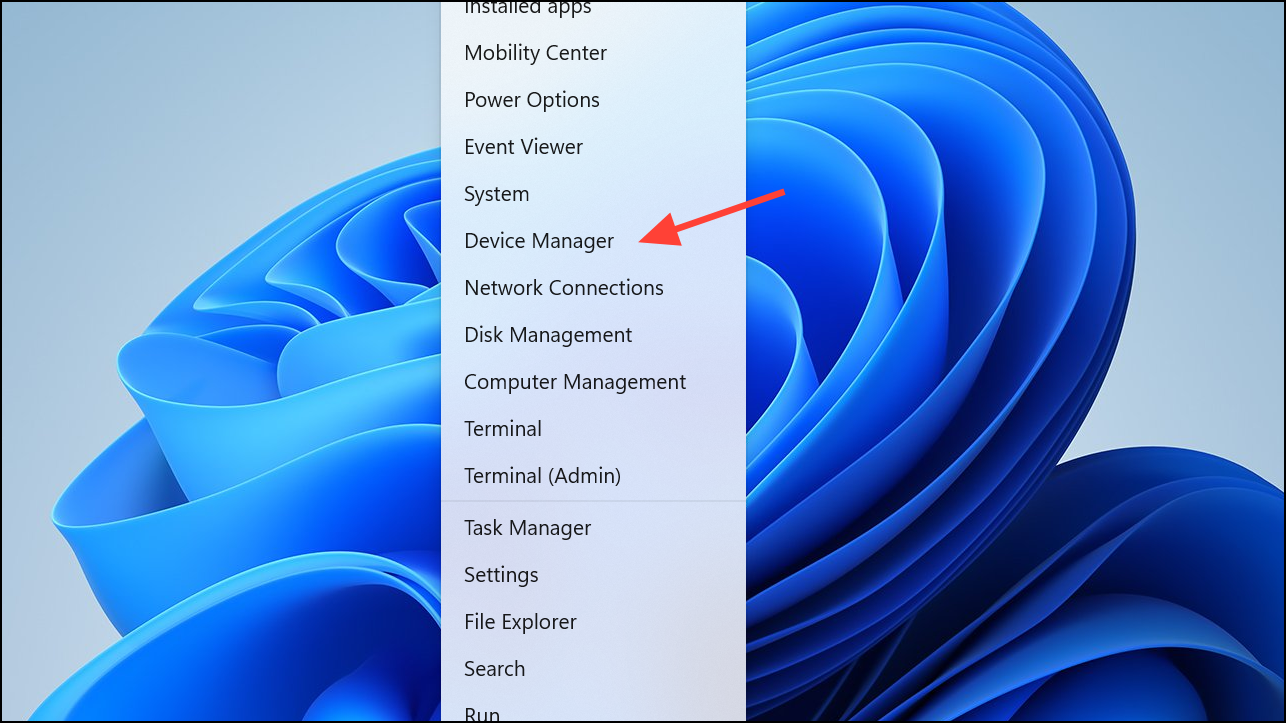
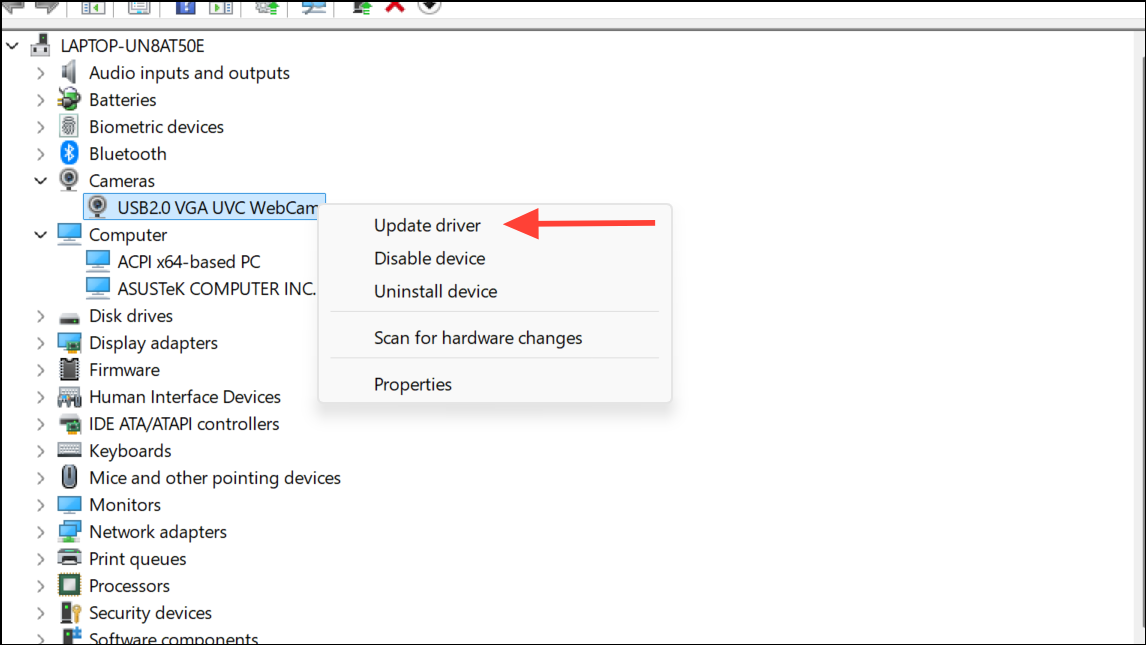
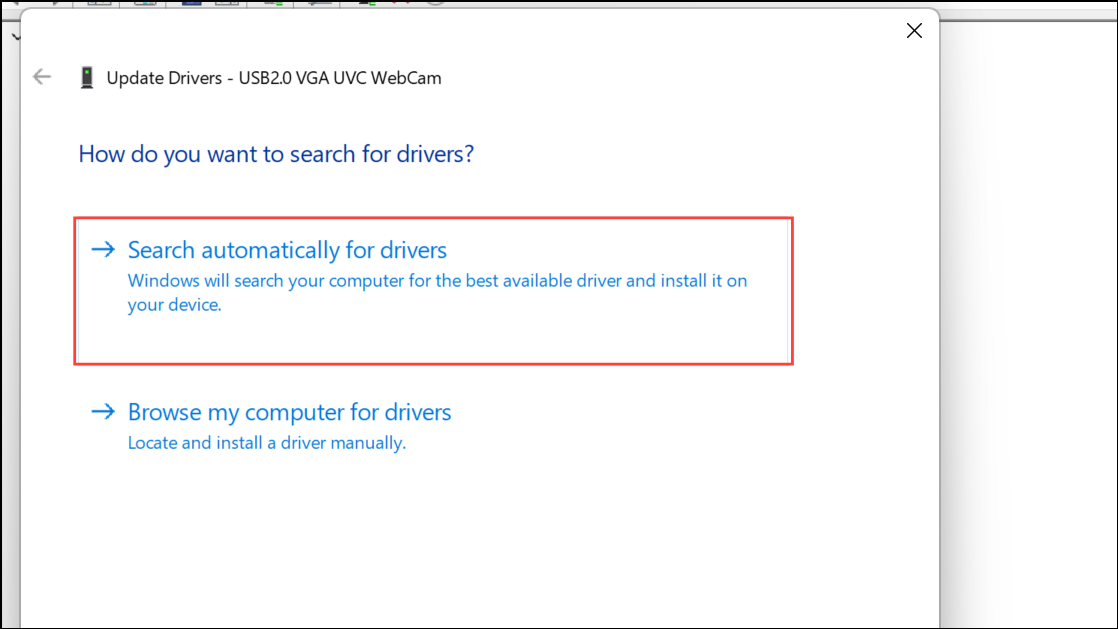
Outdated, incompatible, or corrupted drivers are often the main cause of the PAGE_FAULT_IN_NONPAGED_AREA error. Updating your drivers can fix this issue effectively.
Check for Faulty RAM
Faulty RAM modules can cause the PAGE_FAULT_IN_NONPAGED_AREA error. Windows includes a built-in tool called Windows Memory Diagnostic to test for memory issues.
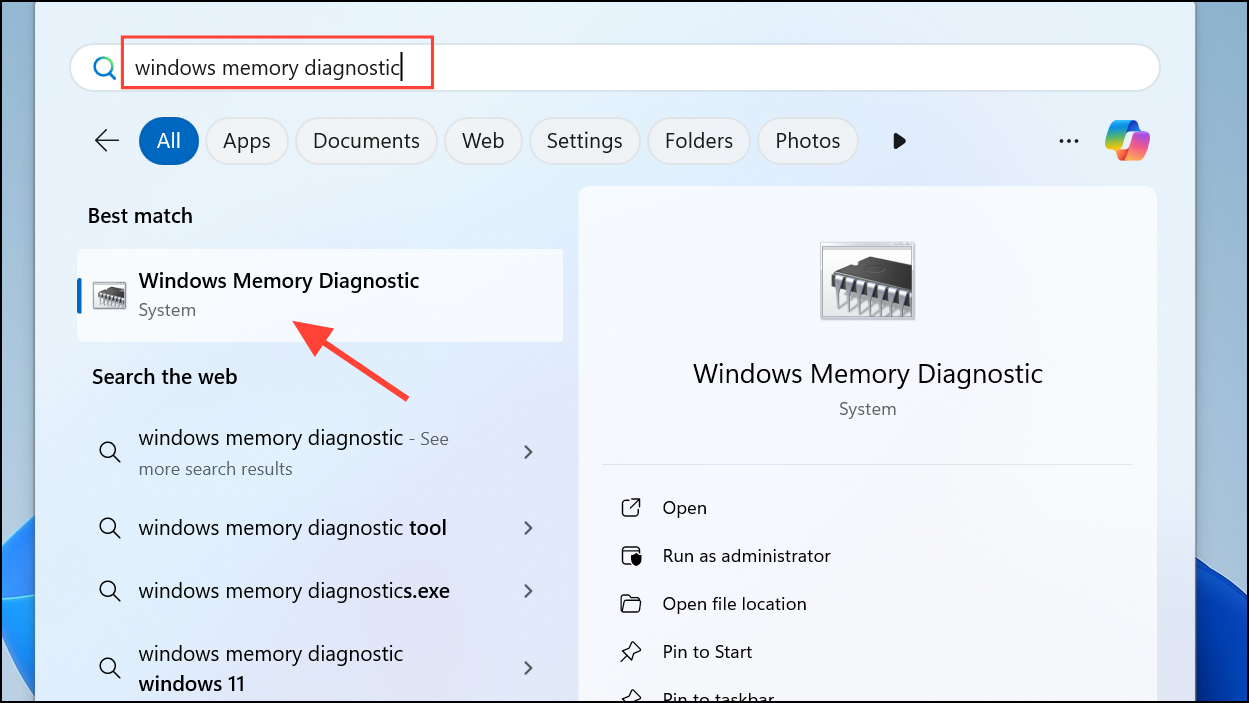
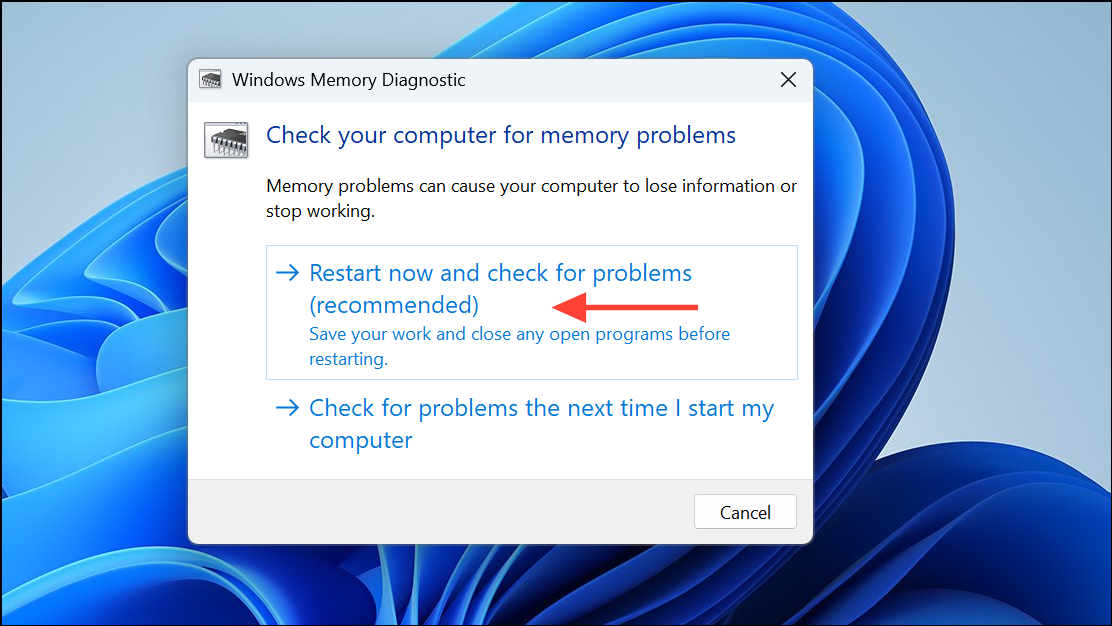
If the diagnostic tool detects issues, consider replacing your RAM module. Ensure you purchase compatible RAM for your PC or laptop model.
Disable Automatic Paging File Management
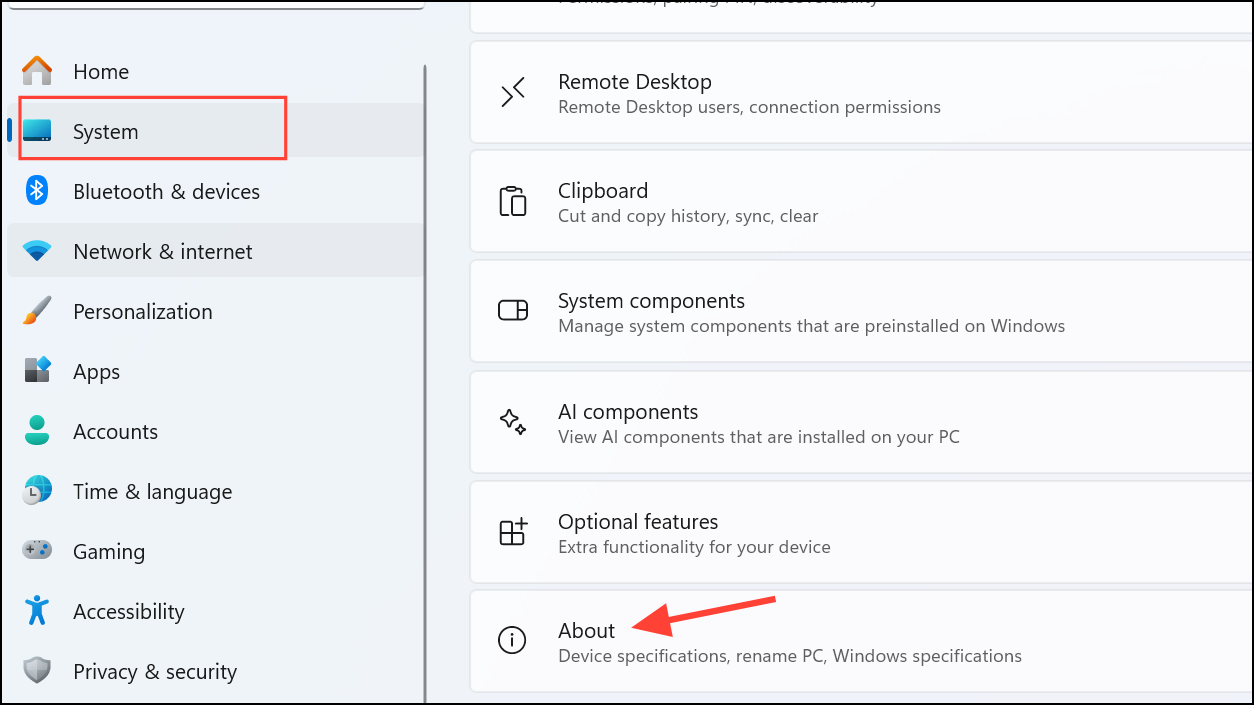
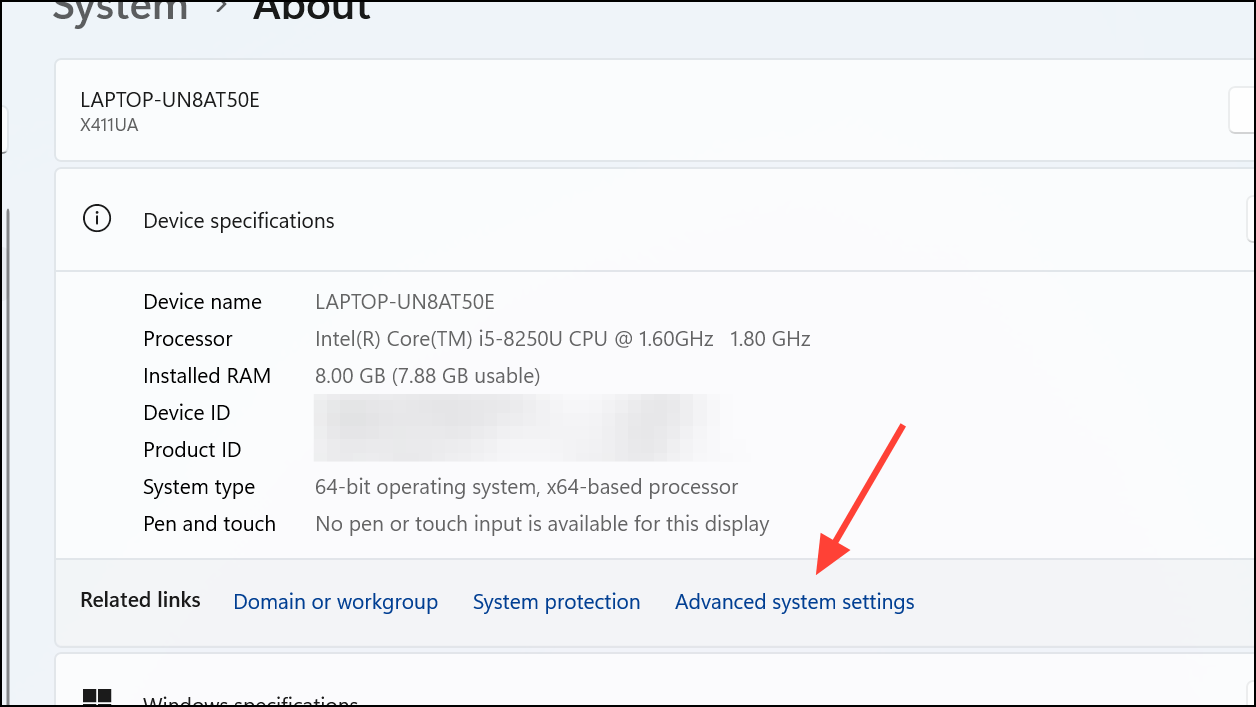
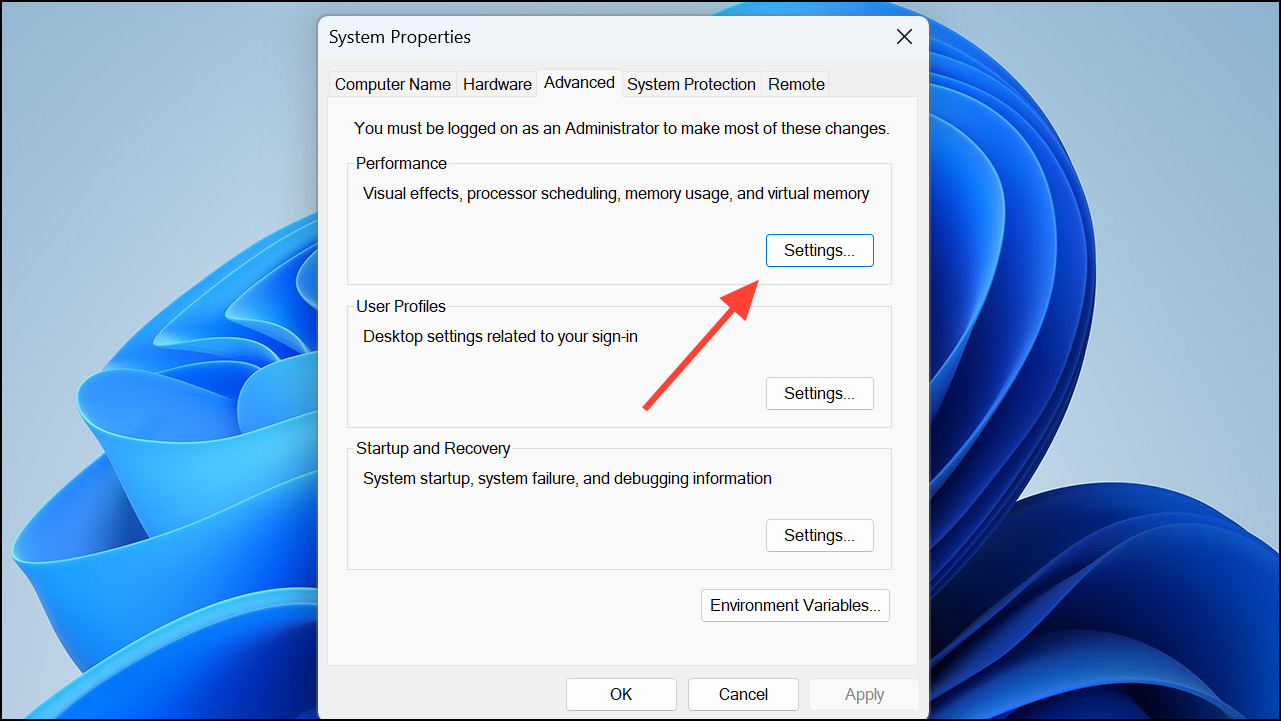
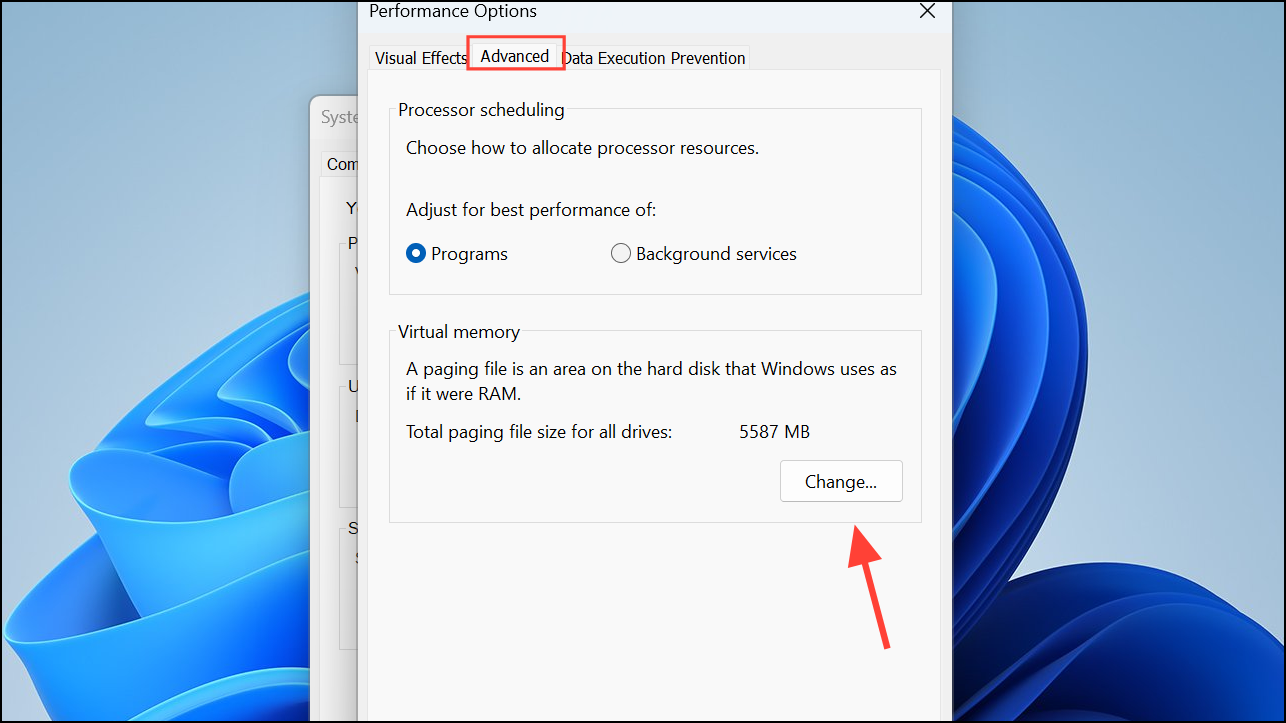
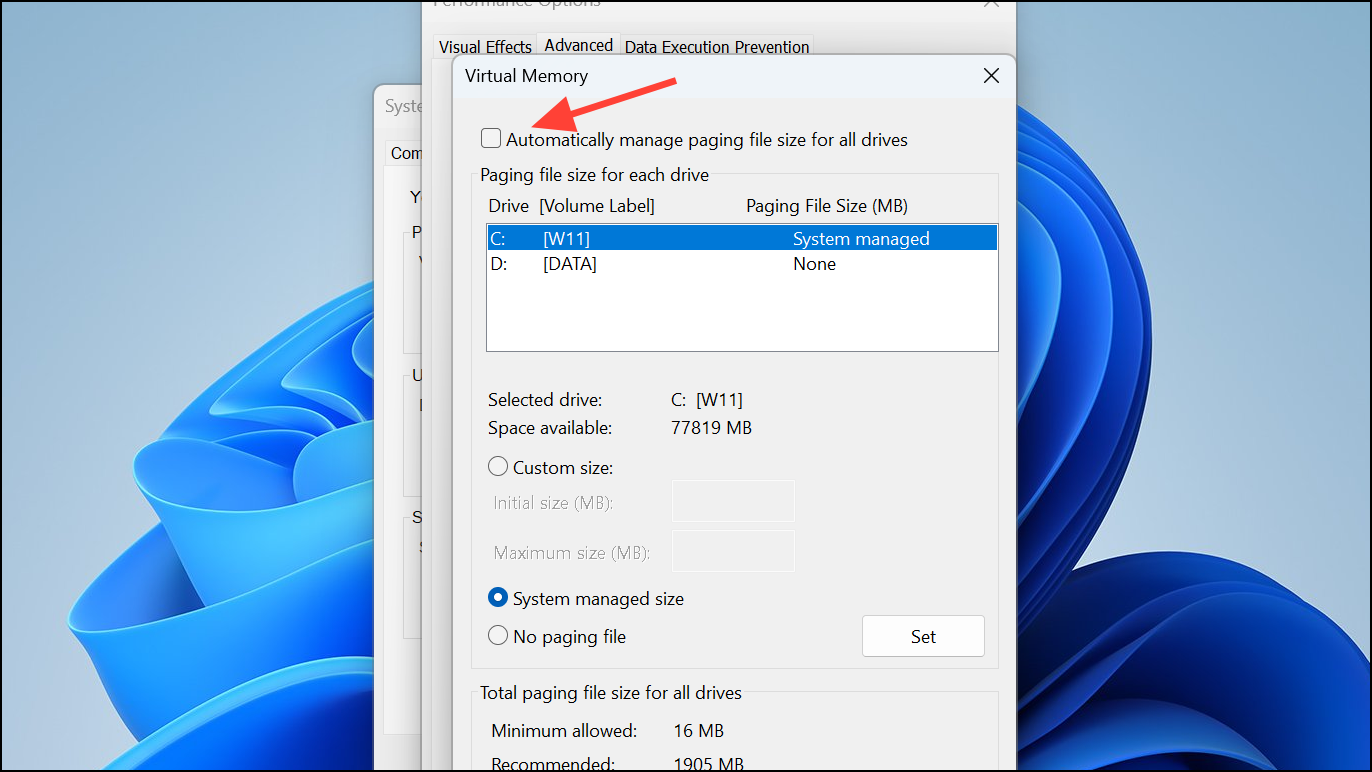
Windows automatically manages virtual memory (paging file), but sometimes this can lead to memory-related errors. Manually adjusting the paging file settings can resolve the PAGE_FAULT_IN_NONPAGED_AREA issue.
Check For Disk Errors and Bad Sectors
Disk errors and bad sectors on your hard drive or SSD can trigger the PAGE_FAULT_IN_NONPAGED_AREA error. Windows includes a built-in tool called Check Disk to identify and fix these issues.
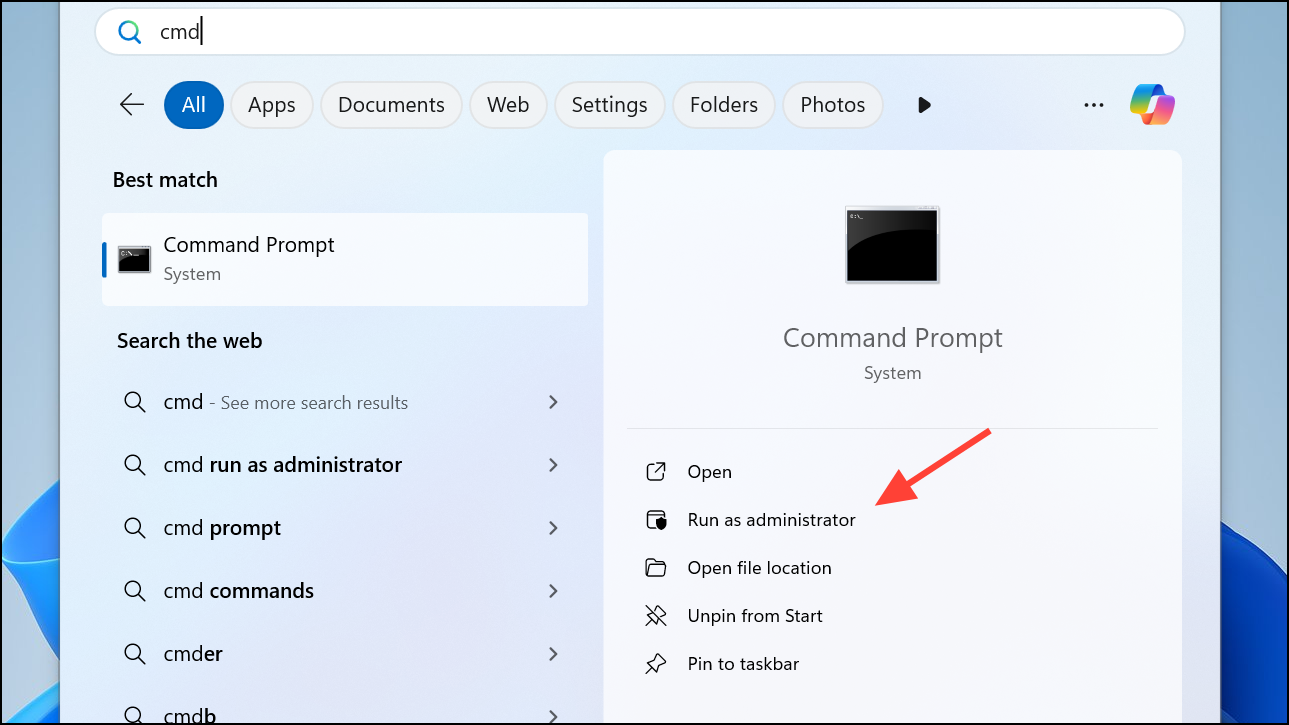
chkdsk C: /f /x /r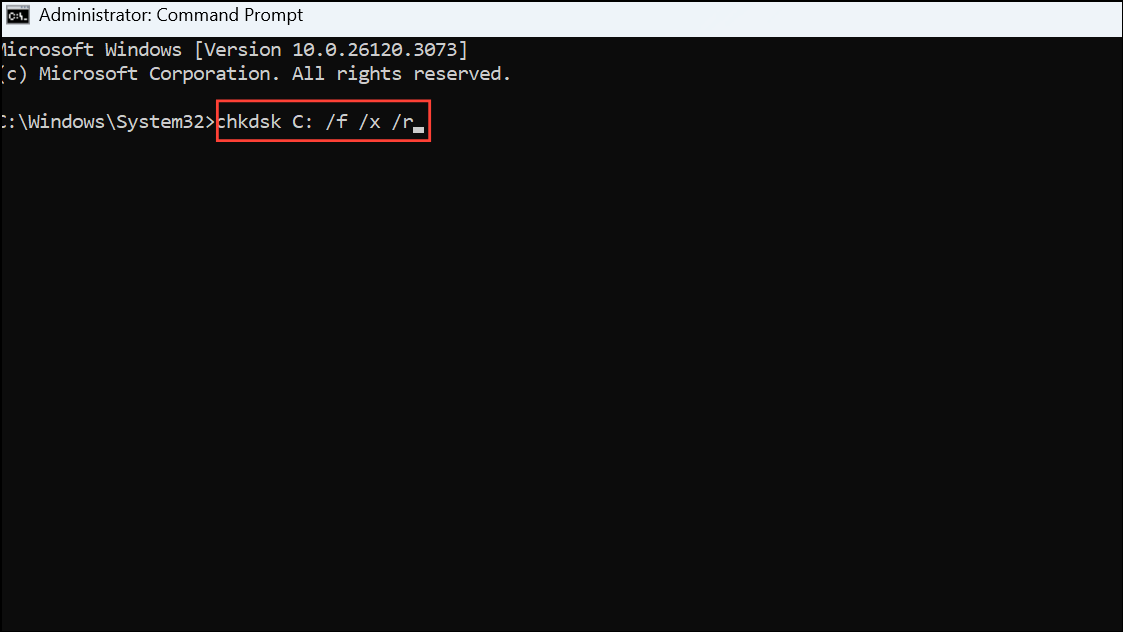
Allow the tool to complete its operation. This command checks your drive for errors, repairs logical issues, and marks bad sectors.
Run an SFC Scan to Fix Corrupted Files
Corrupted system files can also cause the PAGE_FAULT_IN_NONPAGED_AREA error. The System File Checker (SFC) tool scans and repairs these files.
sfc /scannow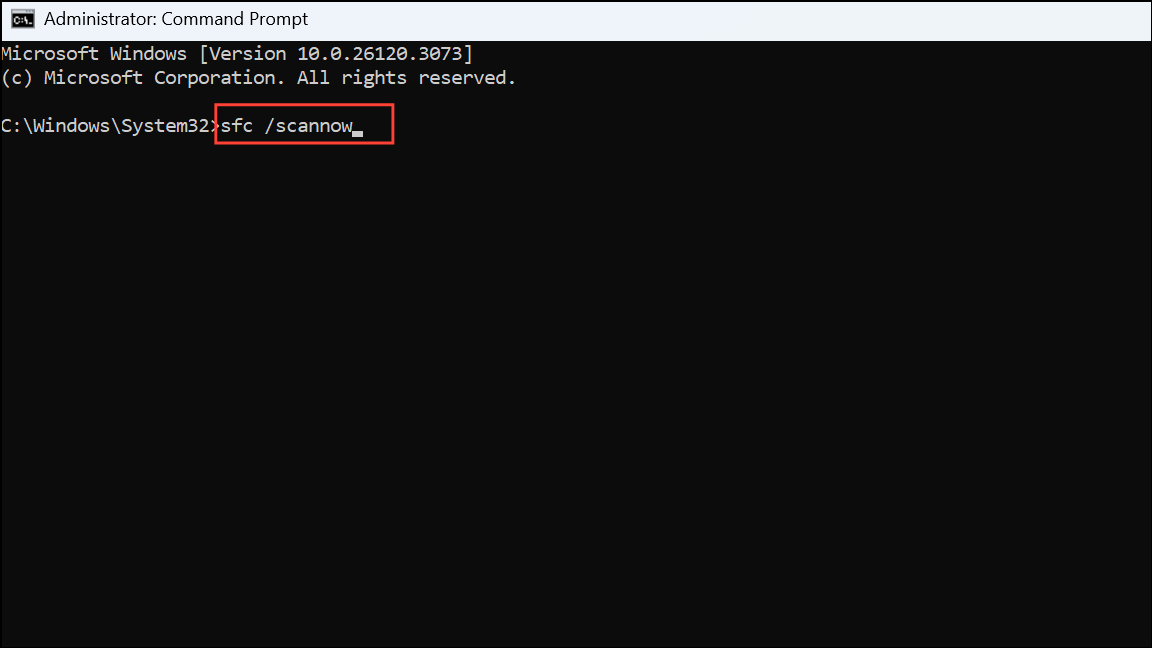
Keep Only One Antivirus Software Active
Running multiple antivirus programs simultaneously can cause conflicts and result in memory errors. Ensure only one reliable antivirus software is active on your system.
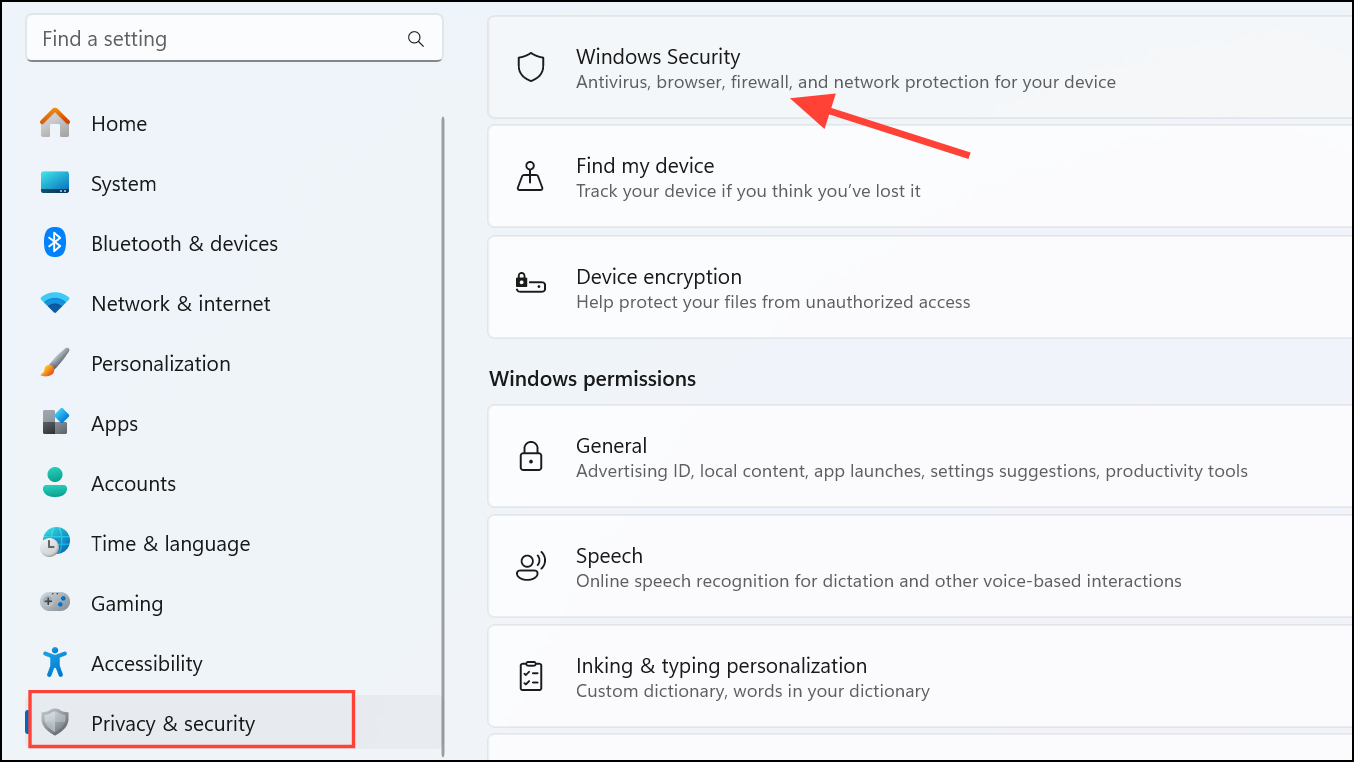
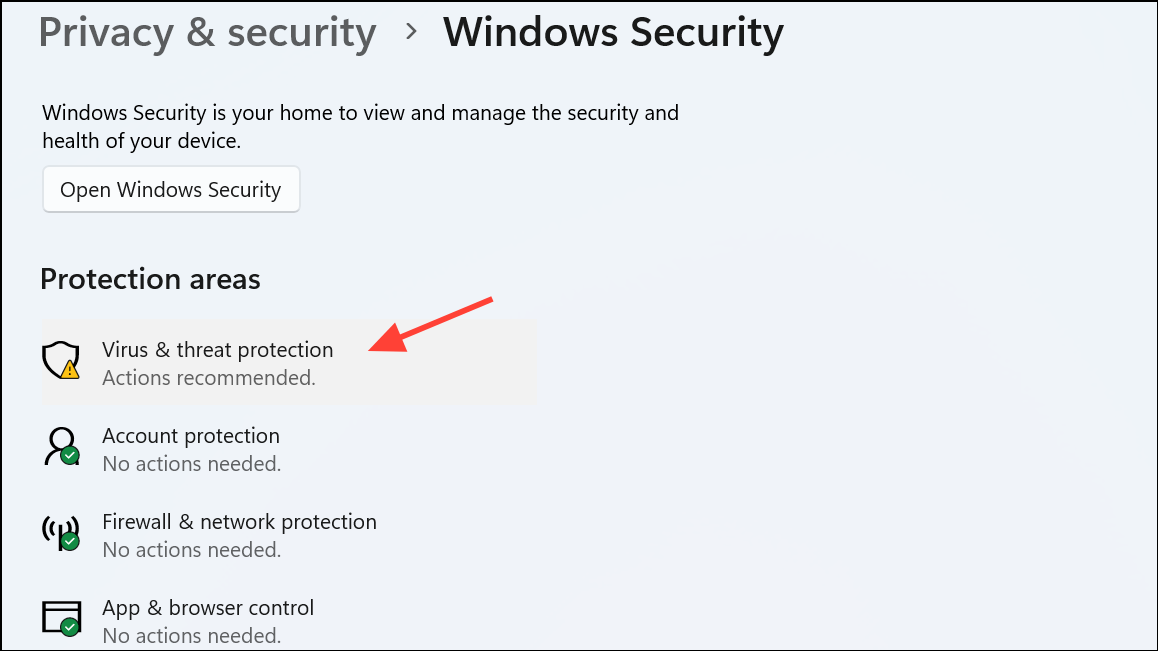
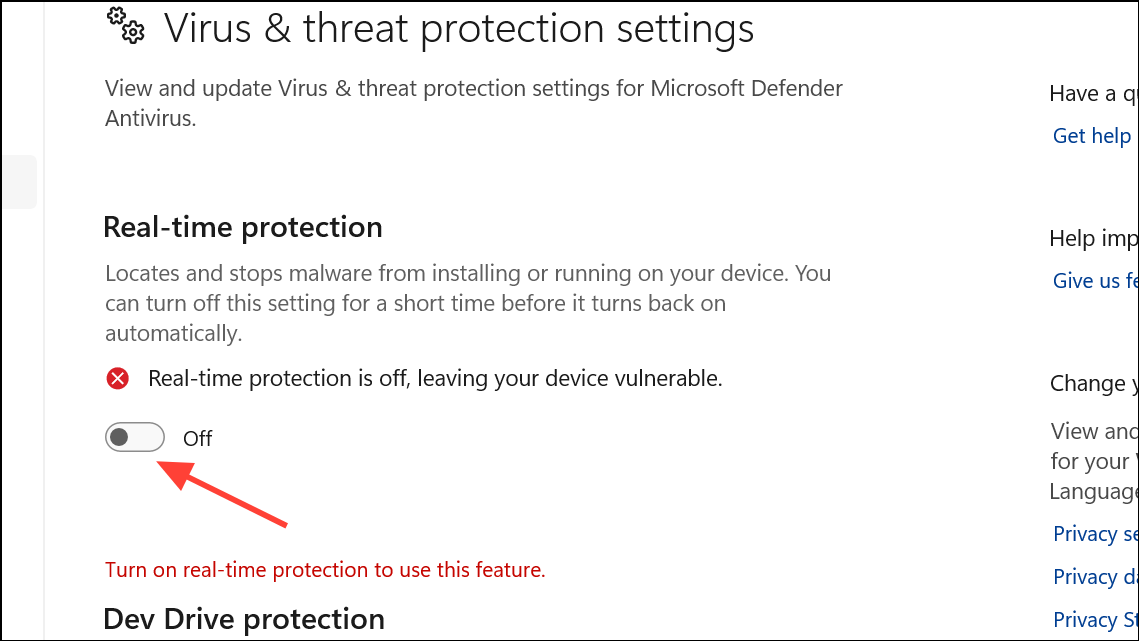
Make sure you have only one antivirus actively protecting your system to avoid conflicts.
By following these solutions, you can effectively troubleshoot and resolve the PAGE_FAULT_IN_NONPAGED_AREA error on your Windows PC. If the issue persists after these steps, consider performing a clean installation of Windows as a last resort.





