
The Windows Update download error 0x80248007 occurs when your system encounters difficulties connecting to Microsoft’s update servers or has corrupted update files. This prevents critical updates from installing, potentially leaving your device vulnerable or outdated. Fortunately, several practical solutions are available to get your updates back on track.
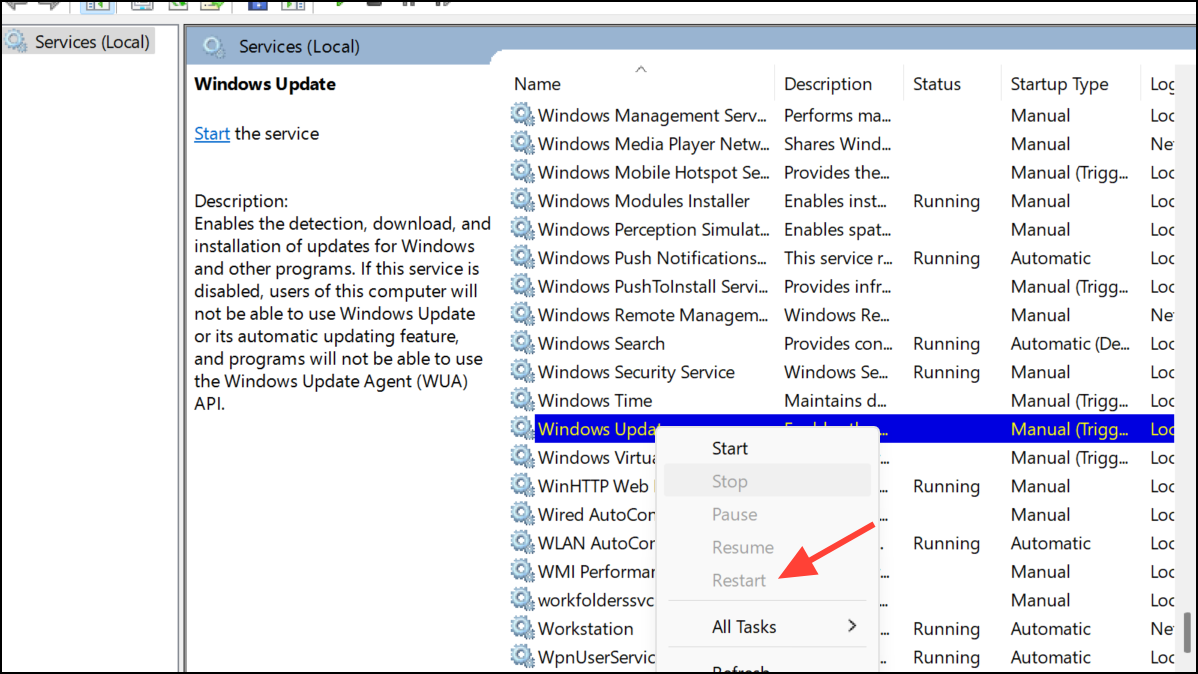
Method 1: Restart the Windows Update Service
Windows + R keys on your keyboard to open the Run dialog. Type services.msc and press Enter.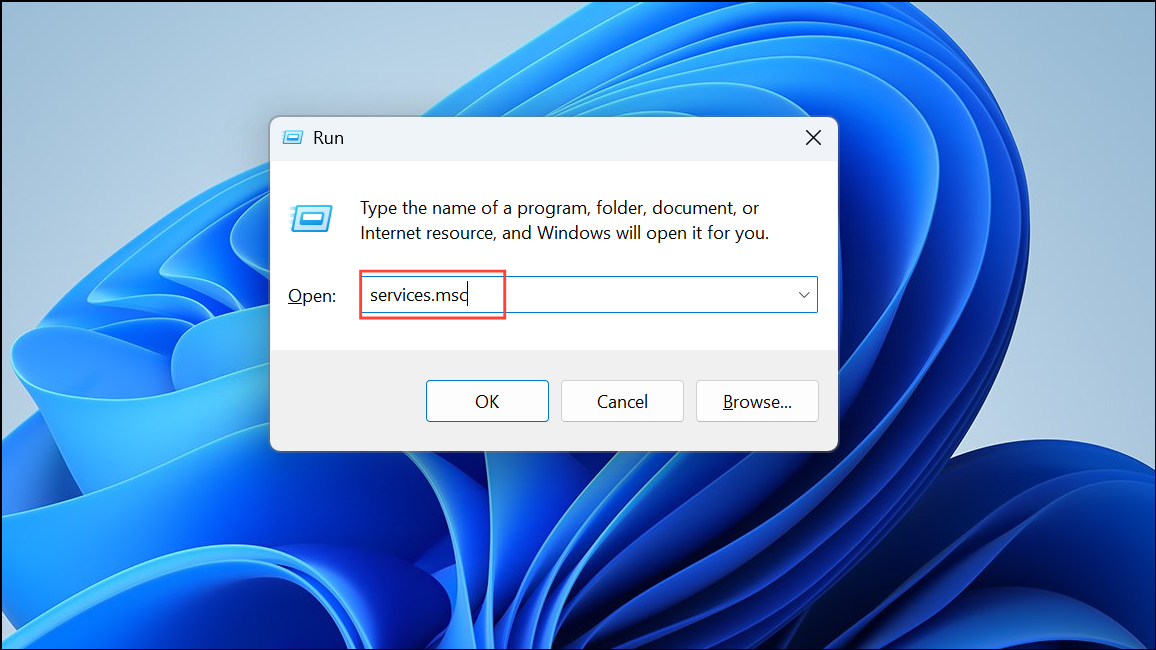
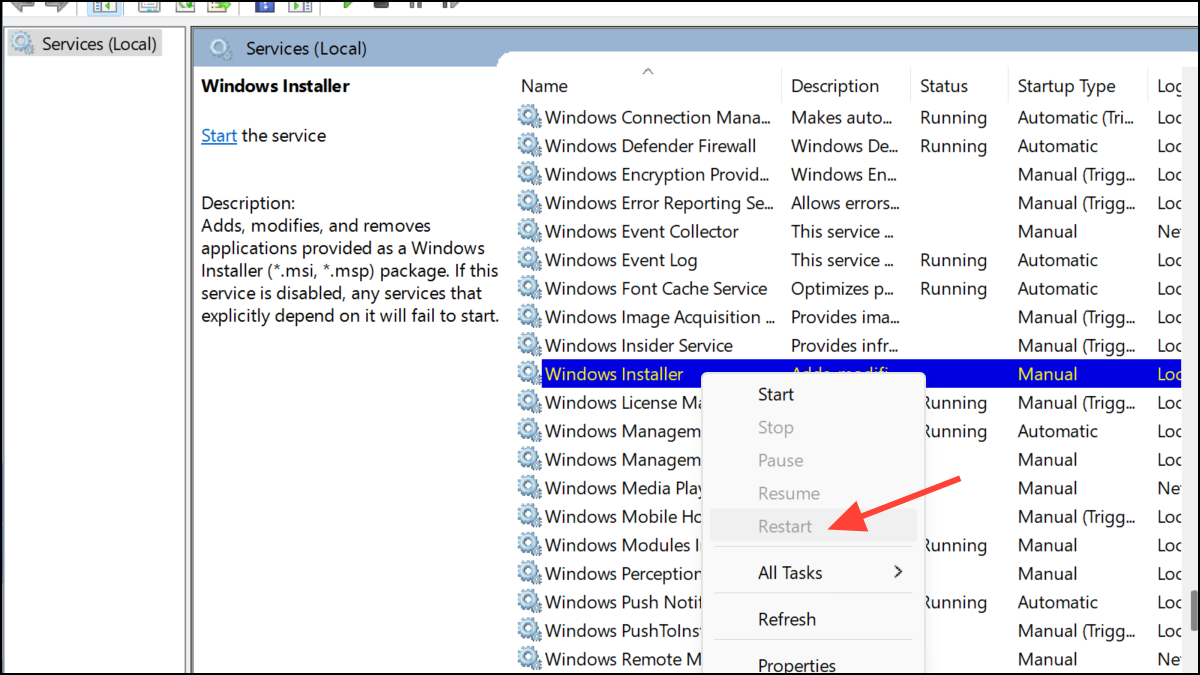
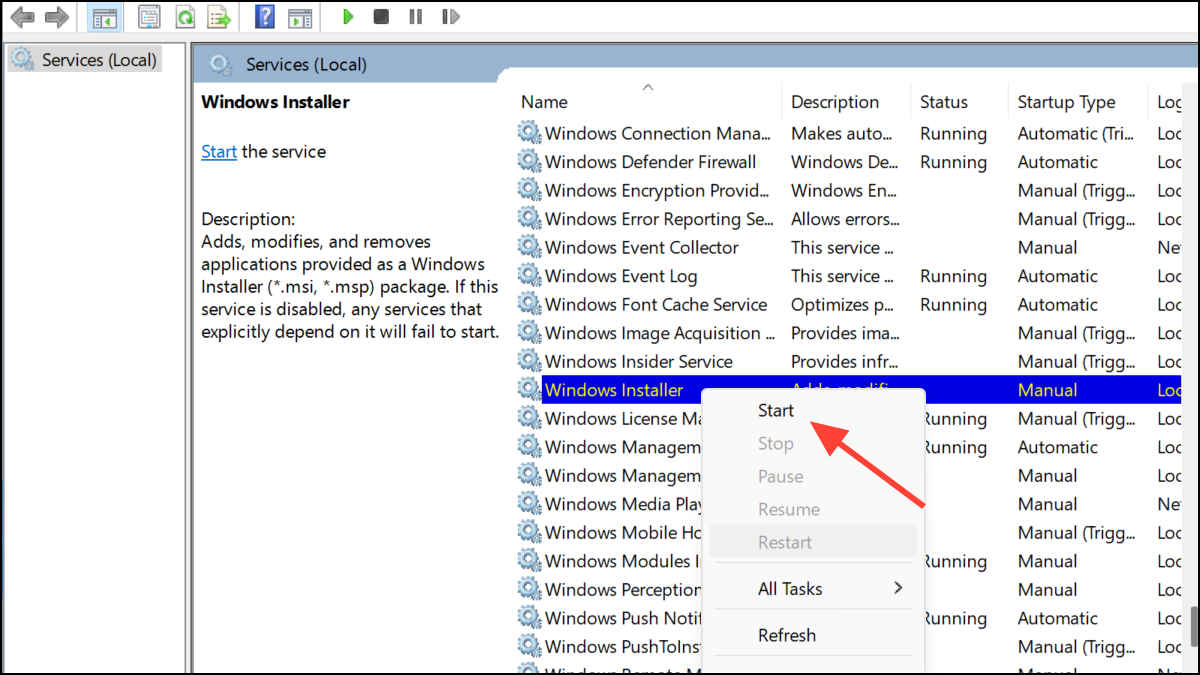
Method 2: Start the Windows Installer Service Manually
The Windows Installer service is crucial for updates to install properly. Sometimes, this service may stop unexpectedly.
Method 3: Run the Windows Update Troubleshooter
Windows includes a built-in troubleshooter designed to automatically detect and resolve update-related issues.
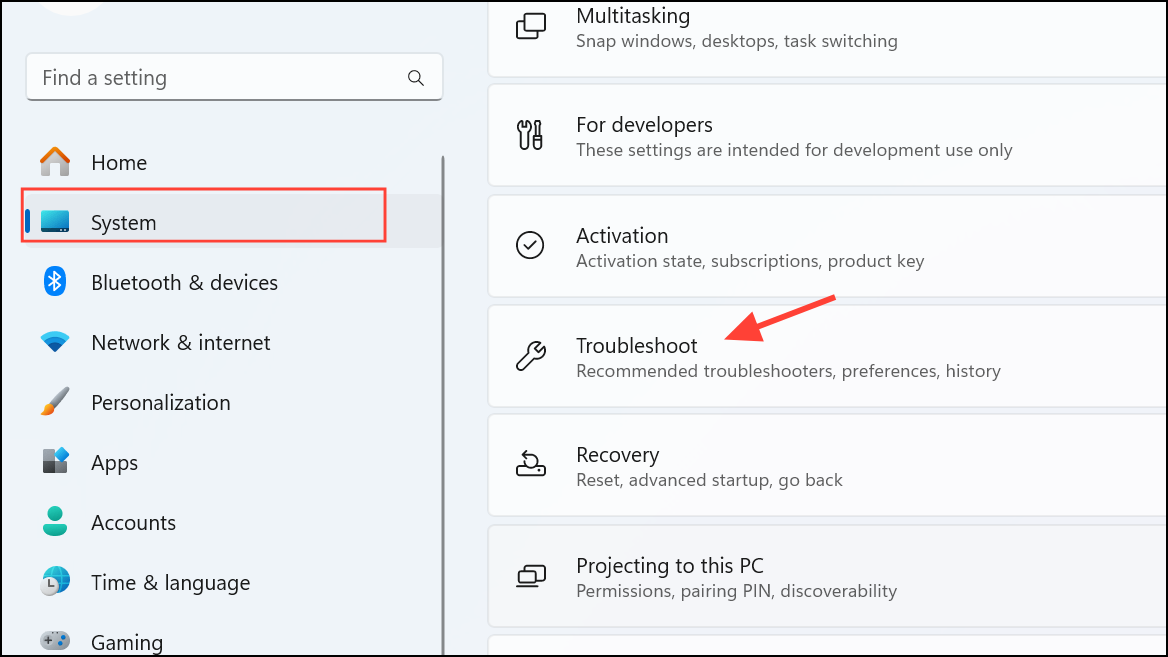
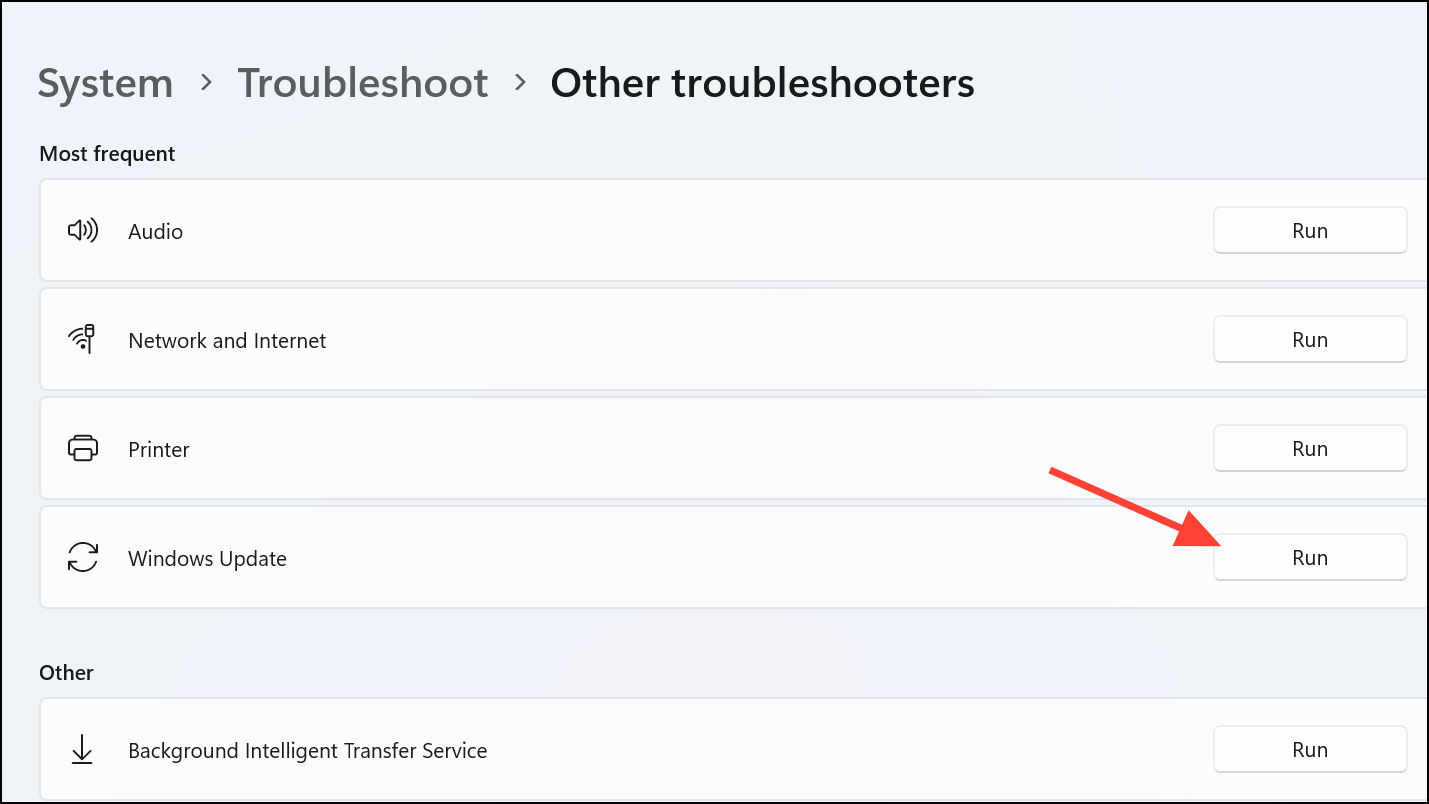
Method 4: Clear the SoftwareDistribution Folder
The SoftwareDistribution folder temporarily holds update files. If corrupted files are present, clearing this folder can resolve the error.
Windows + R, type services.msc, and press Enter. Stop the services “Windows Update,” “Cryptographic Services,” “Background Intelligent Transfer Service,” and “Windows Installer” by right-clicking each and selecting “Stop.”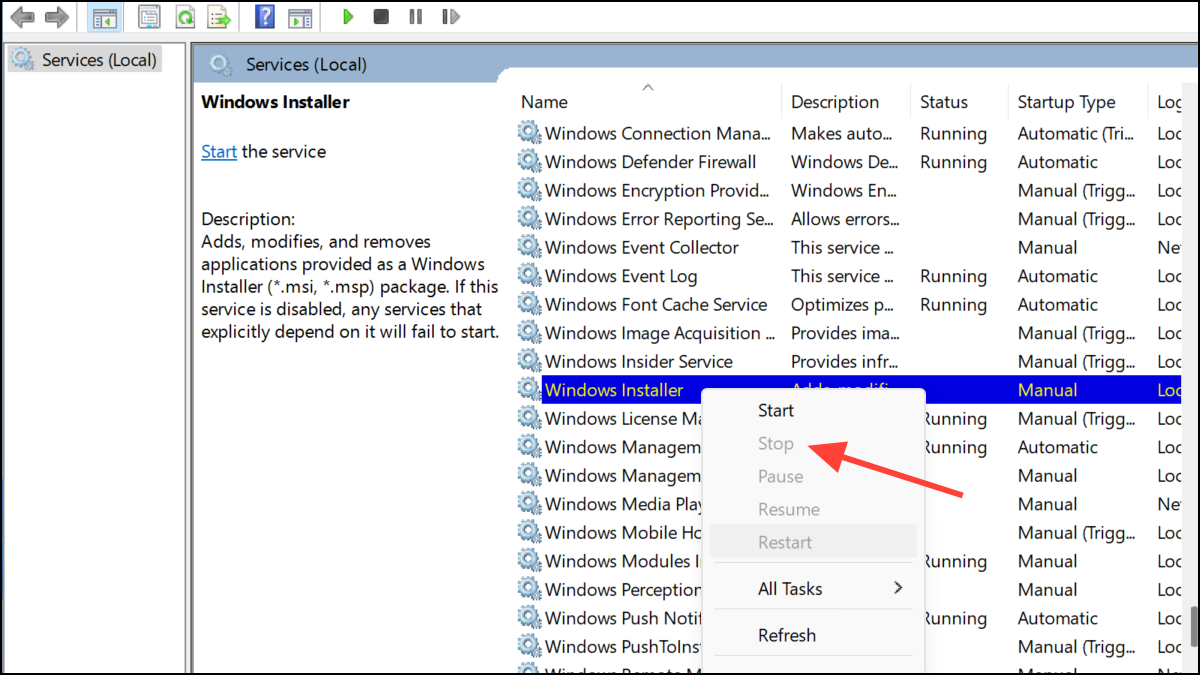
C:\Windows\SoftwareDistribution. Delete all contents inside the “DataStore” and “Download” folders.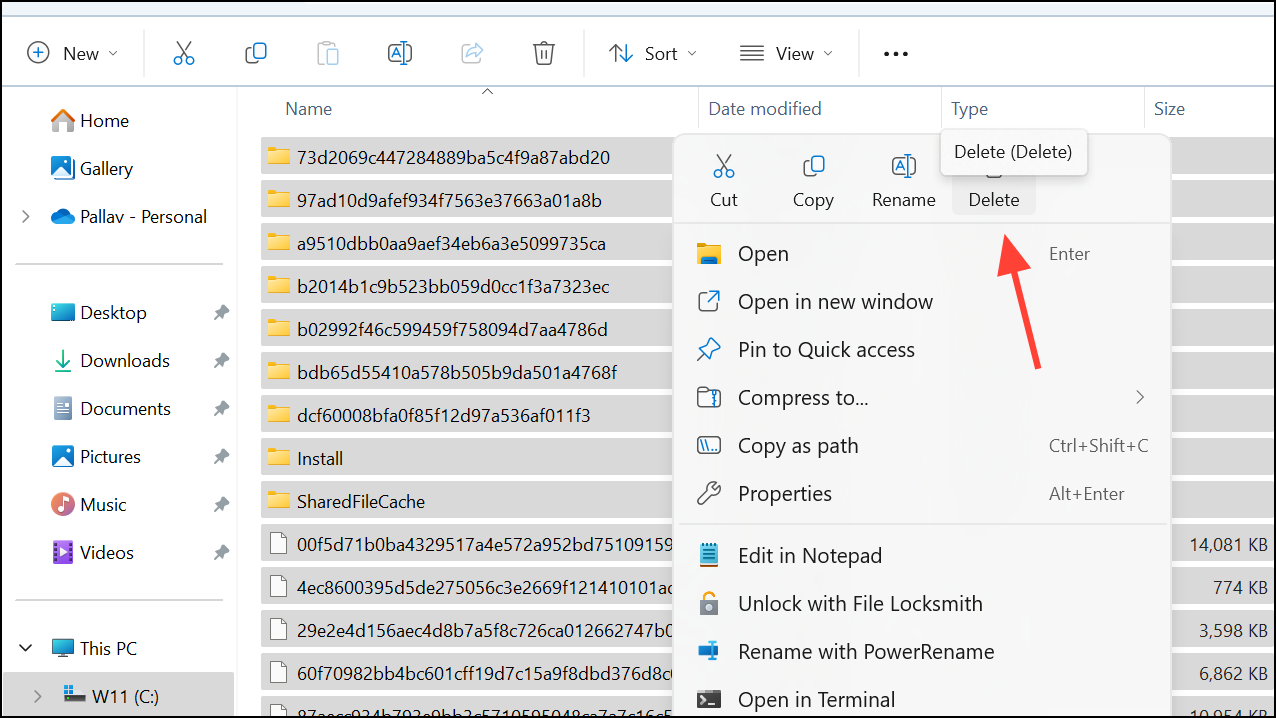
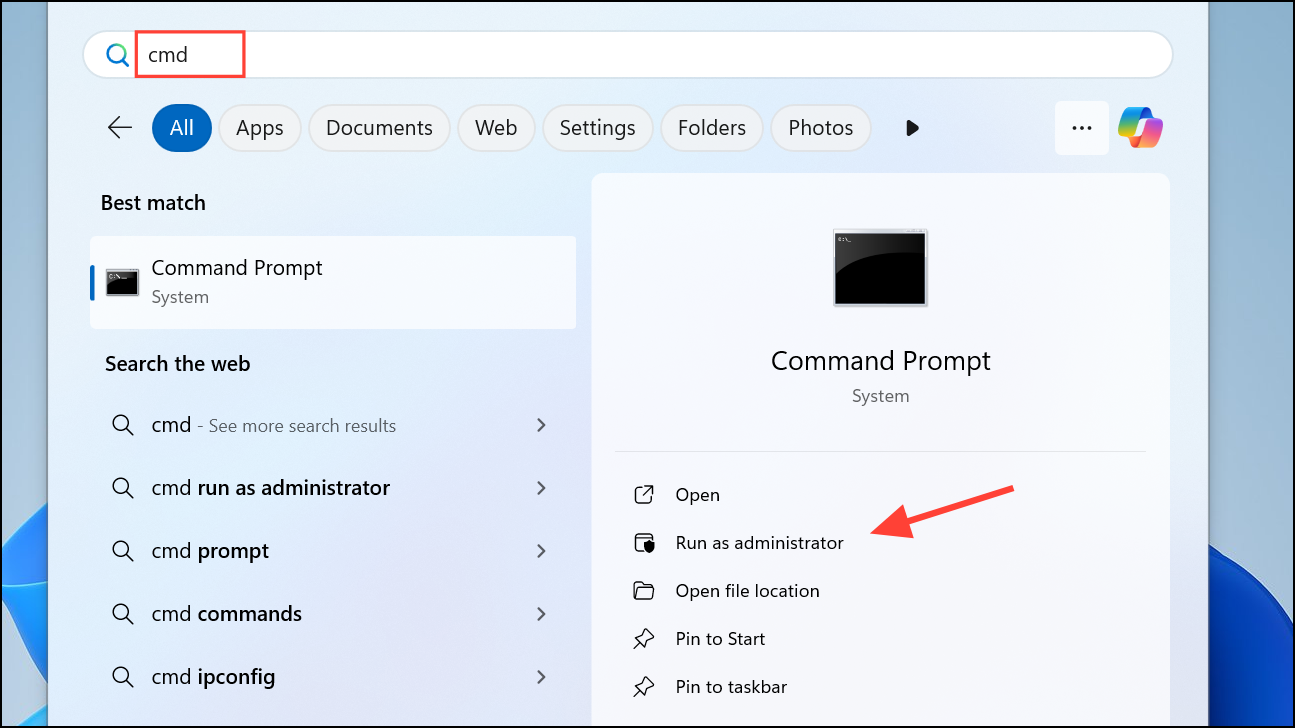
Method 5: Repair Corrupted System Files Using SFC and DISM
Corrupted system files can cause the 0x80248007 error. Windows provides built-in tools to scan and repair these files.
DISM /Online /Cleanup-Image /RestoreHealth and pressing Enter. Wait until the process completes.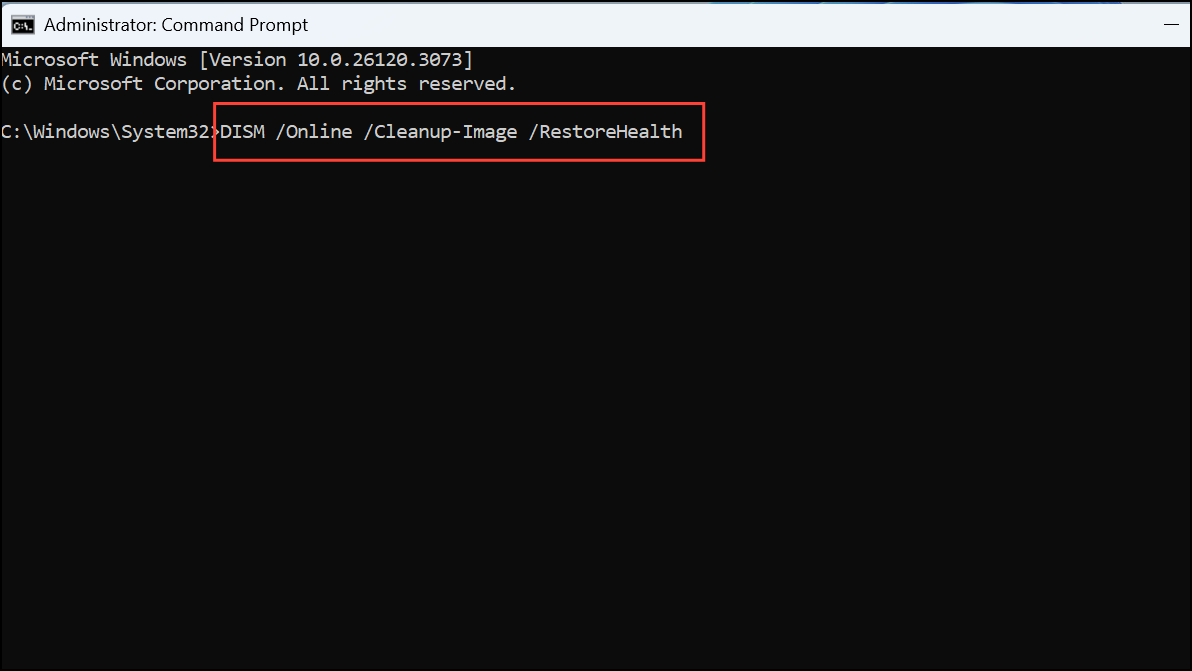
sfc /scannow and pressing Enter. Let the scan complete, then restart your computer and attempt the update again.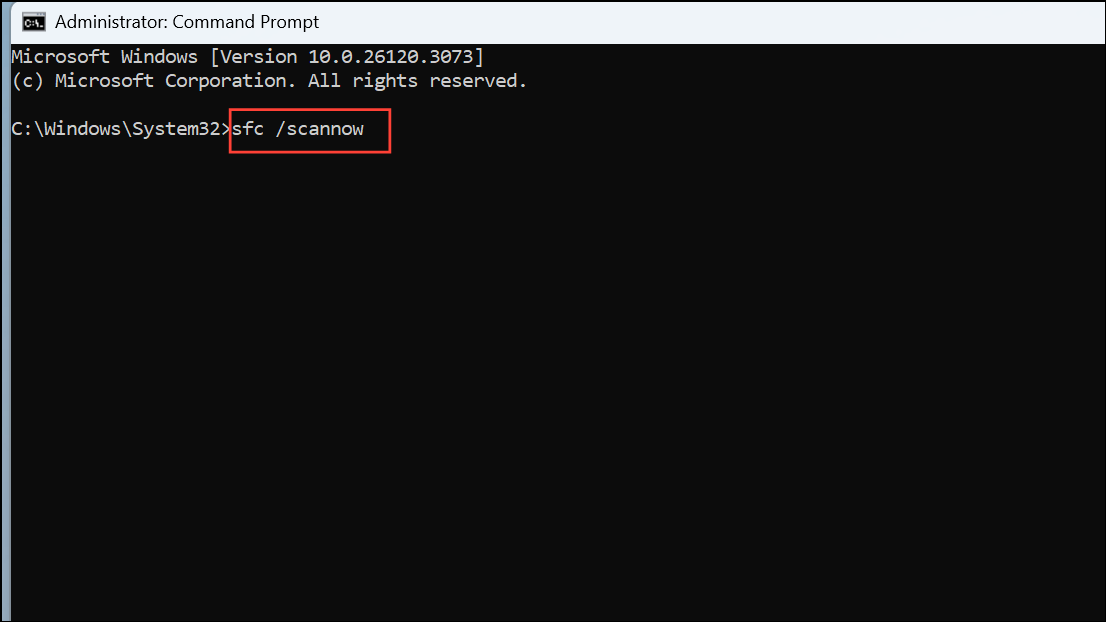
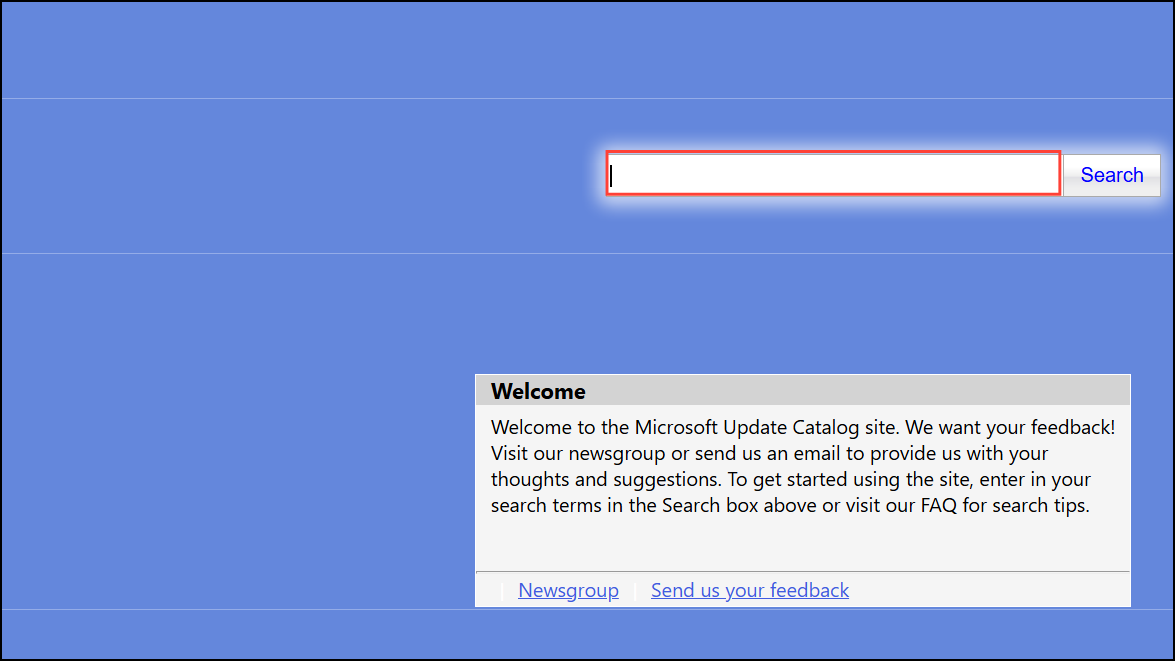
Method 6: Manually Install Updates from Microsoft Update Catalog
If automatic updates continue to fail, manually downloading and installing updates from Microsoft’s Update Catalog can bypass the error.
Method 7: Perform an In-Place Upgrade Using Windows Installation Media
If none of the above solutions work, performing an in-place upgrade using the Windows installation media can resolve persistent update issues.
setup.exe file from the mounted ISO. Follow the setup wizard instructions, ensuring you select the option to keep personal files and apps.These methods should help you resolve the Windows Update download error 0x80248007 effectively. After completing these steps, your system should be able to receive and install updates without further issues.





