

X-Mouse Button Control (XMBC) is a free Windows utility that allows you to remap and customize your mouse buttons. It lets you assign new functions to mouse buttons and the scroll wheel, significantly expanding your mouse’s capabilities. Whether you’re looking to streamline your workflow, simplify navigation, or set up custom controls for gaming, XMBC offers an extensive range of options.
XMBC supports Windows 10, Windows 11, and Windows Server editions, and it works seamlessly with both 32-bit and 64-bit systems. The tool is particularly useful for mice with additional buttons (typically buttons 4 and 5), but you can also remap standard buttons and scroll wheels.
Follow the detailed instructions below to set up and use XMBC effectively.
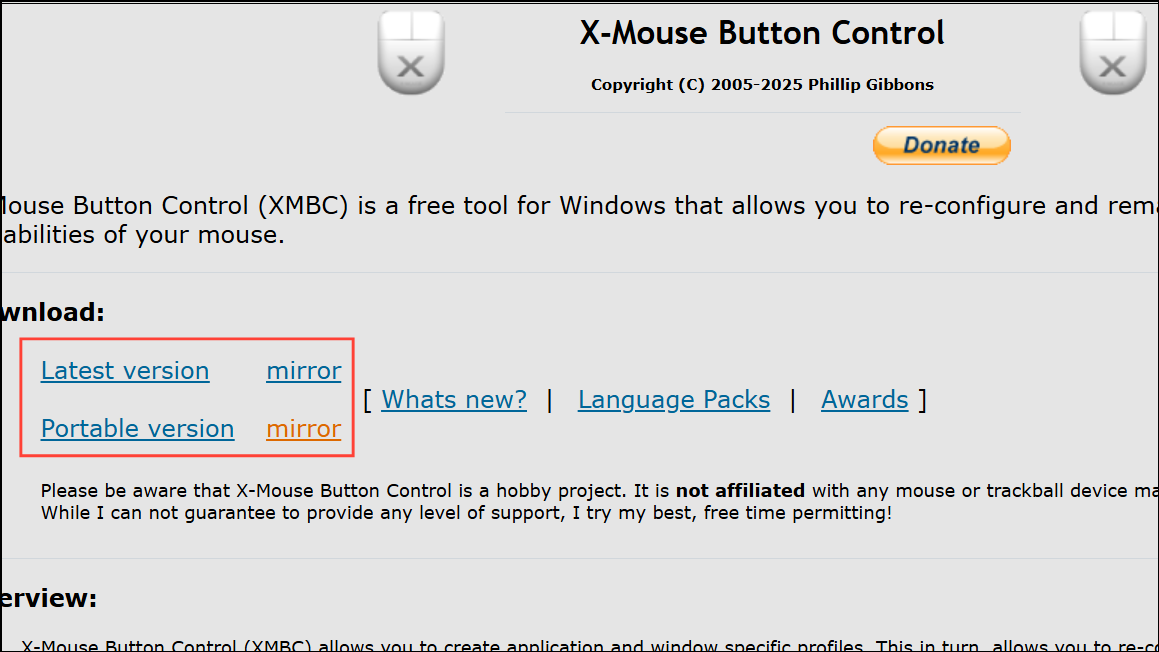
Installing X-Mouse Button Control
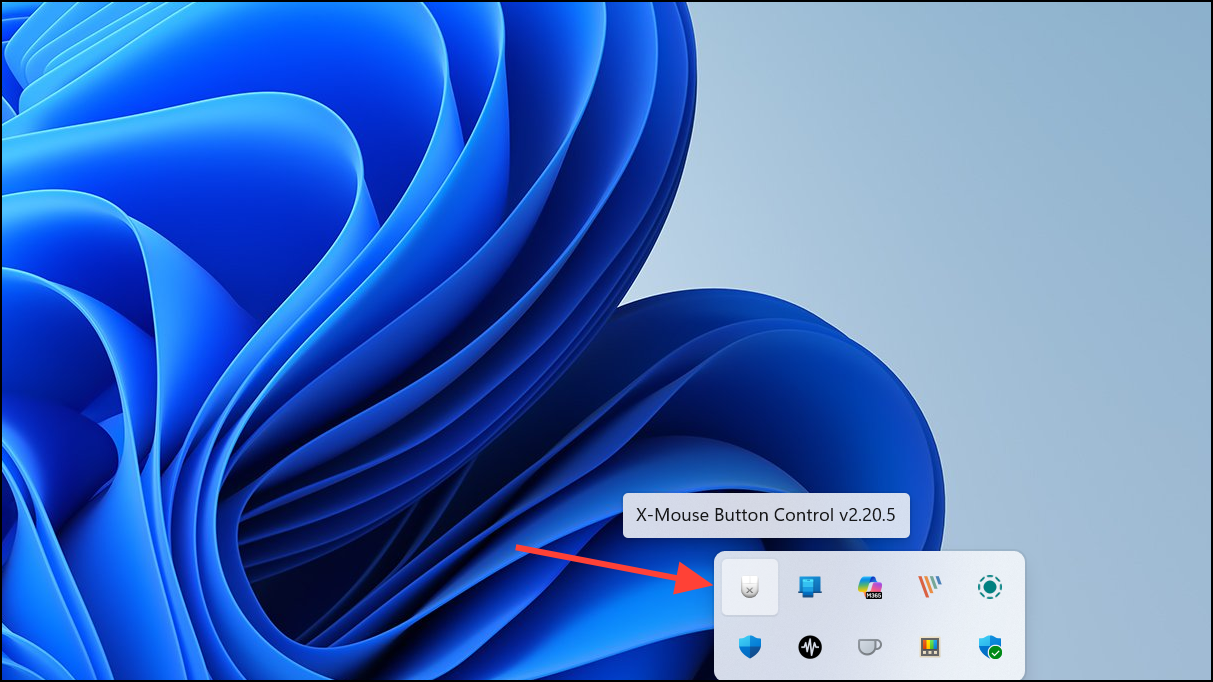
Remapping Mouse Buttons with XMBC
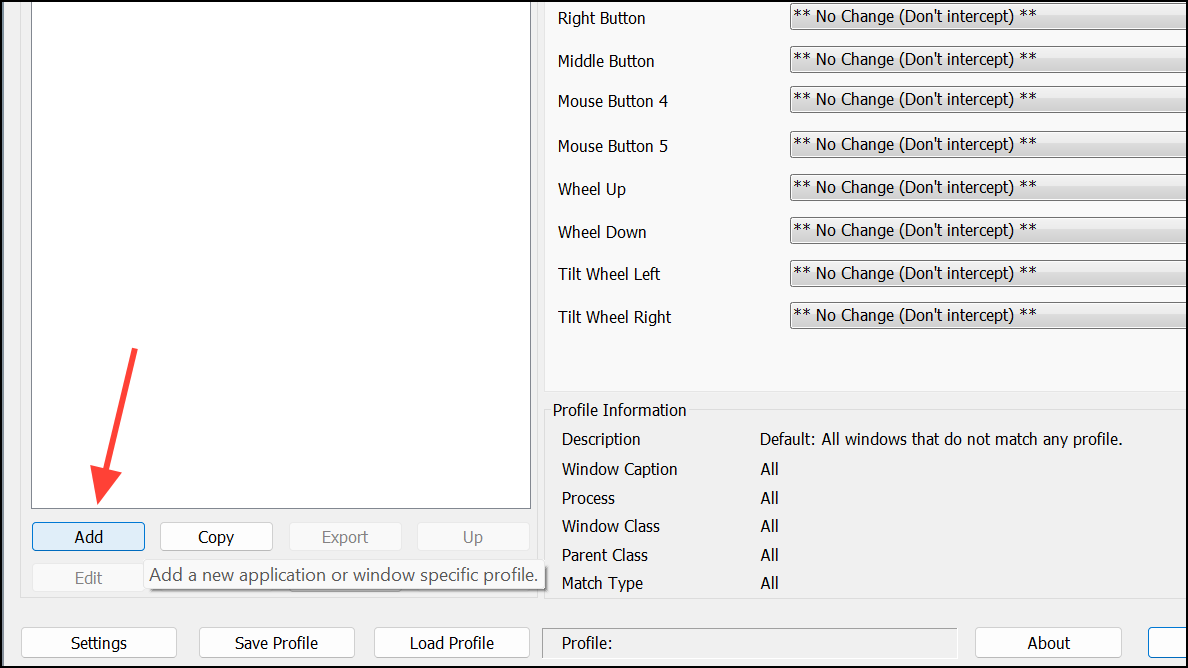
{CTRL}W to simulate pressing Ctrl+W. Click “OK” and then “Apply” to save your changes.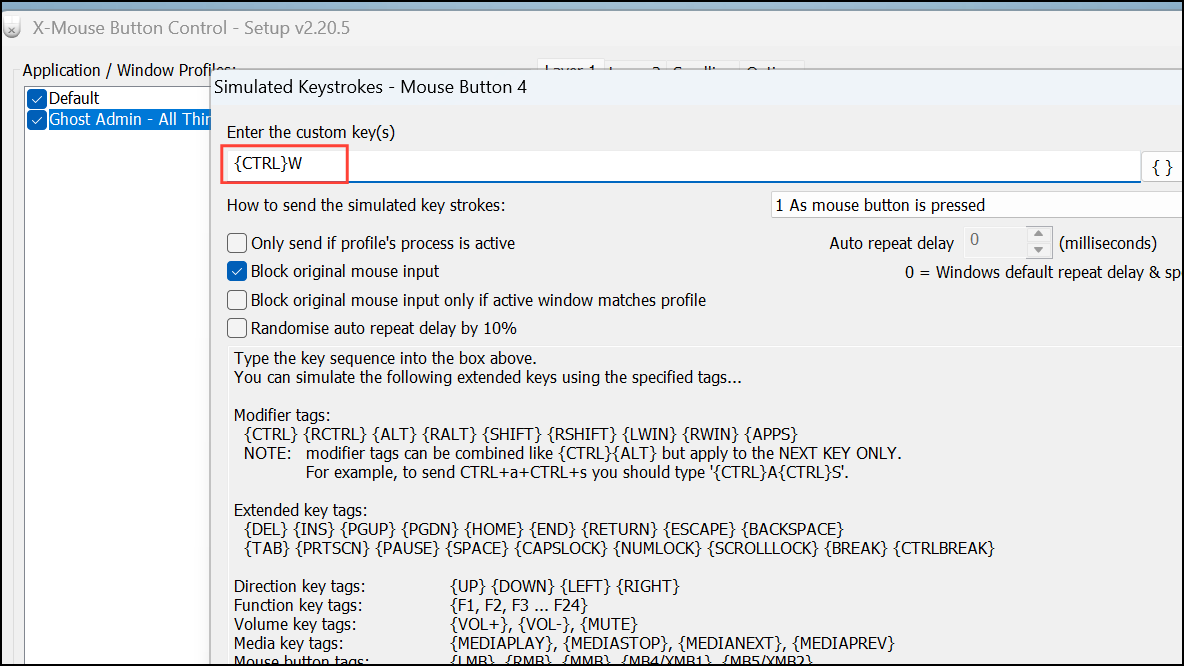
Now, pressing mouse button 4 in Chrome will close the active tab, streamlining your browsing experience.
Using Mouse Wheel for Volume Control
Another useful XMBC feature is remapping the mouse wheel to control system volume, particularly handy when listening to music or watching videos.
{VOL+} in the custom key field. Similarly, for “Wheel Down,” select “Simulated Keys” and enter {VOL-}. Click “OK” and “Apply” to confirm these settings.Now, when your media player is active, scrolling up or down will raise or lower the volume, respectively.
Advanced Features: Button Chording and Layers
XMBC also provides advanced features such as “Button Chording” and “Layers,” offering even greater flexibility.
Button Chording: This feature allows you to perform different actions by pressing combinations of mouse buttons. For example, holding down the right mouse button while scrolling the wheel could adjust volume or zoom.
To configure button chording, select “Button Chording” from the dropdown menu for the primary button you want to chord. Then, set the secondary button actions accordingly.
Layers: XMBC lets you define up to 10 layers of different button configurations per profile. You can switch between these layers using hotkeys, mouse buttons, or modifier keys, allowing multiple configurations for different tasks or workflows.
Importing and Exporting Profiles
XMBC profiles can be easily exported and imported, enabling you to transfer your custom configurations between different computers. To export your settings, click “Export” and save the configuration file (.xmbcs). To import, click “Import” and select the saved file.
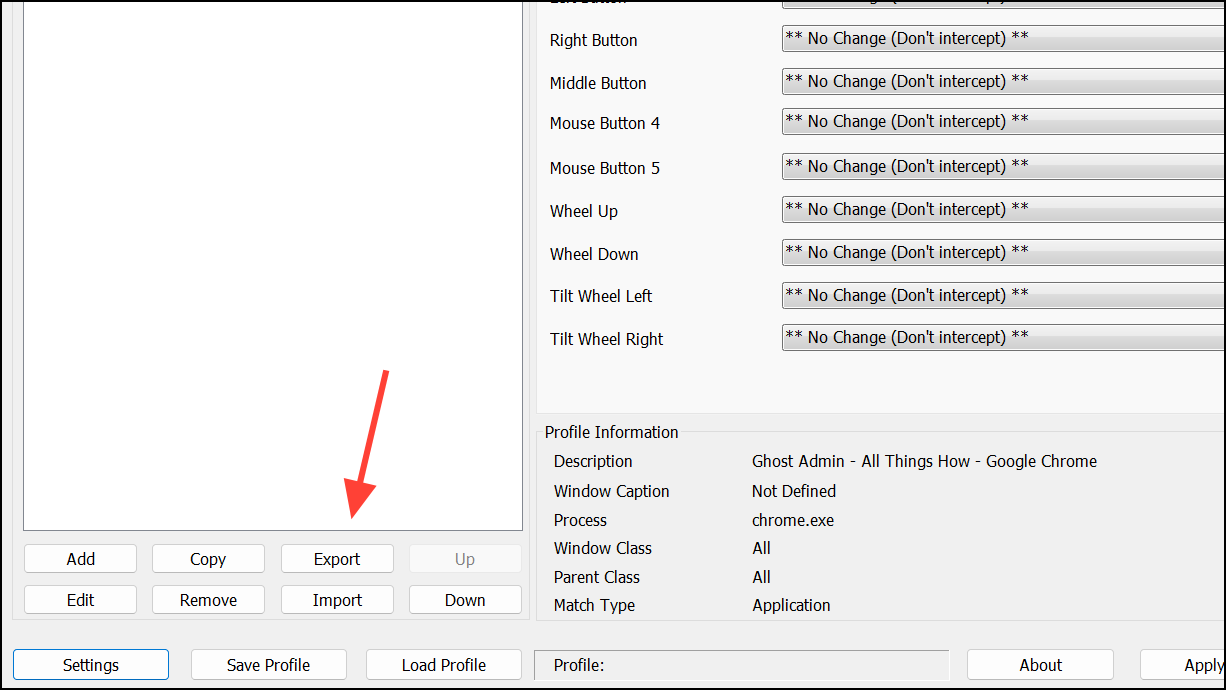
This feature is particularly useful if you use XMBC across multiple devices or wish to back up your configurations.
Troubleshooting Common Issues
If you accidentally remap your left mouse button or another critical function, temporarily disable XMBC by pressing the Scroll Lock key on your keyboard. This will revert mouse functions to default, allowing you to correct your settings. Press Scroll Lock again to re-enable XMBC.
X-Mouse Button Control provides a powerful way to customize your mouse buttons, significantly improving productivity, navigation, and ease of use. With careful configuration, you can optimize your mouse to perfectly suit your workflow.





