

Windows Update is crucial for keeping your operating system secure and stable, but sometimes updates fail to install, causing error messages or leaving your system vulnerable. Common issues include updates getting stuck, error messages like 0x80070002, or persistent notifications indicating updates can’t be installed. The most effective method to resolve these issues is running the built-in Windows Update troubleshooter, followed by other troubleshooting methods if necessary.
Method 1: Run the Windows Update Troubleshooter
Running the built-in troubleshooter is the quickest and most effective way to resolve common Windows Update issues. It automatically diagnoses and fixes most problems related to Windows Update.
Windows key + I to open Settings. Navigate to Update & Security > Troubleshoot > Additional troubleshooters on Windows 10. On Windows 11, go to System and click on Troubleshoot on the right.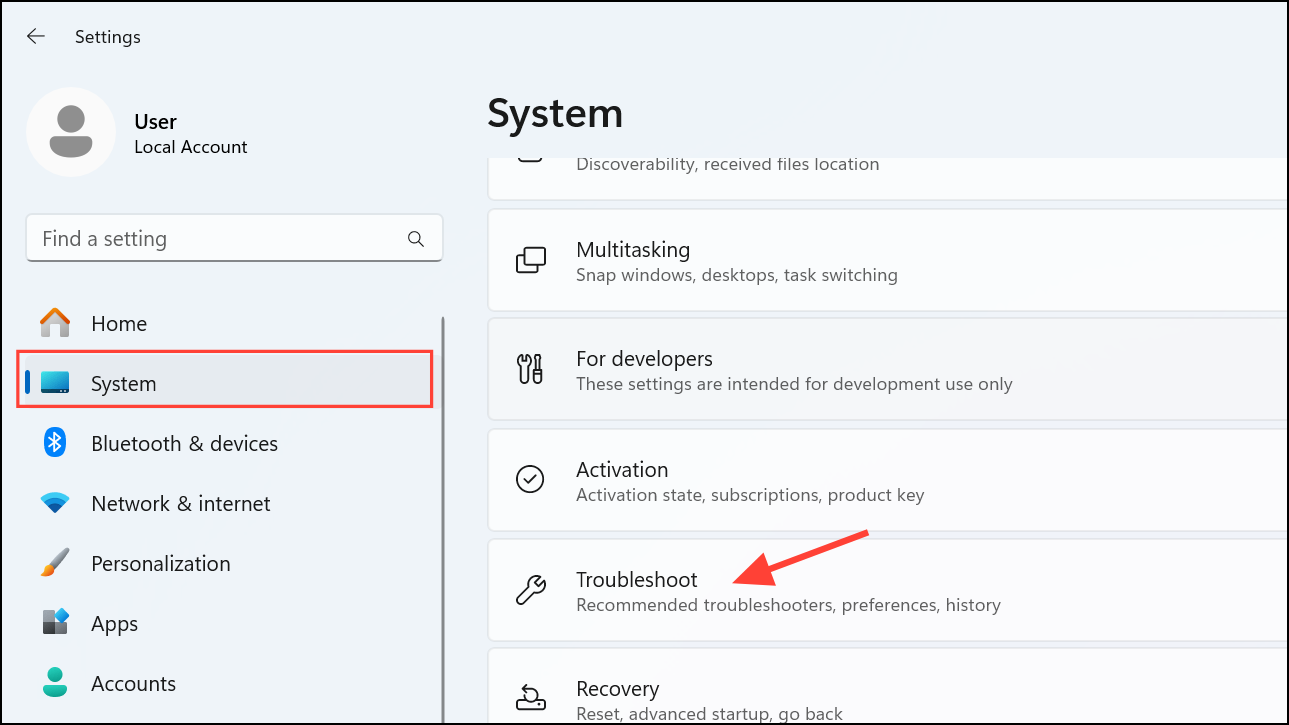
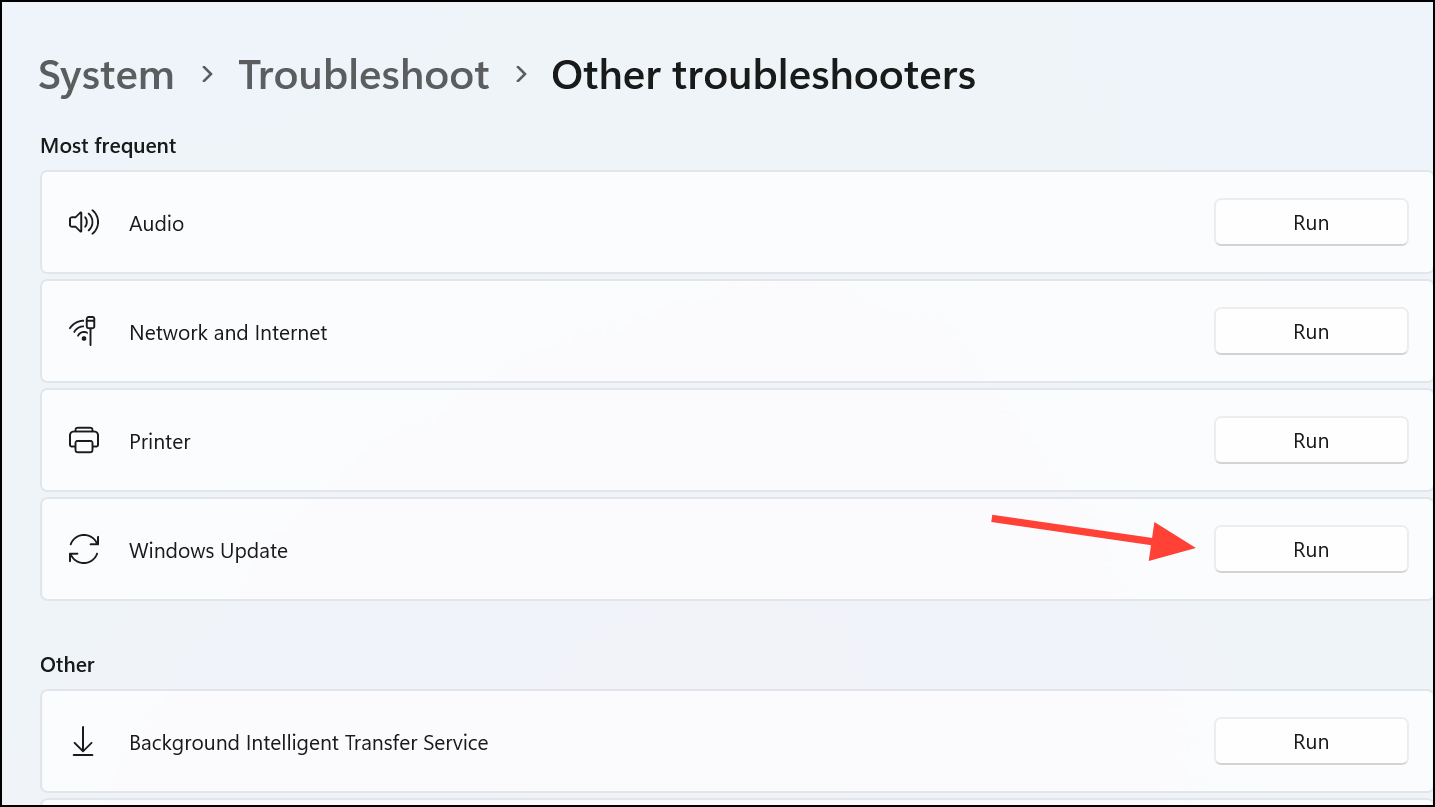
Method 2: Clear the Windows Update Cache
If the troubleshooter doesn’t resolve the issue, corrupted update files in the cache might be causing the problem. Clearing the cache forces Windows to download fresh update files.
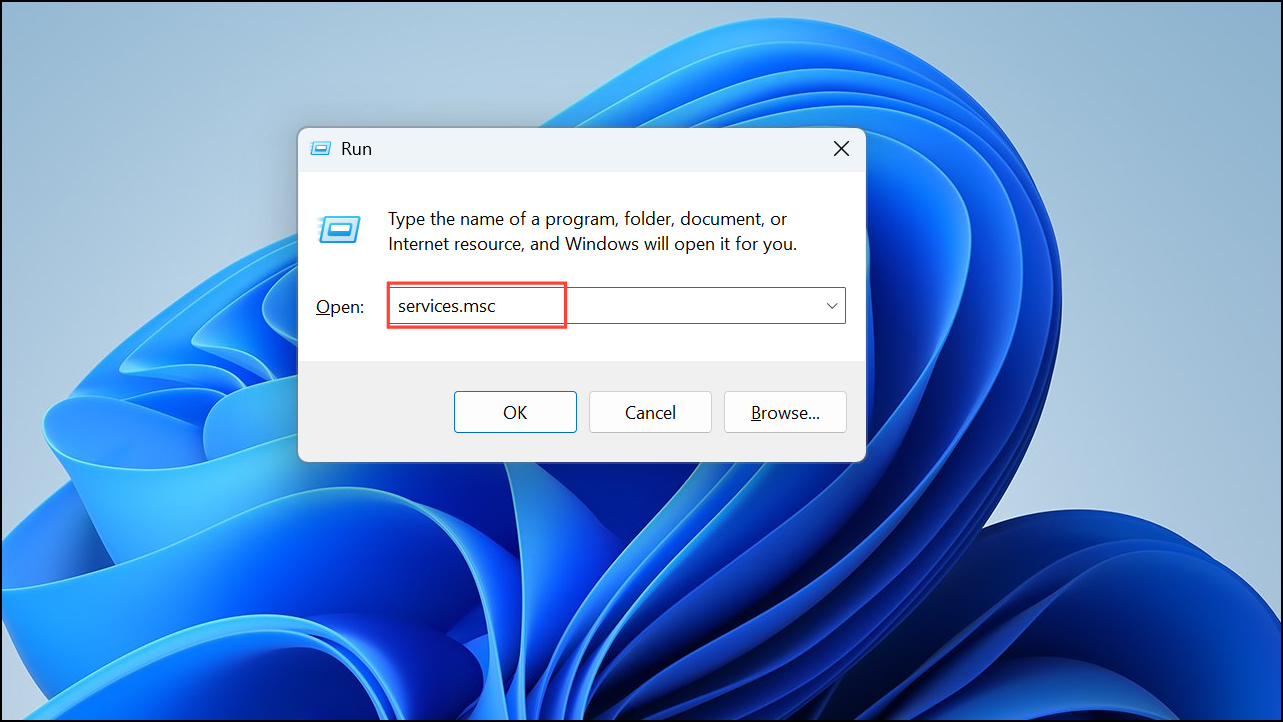
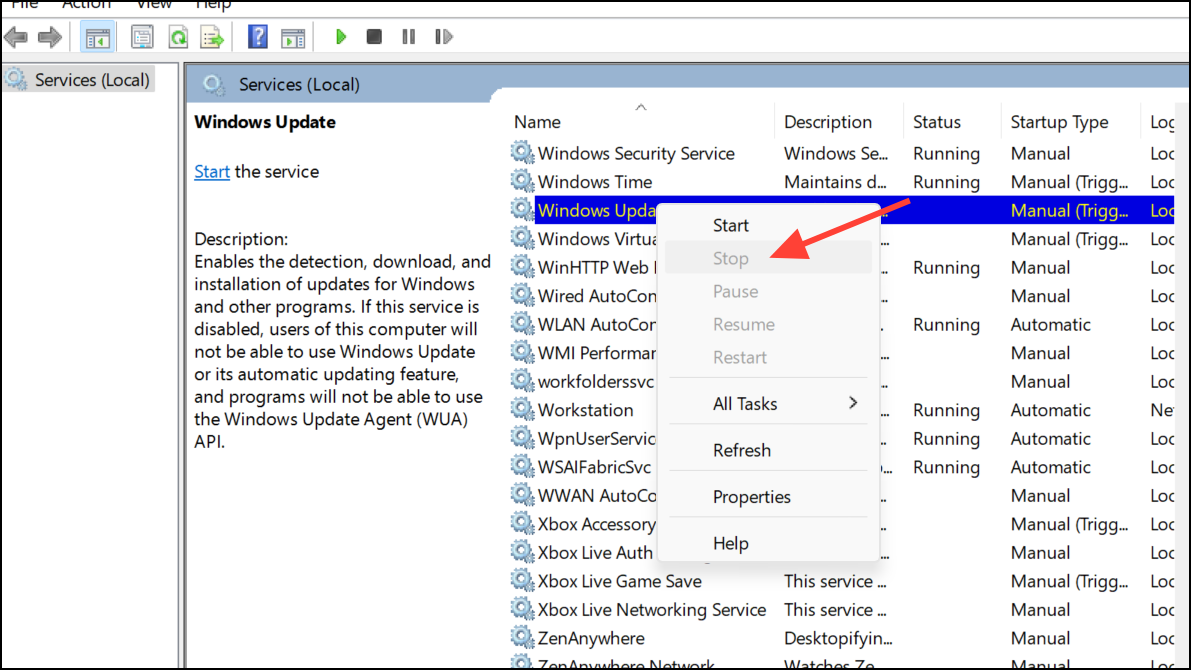
C:\Windows\SoftwareDistribution. Select all files and folders within this directory and delete them. Don’t worry—these files are safe to remove, as Windows will recreate necessary files automatically.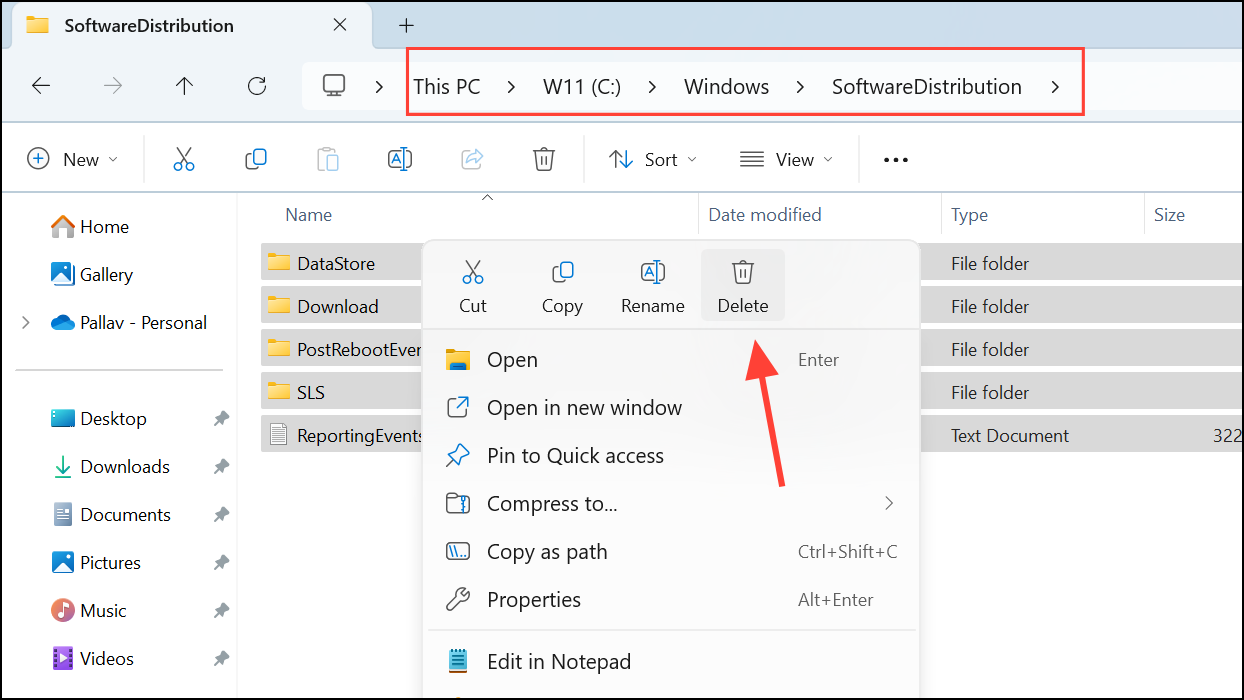
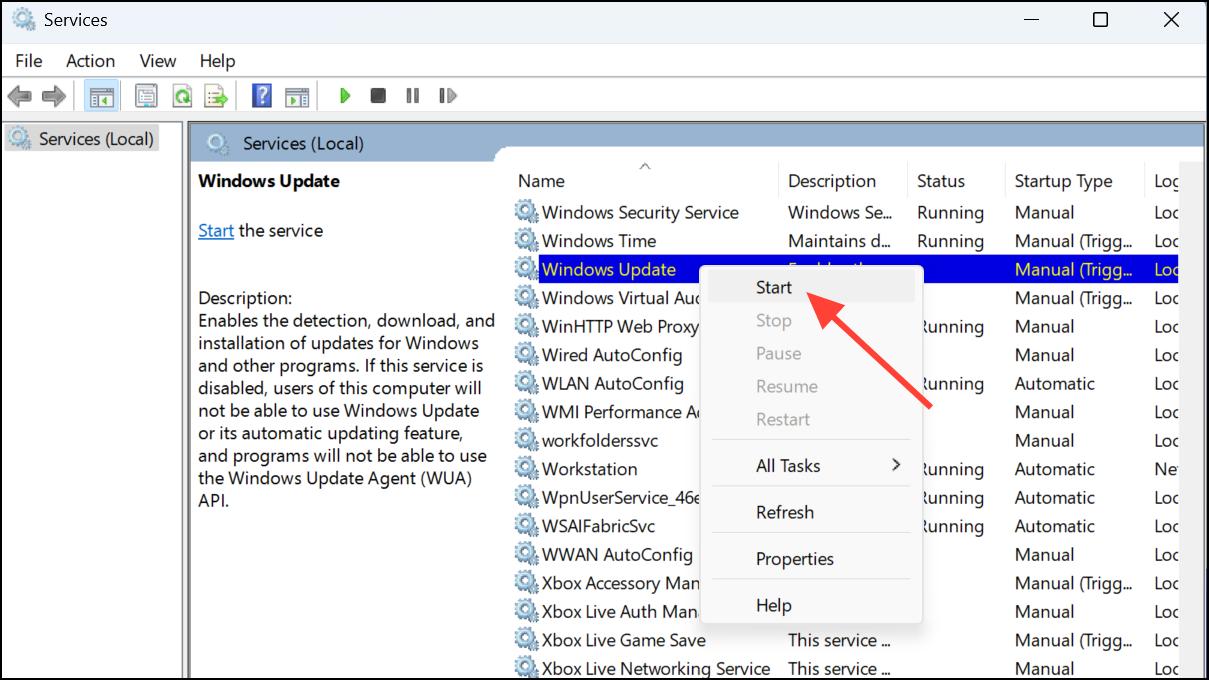
Method 3: Repair Corrupted System Files Using SFC and DISM
Corrupted system files can disrupt Windows Update. Using built-in command-line tools like System File Checker (SFC) and Deployment Image Servicing and Management (DISM) can repair these corrupted files.
cmd in the search box, right-clicking Command Prompt, and selecting Run as administrator.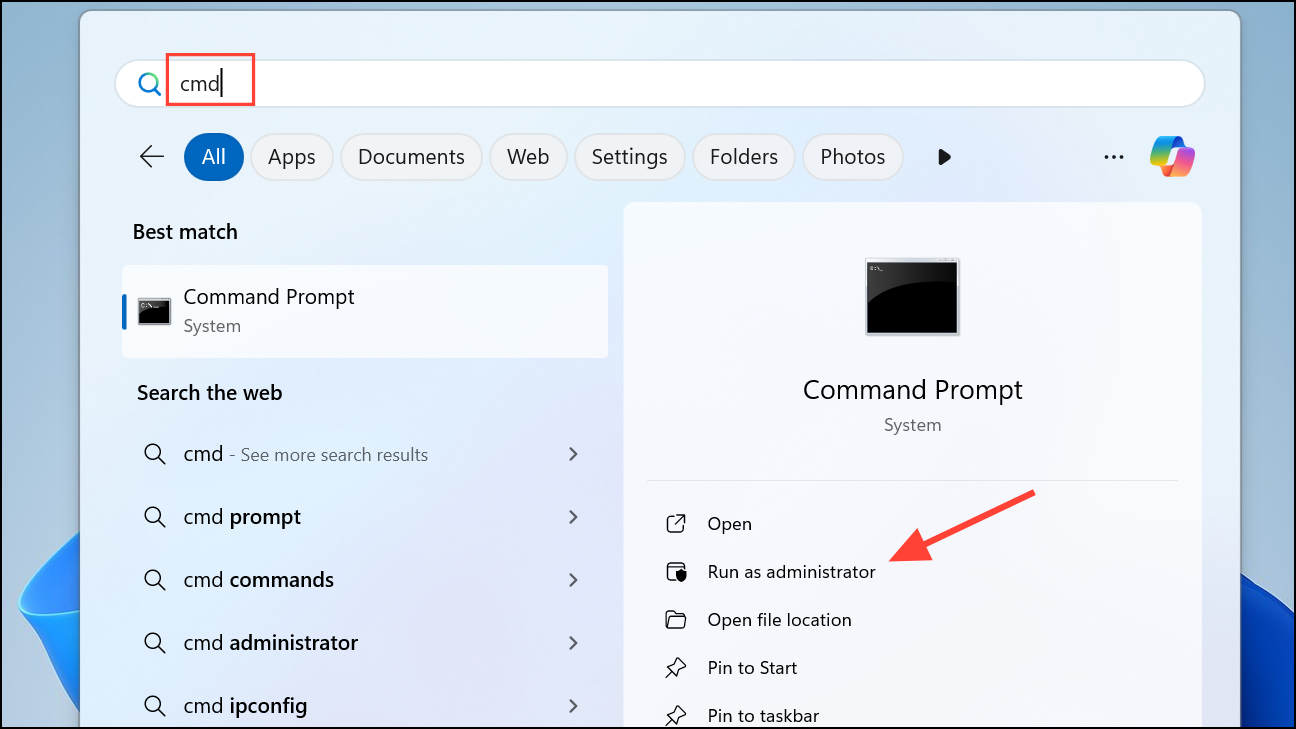
DISM.exe /Online /Cleanup-image /Restorehealth. This command repairs issues with the Windows image and may take several minutes to complete.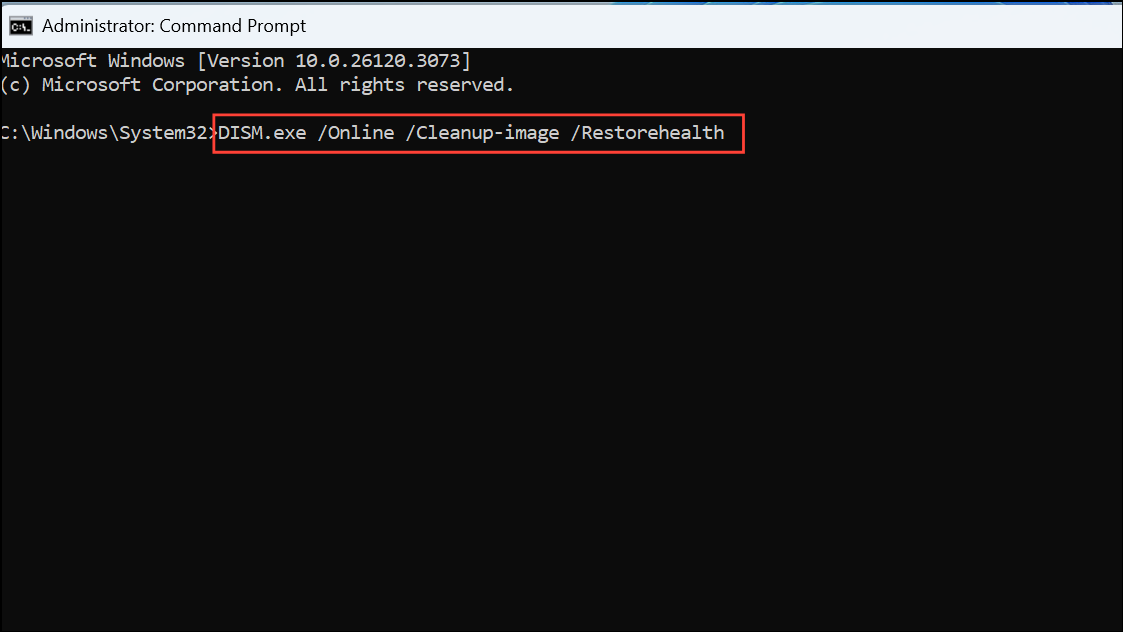
sfc /scannow and press Enter. This command scans and repairs corrupted system files. Once complete, restart your computer and run Windows Update again.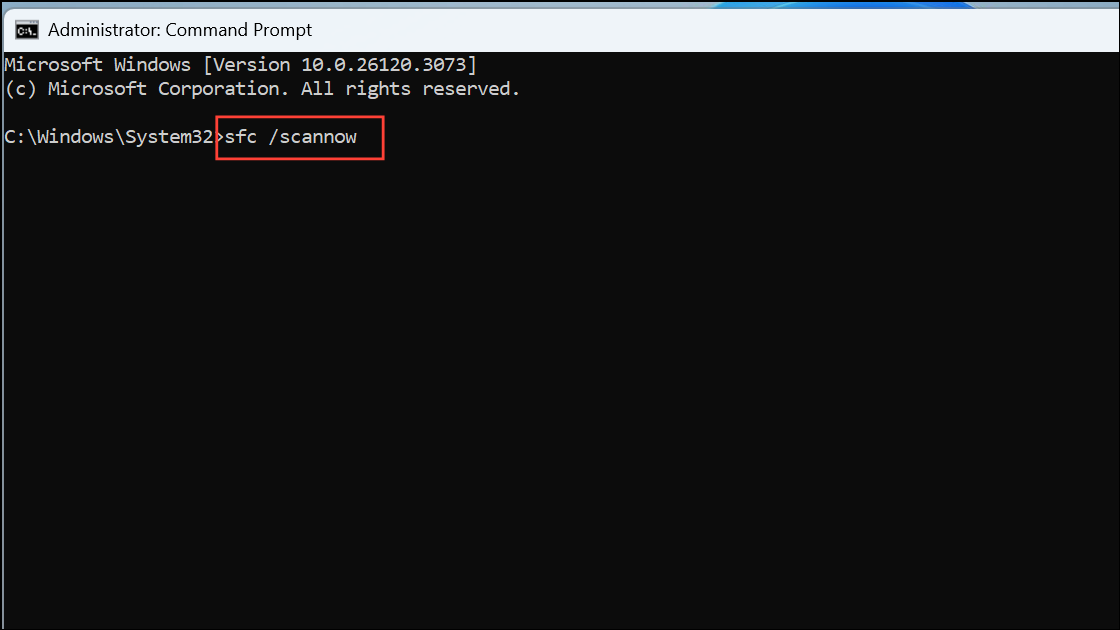
Method 4: Manually Install Updates from Microsoft Update Catalog
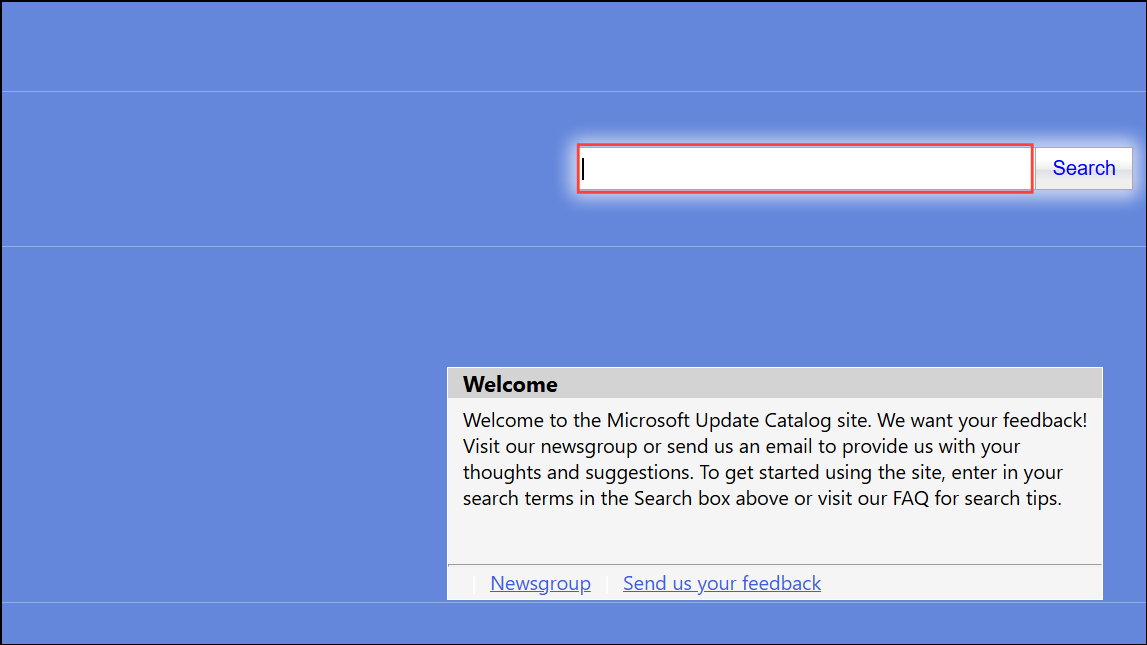
When automatic updates repeatedly fail, manually installing the update from the Microsoft Update Catalog can bypass the issue.
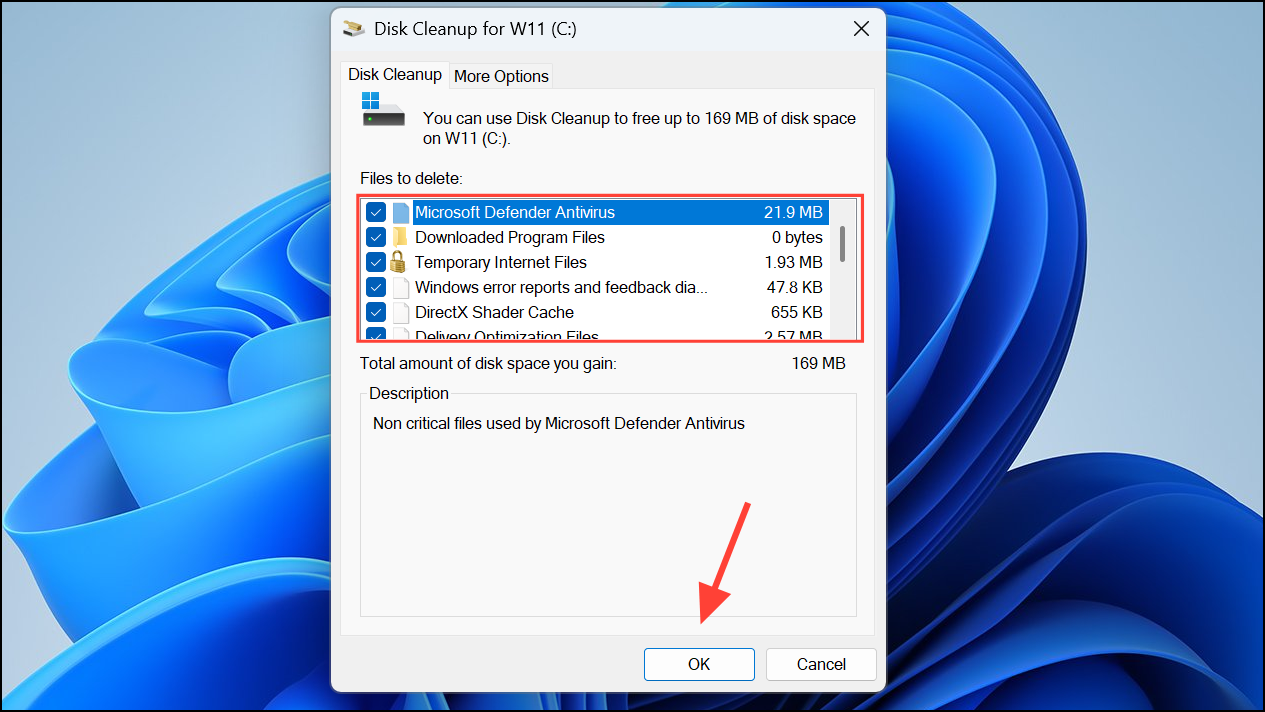
Method 5: Free Up Disk Space
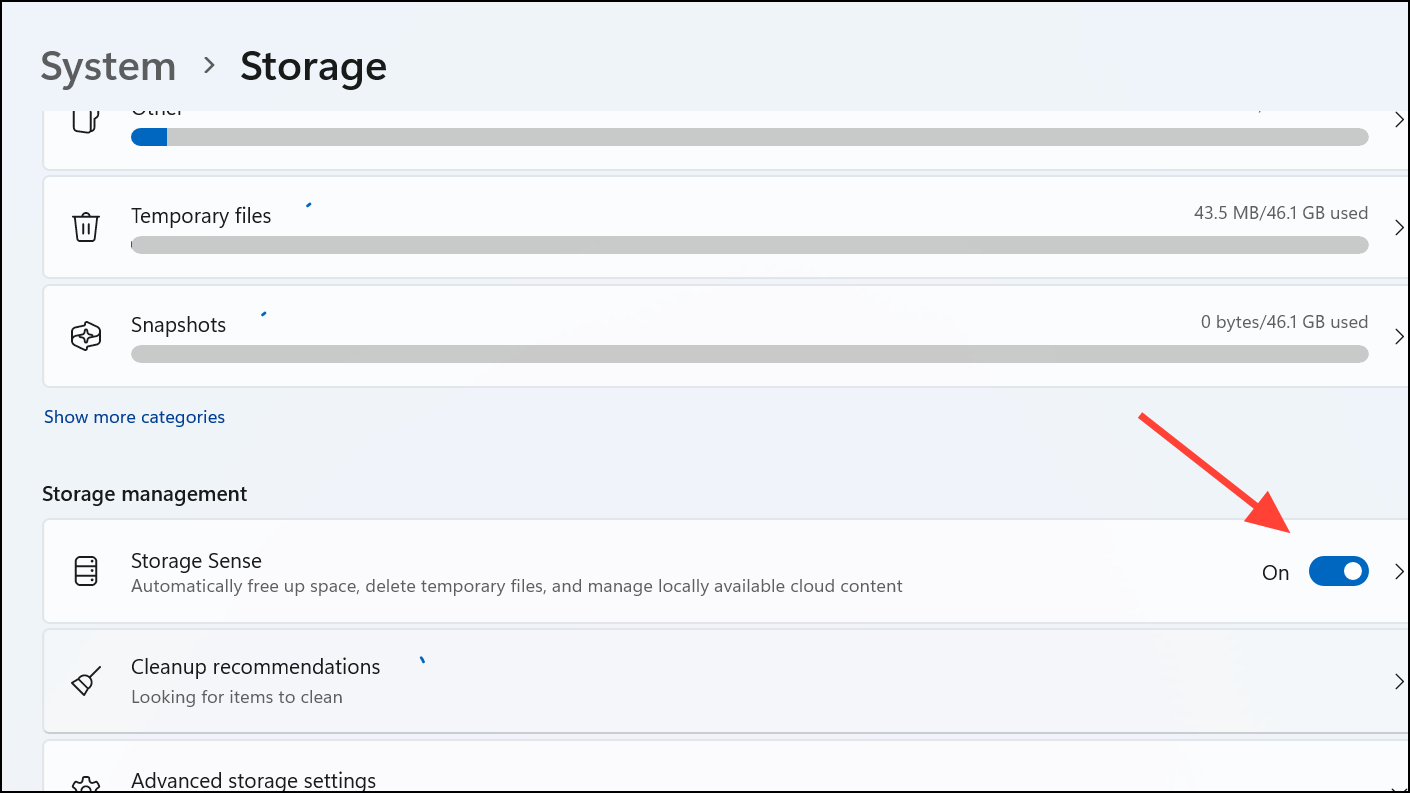
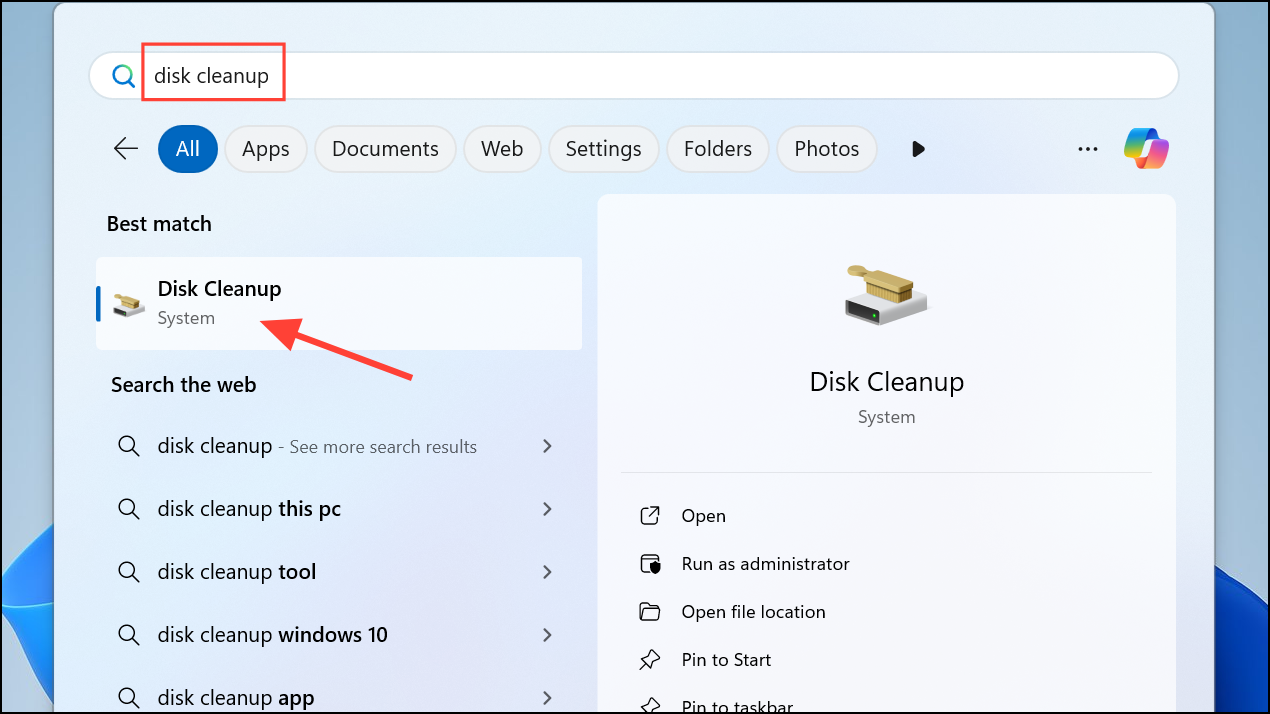
Insufficient disk space can prevent updates from installing. Windows updates, especially major feature updates, require ample storage space to download and install successfully.
Method 6: Reset Windows Update Components
Resetting Windows Update components can fix persistent issues by restarting essential services and deleting problematic files.
net stop bits
net stop wuauserv
net stop cryptSvc
net stop msiserver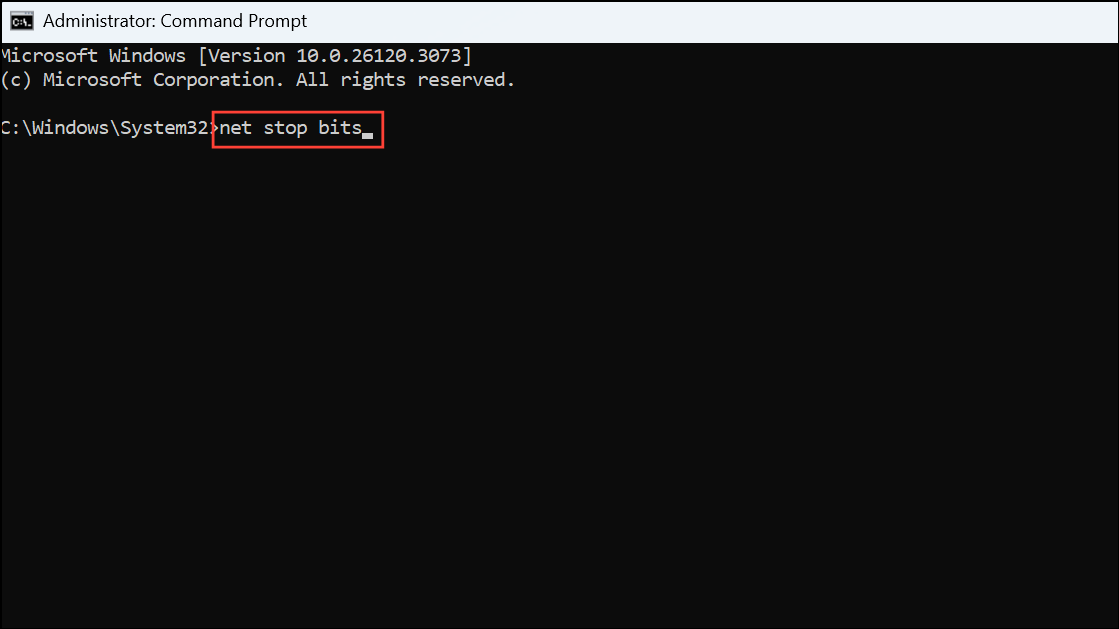
rd C:\Windows\SoftwareDistribution /q /s
rd C:\Windows\System32\catroot2 /q /s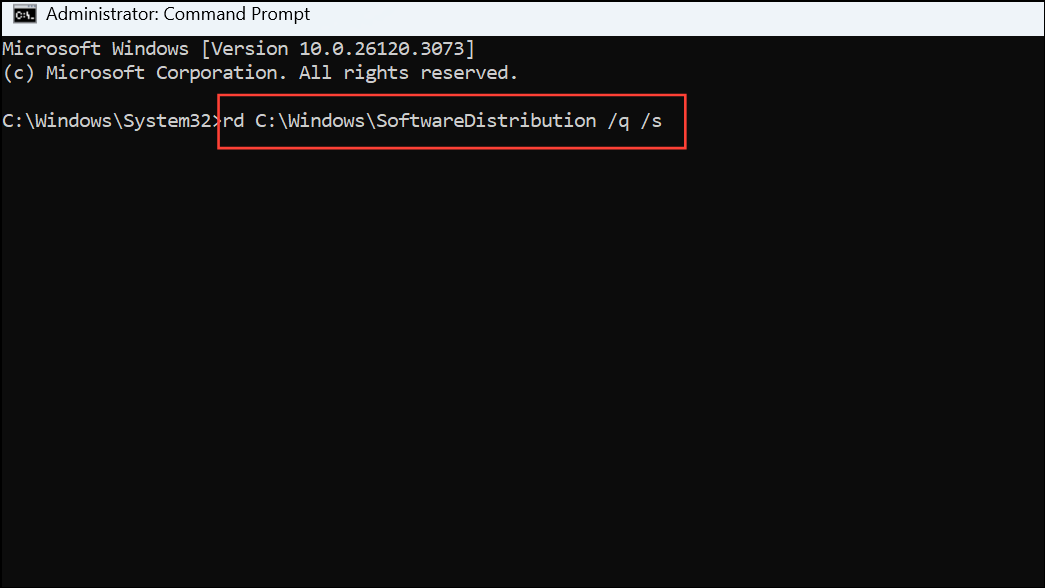
net start bits
net start wuauserv
net start cryptSvc
net start msiserver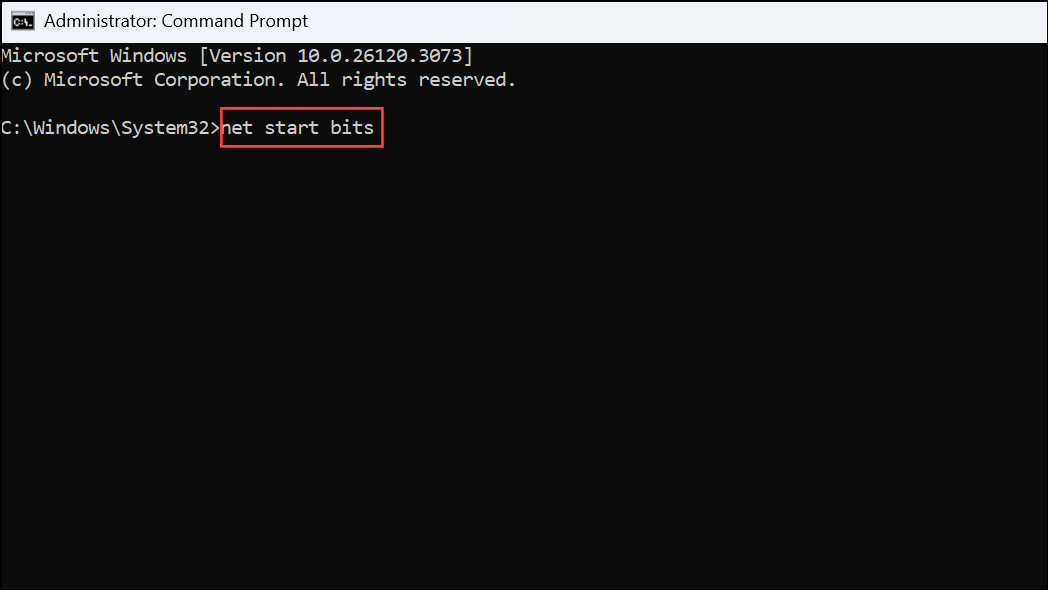
Restart your computer and attempt the updates again.
With these methods, resolving Windows Update issues should be straightforward. If problems persist, consider performing an in-place upgrade or a clean installation of Windows as a last resort. Keep your system updated regularly to avoid future issues.





