
Microsoft Store Error 0x80073D0A occurs when the Windows Defender Firewall service stops functioning properly, preventing users from installing or updating apps. The error message typically reads: “Try that again, Something went wrong. The error code is 0x80073D0A, in case you need it. ERROR_INSTALL_FIREWALL_SERVICE_NOT_RUNNING.”
To troubleshoot this issue effectively, follow the detailed methods below, beginning with the most straightforward solutions.
Method 1: Run the Windows Store Apps Troubleshooter
The built-in Windows Store Apps troubleshooter automatically identifies and fixes common issues related to Microsoft Store apps.
Win + I to open the Settings app. On Windows 11, navigate to System > Troubleshoot > Other troubleshooters. On Windows 10, go to Update & Security > Troubleshoot > Additional troubleshooters.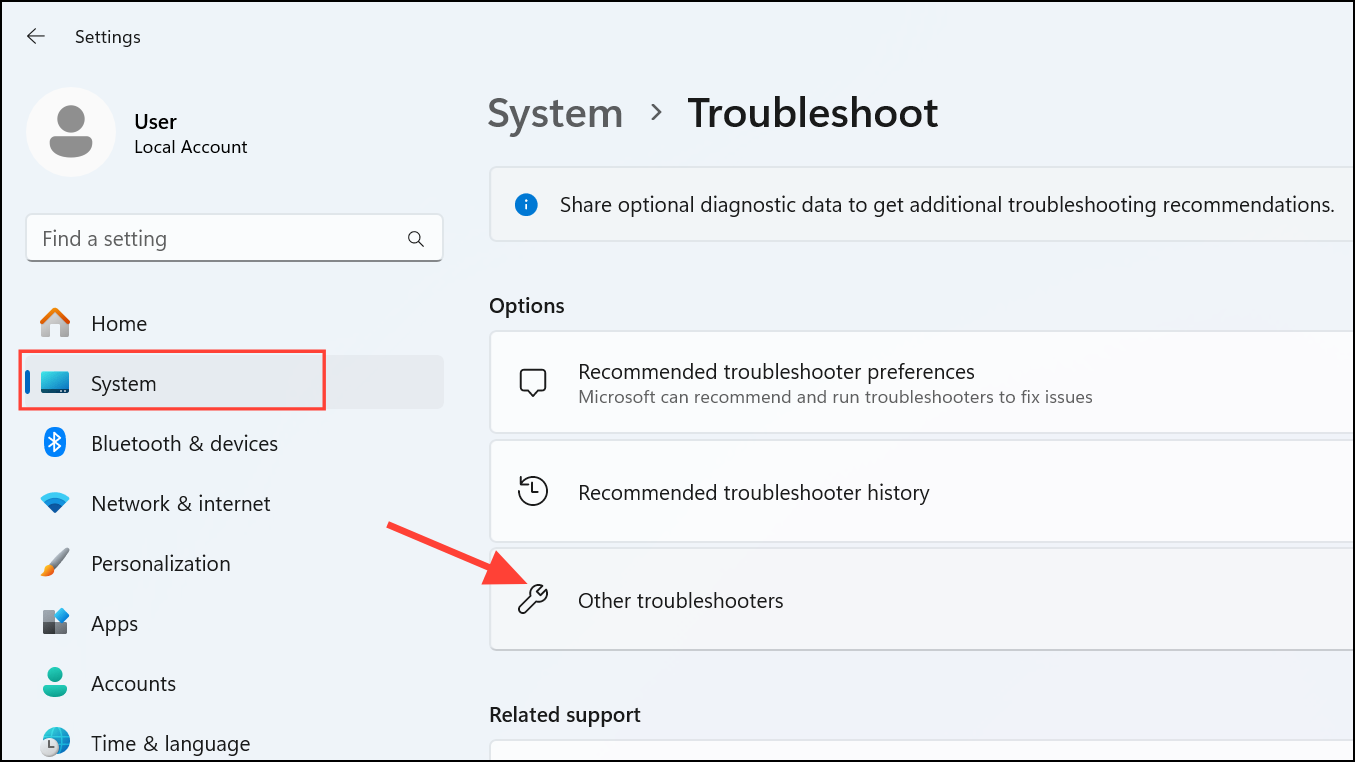
Once completed, restart your computer and check if the error persists.
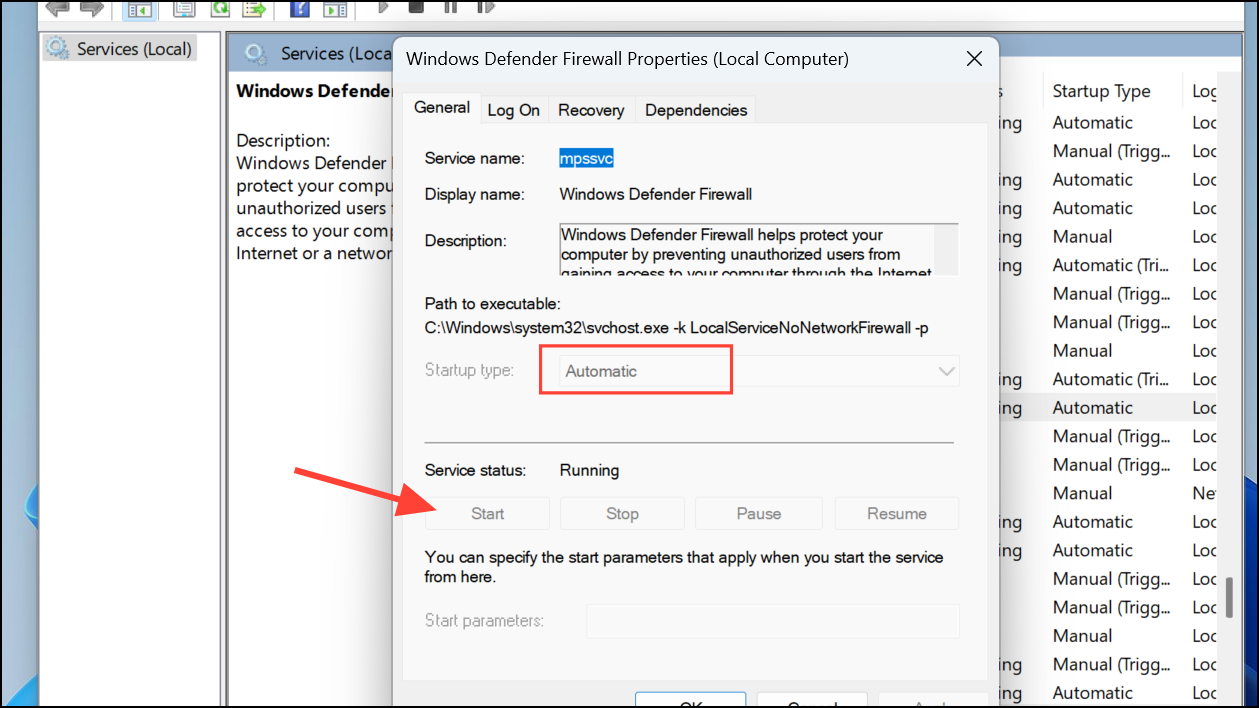
Method 2: Check and Restart Windows Defender Firewall Service
Since Error 0x80073D0A directly relates to Windows Defender Firewall, ensuring this service is running is crucial.
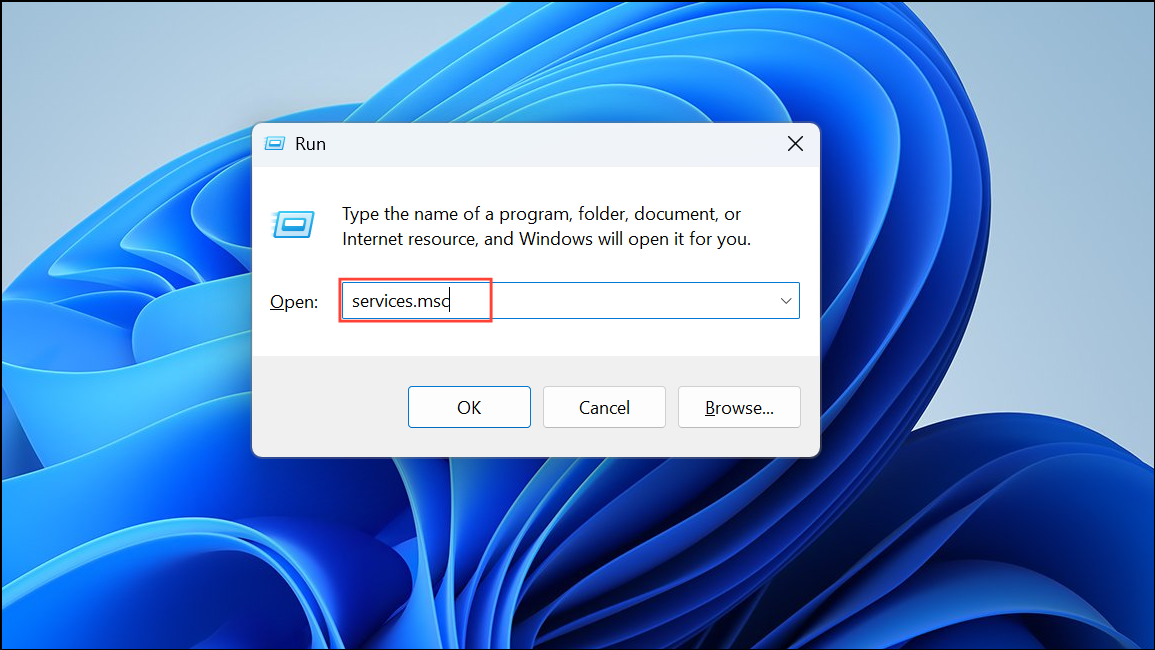
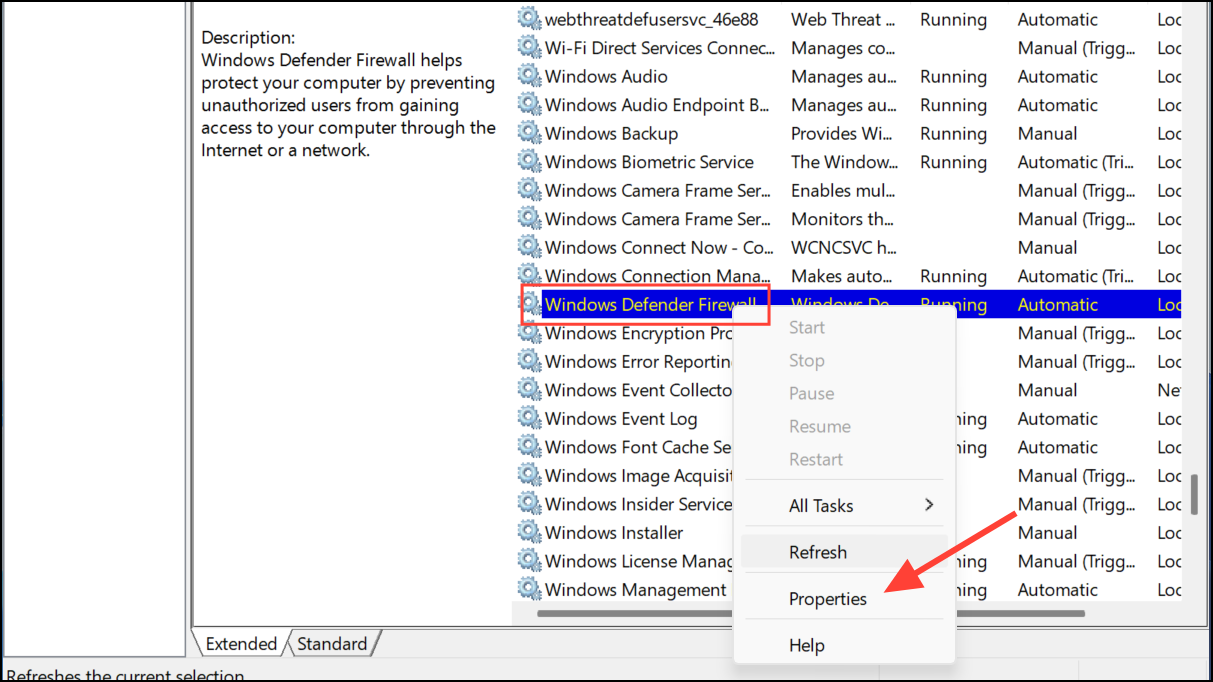
Method 3: Reset Microsoft Store Cache
Corrupted cache files often cause issues with app installations and updates. Clearing the cache can resolve these problems.
Win + R, type wsreset.exe, and hit Enter. A command prompt window will briefly appear, and the Microsoft Store will open automatically afterward.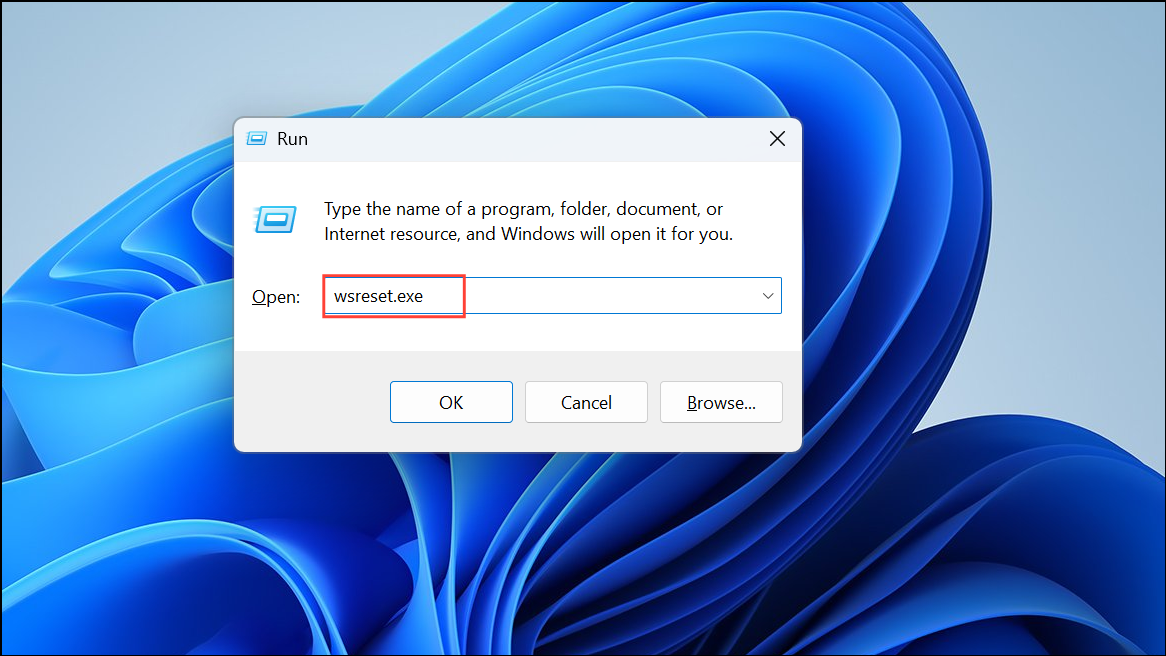
Method 4: Re-register Microsoft Store Apps Using PowerShell
Re-registering Microsoft Store apps can fix deeper issues related to app installation and updates.
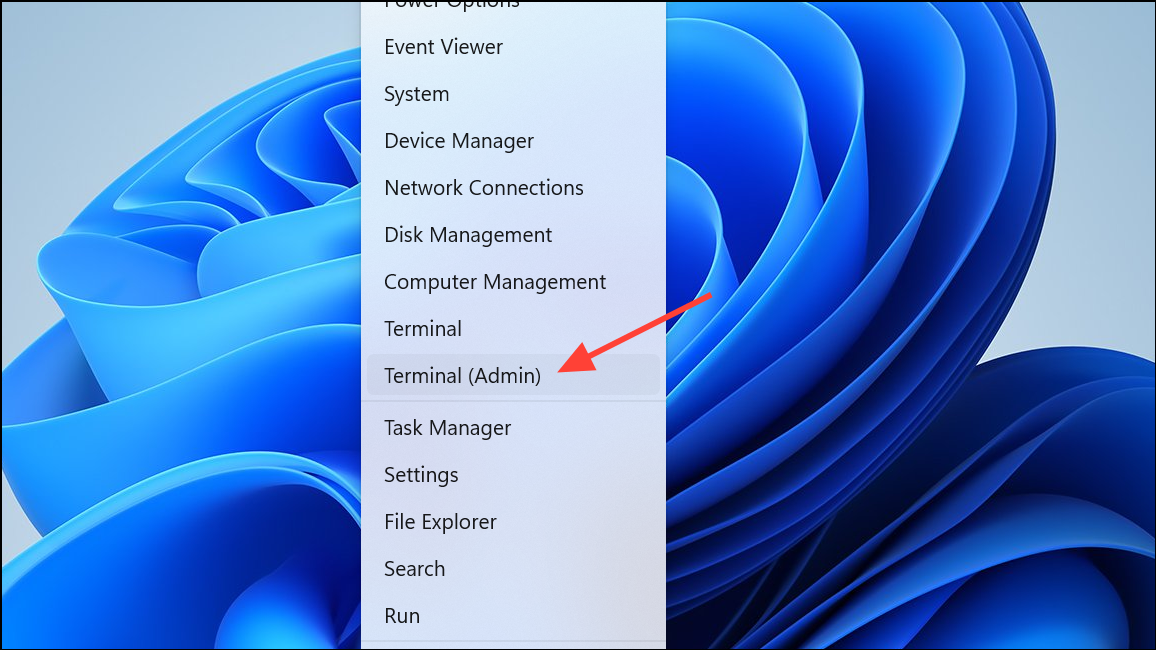
Get-AppXPackage -allusers | Foreach {Add-AppxPackage -DisableDevelopmentMode -Register "$($_.InstallLocation)\AppXManifest.xml"}
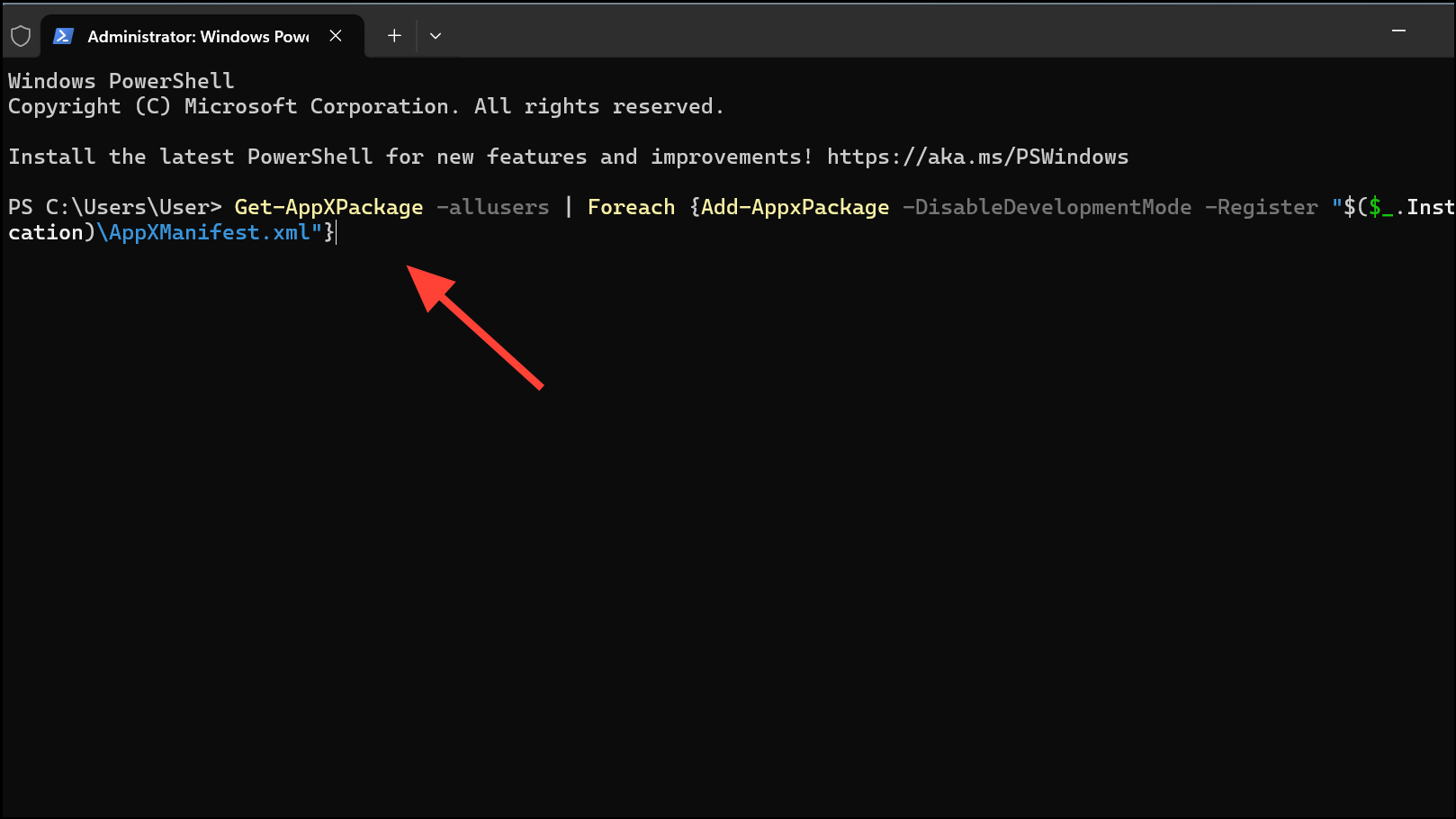
Wait until the process completes, then restart your computer and attempt app installation again.
Method 5: Temporarily Disable or Uninstall Third-Party Firewall or Antivirus Software
Third-party security software, such as Norton or Kaspersky, can sometimes interfere with Microsoft Store operations.
Method 6: Perform System File Checker (SFC) and DISM Scans
Corrupted system files can also trigger Microsoft Store errors. Running SFC and DISM scans can repair these files.
sfc /scannow
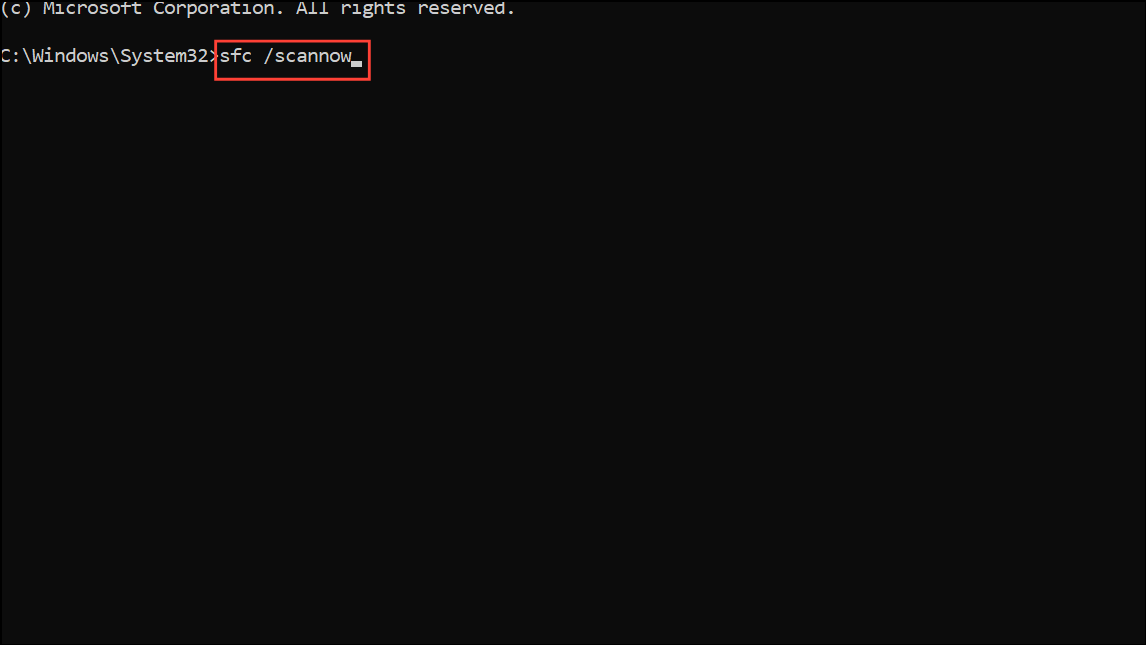
Allow the scan to complete. If issues are found, the tool will attempt automatic repairs.
DISM /Online /Cleanup-Image /RestoreHealth
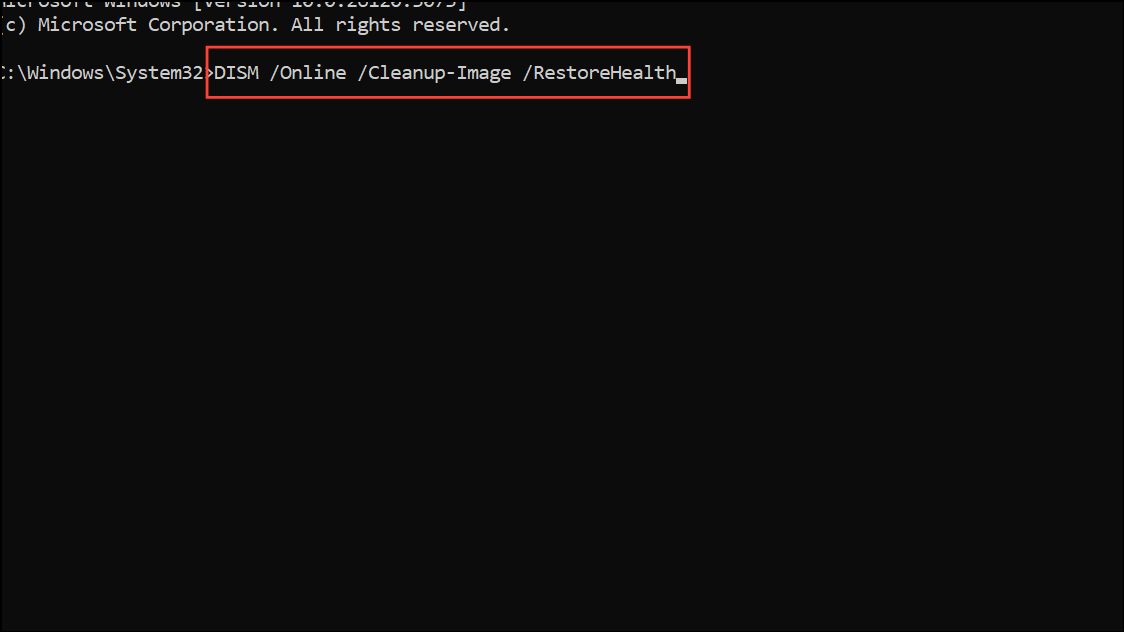
Wait for the process to finish, then restart your PC and check if the Microsoft Store issue is resolved.
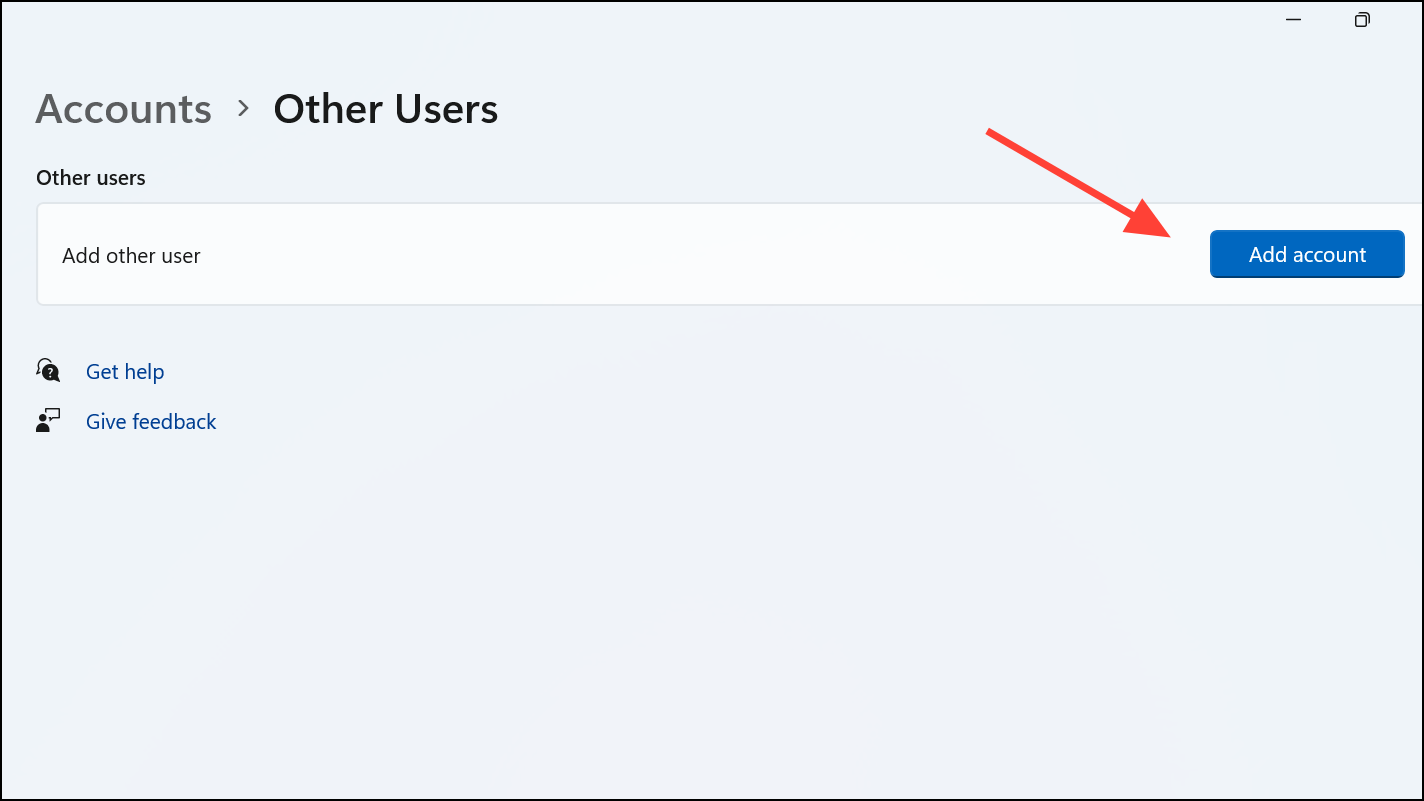
Method 7: Create a New User Account
If all else fails, creating a new Windows user account can resolve profile-specific issues affecting Microsoft Store.
With these methods, you should successfully resolve Microsoft Store Error 0x80073D0A. Regularly updating your system and maintaining security services can help prevent similar issues in the future.





