
The Windows stop code 0xC000021A is a critical Blue Screen of Death (BSOD) error that occurs when a crucial system process, typically winlogon.exe or csrss.exe, encounters an unrecoverable issue. This error prevents your Windows 11 or Windows 10 system from booting properly, leaving your computer stuck in a restart loop or a blue screen.
Common triggers for this error include corrupted system files, recent system updates, incompatible device drivers, or hardware issues. Below are several methods you can use to diagnose and resolve the 0xC000021A error effectively.
Method 1: Boot into Safe Mode to Troubleshoot
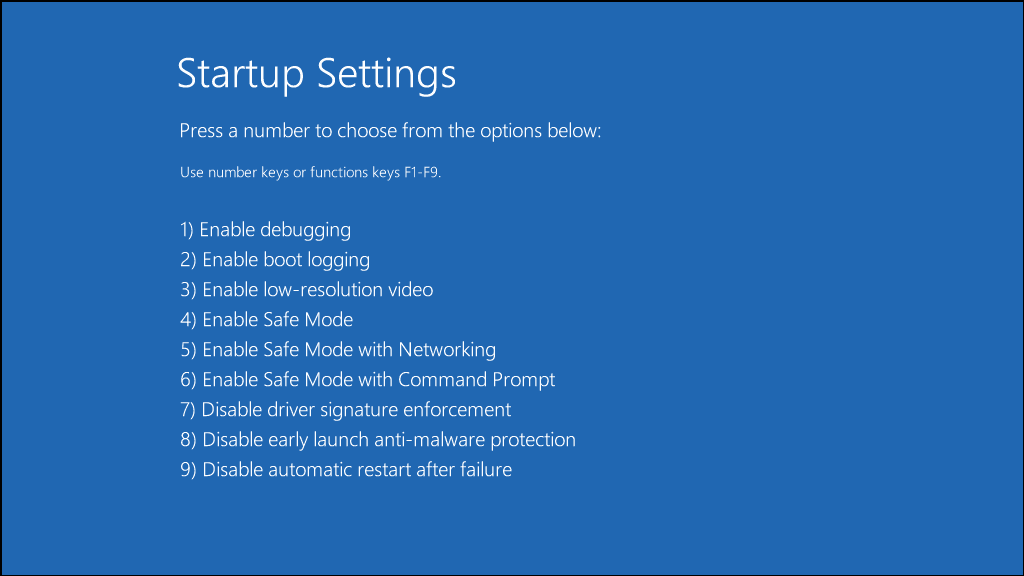
F4 to boot into Safe Mode or F5 to boot into Safe Mode with Networking.Once in Safe Mode, you can perform troubleshooting steps such as uninstalling recent updates, removing problematic software, or updating device drivers.
Method 2: Run Startup Repair
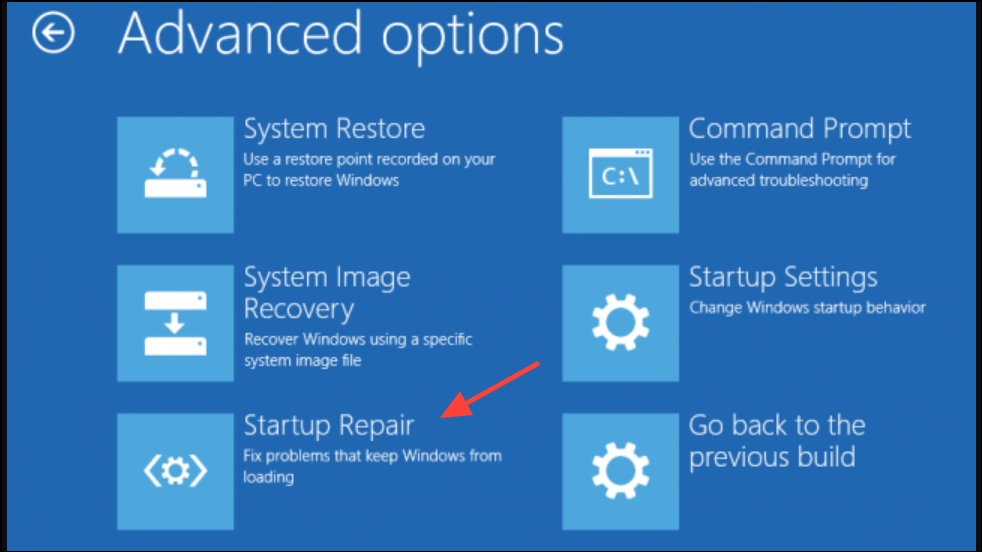
Method 3: Repair Corrupted System Files (SFC and DISM)
Enter to run the System File Checker (SFC):sfc /scannow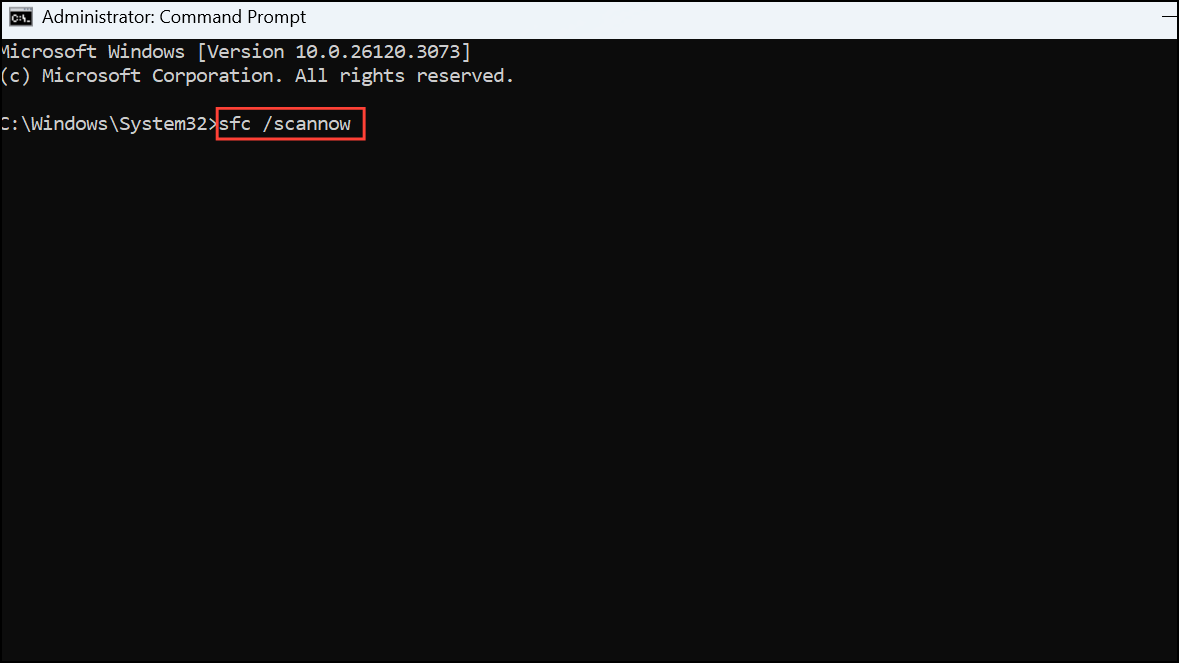
DISM /Online /Cleanup-Image /RestoreHealth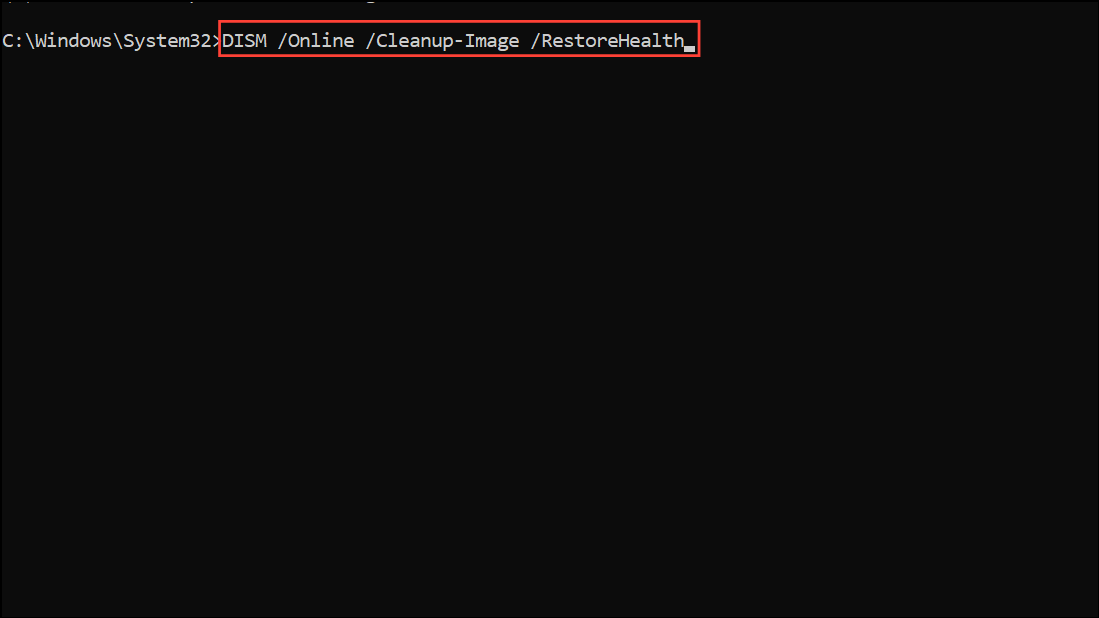
Once both scans finish, restart your computer and check if the issue is resolved.
Method 4: Disable Driver Signature Enforcement
F7 to disable Driver Signature Enforcement. This setting allows Windows to boot even if a problematic unsigned driver is causing the issue.If this resolves the issue, uninstall or update the problematic driver through Device Manager.
Method 5: Rebuild Boot Configuration Data (BCD)
bootrec /fixmbr
bootrec /fixboot
bootrec /scanos
bootrec /rebuildbcd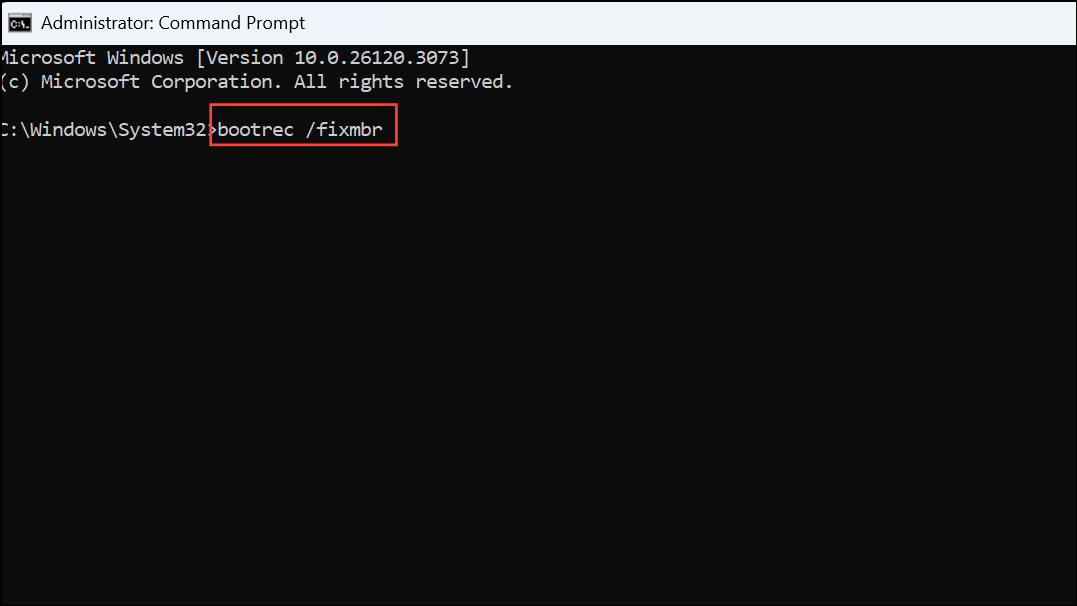
After completion, restart your computer to verify if the issue is resolved.
Method 6: Perform System Restore
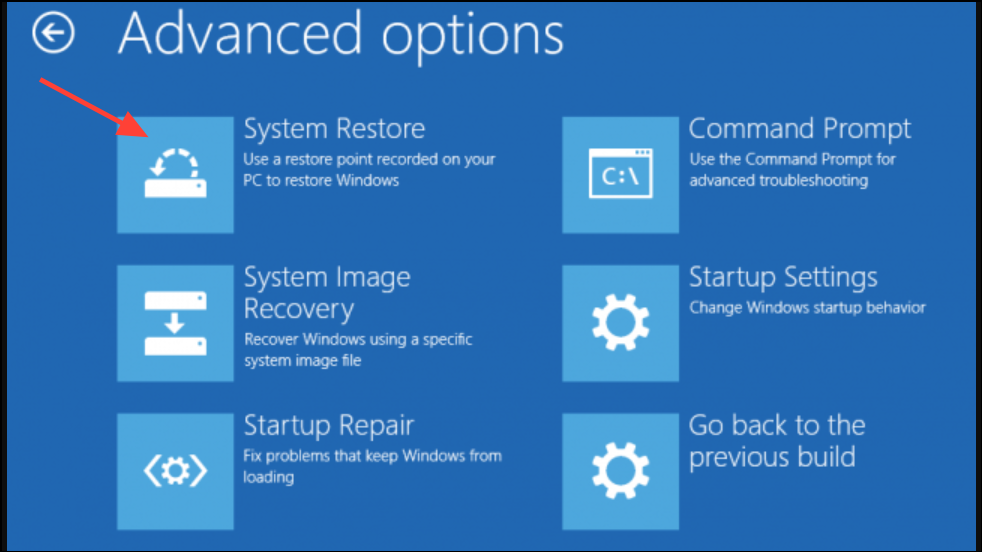
System Restore will revert your system to a previous working state without affecting personal files.
Method 7: Uninstall Recent Windows Updates
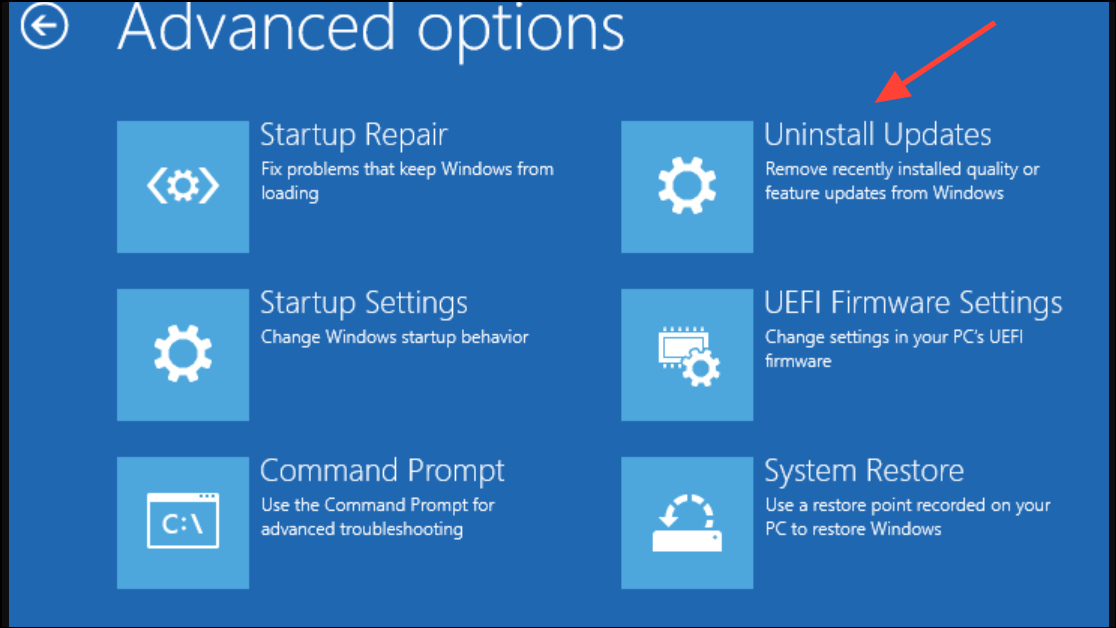
After uninstalling the update, restart your system to see if the error is resolved.
Method 8: Reset Windows
If none of the above methods work, resetting Windows can resolve persistent system issues.
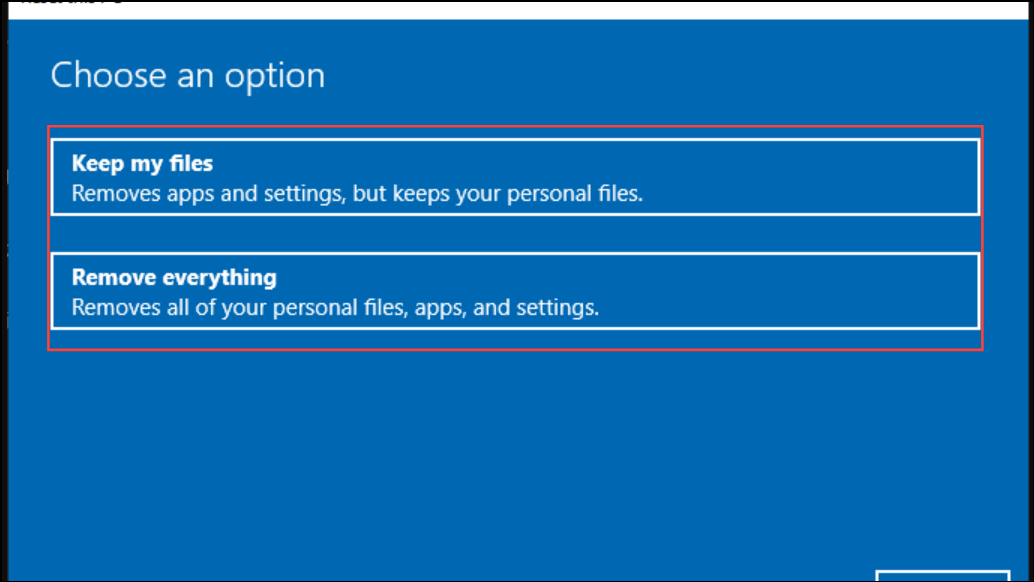
After the reset, your system should boot normally without the 0xC000021A error.
Resolving the 0xC000021A error may require multiple troubleshooting steps. Always ensure you have recent backups of your important data before performing major repairs or resets. If the issue persists despite all efforts, consider consulting a professional technician for further assistance.





