
The error code 0x0000001A, commonly known as the Memory Management error, occurs on Windows 10 and Windows 11 systems when the operating system encounters severe issues managing memory resources. Typically emerging during system upgrades, updates, or even spontaneously during regular use, this Blue Screen of Death (BSOD) indicates potential hardware issues, corrupted system files, or problematic device drivers.
Resolving this issue involves several reliable troubleshooting methods. Follow the steps below carefully to address and fix the error 0x0000001A effectively.
Method 1: Run the Windows Memory Diagnostics Tool
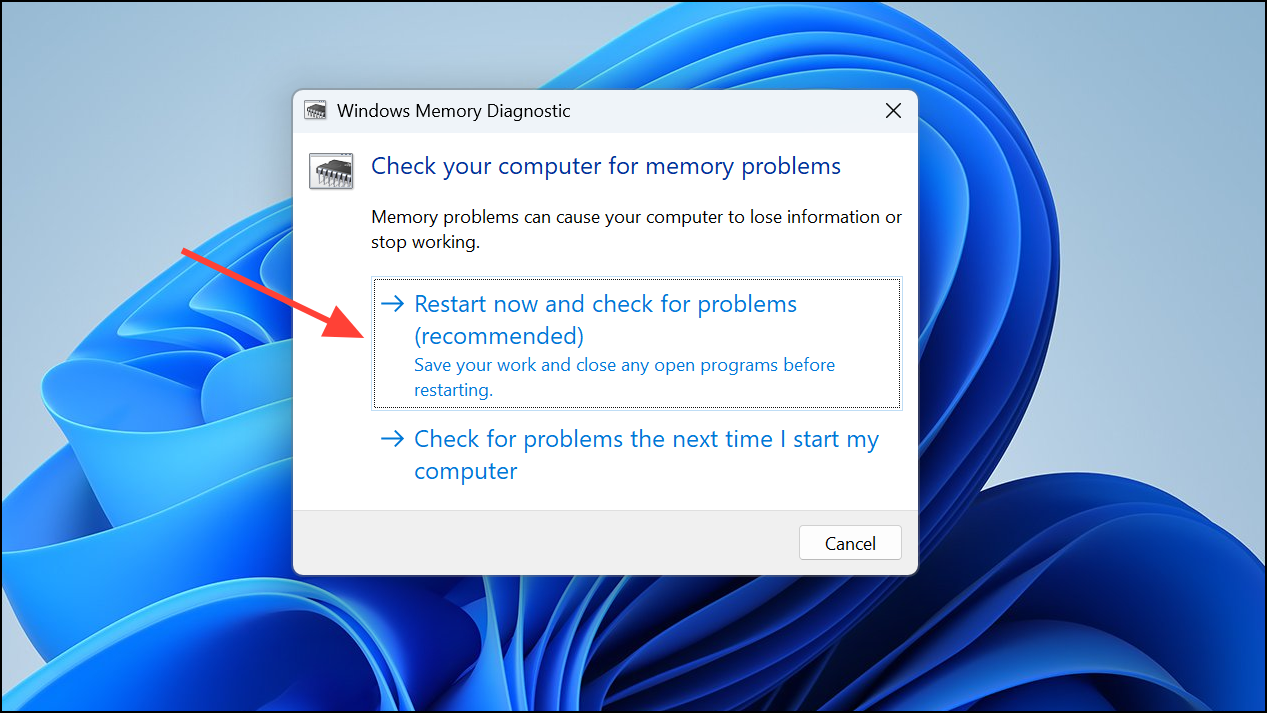
Memory issues are often the root cause of the 0x0000001A error. Windows provides a built-in tool specifically designed to detect and report memory-related problems.
Win + R to open the Run dialog box. Then type mdsched.exe and press Enter.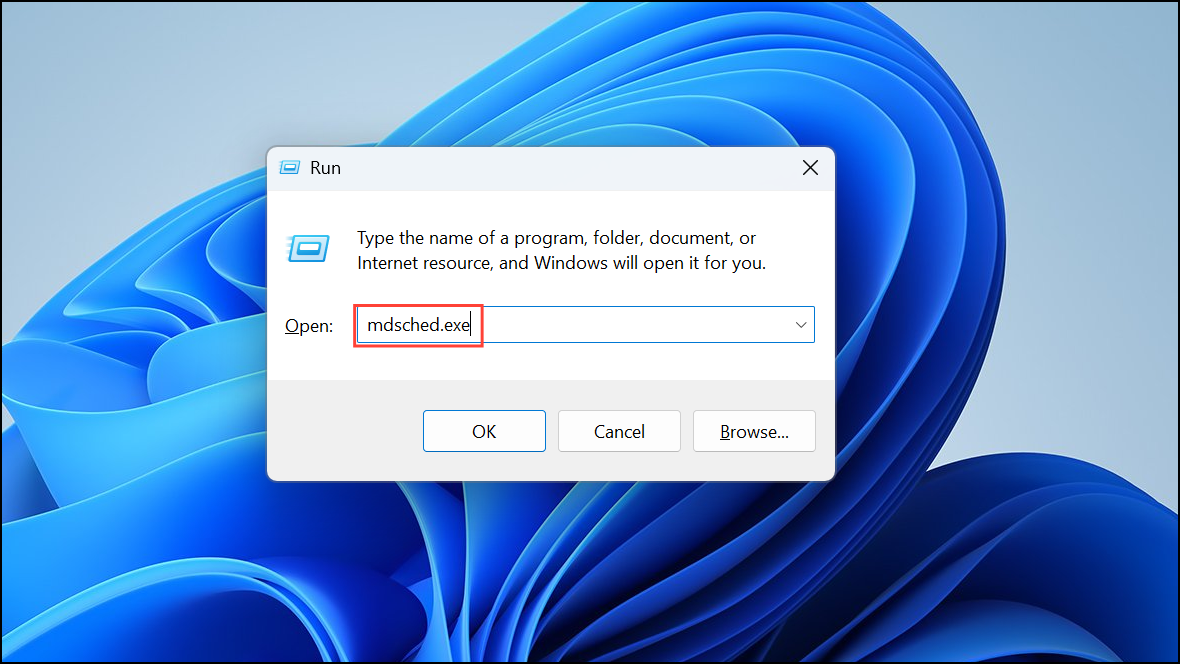
Method 2: Update Device Drivers
Outdated or corrupted device drivers frequently lead to memory management errors. Updating your drivers ensures compatibility and stability with your Windows system.
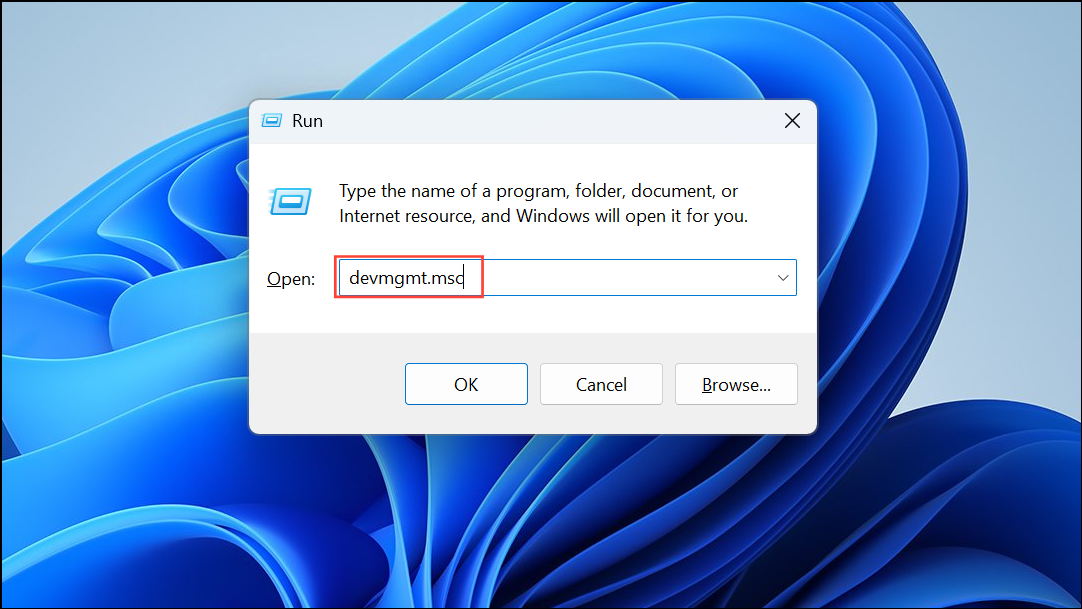
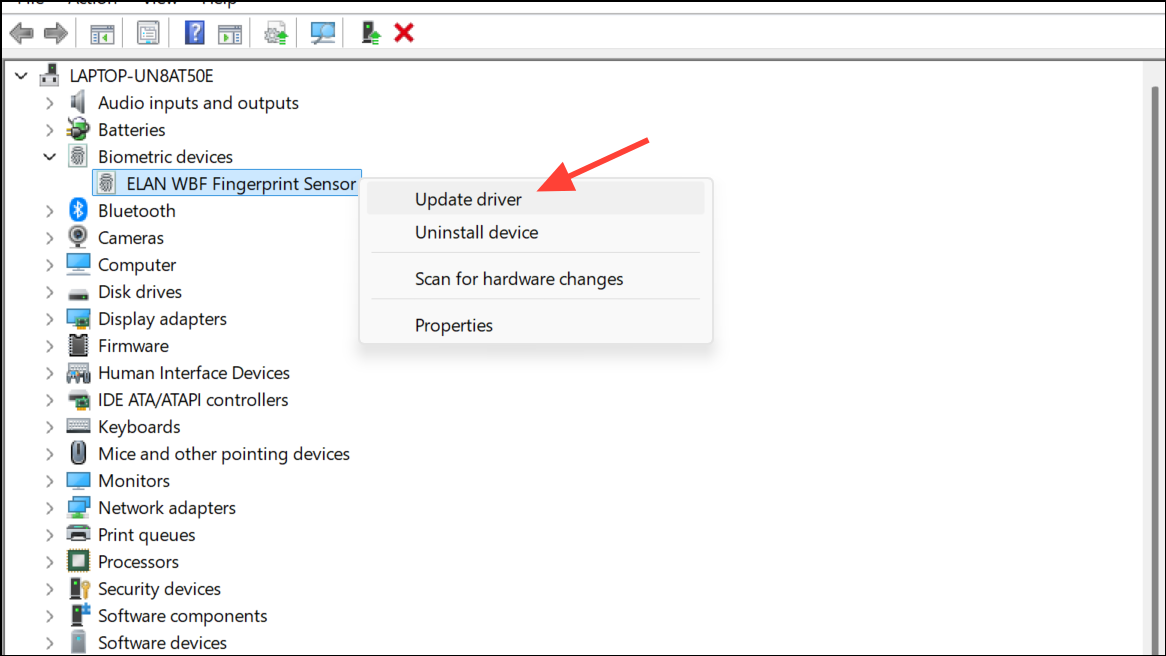
Method 3: Check for Disk Errors Using CHKDSK
Disk issues, such as bad sectors or corrupted file systems, can trigger the 0x0000001A error. Running the CHKDSK utility helps identify and repair disk problems.
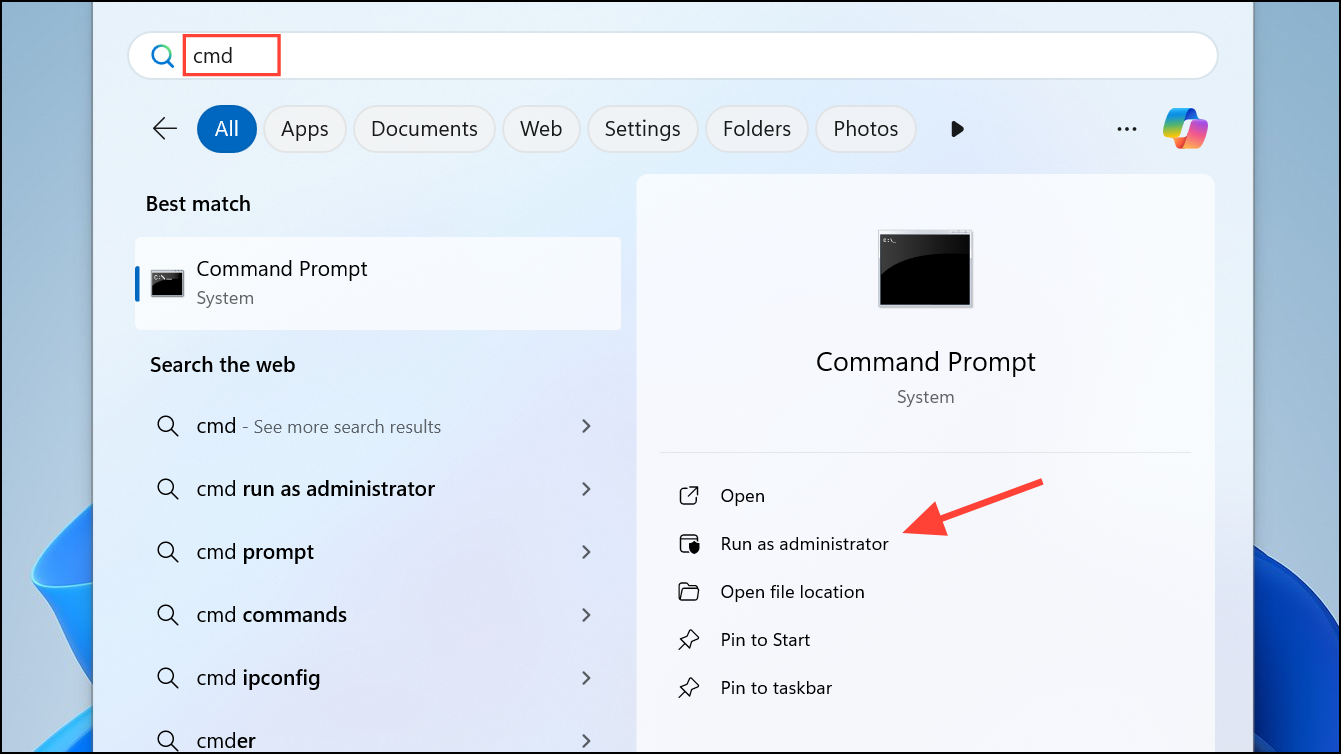
chkdsk C: /f /r and press Enter. Replace C: with the appropriate drive letter if necessary.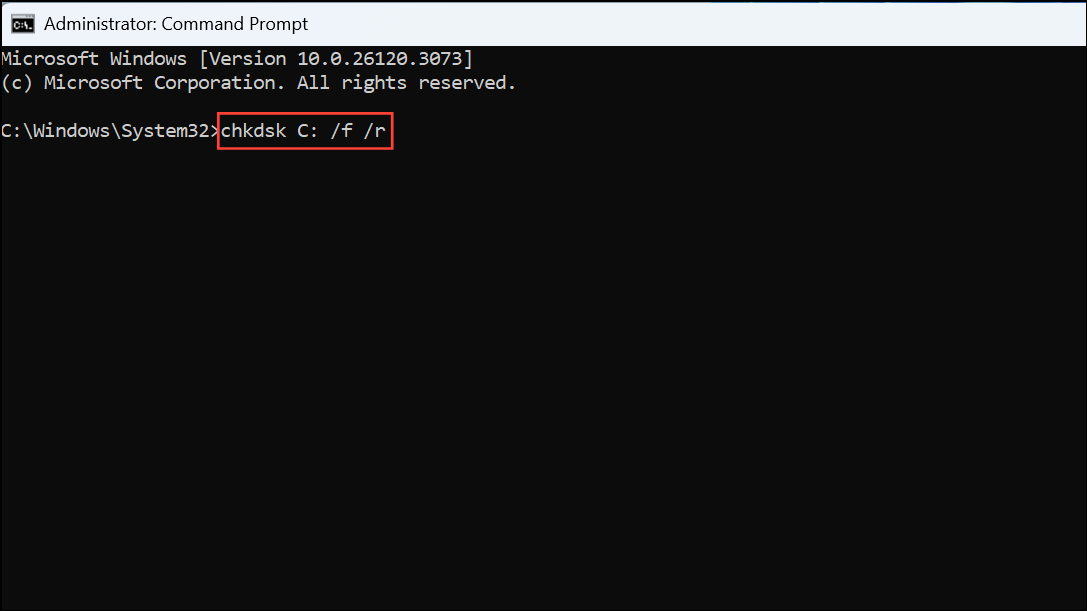
Method 4: Run DISM and SFC Scans
Corrupted or missing system files can also lead to the Memory Management error. DISM (Deployment Image Servicing and Management) and SFC (System File Checker) are powerful built-in tools that repair corrupted system files and restore system health.
cmd in the start menu search bar, right-clicking it, and selecting “Run as administrator.”DISM.exe /Online /Cleanup-image /Restorehealth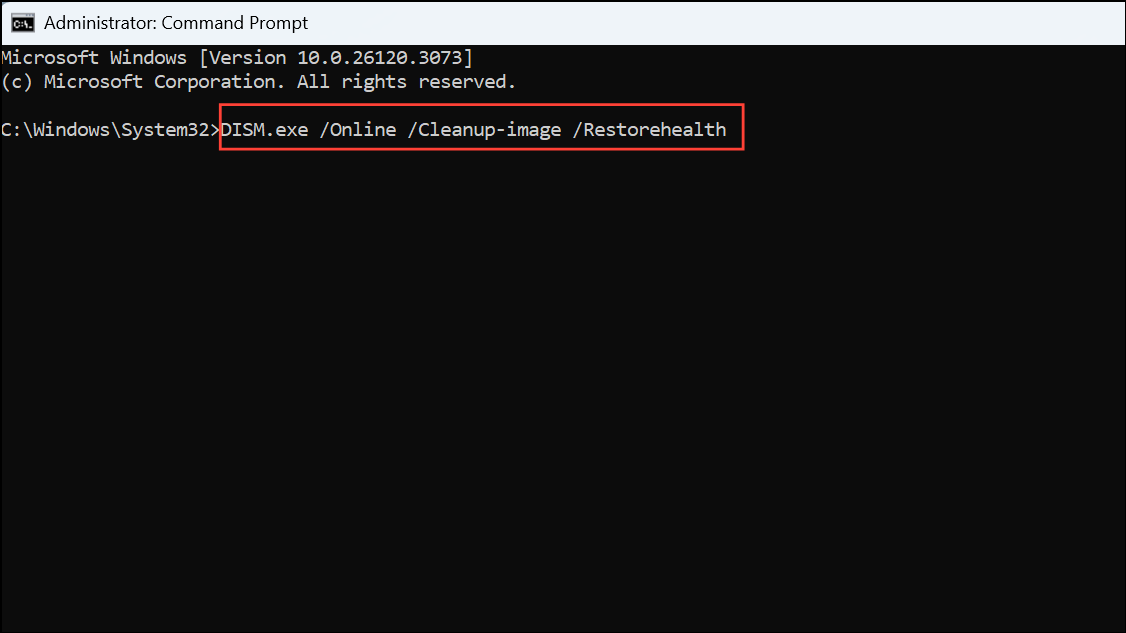
sfc /scannow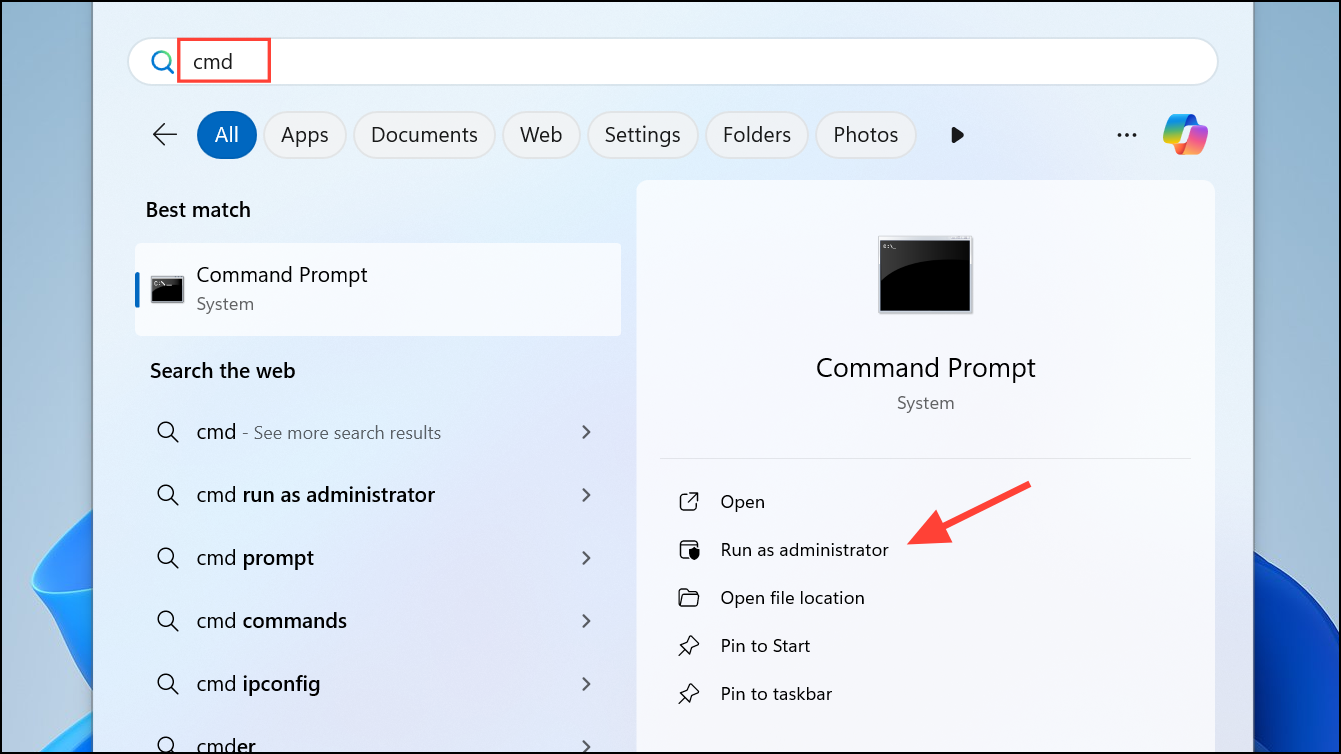
Method 5: Perform Antivirus and Malware Scans
Malware or viruses can also cause memory-related errors by interfering with system processes. Conducting a thorough antivirus and malware scan can identify and remove threats.
Use your preferred antivirus software to perform a complete system scan. Ensure your antivirus software is updated to the latest version to detect recent threats effectively. After the scan completes and threats are removed, restart your computer to verify if the issue persists.
Method 6: Uninstall Recently Installed Software or Hardware
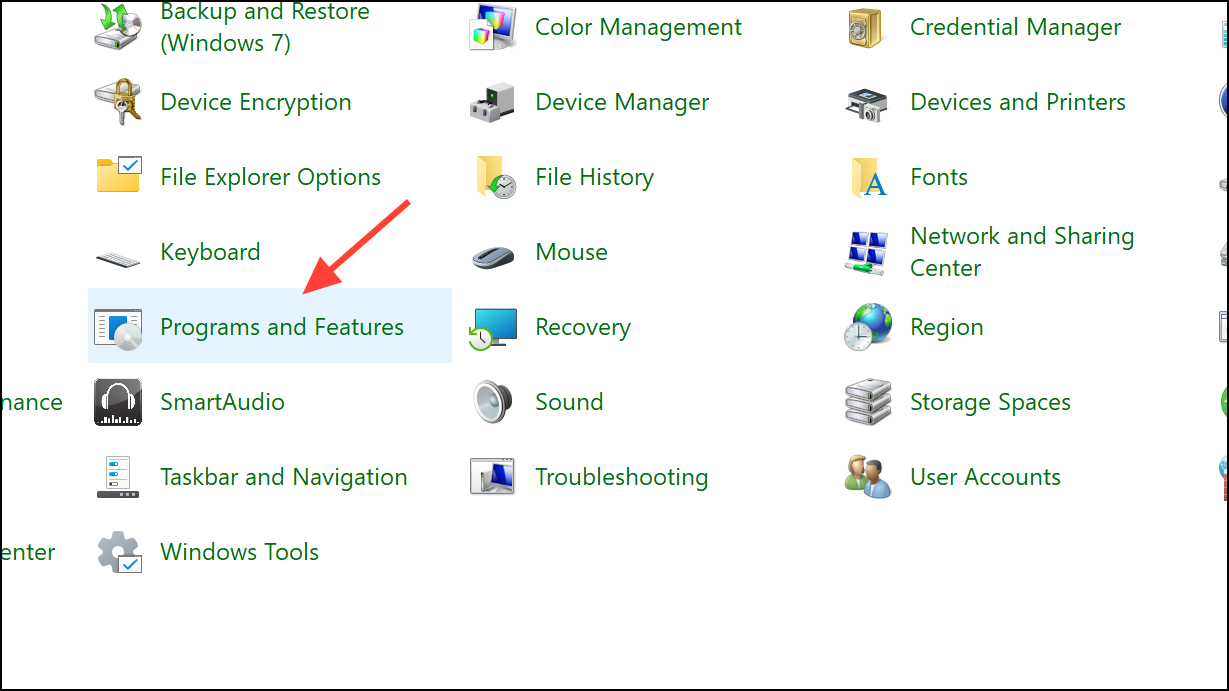
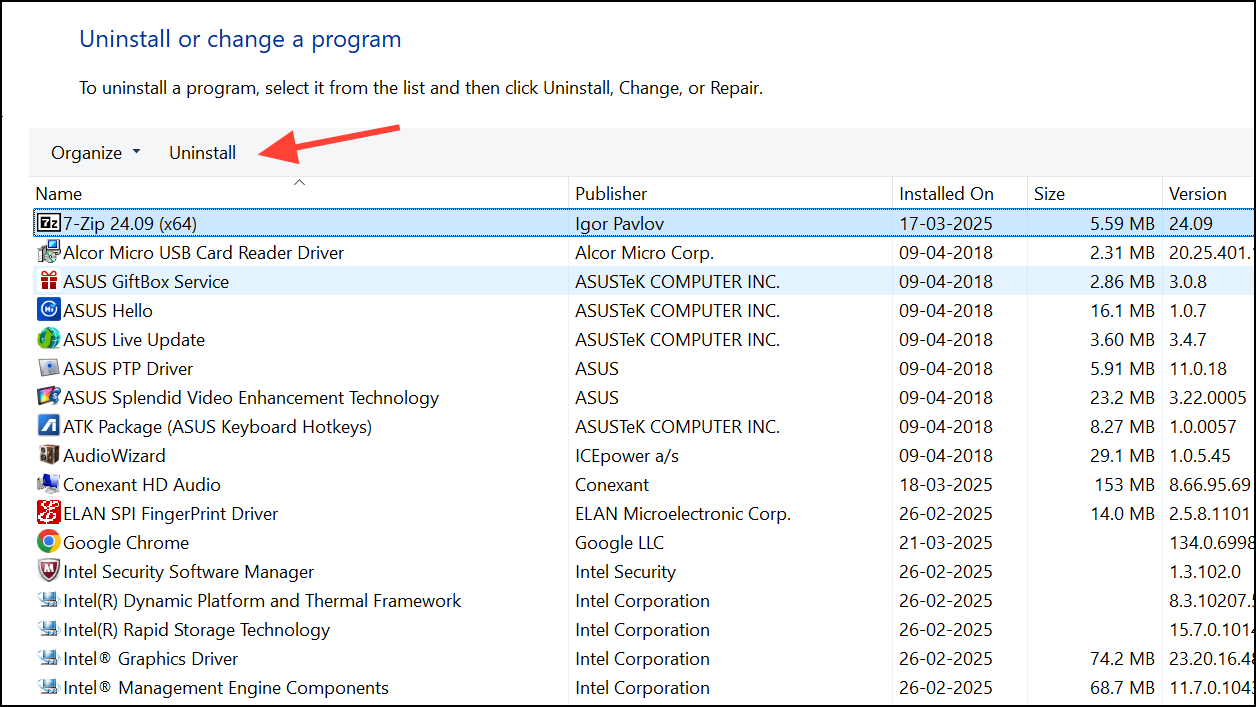
Incompatibility issues with newly installed software or hardware can trigger the 0x0000001A error. If the issue started after a recent installation, uninstalling the problematic component might resolve it.
Method 7: Free Up Disk Space
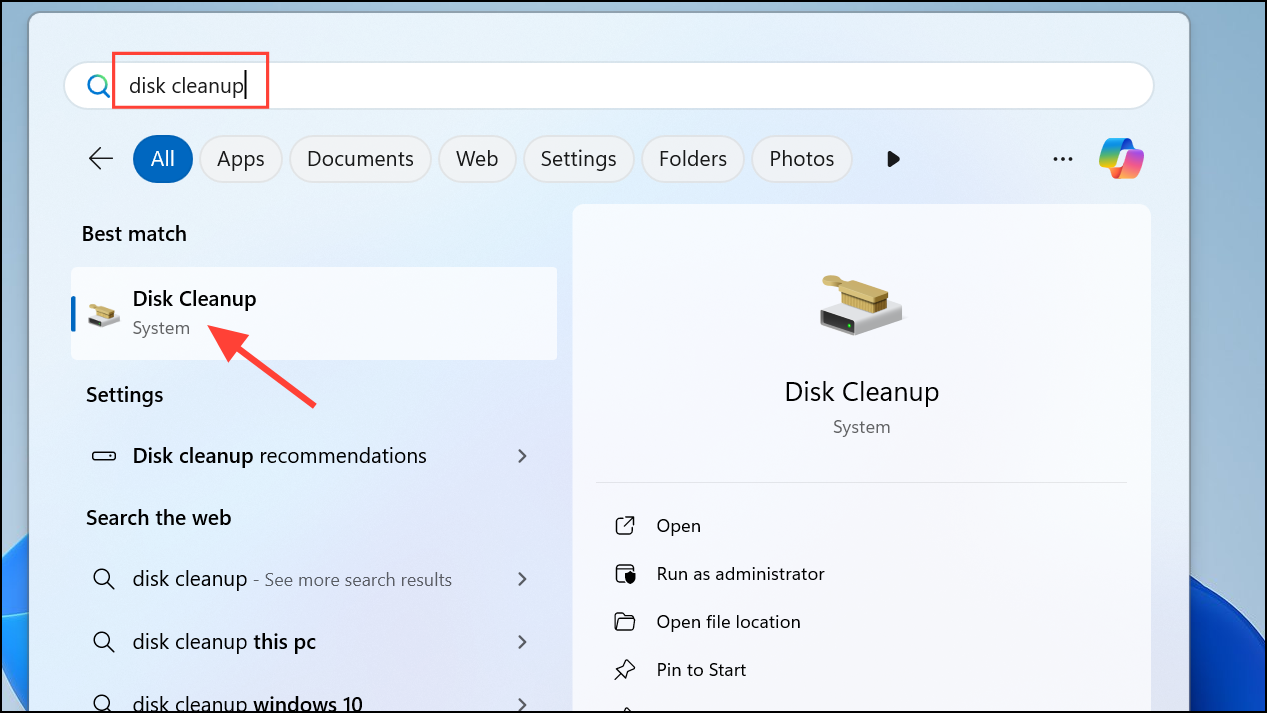
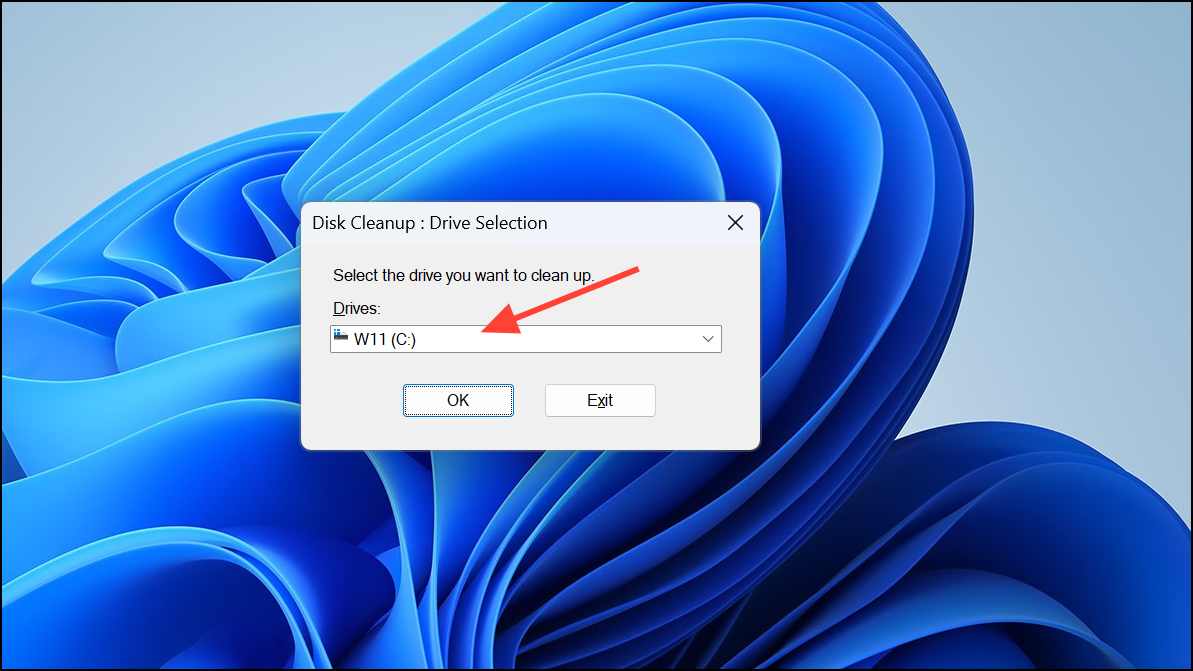
Insufficient disk space can also cause memory management issues, especially during system updates or upgrades. Freeing up disk space can resolve this problem effectively.
After applying these solutions, your system should operate without encountering the 0x0000001A Memory Management error. Regularly updating drivers, performing system checks, and maintaining adequate disk space will help keep your Windows system stable and error-free.





