
High memory usage in Windows can slow down your computer, cause programs to crash, and prevent new applications from opening. Identifying and addressing the root cause can significantly improve your system’s performance. The most common reasons include unnecessary background apps, startup programs, memory leaks, and outdated drivers. Here are the best methods to fix high memory usage in Windows.
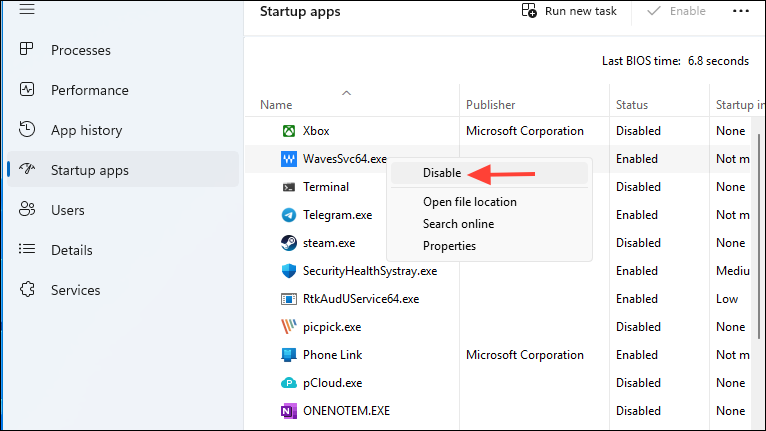
Method 1: Identify and Close Unnecessary Programs and Processes
Ctrl + Shift + Esc. Once Task Manager opens, click on the “Processes” tab to view running applications and services.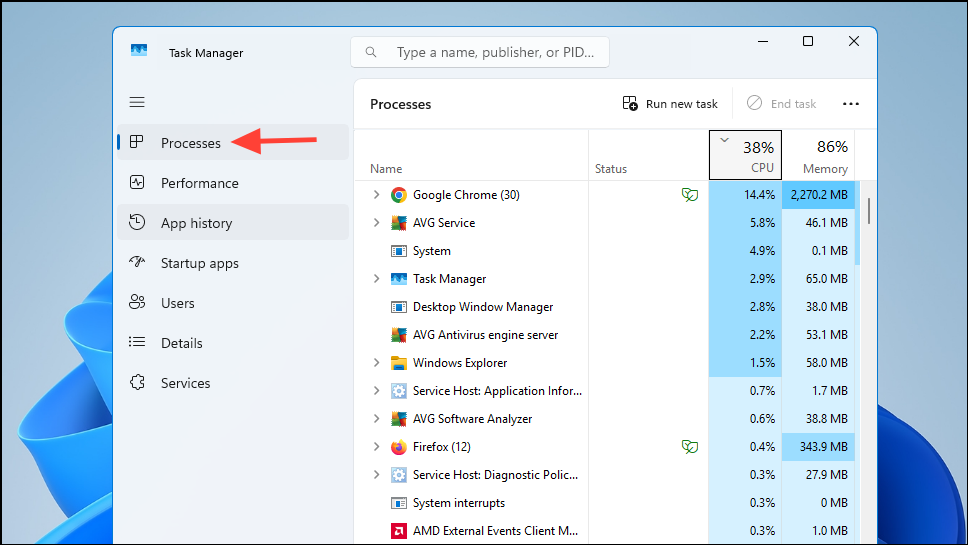
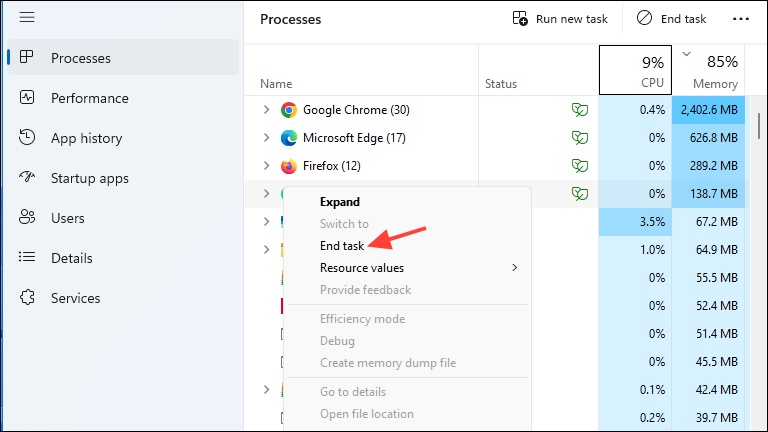
Method 2: Disable Startup Programs
Startup programs automatically launch when Windows boots, consuming memory unnecessarily. Disabling them can significantly reduce memory usage.
Method 3: Adjust Windows Performance Settings
Windows includes visual effects and animations that consume extra memory. Adjusting these settings to prioritize performance can reduce RAM usage.
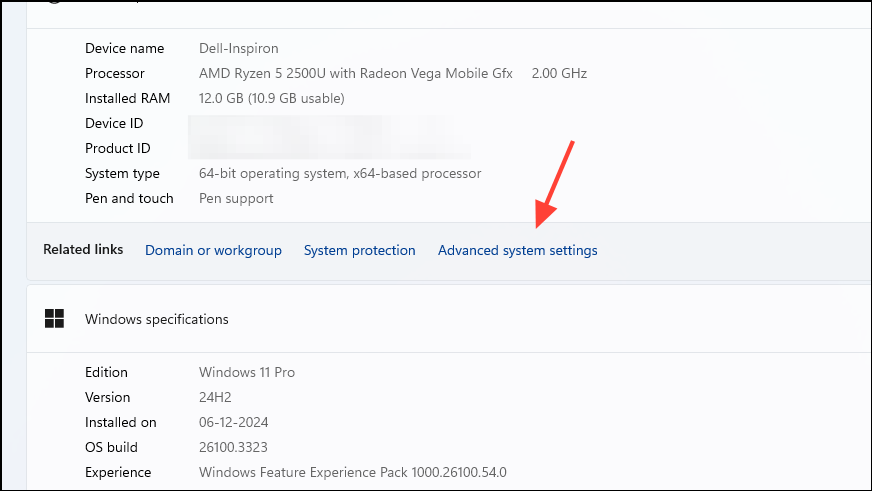
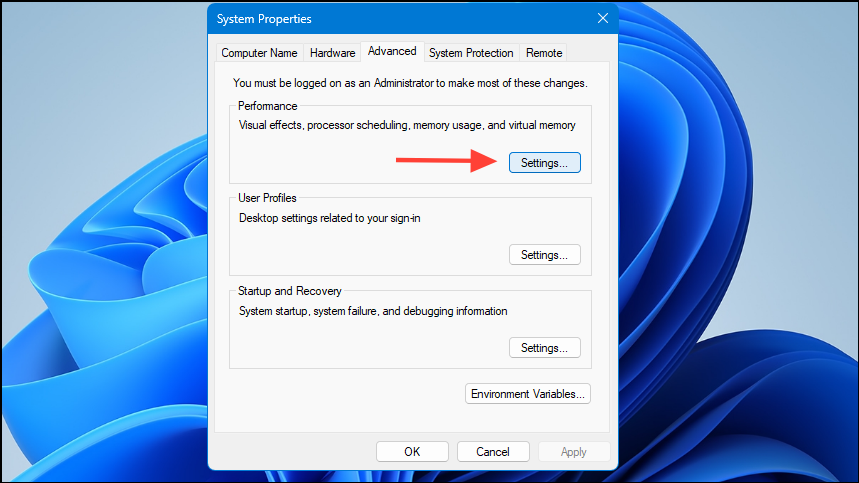
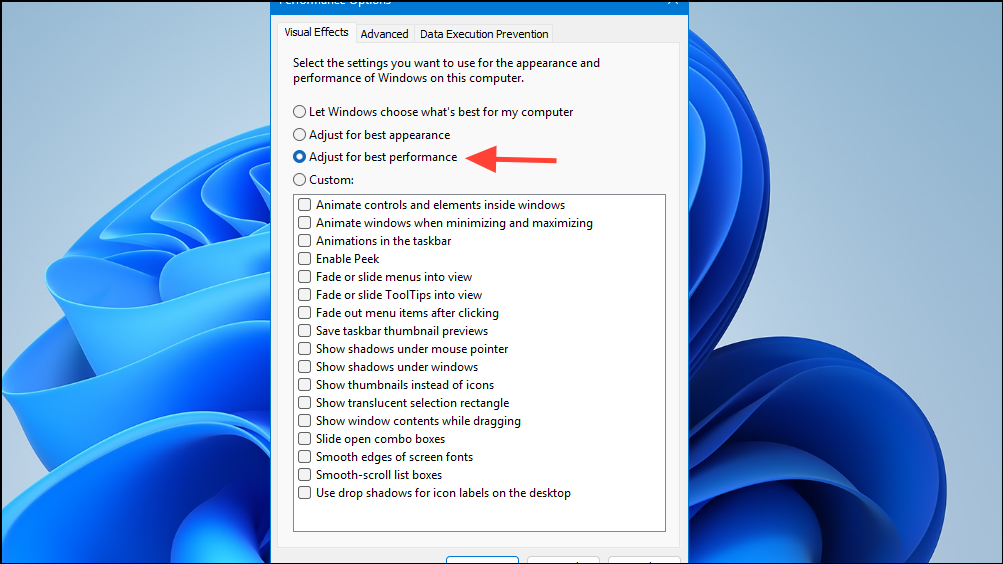
Method 4: Clean Temporary Files and Optimize Disk Space
Accumulated temporary files and cluttered disk space can lead to increased memory usage. Regularly cleaning these files helps Windows manage memory efficiently.
Ctrl + A) in the new window that opens and delete them. These are temporary files that Windows no longer needs.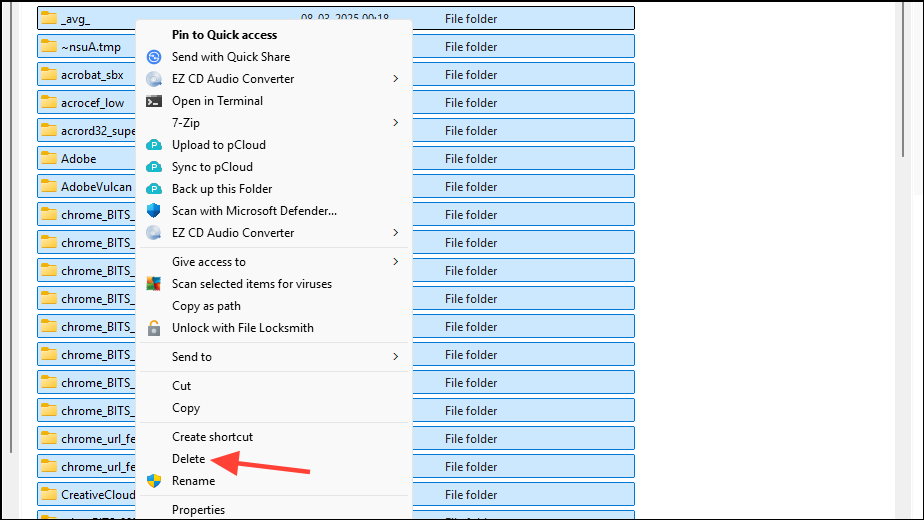
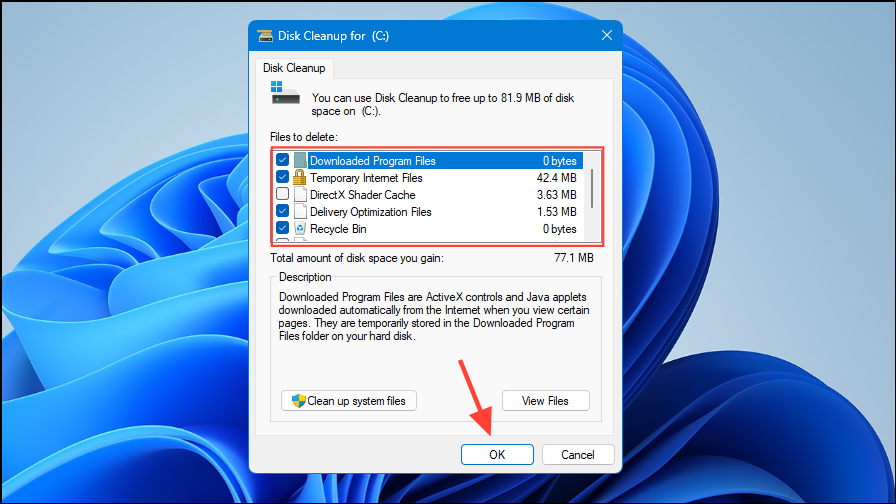
cleanmgr. Press Enter, select the drive to clean, and follow the prompts to remove unnecessary system files.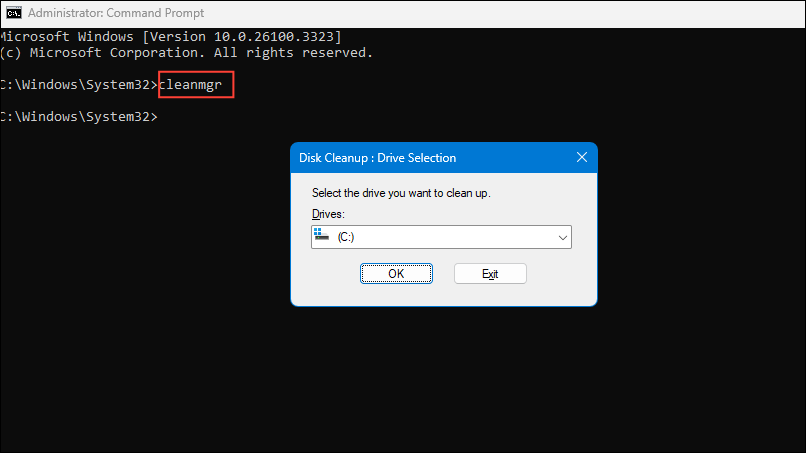
Method 5: Update Windows and Device Drivers
Outdated Windows installations and device drivers can cause memory leaks, leading to excessive RAM usage. Regular updates help resolve these issues.
Windows key + I, then click on “Update & Security”. Click “Check for updates” and install any available updates.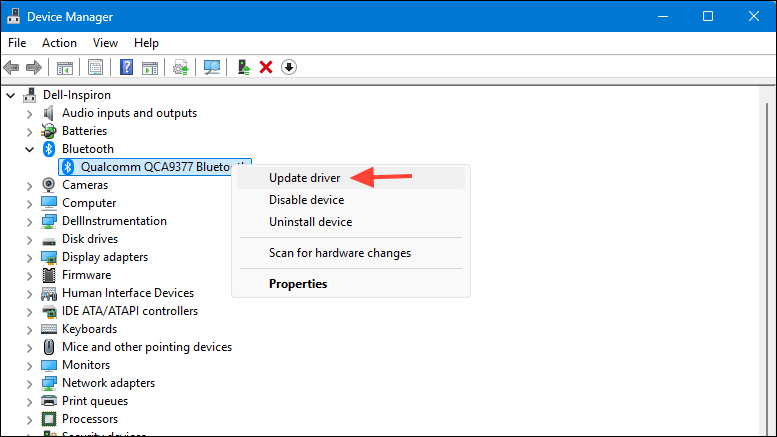
Method 6: Diagnose and Fix Memory Leaks
If high memory usage persists despite these steps, a memory leak caused by a software or driver might be the culprit. You can use the PoolMon tool to identify the problematic driver.
C:\Program Files (x86)\Windows Kits\10\Tools\x64).P then B), and identify the driver tag consuming the most memory.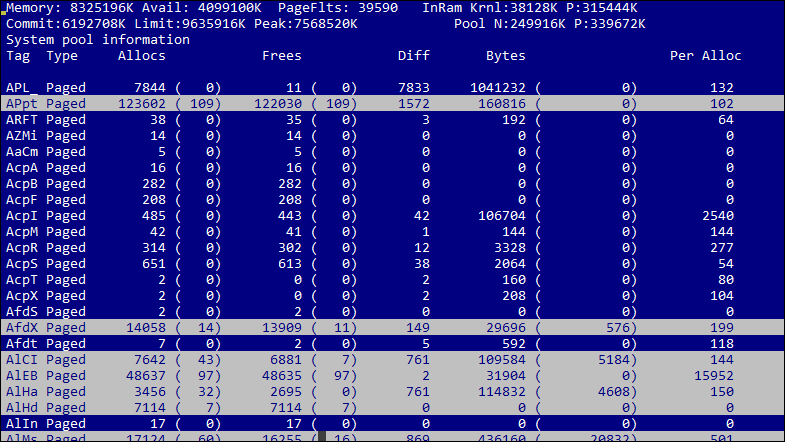
C:\Windows\System32\drivers, and run findstr /s [DriverTag] *.* replacing “[DriverTag]” with the problematic tag from PoolMon. This will identify the driver responsible for the memory leak.By following these methods, you can significantly reduce memory usage and optimize your Windows PC’s performance. Regular maintenance helps keep memory usage in check, ensuring smoother operation over time.





