
Microsoft Edge Workspaces is a collaborative feature within the Edge browser that allows team members to share and organize browsing sessions in real-time. This tool enhances productivity by enabling multiple users to access the same web pages and resources without the need to exchange individual links, thereby keeping everyone aligned on project developments.
Edge Workspaces functions by creating dedicated windows where you can organize your tabs and favorites, similar to the existing tab grouping feature in Edge. However, it extends beyond by permitting the sharing of these tabs with others, which traditional tab groups do not support. Below is a comprehensive guide on how to utilize this feature effectively on your Windows PC.
How does the Microsoft Edge Workspaces feature work?
With Microsoft Edge Workspaces, teams collaborating on a project can access and interact with the same set of web pages and files simultaneously. This eliminates the necessity of sending multiple links back and forth, streamlining the collaborative process. Users can share links as open tabs and see in real-time what others are viewing or working on, fostering better coordination.
When you create an Edge Workspace, it synchronizes your favorites, browsing history, and open tabs with all invited team members. Each person can view the active tabs others are using, which enhances transparency and collaboration. Importantly, personal data such as passwords, downloads, and cookies remain private, and content like emails or other sensitive information on your device is not shared within the workspace.
Benefits of Microsoft Edge Workspaces
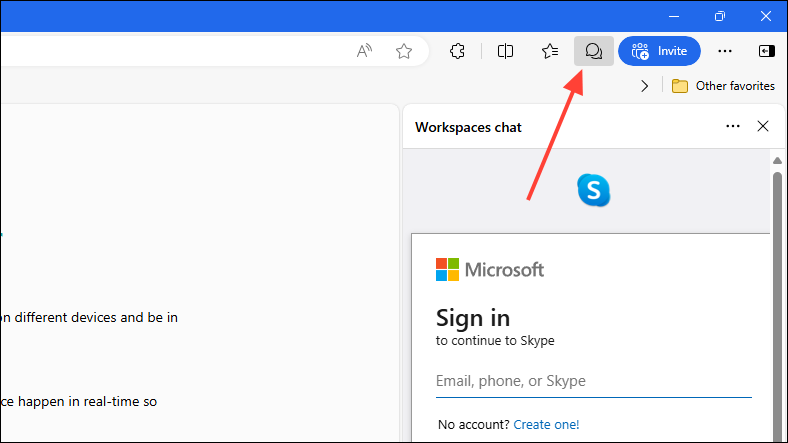
Edge Workspaces significantly improves project management efficiency by allowing project managers to comment directly on different tabs and tag specific team members who can then address those items promptly. This integrated communication reduces reliance on separate messaging tools and keeps all project-related interactions within the same environment.
Moreover, while facilitating collaboration, Edge Workspaces ensures the protection of private content. If you have personal accounts or tabs open, other team members will only see a placeholder tab instead of your actual content, maintaining your privacy during collaborative sessions.
Additionally, Edge Workspaces sync across your devices, enabling you to access your organized tabs and groups from any machine. This flexibility means you are not confined to a single device and can seamlessly continue your work from different locations. The workspaces are also automatically saved when you close them, freeing up system resources. When you reopen a workspace, all your tabs are instantly accessible, allowing you to resume work without delay.
Setting up your Microsoft Edge Workspace
To begin using Microsoft Edge Workspaces, you need to set it up while signed into your Microsoft account in the Edge browser.
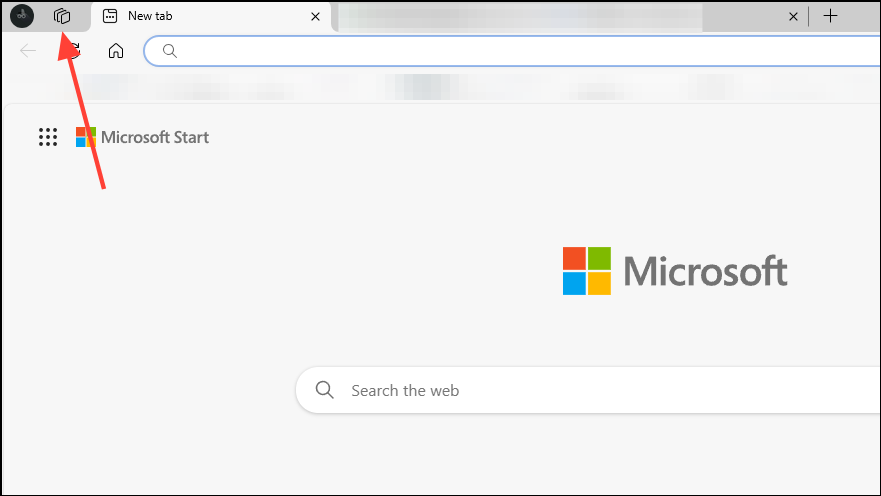
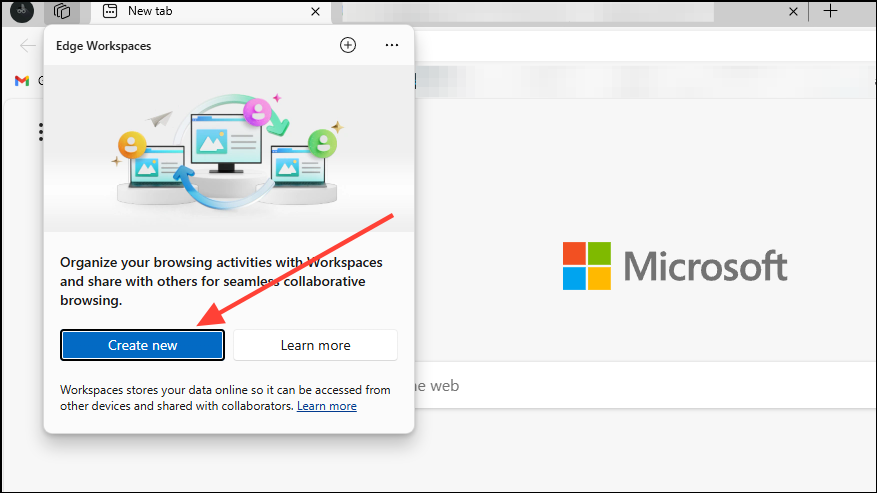
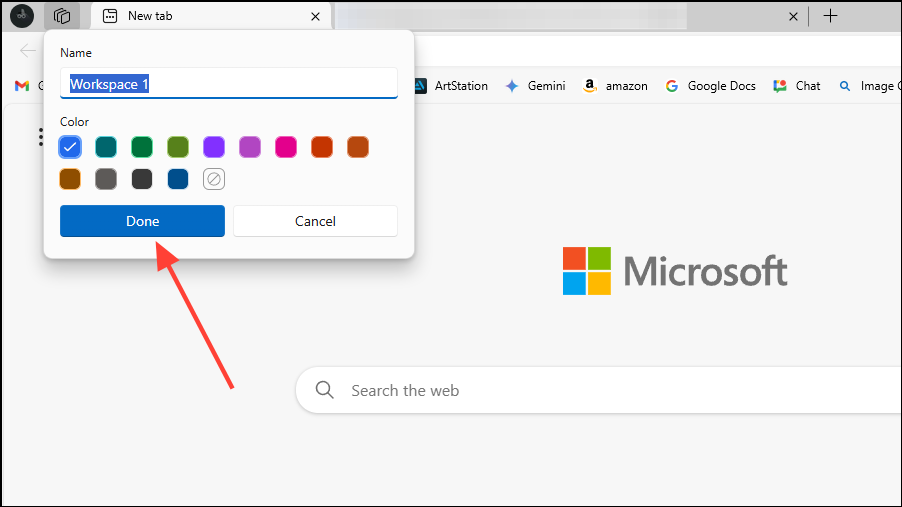
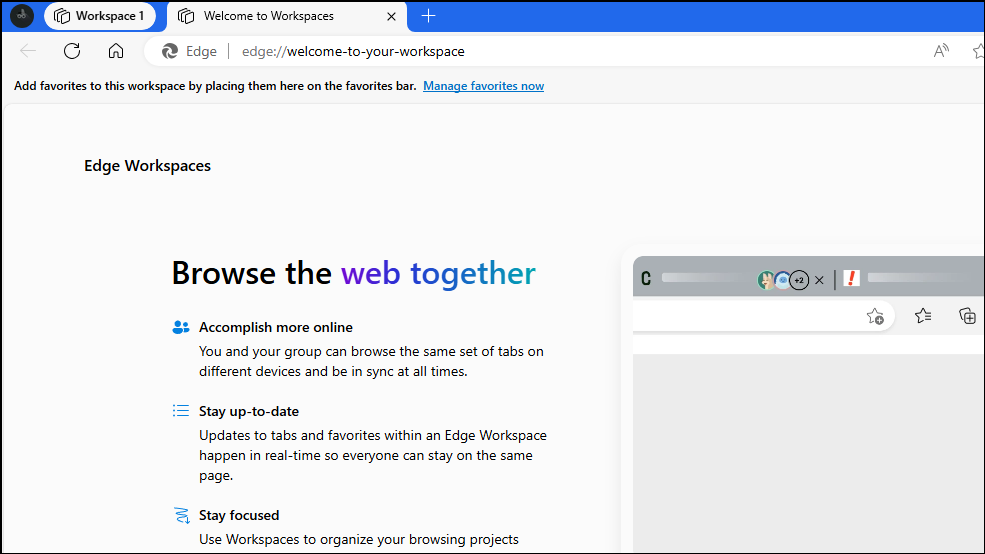
Using Microsoft Edge Workspaces
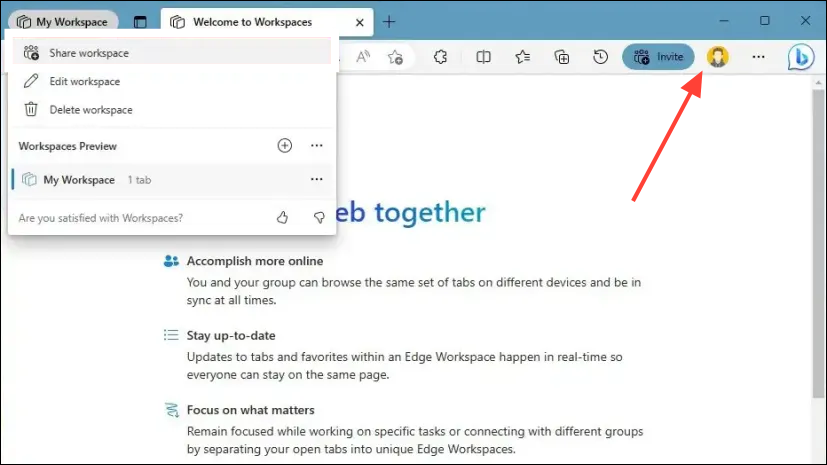
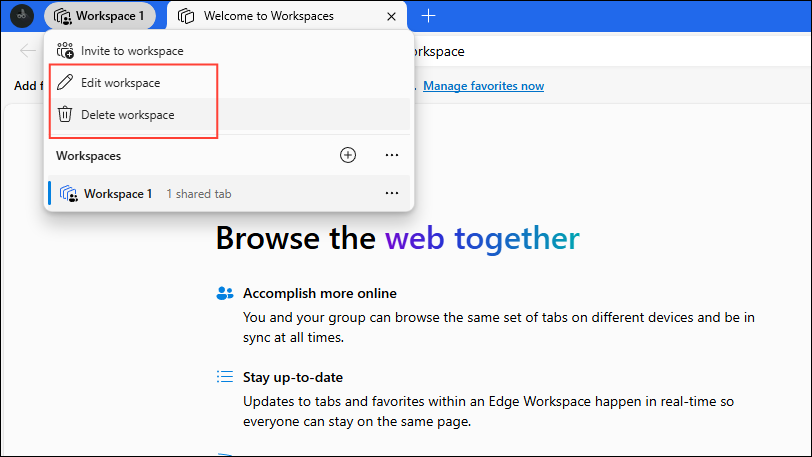
Once your workspace is set up, you can invite team members to collaborate within it.
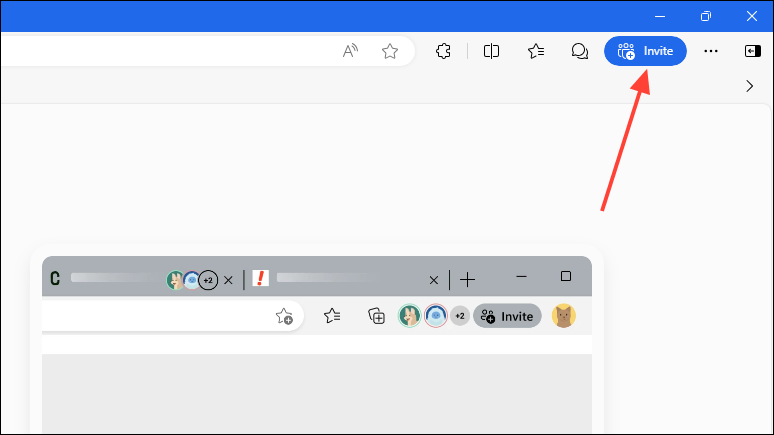
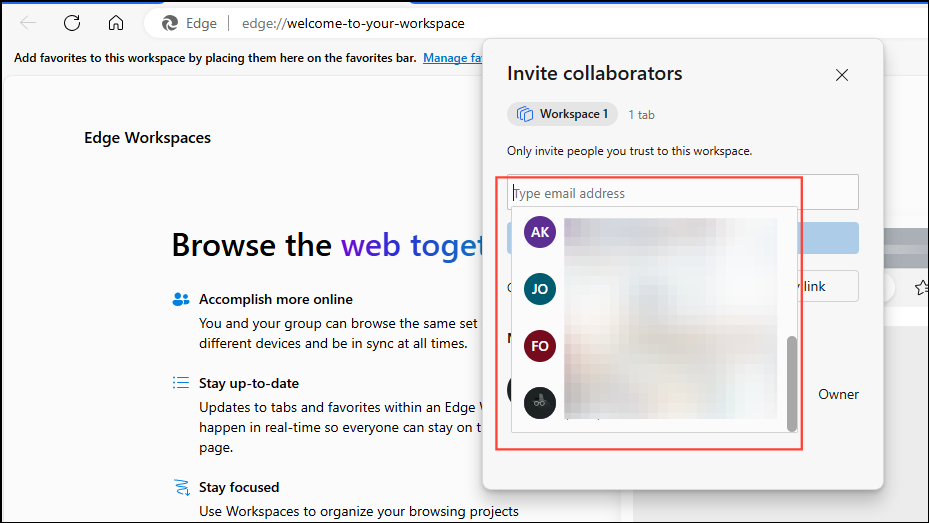
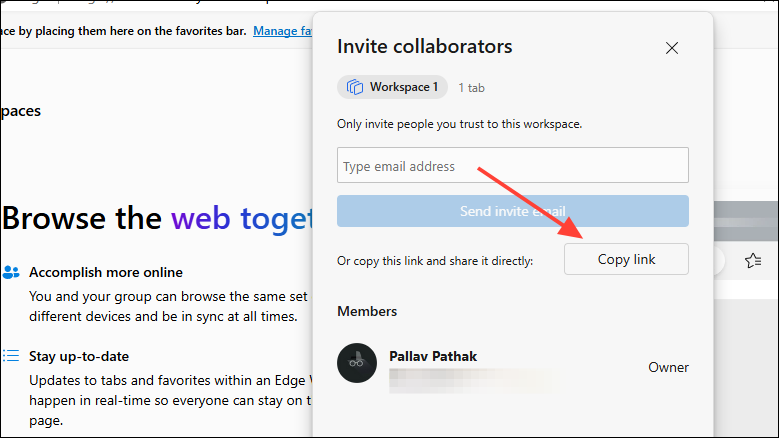
Microsoft Edge Workspaces provides a powerful platform for seamless collaboration by allowing teams to share browsing sessions, communicate in real-time, and maintain privacy. By integrating project resources and communication within the browser, it streamlines workflow and enhances productivity.





