Learn all about the experimental AI features that Google is adding to Chrome to enhance the browsing experience.
Learn all about the experimental AI features that Google is adding to Chrome to enhance the browsing experience.
by Sakshi Garg
Google Chrome has introduced experimental AI features in its latest update, aiming to enhance the browsing experience by offering advanced tab organization, personalized themes, and upcoming writing assistance tools. To make the most of these new capabilities, here’s how you can enable and utilize them.
Enable AI features in Chrome
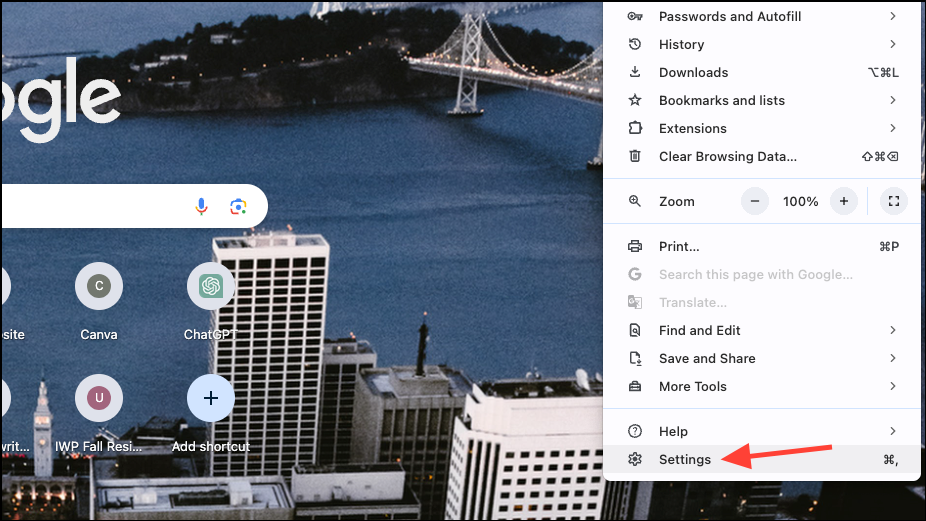
To access Chrome’s AI features, you need to enable them in the browser settings and ensure that your Chrome is updated to the latest version (M121).
Note: The AI features are currently rolling out gradually and are initially available only to users in the United States. You must be at least 18 years old, signed into your Google account, and have Sync turned on to access these features. These experimental features are not yet available for enterprise and educational accounts.
Click on the Relaunch button to restart Chrome and apply the changes.
With the AI features enabled, you can now explore and use them as described below.
Create personalized themes with AI
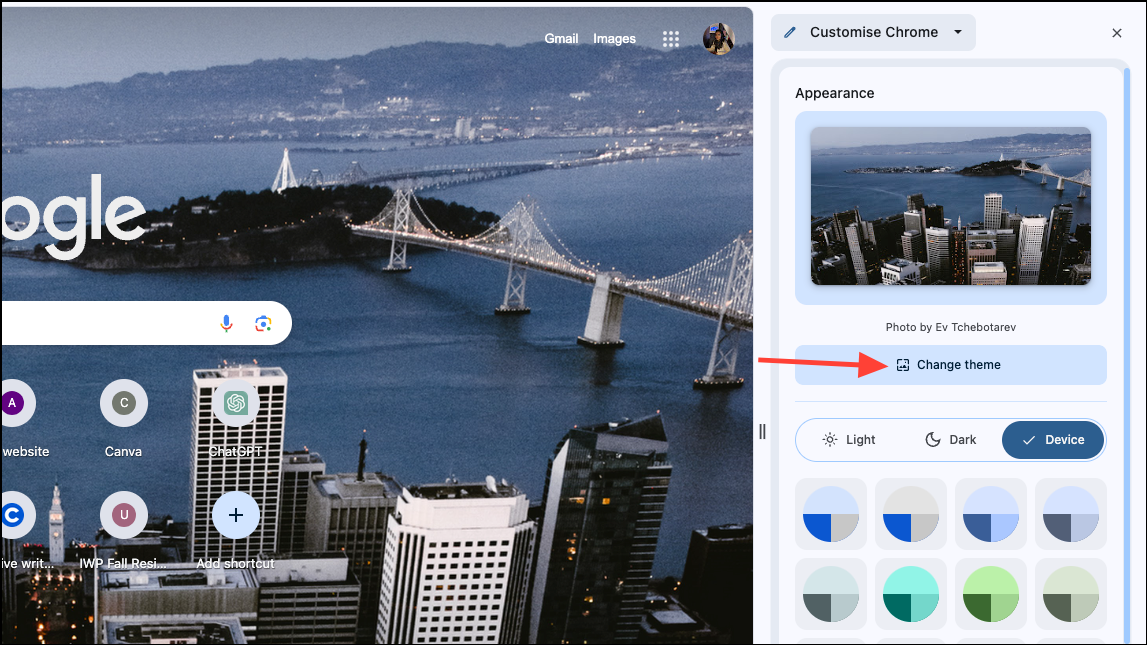
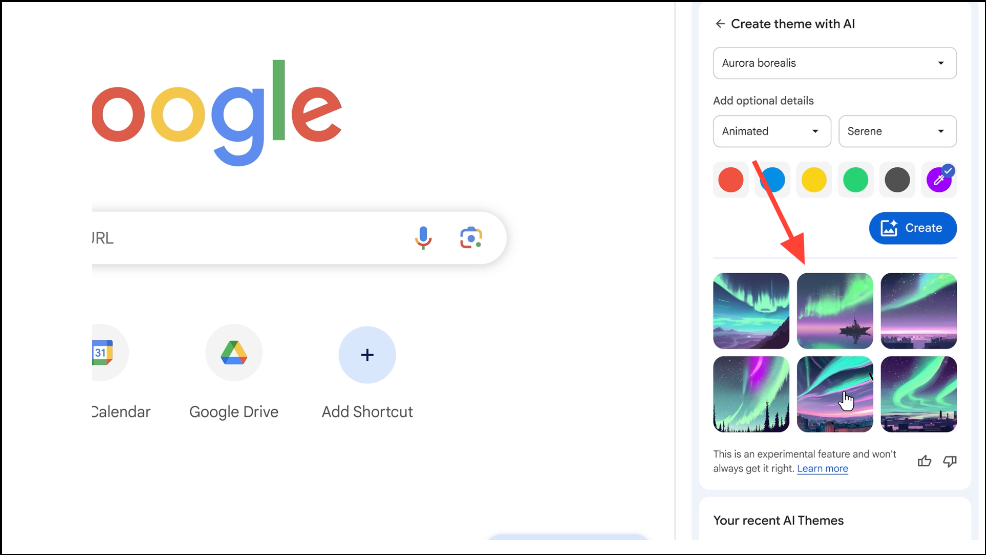
Chrome’s AI-generated themes allow you to customize the appearance of your browser to reflect your personal style without the need for complex prompts or design skills. Follow these steps to create your own personalized theme:
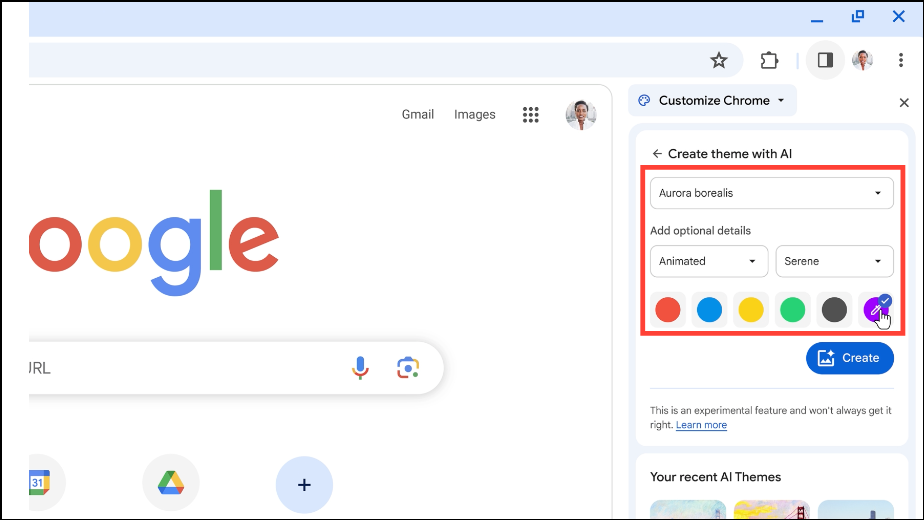
Choose a subject for your theme from the provided list of popular subjects. For example, select Aurora Borealis if you want a theme featuring the Northern Lights.
Under Add Optional Details, you can further personalize your theme by selecting a style, mood, and color. The styles come with thumbnail images to give you an idea of their appearance. For the color, you can choose from the options provided or select a custom color using the color picker.
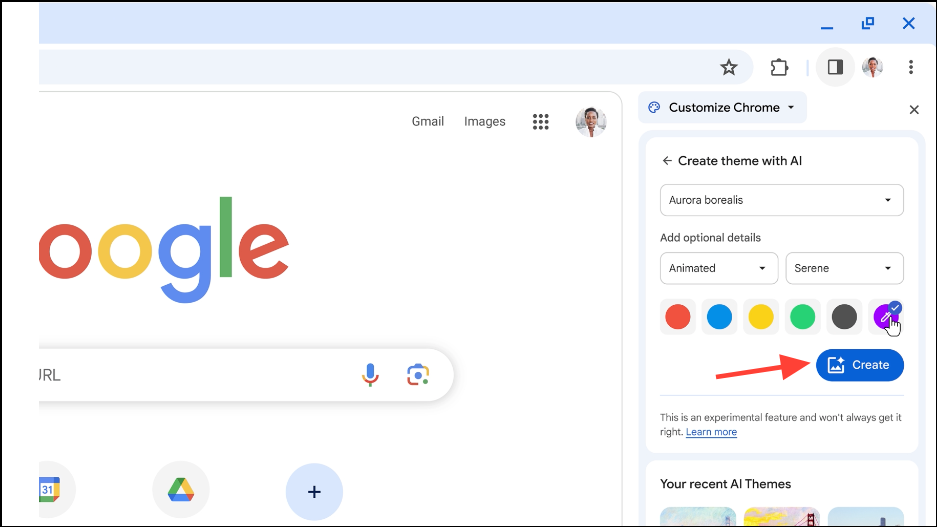
Click on the theme you prefer to apply it to your browser.
Source: Google
With AI-generated themes, personalizing your browser becomes effortless, allowing you to infuse your browsing experience with your unique personality and preferences.
Organize tabs with AI
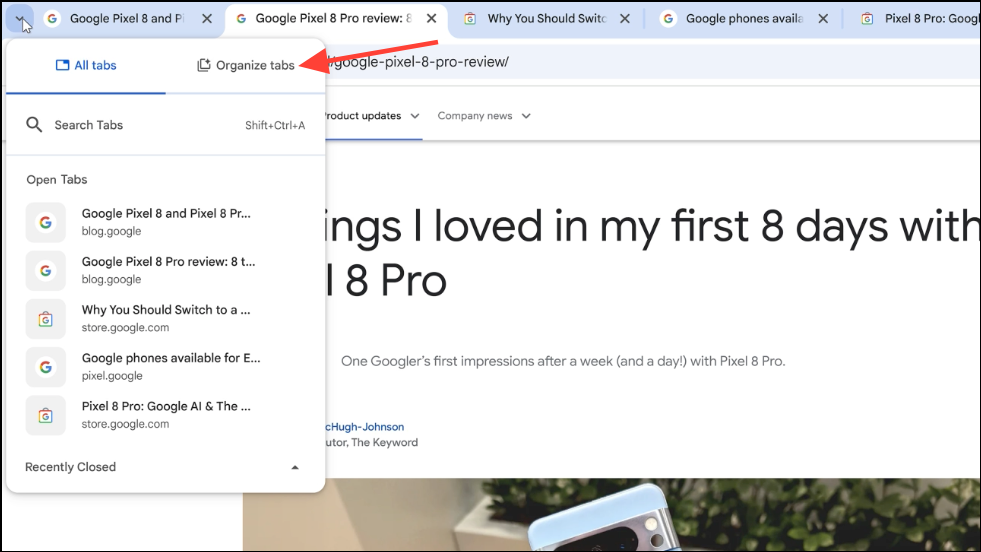
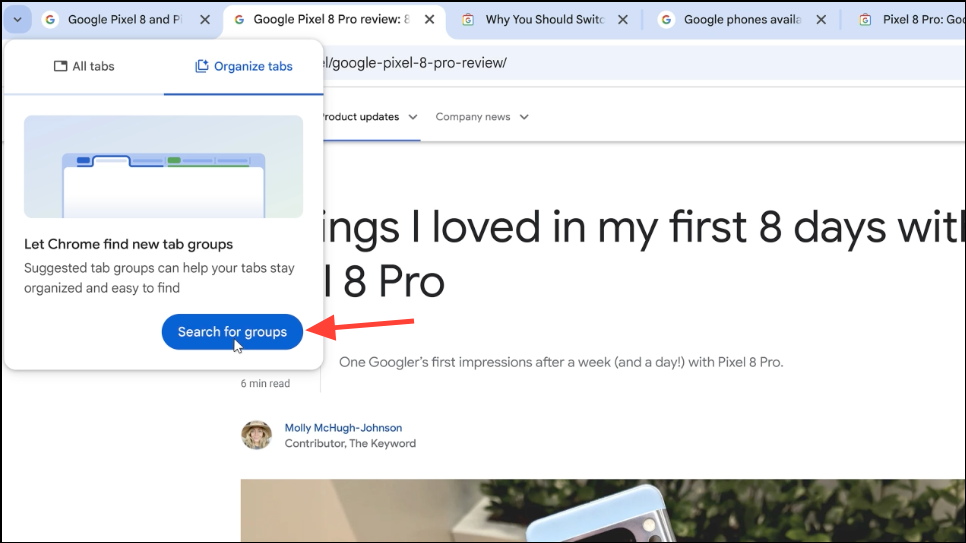
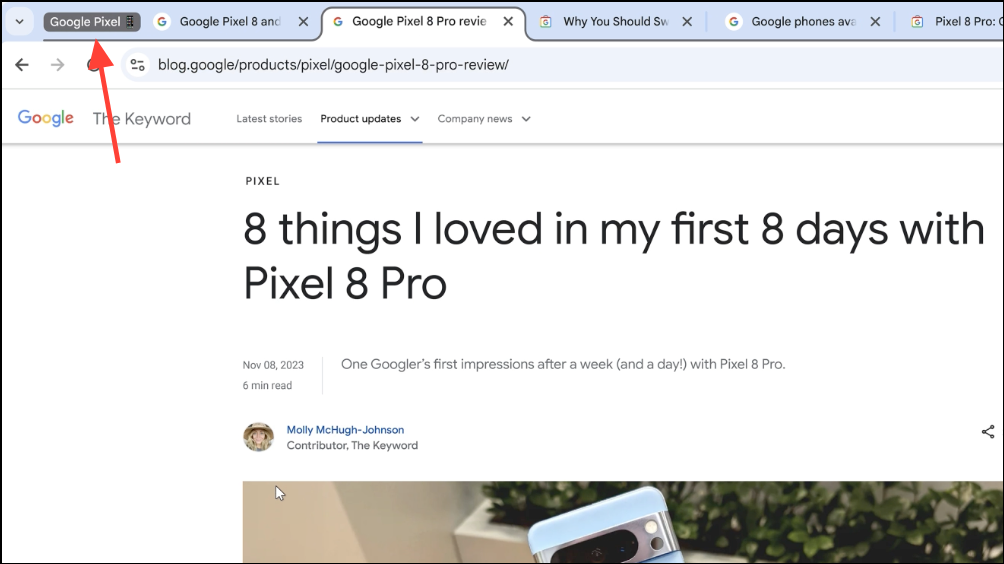
If you frequently have numerous tabs open and struggle to keep them organized, Chrome’s new Tab Organizer feature can help streamline your workflow. Here’s how to use AI to organize your tabs:
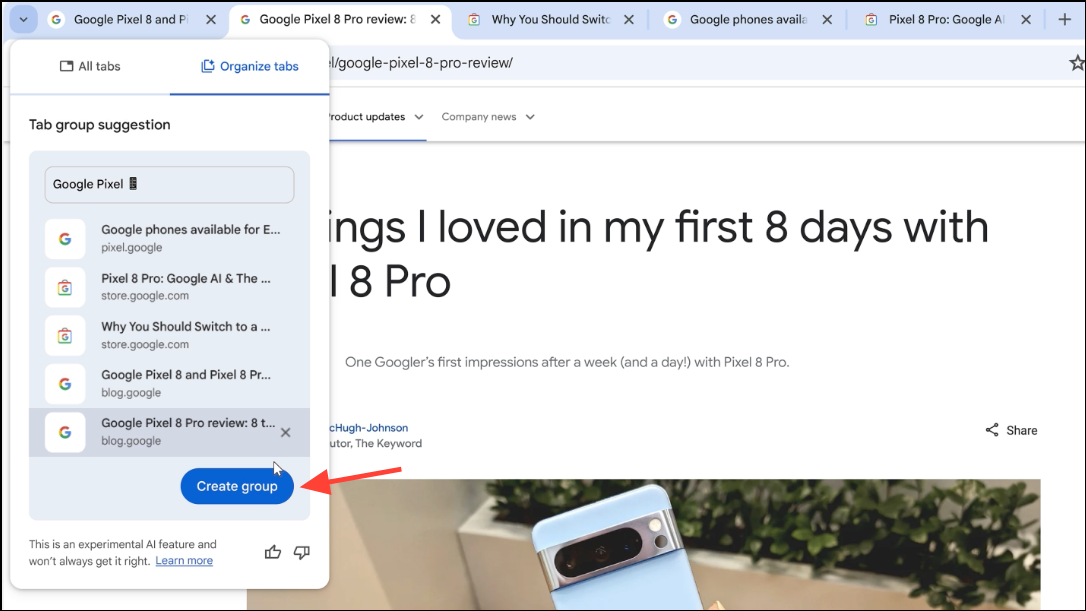
The AI will suggest a tab group based on the content of your open tabs. Note that it suggests one group at a time. Chrome will also propose a name and an emoji for the group to make it easily identifiable.
Alternatively, you can right-click on any open tab and select Organize similar tabs from the context menu. You can also click on the three-dot menu icon and choose Organize tabs to initiate the same tab organization process.
By utilizing AI for tab organization, you can effortlessly manage your browsing sessions, especially when juggling multiple tasks such as planning trips, conducting research, or shopping online.
Get writing aid on the web
Although not part of the initial release, Chrome is set to introduce an AI-driven writing assistant in an upcoming update. This feature will provide writing support across the web, helping you craft content with greater confidence.
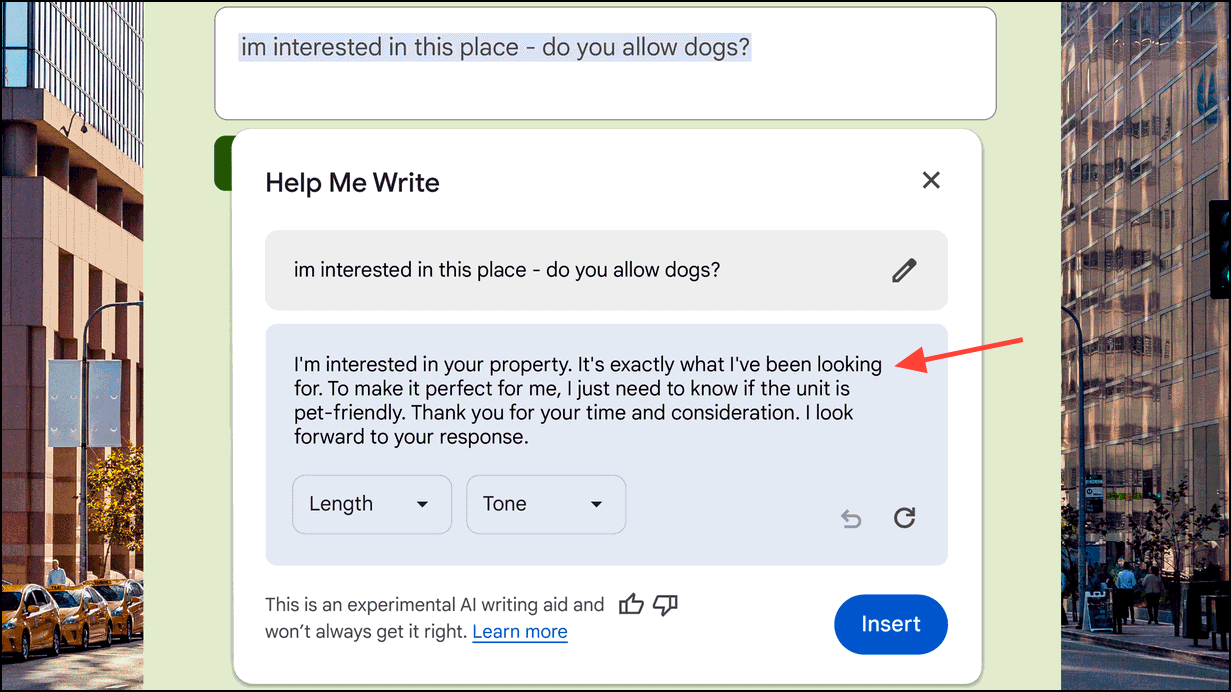
Once available, to use this feature, right-click on any text field within a website while using Chrome. This could be a comment box, a forum post area, or any text input field.
You can adjust the length and tone of the generated content or have the AI regenerate it if needed. When you’re satisfied with the result, click on Insert to add the content to the text field.
Chrome’s integration of AI features marks a significant step toward enhancing user experience by making browsing more intuitive and personalized. With tools for tab organization, theme creation, and soon-to-be-available writing assistance, users can look forward to a smarter, more efficient browsing experience. As these features continue to develop, Chrome users can anticipate even more innovative enhancements in the future.