Microsoft Edge's new Split Screen Tabs feature lets you view two web pages side-by-side. Learn how to use it to boost your productivity.
Microsoft Edge’s new Split Screen Tabs feature lets you view two web pages side-by-side. Learn how to use it to boost your productivity.
by Raj Kumar
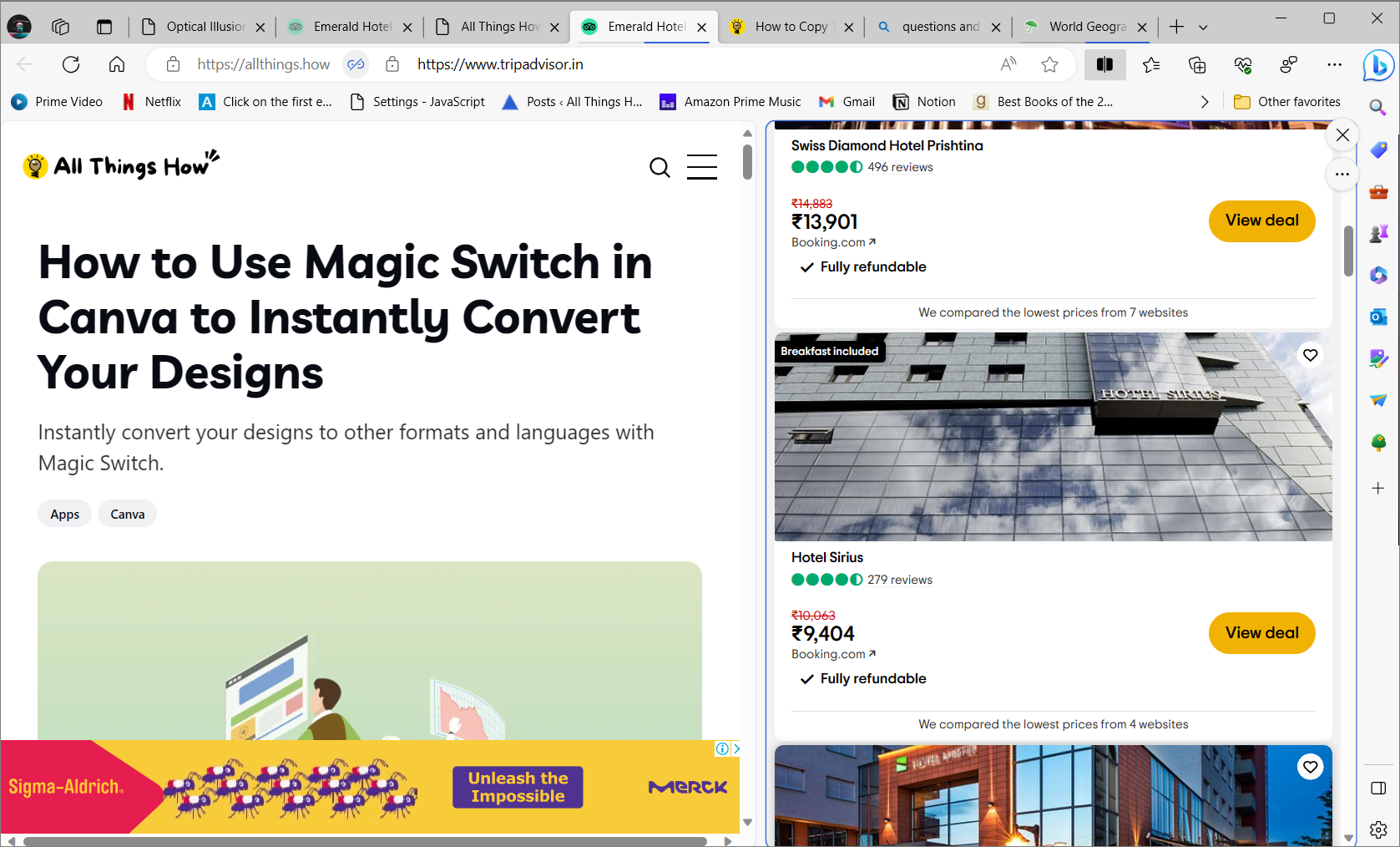
Viewing multiple webpages at once in Microsoft Edge enhances productivity by allowing for efficient multitasking. The built-in Split Screen feature lets you display two websites side by side within a single browser window.
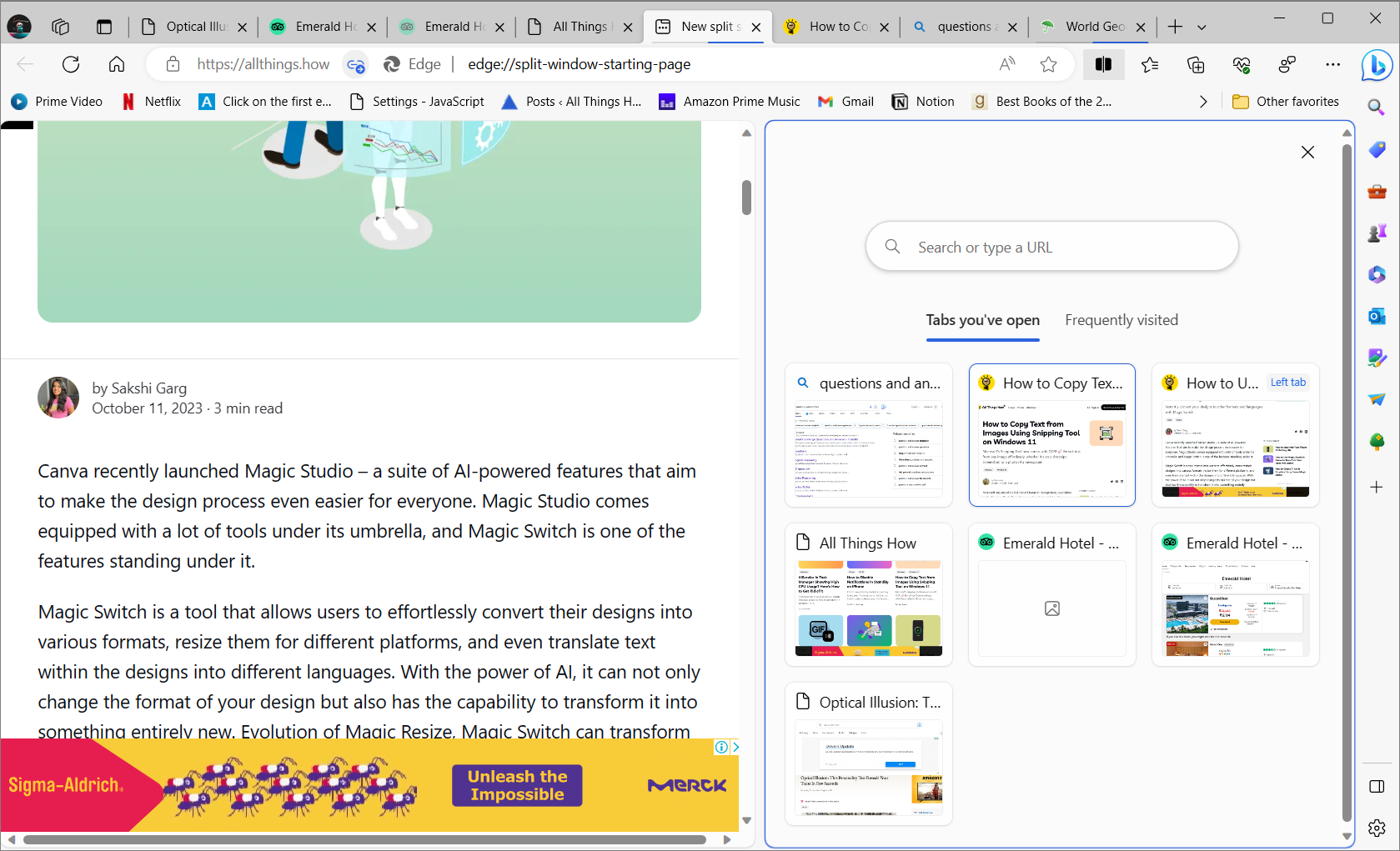
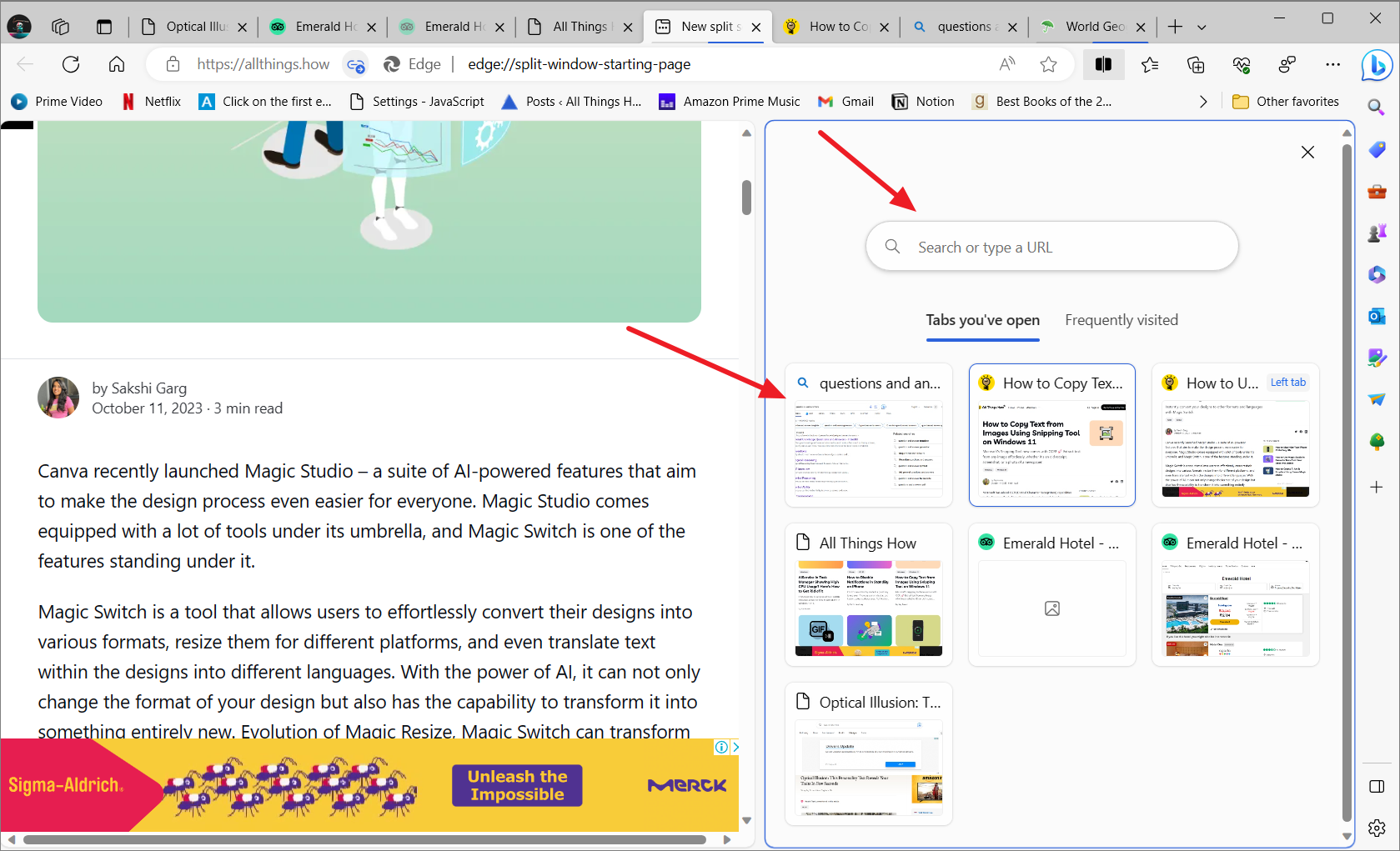
The browser window will divide into two sections. The current webpage will remain on the left side, while the right side displays thumbnails of your open tabs.
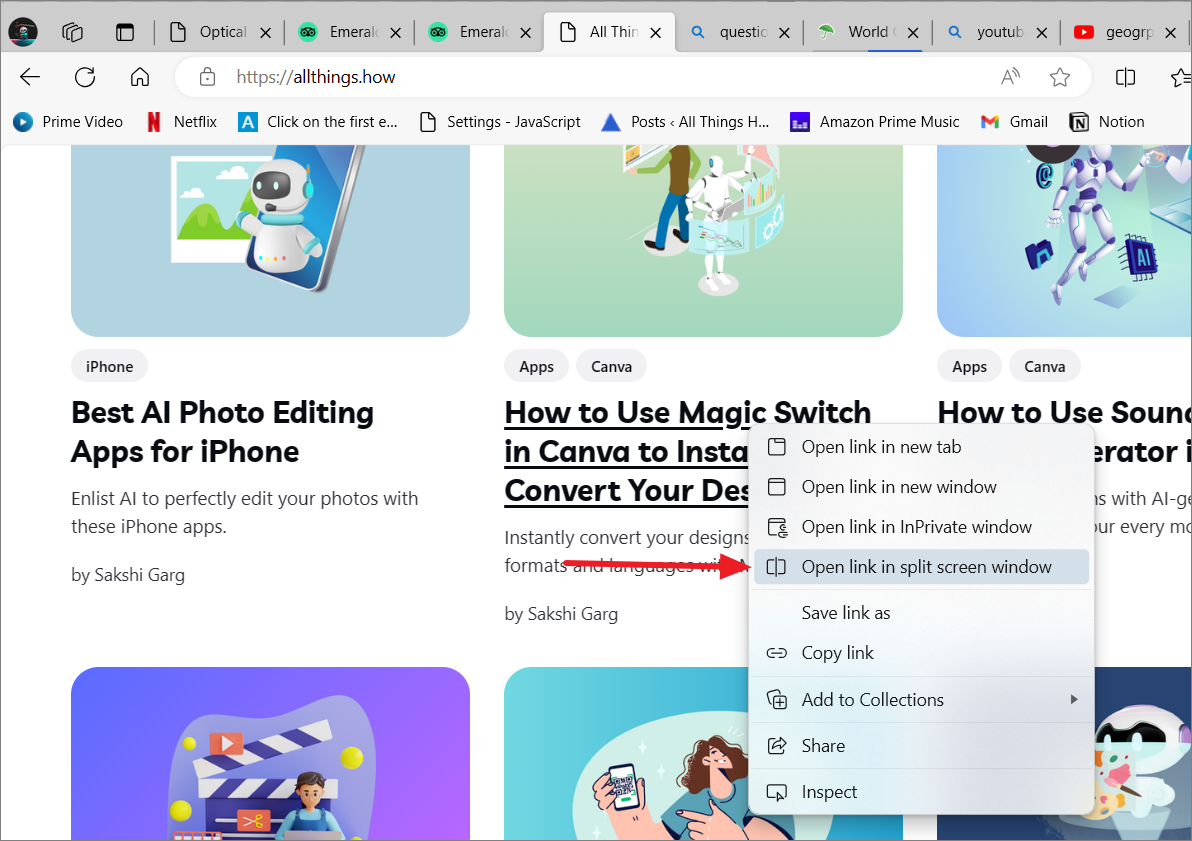
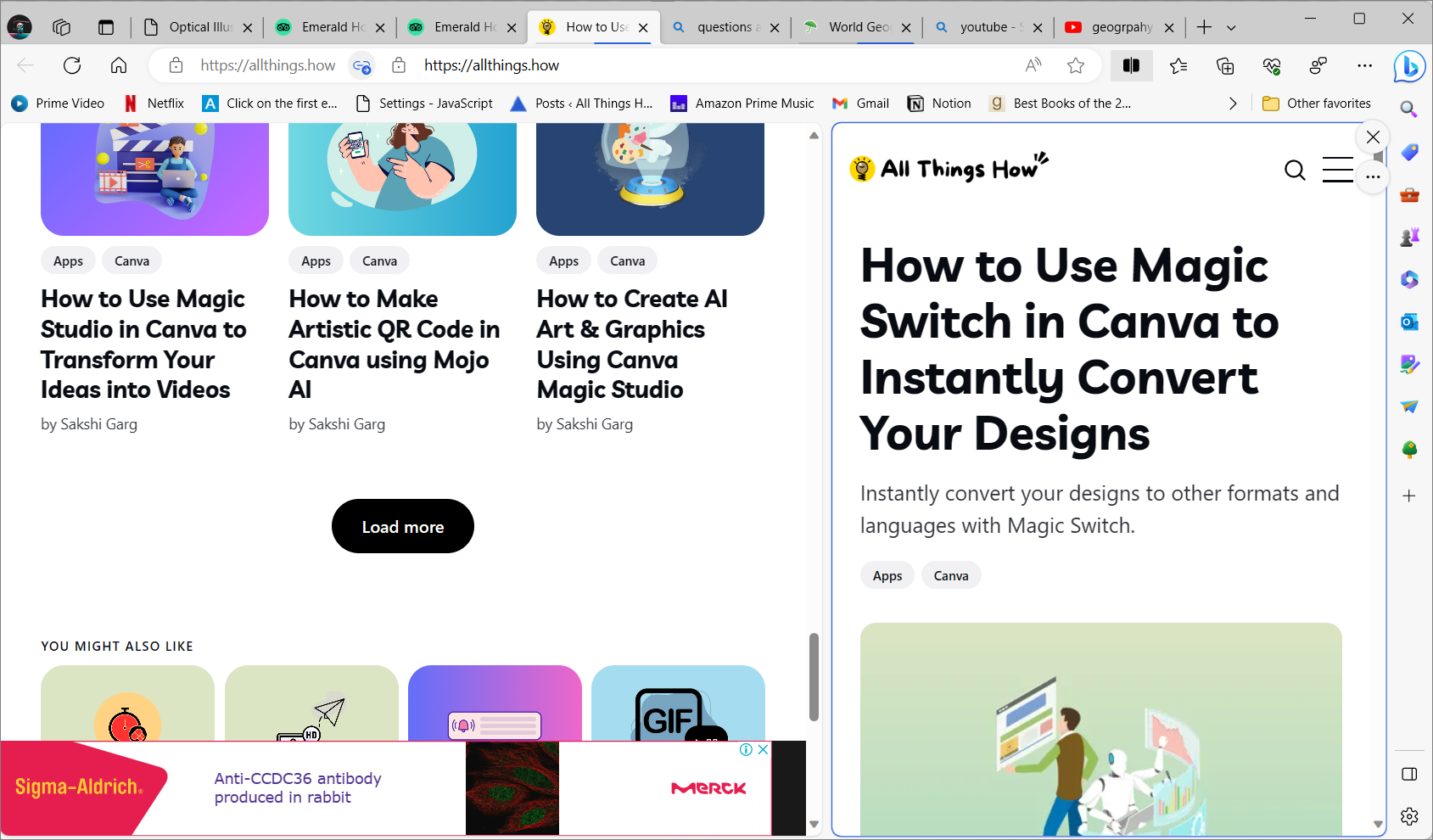
The screen will split, displaying the original webpage on the left and the linked page on the right within the same tab.
Managing Split Screen in Edge
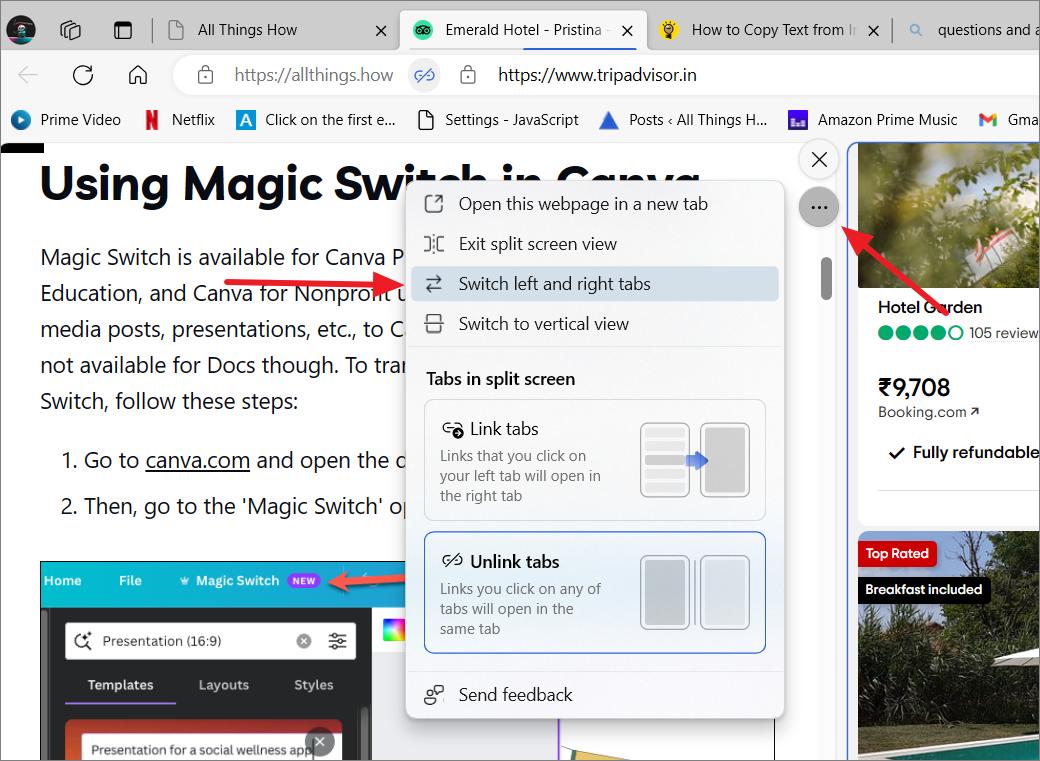
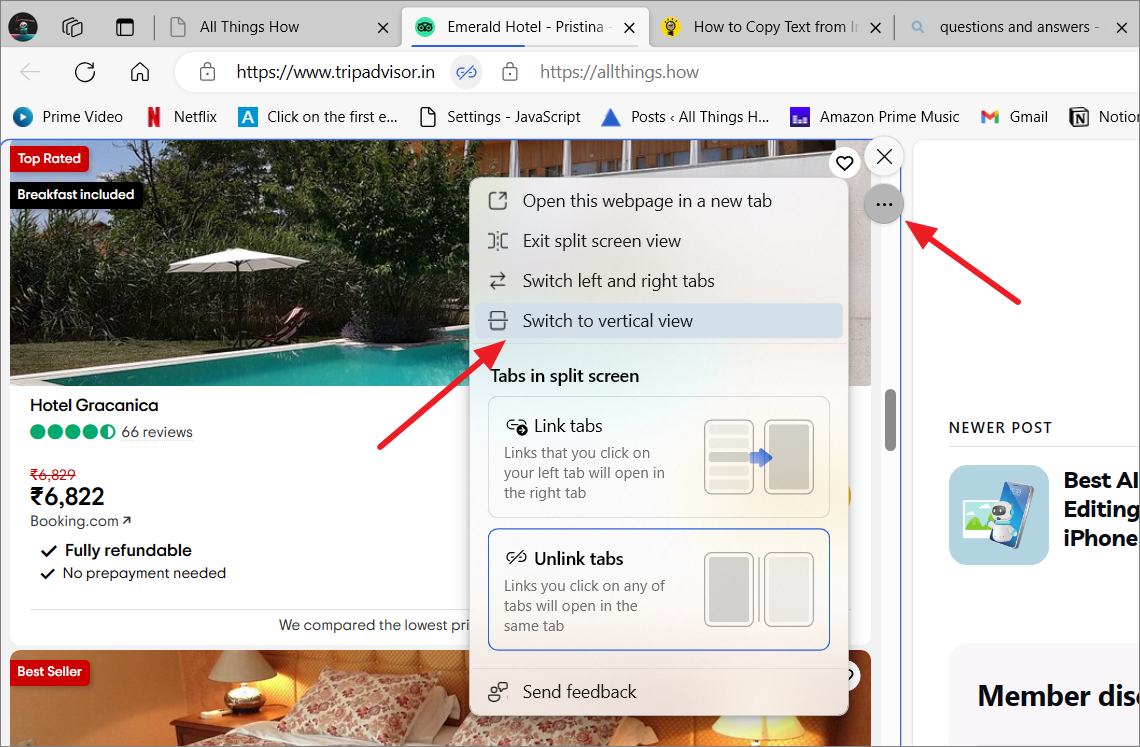
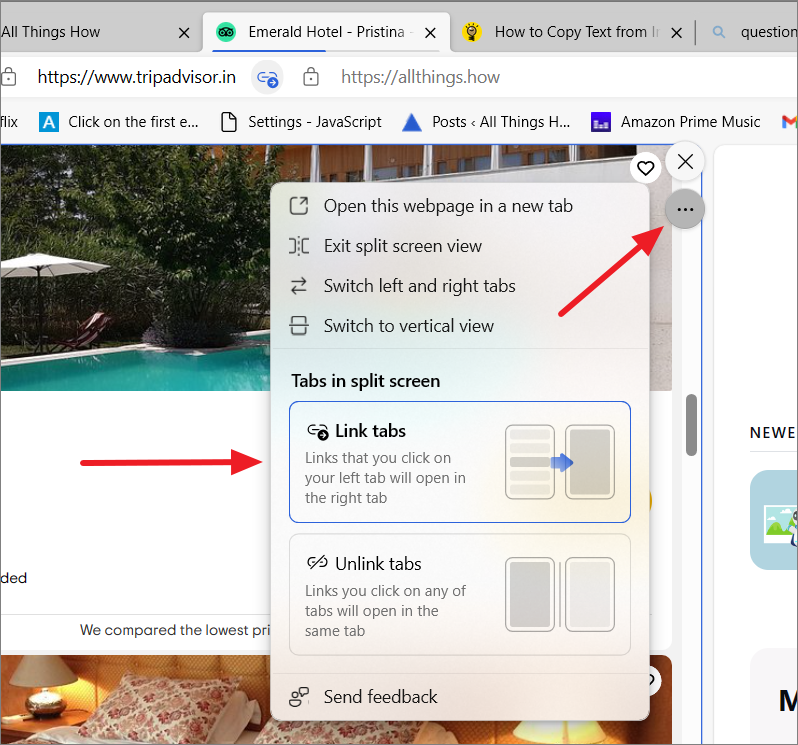
Once you’ve set up your split-screen view, several options allow you to manage your browsing experience. Hover over either side of the split screen to reveal a three-dot menu button with various options.
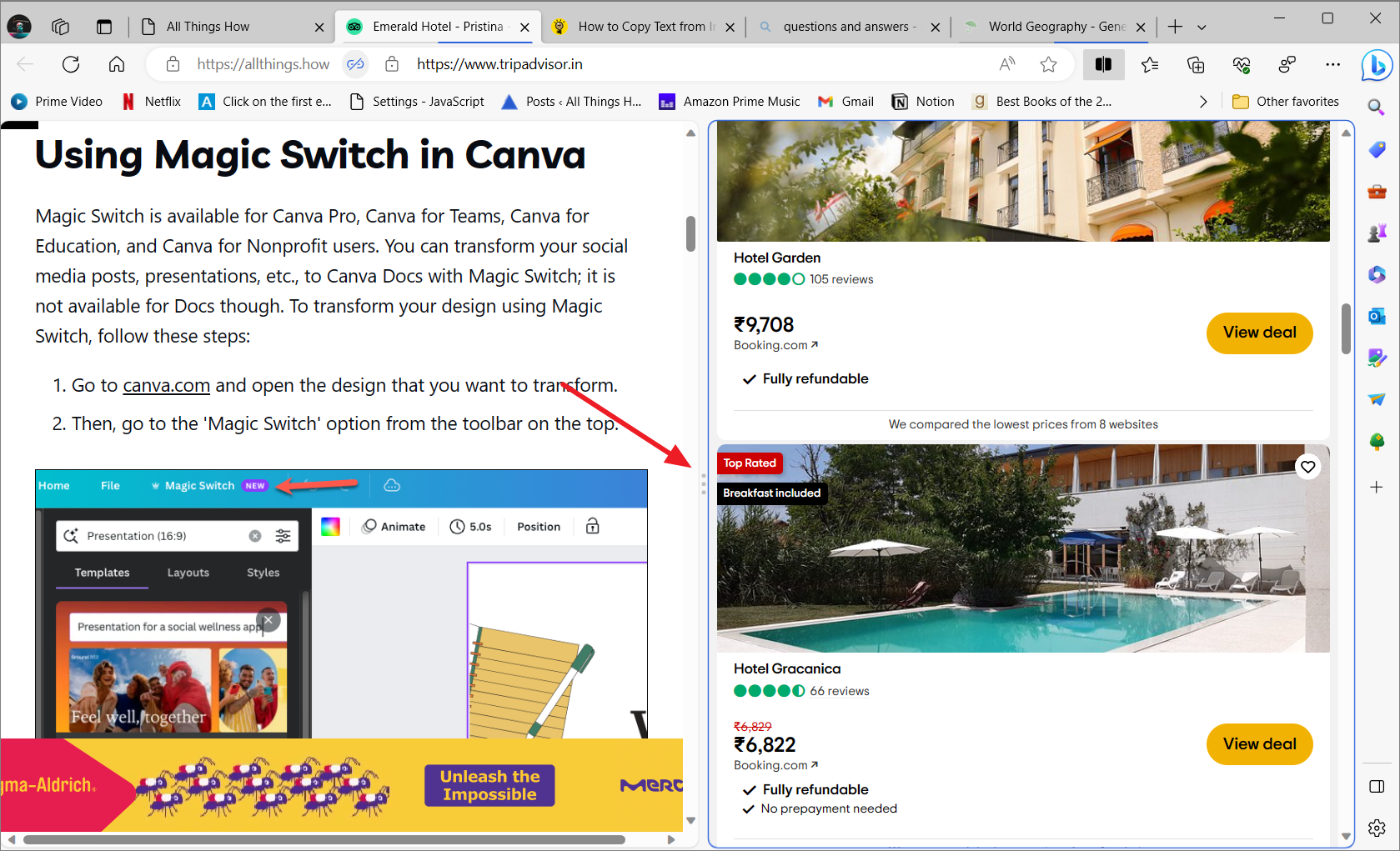
To adjust the size of the split screens, hover over the divider between them. Click and drag the separator left or right to resize the windows according to your preference.
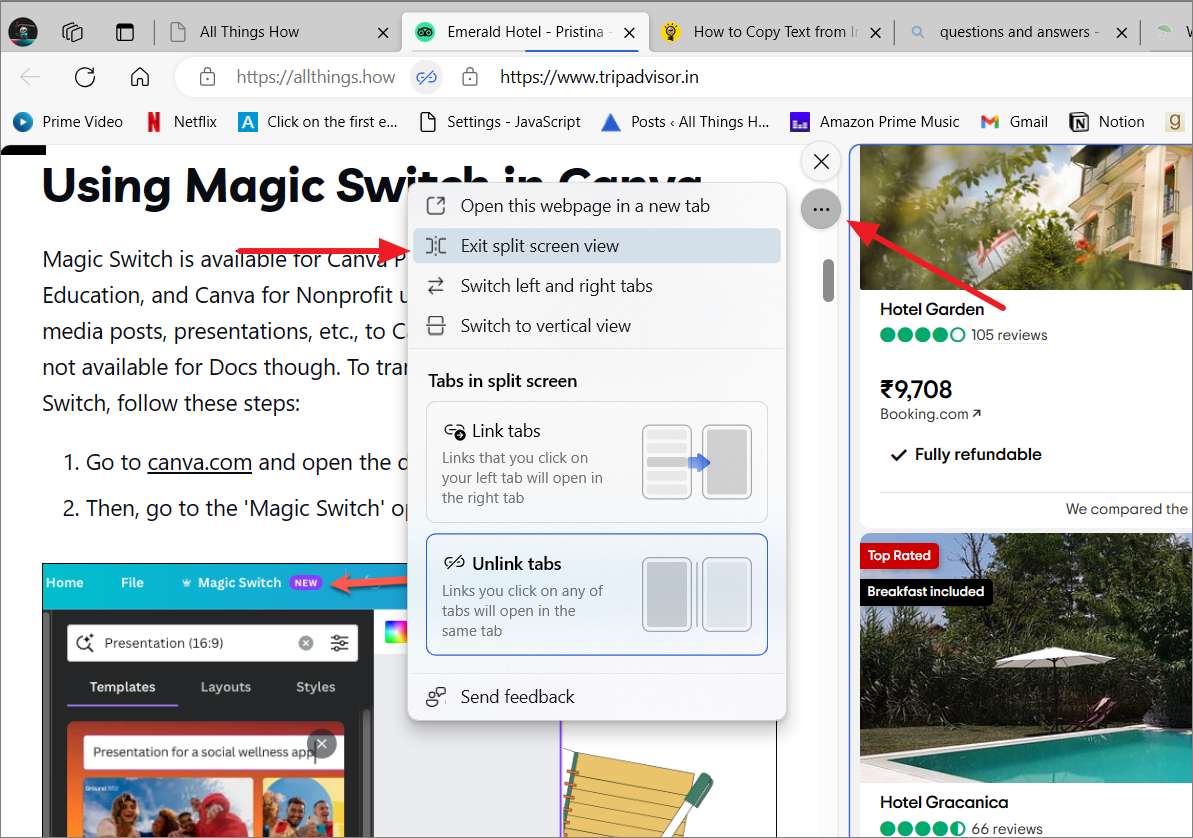
To exit split screen mode and separate the webpages into individual tabs, hover over either window, click the three-dot menu button at the top right corner, and select ‘Exit split screen view’.
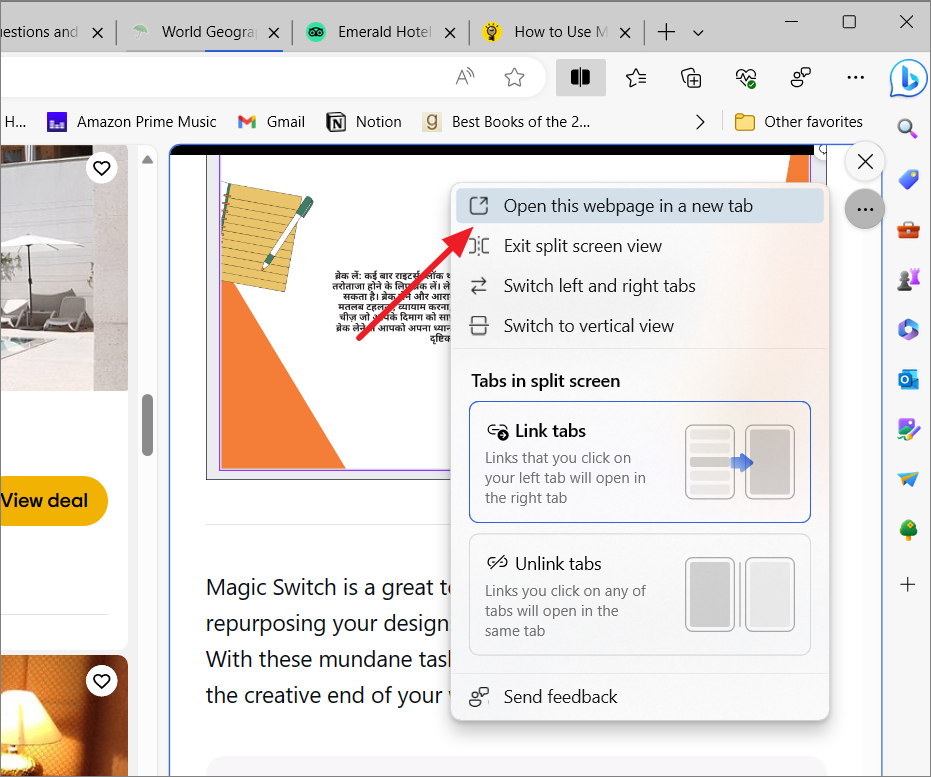
To open a webpage from the split screen in a new tab, hover over the desired section, click the three-dot menu button, and select ‘Open this webpage in a new tab’. This action duplicates the webpage into a new full-screen tab without closing it in the split-screen view.
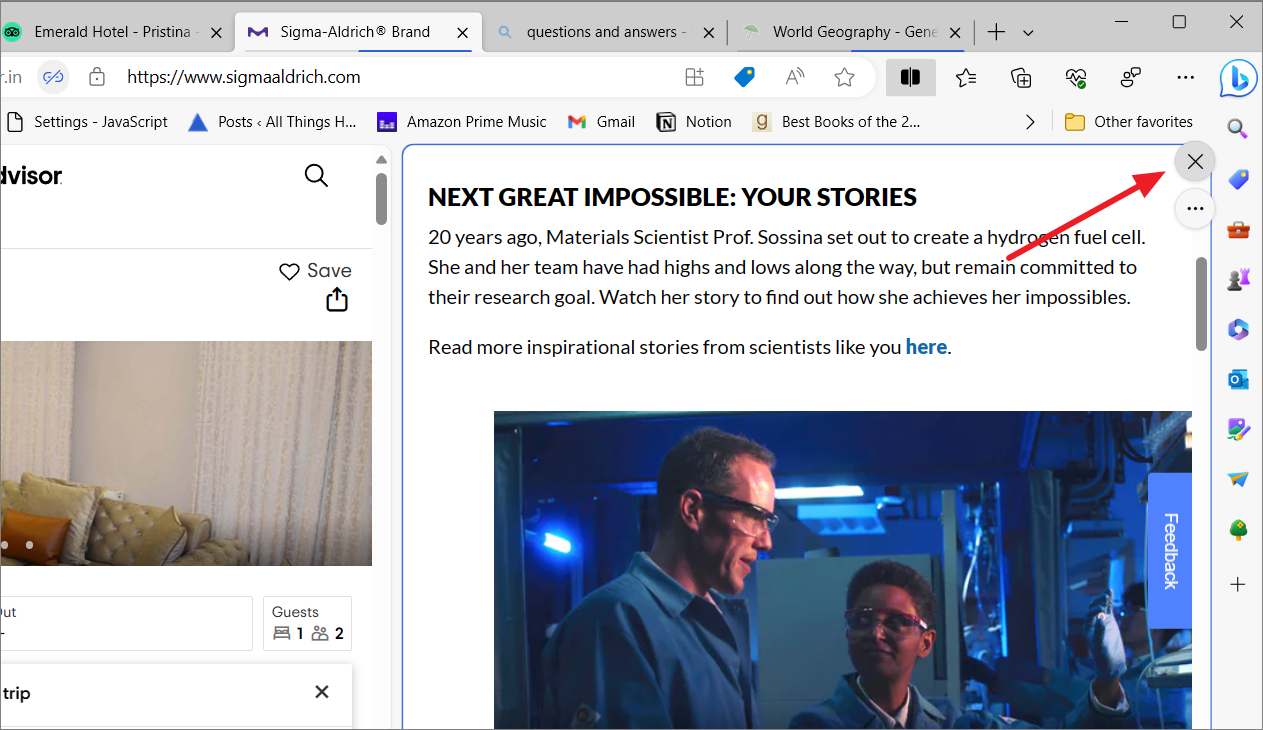
To close a webpage within the split screen, hover over the section and click the ‘X’ button at the top right corner, or select the webpage and click the ‘Split screen’ button.
You can customize how links behave within split screen mode, choosing whether they open in the same section or in the opposite one.
To have links clicked in the left tab open in the right section, click the three-dot menu button and select ‘Link tabs’. Note that this feature works from left to right but not vice versa.
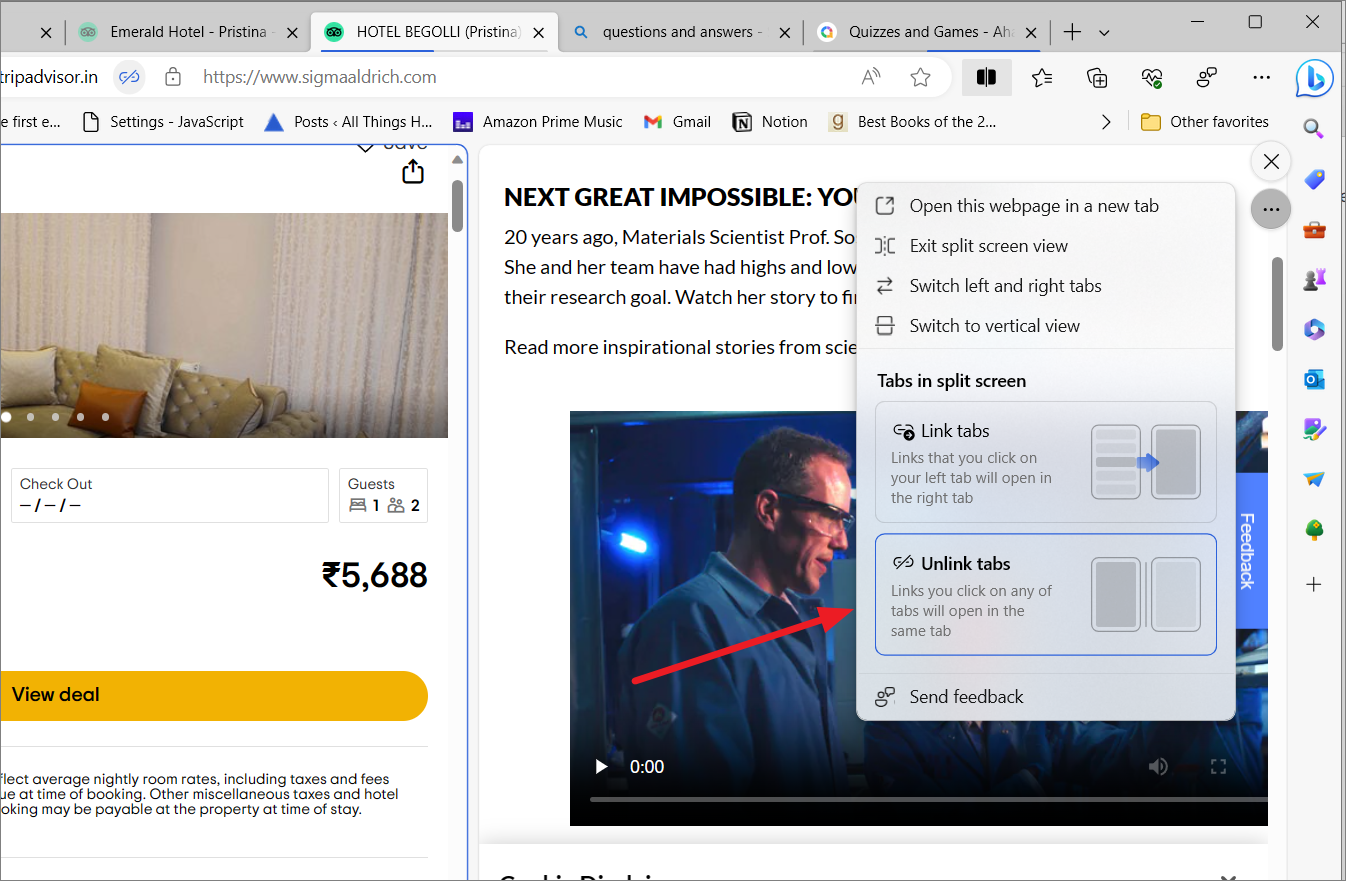
To revert to opening links within the same section, select ‘Unlink tabs’ from the three-dot menu. This is the default setting.
Enabling Split Screen in Edge
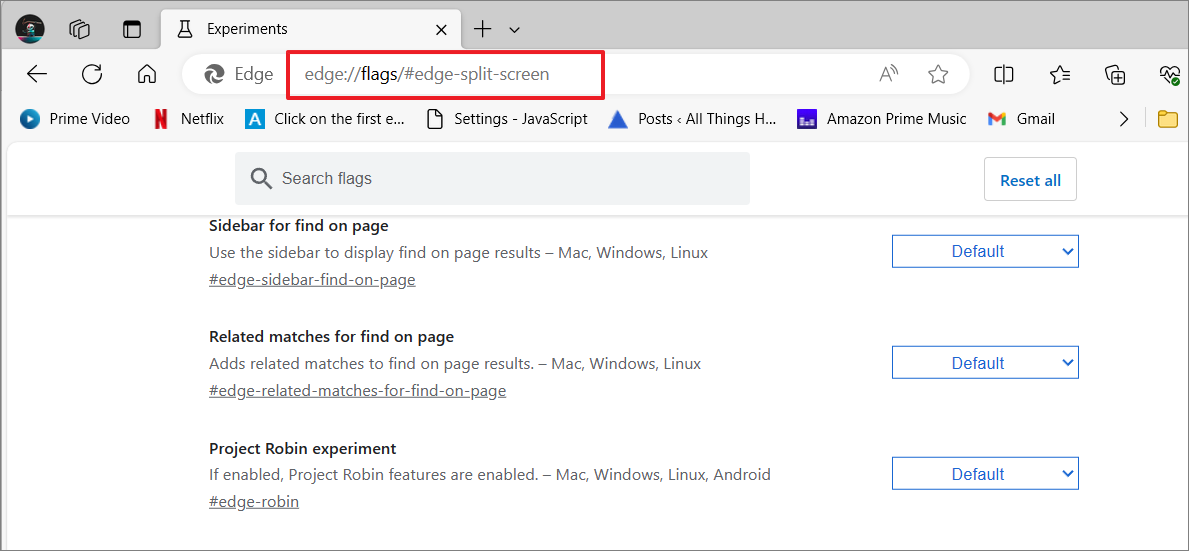
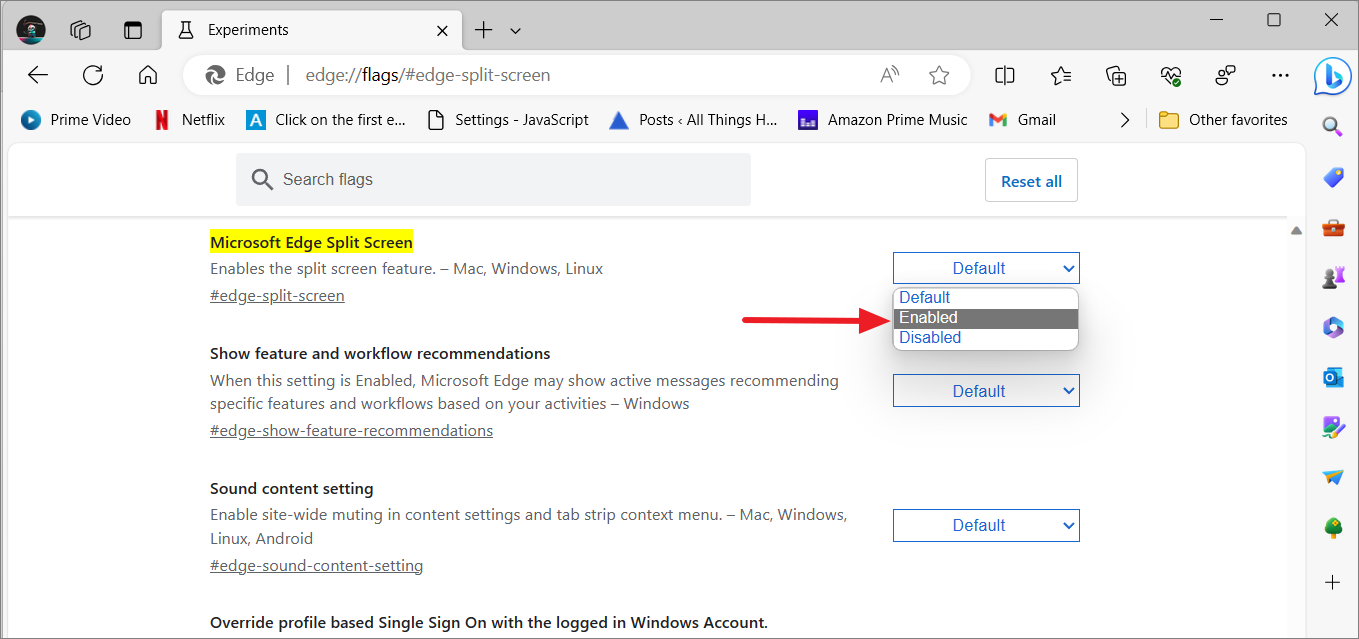
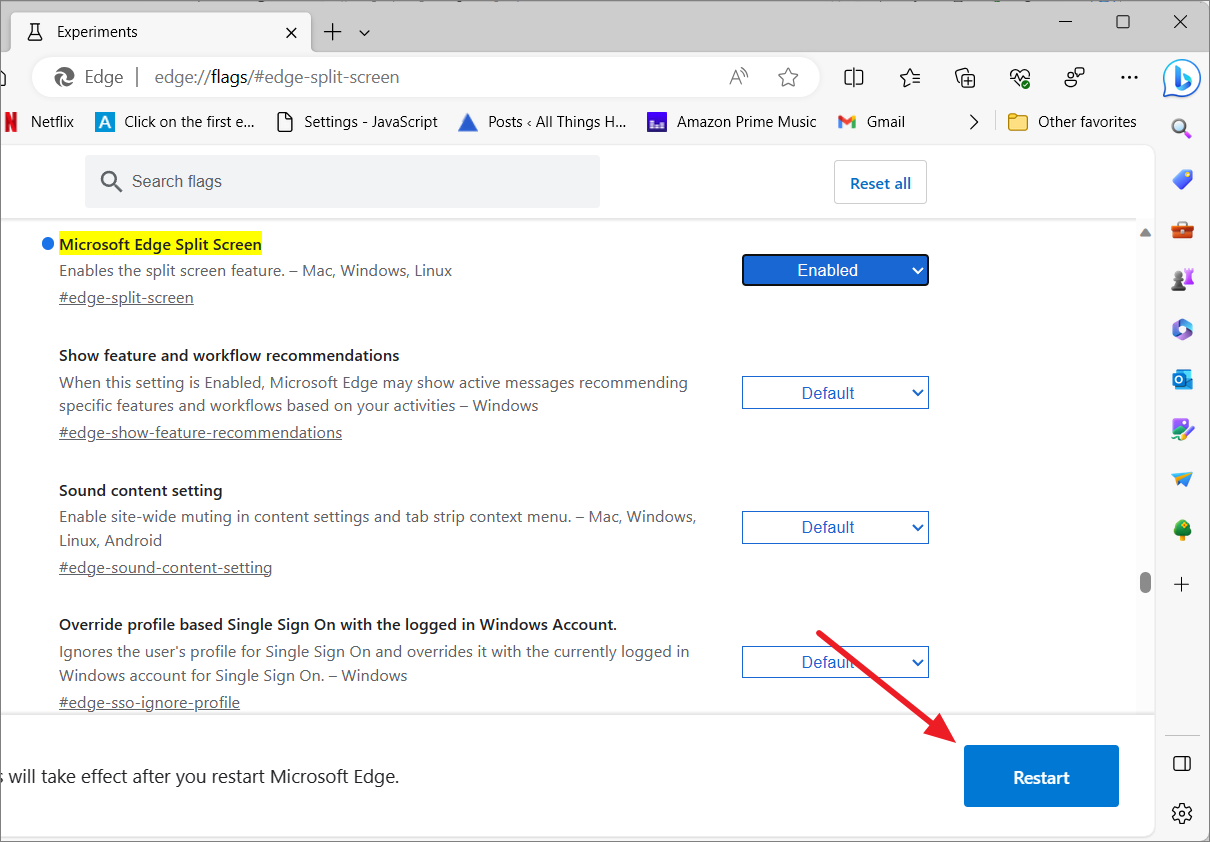
If the Split Screen feature is not visible in your Microsoft Edge browser, it may need to be enabled manually through the experimental features settings. Follow these steps to activate it:
Ensure your Edge browser is updated to the latest version. Then, open a new tab and enter the following address into the URL bar, pressing Enter afterwards.
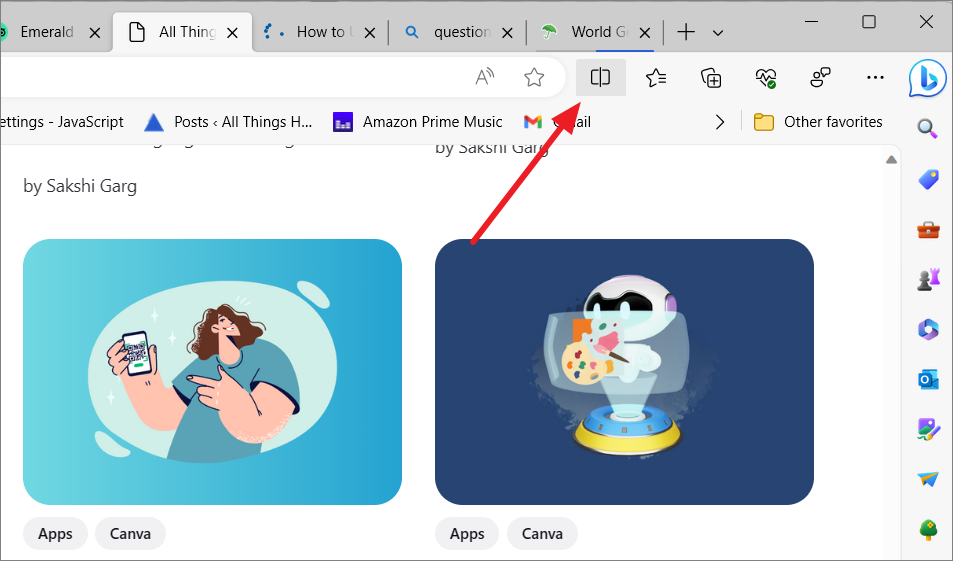
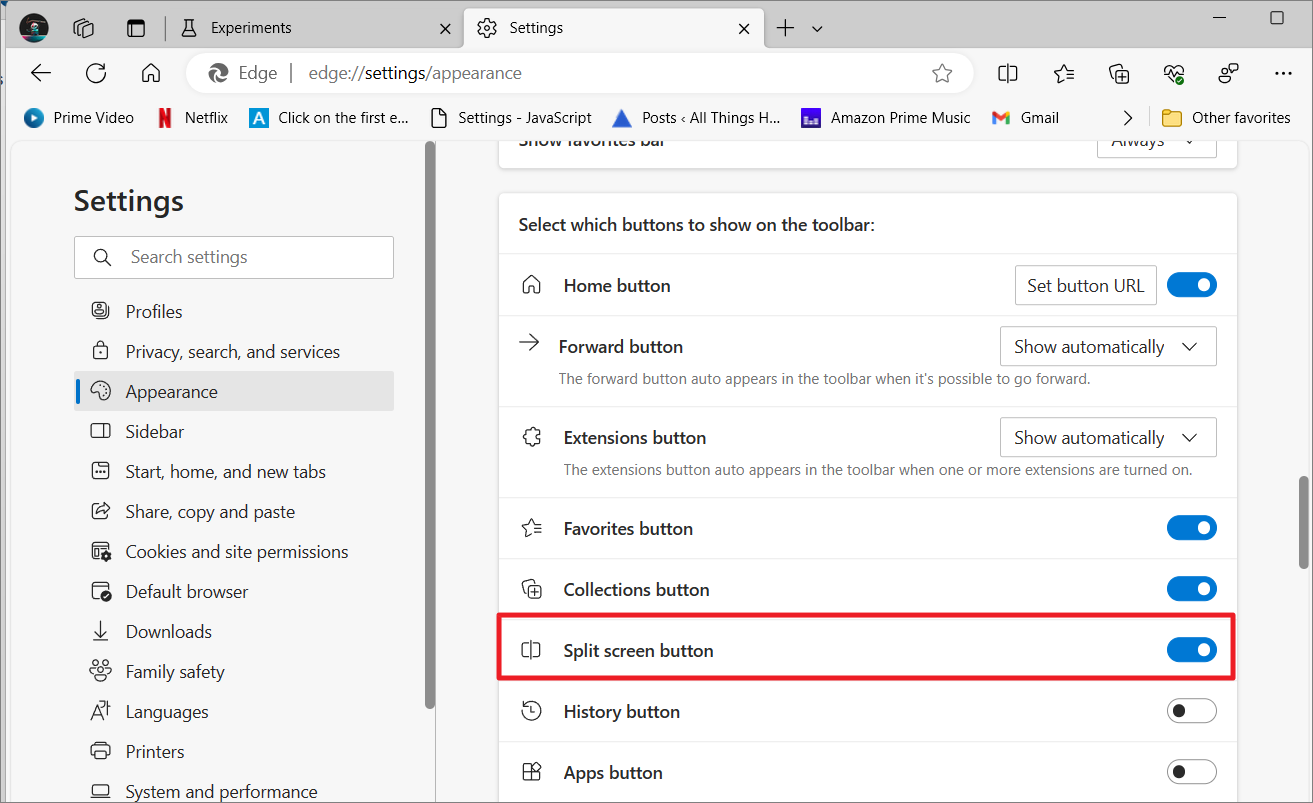
The Split screen button should now be visible next to the address bar in your browser.
The Split Screen feature in Microsoft Edge offers an effective way to enhance your browsing experience by allowing you to work with multiple webpages simultaneously.
Additional advantages of using Split Screen include:
Improving organization and focus during tasks.
Saving time by reducing the need to switch between tabs.
Enabling side-by-side comparison of information.
Providing an engaging method to explore content.
Try out the Split Screen feature to see how it can improve your productivity while using Microsoft Edge.