
Online shopping offers immense convenience, but entering payment details during checkout can be a repetitive and time-consuming task. Microsoft Edge Wallet aims to simplify this process by securely storing your payment information within the browser.
Although Edge has supported saving payment cards for a while, Microsoft has recently introduced a dedicated ‘Wallet’ interface that enhances the user experience. This guide will walk you through everything you need to know about the Microsoft Edge Wallet.
What is Microsoft Edge Wallet
Microsoft Edge is an excellent browser choice for online shoppers. It includes features like coupons, price comparisons, ratings, and price history, all designed to help you save money. The Wallet feature further enhances your shopping experience by allowing you to manage your payment methods directly within Edge without the need for additional extensions.
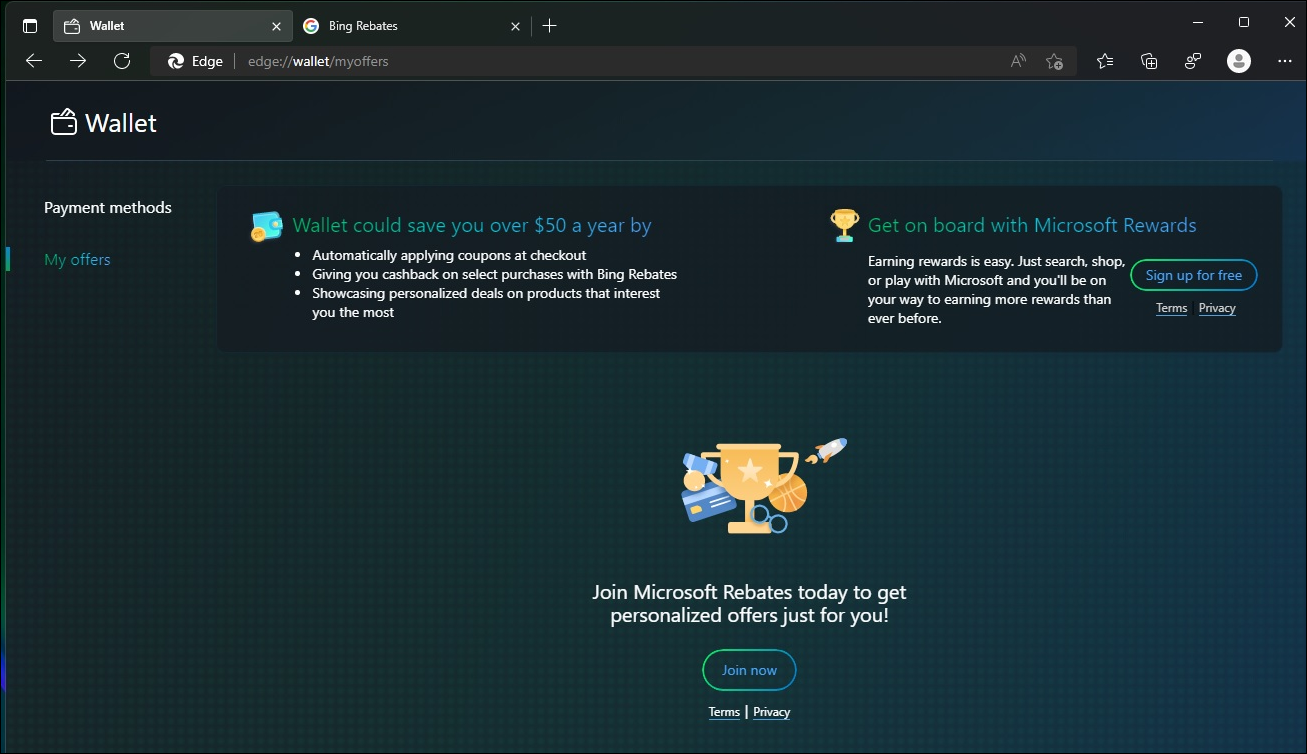
The Wallet allows you to store your debit and credit cards, making the checkout process smoother when shopping online. You have the option to save your payment methods locally on your device or sync them with your Microsoft Account for access across all your devices using the same account.
Security is a top priority when handling payment information. When you add a card to the Wallet, your bank details—including cardholder name, card number, expiration date, and billing address—are securely validated. The CVV is used only during this validation and is not stored by Microsoft.
In addition, the Wallet can recognize your card issuer and automatically display available coupons and discounts relevant to your card. It can even apply these coupon codes automatically at checkout, enhancing your shopping savings. Furthermore, you might earn cashback on eligible purchases through Bing Rebates.
All your personalized deals and product recommendations are conveniently located in one place. For enhanced security, the Wallet offers a Virtual Cards feature that generates a unique set of single-use card details each time you make a purchase.
In essence, the Microsoft Edge Wallet is designed to streamline your shopping experience by focusing on convenience, security, and savings.
How to use Microsoft Edge Wallet
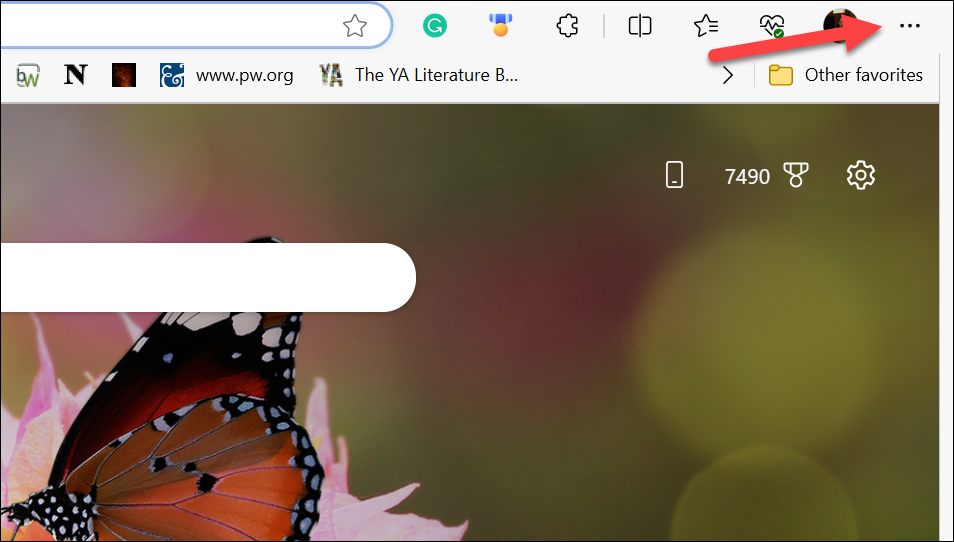
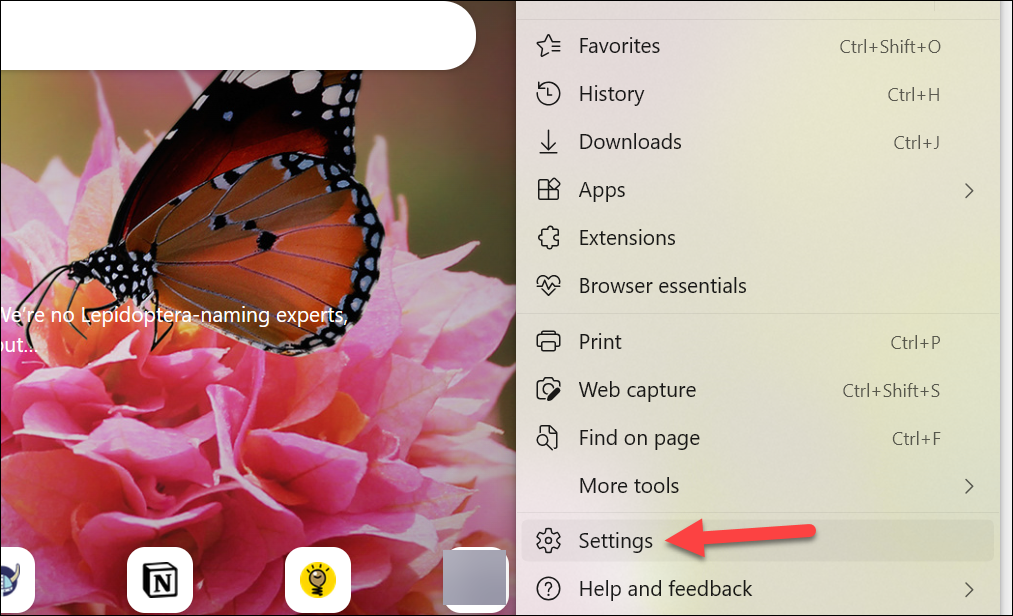
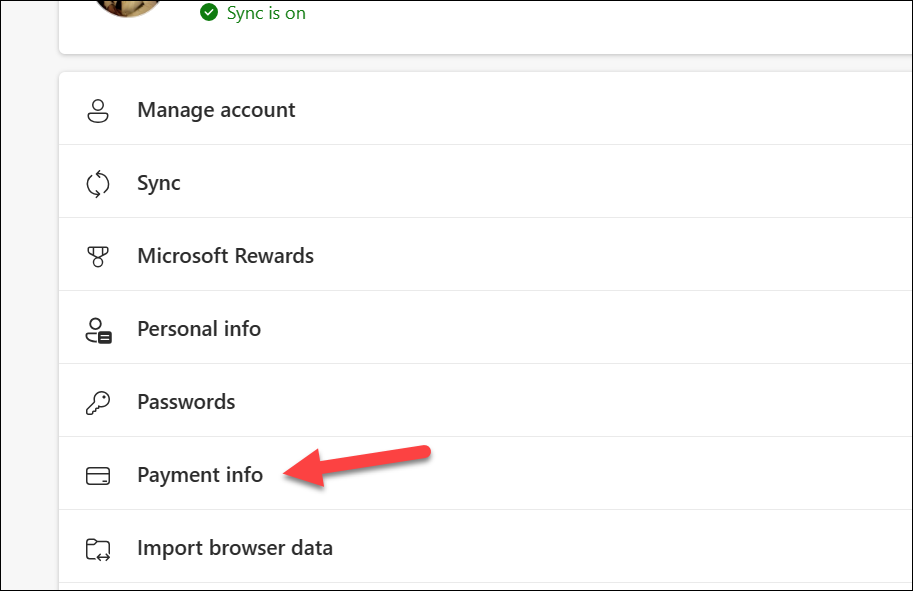
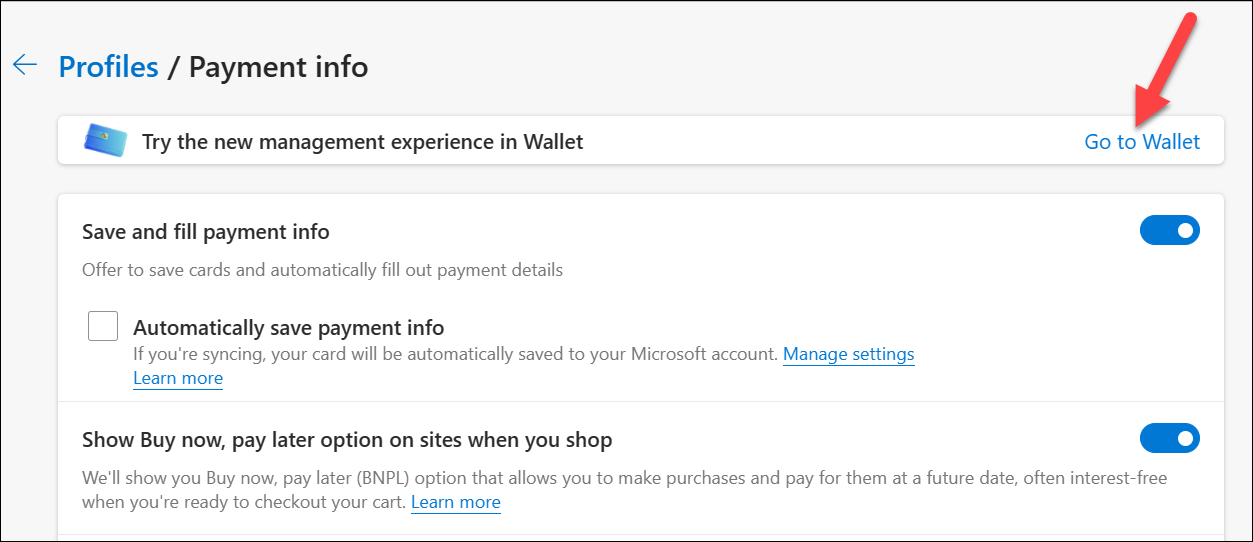
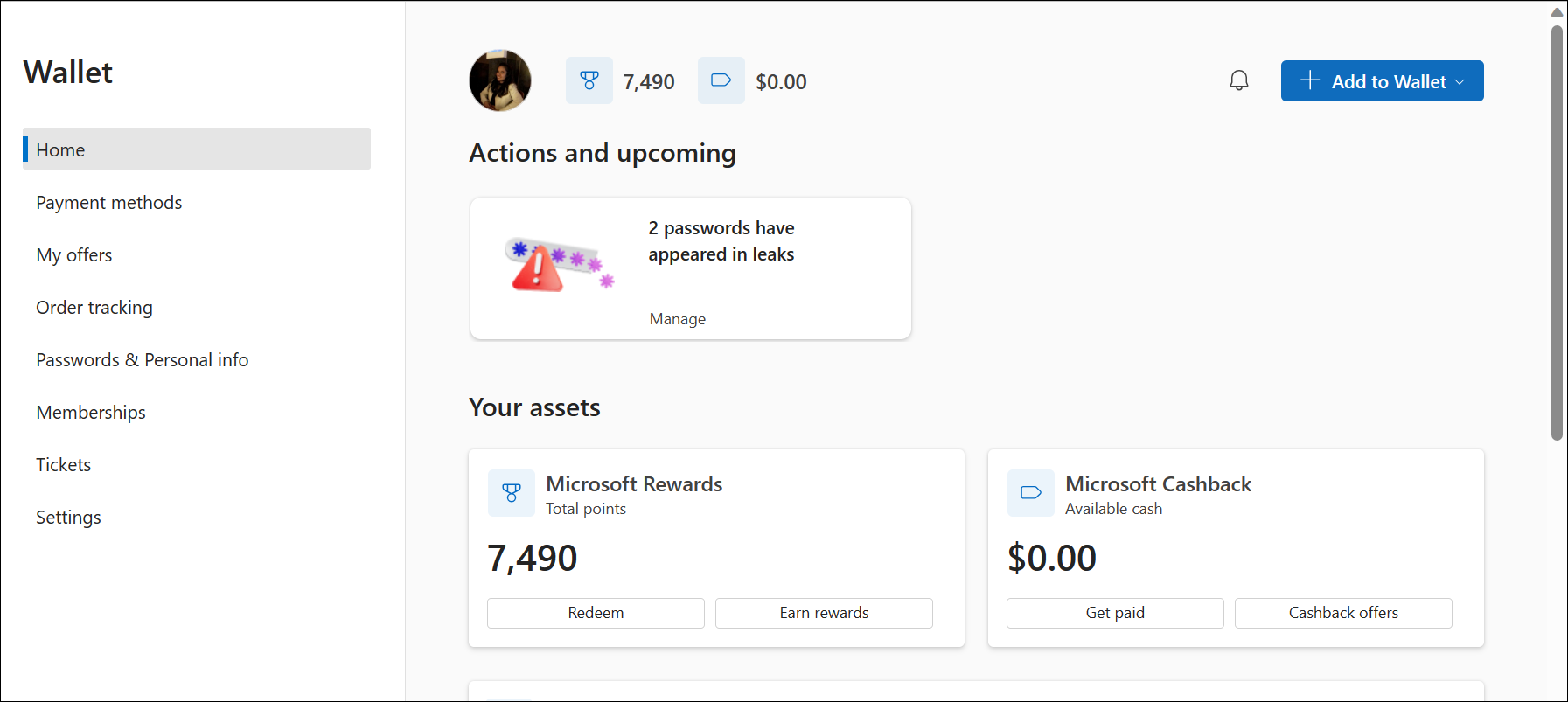
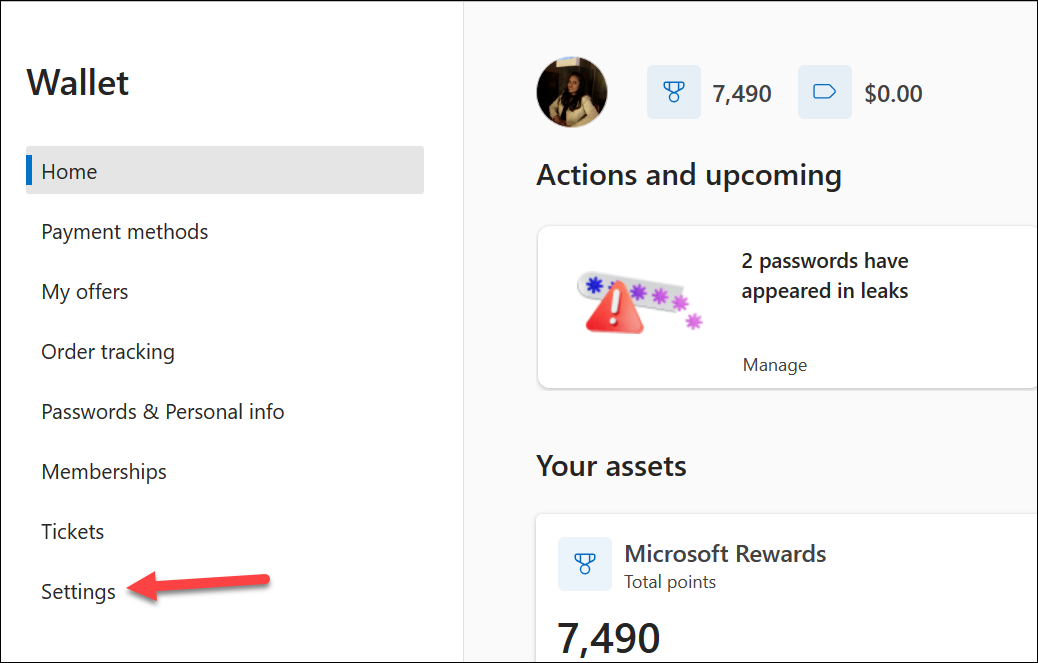
edge://wallet into the address bar and pressing Enter.The Wallet home page serves as a centralized hub where you can monitor your Microsoft Rewards and Microsoft Cashback, manage payment methods and memberships, and keep track of password security using the Password Manager.
To make full use of the Wallet features, you need to enable the option to save and autofill payment information. If you are using a third-party password manager in Edge, this option might be disabled. You will need to disable or remove any third-party extensions to proceed.
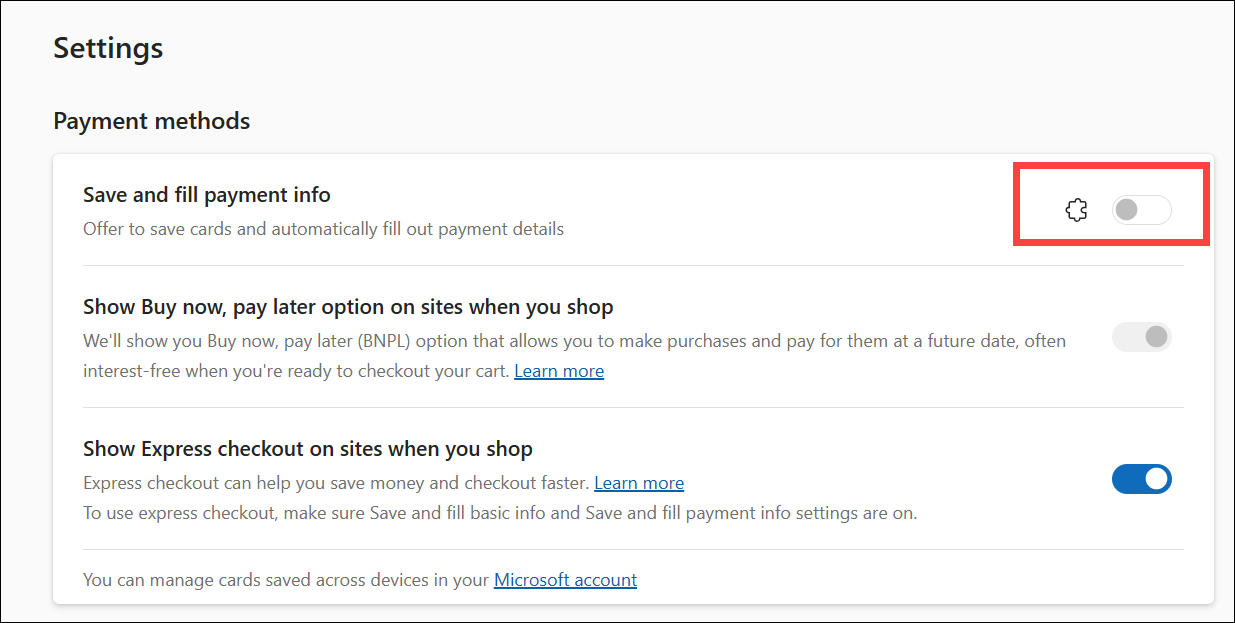
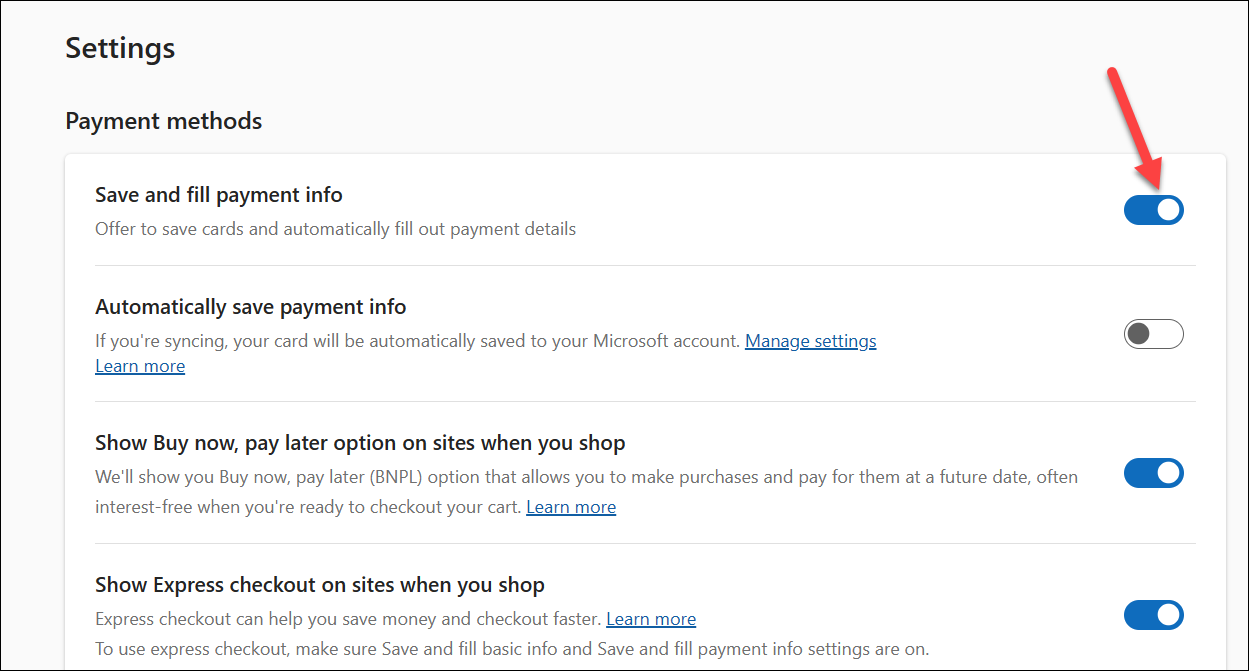
If you prefer to save your cards only on your current device, you can stop here. To sync your payment information across all devices using your Microsoft Account, turn on the toggle for ‘Automatically save payment info’. If you want the option to decide for each card whether to sync it, leave this toggle off and select the sync option individually when adding new cards to your Wallet.
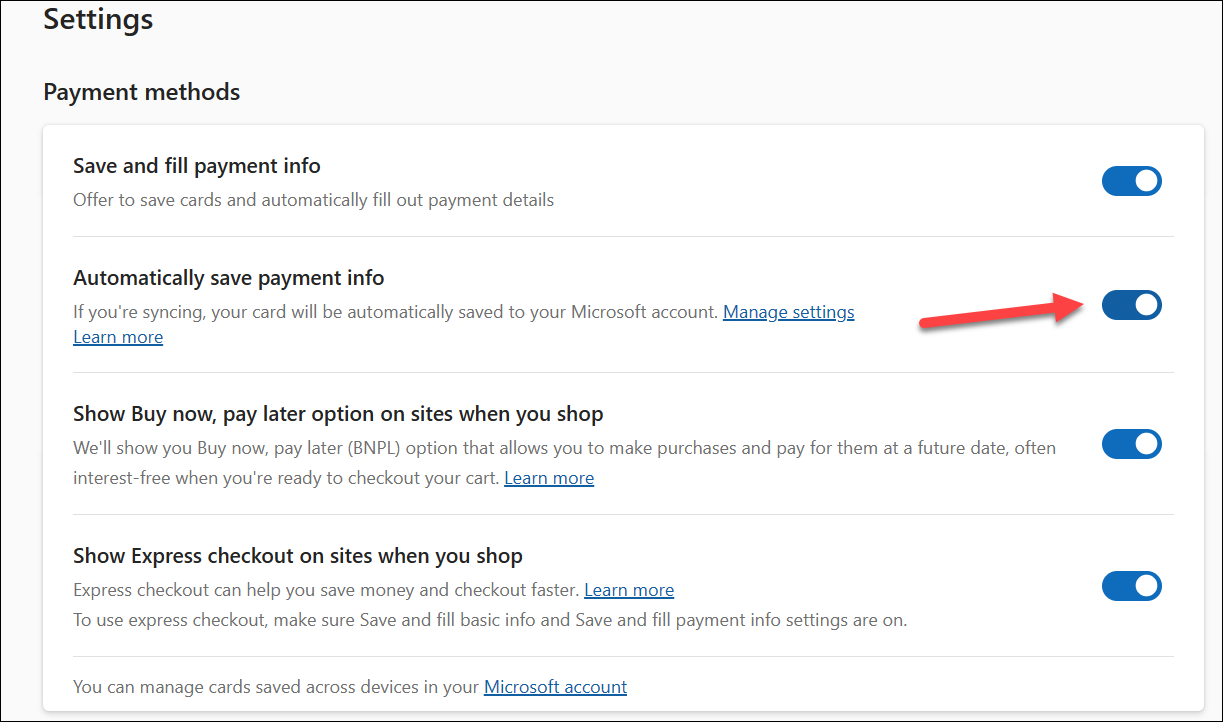
With these settings enabled, you’re ready to add your debit and credit cards to the Wallet for a seamless checkout experience. For detailed steps on how to add a card to your Wallet, refer to our dedicated guide below.
 All Things How
With continuous enhancements like the Wallet feature, Microsoft Edge is evolving into a top-tier browser that could encourage users to switch from their current preferences. The focus on integrating useful tools directly into the browser platform sets Edge apart as a strong contender in the browser market.





