Delete cookies for all websites or selected websites using this simple guide for Microsoft Edge, Google Chrome, or Firefox.
Delete cookies for all websites or selected websites using this simple guide for Microsoft Edge, Google Chrome, or Firefox.
by Parth Sawhney
Cookies play a vital role in enhancing your browsing experience by remembering login details, saving preferences, and keeping items in your shopping cart. However, over time, accumulated or corrupted cookies can cause issues like slow loading times or problems accessing certain websites. Clearing your cookies can help resolve these issues and free up valuable system resources. This guide will show you how to delete cookies on your Windows 11 PC using Microsoft Edge, Google Chrome, and Mozilla Firefox.
Deleting cookies in Microsoft Edge
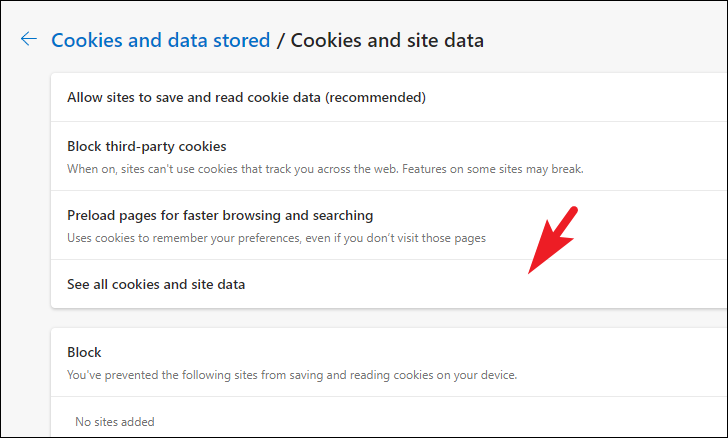
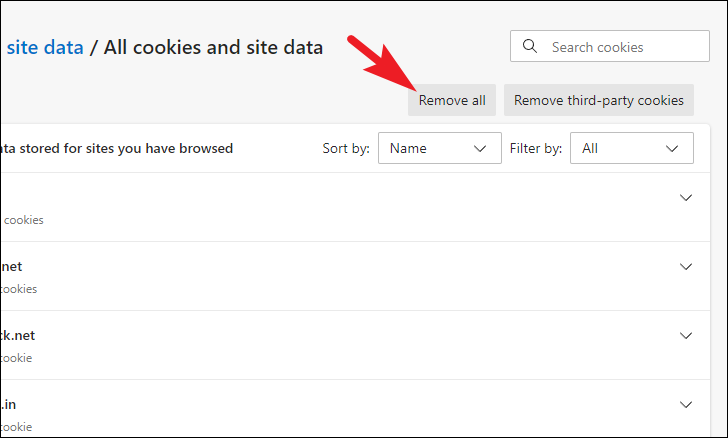
Removing cookies in Microsoft Edge is straightforward, and you have the option to delete cookies for specific websites or all sites at once.
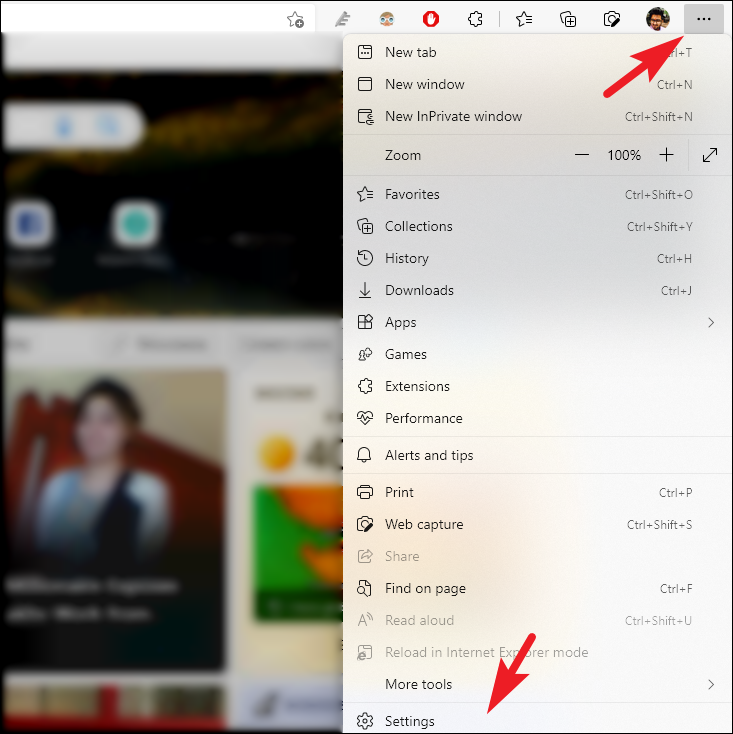
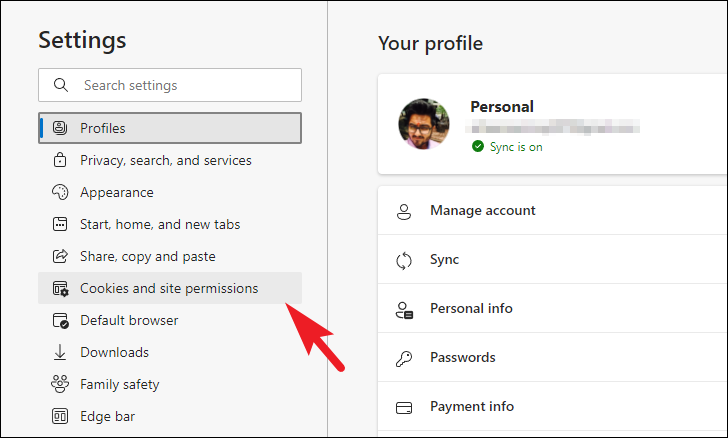
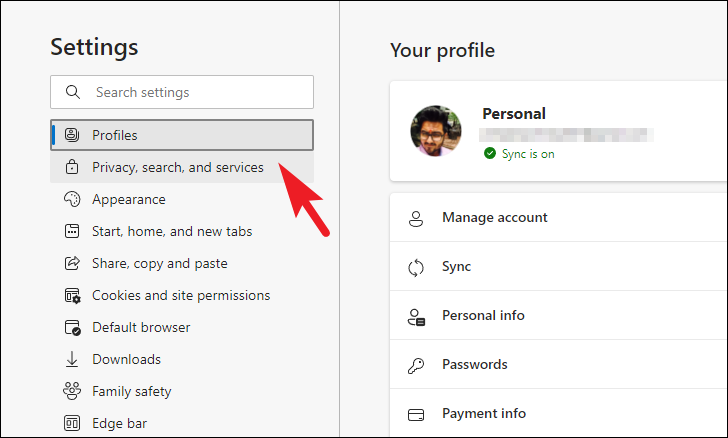
Once Edge is open, click on the three-dot “ellipsis” icon in the upper-right corner of the window to access the menu. From the dropdown, select Settings.
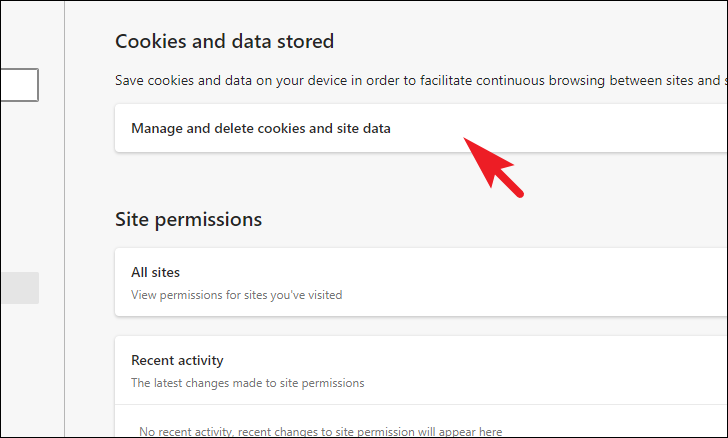
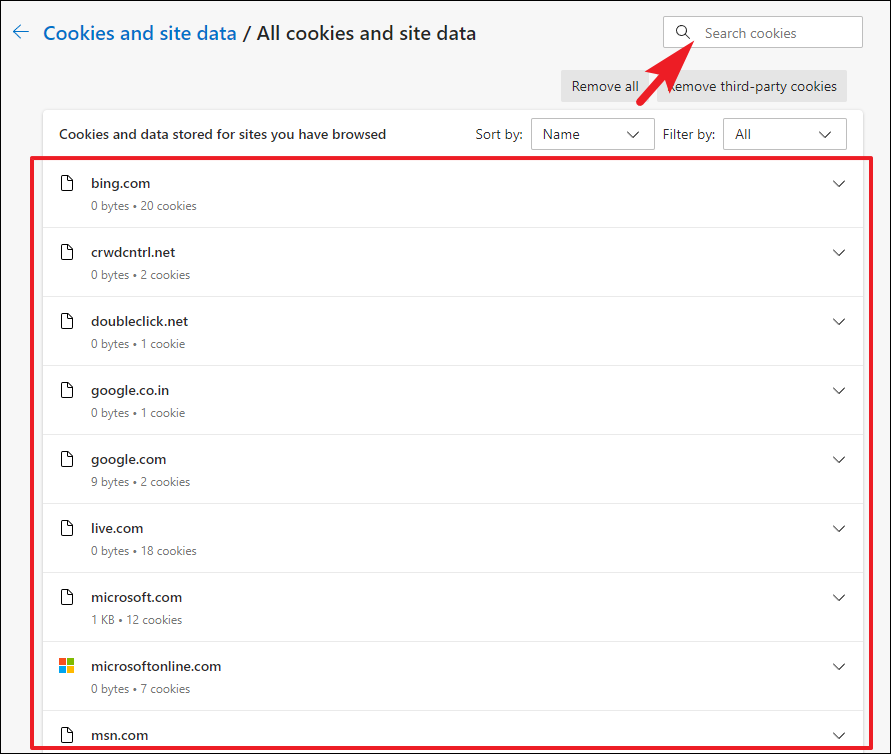
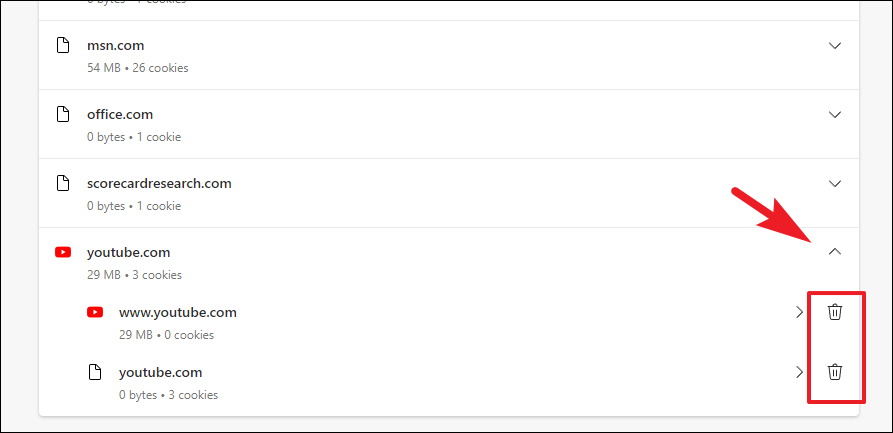
If you prefer to delete cookies from specific websites, use the search bar to find the site or scroll through the list. Click the downward arrow next to the website to expand the details, then click the trash icon next to each cookie category to remove them.
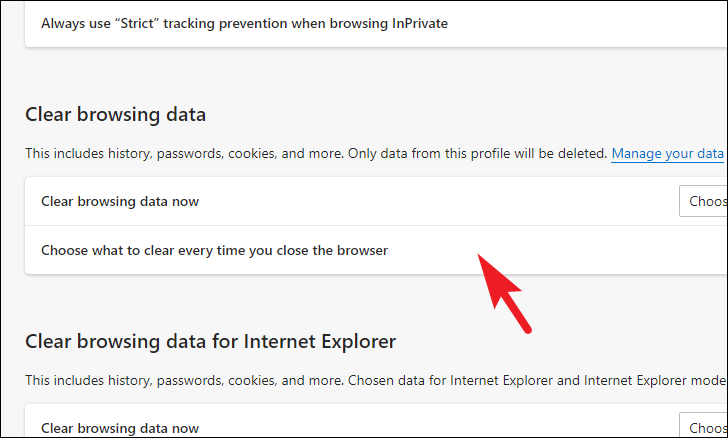
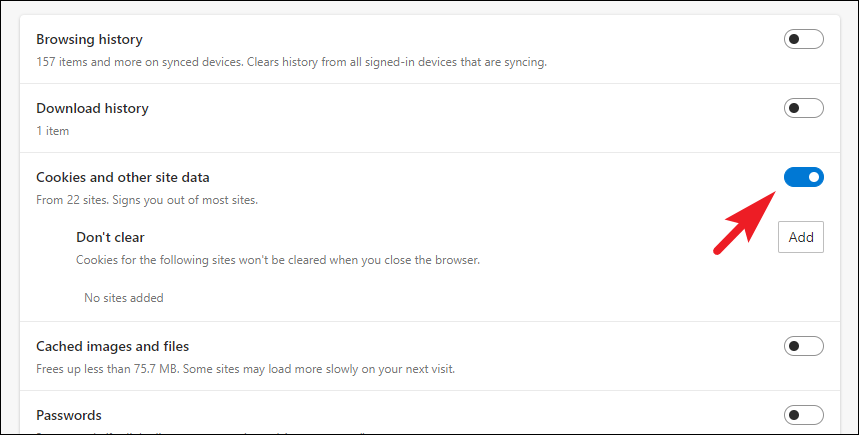
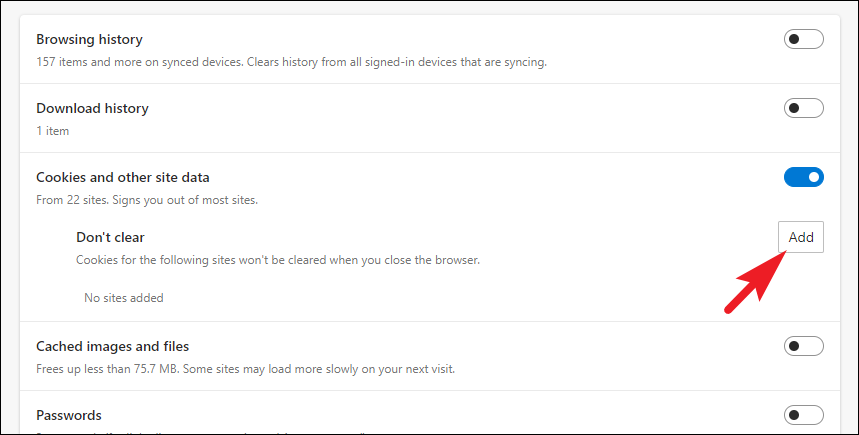
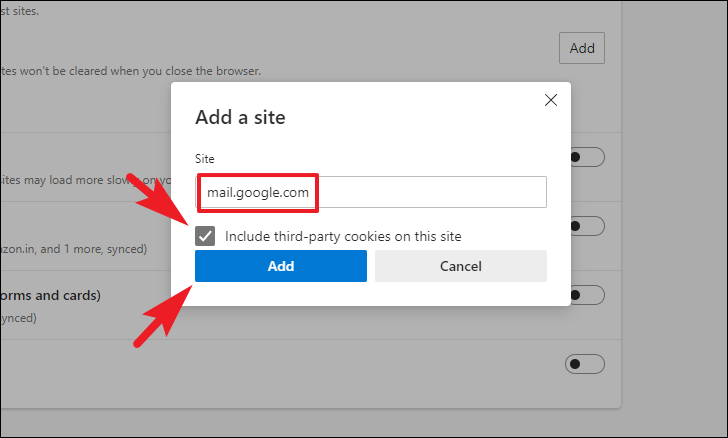
To automatically clear cookies every time you close Microsoft Edge, you can adjust your settings accordingly.
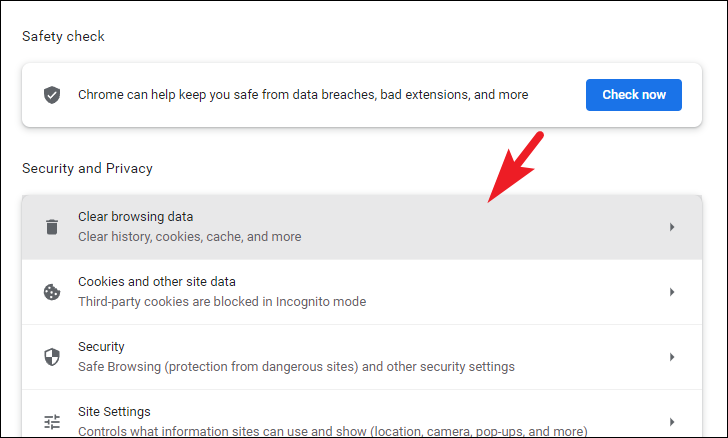
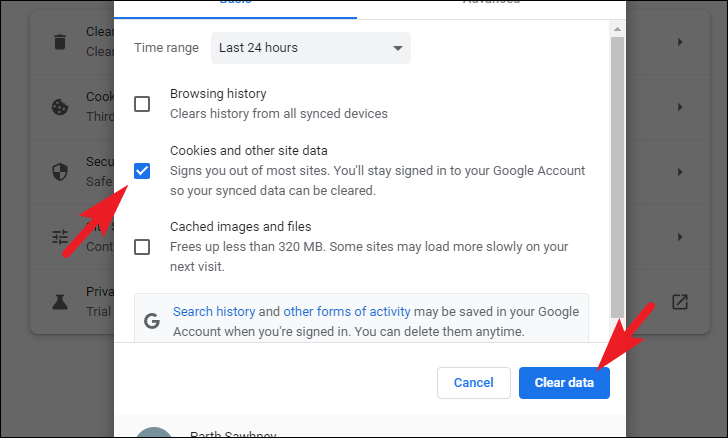
In the overlay window, select the Basic tab. Choose the desired Time range from the dropdown menu (e.g., Last hour, Last 24 hours, All time). Tick the checkbox next to Cookies and other site data, and uncheck any other boxes if you don’t wish to clear those data types. Click Clear data to proceed.
This action will sign you out of most websites. However, your Google account may remain signed in.
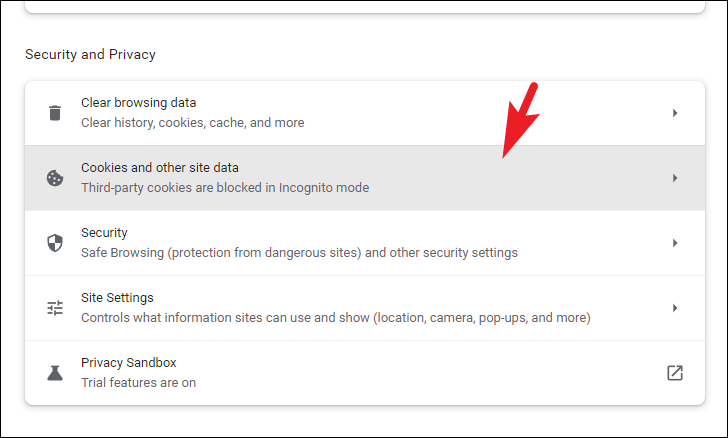
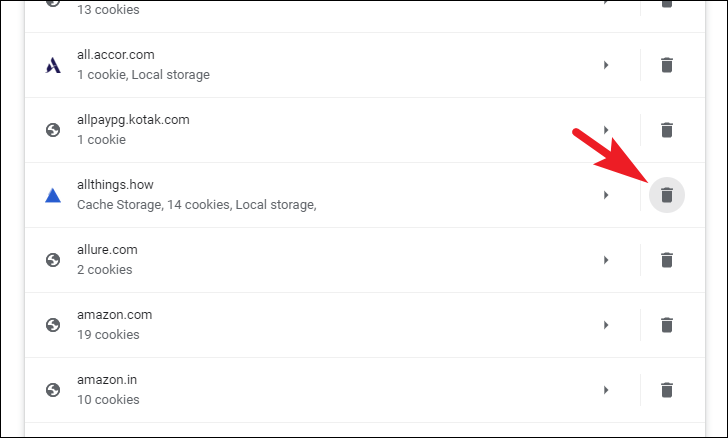
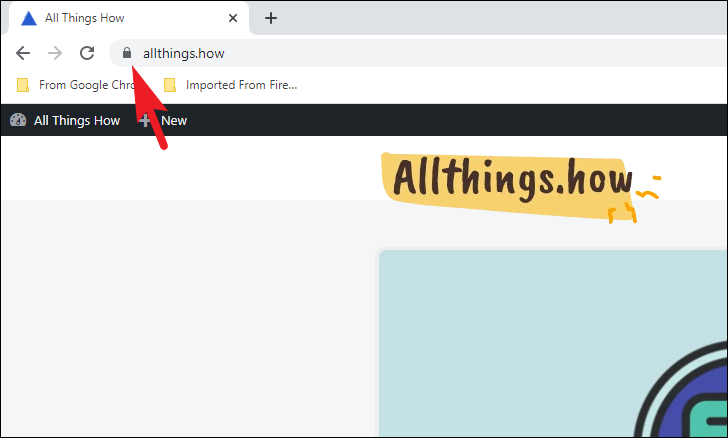
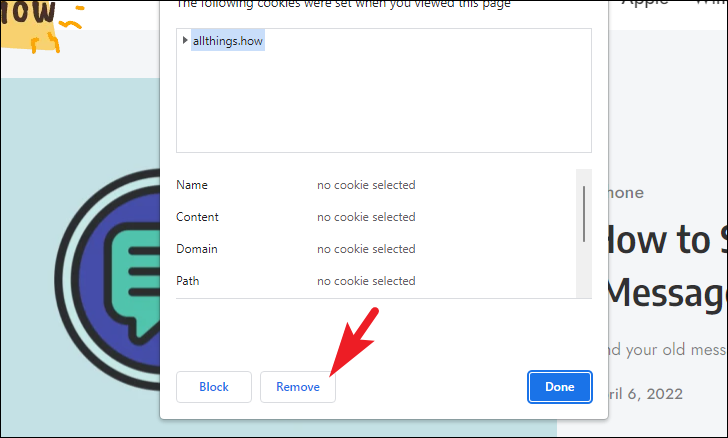
If you want to delete cookies for a specific website or manage cookies differently, follow these steps:
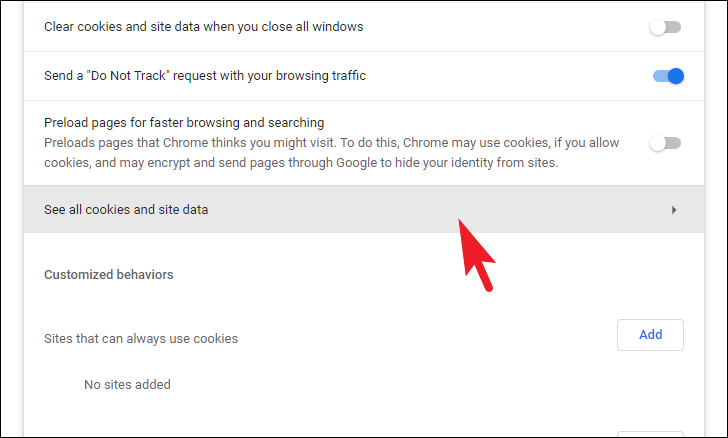
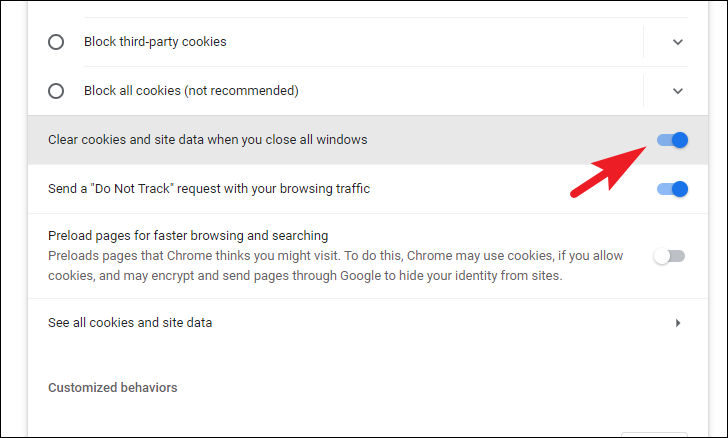
In the Cookies and other site data settings, scroll down to the General settings section. Toggle on the option for Clear cookies and site data when you close all windows.
Now, Chrome will delete cookies every time you exit the browser.
Deleting cookies in Mozilla Firefox
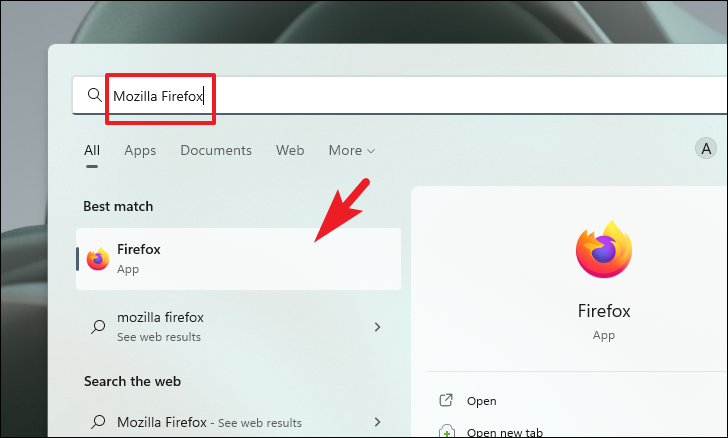
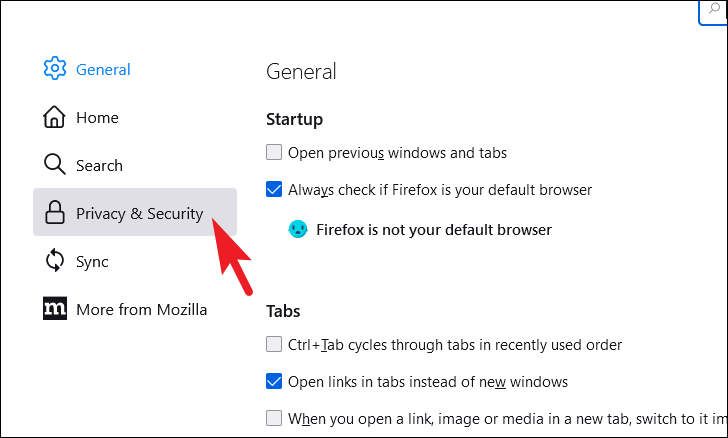
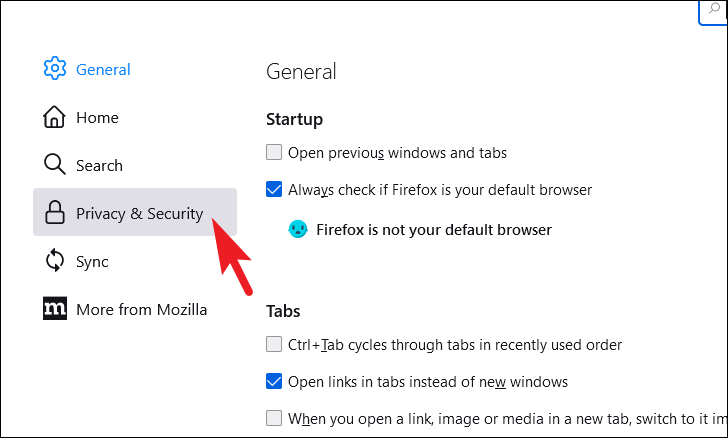
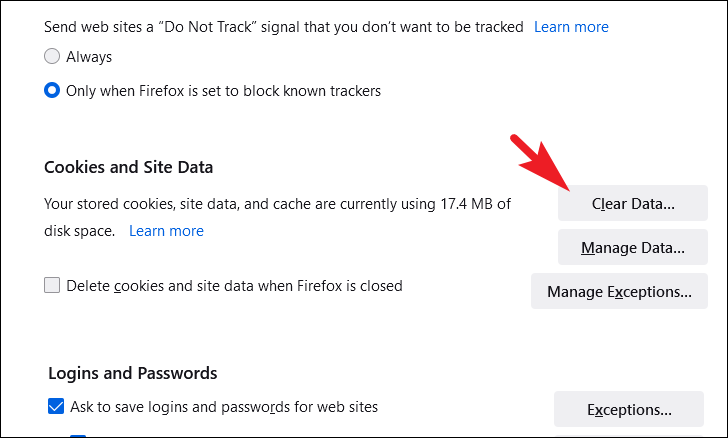
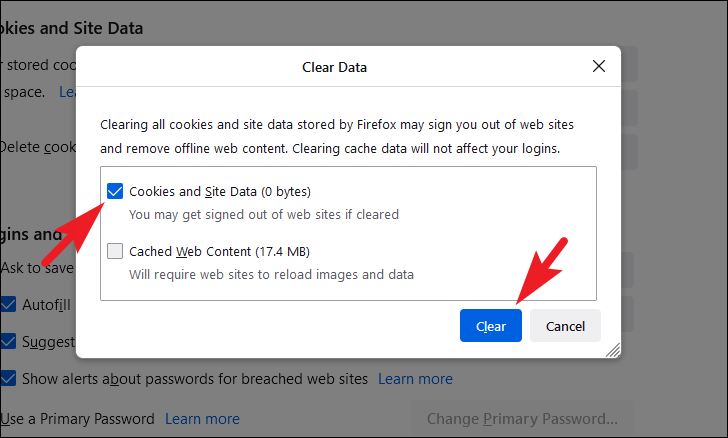
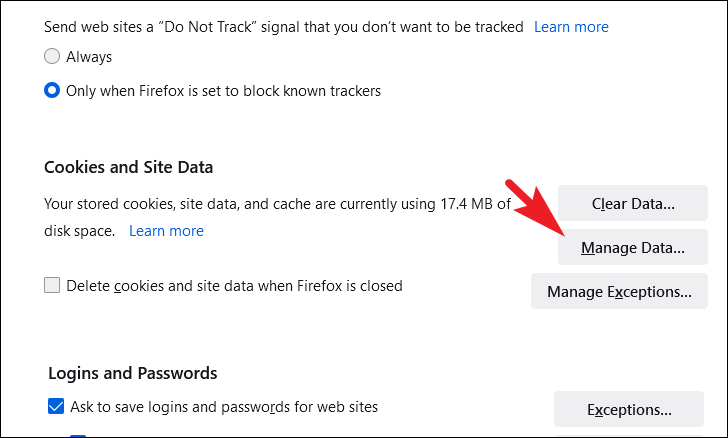
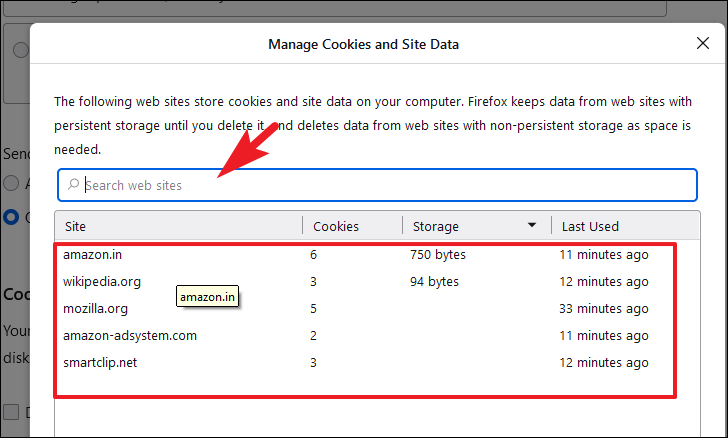
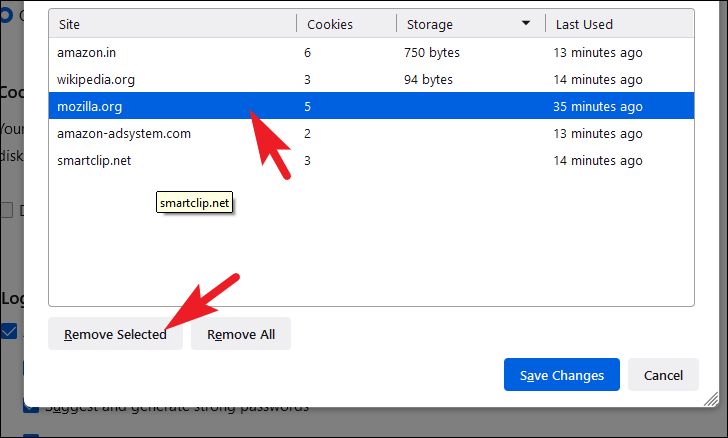
Mozilla Firefox also allows you to clear cookies for all websites or specific ones, and you can set it to delete cookies automatically when you close the browser.
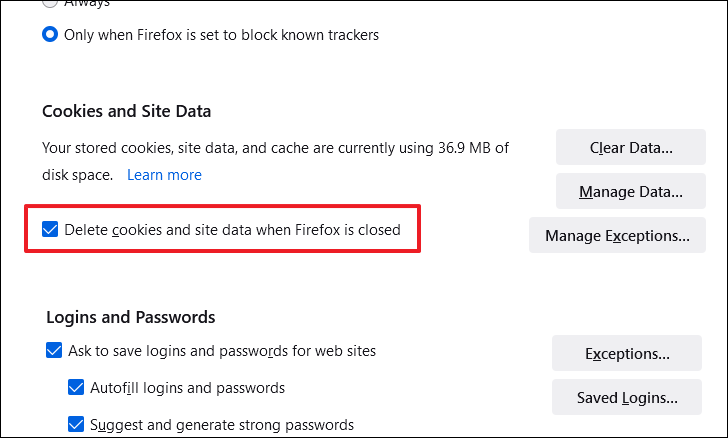
Back in the Cookies and Site Data section, check the box next to Delete cookies and site data when Firefox is closed.
Firefox will now automatically clear all cookies each time you exit the browser.
By following these steps, you can effectively manage and delete cookies on your Windows 11 PC across different browsers. This can help improve your browsing experience and resolve issues related to outdated or corrupted cookies.