
Windows’ shell:AppsFolder is a special system location that displays all installed apps and programs, including those from the Microsoft Store and traditional desktop applications. However, if you have a portable or custom application that doesn’t show up in this folder, you won’t be able to pin it to the Start Menu or Taskbar using the standard interface. Adding your own application to shell:AppsFolder streamlines launching and managing your software alongside other apps.
Register a Shortcut in the Start Menu Programs Folder
Windows + R to open the Run dialog, then type shell:programs and press Enter. This opens the Start Menu’s Programs directory in File Explorer.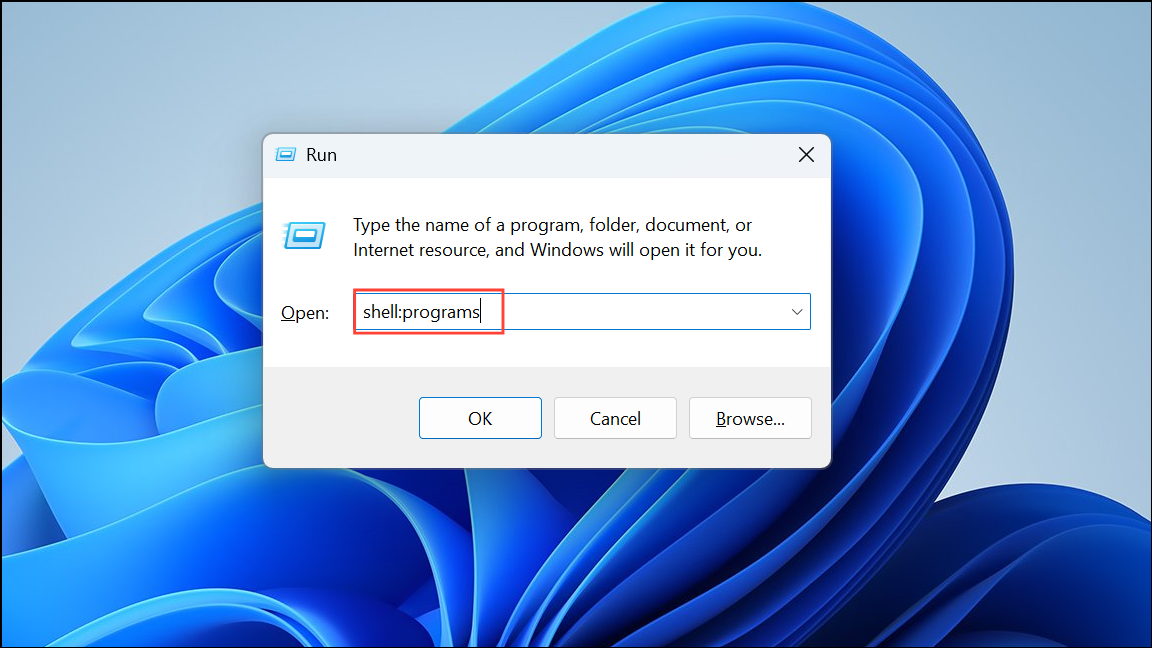
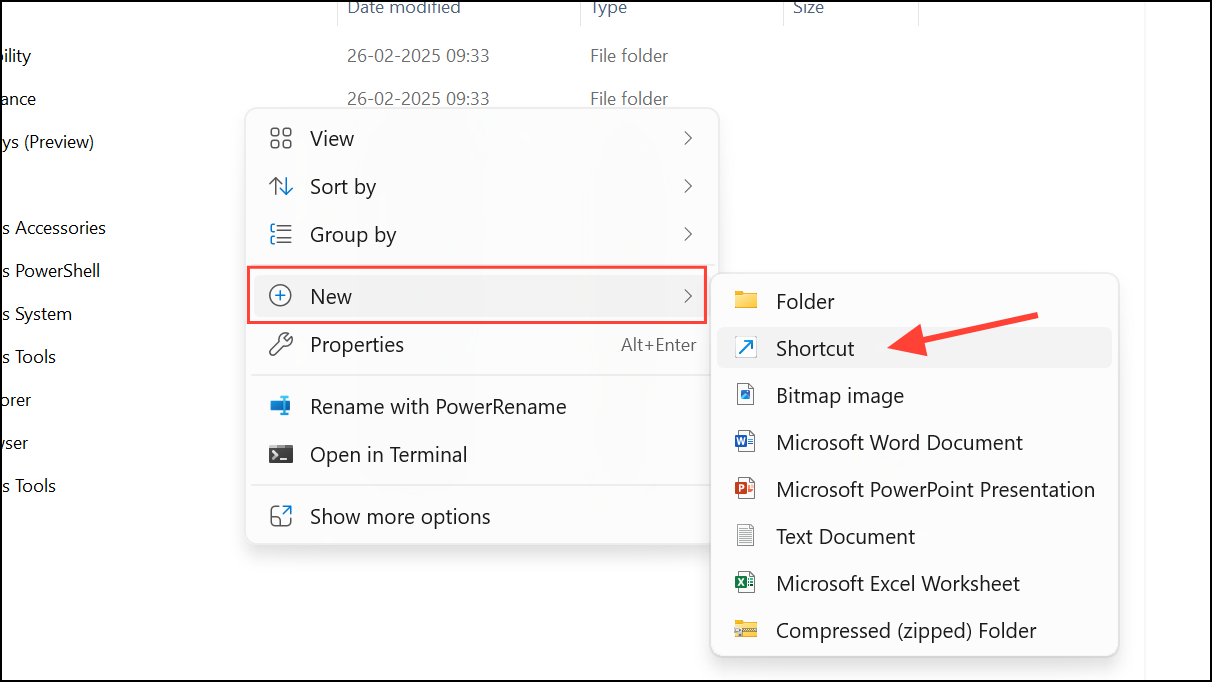
C:\Path\To\YourApp.exe), then click Next.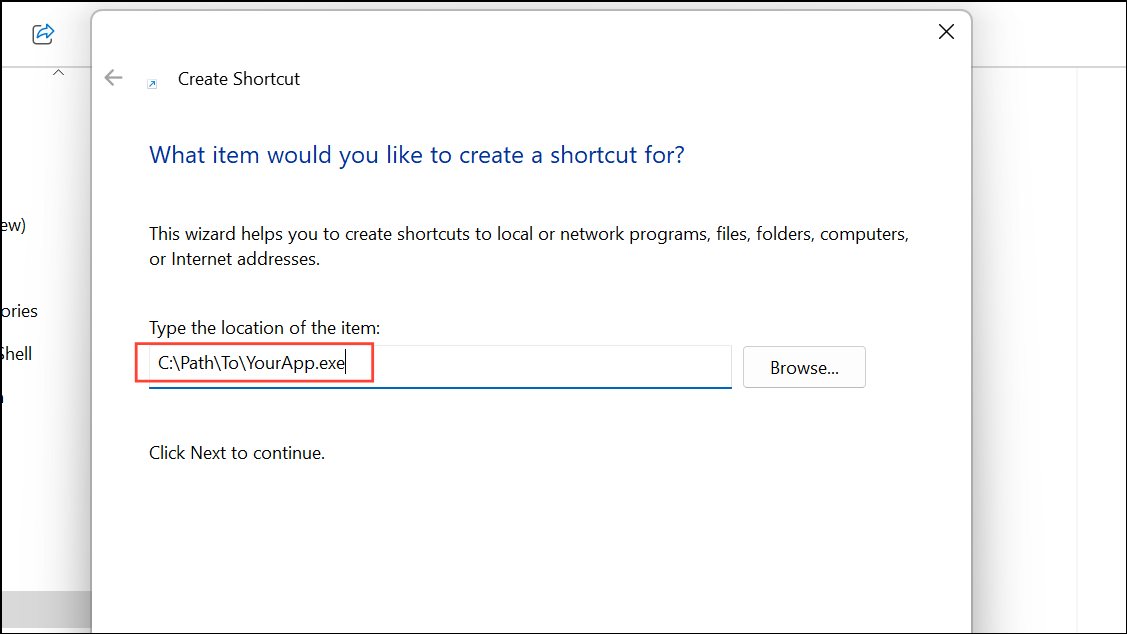
shell:AppsFolder. Click Finish to create the shortcut.shell:AppsFolder by pressing Windows + R, typing shell:AppsFolder, and pressing Enter. Your application should now be visible, allowing you to right-click and pin it to Start or Taskbar.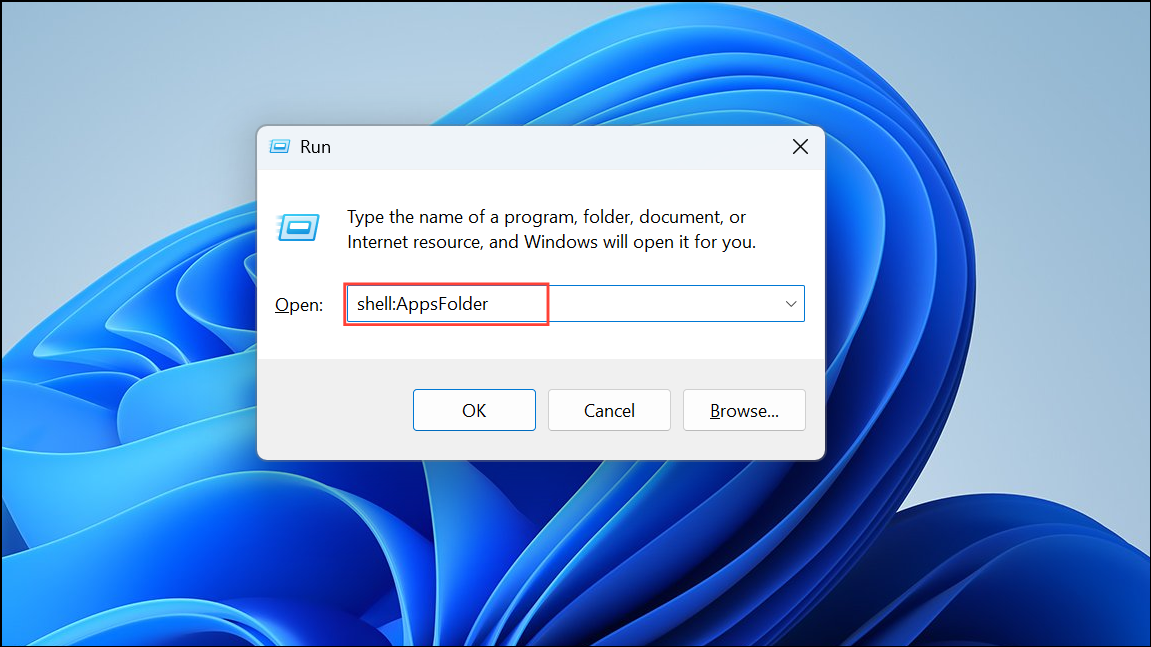
Create a Shortcut in the All Users Start Menu (For All Accounts)
Windows + R), type shell:common programs, and press Enter.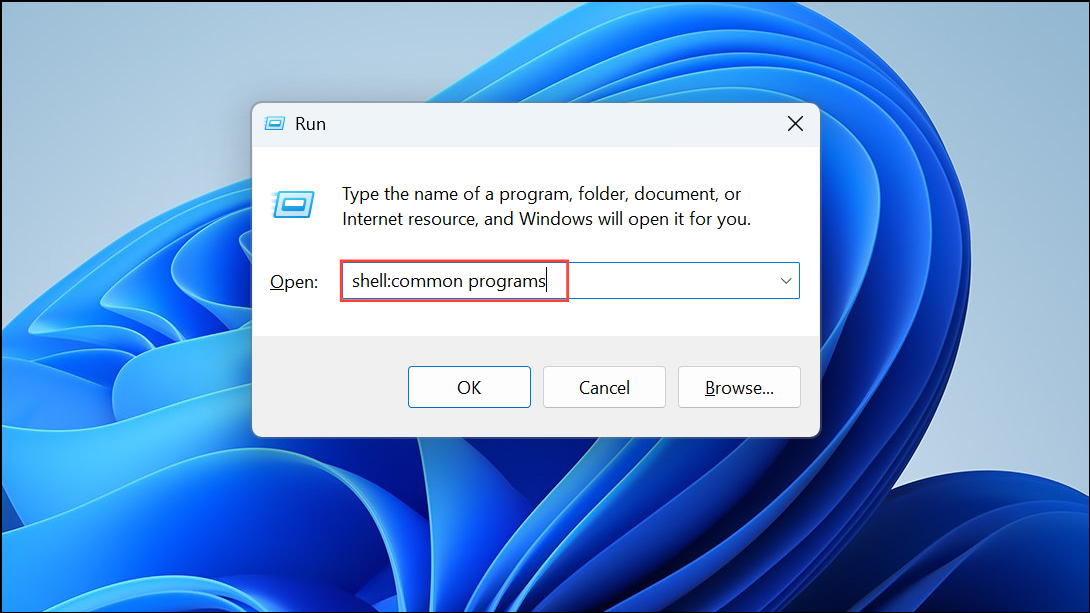
shell:AppsFolder to confirm the application’s appearance for all users.Alternative: Use a Third-Party Utility
Some users prefer tools like “Win10-Shortcut-AppsFolder” or similar utilities to automate shortcut creation and registration. These tools can simplify the process, especially if you add several portable applications. Always download such utilities from reputable sources to avoid malware.
Using these methods ensures your custom or portable applications appear in the Windows AppsFolder, making them accessible for pinning and quick launching. If your app still doesn’t show, double-check the shortcut’s target path and ensure it points directly to the executable file.
Adding your application to shell:AppsFolder streamlines access and lets you organize your Start Menu just how you want. If you update or move your app, remember to update the shortcut so everything works smoothly.





