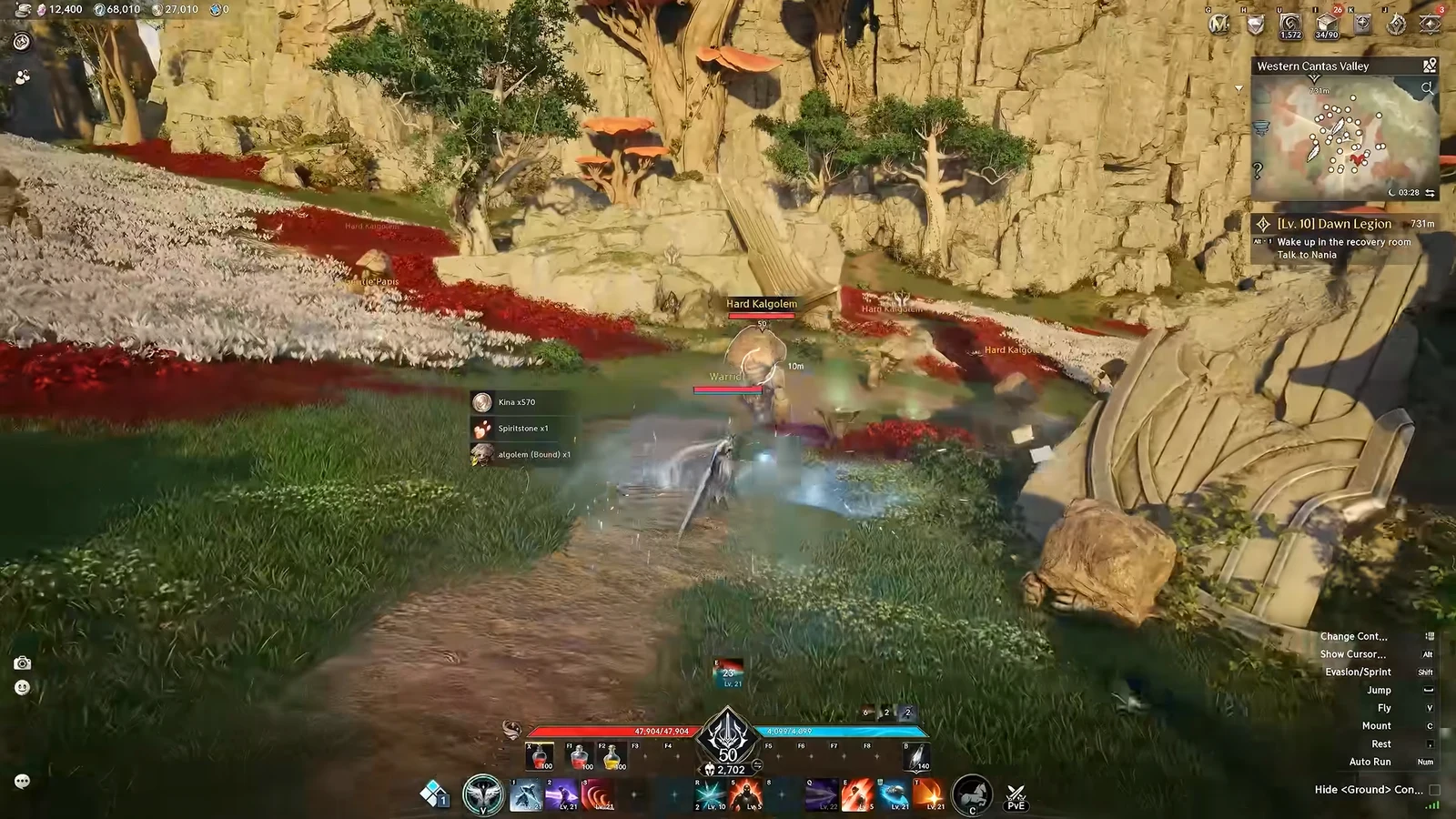
Plenty of AION 2 players sit at a flat 60 frames per second no matter how strong their PC is, even with a 144 Hz monitor plugged in. NCSoft has not confirmed an official frame rate cap, but the game behaves like one is in place under default settings. The ceiling is controlled by three things in the Graphics tab, and all three are adjustable.
Quick answer: Open Settings → Graphics, set Screen Refresh Rate to your monitor’s highest Hz, turn Vertical Sync off, then switch the Upscaler from TSR to DLSS to unlock Frame Generator.
Raise the Screen Refresh Rate in the Graphics tab
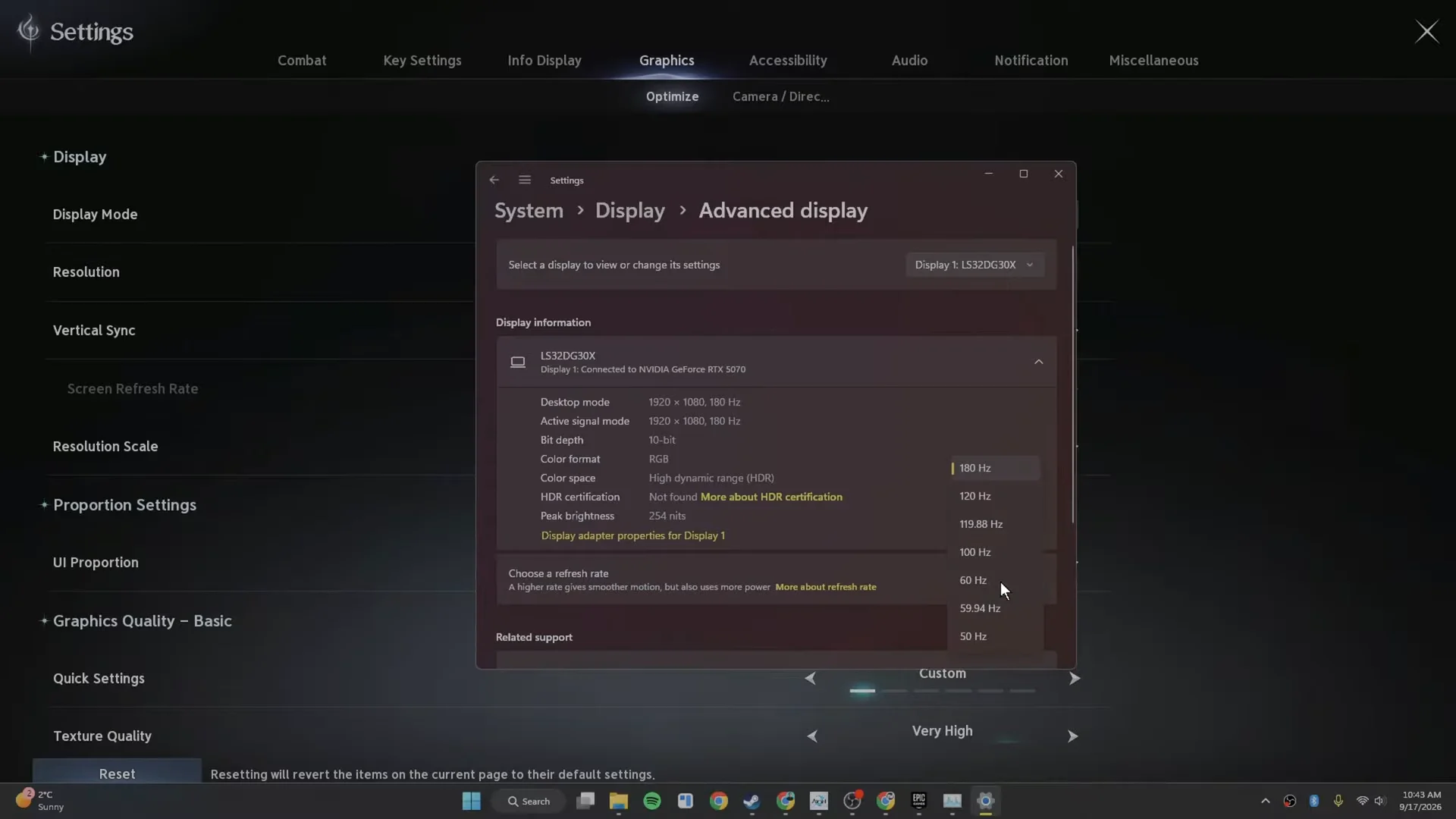
The Screen Refresh Rate field is the hard ceiling. If Windows is feeding the game 60 Hz, the game will not render above 60 frames, and nothing else you change in the menu will fix that.
Turn Vertical Sync off
Vertical Sync ties your frame rate to the display to remove screen tearing, and at a lower refresh rate that lock is exactly what keeps you pinned. Set it to Off unless tearing genuinely bothers you and you have no G-SYNC or FreeSync display. Switching it off also trims input delay, which matters in Abyss fights.
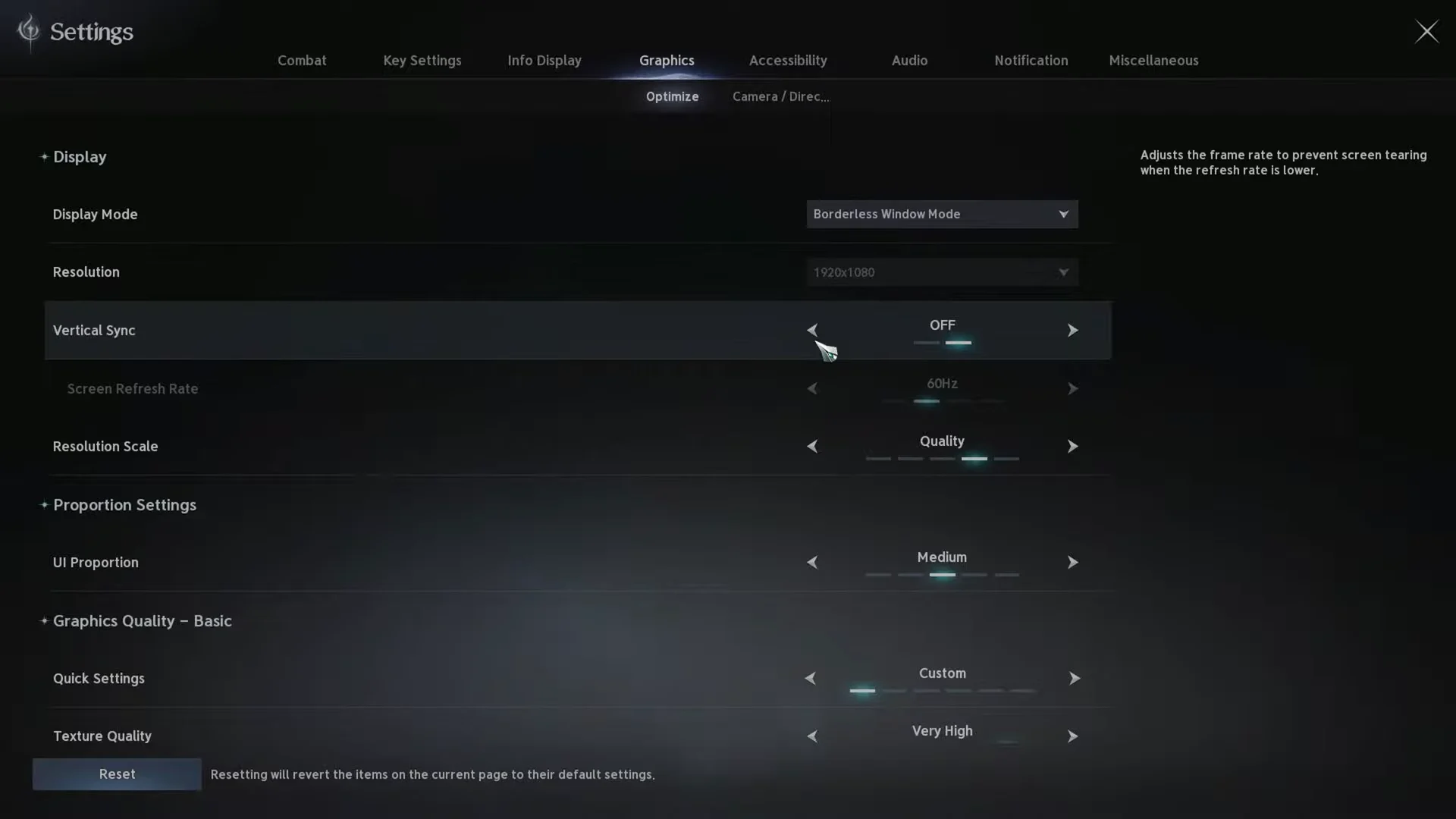
If you do keep Vertical Sync on, set a stable frame limit first. An unstable target combined with sync produces uneven frame pacing that feels worse than tearing.
Pick an FPS Limit your PC can actually hold
Unlocking the cap does not mean removing it. A frame rate that swings between 180 and 50 reads as stutter, while a locked number the machine can sustain through a packed city feels smooth. Set the limit to a target you can hold during group content, not the number you see standing alone in a field.
| Hardware tier | FPS Limit | Notes |
|---|---|---|
| At or below minimum specs | 45 or 60 | Stability over peak numbers |
| Entry-level to mid-range | 60 or 90 | 90 on a 120 Hz panel |
| High-end with high-refresh display | 120 or monitor refresh rate | Only if performance stays flat |
Unlock Frame Generator by switching the Upscaler to DLSS
Frame Generator is greyed out while the Upscaler is set to TSR. Changing the upscaler is what exposes the option, and it is the single biggest jump in on-screen frame numbers available in the menu.
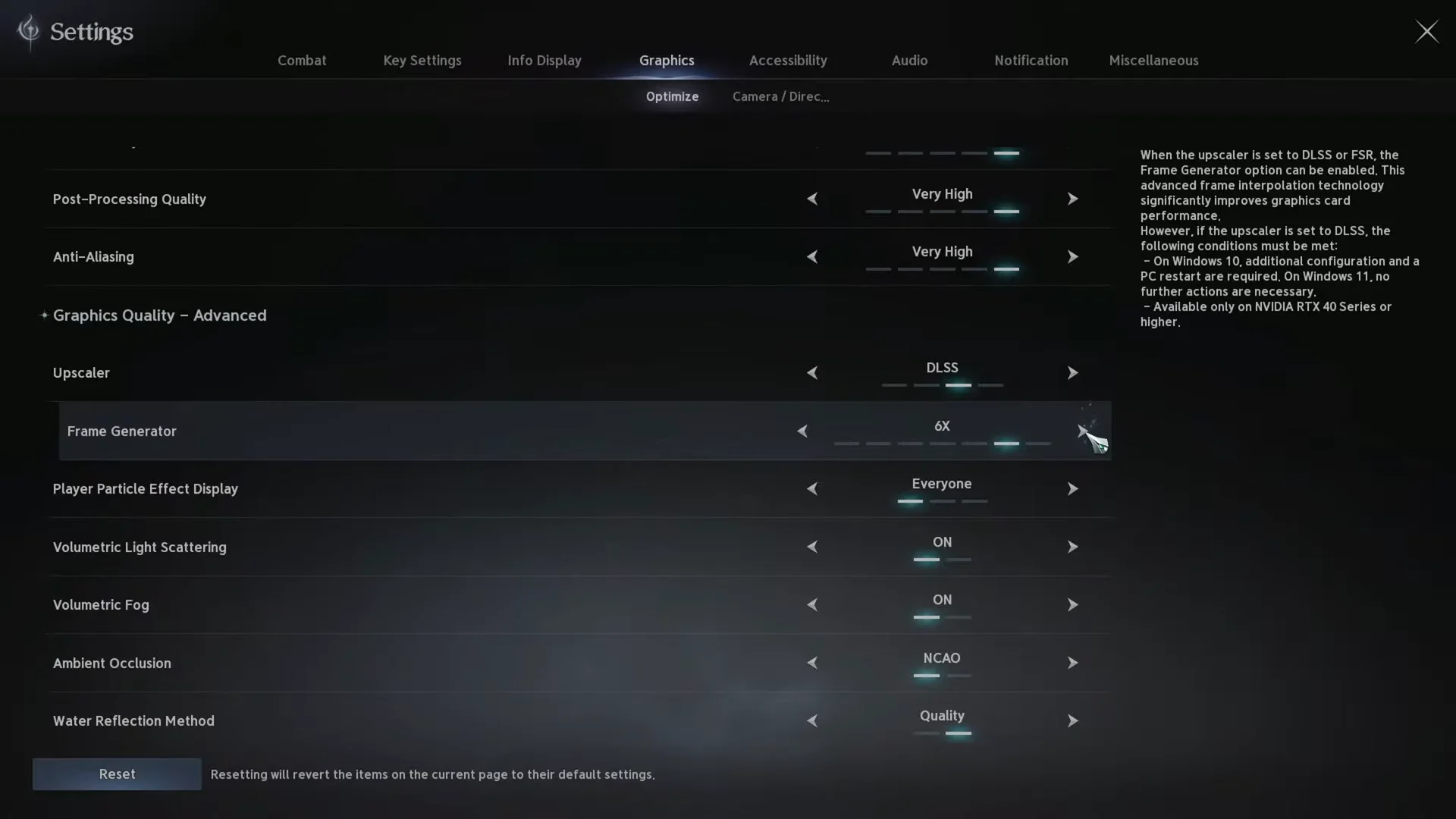
Frame generation inflates the counter without improving responsiveness. A game actually running at 35 frames still feels like 35 frames when the counter reads 70. It is fine for questing and PvE, but leave it off for Abyss PvP where input latency decides fights, and skip it entirely if your base frame rate is below 60.
Free up headroom so the higher cap is reachable
Raising the ceiling only helps if the hardware can climb to it. AION 2 runs on Unreal Engine 5, and the heaviest costs come from shadows, lighting, reflections, and the sheer number of player models on screen in cities, dungeons, and the Abyss.
| Setting | Set to | Why |
|---|---|---|
| Shadow Quality | Low or Medium | Largest single frame gain |
| Global Illumination / Shading | Low or Medium | Very costly lighting pass |
| Reflection Quality | Very Low or Low | Drains frames near water |
| Other Player Effects | Self or Party | Cuts clutter in group fights |
| Post-Processing | Very Low or Low | Removes bloom and vignetting |
| Foliage Quality | Medium | Below Medium looks rough |
| Model Quality | Medium or High | Medium if mass PvP struggles |
| Motion Blur, Depth of Field | Off | Keeps distant targets readable |
Leave Texture Quality high. It only costs performance once you exceed your VRAM, so lowering it while memory is still free gives up sharpness for nothing. Keep Display Mode on Full Screen and Resolution at native, and drop Resolution Scale last, after everything above has already been reduced.
Two options exist specifically for crowded content. Same Appearance for Other Players replaces non-party characters with standardized models instead of loading every armor set and cosmetic, and it is worth enabling for the Abyss. Large Battle Quality is best kept at High or Medium so key players and objectives still render at distance.
Find your bottleneck with Task Manager
If frames still refuse to climb, open Windows Task Manager and switch to the Performance tab while the game runs. Watch CPU, Memory, and GPU. Whichever one sits pegged near maximum is the thing holding you back, and that tells you which settings to cut next — Mass Combat Quality and View Distance Quality relieve CPU pressure, while textures and shadows relieve the GPU.
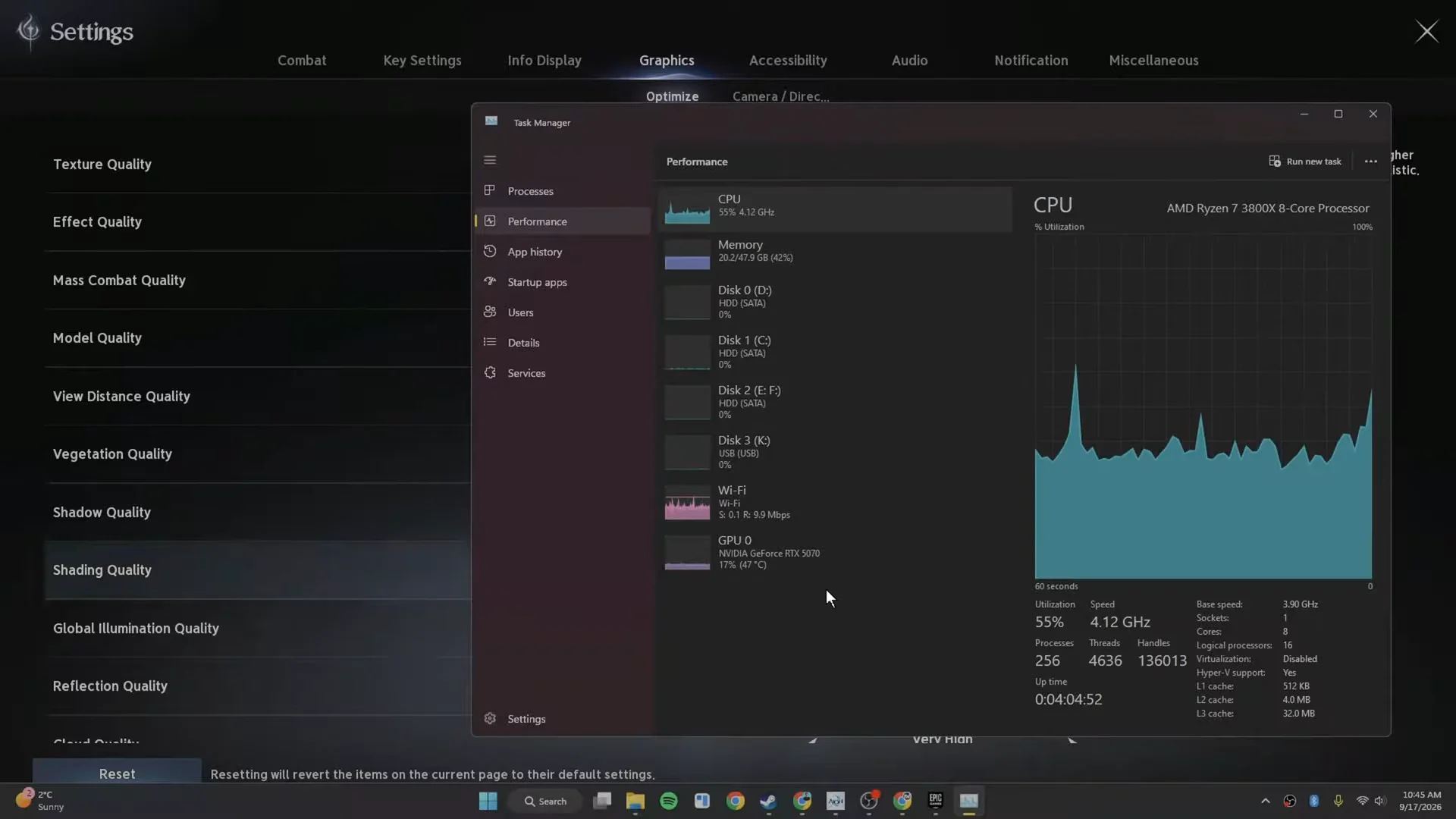
Test somewhere that stresses the machine. A quiet field showing 170 frames proves nothing about how the game holds up when fifty players land on the same objective.
How to confirm the cap is lifted
You know the change worked when the Screen Refresh Rate field in the Graphics tab displays your monitor’s full Hz value after the restart, and Frame Generator is selectable rather than greyed out. From there, check the frame rate with the in-game counter or MSI Afterburner while moving through a city or dungeon. If the number now sits above 60 and climbs toward your chosen limit instead of stopping dead at 60, the ceiling is gone.
Everything here is reversible. Setting the Upscaler back to TSR removes Frame Generator, and re-enabling Vertical Sync restores the sync lock if tearing turns out to bother you more than the extra frames help.