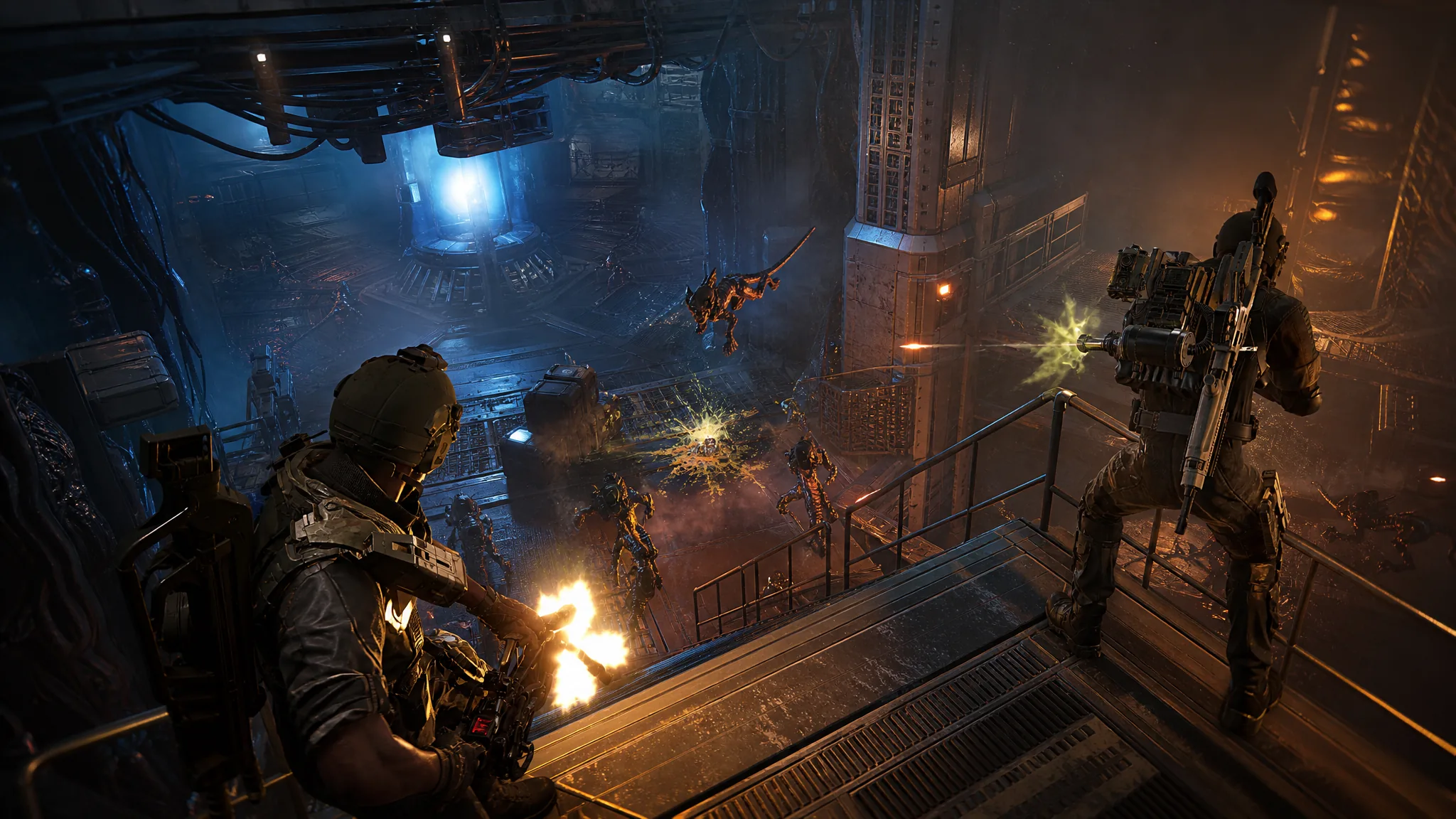
Aliens: Fireteam Elite 2 runs on a wide range of PCs, but the frame rate can swing hard the moment a hive opens up and dozens of Xenomorphs sprint at your squad. The fix is not dropping everything to Low. A small number of settings account for most of the stutter, and trimming those keeps the dark industrial atmosphere intact while giving your GPU room to breathe during the heaviest fights.
Quick answer: Set Overall Quality to Custom, then Texture Quality Medium, Shadow Quality Low, Effects Quality Low, Foliage Low, Ambient Occlusion Off, Motion Blur Off, Chromatic Aberration Off, Anti-Aliasing x4, Super Resolution to FSR (Performance or Balanced), lock the framerate to 60 FPS on older hardware or 90 FPS if you meet the recommended spec, and turn VSync On.
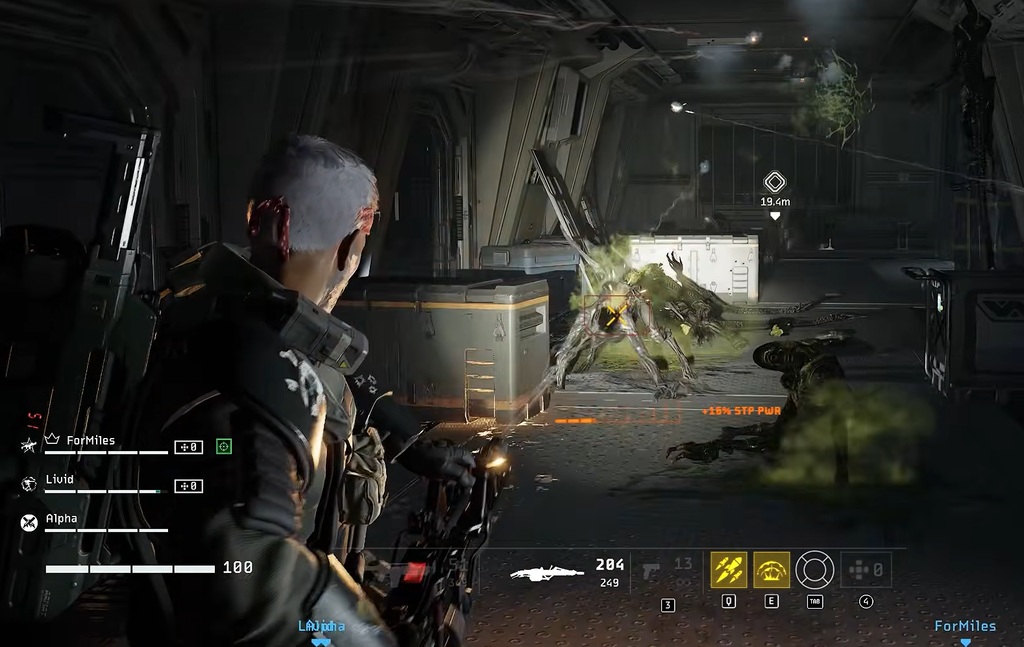
The full settings profile
Start from this profile and adjust only if you still see drops. It targets stable performance on mid-range and lower-end hardware while keeping textures and lighting readable during combat.
| Setting | Value |
|---|---|
| Window Mode | Personal preference (Fullscreen for lowest latency) |
| Overall Quality | Custom |
| Texture Quality | Medium |
| Shadow Quality | Low |
| Anti-Aliasing Quality | x4 |
| View Distance Quality | Medium |
| Post Process Quality | Medium |
| Effects Quality | Low |
| Foliage Quality | Low |
| Ambient Occlusion | Off |
| Screen Space Reflections | On |
| Chromatic Aberration | Off |
| Motion Blur | Off |
| Super Resolution Mode | FSR |
| FSR Mode | Performance or Balanced |
| Framerate Limit Lock | 60 FPS or 90 FPS |
| VSync | On |
The interface distortion sliders are a matter of taste and do not affect performance. If you want the CRT-style look on the HUD, Overall UI Distortion 0.7, Scanline Intensity 1.0, Scanline Frequency 1.0, Signal Noise Intensity 0.6, Flicker Intensity 0.7, and Smudge Intensity 0.4 give a balanced result.
Frame rate lock and VSync
Pick your framerate lock based on hardware, not habit. Lock to 60 FPS if your PC is closer to the minimum requirements, since a steady 60 feels far better than a number that bounces around. Choose 90 FPS only if your system is near or above the recommended spec.
VSync stays On here on purpose. In a horde shooter, consistent frame delivery matters more than shaving off input latency, and smooth pacing helps when the screen is full of enemies. If you own a G-Sync or FreeSync display, you can turn VSync off and let variable refresh handle tearing instead.
Which settings to cut first
If you are still short of your target frame rate, lower these in order. Each one costs a lot of GPU time during combat while adding little to how the game plays.
Shadow Quality
High shadows look great in a quiet corridor and barely register during a firefight. Low keeps the frame rate steady when the room fills with muzzle flashes and moving bodies. Only bump it to Medium if the environment starts looking too flat for your taste.
Effects Quality
Effects are the setting most tied to the drops that happen exactly when a swarm arrives. Gunfire, explosions, fire, acid, and abilities can stack into a wall of particles in a single moment. Keeping Effects at Low is the most direct fix if your FPS is fine while exploring but collapses in a big wave.
Ambient Occlusion and Motion Blur
Ambient Occlusion adds soft contact shadows the game does not need, so leaving it Off is a clean win with dark environments already doing the heavy lifting. Motion Blur comes off for clarity as much as speed. When a Xenomorph charges across the screen, you want a sharp image to track it, not a smear.
Textures depend on your VRAM
Texture Quality behaves differently from shadows and effects. It leans on video memory rather than raw rendering power, so lowering it does not always raise your average FPS. Medium is a safe baseline that avoids the stutter caused by assets being pushed in and out of memory.
If your card has 8GB of VRAM or more and the game runs smoothly, you can raise textures a step to keep weapons, armor, walls, and enemy models sharp. On a 6GB card or less, stay at Medium if you notice hitching when entering new areas. Smooth frame pacing beats a slightly crisper wall texture.
Upscaling with FSR
Set Super Resolution Mode to FSR to render the game at a lower internal resolution and reconstruct it back up to your display resolution. That buys real FPS without dropping your desktop resolution, which keeps the image and HUD clean.
Balanced is a sensible starting point, and Performance is the next step down if you still need more frames. Push to Performance only when you genuinely need it, since the image softens around fast-moving enemies, thin cables, and weapon details.
Don’t ignore the CPU
Large waves punish the processor as well as the graphics card. With dozens of active enemies, the CPU has to handle AI, movement, animation, and physics all at once. That is why lowering graphics settings sometimes barely helps in the heaviest fights.
Note: watch your 1% lows, not just the average FPS counter. Dropping from 100 FPS to 45 FPS when a swarm hits is far more noticeable than the average number suggests, and a lower but stable baseline of around 75 FPS usually feels better than a figure that spikes and crashes.
How to confirm the profile works
Do not judge these settings on the first five minutes of a mission. An empty corridor tells you almost nothing. Turn on your frame counter and test during a full-scale swarm, when abilities are firing and explosions are going off. If the frame rate holds close to your locked target through that, the profile is doing its job.
If aiming down sights introduces a hitch, drop Shadow Quality another notch and check View Distance, since changing your view can expose extra detail and tip an already-stressed GPU over the edge. If exploration runs fine but every big wave still tanks performance, Effects Quality is the first thing to lower again before you touch textures or resolution.