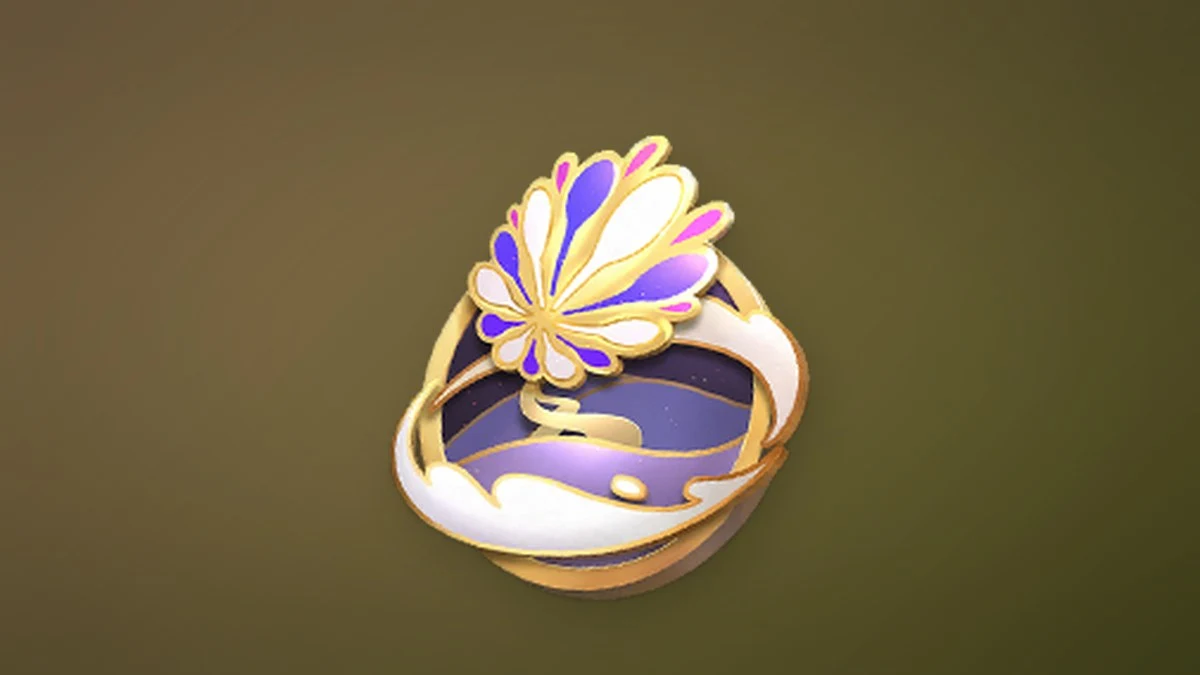
Badges in Aniimo record the milestones you hit as you explore Idyll, from clearing regions to finishing challenges. Every badge you earn is stored on your character profile, and you can open it at any time to see when you got it, what it unlocks, and what still needs doing.
Quick answer: Press Esc, select Character, then click the Badges tab in the top-right corner to view every badge you own.
Open the Badges screen in Aniimo
Your badges live on the Character profile, not in your Bag or Inventory. The path there takes four quick actions.
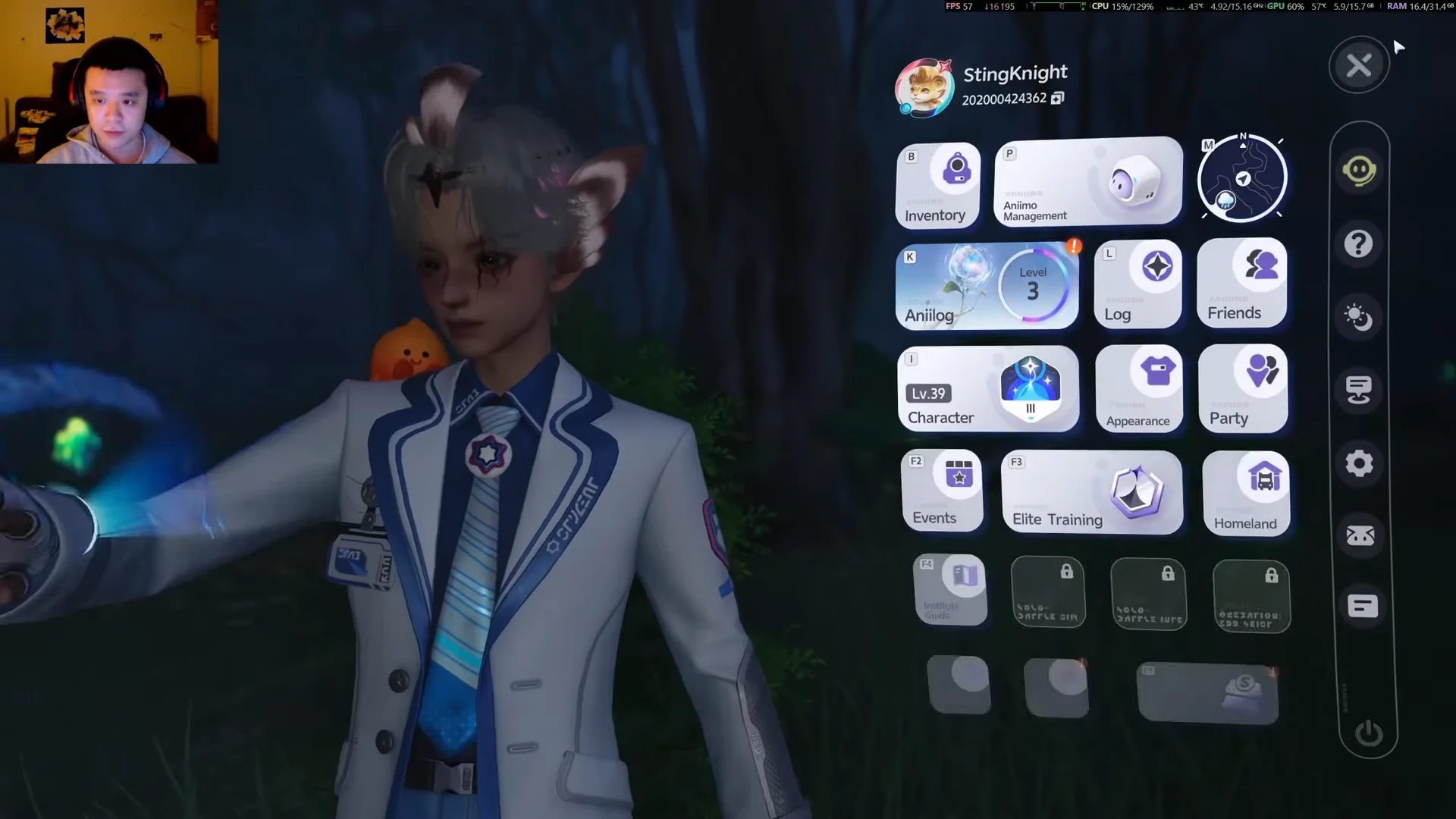
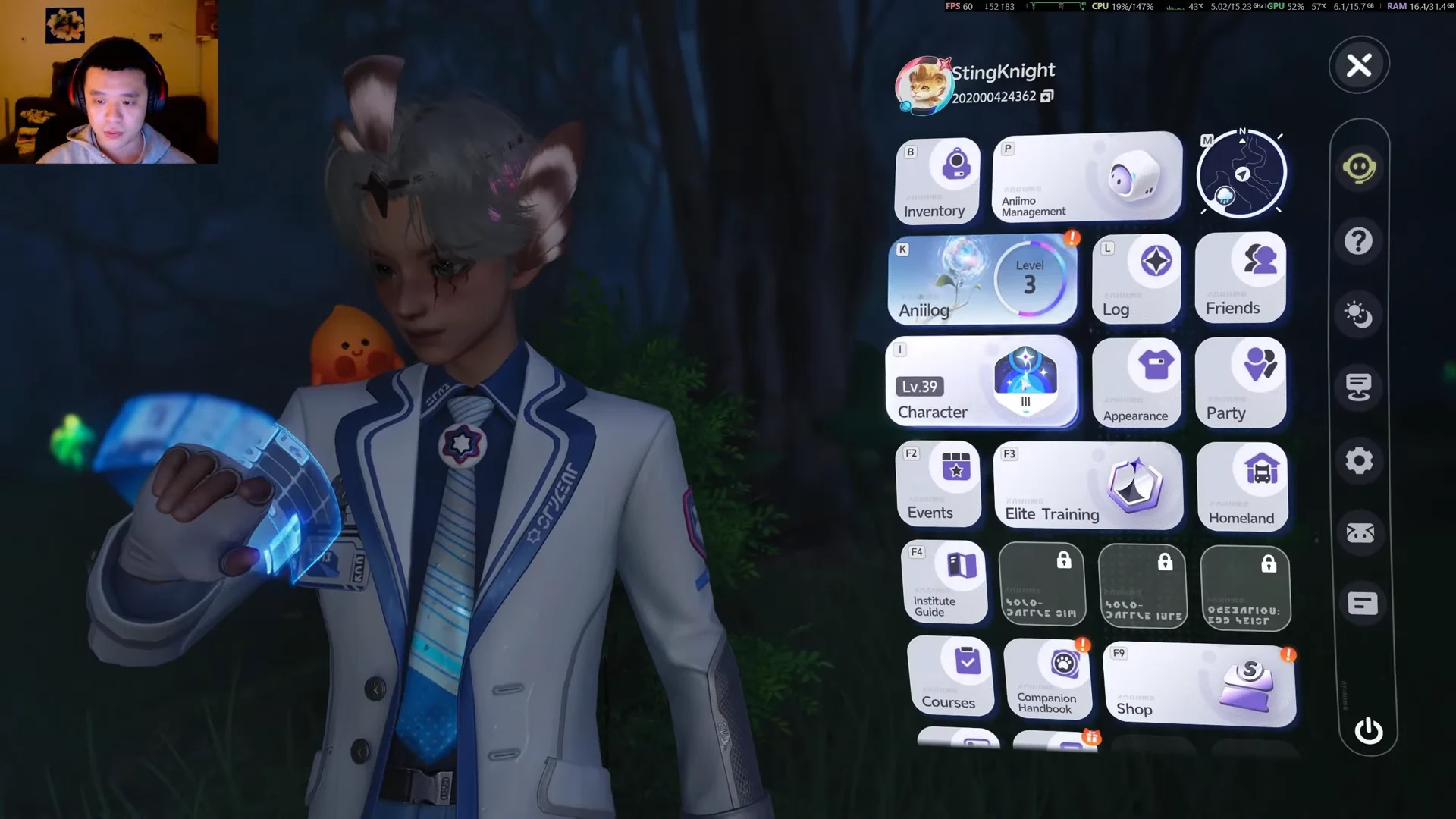
You’ll know the screen is working when the Badges tab shows the category sidebar on the left and clicking a badge pops up its detail card. Close the card by clicking anywhere on the screen.
Badge categories in the sidebar
The left sidebar of the Badges tab splits your collection into five Paths. Click each icon to switch between them and see the badges grouped under each one.
| Path | What it covers |
|---|---|
| Path of Twining | Regional exploration badges, such as Breezy Plains |
| Path of Victory | Challenge badges, such as the Elite Pathfinder Challenge |
| Path of Discovery | Discovery badges tied to region exploration |
| Path of Splendor | Feature badges, including Homeland |
| Keepsakes | Seasonal and progression badges, such as Beginner Keepsakes |
Your Character profile also lists a running count for each Path near the top, so you can see how many you hold in Path of Twining, Path of Victory, Path of Discovery, and Path of Splendor at a glance.
What a badge card shows
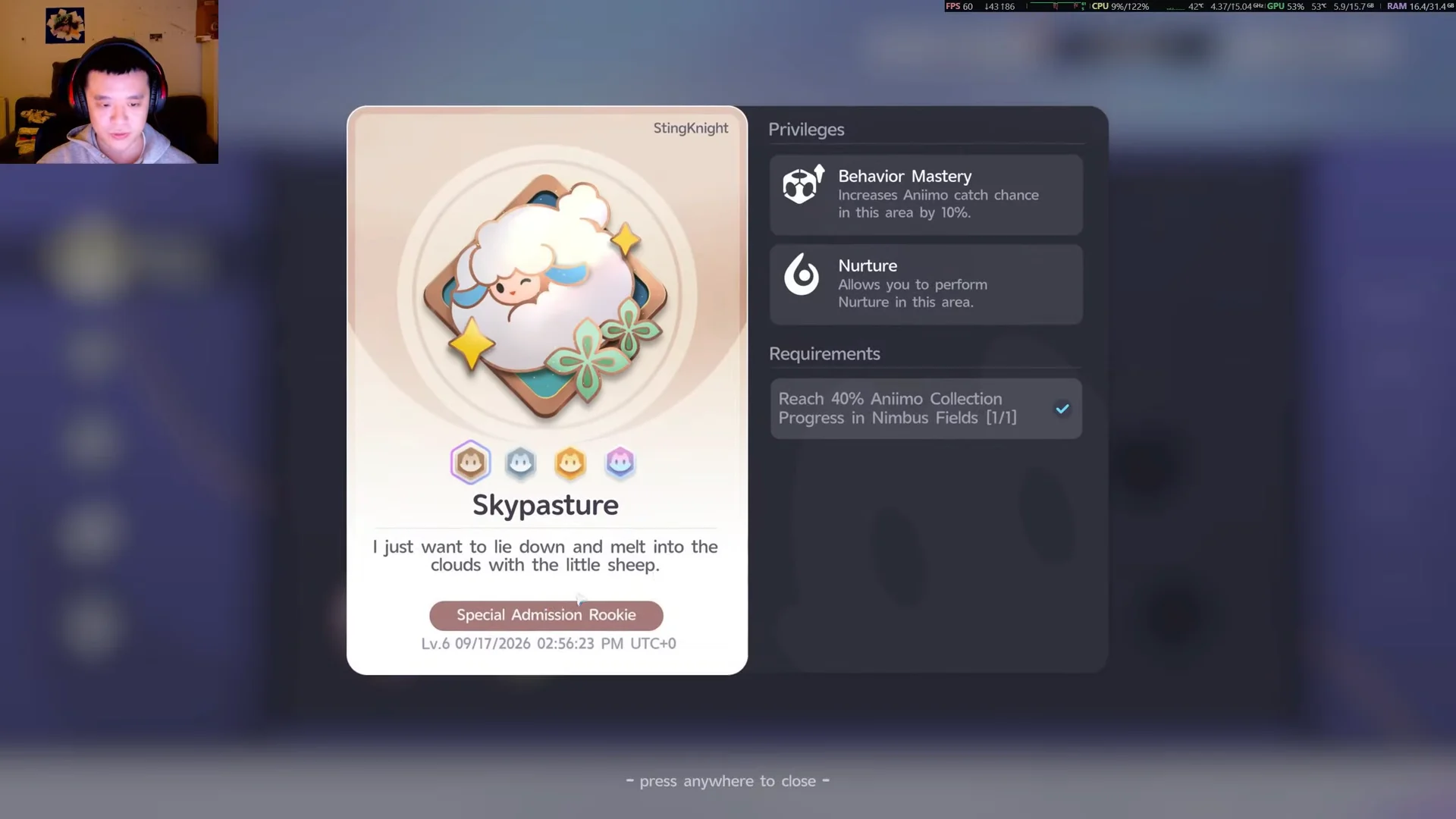
Each earned badge opens a detail card packed with useful information. The Skypasture badge, for example, is a regional badge under Breezy Plains, and its card lays out everything the others follow.
- The badge name, artwork, and a short flavor line.
- The rank and the exact date and time you earned it.
- The privileges it grants in that area, such as a higher Aniimo catch chance or the ability to perform Nurture there.
- The unlock requirement and whether you have completed it, for example reaching a set percentage of Aniimo collection progress in a region.
Regional badges carry buffs that only apply inside their biome, so checking a badge card tells you which perks are active where you’re standing.
Once you’ve opened the Badges tab, cycling through the five Paths and tapping individual badges gives you the full picture of what you’ve earned and what each reward does. From there you can head back out and keep chasing the ones still marked incomplete.