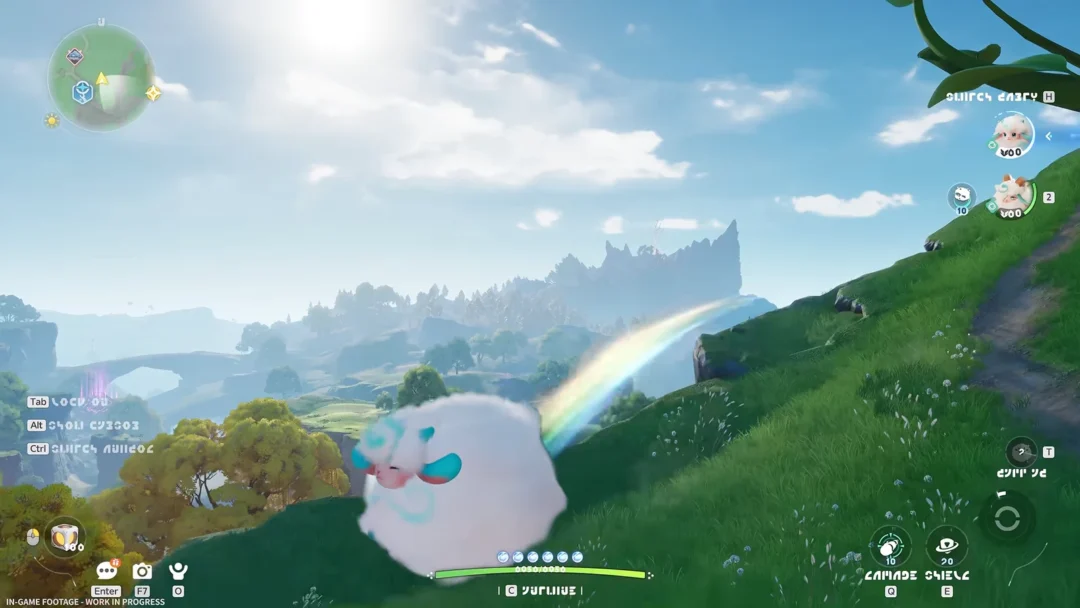
Trading in Ball VS Ball sits behind a short list of conditions, and the game will tell you the moment one of them is not met. Open the Trade menu too early and you get a notification instead of a trade window, which is why most players who think trading is missing are simply under the level requirement.
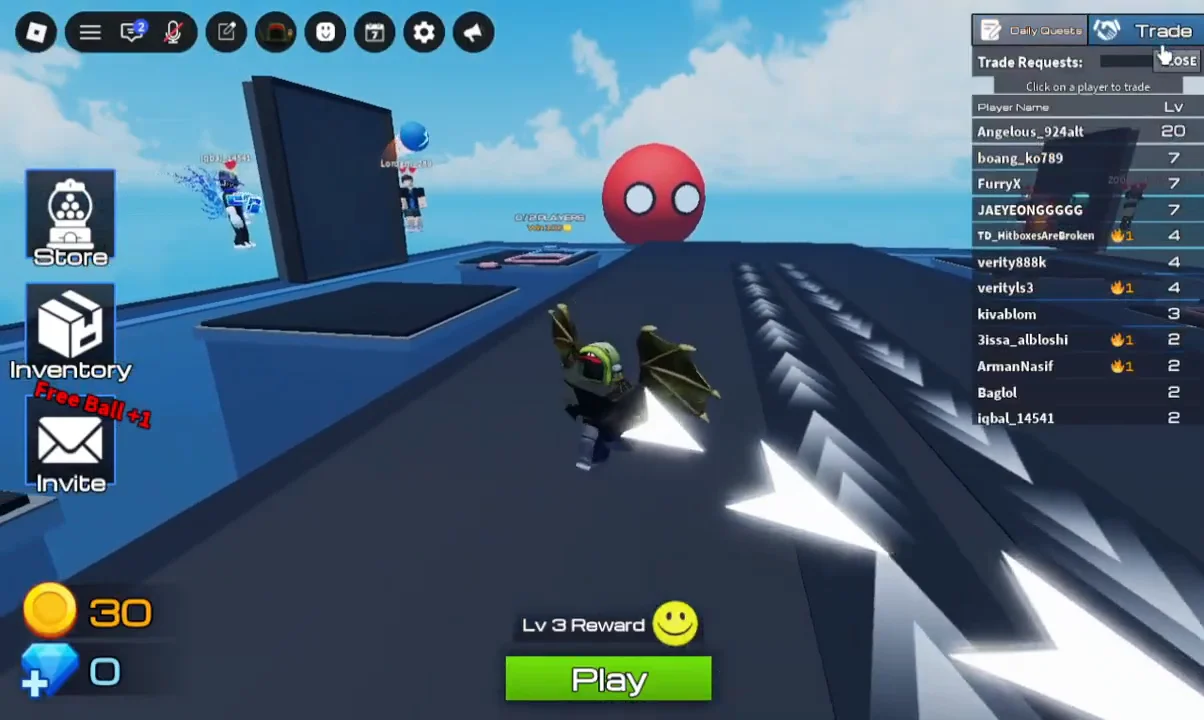
Quick answer: Choose Trade at the upper-right, and select a player from the roster. Trading requires both players to be level 10 or above, currently out of combat, and free from another trade.
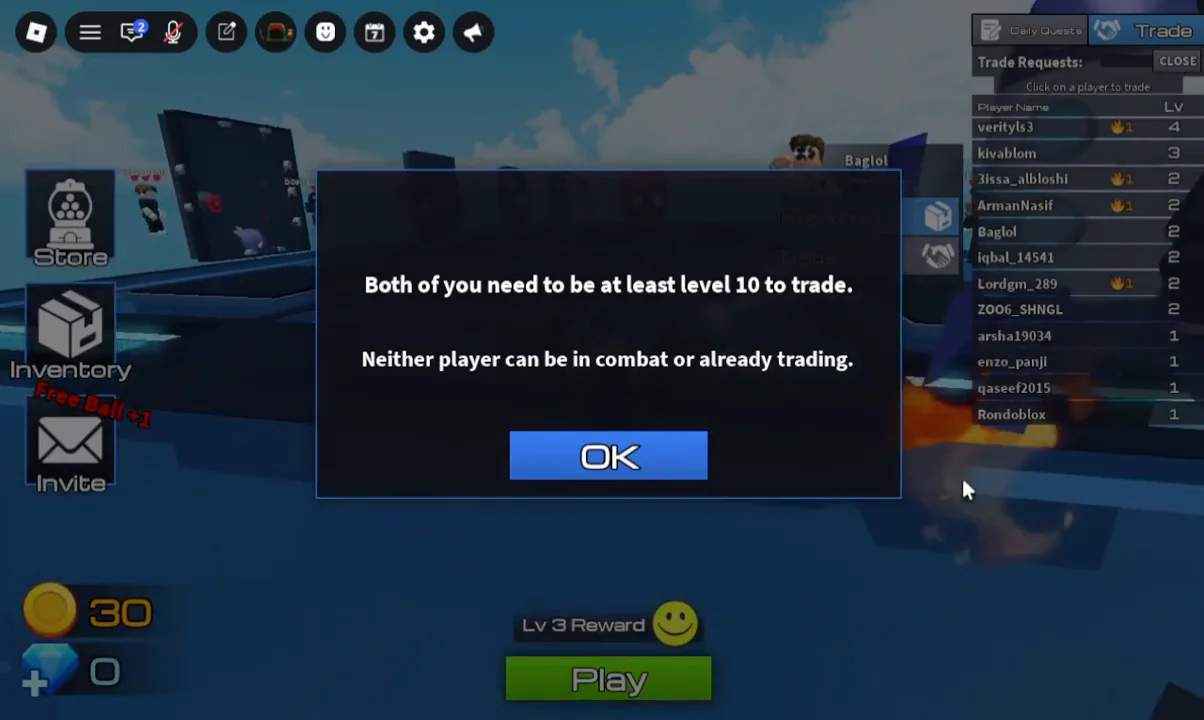
Trade requirements in Ball VS Ball
When you try to trade, a rules message appears: “Trading requires both players to be at least level 10. Neither participant may be in combat or involved in another trade.” All three conditions must be satisfied simultaneously for both accounts, not only yours.
| Condition | Where to check it |
|---|---|
| Level 10 or higher | Level column in the Trade player list |
| Not in combat | Leave or finish the current arena battle |
| Not already trading | Close any trade window that is still open |
The level 10 threshold is mutual. A level 40 player still cannot trade with a level 6 player, so check the other person’s level before you spend time coordinating.
How to open the Trade menu and start a trade
Because the list is tied to your current server, both players need to be in the same session. If a friend does not appear, rejoin together before trying again.
Checking levels before you send a trade request
The level column in the Trade player list is the practical filter. Scan it first and ignore anyone below 10, since selecting them only produces the same requirement prompt.
Your own level is visible on the profile screen, alongside the rest of your level stats. New accounts start well below the threshold, so a fresh player will need to keep playing arena battles before the Trade menu becomes usable for them.
Balls, rarity, and the Inventory screen
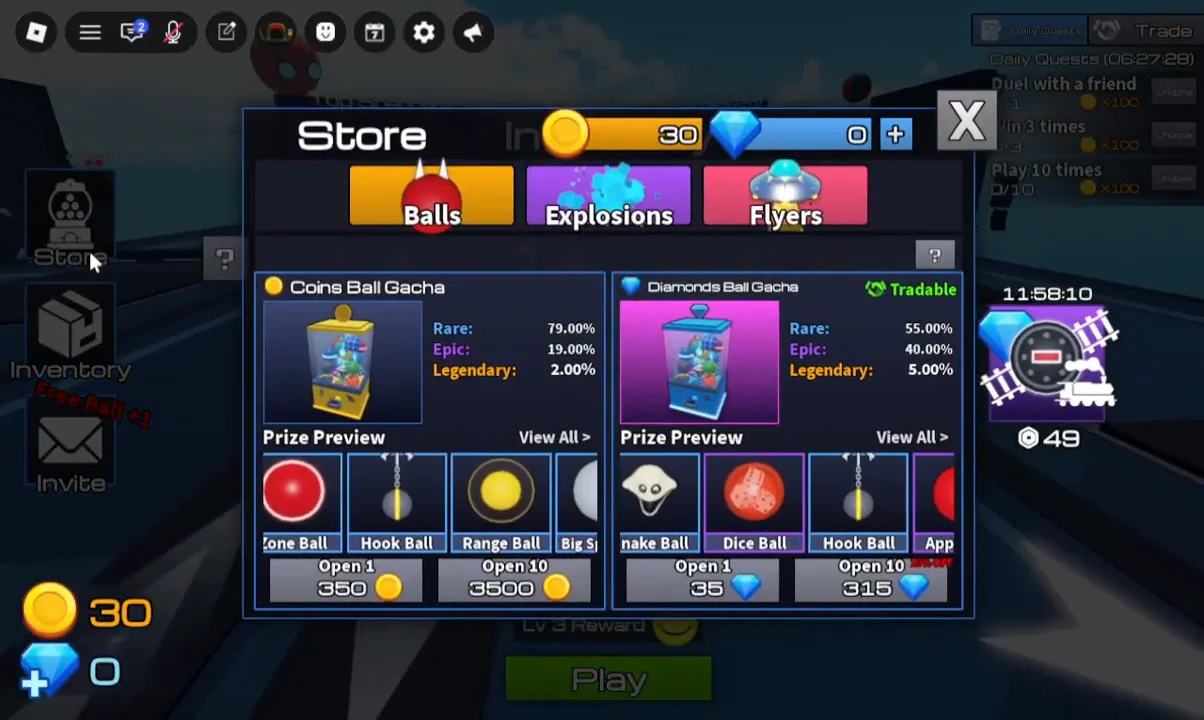
Your collection lives on the Inventory screen, which lists the balls you own together with their rarity stats. That screen is worth opening before a trade so you know exactly what you are holding and how rare each entry is.
New balls come from the Gacha options in the Store menu, paid for with coins earned from winning matches. The same menu area also covers emotes and other cosmetic purchases, so take care not to spend a balance you were saving for a specific unlock.
Rarity is shown per ball in the Inventory, which makes it the quickest reference point when you and another player are comparing what each side is offering.
How to tell the trade actually opened
The confirmation is simple. If the requirement notification does not appear after you select a player, the eligibility checks passed and the trade proceeds. Seeing that prompt instead means at least one of the three conditions failed, and the trade never started.
If you are repeatedly blocked, work through the checks in order. Confirm both levels in the player list, make sure neither of you is in an arena battle, and close any trade window that might still be open on either side. Once all three clear at the same time, the Trade button behaves normally and you can pick a partner from the live server list in Ball VS Ball.