Gaming How-To

Enshrouded: How to Switch to First Person (Z Key)

Press Z inside a Flame protected area for an eye-level camera; leaving the area switches you back automatically.

Press Z inside a Flame protected area for an eye-level camera; leaving the area switches you back automatically.

Press Z to switch to first person in Enshrouded. It only works inside a Flame protected area, the building area around a Flame Altar. The mode turns itself off as soon as you step outside that area.

Quick answer: Stand inside your Flame Altar’s area and press Z. Press Z again to return to third person. Outside the area, Z does nothing.


First Person Mode controls in the Flame protected area

When you are inside a Flame Altar’s area, a box appears in the bottom right of the HUD under the label “Flame protected area”. It lists three controls:

  • “Z First Person Mode”, with an on/off toggle beside it
  • “Z + SPACE Fly Mode”
  • “Y Undo Build Action”, shown greyed out

You don’t need the building tool out to use it. The box shows up and Z switches the camera even with the Pickaxe in your hands, when the hint at the bottom of the screen reads “Pickaxe” with “Mine” and “Block”.


How to turn on first person in Enshrouded
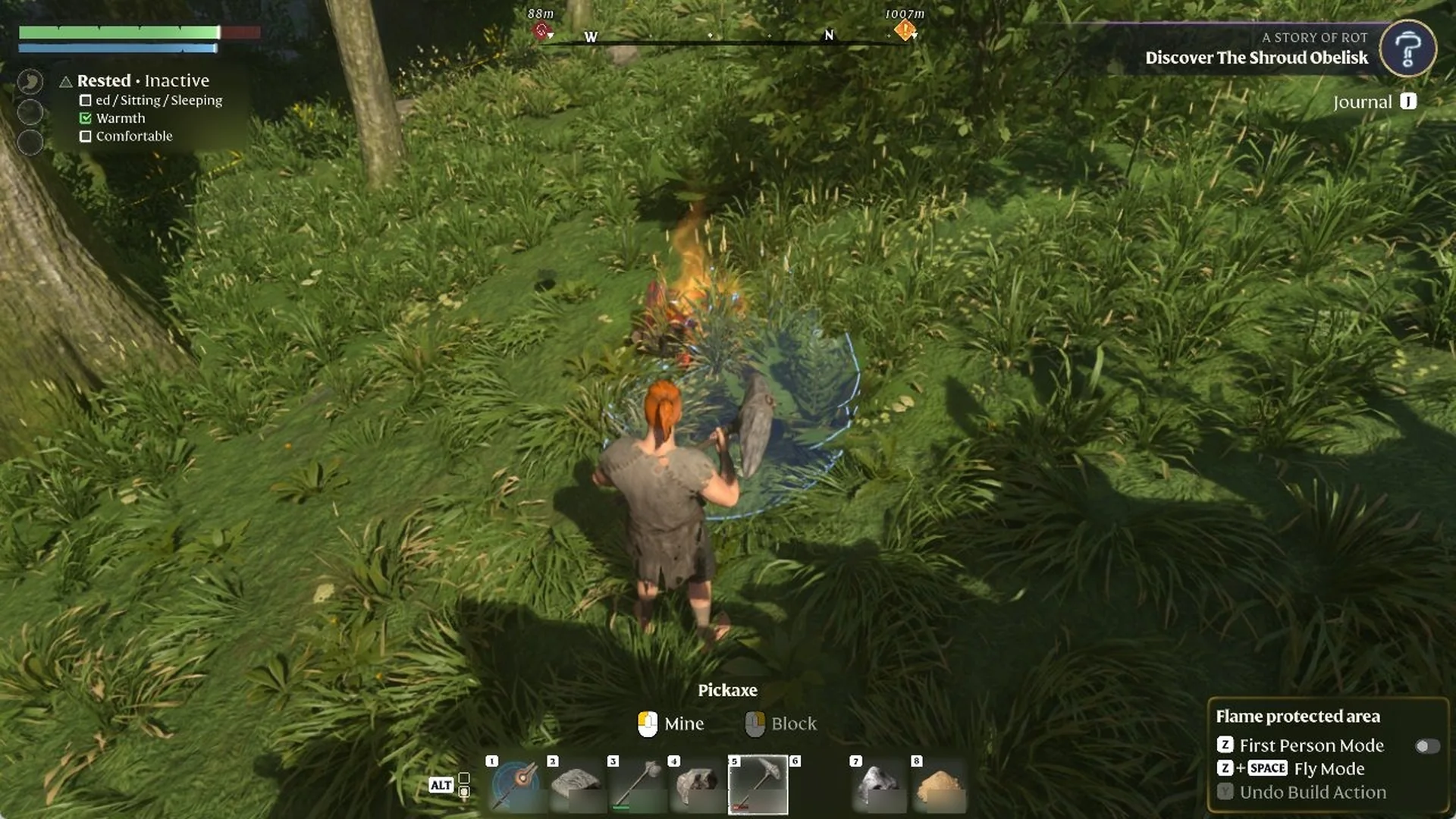
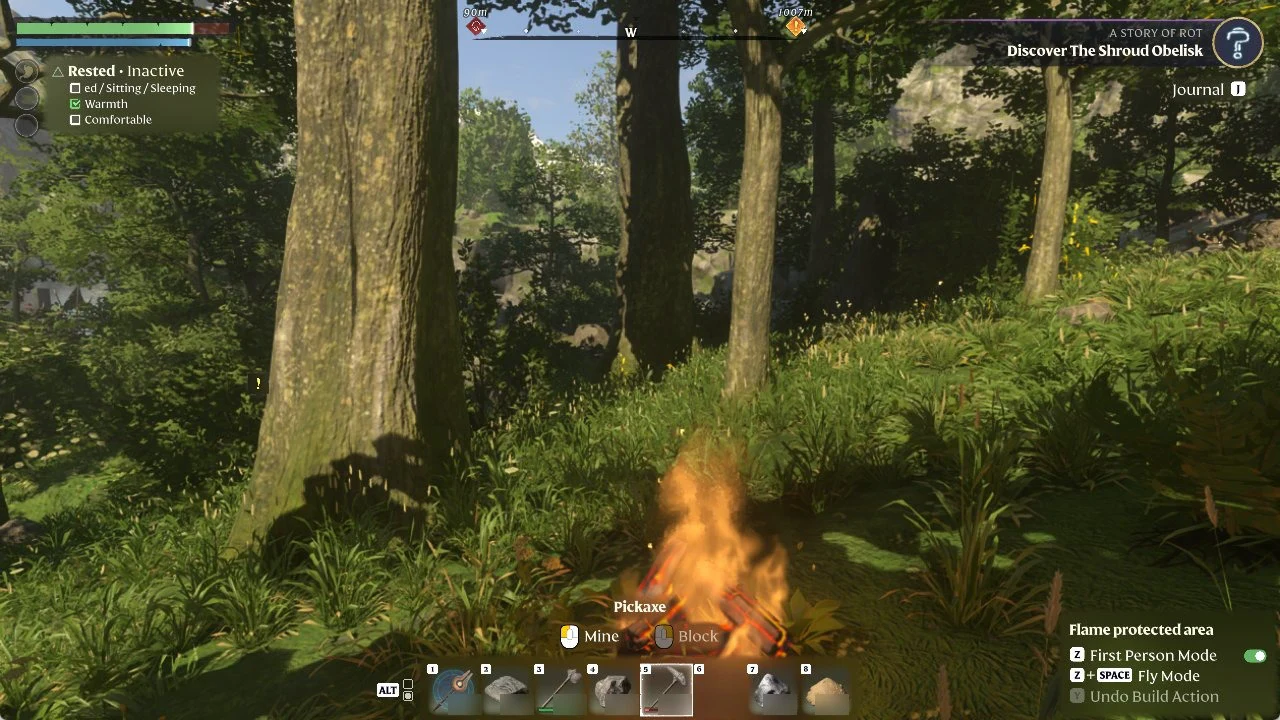
Walk into your Flame Altar’s area. The “Flame protected area” box appears in the bottom right, and the toggle next to “Z First Person Mode” is grey, which means it’s off.
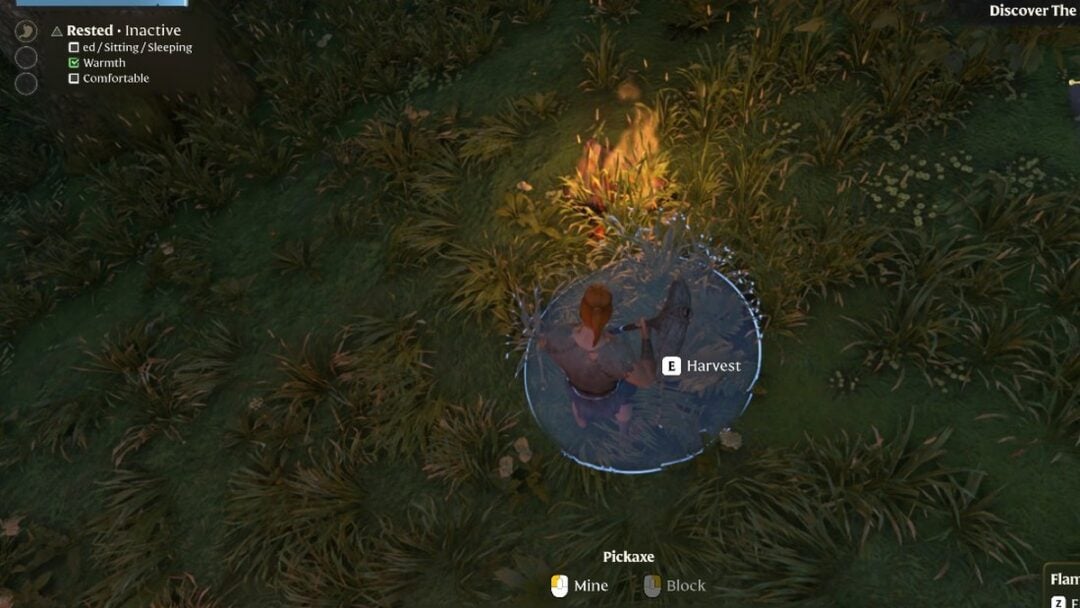
Enshrouded third-person view by a campfire in a sunny forest holding the 'Pickaxe'
Inside a ‘Flame protected area’, the ‘First Person Mode’ toggle sits grey and switched off.
Press Z. The camera drops to eye level, your character disappears from view, and the toggle next to “Z First Person Mode” turns green.
Pickaxe selected in the hotbar next to a campfire, with Mine and Block controls shown on the HUD
After pressing Z, the view sits at eye level by the campfire, with the Pickaxe still in hand.
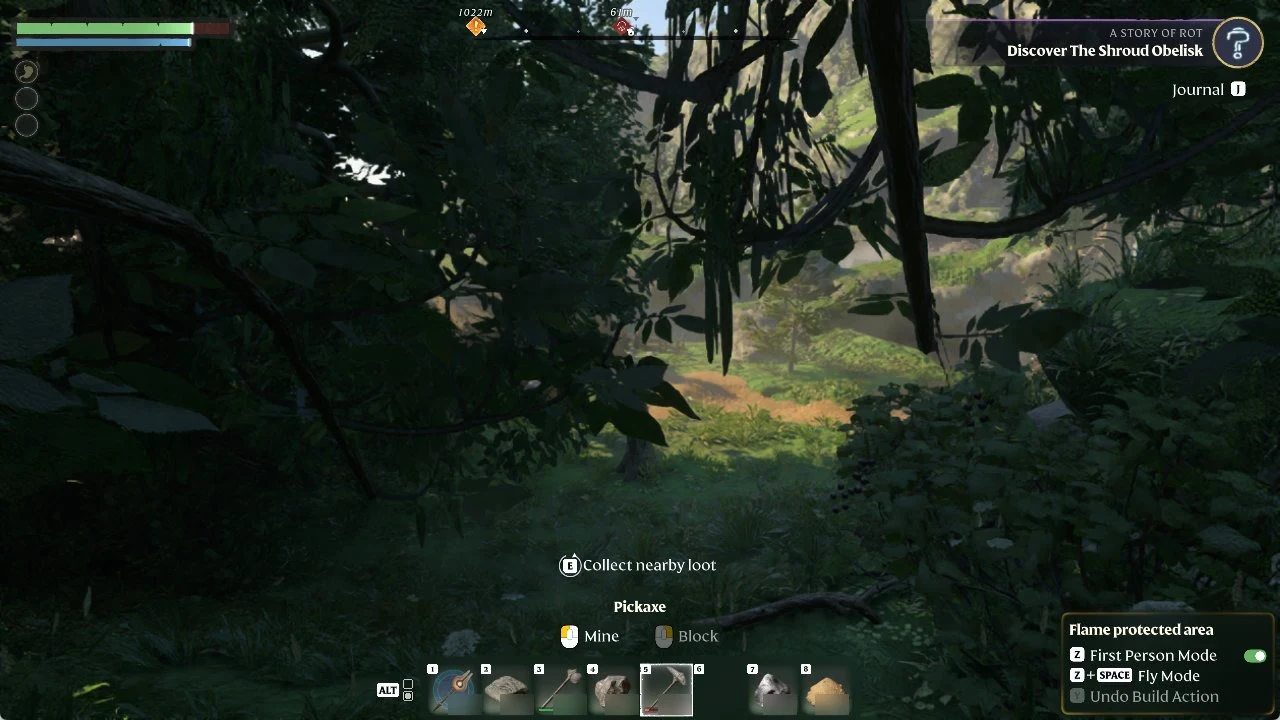
Move around as usual. First Person Mode stays on while you stay inside the Flame protected area. We walked into the woods about 30 m south of our campfire: the view stayed first person, the box stayed on screen, toggle green, and “E Collect nearby loot” showed.
HUD with the Pickaxe in hotbar slot 5, Mine selected, and a prompt to collect nearby loot
Walking through the area in first person, with the nearby-loot prompt available.
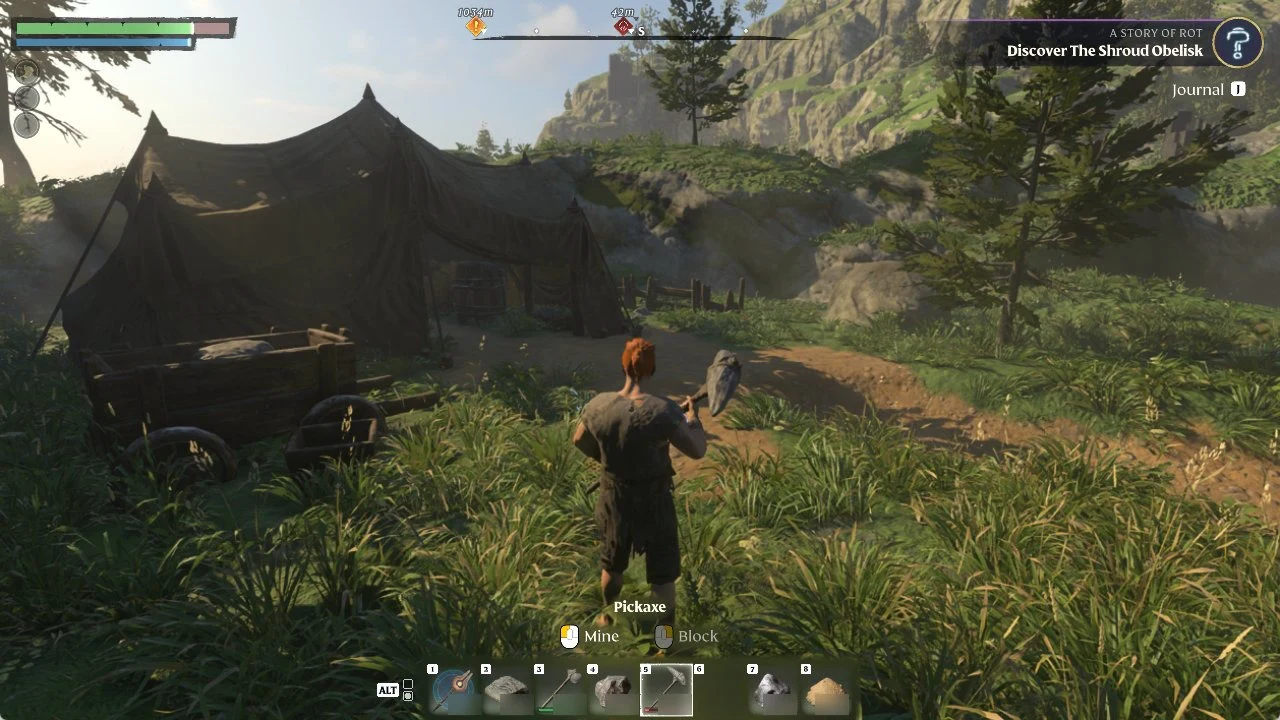
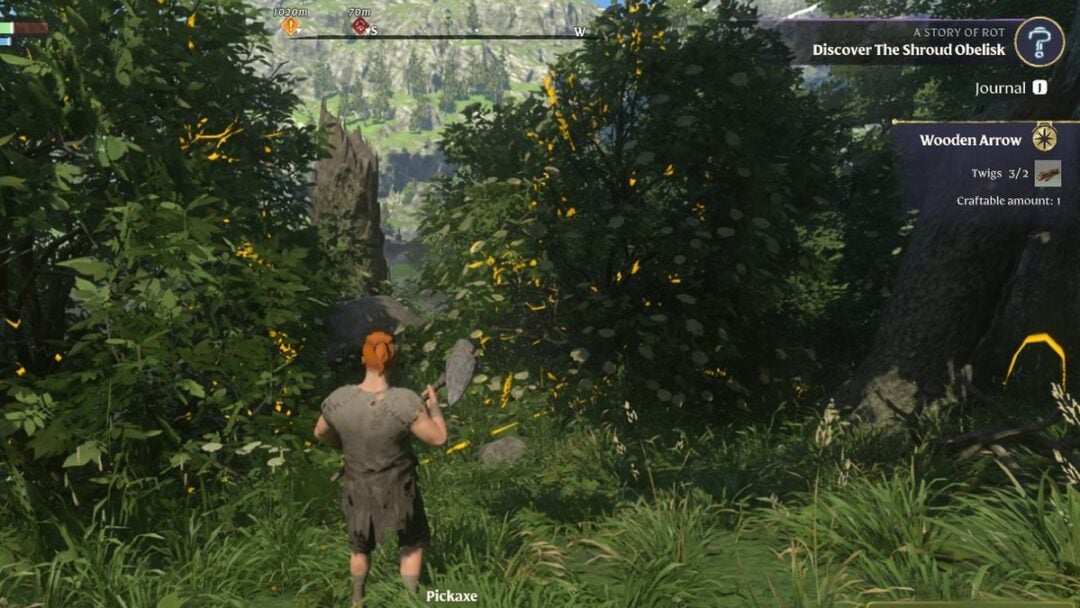
Walk out of the area and First Person Mode turns itself off. When we walked south to an abandoned camp with a tent and cart, the camera went back to third-person view on its own and the “Flame protected area” box was gone. Pressing Z there did nothing.
Pickaxe selected on the HUD with Mine and Block prompts as the character stands ready to mine
Outside the Flame protected area, the camera is back in third person.
Head back into any Flame protected area and press Z to switch to first person again.

Z + SPACE Fly Mode

The same HUD box lists “Z + SPACE Fly Mode”. That control isn’t part of First Person Mode. Fly Mode comes from the Airborne Architect skill, so pressing Z by itself only switches the camera.

Our building controls guide also covers First Person Mode and Fly Mode while building. You can find every default key in our full controls list, and learn how to build and place your first Flame Altar.