Enshrouded handles both markers and waypoints from the world map, through a single right-click menu. A marker is a labelled icon that stays on the map. A waypoint is a destination that also appears on your compass while you play.
Quick answer: Press M, then right-click a spot. Choose Create Marker to name it and pick a colour and icon, or choose Set Waypoint to put it on your compass with its distance.
Enshrouded world map controls
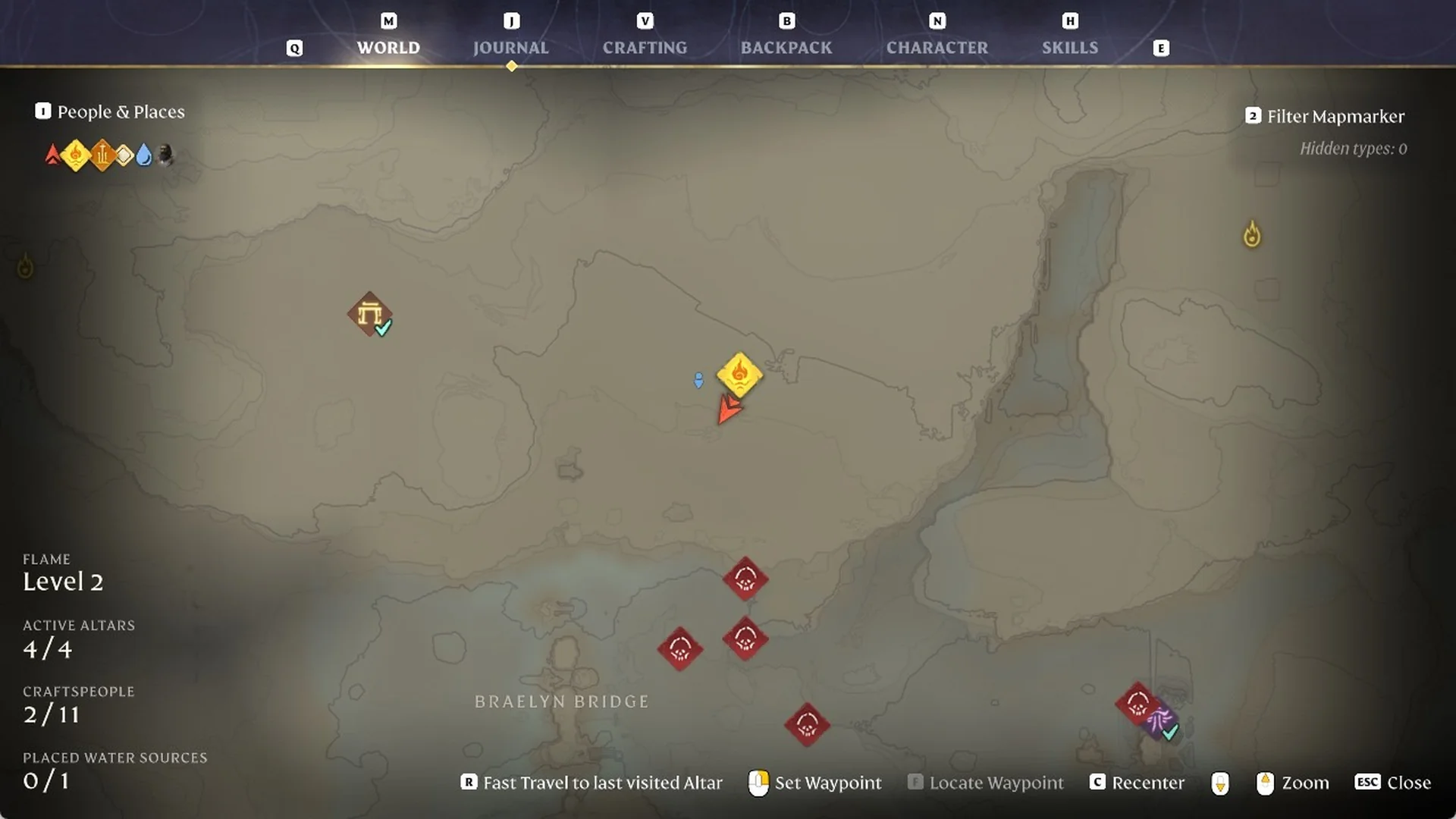
The footer of the WORLD map lists the map controls; the rest are in our full controls list.
| Input | Footer label |
|---|---|
| R | “R Fast Travel to last visited Altar” |
| Right mouse button | “Set Waypoint” |
| F | “Locate Waypoint” |
| C | “C Recenter” |
| Mouse wheel | “Zoom” |
| ESC | “ESC Close” |
Locate Waypoint stays grey until you have a waypoint set. Two tabs sit at the top of the map, “1 People & Places” and “2 Filter Mapmarker”, and the filter tab shows “Hidden types: 0” when no marker types are hidden.
How to create a marker and set a waypoint in Enshrouded
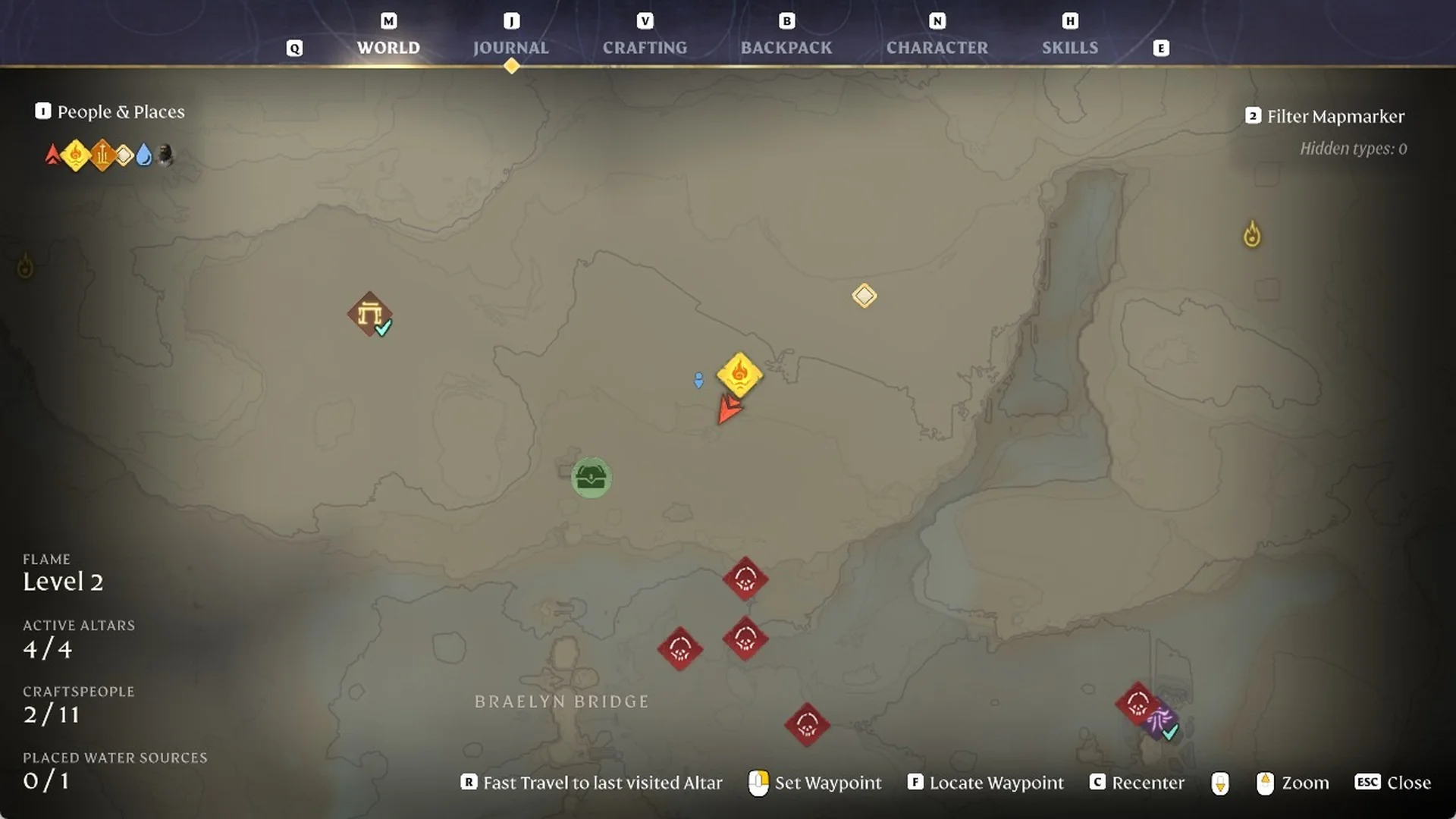
Press M to open the WORLD map. Check the footer, where Locate Waypoint is greyed out until a waypoint exists.
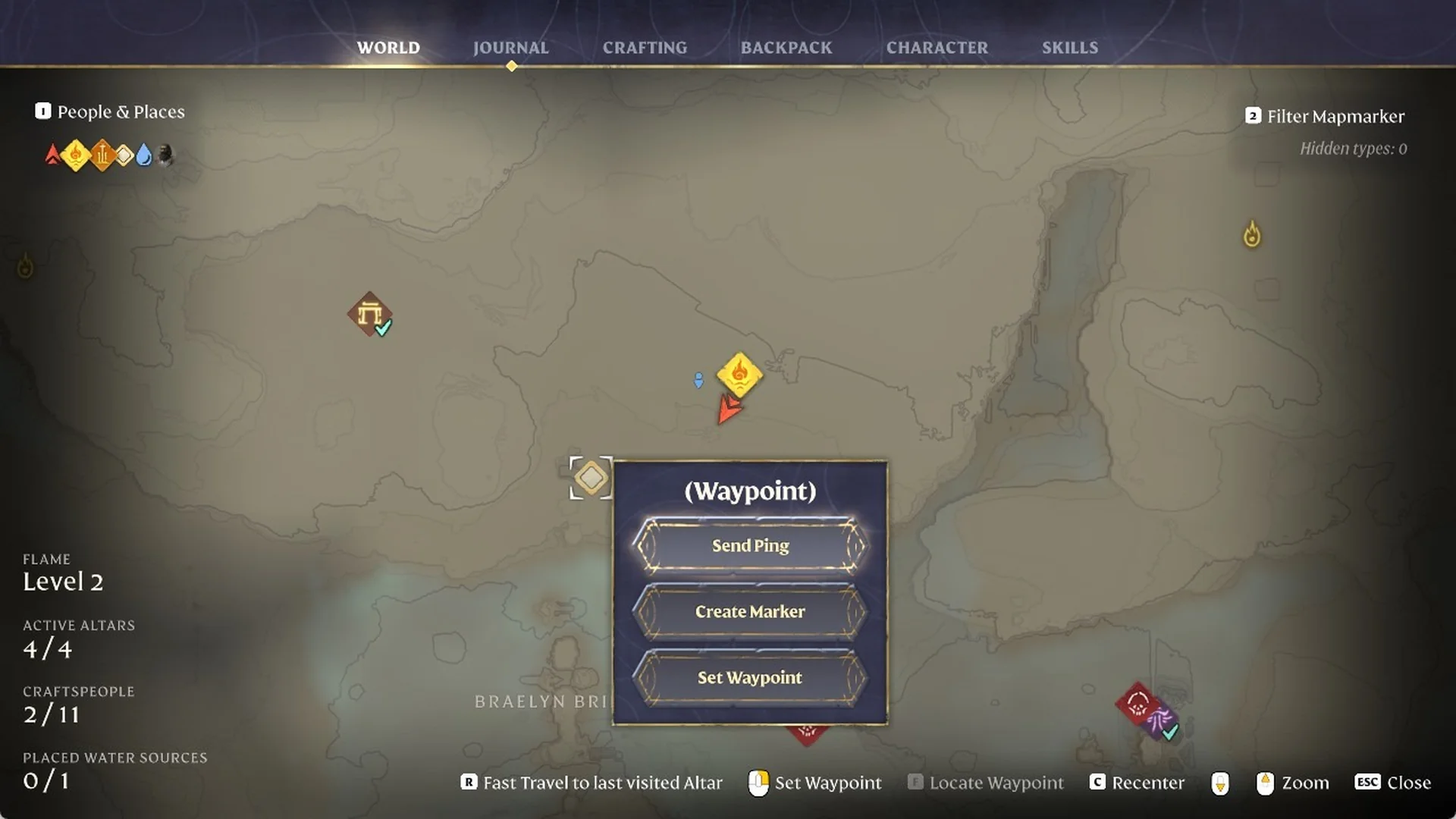
Right-click the spot you want to mark. A “(Waypoint)” menu opens with three options: “Send Ping”, “Create Marker” and “Set Waypoint”.
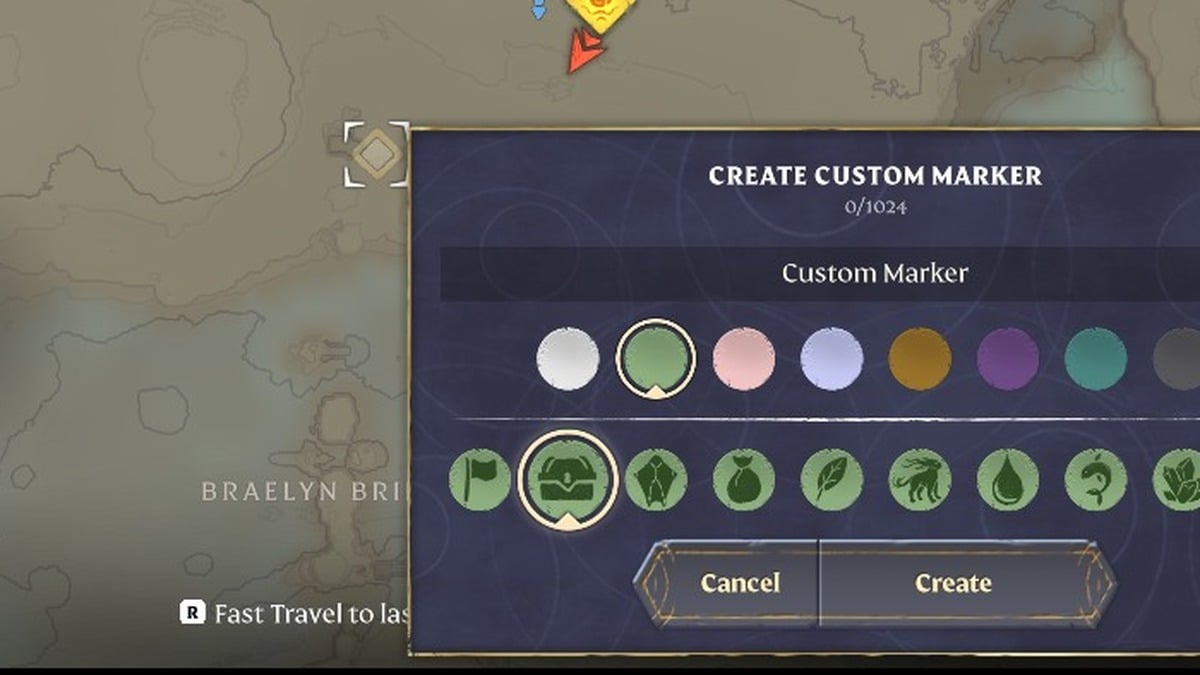
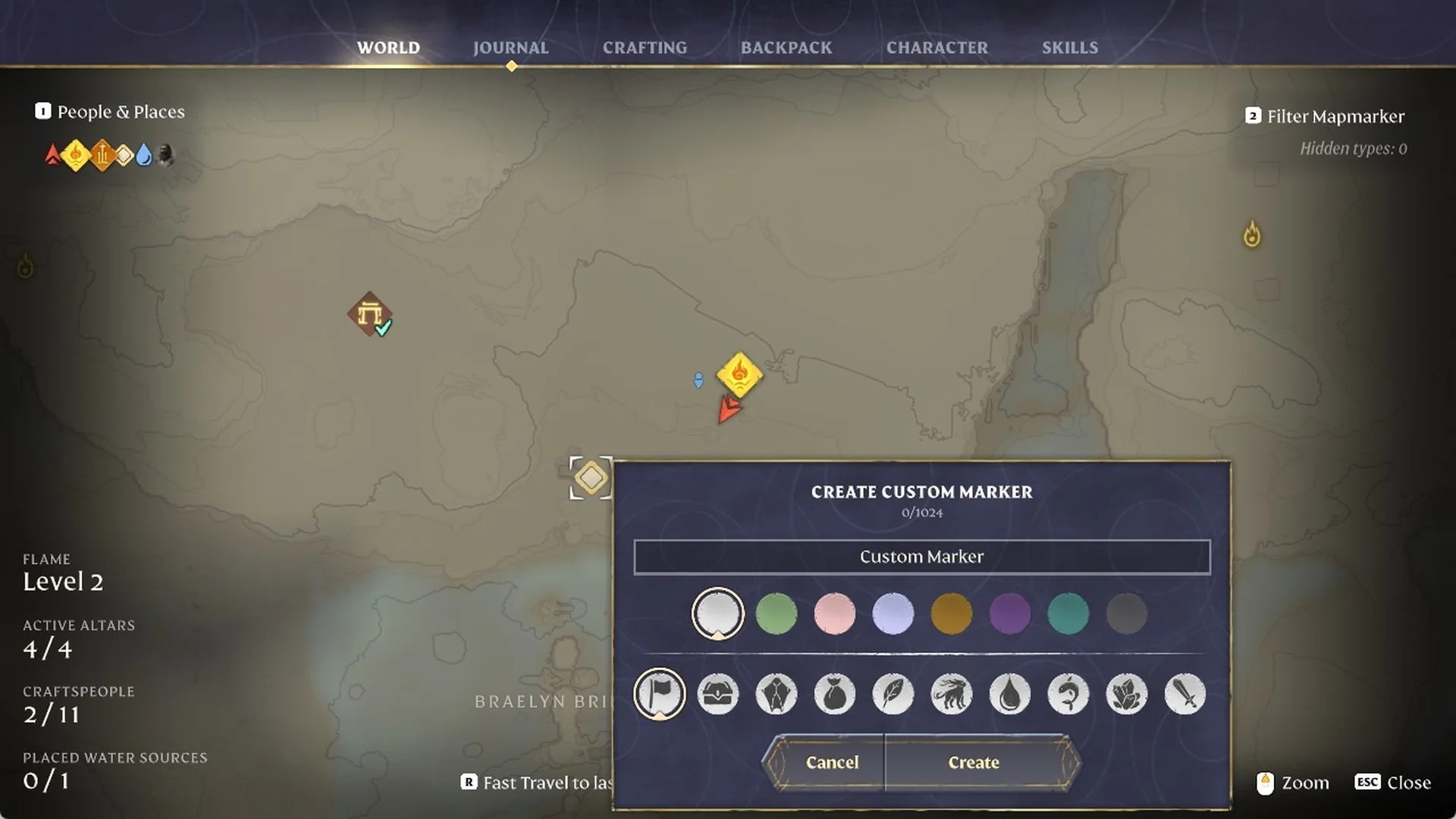
Select Create Marker. The “CREATE CUSTOM MARKER” panel opens with a name field reading “Custom Marker” with a 0/1024 counter, plus a row of 8 colours, a row of 10 icons, and Cancel and Create buttons.
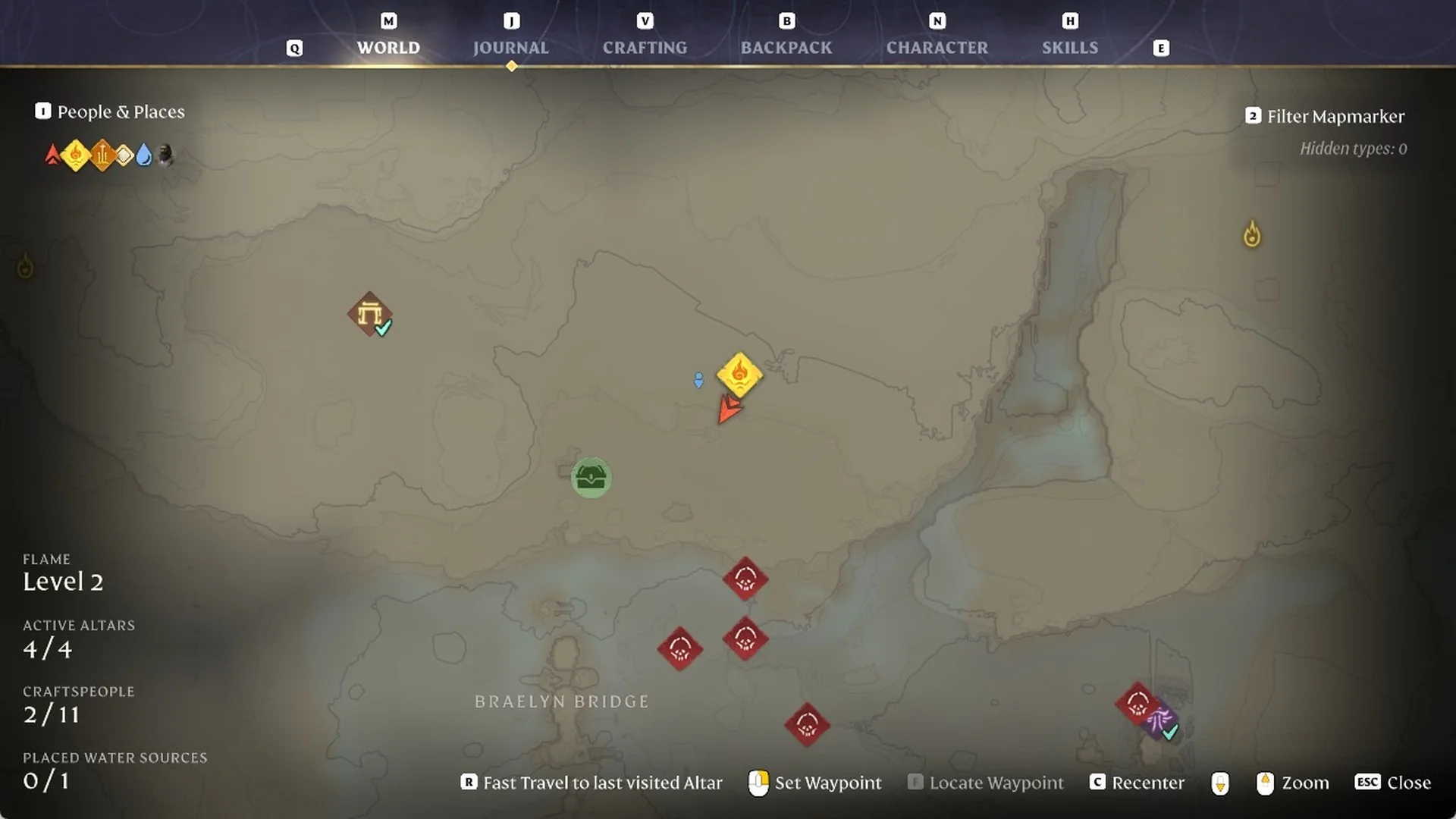
Pick a colour and an icon, then press Create. We picked green and the chest, and our marker stayed on the map west of our Flame Altar.
To add a waypoint, right-click another spot on the map. Choose Set Waypoint from the same “(Waypoint)” menu.
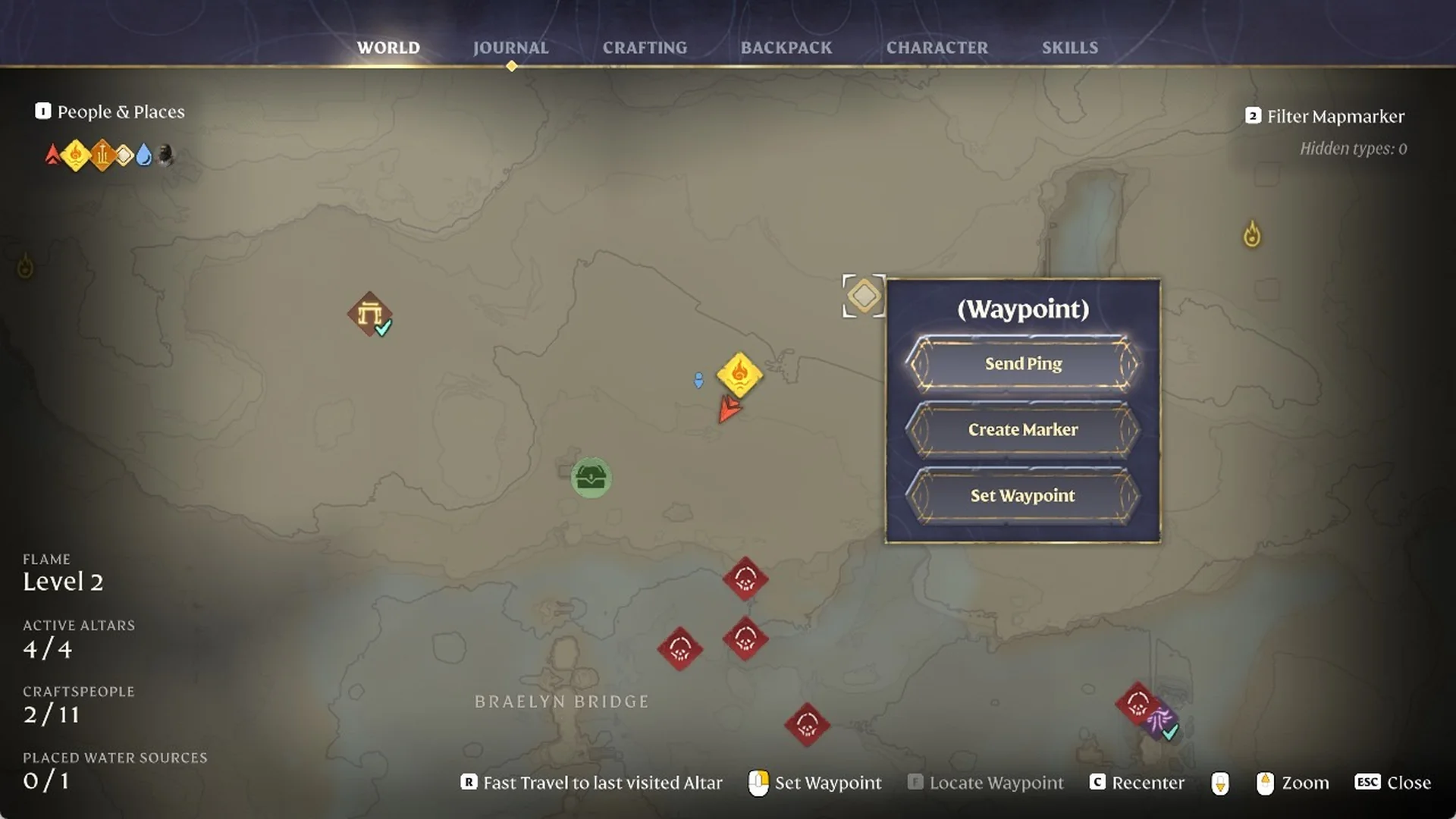
Check the map for the waypoint diamond at that spot. “F Locate Waypoint” in the footer is no longer grey, which confirms the waypoint is set.
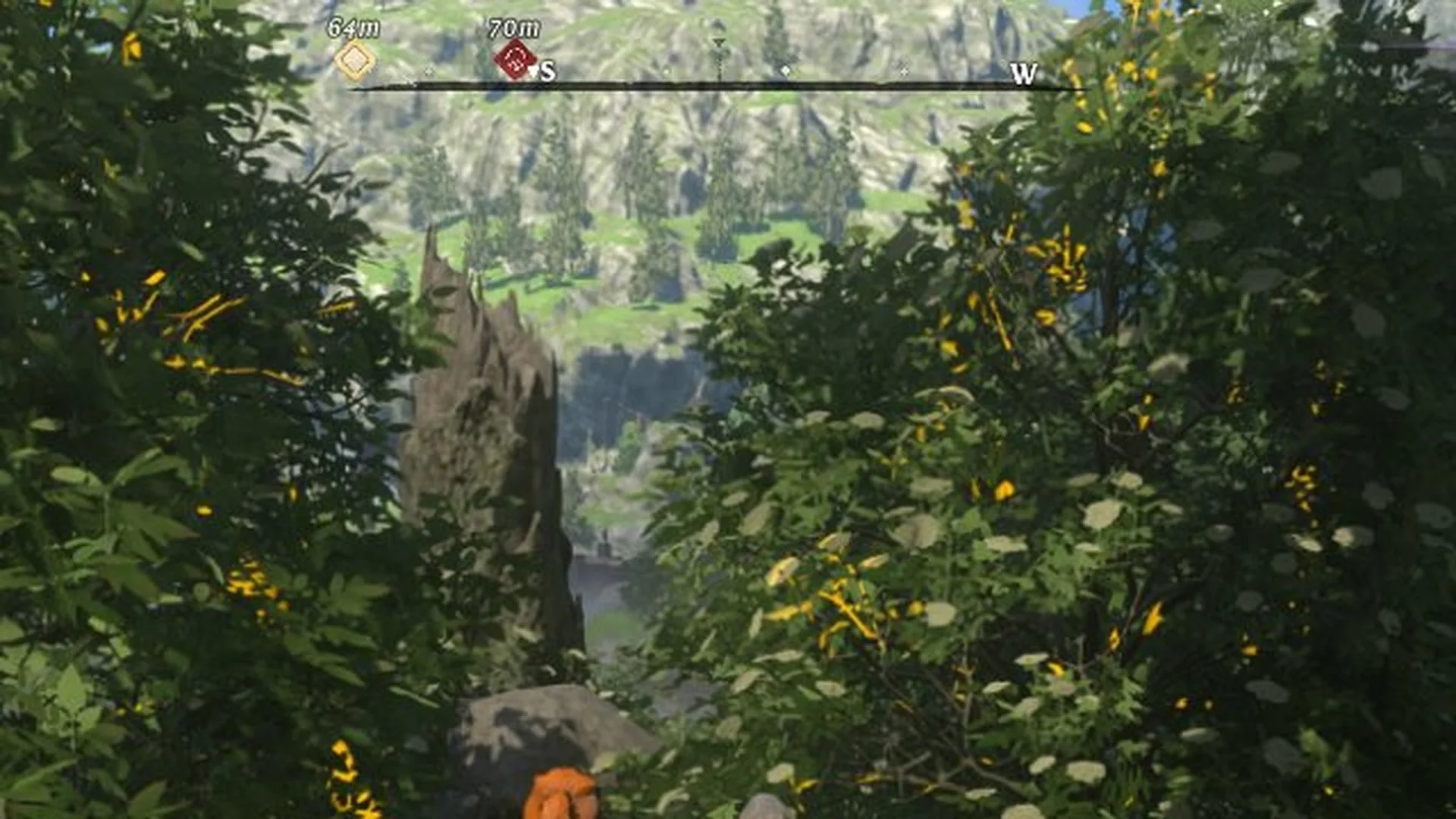
Press ESC to leave the map. The waypoint appears on the compass along the screen’s top edge, with its distance above it (ours read 64m).