

Transferring files between Linux and Windows systems often requires a secure, straightforward process. Secure Copy Protocol (SCP) provides encrypted file transfer, preventing unauthorized access during transit. When working in a Linux environment or using GitBash on Windows, SCP streamlines moving files directly to your Windows machine without manual uploads or USB drives.
Using SCP to Copy Files from Linux (or GitBash) to Windows
Settings > Apps > Optional Features and add “OpenSSH Server.”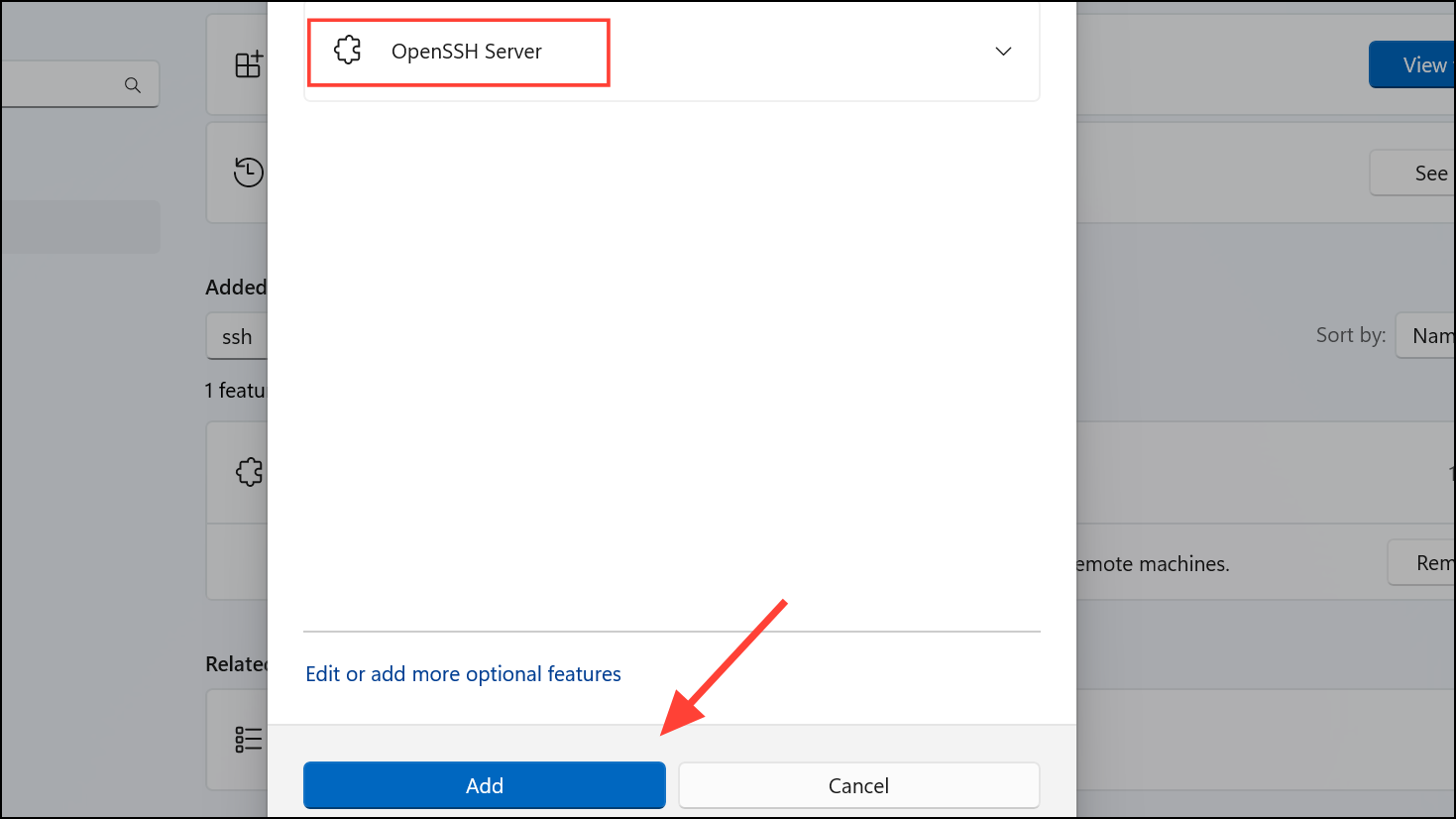
services.msc and locating “OpenSSH SSH Server,” then click the “Start” button.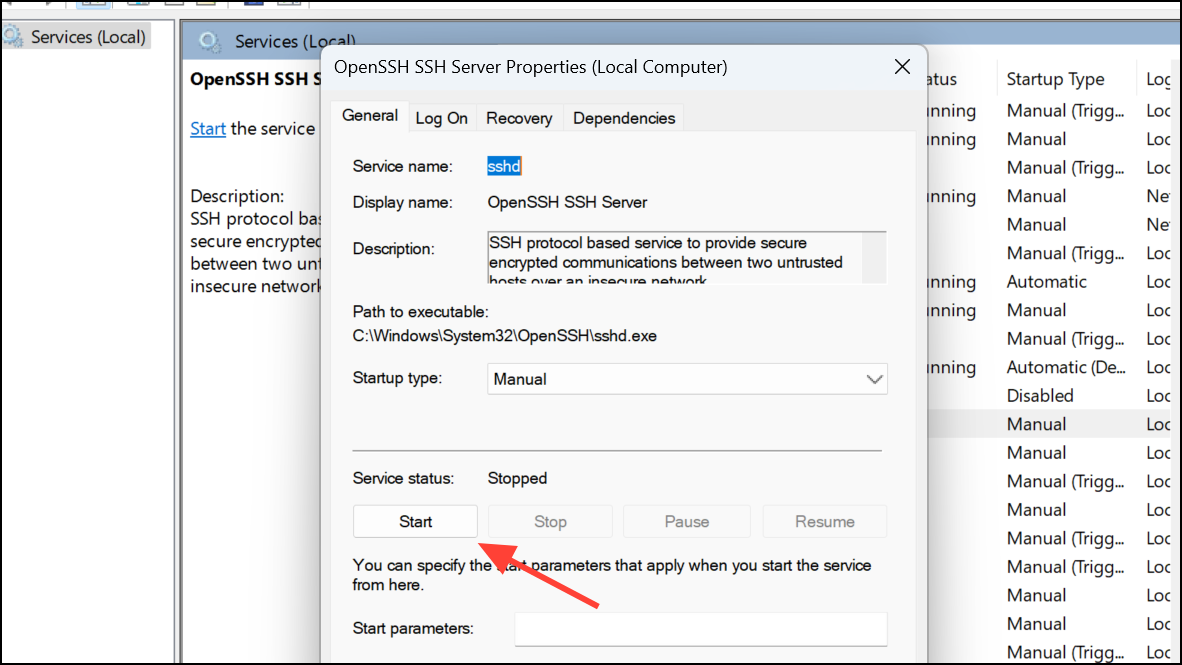
ipconfig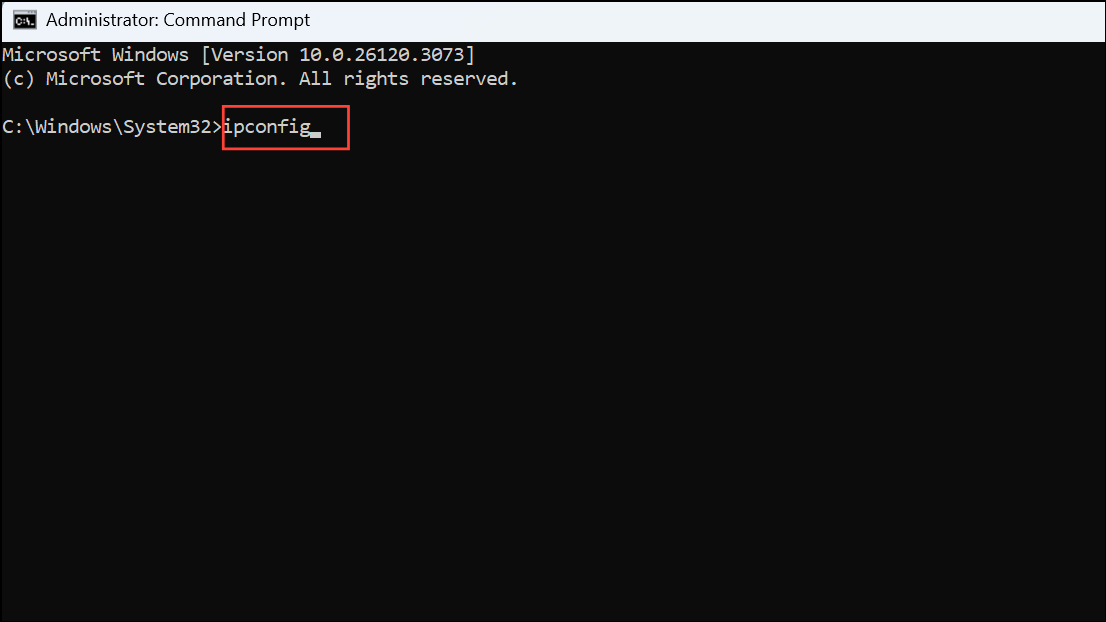
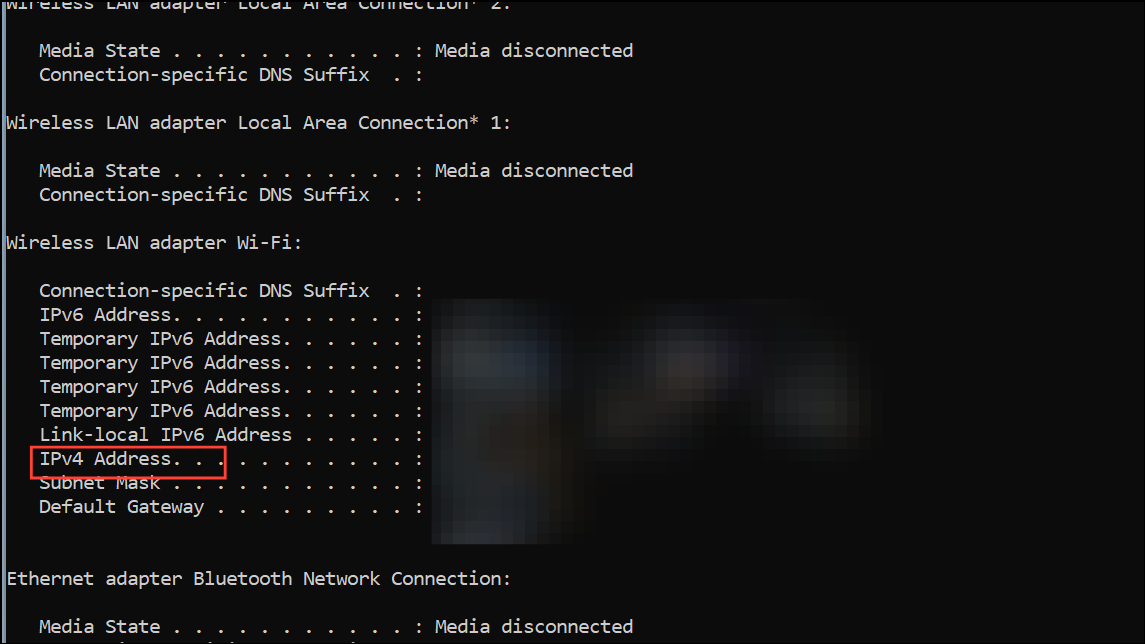
Look for the “IPv4 Address” entry under your active network adapter. This is the address you’ll use as the SCP target.
cd command to change directories as needed.scp /path/to/sourcefile username@windows_ip:"/destination/path/on/windows"Replace /path/to/sourcefile with the location of your file, username with your Windows account name, windows_ip with the IP address you found earlier, and /destination/path/on/windows with the full path where you want to place the file. For example:
scp myfile.txt [email protected]:"C:/Users/user/Downloads"When prompted, enter your Windows account password. The file will transfer securely to the specified folder.
Alternative: Copy Files from GitBash to Windows Local Folders Without SCP
If SCP is not available or an SSH server cannot be enabled on Windows, you can move files directly from GitBash to Windows folders using the Windows file path format. In GitBash, Windows drives are accessed via /c/, /d/, etc. Use the cp command:
cp /path/to/sourcefile /c/Users/YourUsername/Downloads/This method does not use encryption and is only suitable for local transfers within the same system running GitBash.
Alternative: Use SFTP for Interactive File Transfer
SFTP (Secure File Transfer Protocol) offers a command-line interface for uploading and downloading files interactively over SSH. On your Linux or GitBash terminal, connect to your Windows machine (with SSH server enabled) by running:
sftp username@windows_ipAfter entering your password, use the put command to upload files:
put /path/to/sourcefile "C:/Users/YourUsername/Downloads/"SFTP is helpful for transferring multiple files or navigating directories before uploading.
Transferring files from Linux or GitBash to Windows with SCP provides secure, efficient movement of data across platforms. For local-only transfers, GitBash’s cp command is a quick alternative, while SFTP allows for interactive file management. Choose the method that best fits your workflow and security requirements.





