

Unexpected background processes like WorkloadsSessionHost can consume system resources, trigger security alerts, or affect performance in Windows environments. Disabling this service helps streamline system operations and reduces unnecessary load, especially in enterprise or managed desktop scenarios.
Disabling WorkloadsSessionHost via Task Scheduler
Windows Key + R, typing taskschd.msc, and pressing Enter. This tool manages scheduled tasks and background processes.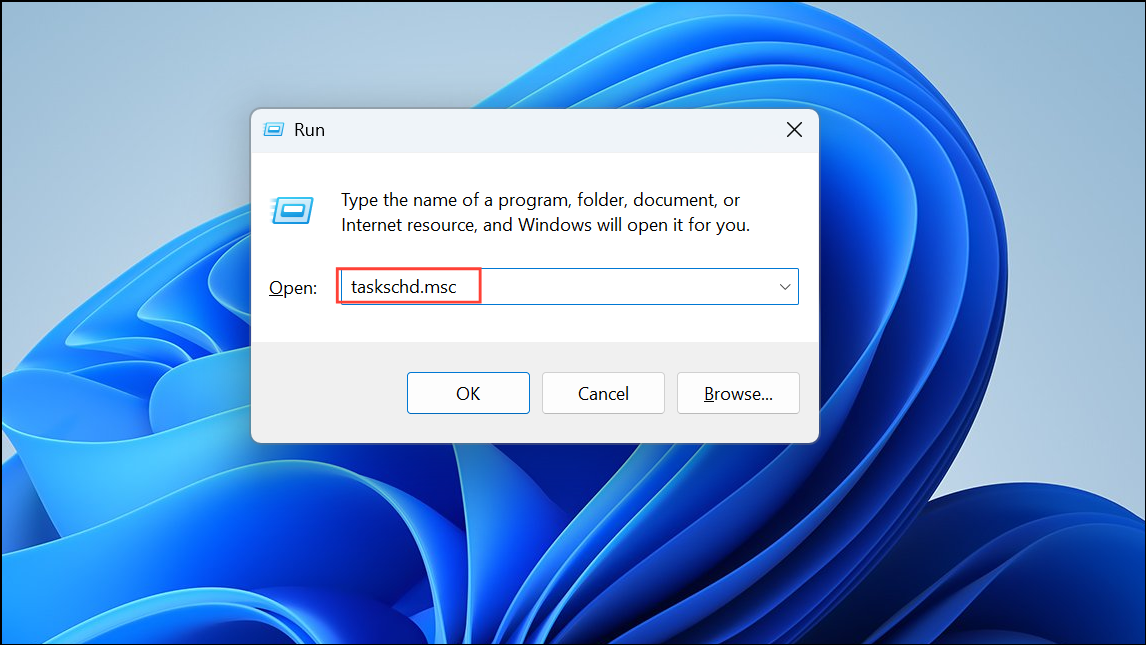
Task Scheduler Library. Browse through the folders to locate any entries related to WorkloadsSessionHost. The task may appear under Microsoft or custom folders depending on your system configuration.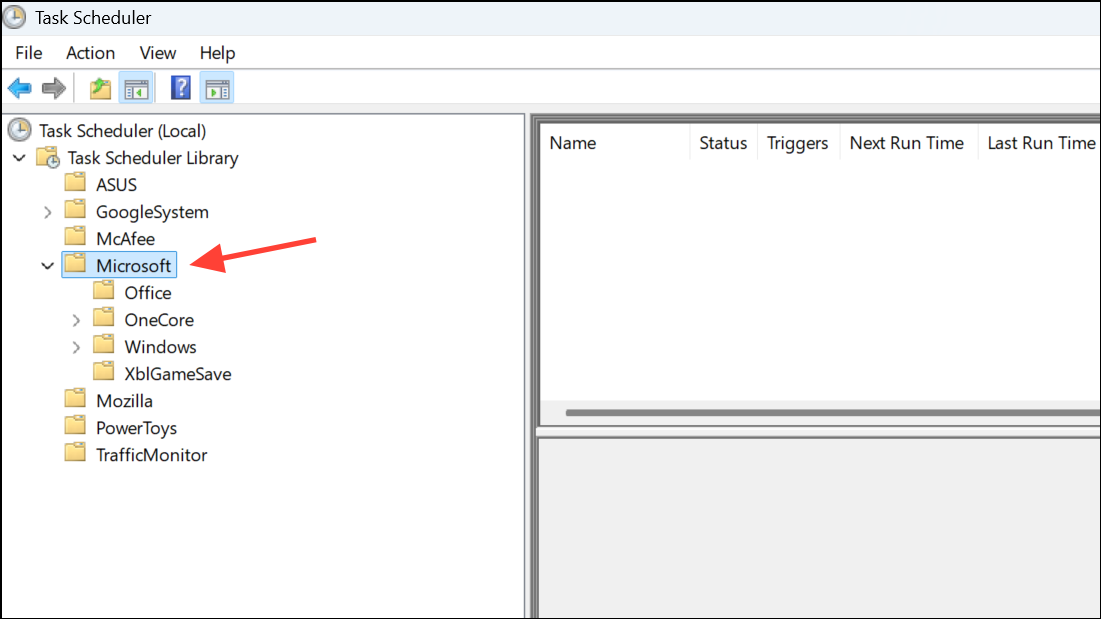
WorkloadsSessionHost task and select Disable. Disabling the task prevents it from running automatically in the future, stopping associated background activity.Ctrl + Shift + Esc) to confirm that WorkloadsSessionHost is no longer active.Disabling WorkloadsSessionHost via Services Console
Windows Key + R, type services.msc, and press Enter to launch the Services console. This utility lists all Windows services and their statuses.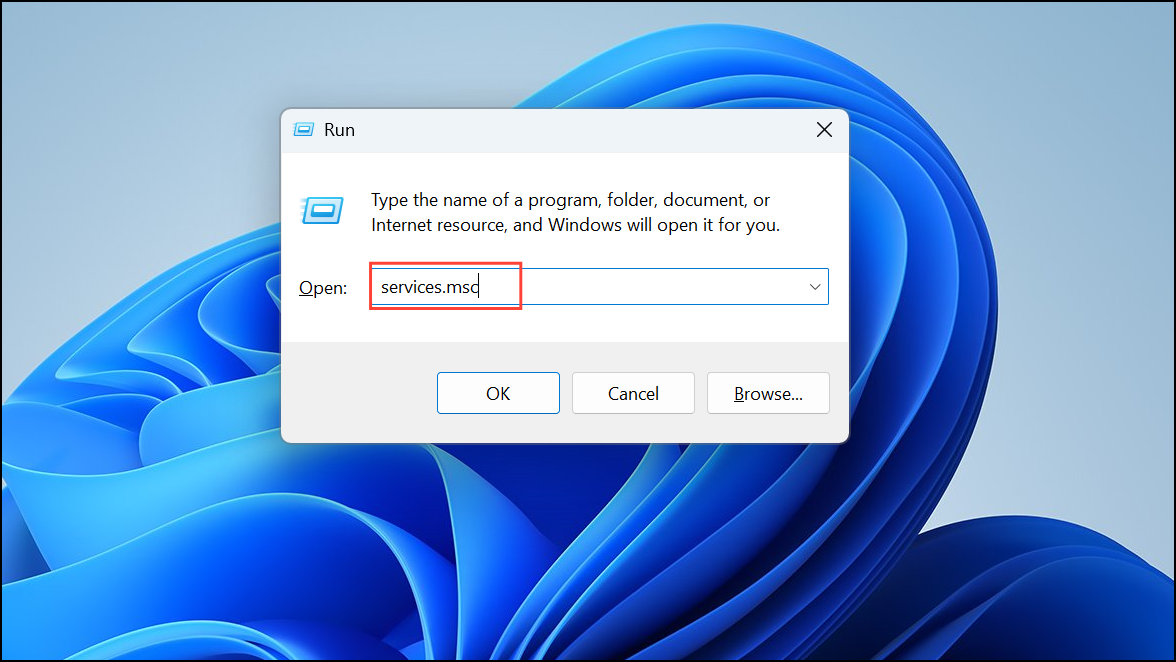
WorkloadsSessionHost or a similarly named entry. If you find it, right-click and choose Properties.Startup type to Disabled. Click Stop if the service is currently running, then click OK to save changes. This prevents the service from launching on startup.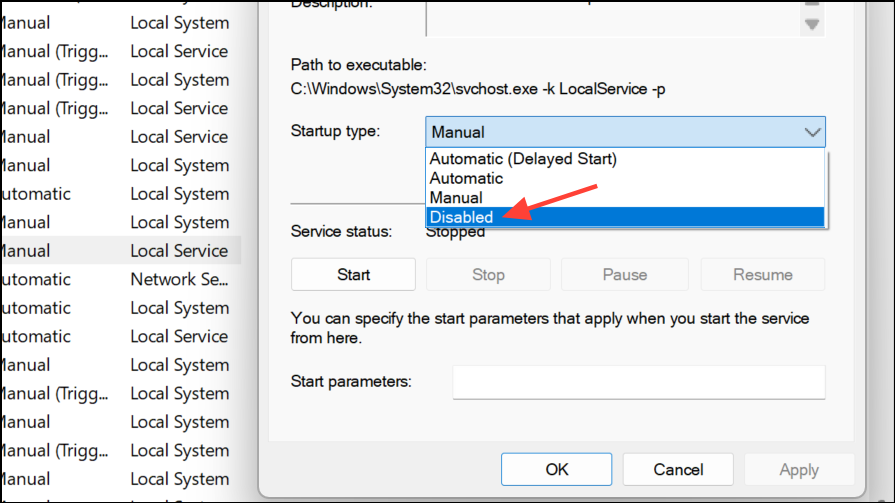
Disabled.Removing WorkloadsSessionHost via Command Line
Windows Terminal (Admin) or Command Prompt (Admin).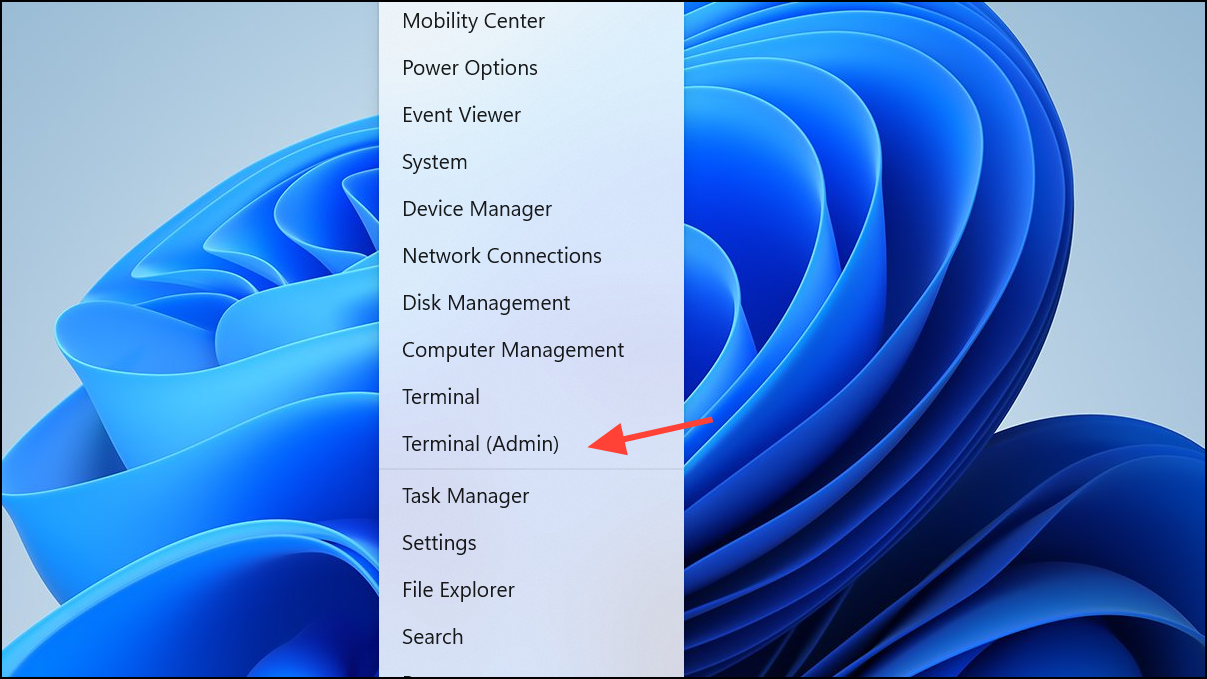
TaskPath\TaskName with the actual path and name of the WorkloadsSessionHost task:
schtasks /Change /TN "TaskPath\TaskName" /Disable
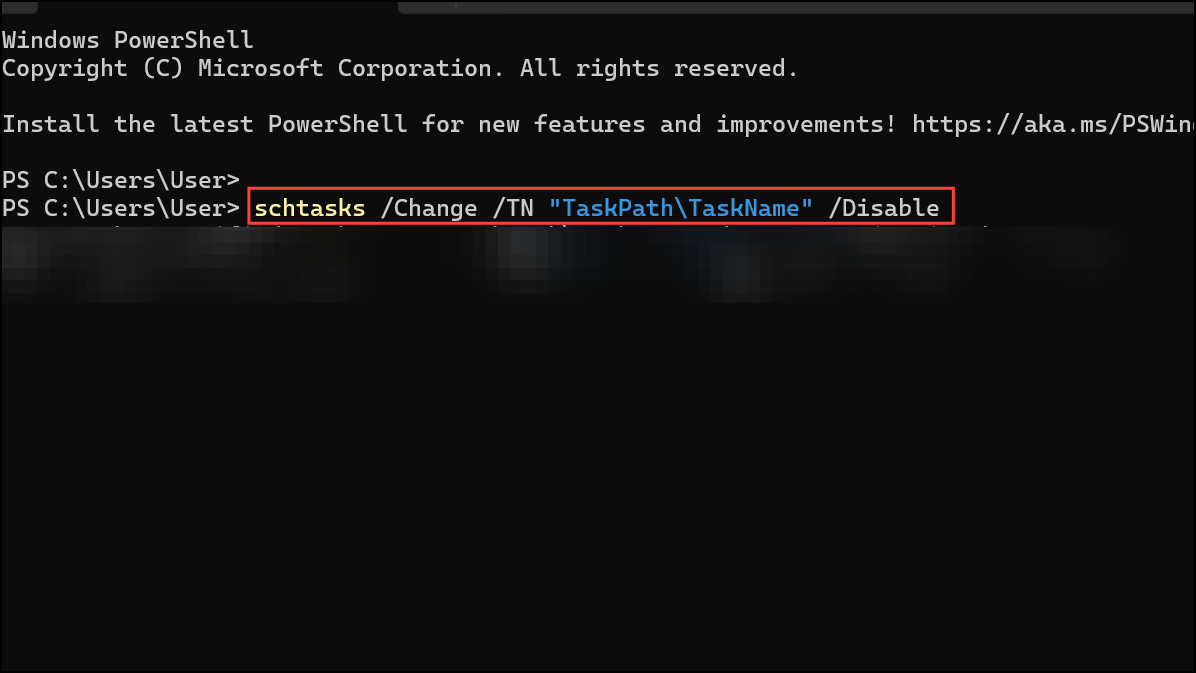
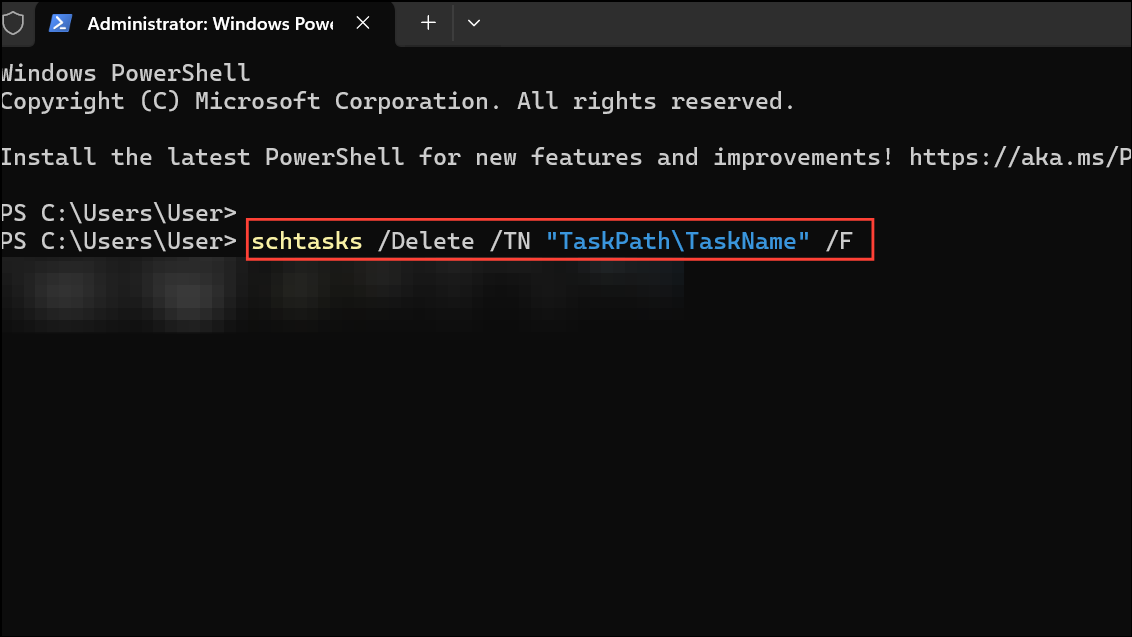
This command disables the task from running in the future. If you wish to delete the task entirely, use:
schtasks /Delete /TN "TaskPath\TaskName" /F
Double-check the task name and path in Task Scheduler before deletion to avoid removing critical system tasks.
Disabling WorkloadsSessionHost streamlines system performance and can resolve issues related to unwanted background activity. If you need to re-enable the service or task later, simply reverse these steps in Task Scheduler, Services, or the command line.





