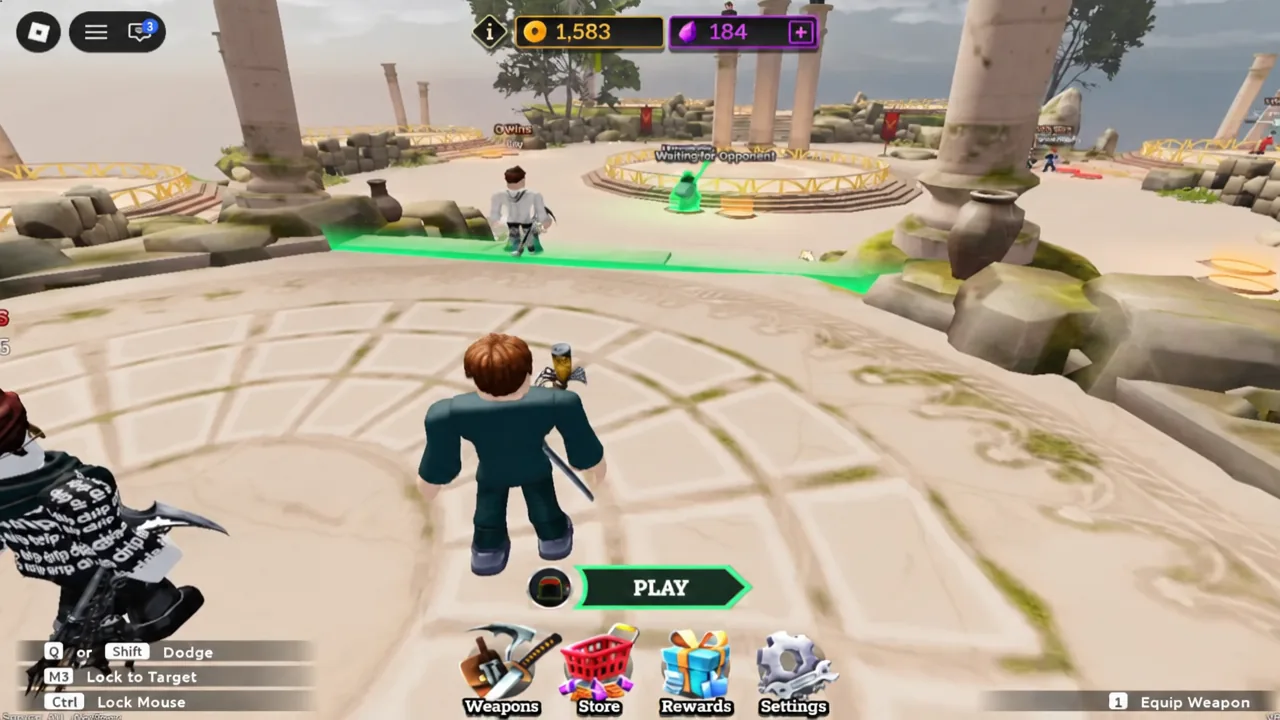
Dueling Grounds hands out free Coins and Gems for three small account actions: liking the experience, favoriting it, and joining the developer’s Roblox community. The catch is that the in-game Verify button only checks your account status when the server loads you in, so pressing it while you are still in the same session almost always throws back a Could not verify message.
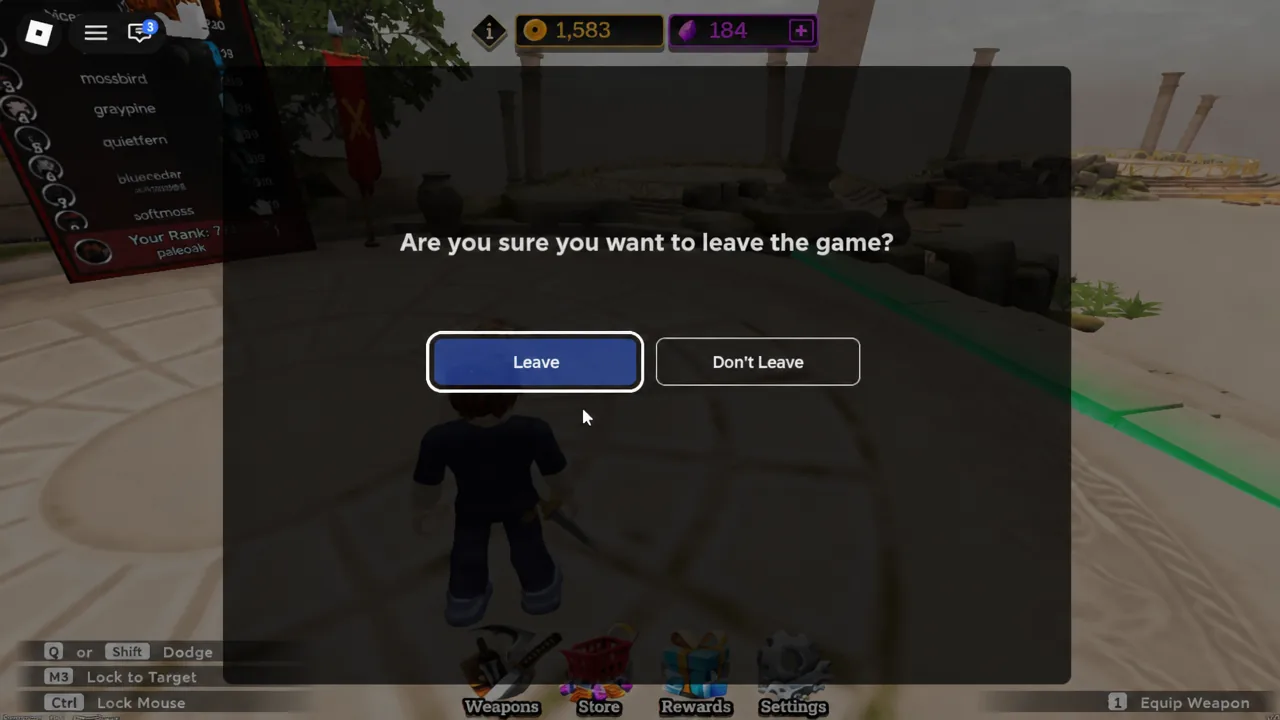
Quick answer: Leave the game, like and favorite Dueling Grounds on Roblox, join the Dueling Grounds community from the Developer link on that page, then rejoin the experience and press Verify in the Rewards menu.
Dueling Grounds like and favorite rewards
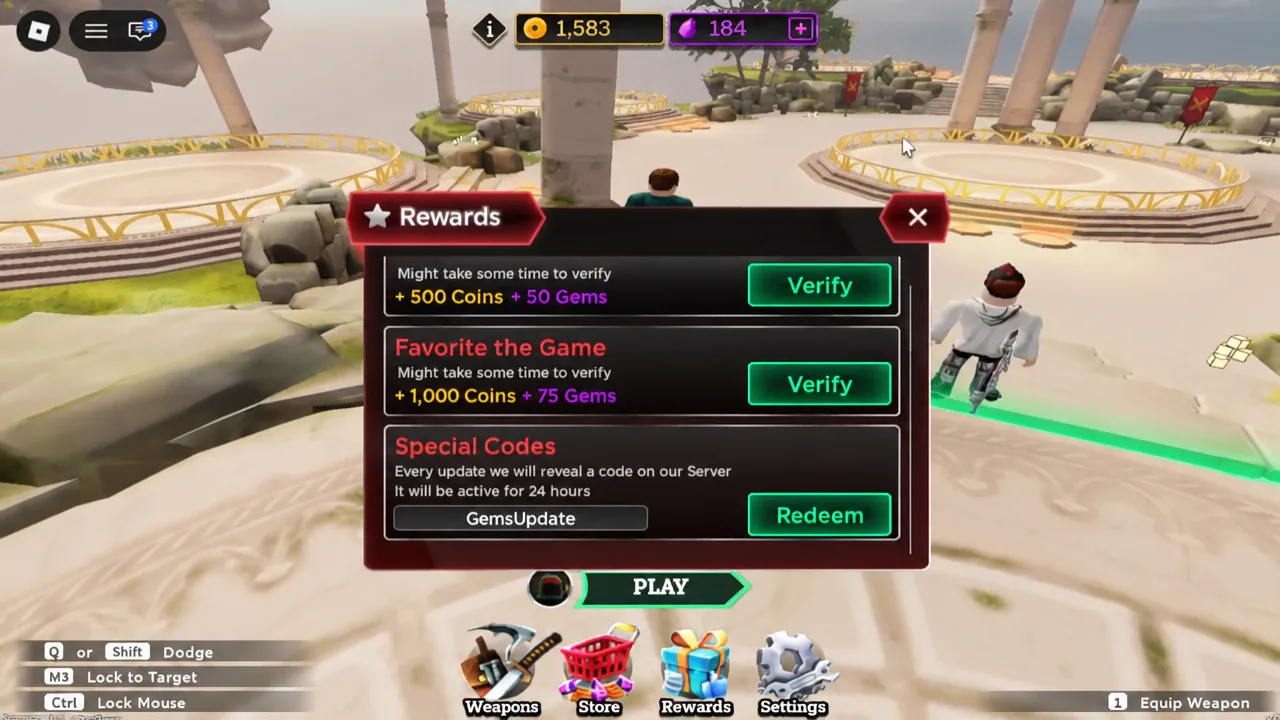
The rewards live behind the star icon on the left side of the screen. Opening it shows each task, its payout, and a Verify button that runs a short countdown before it either grants the currency or fails.
| Task | Reward | Where you complete it |
|---|---|---|
| Like the Game | +500 Coins, +50 Gems | Thumbs up on the Roblox experience page |
| Favorite the Game | +1,000 Coins, +75 Gems | Star button on the Roblox experience page |
| Join the group | Coins and Gems | Dueling Grounds community page on Roblox |
The same panel also holds the Special Codes field, where promotional codes such as GemsUpdate go in before you hit Redeem. It is worth clearing that box out before you start verifying so you can see which reward actually paid out.
Why the Verify button returns “Could not verify”
Nothing is broken when the countdown ends in an error. Roblox does not push a live like or favorite status into a running session, so the check reads whatever was true when you joined the server. If you liked the game five seconds ago in another browser tab, the server you are standing in still thinks you have not.
That makes the order of operations the whole trick. Do the account-side actions first, then get a fresh session, then verify.
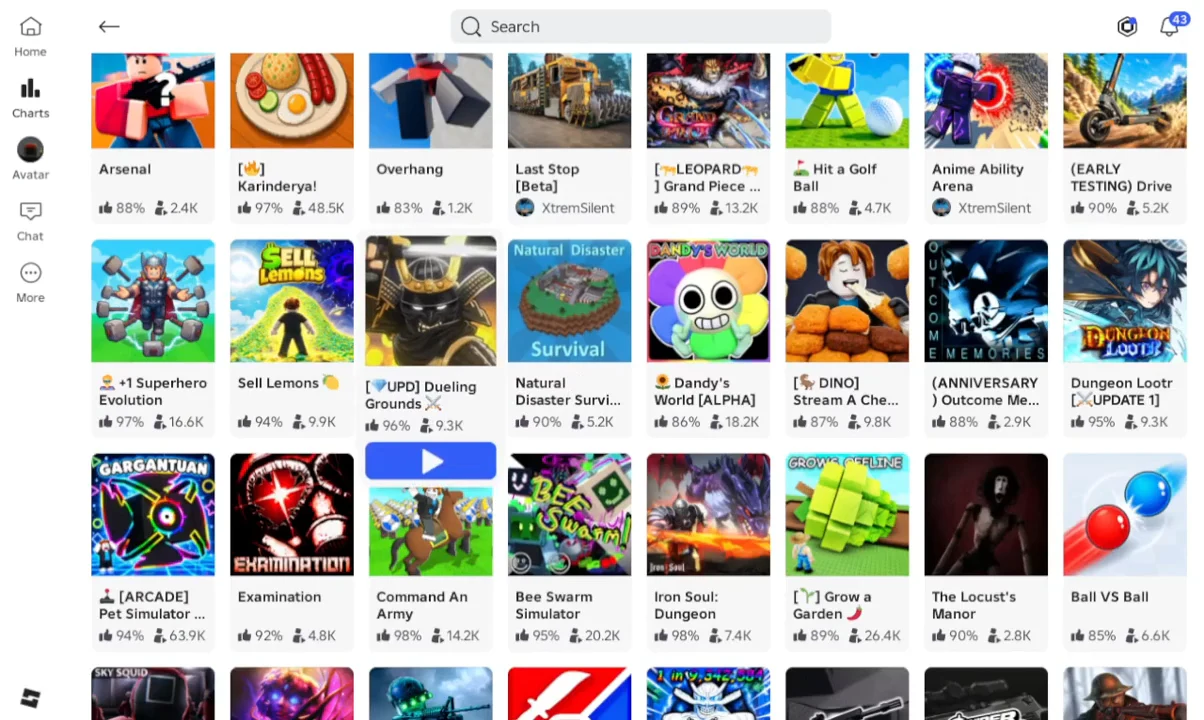
Like and favorite Dueling Grounds on the Roblox page
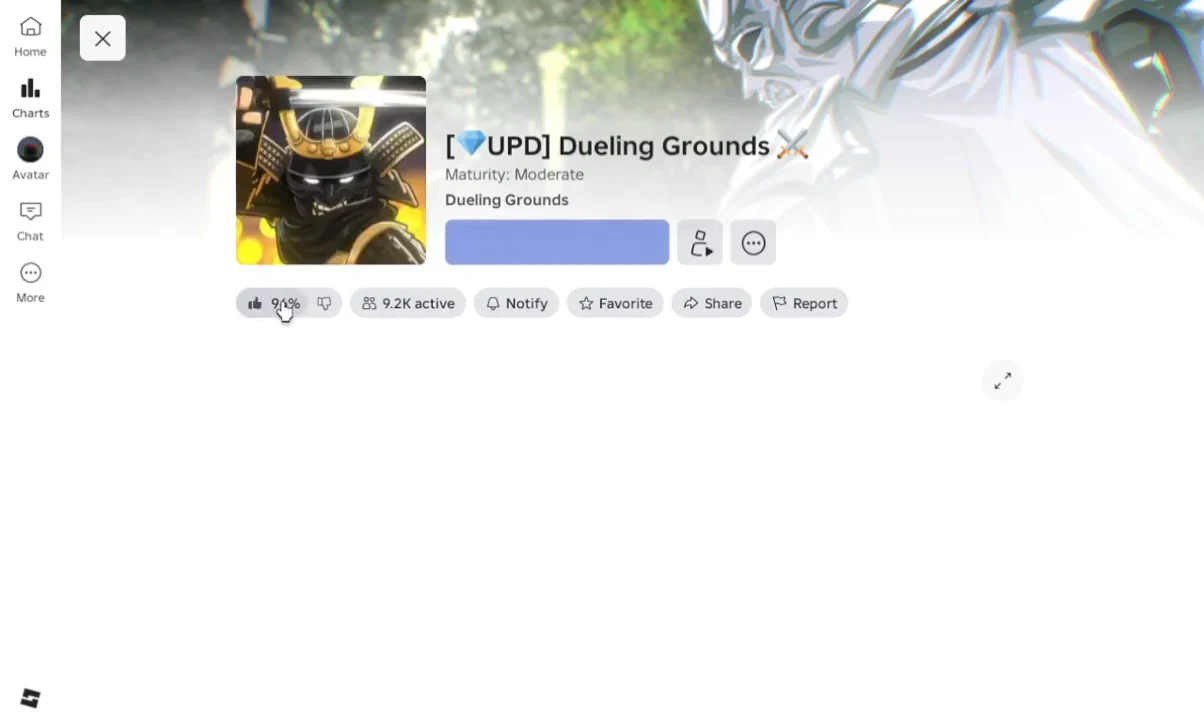
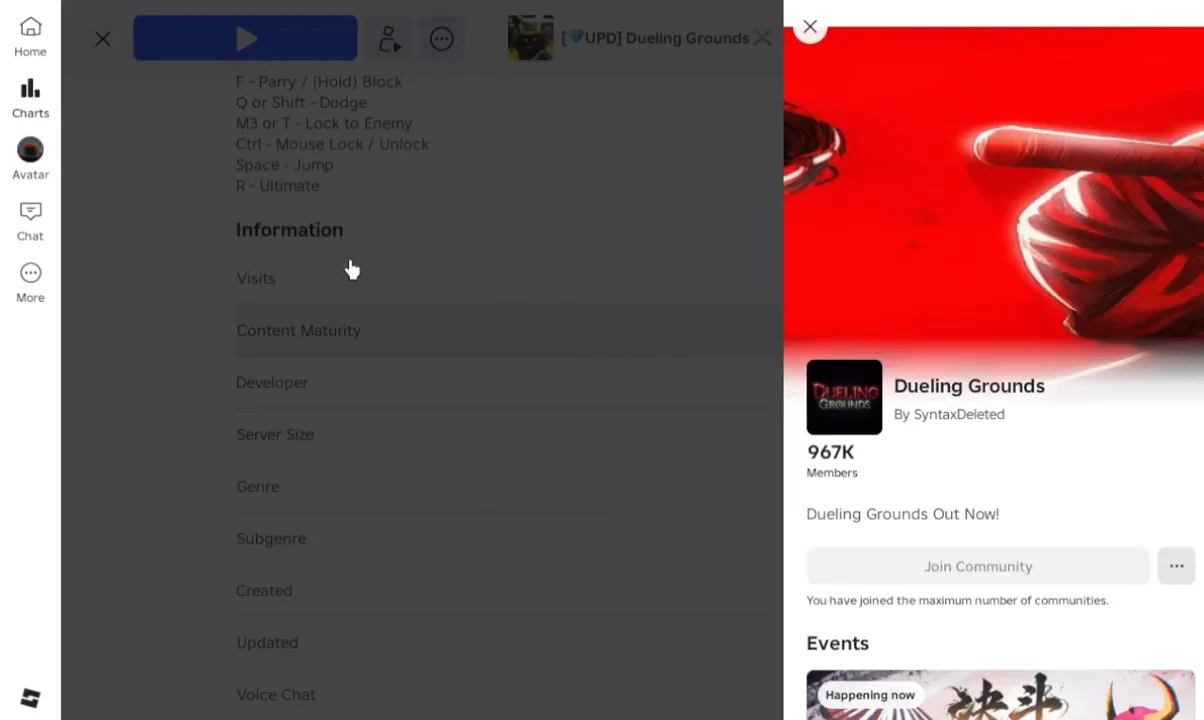
Join the Dueling Grounds community for the group reward
If the button is greyed out, your account has hit the ceiling on how many communities it can belong to. Leave a group you no longer use, refresh the page, and the button becomes clickable again.
Rejoin and confirm the Coins and Gems landed
Launch Dueling Grounds again from the experience page and open the star menu once you are in the hub. Press Verify on each task and let the countdown finish. A successful check removes the task’s Verify prompt and adds the currency, so watch your Coin and Gem totals at the top of the screen rather than the button itself.
Three things account for nearly every failed verification. You are still in the old session, you toggled the like or favorite off by clicking twice, or the group join never went through because of the community limit. Each reward is a one-time payout per account, so an already-claimed task will not pay again on a second server.
Note: unliking or unfavoriting the game later does not claw back the Coins and Gems, but leaving them in place keeps the tasks tidy if the developers add further community milestones.
Between the like, the favorite, and the group task, this is a few thousand Coins and well over a hundred Gems for about two minutes of clicking — enough to put a real dent in the cost of a new weapon before you have won a single duel.