

Startup applications can delay boot times and consume system resources, directly affecting how quickly your device is ready for use. Disabling unnecessary apps at startup improves boot speed and frees up memory, while enabling essential ones ensures your workflow is uninterrupted. Identifying which apps to enable or disable is the key to extracting maximum performance from your system.
Identify Startup Apps Impacting Performance
Ctrl + Shift + Esc. In the Task Manager window, click the Startup apps tab. This tab displays all apps configured to run when your system boots, along with their startup impact ratings, measured as low, medium, or high. Apps with a high impact typically slow down boot times the most.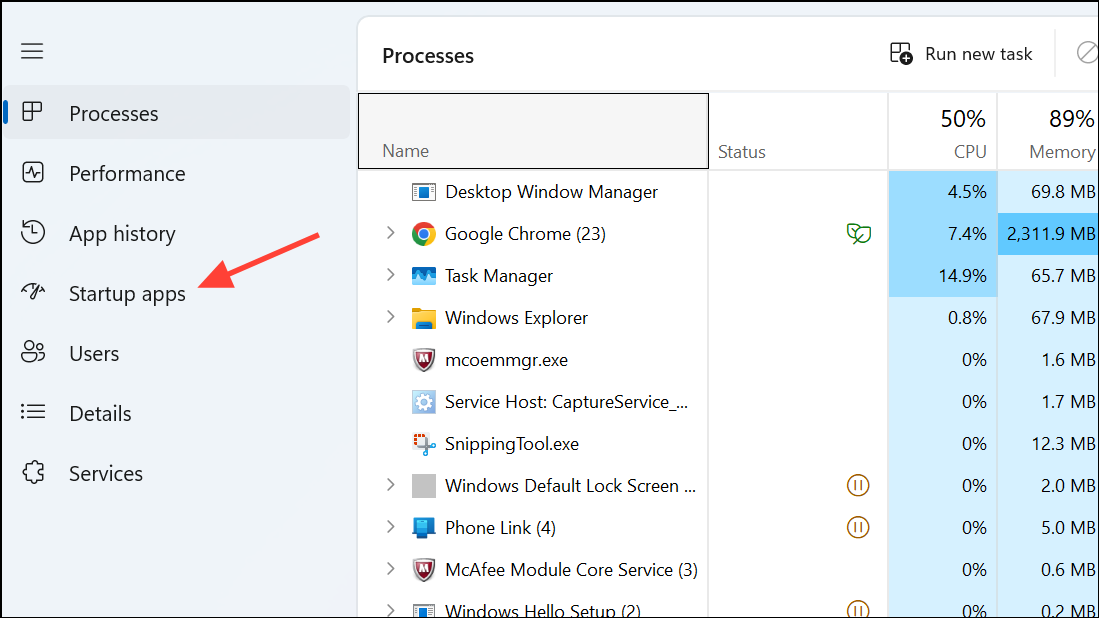
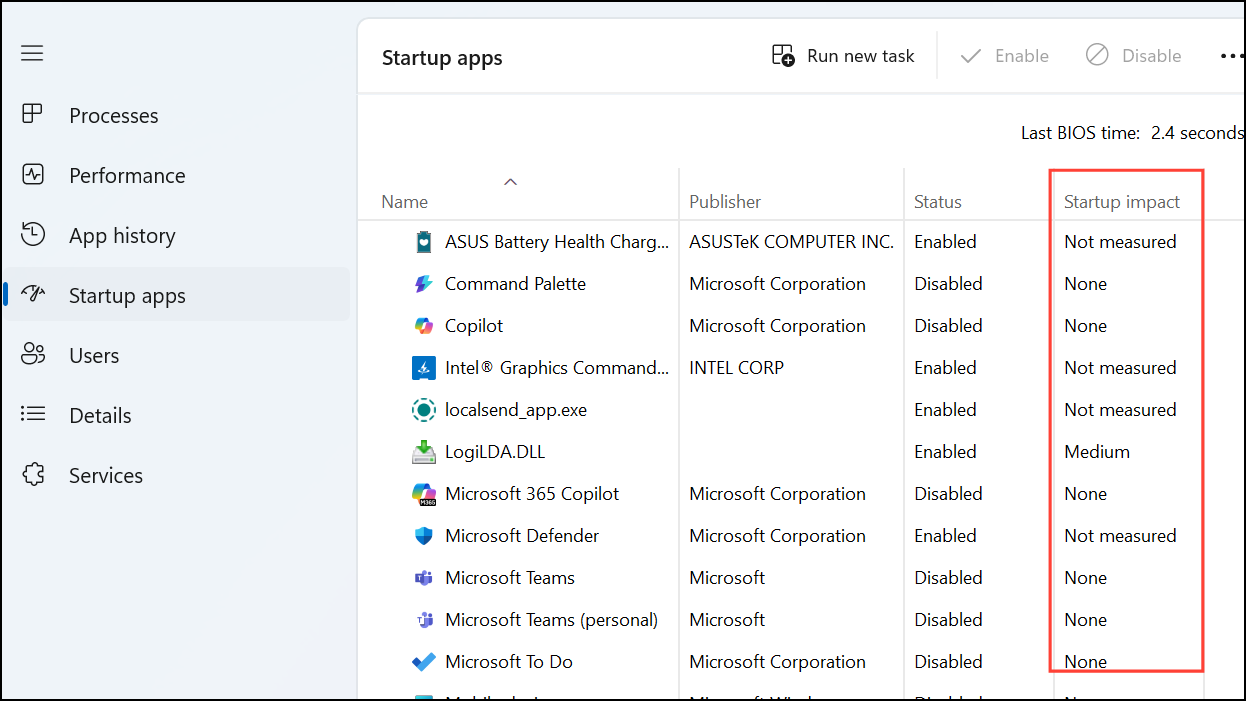
Disable Non-Essential Startup Apps
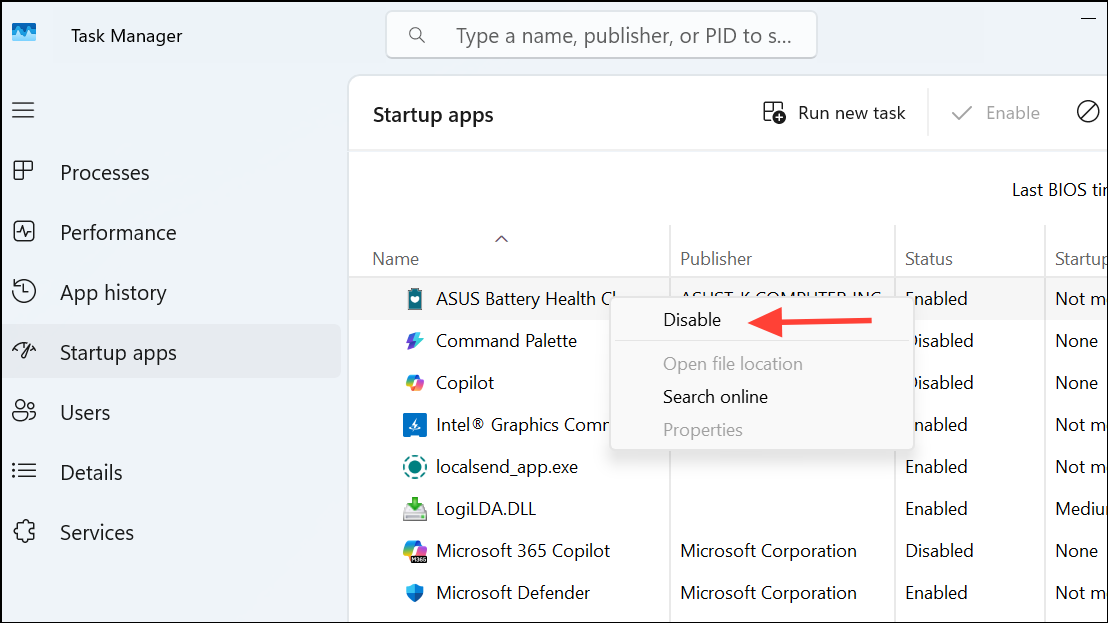
- Third-party update managers (Adobe, Java, etc.).
- Cloud storage clients, if you don’t need files synced immediately at boot.
- Gaming launchers (Steam, Epic Games), if you don’t plan to play games right away.
- Printer software utilities.
- Unused chat or video conferencing apps.
Always research any unfamiliar app before disabling it, as some may be critical for system operation or security, such as antivirus software or drivers.
Enable Critical Startup Apps
- Antivirus or endpoint protection tools.
- System utilities required for hardware (touchpad, display, or audio drivers).
- Cloud storage clients, if you rely on immediate file syncing.
- Accessibility tools (screen readers, magnifiers).
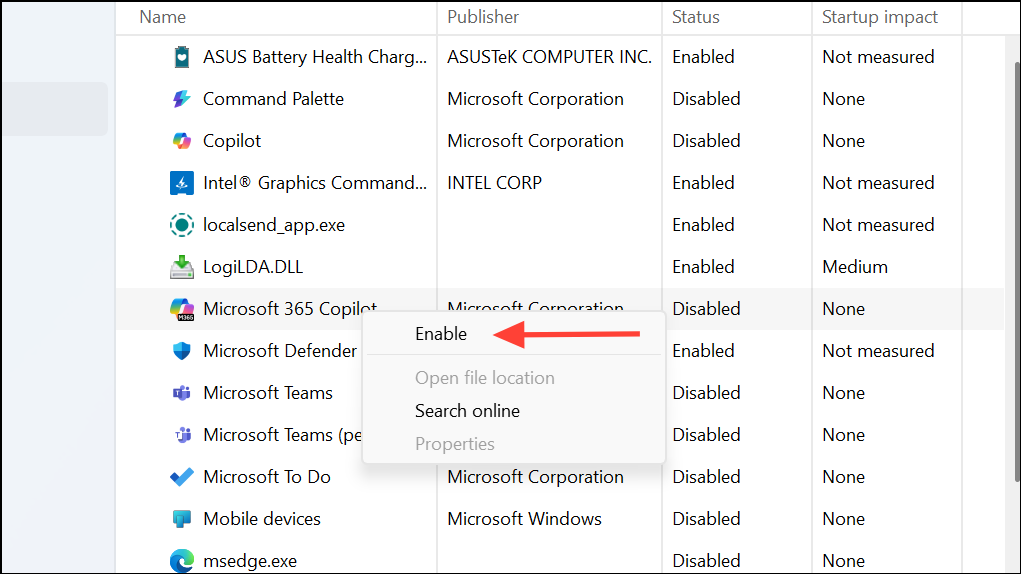
Alternative Methods for Managing Startup Apps
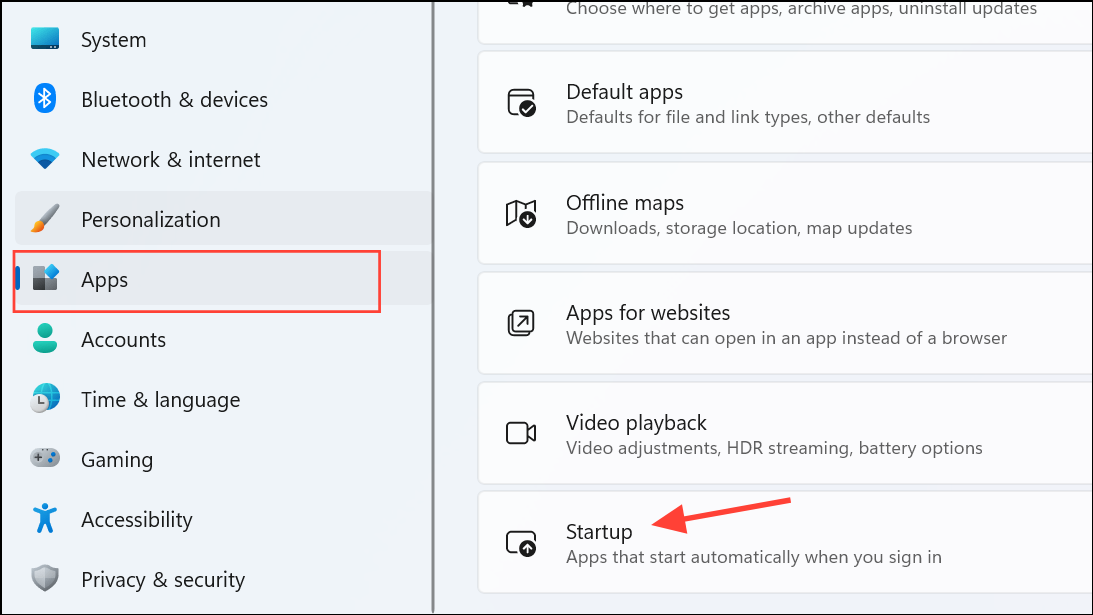
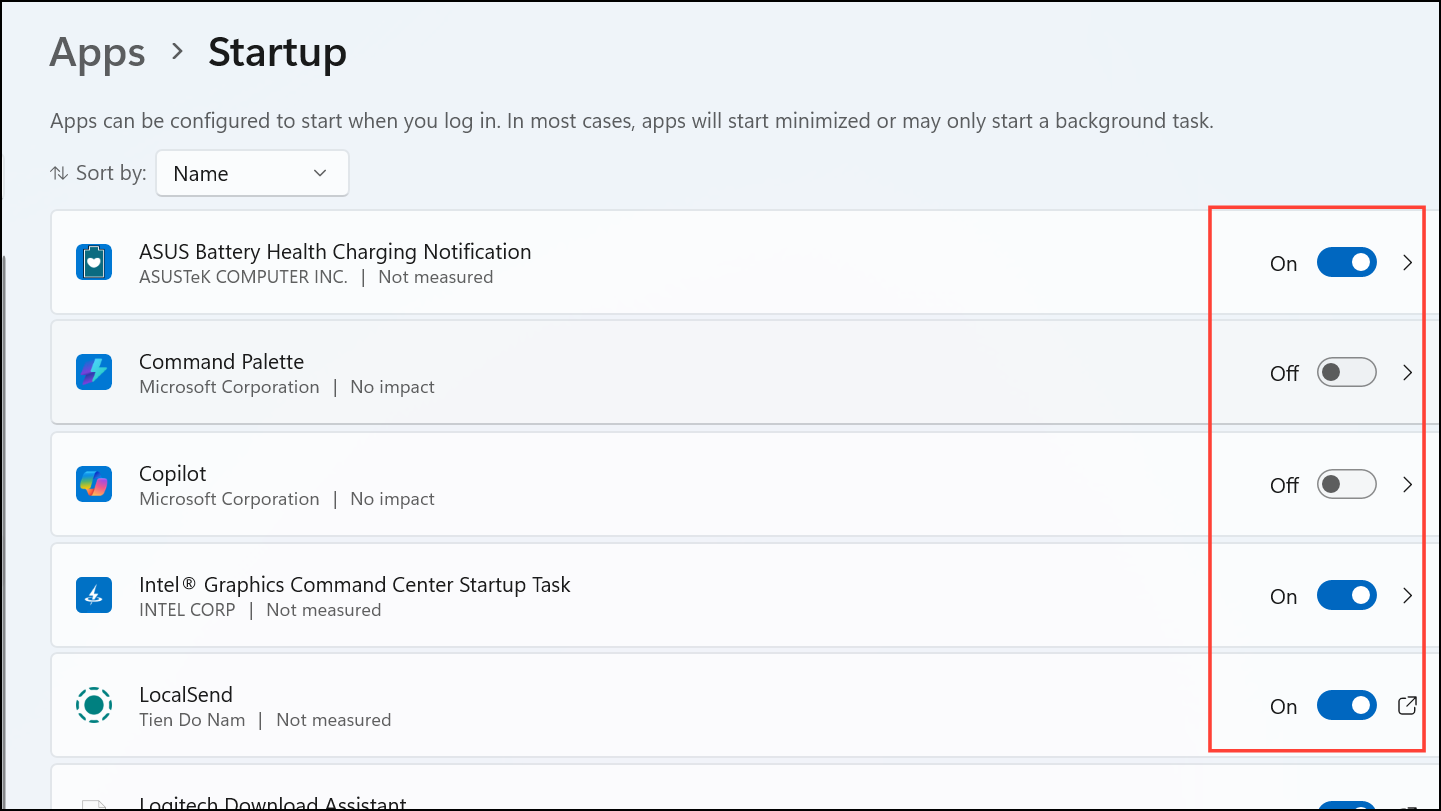
System Settings (Windows 10/11)
Using Third-Party Tools
Some advanced users prefer third-party utilities like Autoruns or CCleaner for more granular control. These tools can reveal hidden or system-level startup entries not visible in Task Manager or Settings, but they should be used with caution.
Regularly reviewing your startup apps helps keep your system running smoothly and quickly. Make it a habit to check for new additions after installing software, and only allow apps you truly need to run at startup.





