Fix Game Crashes, Black Screens, and Screen Flickering on Nvidia RTX 50 Series GPUs
Resolve persistent display and stability issues on RTX 50 Series graphics cards by updating drivers, adjusting system settings, and applying targeted troubleshooting steps.
Resolve persistent display and stability issues on RTX 50 Series graphics cards by updating drivers, adjusting system settings, and applying targeted troubleshooting steps.
by Pallav Pathak
Blank screens, game crashes, and display flickering can disrupt gaming and creative workflows on Nvidia RTX 50 Series GPUs. Recent driver releases, including multiple hotfixes, address these widespread problems—particularly those affecting DisplayPort connections, high refresh rate monitors, and popular game titles. Applying the most effective solutions first, such as updating to the latest Nvidia drivers, often restores normal operation and stability for affected systems.
Update to the Latest Nvidia Driver
Driver version 576.26 and its recent predecessors directly target black screen crashes, game freezes, and screen flickering on RTX 50 Series cards. Installing this update is the primary solution for most users and delivers immediate improvements in system reliability.
Download the latest Nvidia driver from the official website or through GeForce Experience. Choose driver version 576.26 or newer, as these specifically address black screen, flicker, and crash issues for RTX 50 Series GPUs.
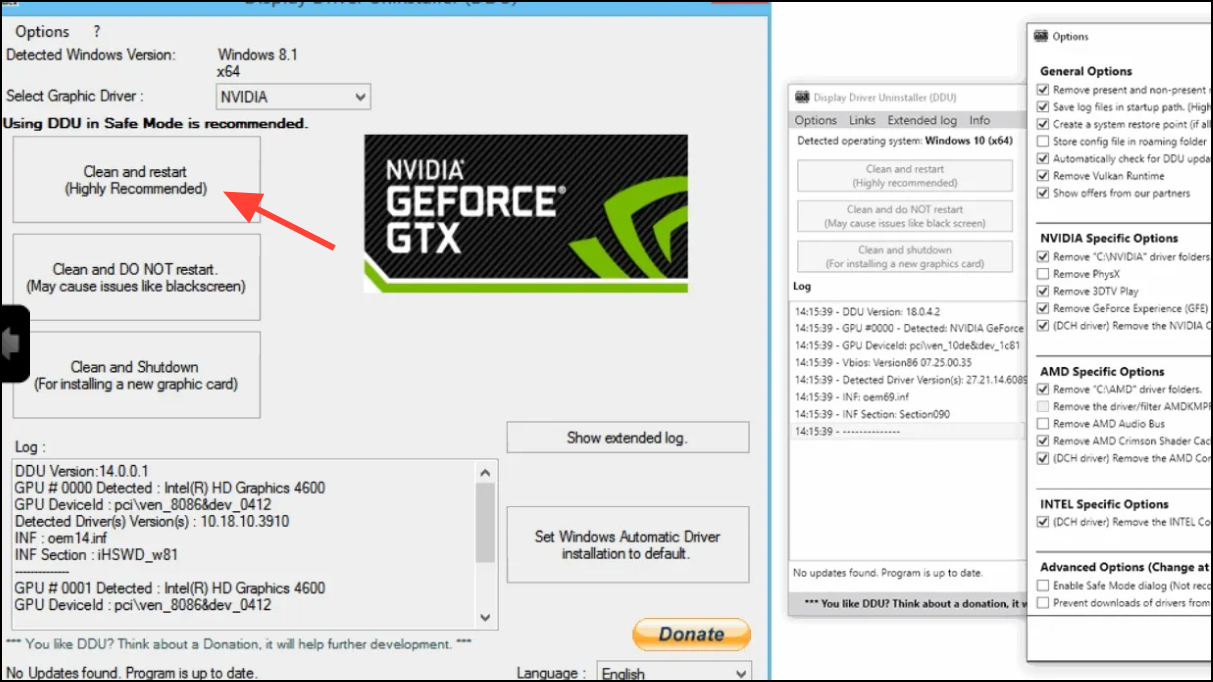
Before installing, use Display Driver Uninstaller (DDU) in Windows Safe Mode to remove existing Nvidia drivers. This step prevents conflicts and ensures a clean installation. Open DDU, select Clean and restart.
Restart your computer after installation. Test by running a previously problematic game or application and observe for black screens, flickering, or crashes.
This approach resolves the majority of display and stability problems reported with RTX 50 Series cards, as confirmed by release notes and user feedback across multiple tech sources.
Check and Update Monitor Firmware
High refresh rate monitors and certain LG UltraGear models have shown compatibility issues with RTX 50 Series cards, especially when using DisplayPort 2.1 and HDR. Monitor manufacturers have released firmware updates to address handshake and wake-from-standby problems.
Visit your monitor manufacturer’s support page and search for firmware updates using your exact model number. Download any available updates, following the instructions provided by the manufacturer.
Connect your monitor to the PC using the recommended cable (DisplayPort or HDMI) and apply the firmware update. Ensure the monitor remains powered on and do not disconnect during the process.
After updating, power cycle both the monitor and the computer. This refreshes the connection protocols and often resolves blank screen and flicker issues.
Monitor firmware updates are especially relevant for users who continue to experience display issues after updating GPU drivers.
Adjust Display and Power Settings
Incorrect refresh rate settings, aggressive power management, and multi-monitor configurations can trigger screen flickering or blackouts with RTX 50 Series GPUs. Adjusting these settings can stabilize the display until a driver or firmware fix is applied.
In the Nvidia Control Panel, set Power management mode to Prefer maximum performance under Manage 3D settings. This reduces power-saving transitions that may cause display loss.
For multi-monitor users, disconnect all but the primary display to isolate whether the issue occurs only with multiple screens. If stability returns, reconnect displays one at a time and observe for recurrence.
These steps serve as effective workarounds while awaiting permanent fixes through driver or firmware updates.
Update Motherboard BIOS and GPU vBIOS
Outdated motherboard BIOS or graphics card vBIOS can cause compatibility issues with new RTX 50 Series GPUs, sometimes resulting in persistent black screens or crashes. Manufacturers have issued updates to address these problems, particularly for early production batches.
Identify your motherboard model and visit the manufacturer’s website to download the latest BIOS version. Follow their instructions carefully, ensuring no power interruptions during the update.
For the GPU, check the card manufacturer’s support page for vBIOS updates. Some brands, such as MSI, provide tools (e.g., MSI Center) to automate the process.
Apply the vBIOS update with the GPU installed and system powered by a stable source. Reboot the system after the update completes.
BIOS and vBIOS updates resolve hardware-level compatibility issues that software alone cannot address. Always back up current firmware before proceeding.
Verify Power Supply and Physical Connections
RTX 50 Series GPUs draw significant power, and unstable or insufficient power delivery can cause black screens, crashes, or random reboots.
Confirm your power supply meets or exceeds the recommended wattage for your specific GPU model. For example, the RTX 5090 typically requires a 1000W PSU, while lower models may need 750W or 850W.
Inspect all PCIe and 12VHPWR power connectors for secure attachment and no visible damage. Reseat cables if necessary and avoid using splitters or adapters that are not manufacturer-approved.
Test system stability under load using GPU monitoring tools to check for voltage drops or power fluctuations. Replace the PSU if instability is detected.
Stable power delivery is critical for preventing black screens and system crashes, especially under gaming or rendering workloads.
Game and Software Compatibility Fixes
Recent Nvidia drivers include targeted fixes for specific games known to crash or flicker on RTX 50 Series cards, such as Black Myth: Wukong, Resident Evil 4 Remake, Forza Horizon 5, Dead Island 2, and Horizon Forbidden West. However, some titles may require additional steps for full stability.
Adjust game graphics settings, such as disabling ray tracing, lowering resolution, or switching between DirectX 12 and Vulkan modes if available. For example, Red Dead Redemption 2 is more stable in Vulkan mode on some systems.
For creative applications (e.g., Adobe Substance 3D), ensure both the application and GPU drivers are current. If black screens persist, test with single-monitor setups and lower GPU acceleration settings.
Combining up-to-date drivers with compatible game and software versions significantly reduces crashes and display errors.
Advanced Troubleshooting and Support Channels
If issues persist after applying all standard fixes, advanced diagnostics may be necessary.
Use hardware monitoring tools like HWiNFO to log GPU temperatures, voltages, and error events during system use. This can help pinpoint whether the problem is thermal, power-related, or software-driven.
Test the GPU in a different system to determine if the issue follows the card or is system-specific. Similarly, try a different GPU in your system to rule out motherboard or PSU faults.
Submit a detailed bug report to Nvidia, including system specs, monitor model, connection type, driver version, and a description of the issue with timestamps or screenshots. Participate in Nvidia’s official forums or support channels for additional troubleshooting steps or RMA guidance if a hardware defect is suspected.
Advanced troubleshooting is recommended for users who continue to experience black screens or crashes after all standard solutions have been exhausted.
Addressing RTX 50 Series GPU display issues is now more straightforward thanks to focused driver updates and targeted troubleshooting. Keeping drivers, firmware, and system settings current is the best way to maintain stable performance and enjoy the full capabilities of your graphics card.