
GTA 6 Walkthrough & Guides Controls & settings
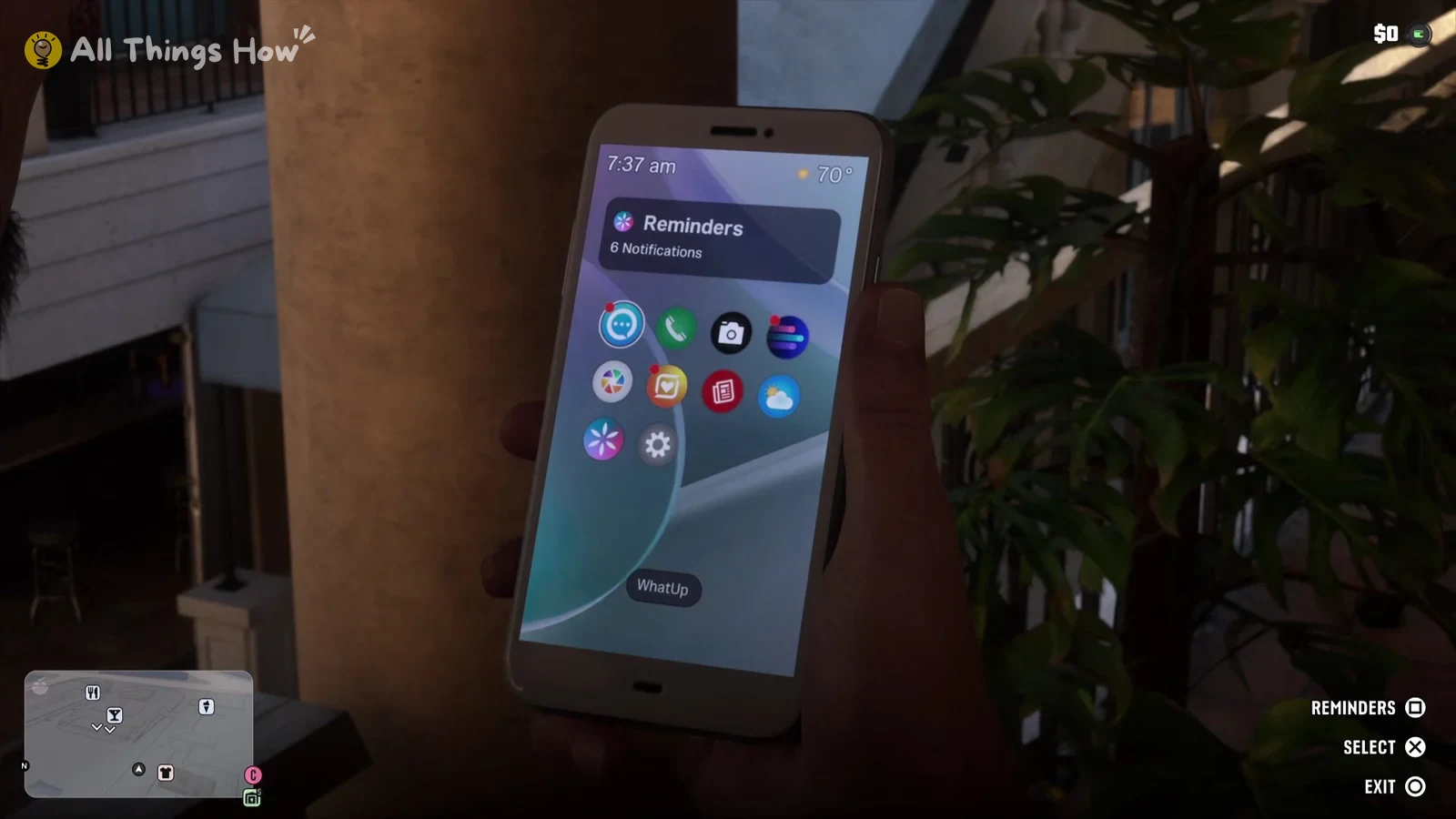
Jason’s phone in Grand Theft Auto VI is an iFruit, and it covers most of what you do outside missions. You use it to text, call, take photos, check your workouts, scan cars, move money, book rides and buy property. Some apps are on the phone from the start, and the story adds the rest as you play.
Quick answer: Press D-pad Up to open the iFruit. It starts with ten apps, and the story installs four more: BuckMe, RydeMe, Scooter Bros and Vice City Real Estate.
How to open the phone in GTA 6
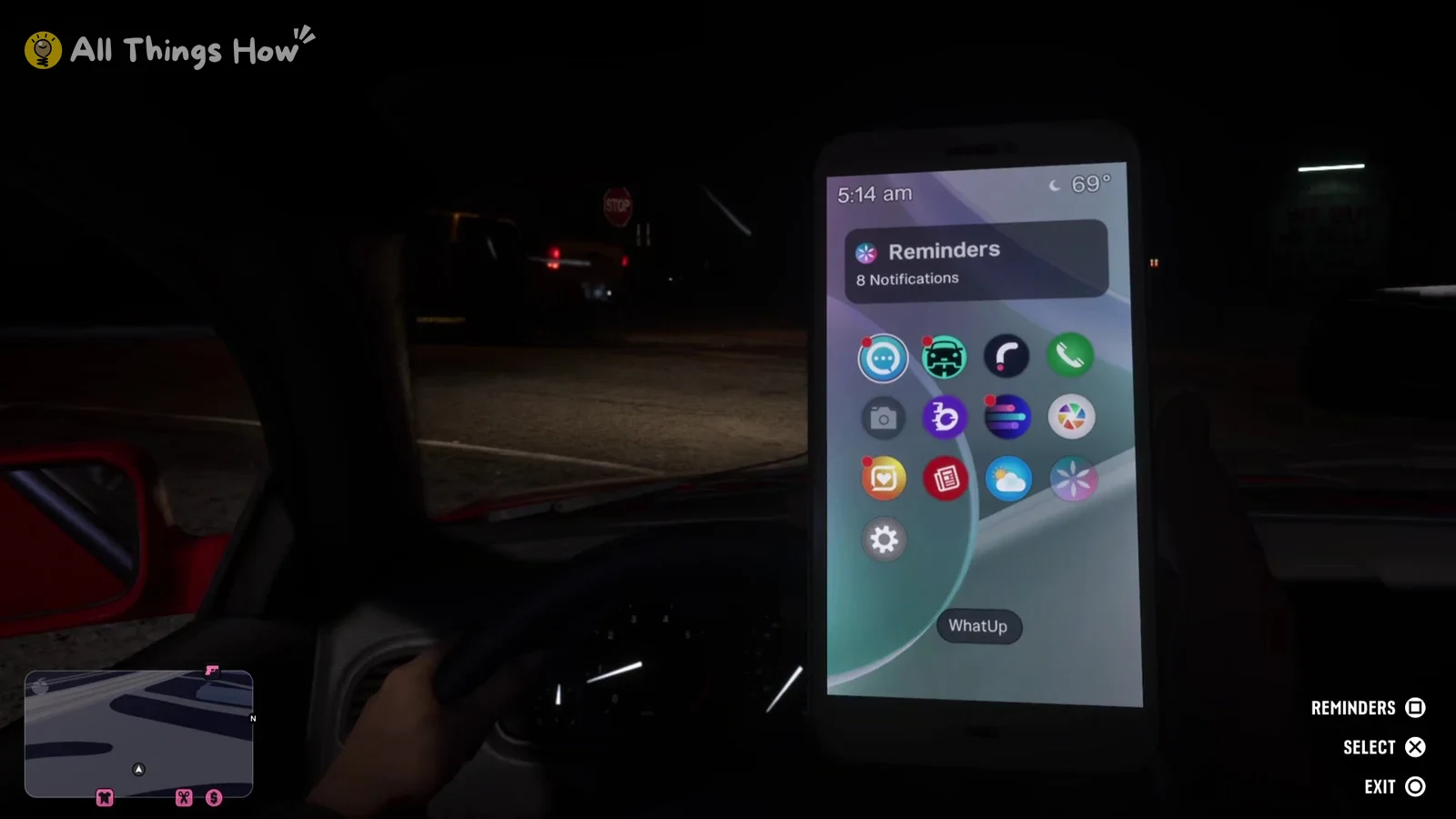
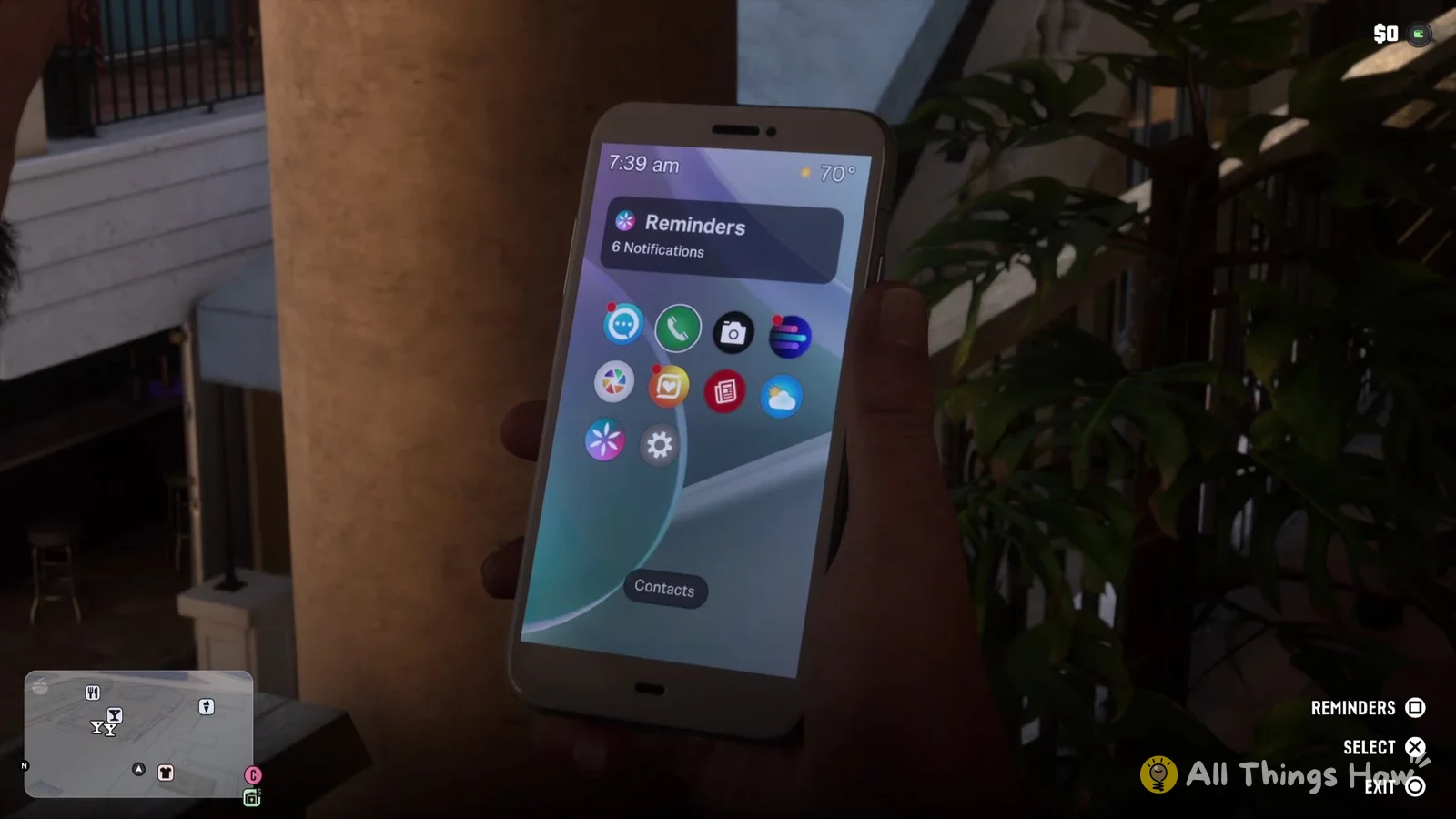
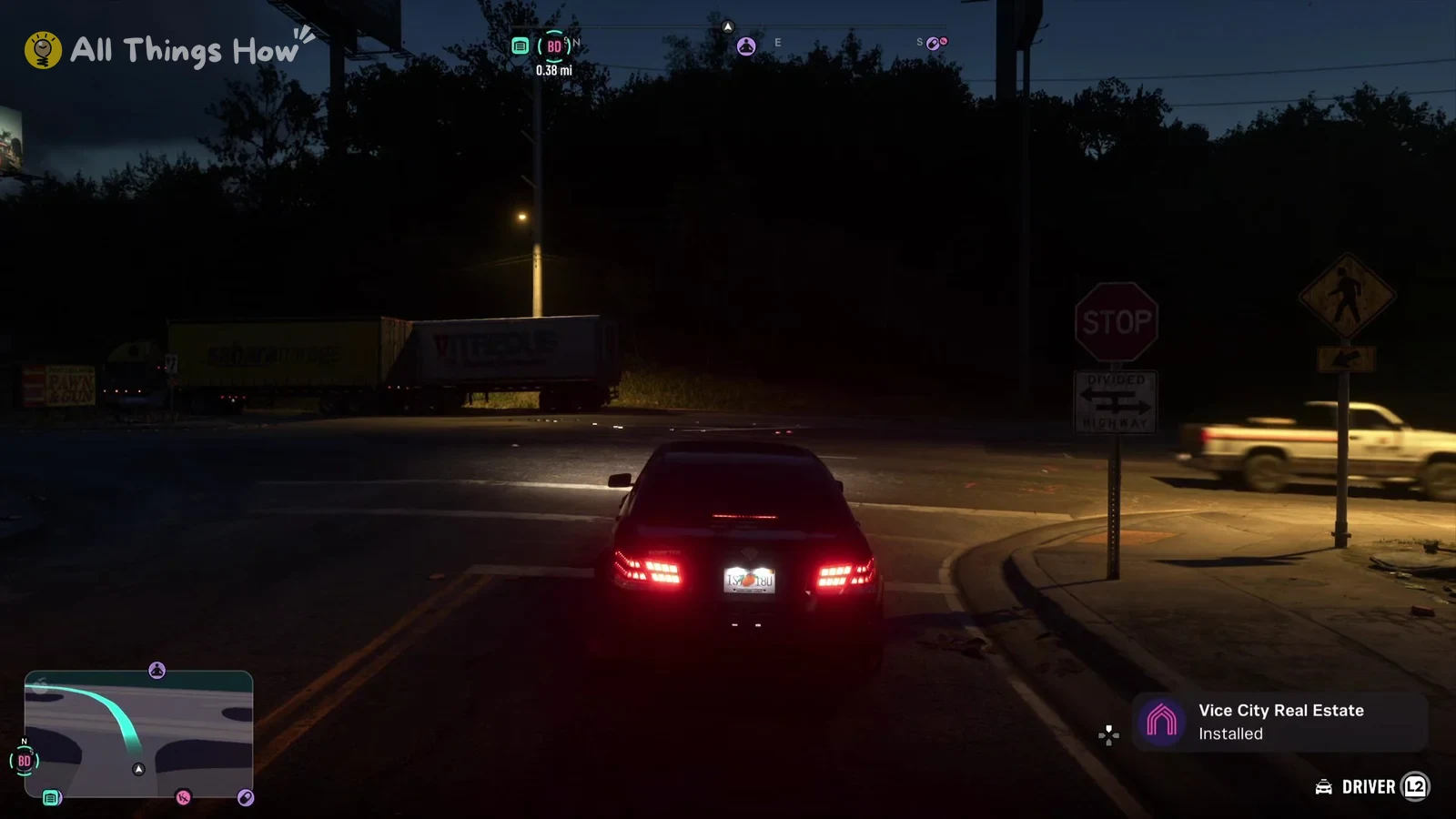
When the story gives you a new app, an “Installed” notice pops up in the corner of the screen. You’ll see “Scooter Bros Installed”, “RydeMe Installed”, “BuckMe Installed”, “Vice City Real Estate – Installed” and “Settings – Cop Scanner Installed” as you go.
Every app on the GTA 6 phone
These are the apps you get on Jason’s iFruit through the story, what each one is for, and when it shows up.
| App | What it’s for | How you get it |
|---|---|---|
 WhatUp | Text messages, often with reply choices | On the phone early in the story |
 Contacts | Contacts list for phone calls | On the phone early in the story |
 Camera | Photos and selfies, with zoom, filters, poses and expressions | On the phone early in the story |
 Fitness | Jason’s status, workout levels, Focus, Body Shape and Calorie Intake | On the phone early in the story |
 Gallery | Saved photos in albums | On the phone early in the story |
 Snapmatic | The social media app | On the phone early in the story |
 News | Headlines from Vice City outlets | On the phone early in the story |
 Weather | The weather app | On the phone early in the story |
 WAiNK | Scans things around you, including cars | On the phone early in the story |
 Settings | Wallpaper, Ringtone and later the Cop Scanner page | On the phone early in the story |
 BuckMe | Bank app with Checking Account and Family Savings | Installed in the story mission Buck Me |
 RydeMe | Books a ride to your map destination | Installed during the story, alongside BuckMe |
 Scooter Bros | Has your registered car delivered | Installed when Moses registers your first personal vehicle |
 Vice City Real Estate | Buying properties | Installed after the story mission Daily Driver |
The Settings header reads “Jason” and “iFruit”, and its two rows are “Wallpaper” and “Ringtone”. Weather has its own icon on the home screen, and the home screen shows the current temperature too.
Messages and calls
WhatUp holds your text conversations. Many texts let you pick a reply instead of just reading them, like choosing between “Send Cal next time” and “No problem”. Calls go through Contacts, which splits people into “All Contacts” and “Suggested”. Here’s how to call someone from Contacts.
Camera and Gallery
The Camera opens on the rear camera. Press R3 for SELFIE and R2 to TAKE PHOTO, and use ZOOM, FILTER (1/17) and a grid overlay to set up the shot. Selfie mode adds POSE (1/6) and EXPRESSION (1/7). You can read up on how to take a selfie.
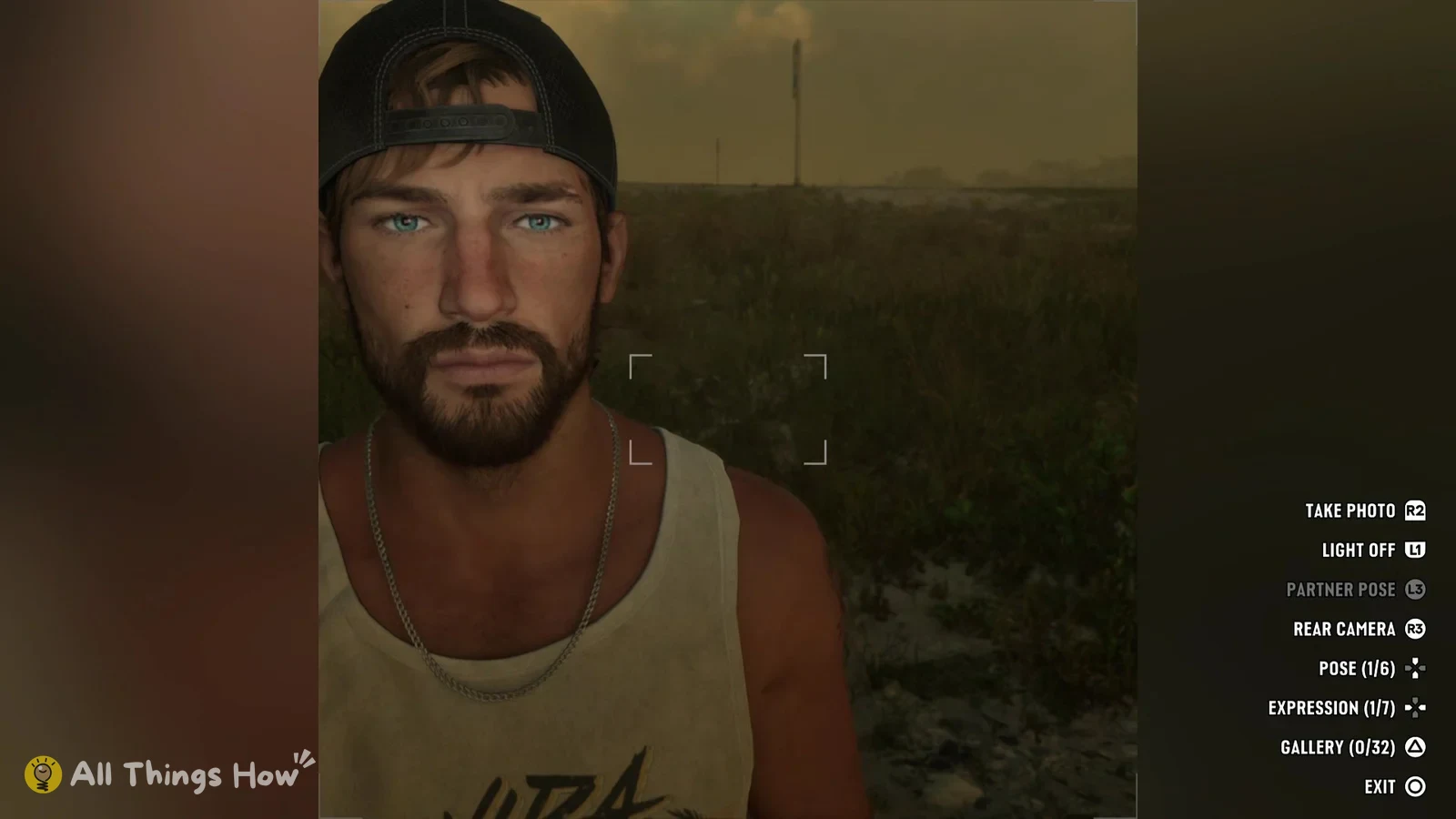
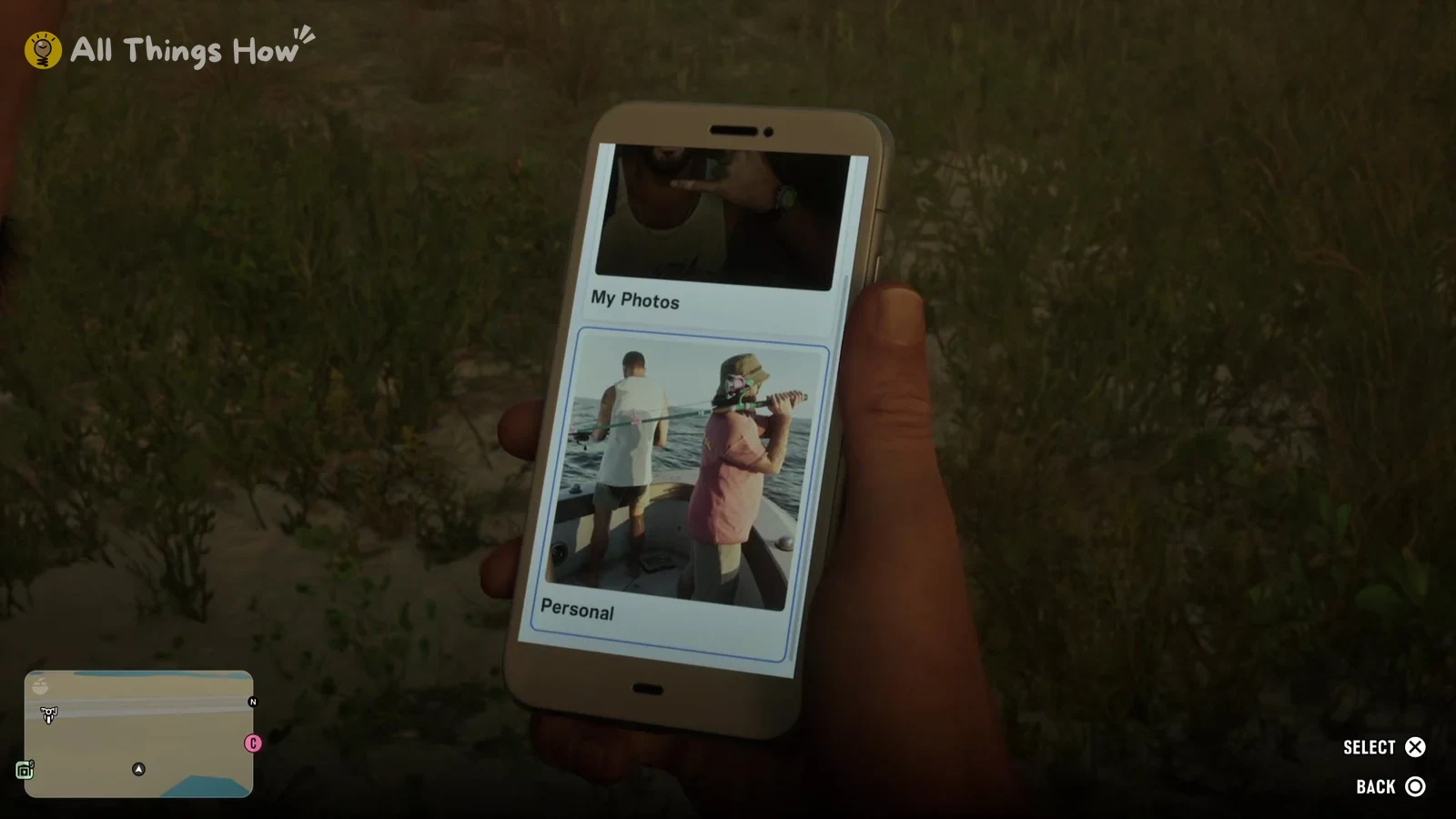
Press Triangle in the Camera to jump to the Gallery. Your shots go into “My Photos”, and the Gallery also has a “Personal” album.
News and Snapmatic
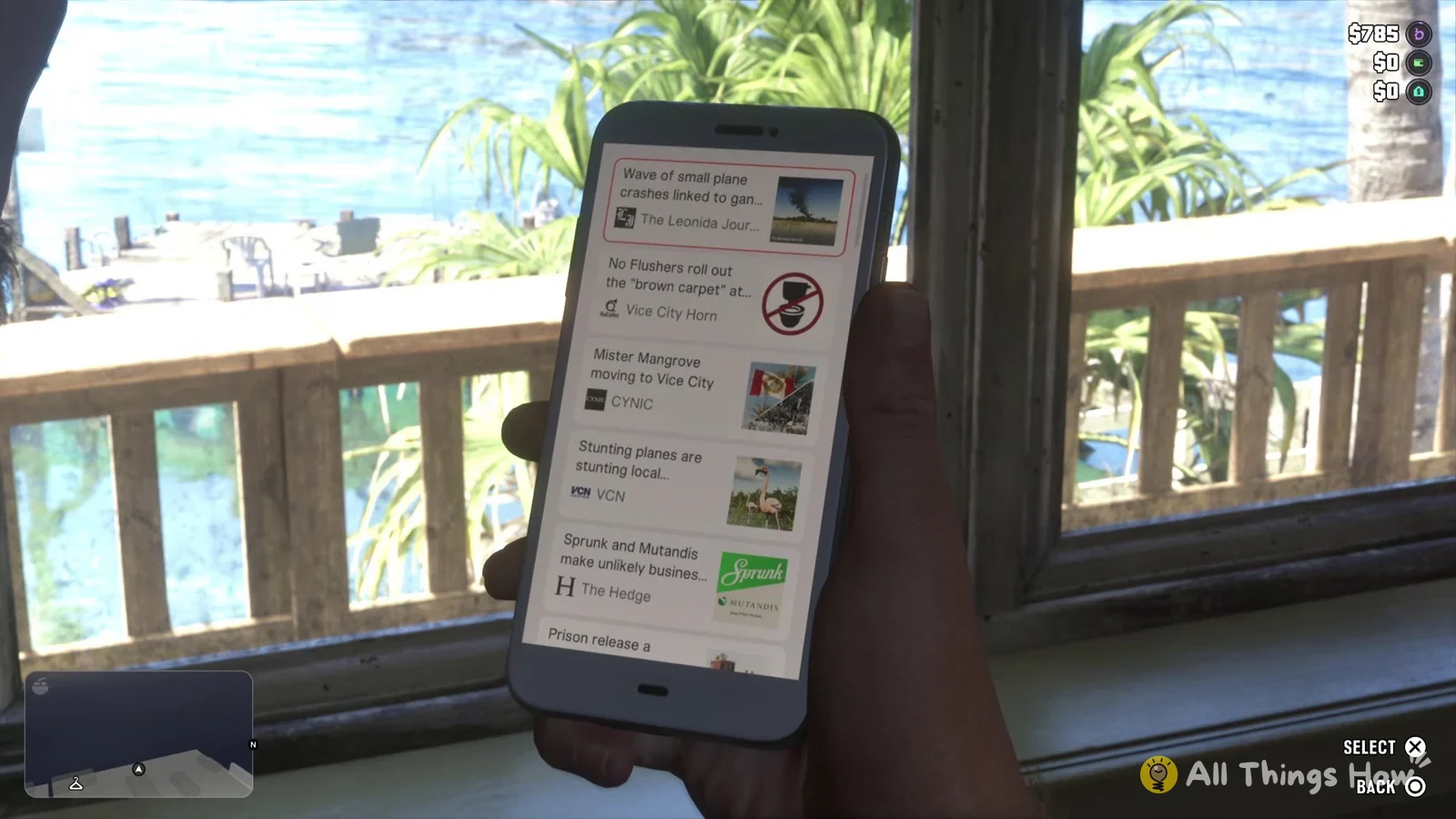
The News app lists stories with a headline, the outlet’s name and a picture. Outlets include “Vice City Horn”, “CYNIC”, “VCN” and “The Hedge”. To read one from Reminders, open a “Breaking News!” entry and choose “View article”. Snapmatic is the social media app, and it sits on the home screen from the start.
Fitness
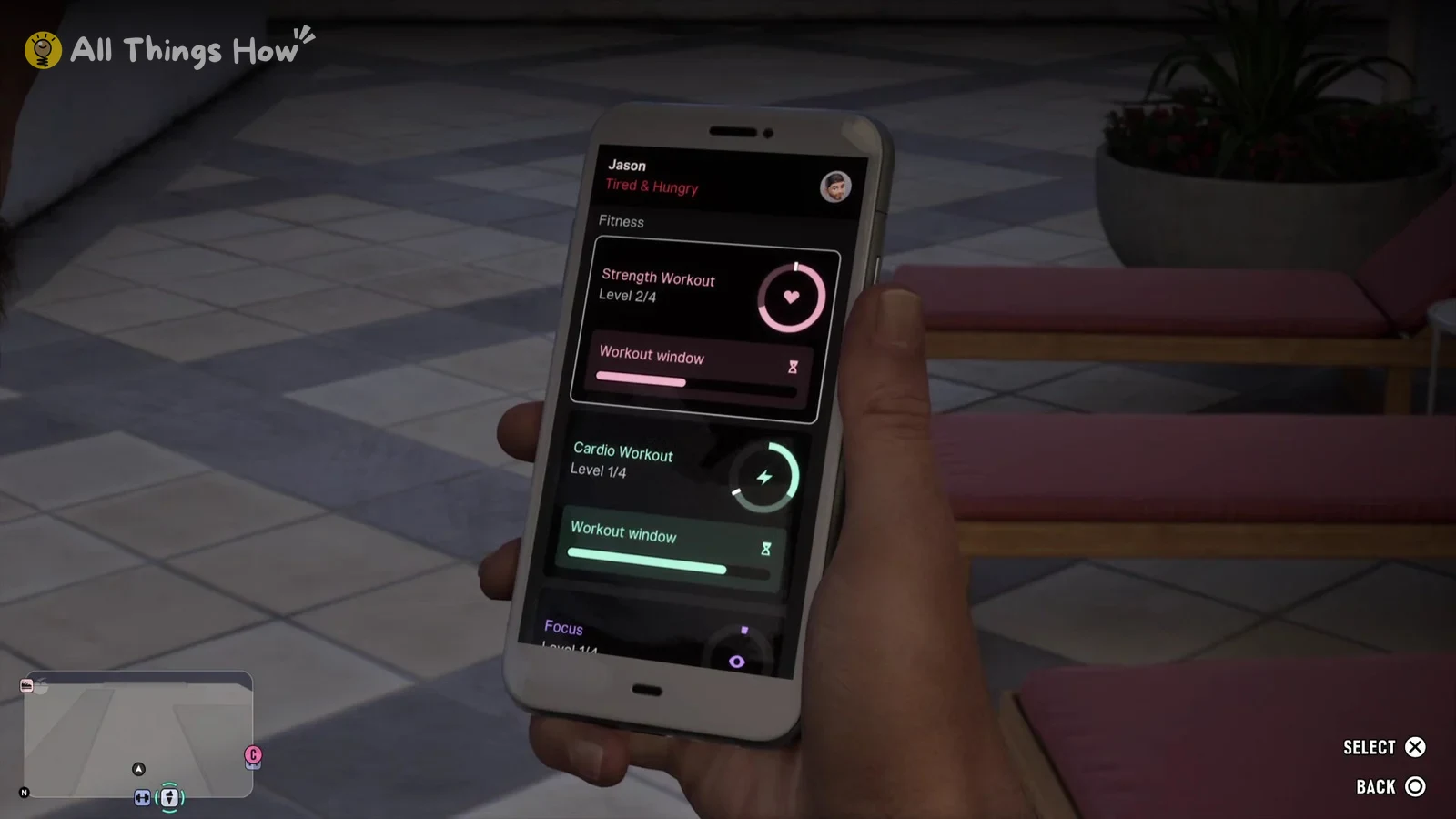
Fitness opens with a “Jason” header and a status line, like “Tired & Hungry”. Under that are “Strength Workout” and “Cardio Workout”, each with its own level, such as “Level 2/4” and “Level 1/4”. The app also has Focus, Body Shape and Calorie Intake pages. If you want to raise those levels, here’s how to work out.
BuckMe
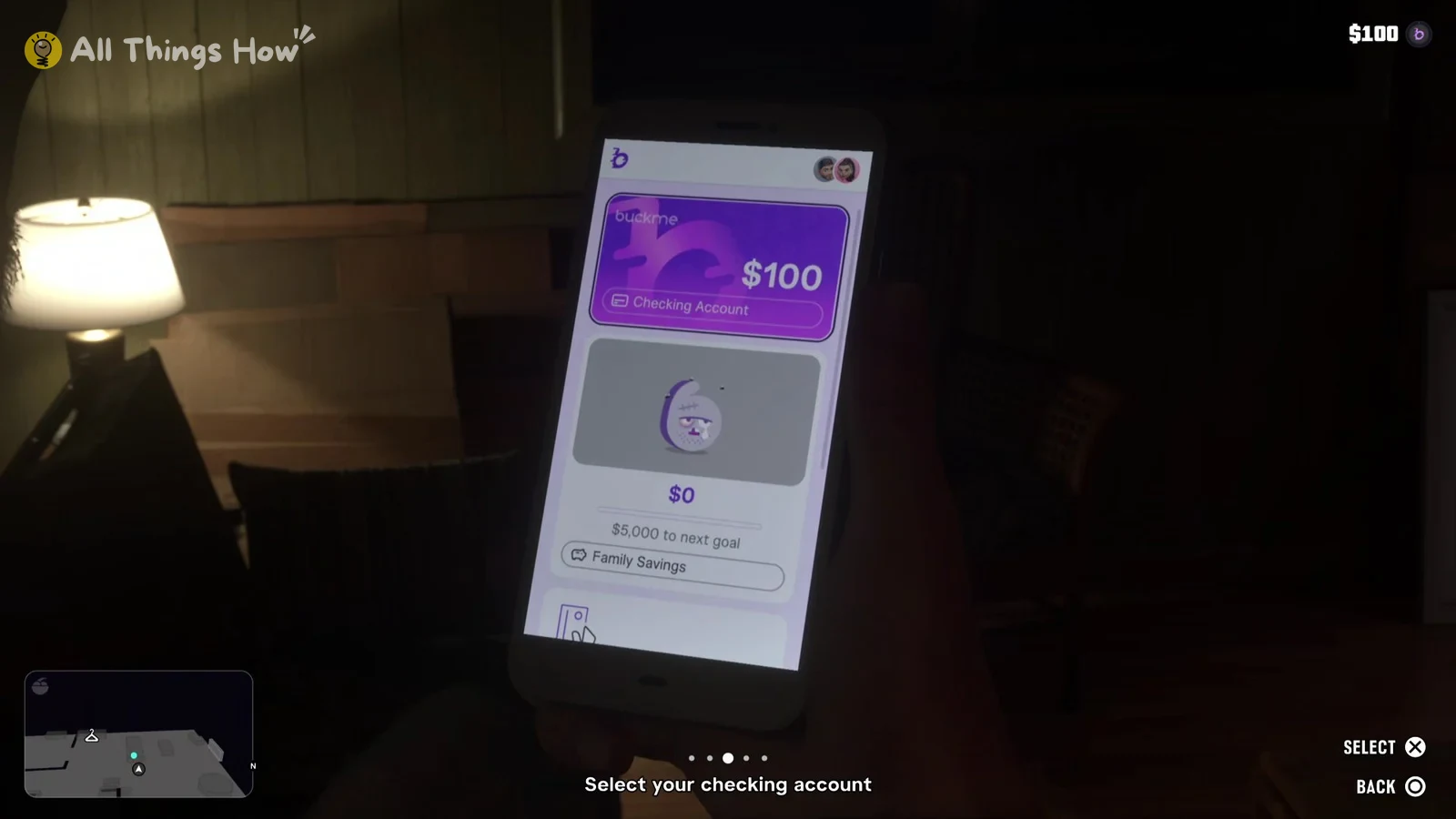
BuckMe is the bank app, and it shows up during the story mission Buck Me. The home screen shows your Checking Account balance, which has a $15K limit, and Family Savings with a “$5,000 to next goal” line. “Buck Yourself” is how you move money around. Here’s how to move money into Family Savings.
RydeMe
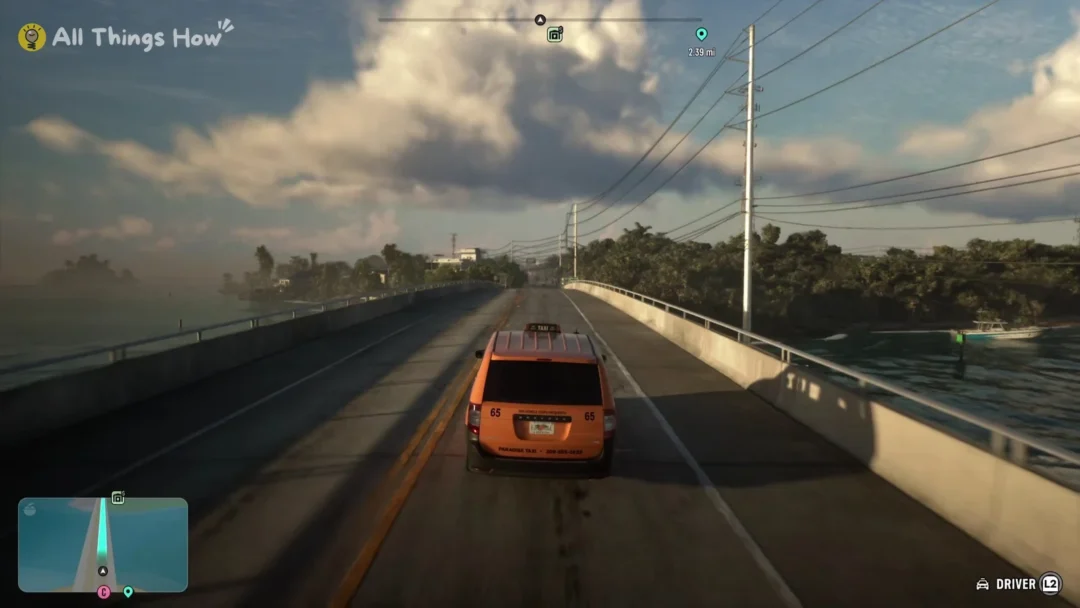
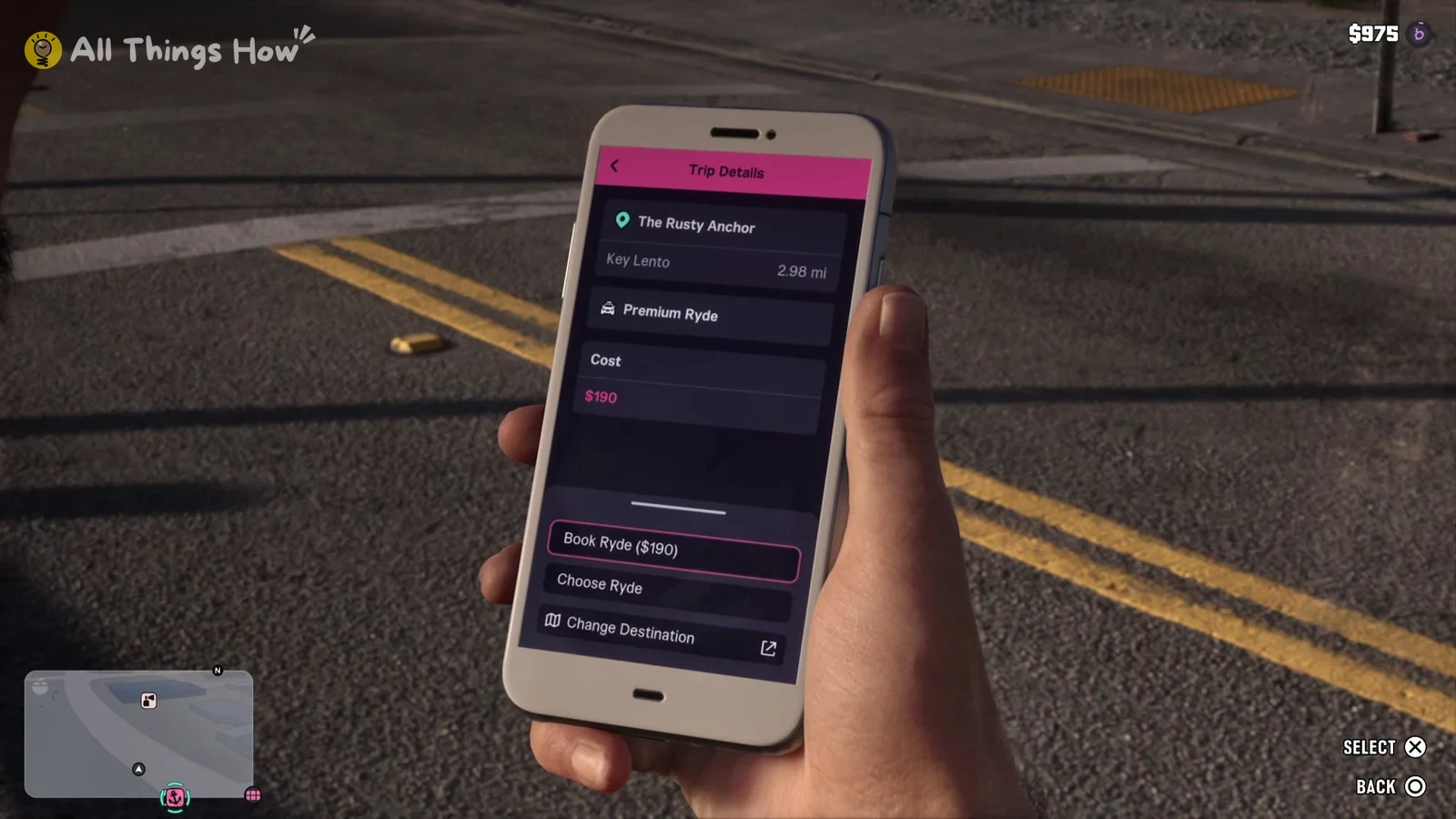
RydeMe arrives at about the same point in the story as BuckMe. Set a destination on the map first, then open the app to see “Trip Details” with the destination, the distance, the ryde type and the “Cost”. The buttons are “Book Ryde”, “Choose Ryde” and “Change Destination”, and “Choose Ryde” switches between Standard and Premium Ryde. A Premium Ryde to The Rusty Anchor, for example, shows Book Ryde ($190). Here’s how to book a ride with RydeMe.
Scooter Bros
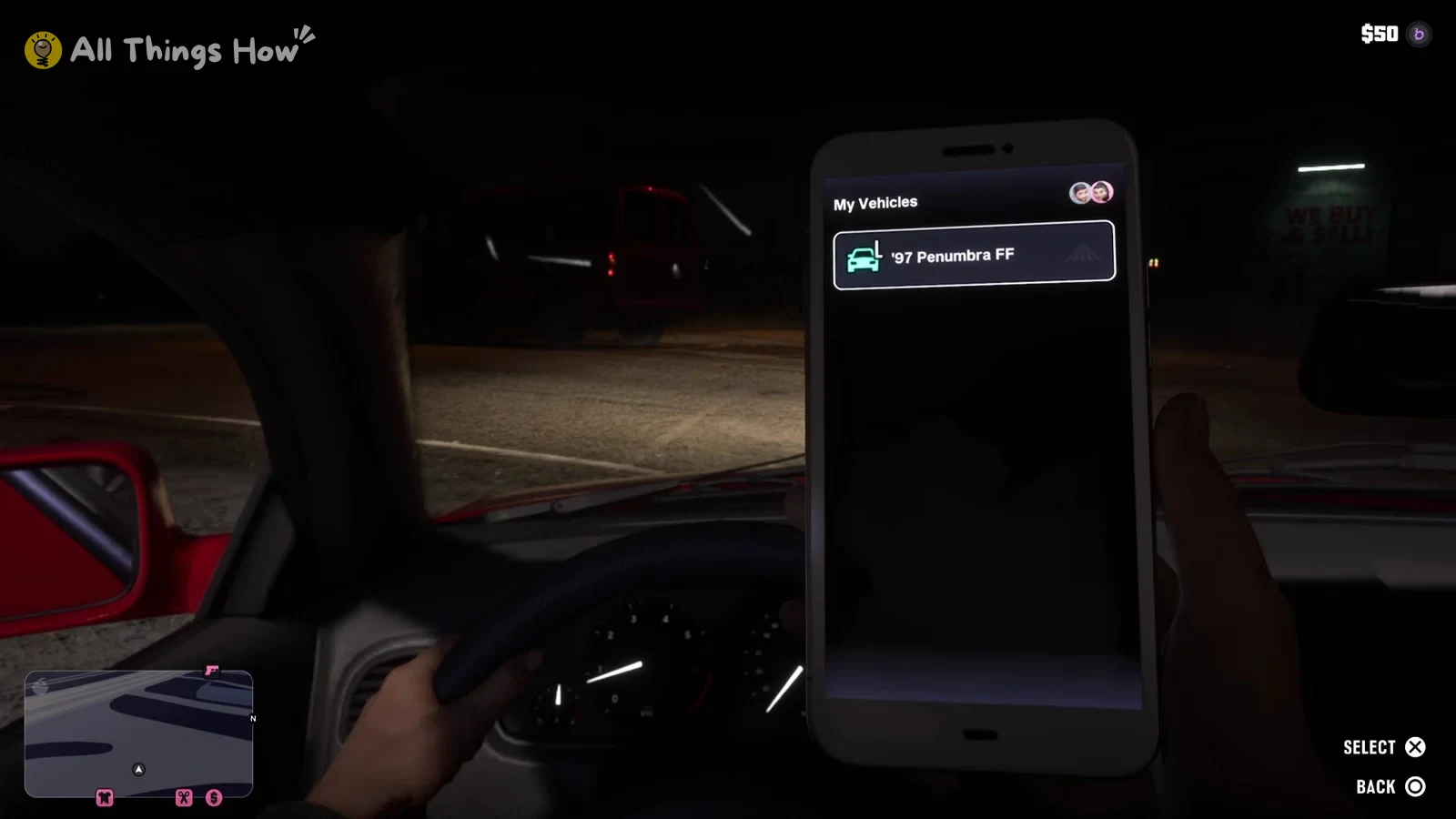
Scooter Bros installs once Moses registers your first personal vehicle. Its “My Vehicles” page lists the car you own, like a “’97 Penumbra FF”. Pressing “Request” has that car delivered to you for $100, paid from BuckMe, and there’s an “Upgrade to Premium” option too. You can request your car with Scooter Bros in a few presses.
WAiNK
The WAiNK app scans whatever you point it at. Hold the phone up and press R1 to “WAiNK IT”. Pointing it at a car brings up a card with ACCESS, SECURITY, TRACKER, SELL VALUE and COST TO REGISTER.
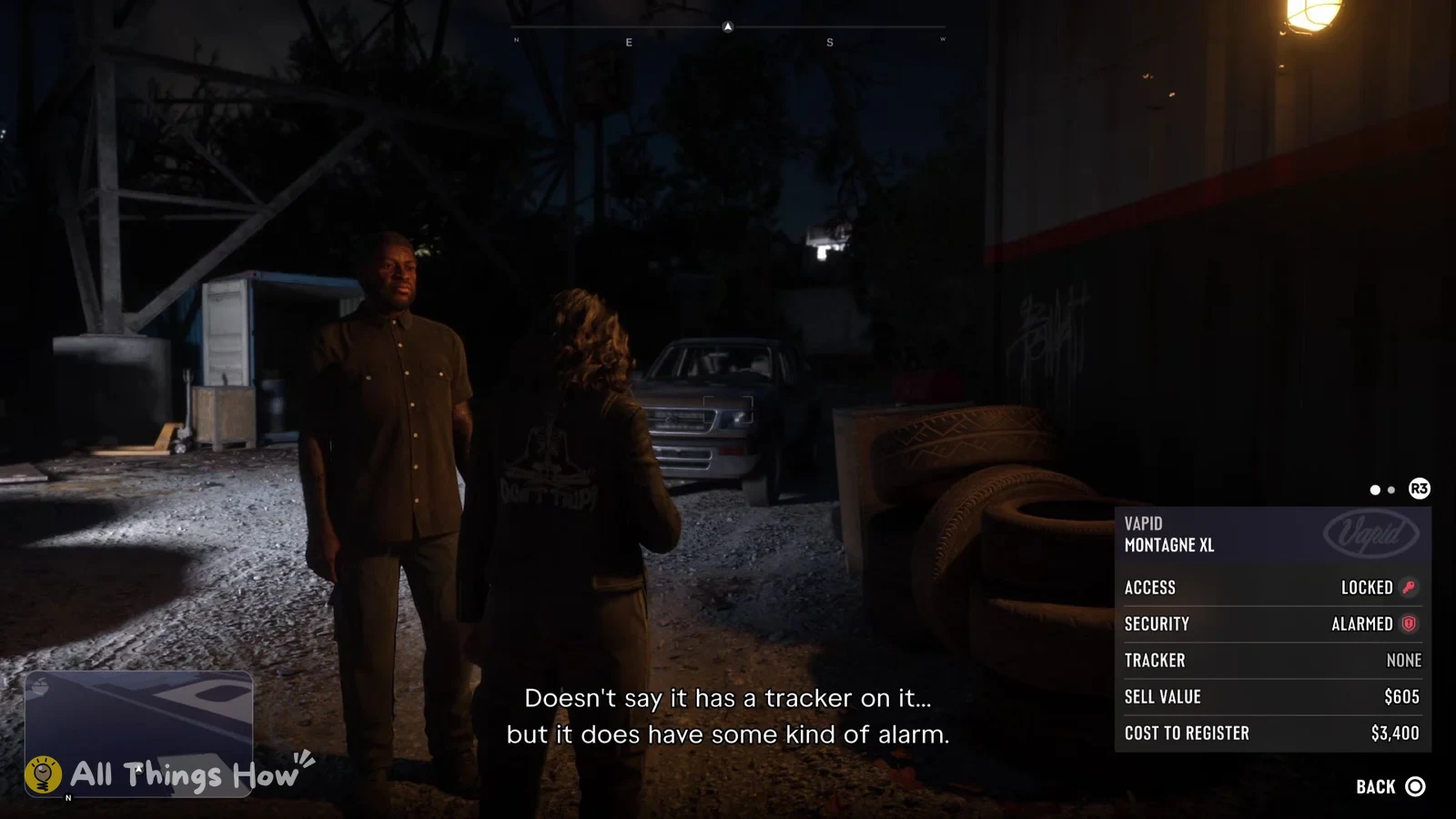
For example, scanning a VAPID MONTAGNE XL shows a $505 sell value and a $3,400 registration cost, along with ACCESS LOCKED, SECURITY ALARMED and TRACKER NONE. Find out more about scanning a car with WAiNK.
Cop Scanner in the Settings app
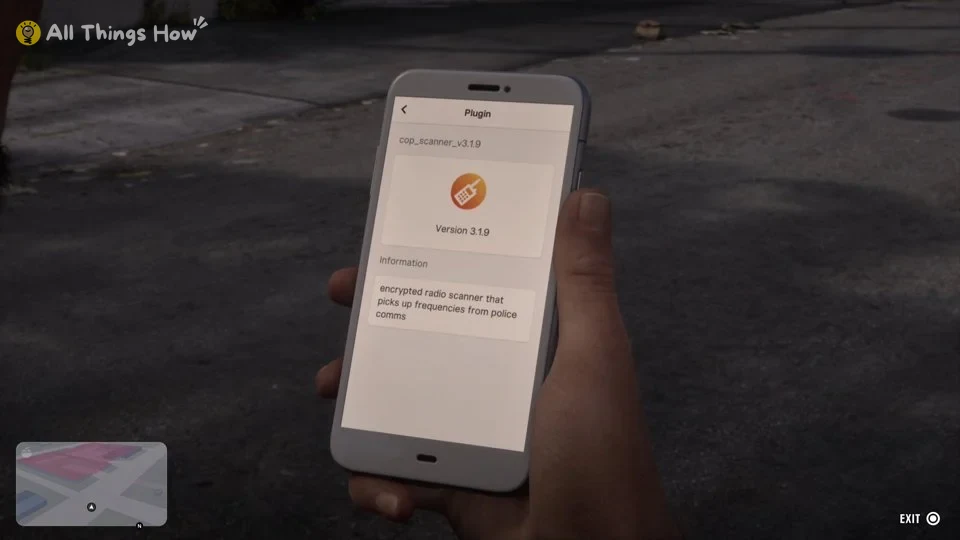
Cal installs it during the Chapter 1 mission Unwanted Attention, and the “Settings – Cop Scanner Installed” notice confirms it’s there. After that, Settings has a plugin page listed as “Version 3.1.9” and described as an “encrypted radio scanner that picks up frequencies from police comms”. There’s more on how to get the Cop Scanner.
A help box explains what it does: “You can now listen in on cop radio frequencies and will be notified of dispatch areas.”
Vice City Real Estate
Vice City Real Estate installs after the story mission Daily Driver, and a “Vice City Real Estate – Installed” notice appears in the corner of the screen, even while you’re driving. It’s the app you use to buy properties, and a tip spells out why you’d want more of them: “Your garage can store an extra vehicle. Use the Vice City Real Estate app to purchase more properties.”