
Windows users often find themselves needing to convert media files into different formats. Typically, this involves downloading separate software or uploading sensitive files to online converters. With the recent PowerToys v0.89 update, Microsoft introduced a built-in solution: Advanced Paste with media transcoding. This tool allows you to convert audio and video files directly from your Windows clipboard, simplifying the process and keeping your data secure.
What Is PowerToys Advanced Paste?
PowerToys is a free, open-source collection of utilities designed to improve Windows functionality. The Advanced Paste feature within PowerToys lets you transform clipboard content into various formats. Initially, it supported converting text formats, such as markdown into plain text, or extracting text from images. Now, PowerToys Advanced Paste has expanded its capabilities to include audio and video file conversion, making it a valuable tool for everyday media tasks.
How to Convert Media Files Using PowerToys Advanced Paste
Follow these simple steps to convert audio and video files directly from your clipboard:
Ctrl + C.Windows + Shift + V. You’ll see new options such as “Transcode to .mp3” for audio extraction or “Transcode to .mp4 (H.264/AAC)” for video conversion.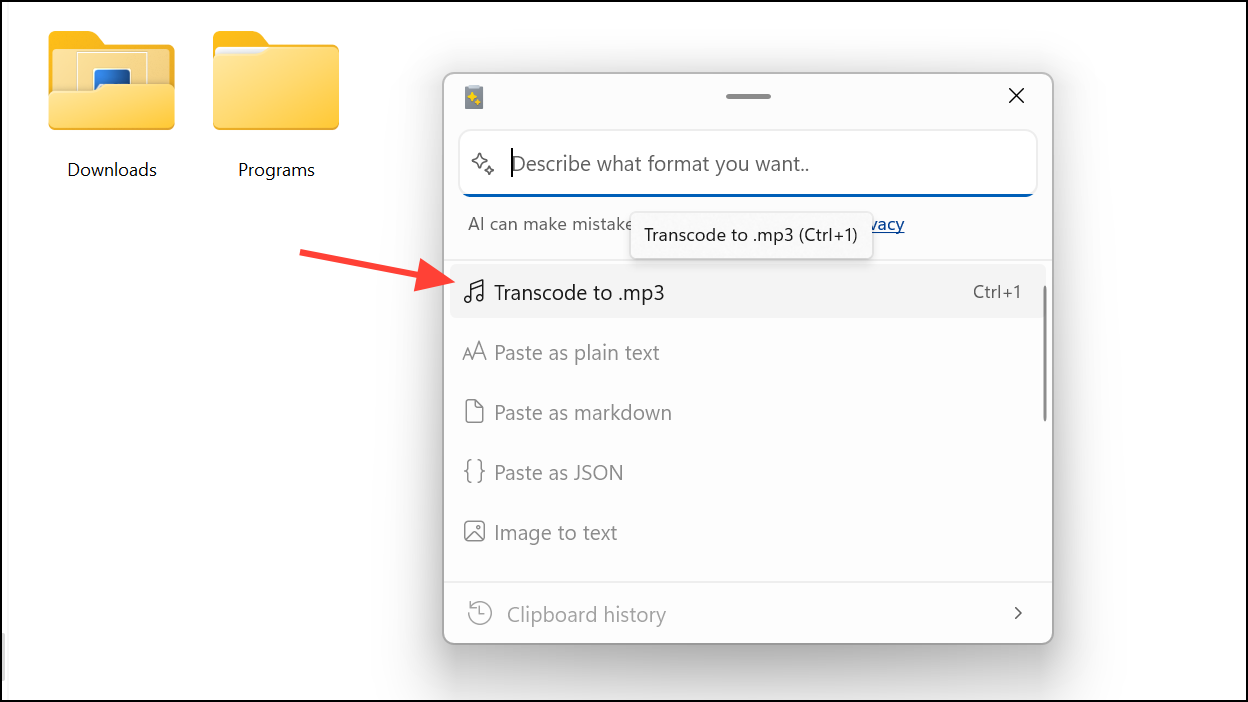
Why Use PowerToys for Media Conversion?
There are several reasons why using PowerToys Advanced Paste is preferable over other methods:
- Privacy: Unlike online converters, PowerToys performs all conversions locally on your device, eliminating the risk of exposing sensitive files to third-party services.
- Convenience: No need to install additional apps or deal with complex software. The integration directly into your clipboard workflow means faster, hassle-free conversions.
- Compatibility: PowerToys uses widely-supported codecs such as H.264 for video and AAC for audio, ensuring converted files play smoothly across various devices and platforms.
- Efficiency: Quickly convert files without switching between apps or uploading files online, speeding up your workflow significantly.
Alternative Approaches
If you encounter issues with the PowerToys Advanced Paste or need additional functionalities, consider these alternative methods:
- Third-party desktop converters: Software like HandBrake or VLC Media Player can perform advanced conversions, including batch processing and custom codec settings.
- Online converters: Websites such as CloudConvert or Online-Convert.com offer quick conversions without installing software, though they require uploading your files online.
While these alternatives can handle more complex tasks, PowerToys Advanced Paste remains the most convenient option for quick, secure, and straightforward media conversions directly from your clipboard.
PowerToys continues to evolve, bringing practical, user-focused improvements to Windows users. Give this new clipboard media conversion feature a try—it’s an easy way to streamline your media workflow.





