
Copilot in Microsoft Word provides AI-driven suggestions and content generation, but you may prefer turning this feature off to maintain a simpler, distraction-free experience. Whether you’re concerned about privacy, want to streamline your workflow, or simply prefer working without AI assistance, disabling Copilot in Microsoft Word on Windows 11 is quick and easy.
Disable Copilot in Microsoft Word Using the Built-in Option
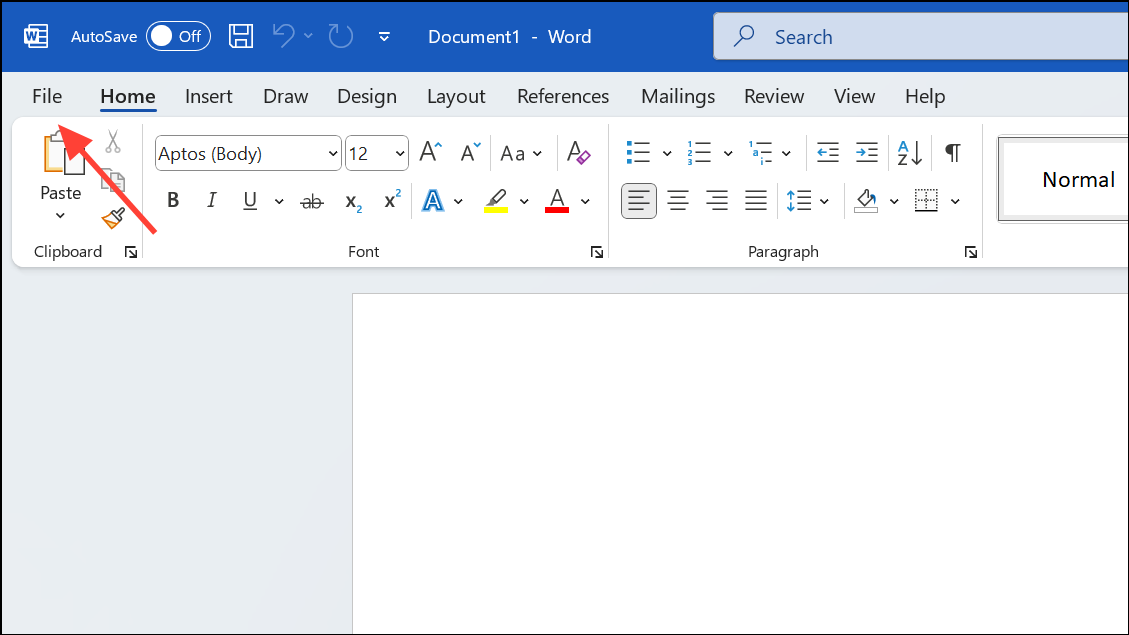
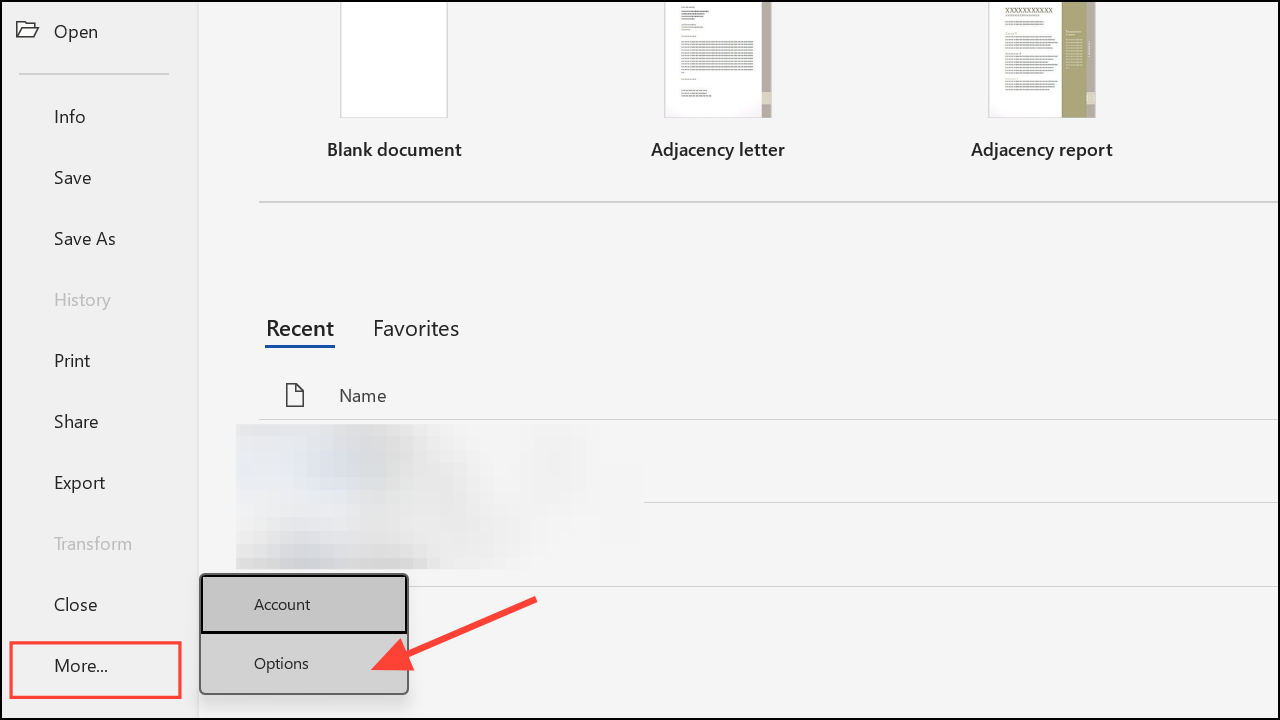
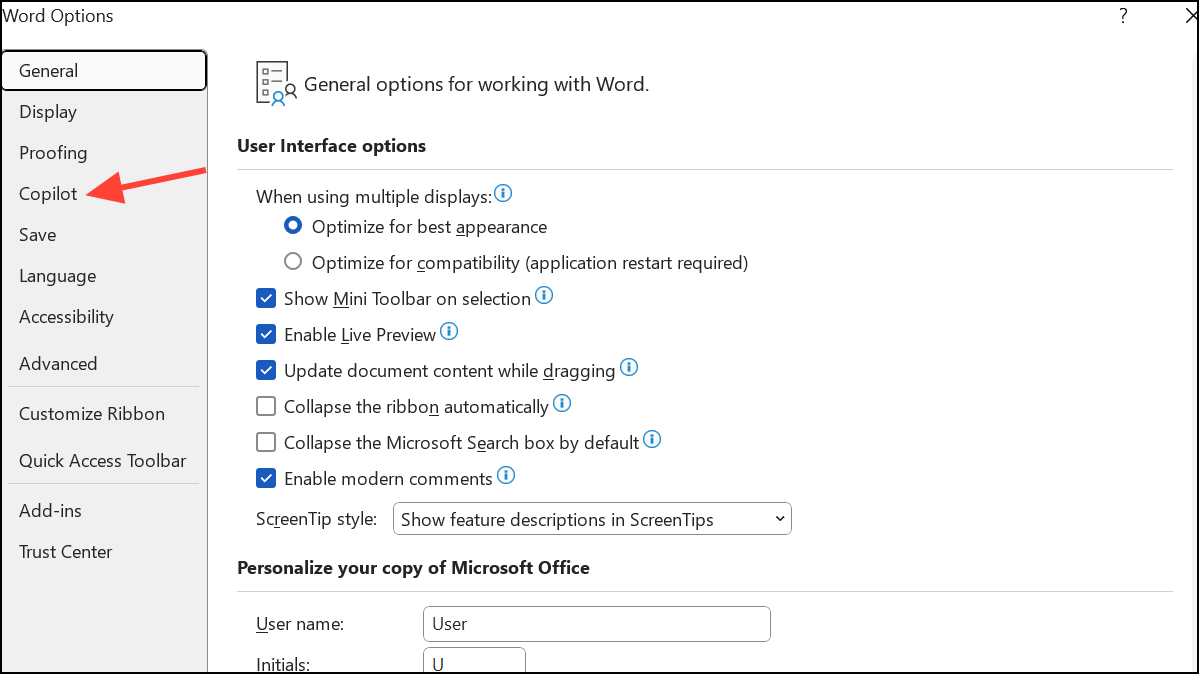
The most direct and effective way to disable Copilot is through Word’s built-in settings. This method completely disables Copilot within Word without affecting other Microsoft 365 apps.
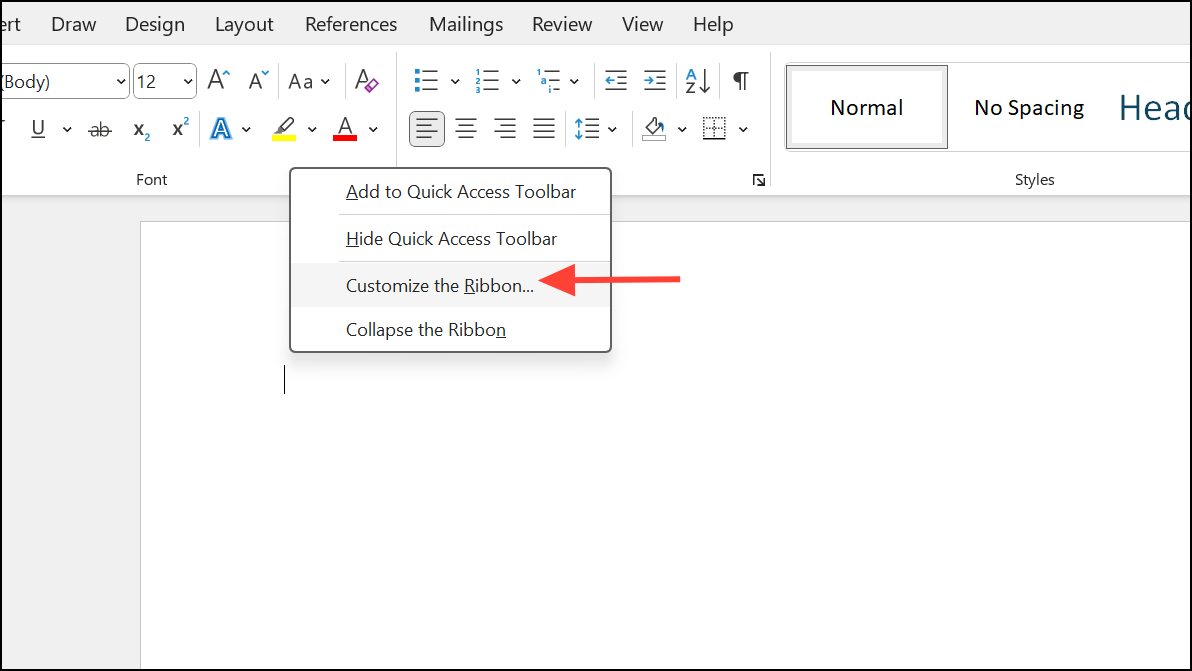
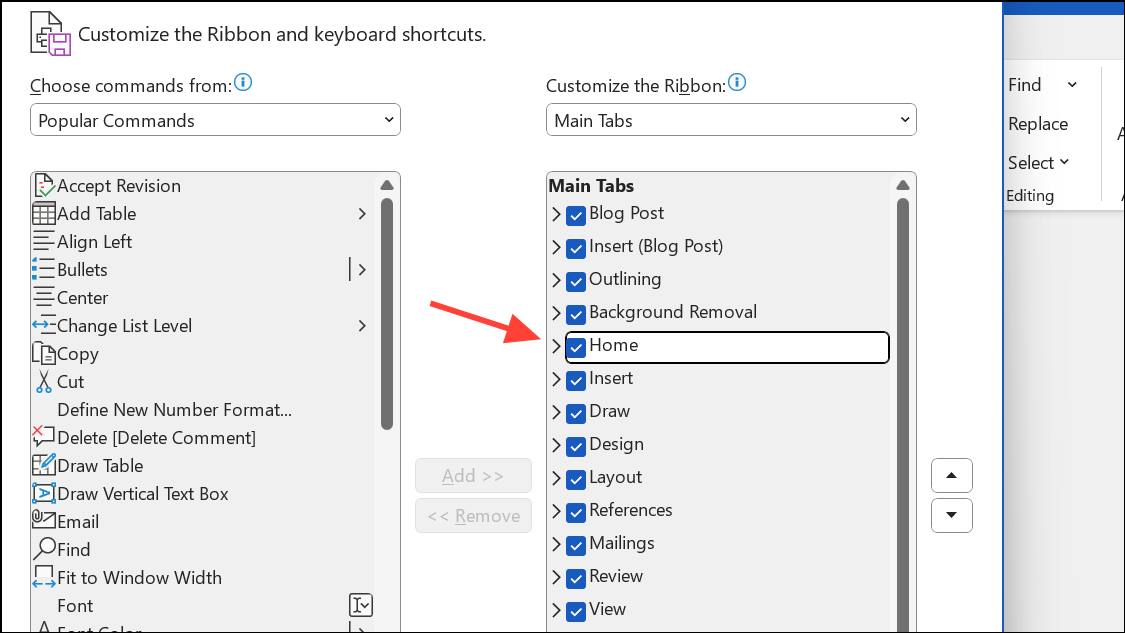
Remove the Copilot Icon from Word’s Ribbon
If you prefer to keep Copilot enabled but want to declutter your workspace by removing its icon from the ribbon, you can easily customize the ribbon settings.
Temporarily Disable Copilot by Working Offline
Copilot requires an active internet connection to deliver AI-driven suggestions. If you only occasionally prefer to work without Copilot’s assistance, simply disconnecting from the internet temporarily disables most of Copilot’s functionality.
This method is convenient for short periods when you prefer no AI interaction but doesn’t permanently disable Copilot.
Switch to a Microsoft 365 Plan Without Copilot
For users who want to entirely avoid Copilot across all Microsoft 365 apps, switching to a plan that doesn’t include Copilot is an option. Microsoft offers alternative plans, such as Microsoft 365 Basic or Office Home 2024, which exclude Copilot features.
Visit Microsoft’s official website to explore available plans and choose one that best suits your preferences.
Downgrade to an Older Microsoft Word Version
If you’re committed to completely removing Copilot from Word, another method involves downgrading to an earlier version of Microsoft Office that doesn’t include Copilot. Be aware that this method affects all Office apps and prevents you from receiving new features and updates.
Ctrl + Shift + Esc to open the Task Manager. End all running Microsoft Office processes by selecting each one and clicking End task.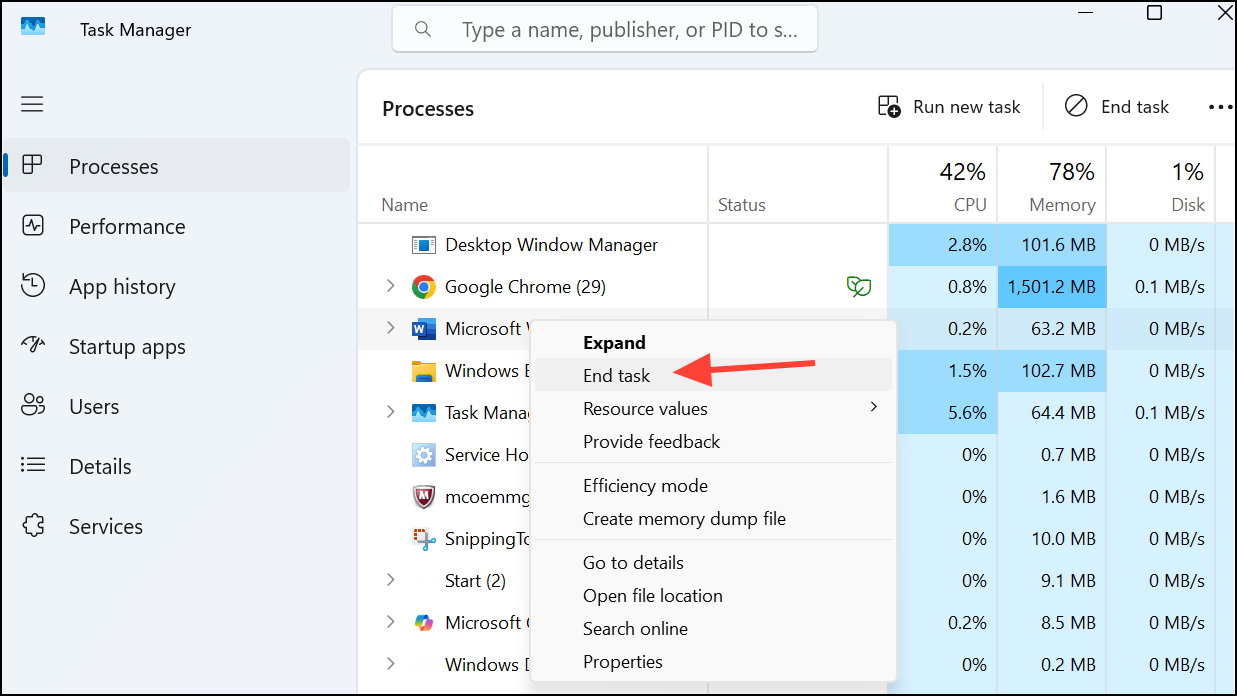
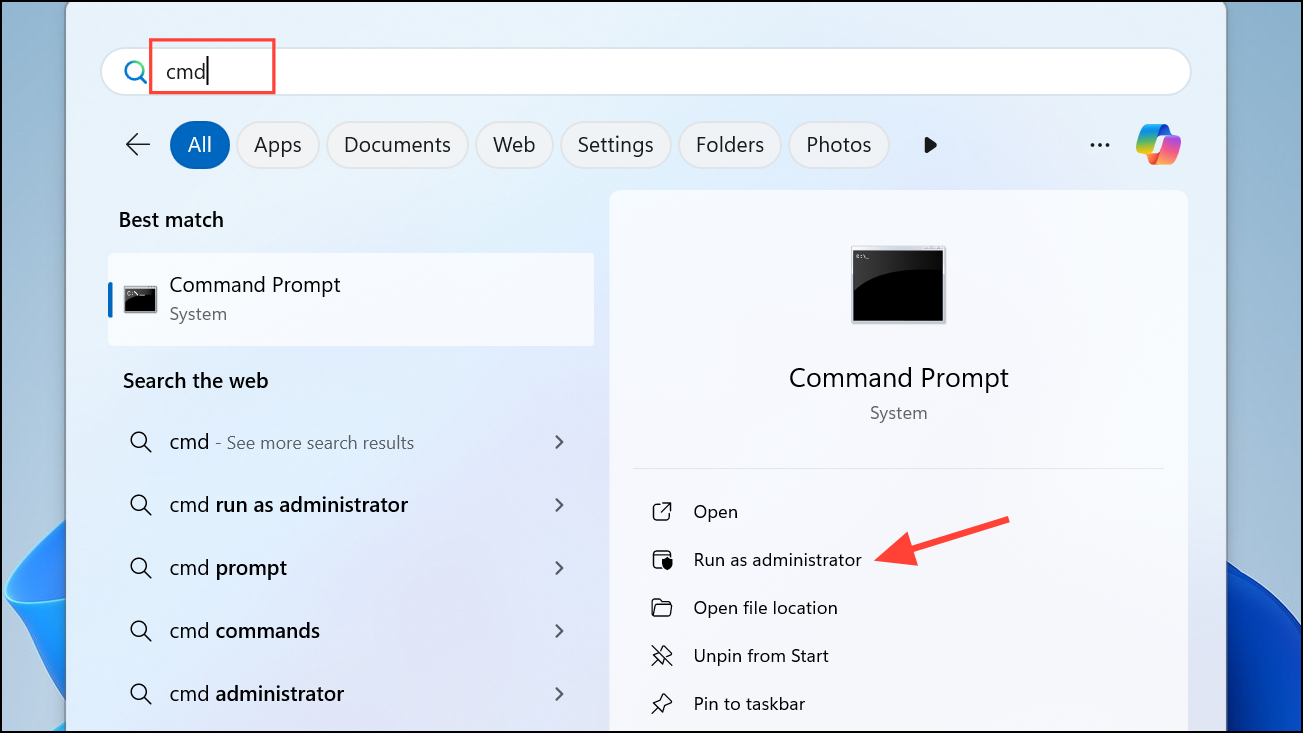
cd %programfiles%\Common Files\microsoft shared\ClickToRun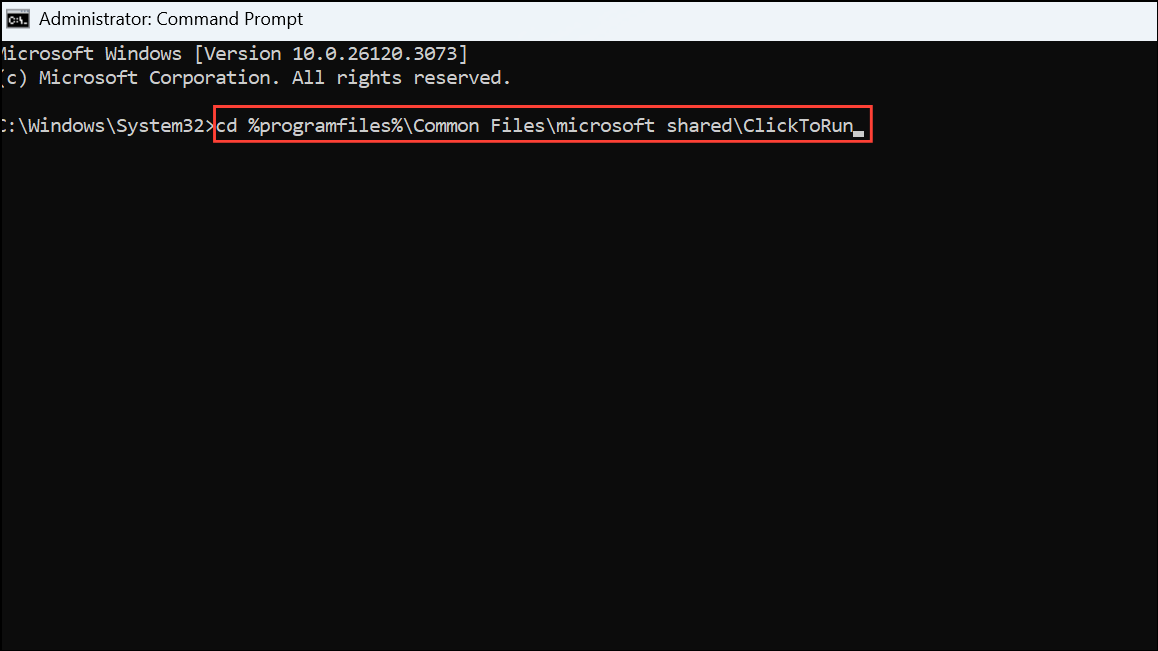
Officec2rclient.exe /update user updatetoversion=16.0.17531.20120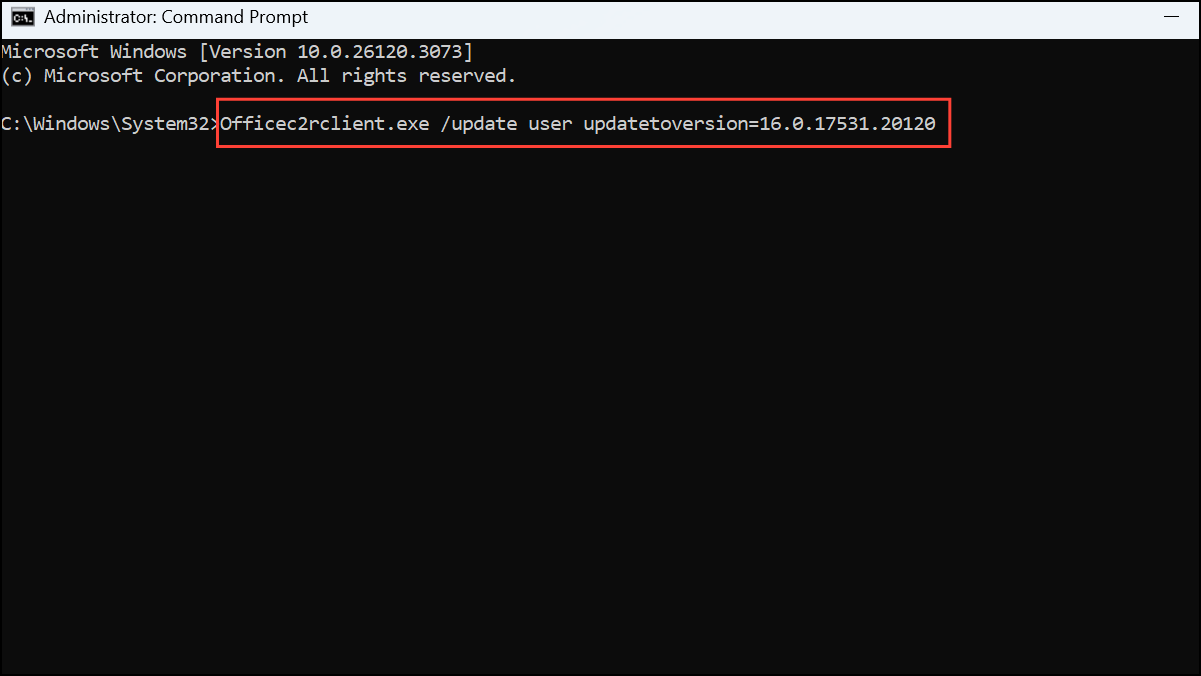
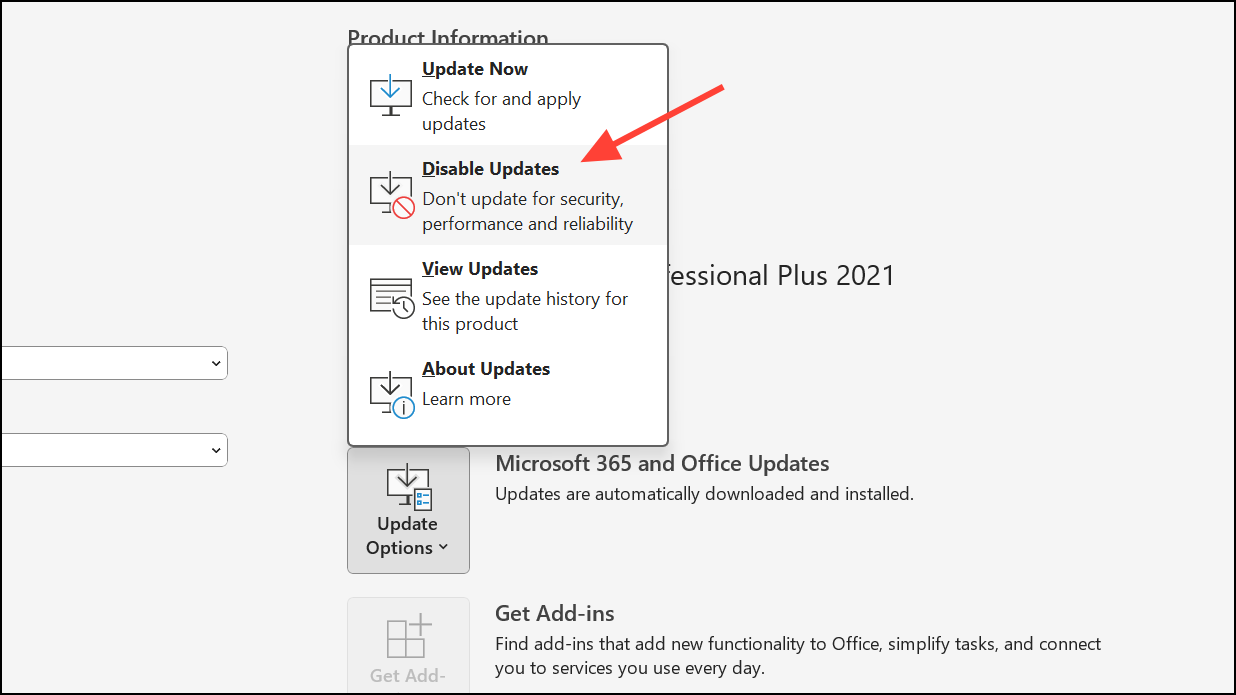
These methods give you complete control over Copilot’s presence in Word, allowing you to tailor your workspace exactly to your preference. Choose the method that best aligns with your workflow and needs, and enjoy a more customized Word experience.





