
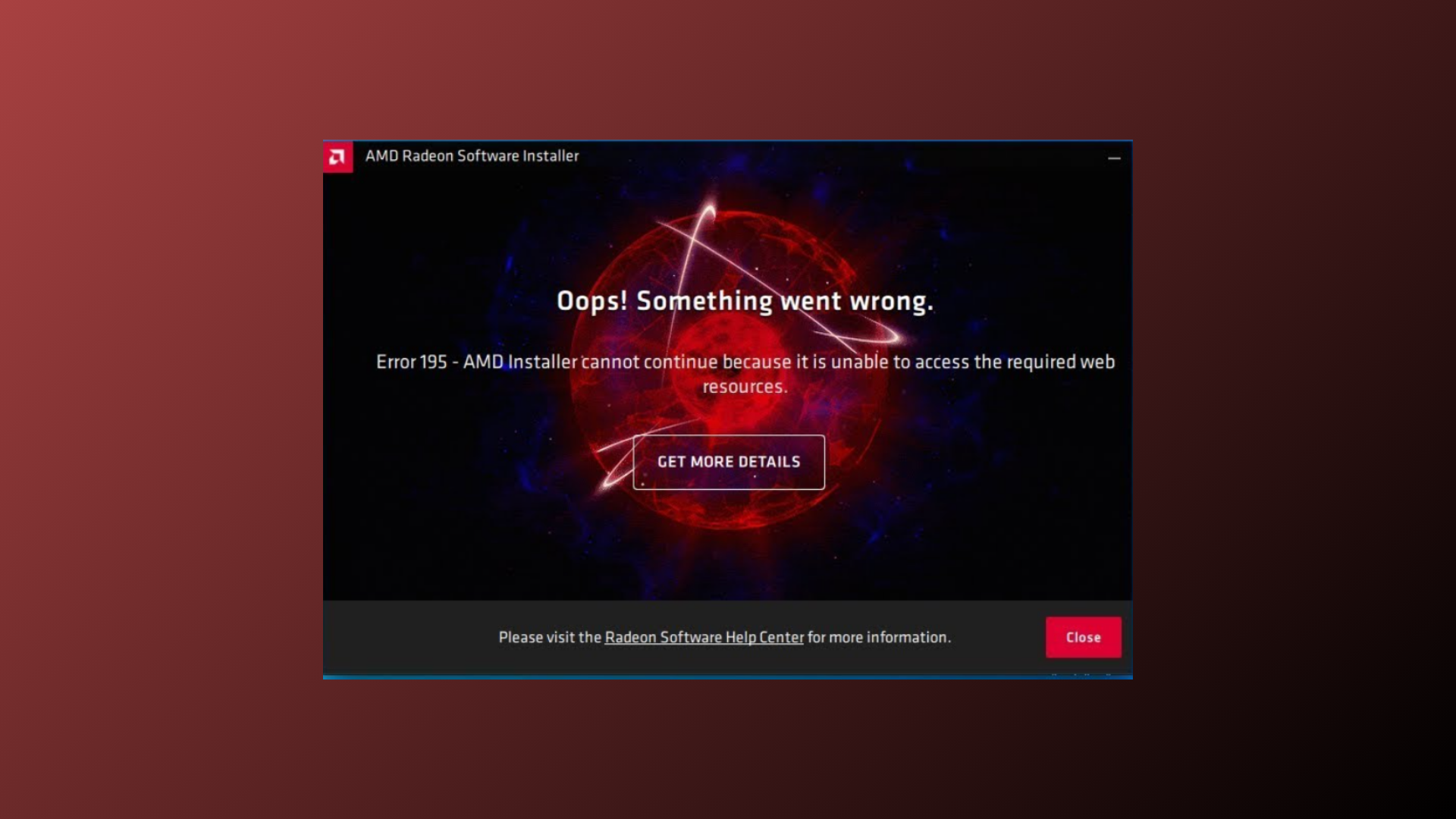
“AMD installer cannot continue because it is unable to access the required web resources” occurs when the AMD driver installer fails to connect to AMD’s servers. This issue blocks graphics driver updates, which can cause reduced system performance, missing features, or hardware incompatibility. Security software, firewall rules, or temporary server outages typically trigger this error. Addressing these barriers directly restores full driver installation capability and system stability.
Method 1: Temporarily Disable Windows Defender and Firewall
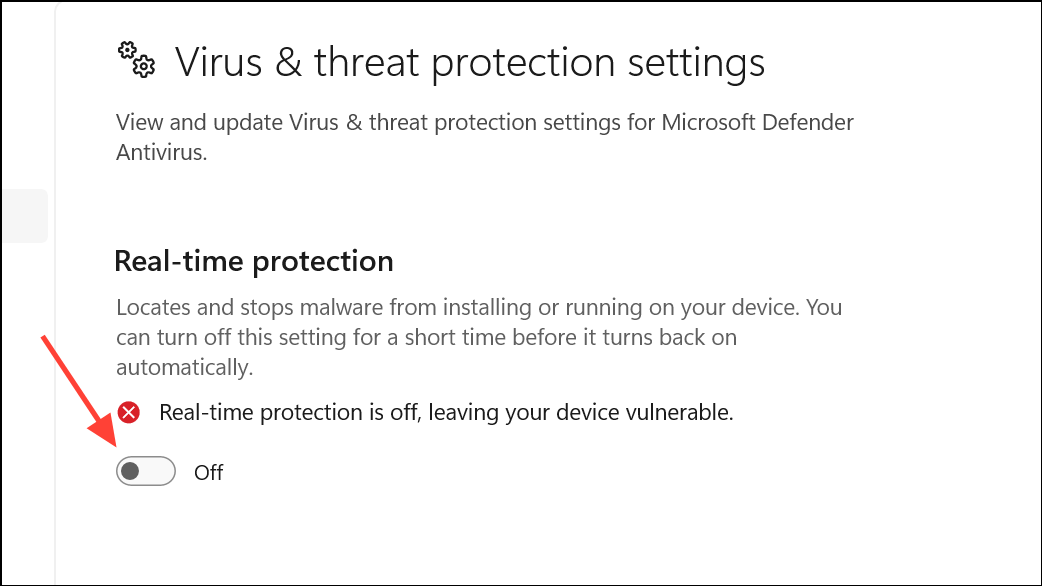
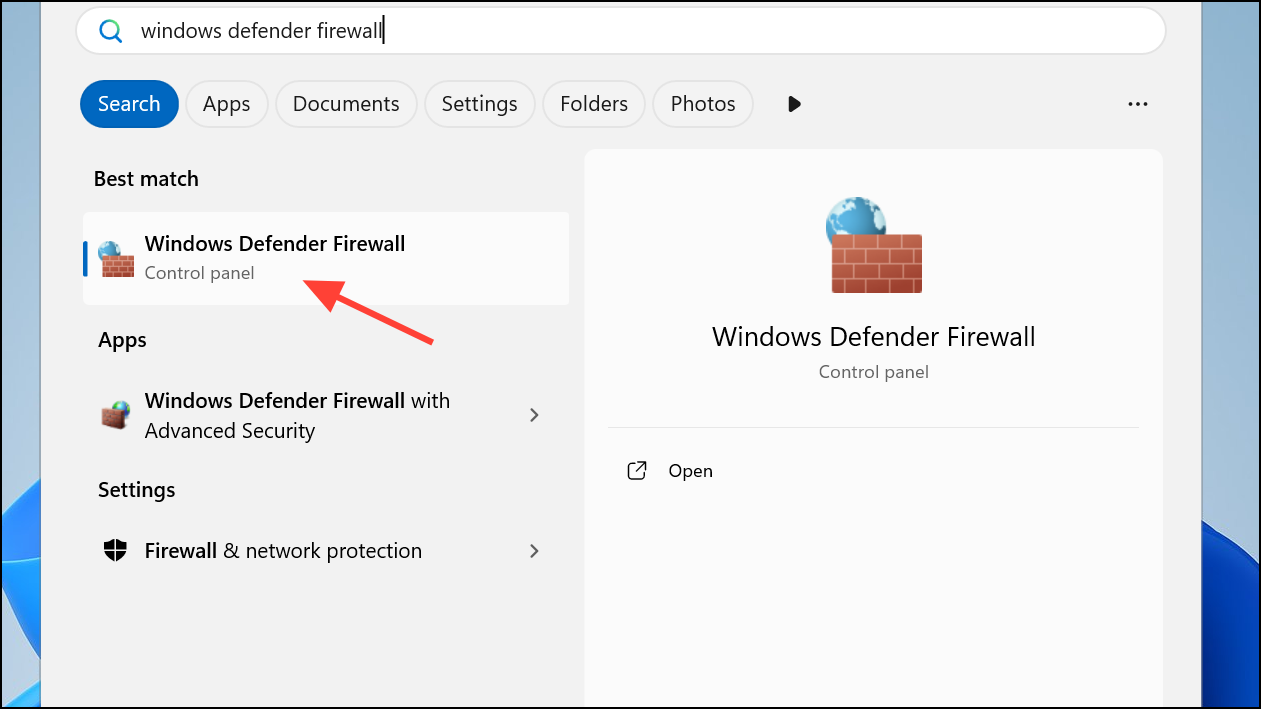
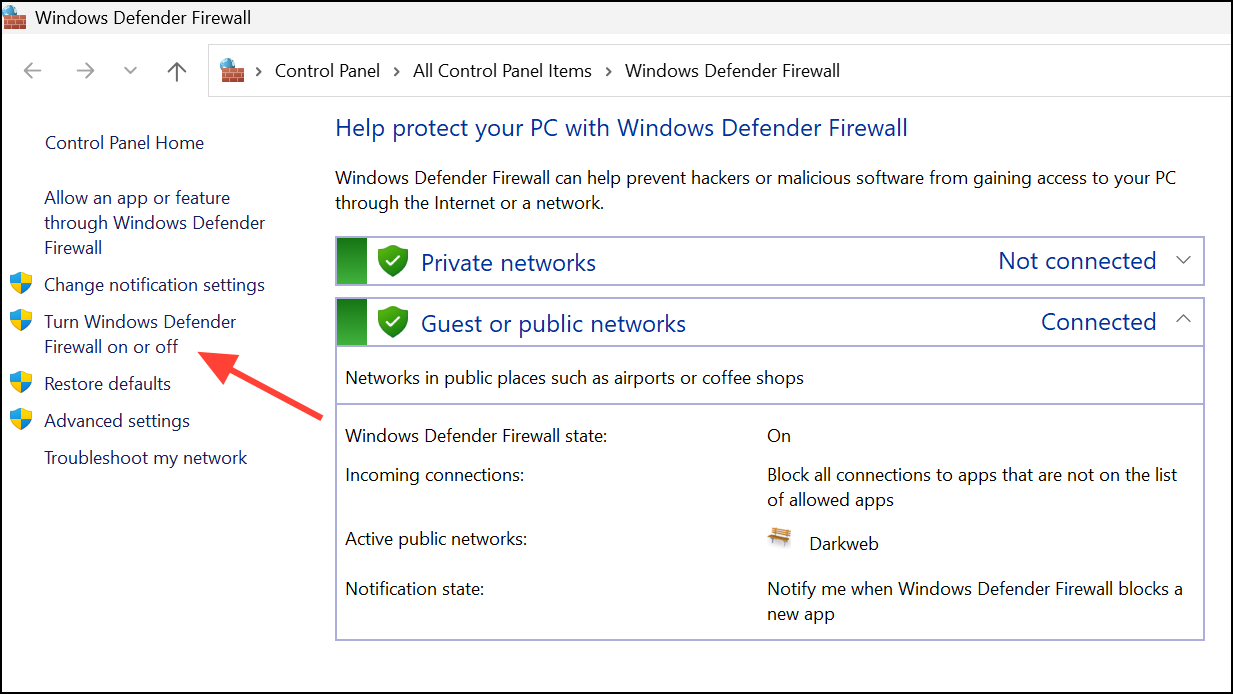
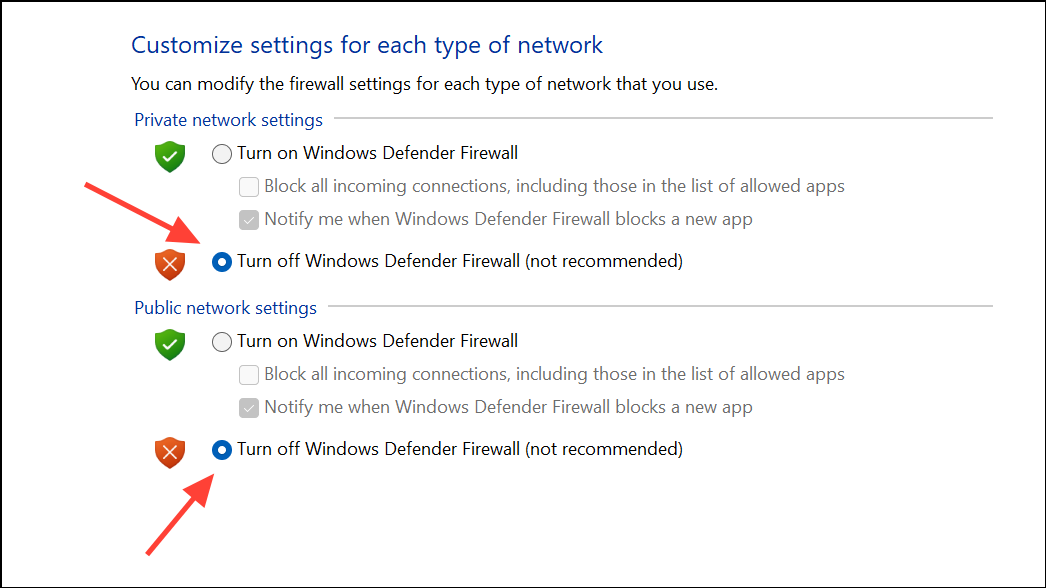
Windows Defender and the built-in firewall may block the AMD installer from reaching necessary web resources. Disabling these security tools temporarily allows the installer to complete its connection and download the required files.
Win + I. Navigate to Update & Security > Windows Security > Virus & threat protection. On Windows 11, you can find Windows Security in the Privacy and Security section.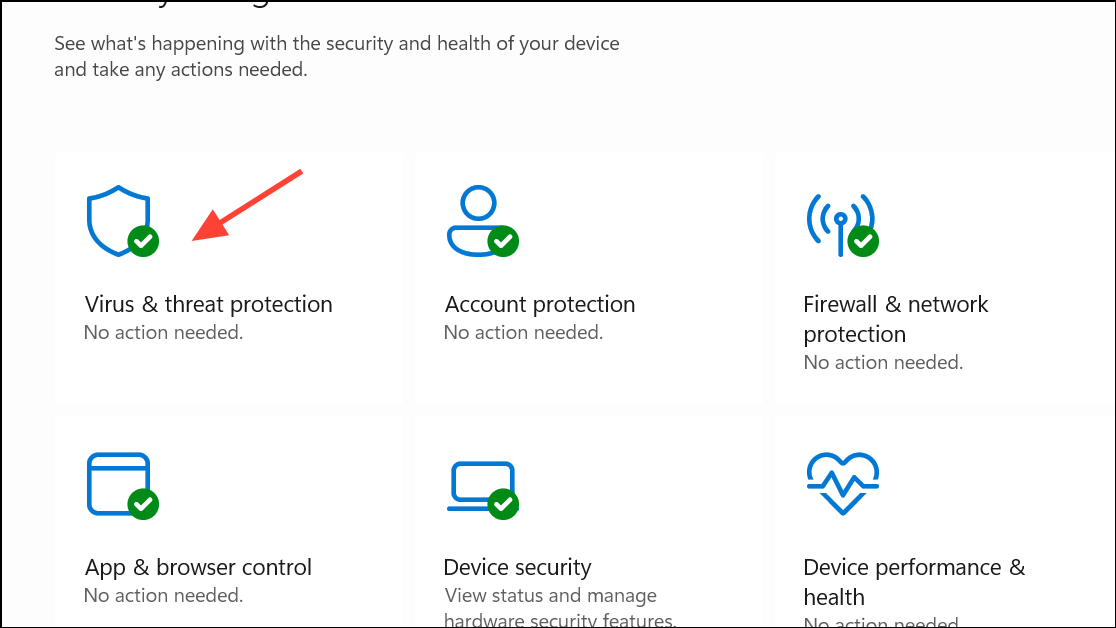
Method 2: Temporarily Disable Third-Party Antivirus Software
Third-party antivirus programs may block the AMD installer by flagging its operations as suspicious. Disabling your antivirus temporarily can prevent these false positives from interrupting the installation process.
Method 3: Download and Install Drivers Manually from AMD’s Website
If the auto-detect tool fails, downloading the correct driver package directly from AMD’s support site bypasses the need for the installer to access web resources during setup.
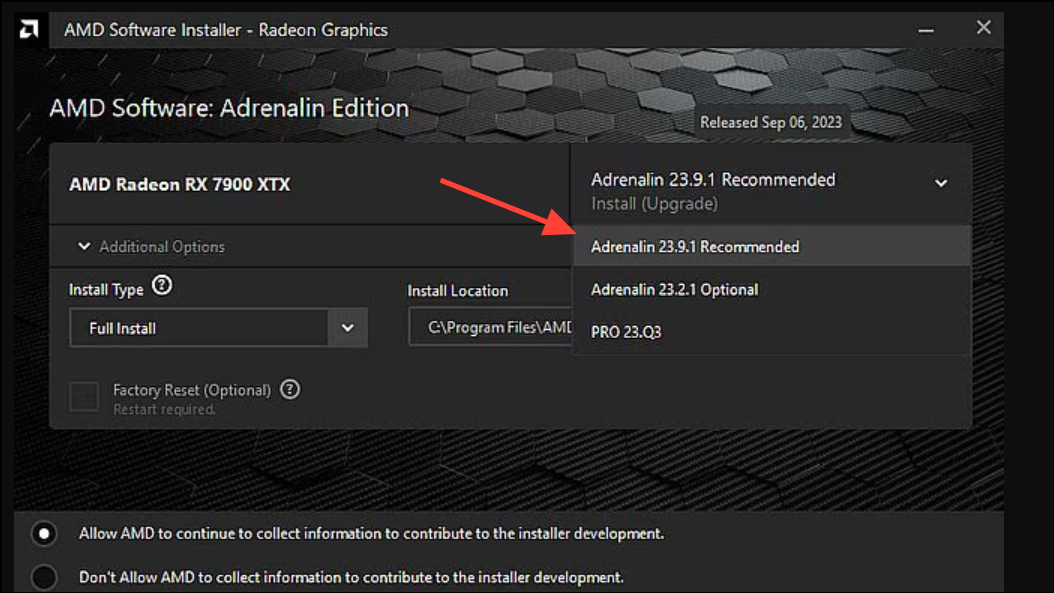
This method directly retrieves the necessary files, reducing reliance on live server connections during installation.
Method 4: Try a Different Version of the AMD Driver
Occasionally, the latest driver version may have issues or be temporarily unavailable on AMD’s servers. Installing an earlier or alternate version can resolve the error.
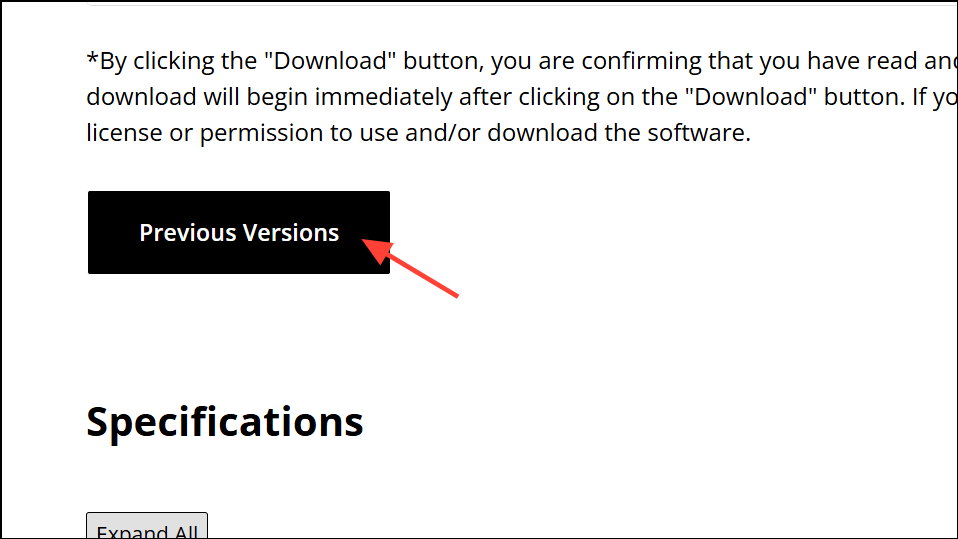
Switching between Adrenalin and PRO driver packages may also resolve installation problems, as reported by some users.
Method 5: Perform a Clean Boot to Eliminate Software Conflicts
Background applications or startup programs might interfere with the AMD installer. A clean boot starts Windows with minimal drivers and services, helping isolate the cause.
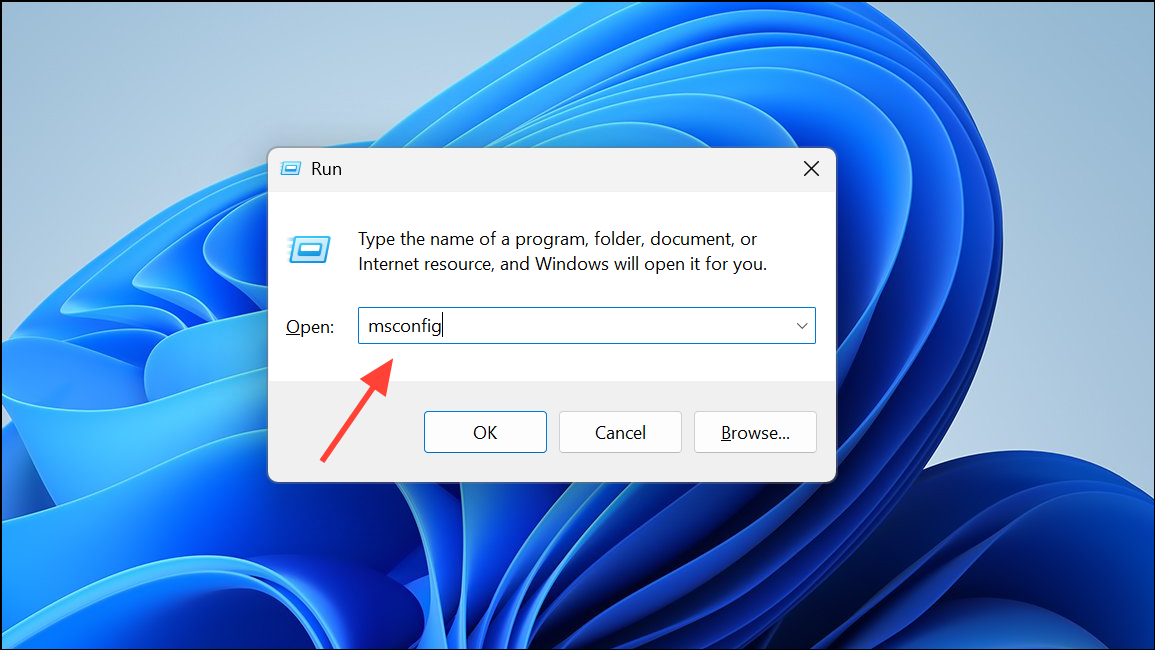
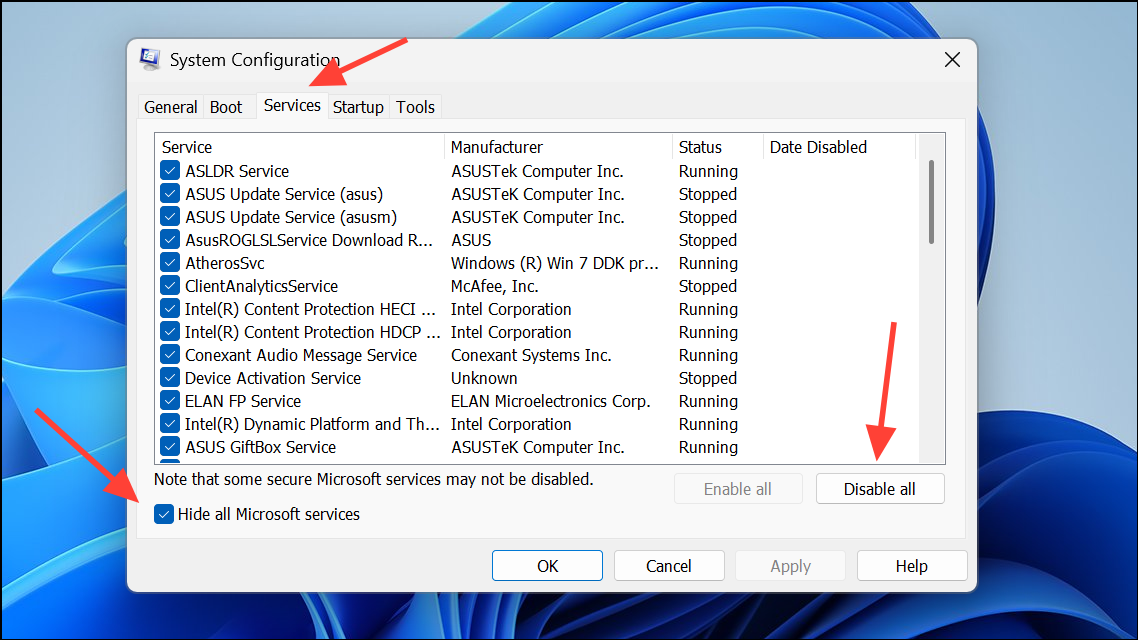
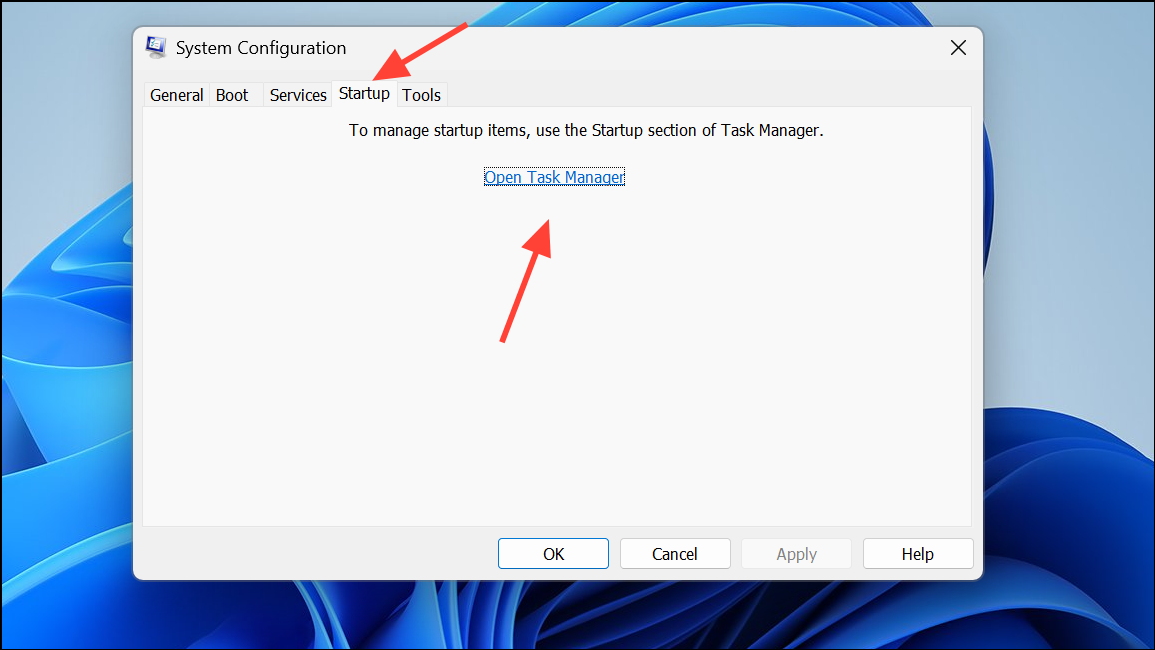
After installation, return to normal startup by reversing these steps in System Configuration and Task Manager.
Method 6: Wait for AMD Server Maintenance to End
Sometimes, AMD’s servers may be temporarily offline or under maintenance. In this case, the error is not related to your system setup. Waiting a few hours or trying again the next day often resolves the issue automatically.
By systematically applying these methods, you can resolve the “AMD installer cannot continue” error and restore full driver installation capability. Remember to re-enable security software after installation and consider keeping a backup of working driver packages for future use.





