
Audio failing to play on select websites in Microsoft Edge on Windows 11 often points to issues with browser-specific sound settings or Windows audio routing. This problem can prevent media playback from working as intended, even though other browsers or applications play sound normally. Addressing the root cause requires targeted adjustments in both Windows and Edge settings, and sometimes a system repair if previous updates introduced conflicts.
Check and Reset App Volume and Device Preferences
Open the Windows search box by pressing
Windows logo key + S, then type Sound settings and select it from the results.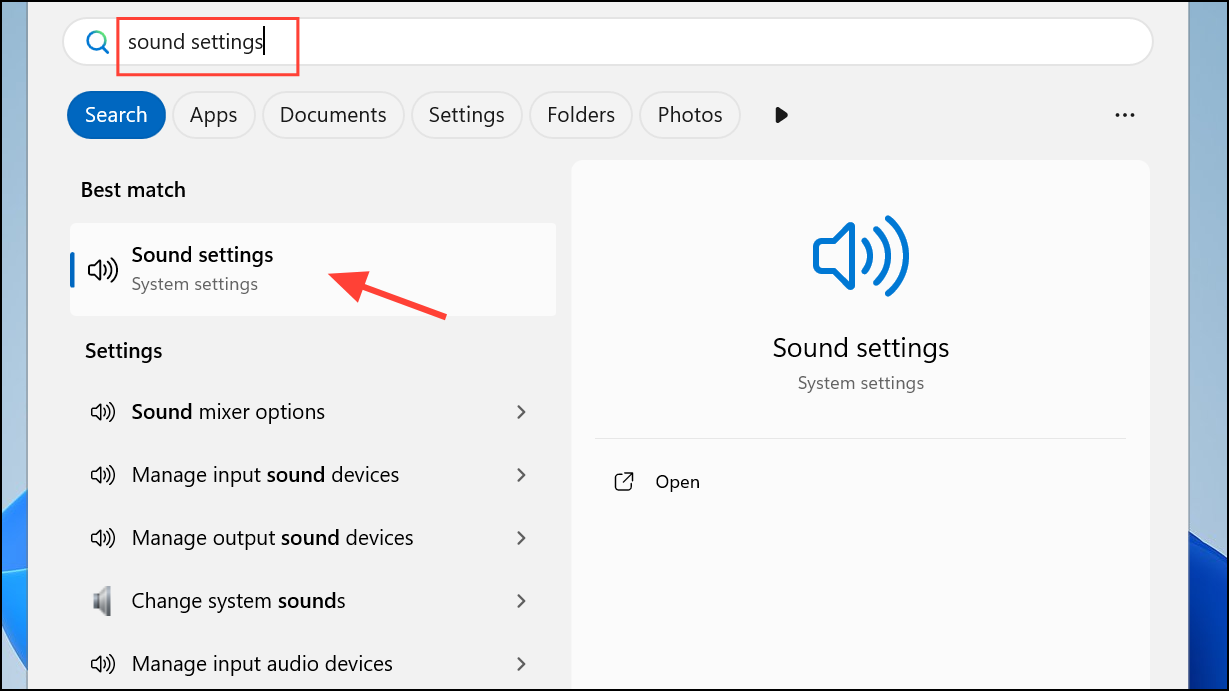
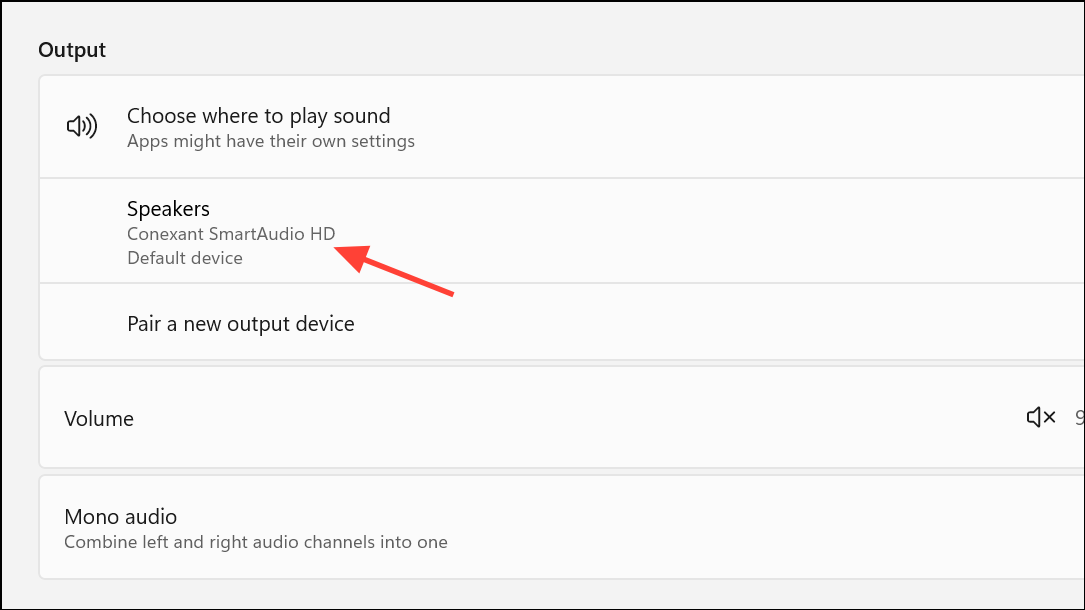
Scroll down to Advanced sound options and click on App volume and device preferences. Here, Windows lists individual apps and their audio output devices.
Locate Microsoft Edge in the list. If Edge is missing, play audio in Edge (such as a YouTube video) to make it appear, or restart Edge and revisit this menu. For Edge, ensure the output device is set to your preferred speakers or headphones, or set it to Default to use the system’s current audio device.
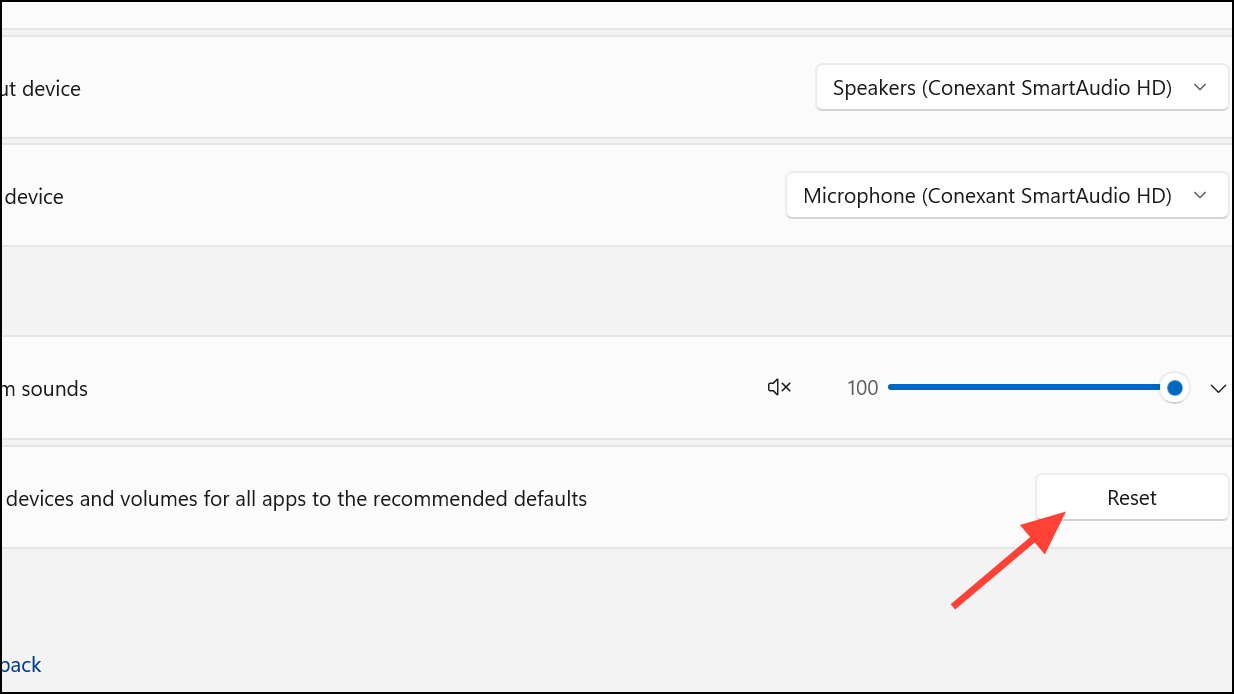
If the output for Edge is blank or incorrect, select the right device. At the bottom of this page, click Reset sound devices and volumes for all apps to the recommended defaults to restore all app audio settings. This action often resolves missing audio for specific browsers or sites.
Verify Tab and Site Mute Settings
In Microsoft Edge, check the browser tab for a speaker or sound icon. If the icon shows a muted state, click it to unmute. Alternatively, right-click the tab and select Unmute tab.
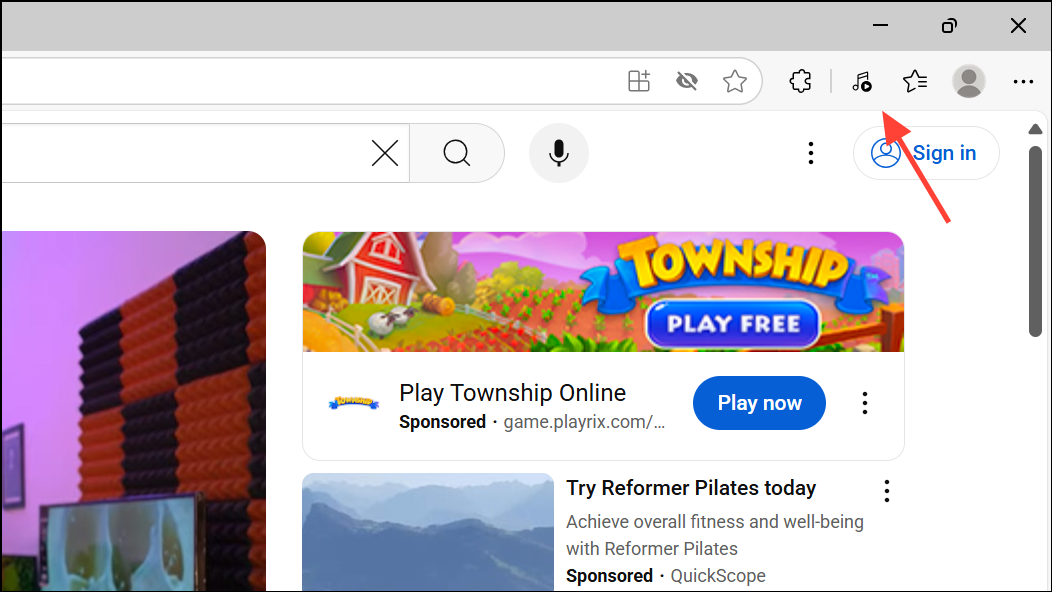
Use the keyboard shortcut
Ctrl + M while the tab is focused to toggle mute status. This ensures the site itself isn’t silenced within the browser.For sites with their own audio controls, confirm that the media player is not muted or set to a low volume.
Switch or Confirm Audio Output Devices
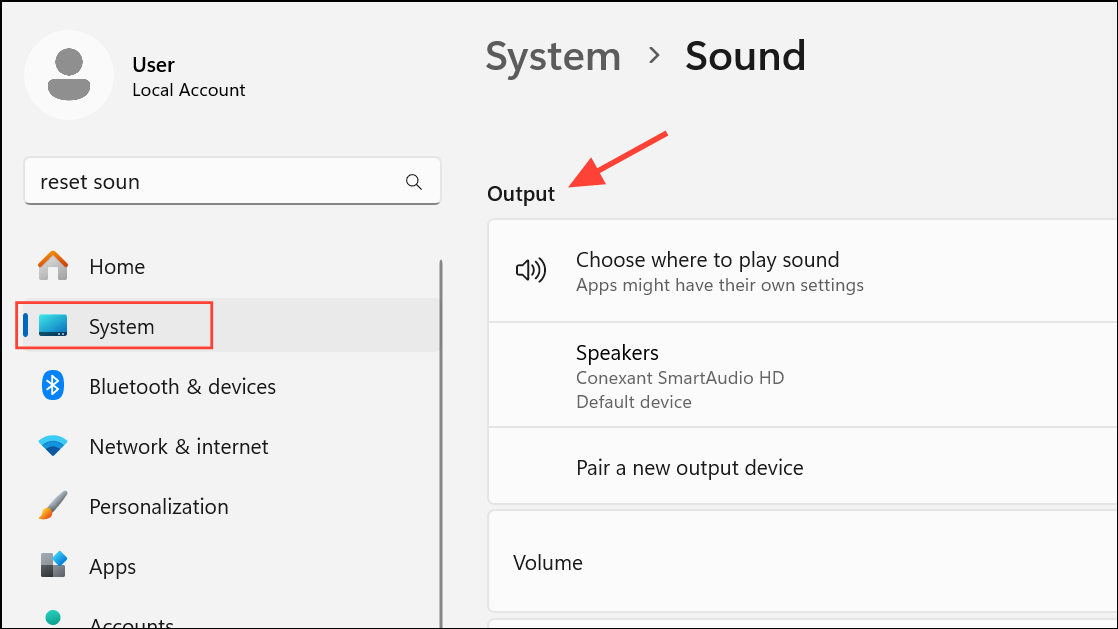
Select your intended audio device (such as speakers, headphones, or Bluetooth output). If you use multiple audio devices, switching between them can help identify if Edge is routing sound to the wrong device.
If you suspect a hardware problem, try connecting a different device and check if audio plays through Edge.
Update or Reinstall Audio Drivers
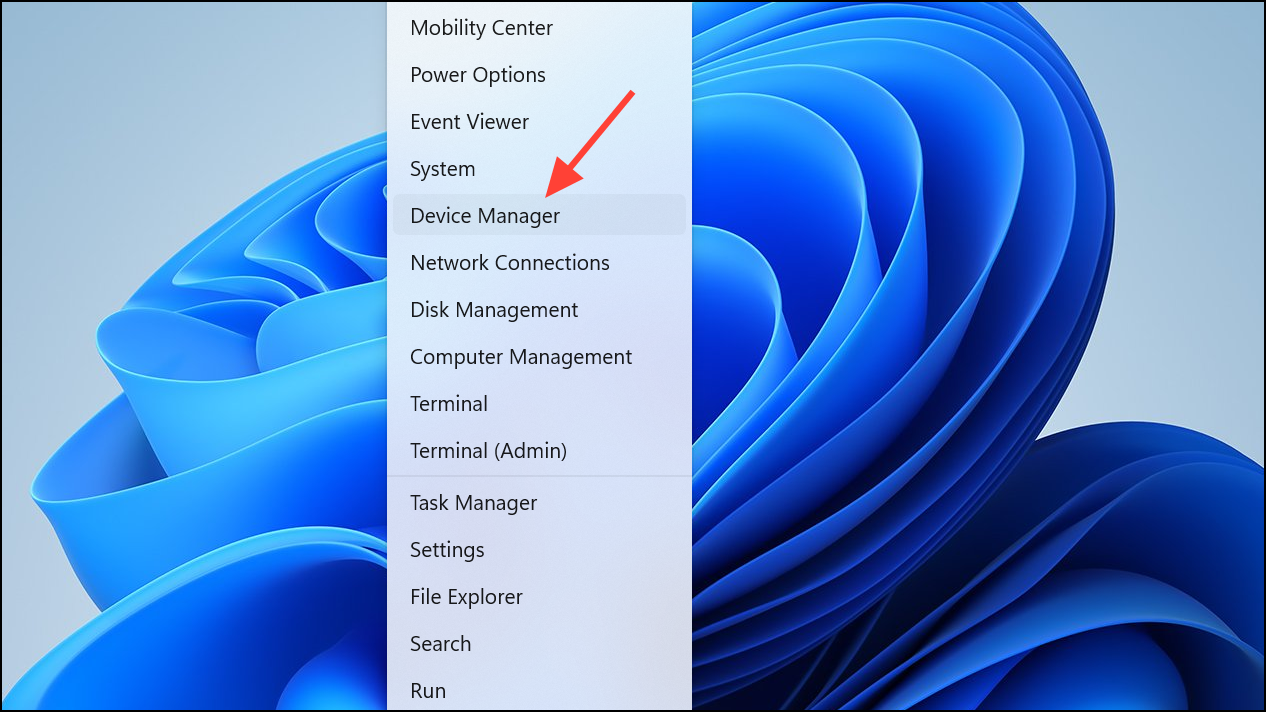
Expand the Sound, video and game controllers section. Right-click your audio device and select Update driver. Follow the prompts to search for and install any available updates.
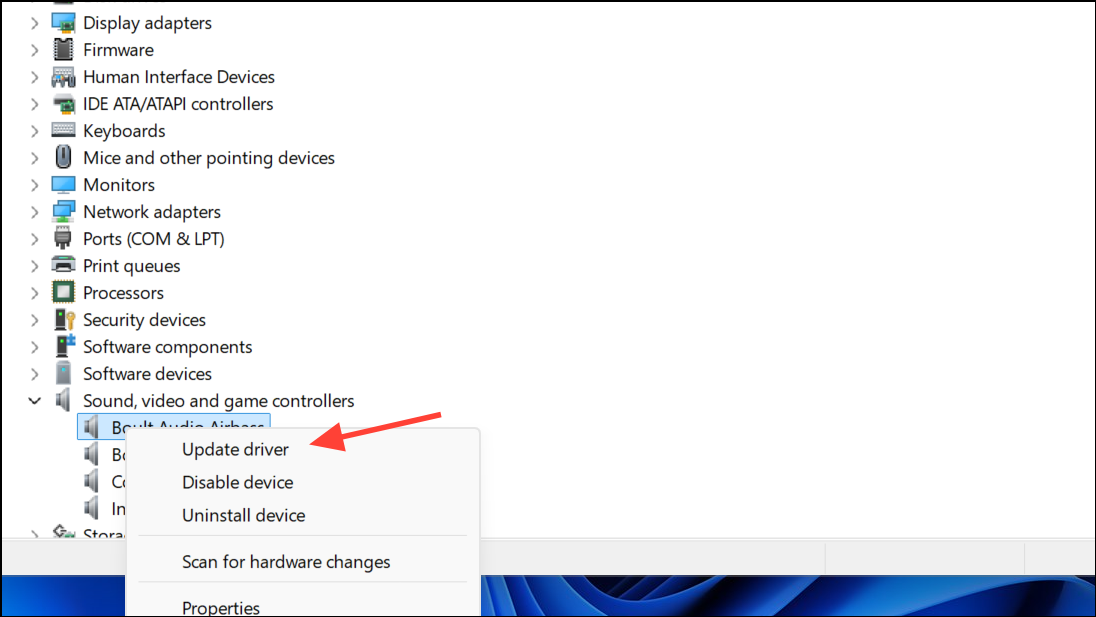
If updating does not resolve the issue, try uninstalling the device, then restart your computer to let Windows reinstall the default driver.
Disable Browser Extensions Temporarily
In Edge, click the Extensions icon near the address bar. If not visible, click the three-dot menu (…) and select Manage Extensions.
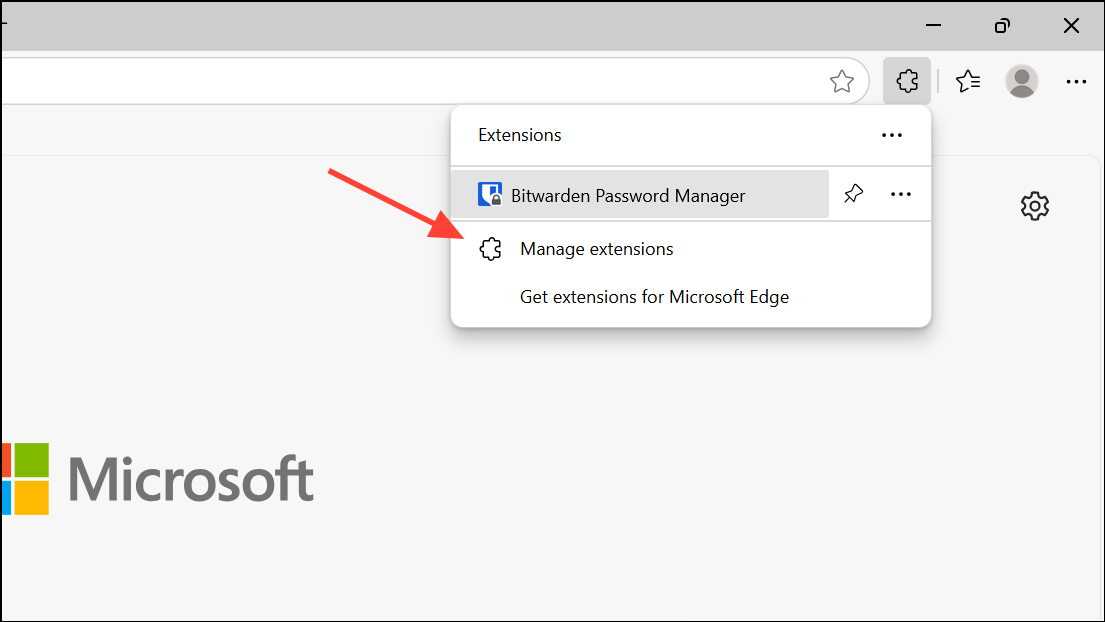
Turn off all extensions using the toggle switches. Some extensions can block or interfere with audio playback on specific sites.
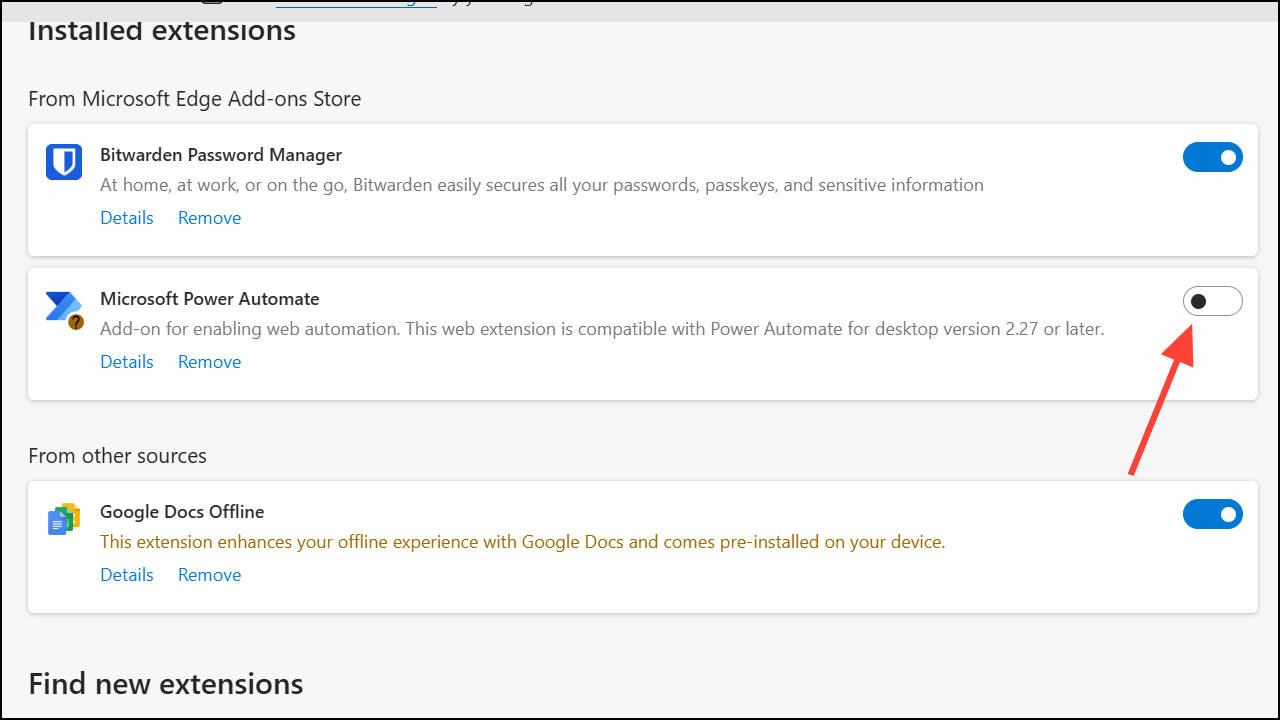
Reload the problematic website and test audio playback. If sound returns, enable extensions one by one to identify the culprit.
Clear Browser Cache and Cookies
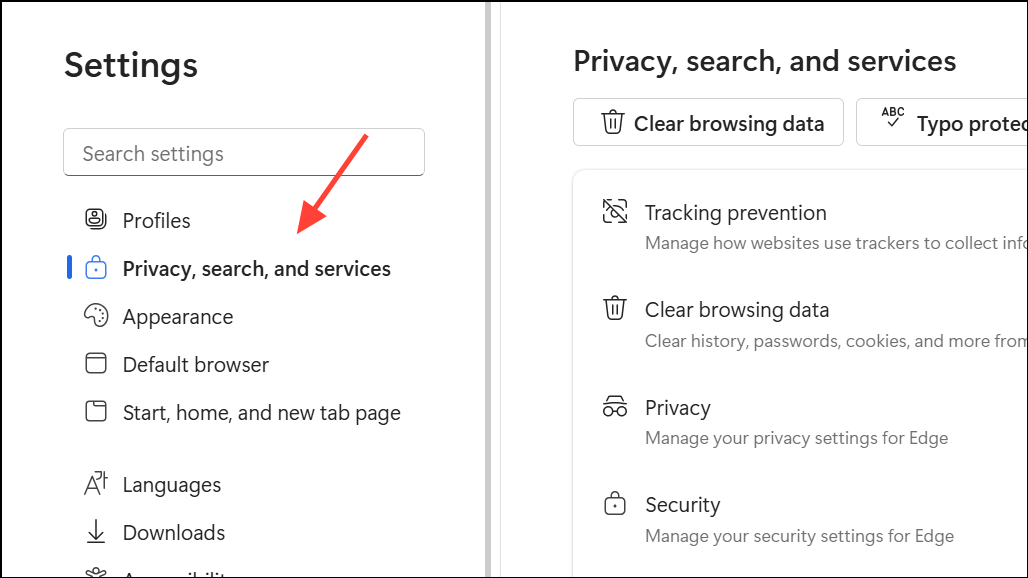
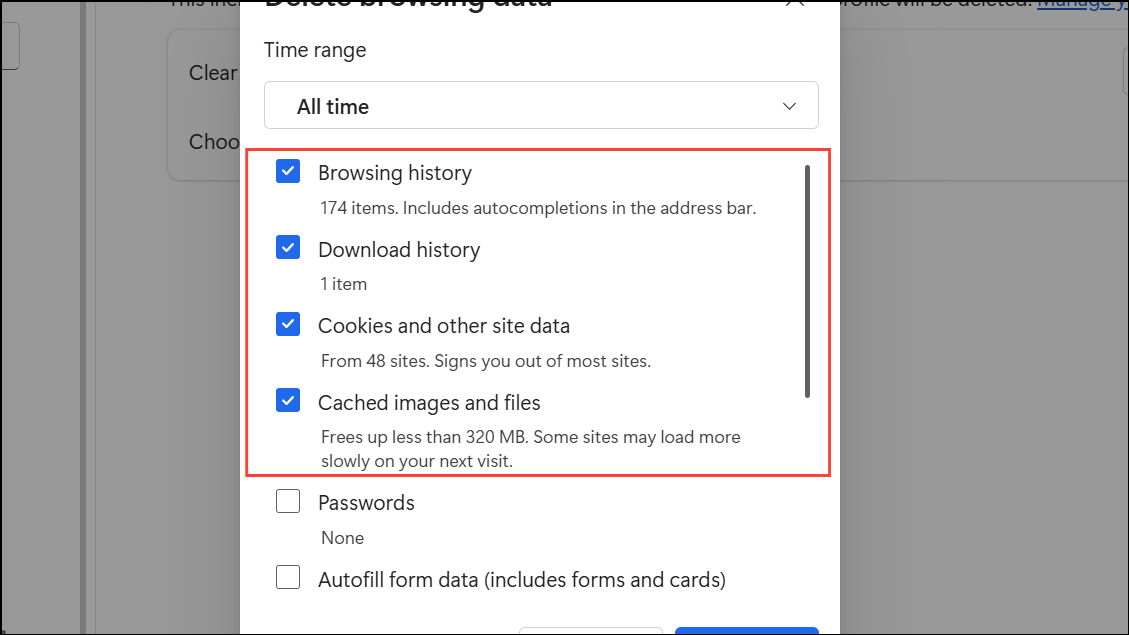
Click the three-dot menu (…) in the upper-right corner of Edge, then go to Settings > Privacy, search, and services.
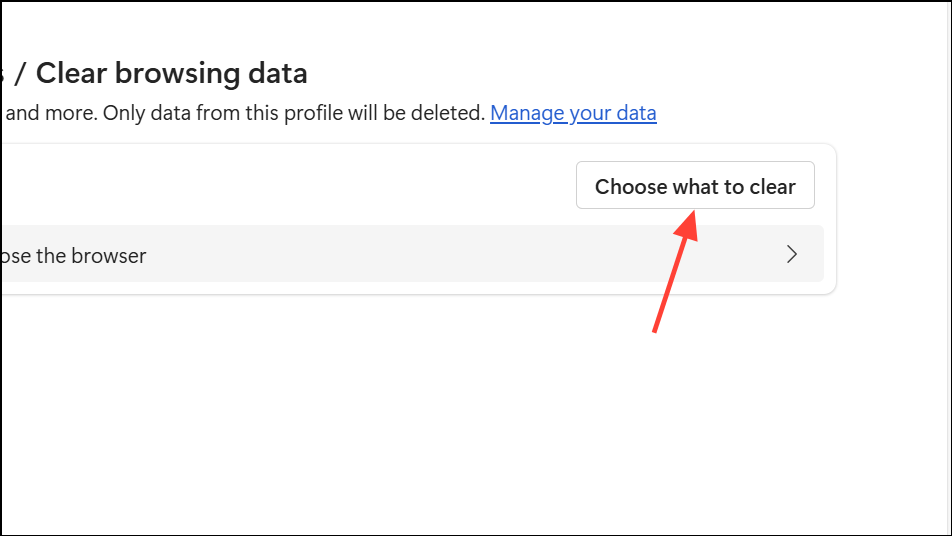
Select Cookies and other site data and Cached images and files, then click Clear now. Corrupted cache or cookies can cause site-specific audio issues.
Reset Microsoft Edge Settings
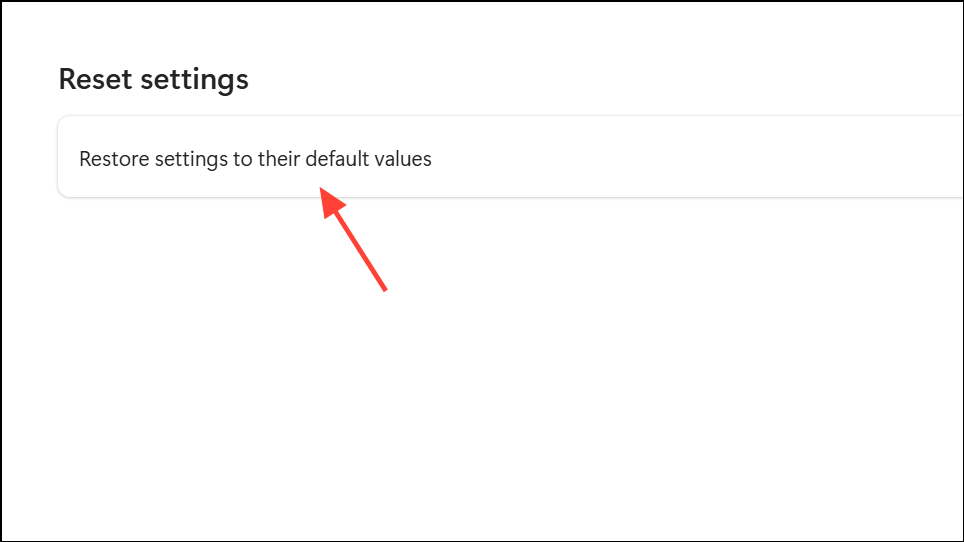
Confirm by clicking Reset. This process resets all browser settings, which can fix persistent audio issues without removing your saved data or bookmarks.
Repair Windows System Files (Advanced)
If audio problems started after a Windows update, system files may be corrupted. Consider performing a repair install (in-place upgrade) of Windows 11. This process refreshes system files without affecting personal data.
Download the latest Windows 11 installation media from the official Microsoft website. Launch the installer and select Upgrade this PC now, following on-screen instructions. This step can resolve deep-seated issues affecting Edge’s integration with Windows audio components.
Caution: Before proceeding, back up important files and ensure you have administrator access.
Applying these steps restores audio playback for specific websites in Edge on Windows 11, addressing both browser and system-level causes. If issues persist after all troubleshooting, consider using an alternative browser or contacting Microsoft support for further assistance.





