How to Fix Dell Error Code 2000-0141: No Drive Detected
Resolve the "No Drive Detected" issue on your Dell PC with these actionable troubleshooting steps.
Resolve the “No Drive Detected” issue on your Dell PC with these actionable troubleshooting steps.
by Pallav Pathak
Dell error code 2000-0141 indicates that your computer is failing to detect the hard drive, preventing the system from booting properly. This issue typically arises from hardware problems such as loose connections, faulty cables, BIOS misconfigurations, or even a failing hard drive itself. Below are effective troubleshooting methods to solve this error and restore your Dell computer to normal operation.
Method 1: Verify and Reconnect Hard Drive Connections
Open your computer’s case using the appropriate screwdriver. Locate your hard drive and carefully inspect the SATA or IDE cable connecting it to the motherboard. Check for loose, disconnected, or damaged cables.
If the cable appears loose, firmly reconnect it to both the motherboard and the hard drive. If the cable is visibly damaged, replace it with a new SATA or IDE cable.
In the BIOS menu, locate the option labeled “Load Defaults,” “Reset to Default,” or similar wording. Select this option to reset all BIOS settings to default.
Select “Diagnostics” from the boot menu options. Allow the system to run a complete hardware scan. If the diagnostic tool identifies hardware issues, it will display relevant error messages and suggest corrective measures.
Method 4: Repair Hard Drive Using CHKDSK Command
If the hard drive has minor file system corruption or bad sectors, repairing it using the CHKDSK tool may help.
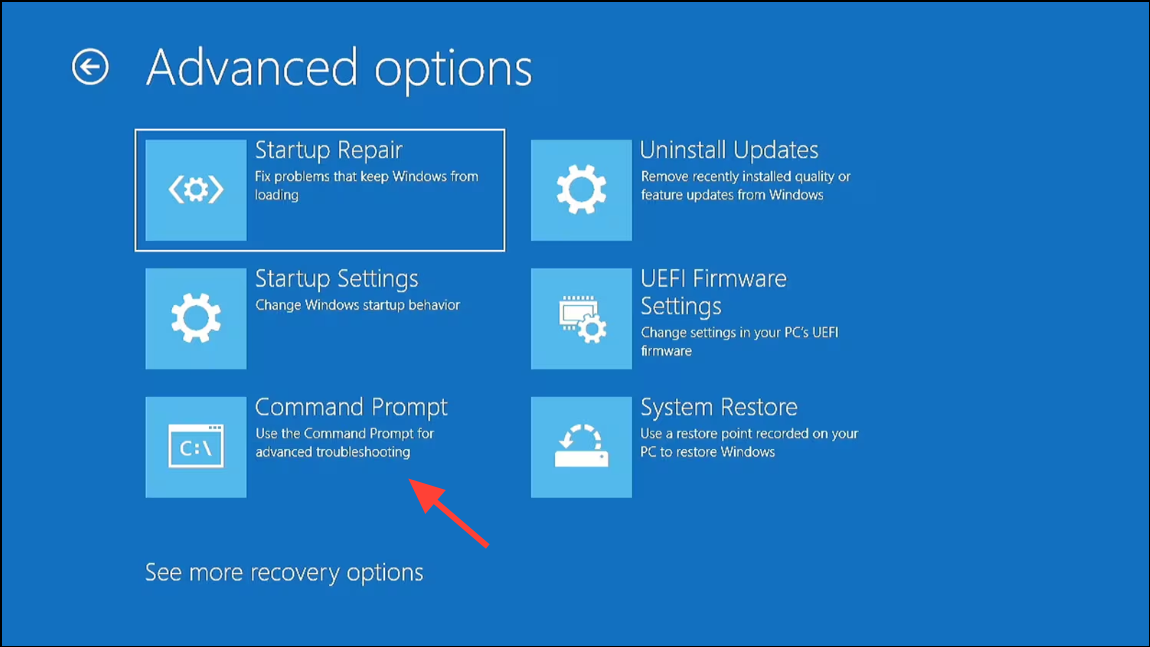
Once the Windows installation screen appears, click “Repair your computer” at the bottom-left corner. Navigate to “Troubleshoot” > “Advanced Options” > “Command Prompt.”
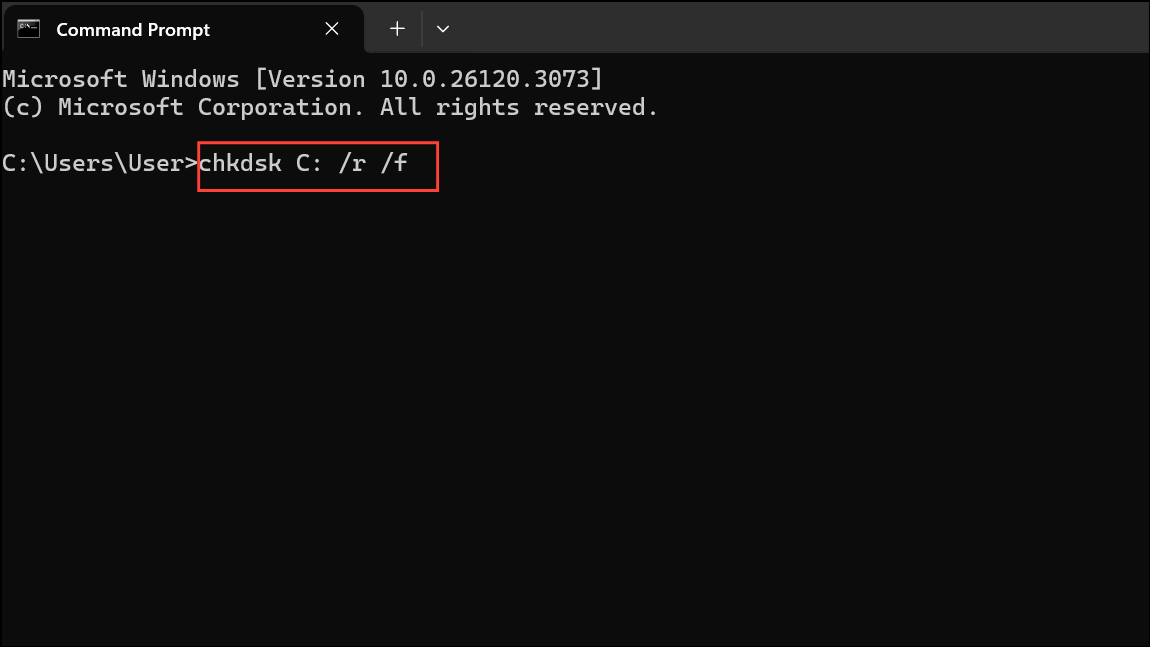
In the Command Prompt window, type the following command and press Enter:
chkdsk C: /r /f
This command scans the drive (replace “C:” with your actual system drive letter) for errors and attempts to repair them. After completion, restart your computer to check if the issue is resolved.
Method 5: Replace the Hard Drive
If all previous methods fail, your hard drive may have experienced a physical failure. In this case, replacing the drive is necessary.
Install a fresh copy of Windows on the new drive using a bootable USB or DVD. After installing Windows, restore your data from your backups or cloud storage.
Backup or Recover Data with Bootable Media
If your Dell PC is not booting due to error code 2000-0141, you can still recover important data by using bootable data recovery software like MiniTool Power Data Recovery or Renee PassNow.
On another working computer, download and install a bootable data recovery tool such as MiniTool Power Data Recovery or Renee PassNow. Make sure to check the downloaded files with a malware scanning tool like VirusTotal.
Boot your Dell PC from the created USB or DVD. Follow the on-screen instructions to scan your hard drive and recover or back up important files to an external storage device.
After following these troubleshooting steps, your Dell computer should detect the hard drive and boot normally. If the problem persists despite trying all methods, consider contacting Dell support or a professional technician for further assistance.