

DISM Error 87 occurs when the Deployment Image Servicing and Management (DISM) command-line tool encounters incorrect parameters or syntax errors. This issue prevents Windows users from repairing or maintaining their system images effectively. Fortunately, you can resolve this error by following some clear troubleshooting steps.
Method 1: Verify and Correct the DISM Command Syntax
Incorrect command syntax is the most common cause of DISM Error 87. Even minor mistakes, such as missing spaces or incorrect slashes, can cause the tool to fail.
cmd in the search box, right-clicking “Command Prompt,” and selecting “Run as administrator.”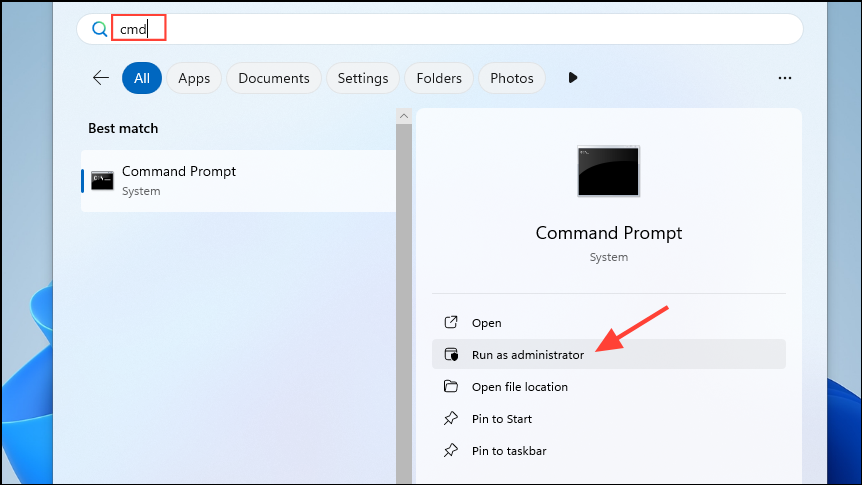
DISM /Online /Cleanup-image /ScanHealth
DISM /Online /Cleanup-image /RestoreHealth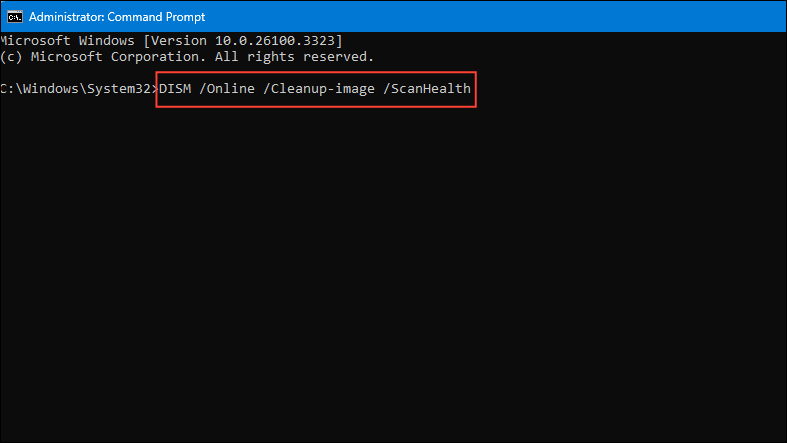
Ensure there are spaces before each forward slash (“/”). After correcting the syntax, run the command again and check if the problem is resolved.
Method 2: Run DISM with Elevated Administrator Privileges
DISM requires administrative privileges to function correctly. Without elevated rights, you may encounter Error 87.
Method 3: Update Windows to the Latest Version
Pending updates or outdated system files can trigger DISM Error 87. Keeping Windows updated ensures system stability and compatibility.
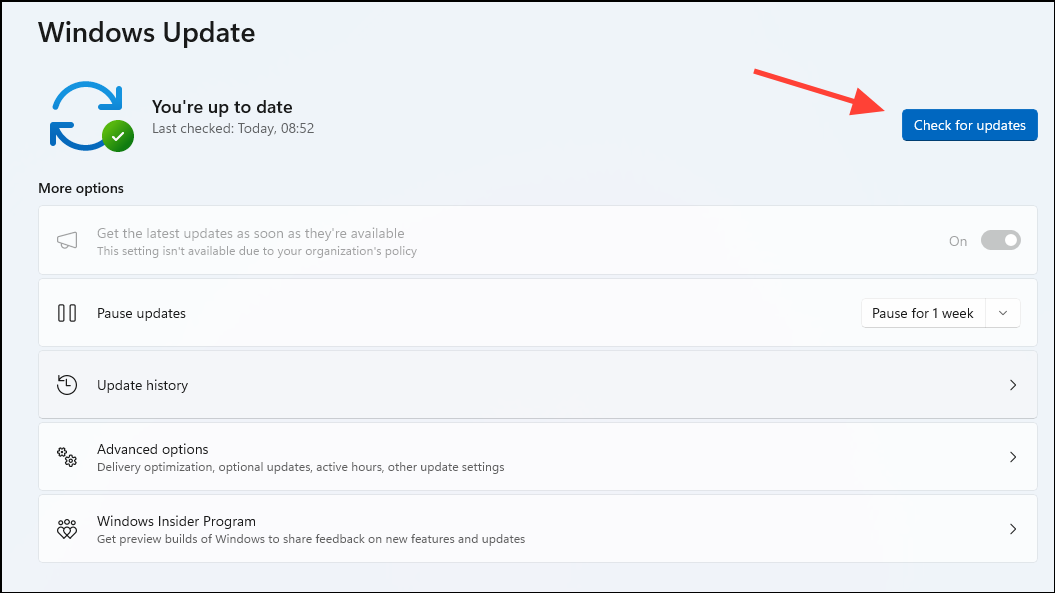
Method 4: Use System File Checker (SFC) to Repair Corrupted Files
Corrupted system files can interfere with DISM operations. The System File Checker (SFC) tool scans and repairs system file corruption.
sfc /scannow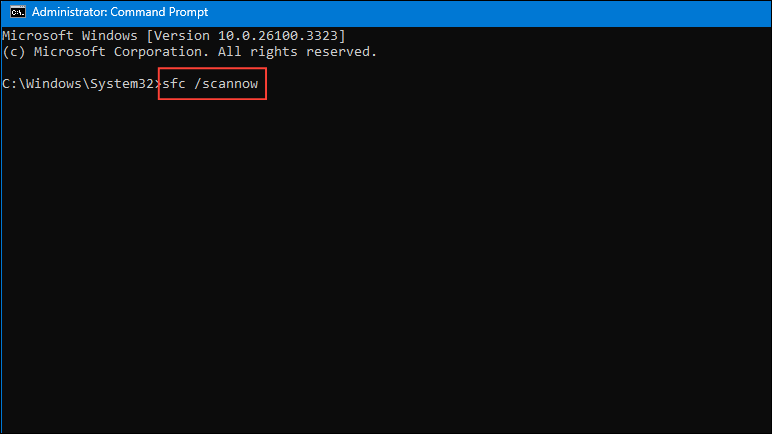
Method 5: Ensure You Are Using the Correct DISM Version
Running an incompatible version of DISM can result in Error 87. Always use the DISM version matching your current Windows installation.
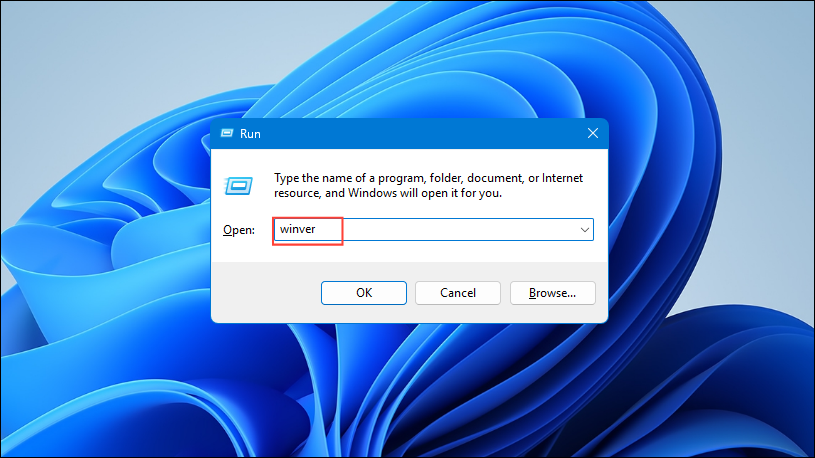
For more details, refer to Microsoft’s official DISM documentation.
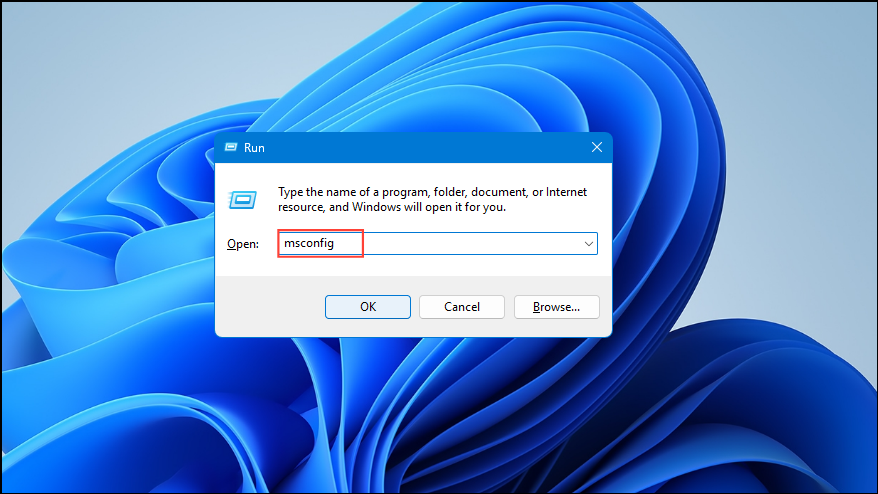
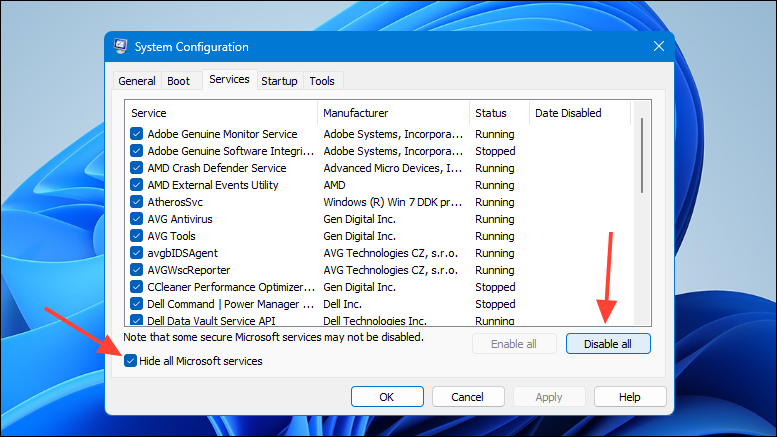
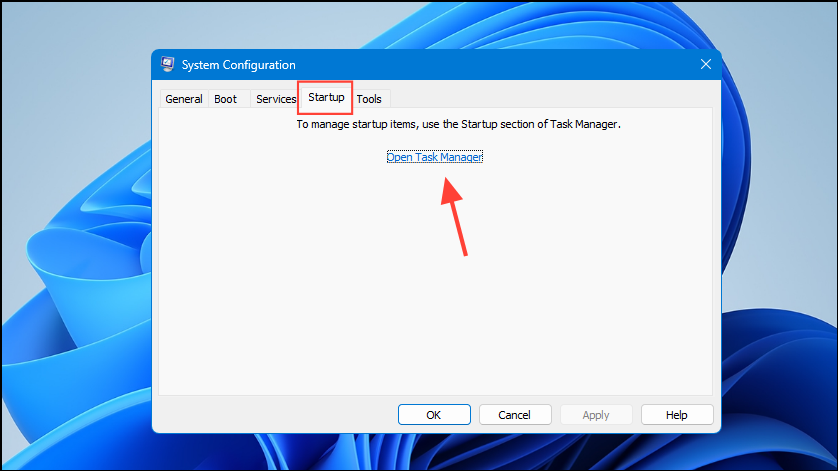
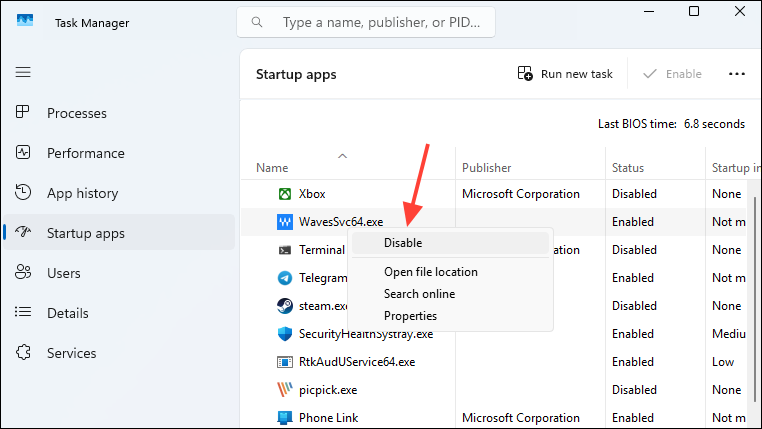
Method 6: Perform a Clean Boot to Identify Software Conflicts
Third-party software or startup processes may conflict with DISM. Performing a clean boot helps identify and eliminate these conflicts.
Method 7: Reinstall Windows as a Last Resort
If all other methods fail, reinstalling Windows can resolve persistent issues causing DISM Error 87. Remember, reinstalling Windows will erase your data, so back up important files first.
After reinstalling, you should no longer face DISM Error 87.
With these straightforward solutions, you should now be able to resolve DISM Error 87 and continue maintaining your Windows system effectively.





