
Error code 0xc00000e occurs when Windows fails to detect essential hardware or system files during startup, resulting in a blue or black screen that prevents your PC from booting correctly. Typically, this issue involves problems with the hard drive, SSD, corrupted system files, or misconfigured boot settings. Fortunately, several effective solutions exist to resolve this error and get your system running again.
Use Windows Automatic Repair Tool
The Windows Automatic Repair tool is designed specifically to resolve common boot-related issues, including the 0xc00000e error. Here’s how to use it:
F2, F12, Del, or Esc) to enter the boot menu.Enter to boot from it. When prompted, choose your language, time, and keyboard preferences, then click “Next.”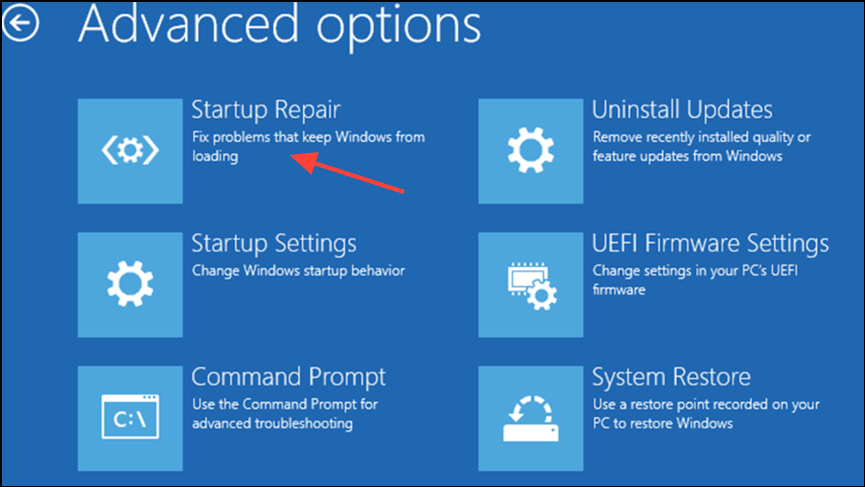
Once the repair process finishes, remove the installation media and restart your computer to verify if the error is resolved.
Rebuild the Boot Configuration Data (BCD)
Corrupted Boot Configuration Data (BCD) files can also cause the 0xc00000e error. Rebuilding the BCD can fix this issue:
bootrec /scanos
bootrec /fixmbr
bootrec /fixboot
bootrec /rebuildbcd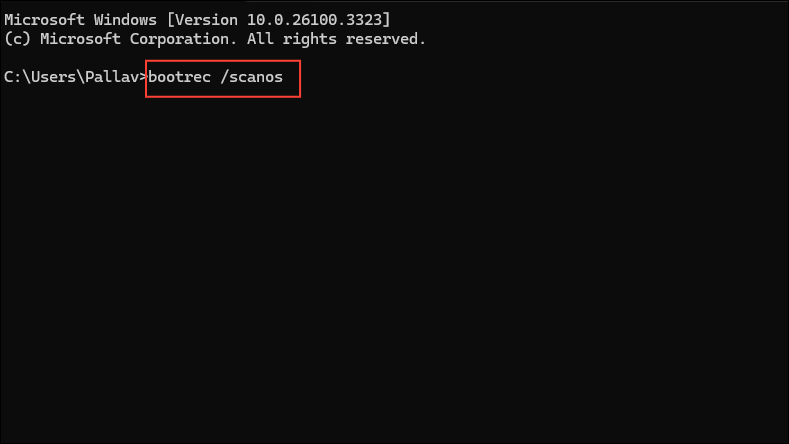
After completing these commands, type exit and press Enter to close the Command Prompt. Restart your PC to see if the issue is fixed.
Reset BIOS/UEFI Settings to Default
Incorrect BIOS or UEFI settings can prevent your system from booting correctly, triggering error 0xc00000e. Resetting these settings can help:
Del, F2, F10, or Esc) as soon as the manufacturer’s logo appears.Enter.F10. Your system will restart automatically, and you can check if the error persists.Check and Secure Hardware Connections
Loose hardware connections are another common cause of error 0xc00000e. Inspecting and reseating your internal components can resolve the issue:
Replace CMOS Battery
A drained CMOS battery can cause BIOS settings to reset or become unstable, resulting in boot issues like error 0xc00000e:
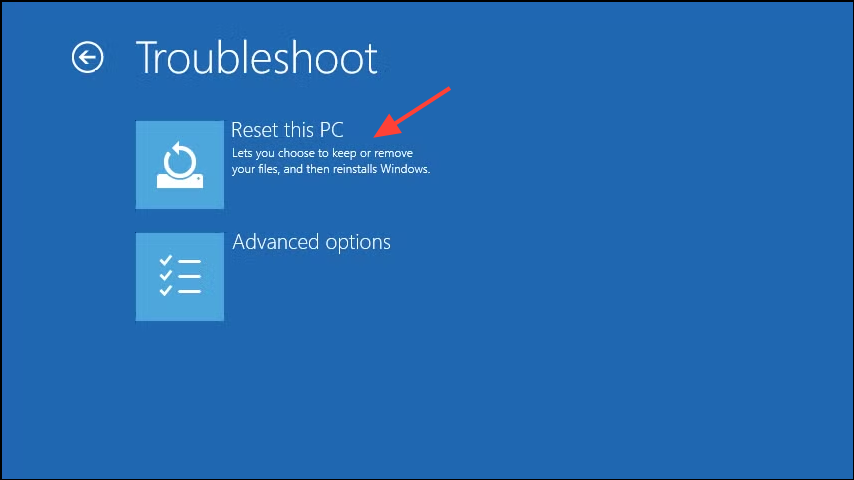
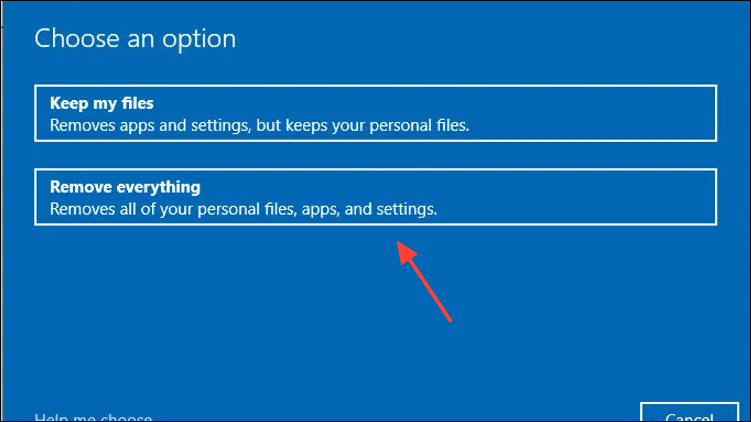
Factory Reset Your PC
If none of the previous methods resolve the error, performing a factory reset will reinstall Windows completely. Be aware this process will erase all personal data and installed applications, so ensure you back up important files beforehand:
These solutions should help you resolve the 0xc00000e error and restore your Windows system to normal operation. If the issue persists after following these steps, consider seeking professional technical support, as there may be underlying hardware issues requiring further diagnosis.





