
Excel displays the message “Errors were detected while saving [filename]. Microsoft Excel may be able to save the file by removing or repairing some features” when it encounters file corruption, compatibility issues, or problematic add-ins. This error can prevent you from saving your work, disrupt workflows, and even lead to loss of VBA macros or workbook features. Several concrete fixes are available, ranging from quick file repairs to more advanced troubleshooting steps.
Repair the File Using Excel’s Built-in “Open and Repair” Feature
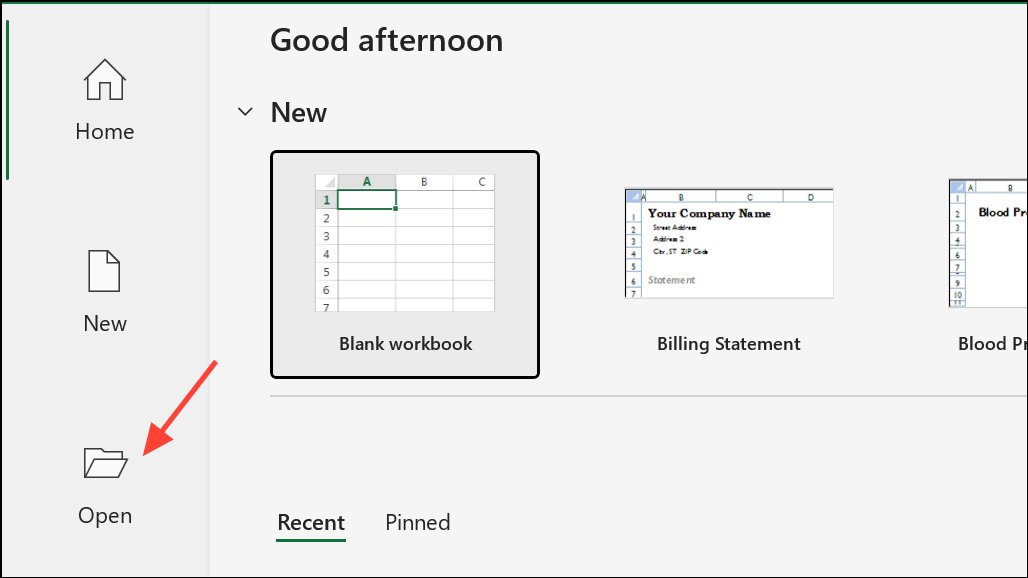
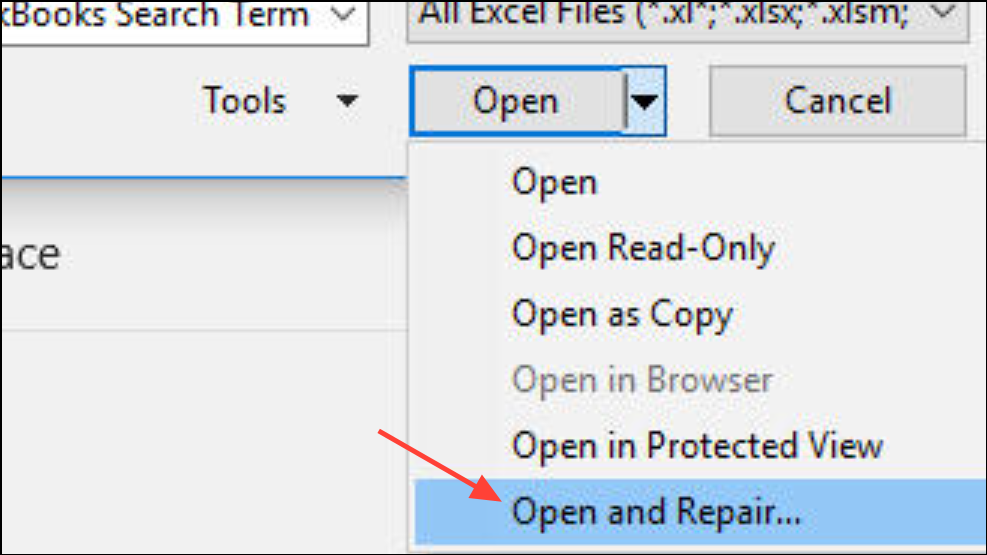
This method is effective for minor file corruption and preserves most formulas and formatting.
Copy Content to a New Workbook
If the repair option fails or you continue to see the error, transferring your data to a new workbook can resolve hidden corruption.
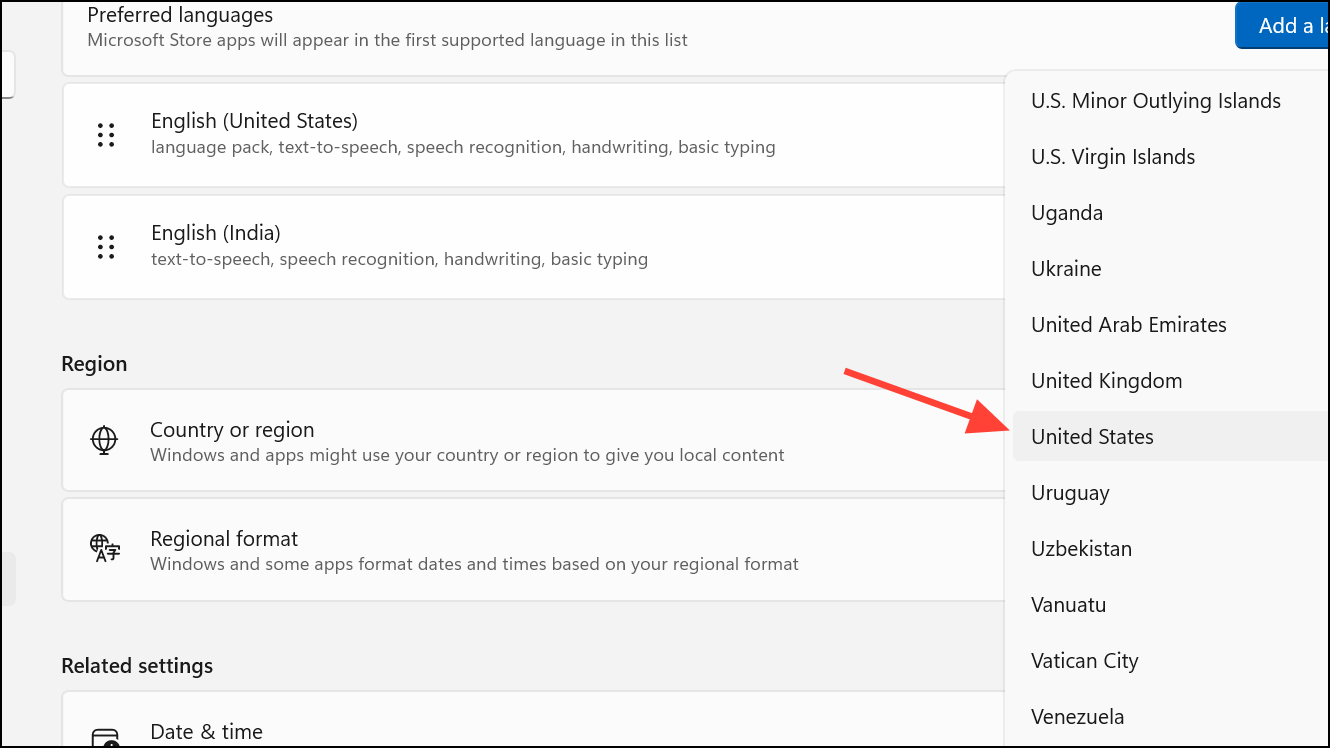
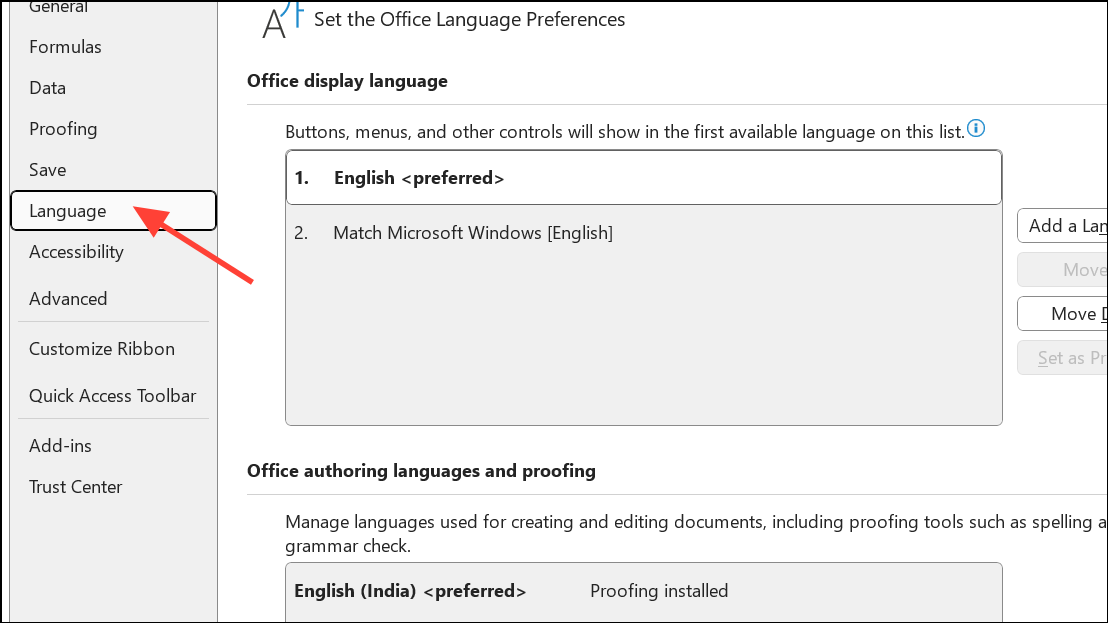
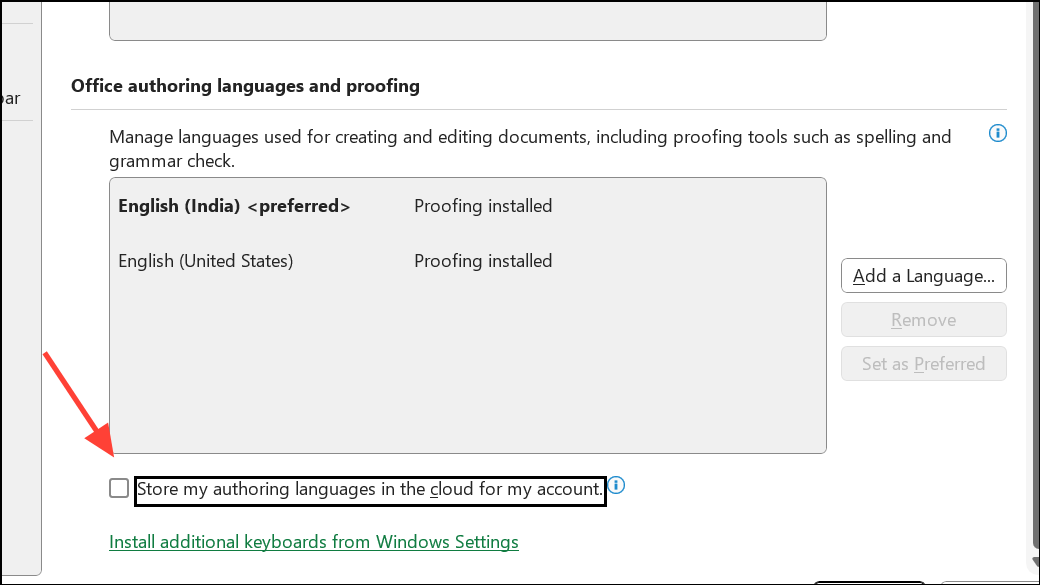
Ctrl + A to select all cells in a sheet.Check and Adjust Language and Regional Settings
Mismatched language or region settings between Windows and Excel can trigger this error, especially after copying charts or data from other sources.

Remove Corrupted VBA Projects (Advanced)
Corrupted VBA (macro) projects are a frequent cause of this error, especially if you’ve deleted worksheets referenced by macros or formulas. Removing and restoring VBA projects can restore file integrity.
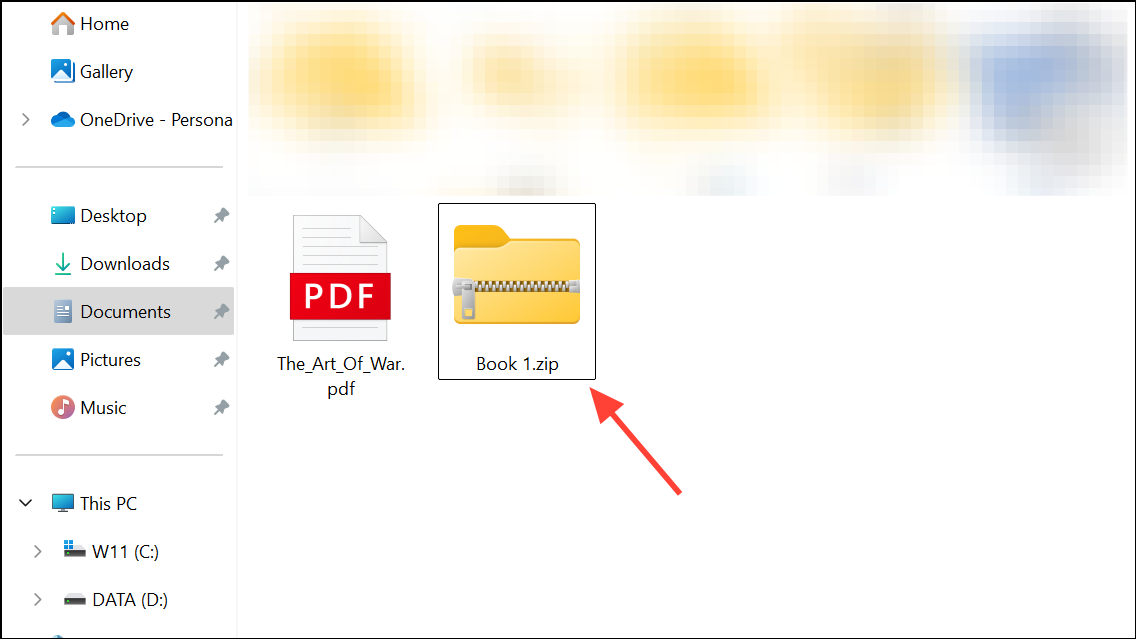
/xl/vbaProject.bin file. Delete vbaProject.bin to remove the corrupted VBA project..xlsm and open it in Excel. The error should be gone, but you will need to re-import your VBA modules from a backup if you need macros.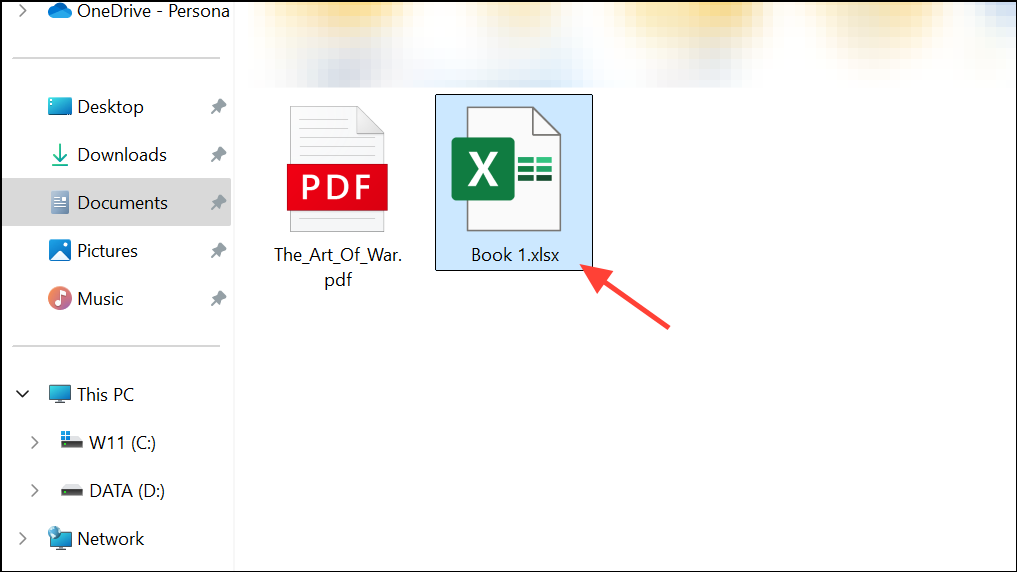
This approach is best for cases where macros are not essential or you have a safe backup of your code. If you want to preserve your macros, try opening the file in a non-trusted location, open the VBA editor, click into any line of code, and save the file from the VBA editor. This can sometimes resolve the corruption without deleting your code.
Disable Problematic Add-ins and Open Excel in Safe Mode
Add-ins can interfere with workbook saving, especially if they conflict with Excel’s file handling.
Windows + R to open the Run dialog, then type excel /safe and press Enter. This starts Excel in Safe Mode, disabling all add-ins.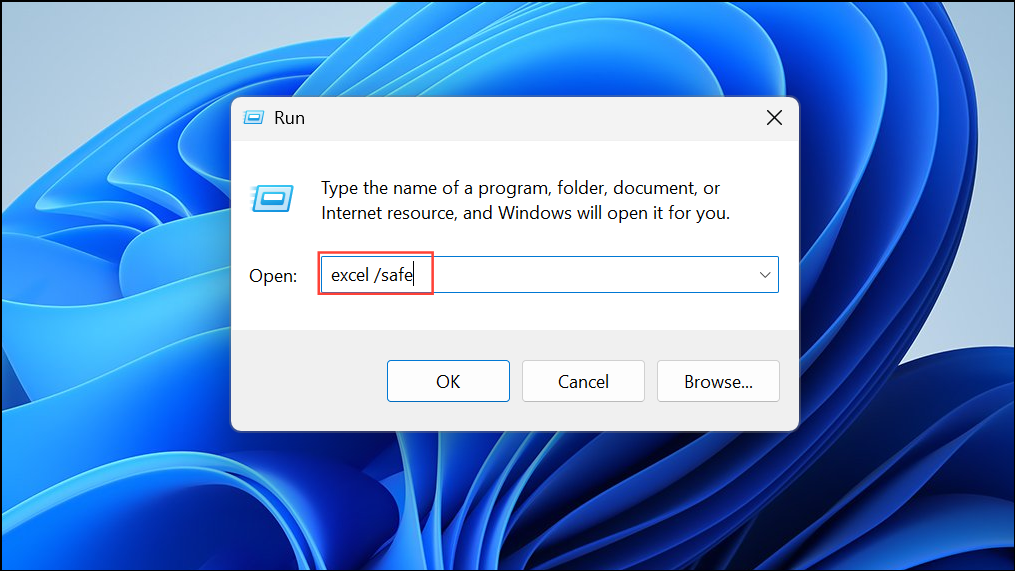
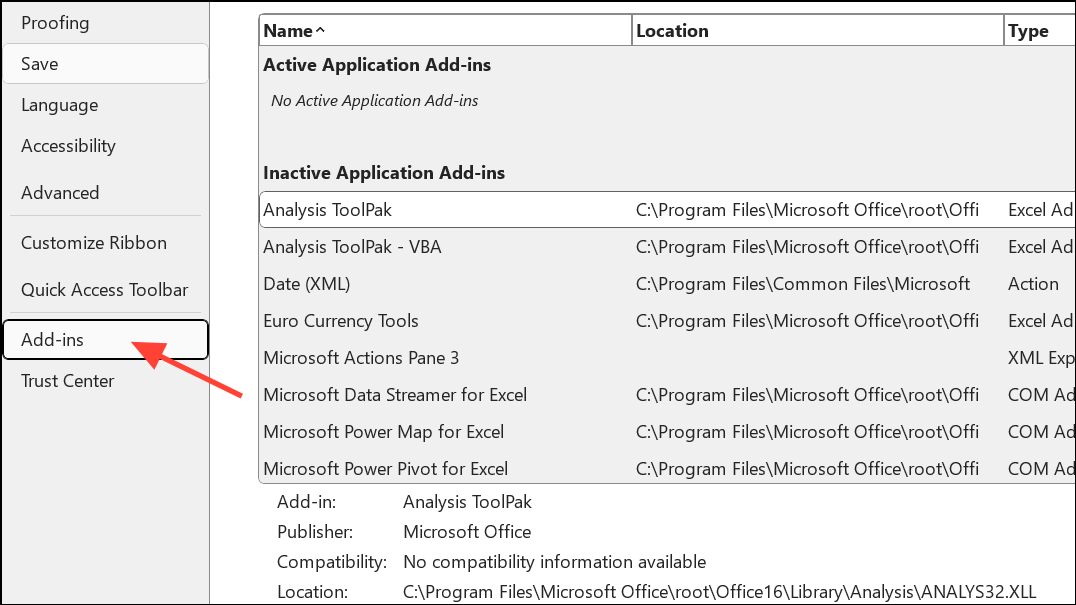
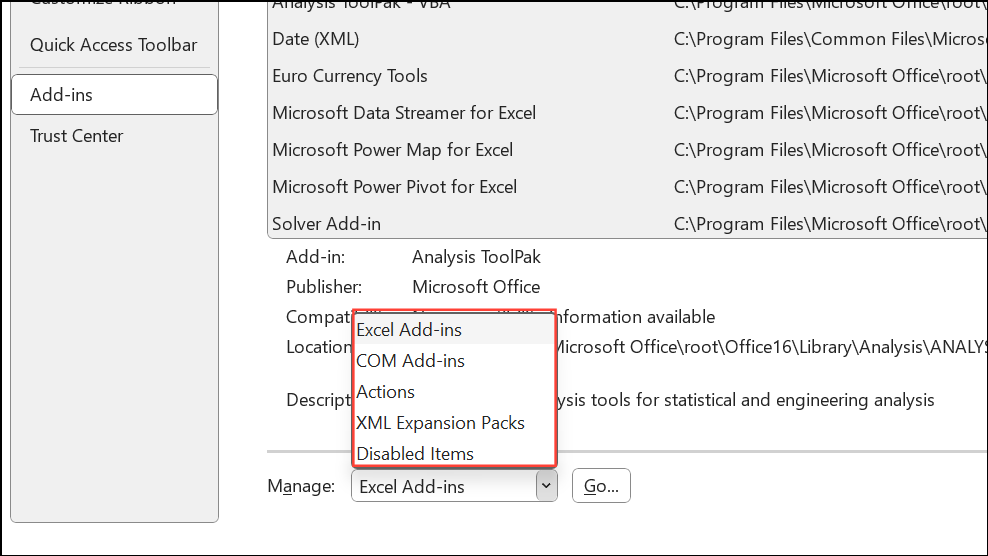
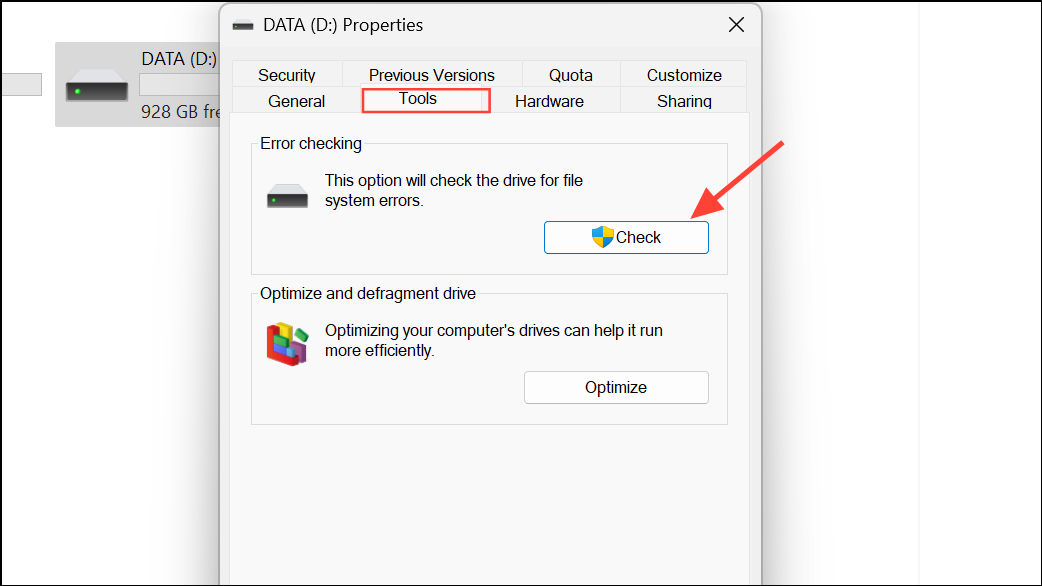
Check for File System Errors and Storage Issues
Corrupted storage devices or file system errors can trigger Excel save errors. Use Windows tools to check for disk problems.
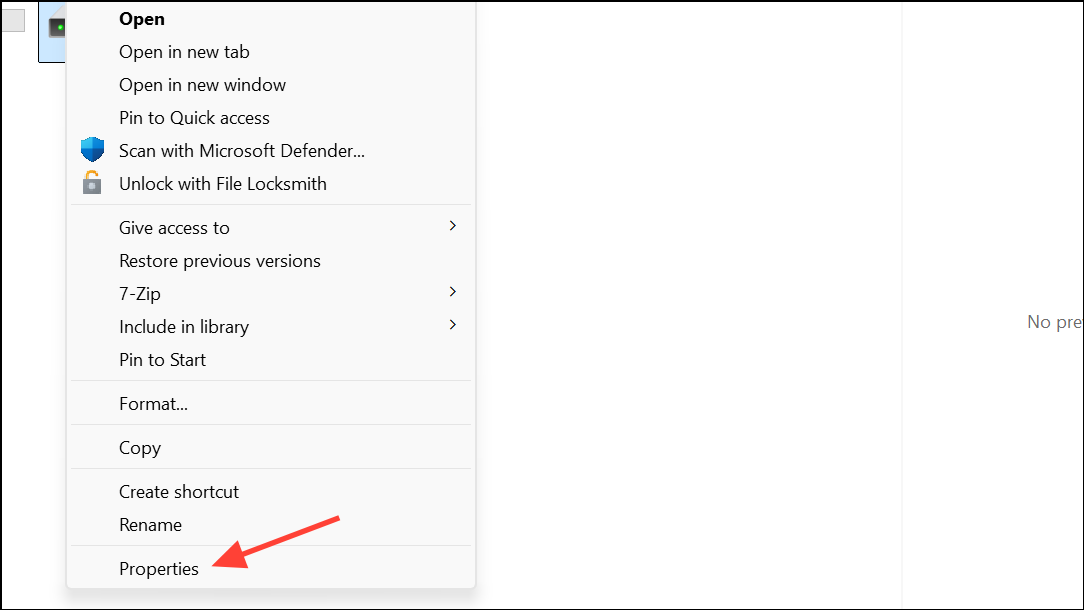
Additional Tips and Preventative Measures
- Regularly use Save As to create backup versions of critical workbooks.
- Keep Excel and Office updated to the latest version, as some bugs are resolved in newer builds.
- Avoid complex inter-sheet references, especially involving deleted sheets or objects linked from other Office apps.
- Consider storing files locally instead of on network drives if you experience frequent save errors.
Applying these strategies restores your ability to save Excel files and prevents future data loss. Regular backups and keeping your system updated provide extra protection against unexpected workbook errors.





