Firefox sometimes fails to open when you click its icon, with no error message or visible window. This problem can disrupt your workflow, prevent access to saved bookmarks and passwords, and block online activity. Addressing this issue often requires more than a simple reinstall, as underlying causes might involve stuck background processes, corrupt profiles, or system-level conflicts.
Method 1: Terminate Stuck Firefox Processes and Restart
Open the Task Manager to check if Firefox is running in the background. On Windows, press
Ctrl + Shift + Esc to launch Task Manager. On Mac, use Command + Option + Esc to open the Force Quit window. On Linux, open a terminal and run ps aux | grep firefox.In Task Manager or the Force Quit window, look for any entries labeled
firefox.exe or Firefox. Right-click the process and select End Task (Windows) or Force Quit (Mac). On Linux, use killall firefox.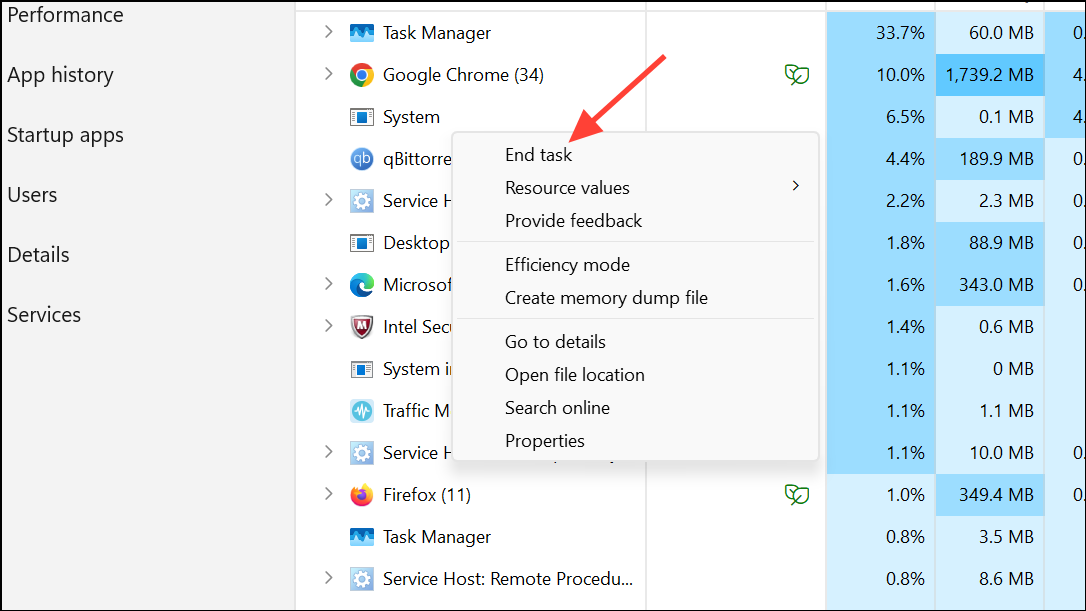
After ending all Firefox processes, try launching Firefox again. This clears up instances where Firefox was running invisibly or failed to close properly, preventing new sessions from starting.
Method 2: Start Firefox in Troubleshoot (Safe) Mode
Launch Firefox in Troubleshoot Mode to disable extensions, themes, and hardware acceleration. On Windows and Linux, hold down the
Shift key while clicking the Firefox icon. On Mac, hold the Option key as you start Firefox.If the Troubleshoot Mode prompt appears, confirm to continue. If Firefox opens in this mode, the problem likely relates to an extension or custom setting. Use this opportunity to disable or remove recently added extensions or themes, then restart Firefox normally.
Method 3: Refresh Firefox to Restore Default Settings
If you can open Firefox in Troubleshoot Mode, click the menu button, then select
Help > More Troubleshooting Information. Click Refresh Firefox and confirm in the prompt. This process resets Firefox to its default state, preserving bookmarks, passwords, and essential data while removing add-ons and customizations.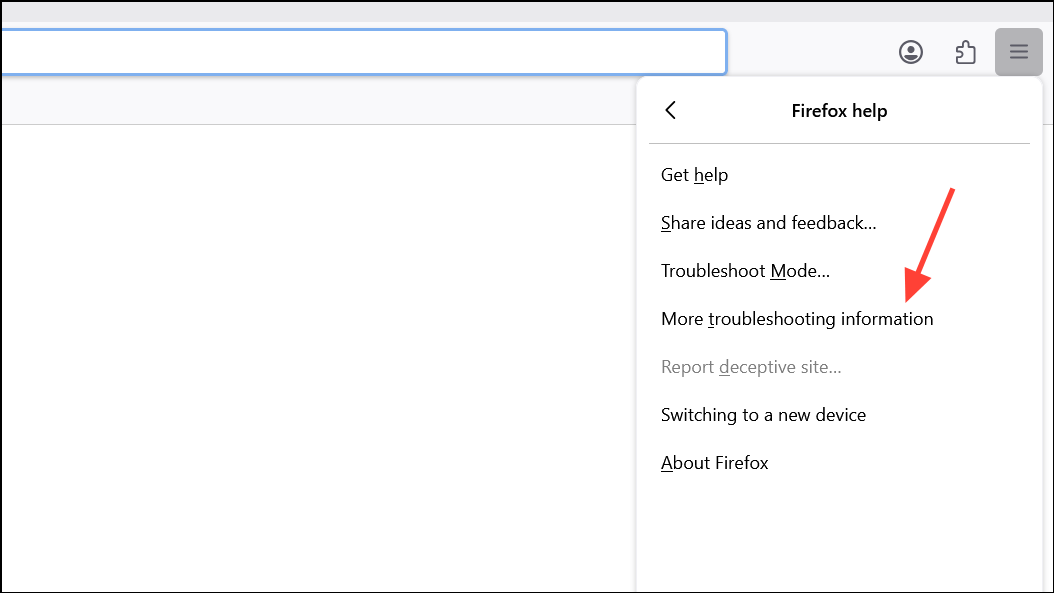
If you cannot access the menu, you can manually refresh by creating a new profile (see Method 4) and transferring important data.
Method 4: Create a New Firefox Profile
Open the Profile Manager. On Windows, press
Windows + R, type firefox.exe -P and press Enter. On Mac or Linux, run firefox -P from a terminal.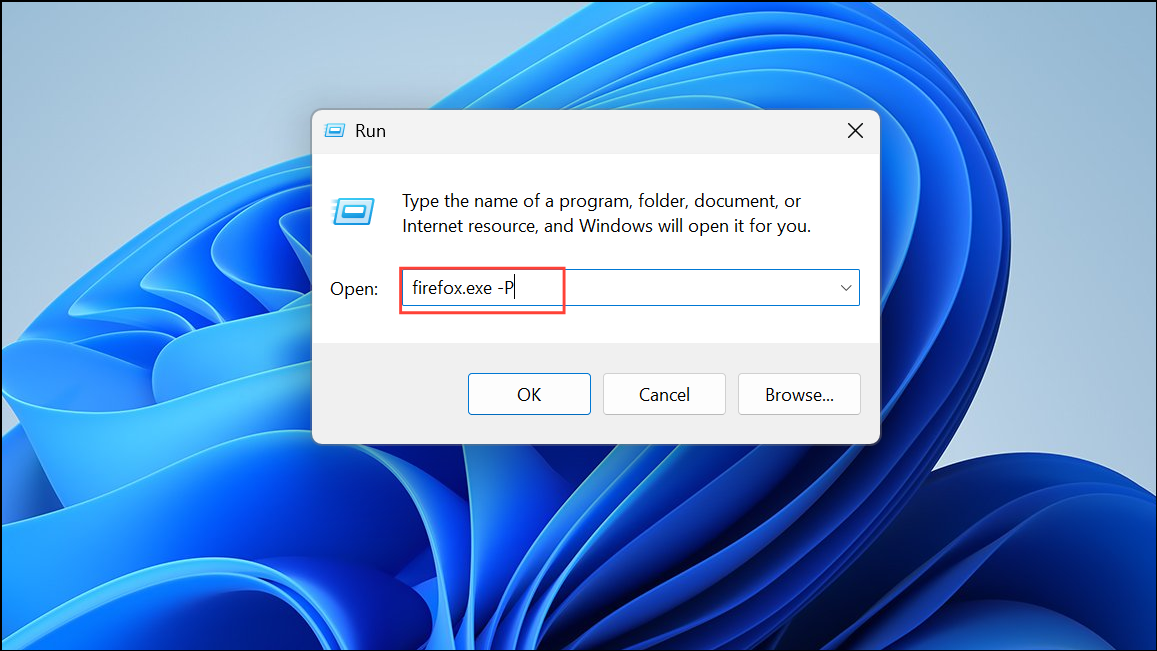
In the Profile Manager, click
Create Profile, follow the prompts, and start Firefox with the new profile. If Firefox opens, the issue is linked to your old profile’s data. You can transfer bookmarks and passwords from your old profile using Firefox’s import/export tools or by copying specific files from the old profile folder.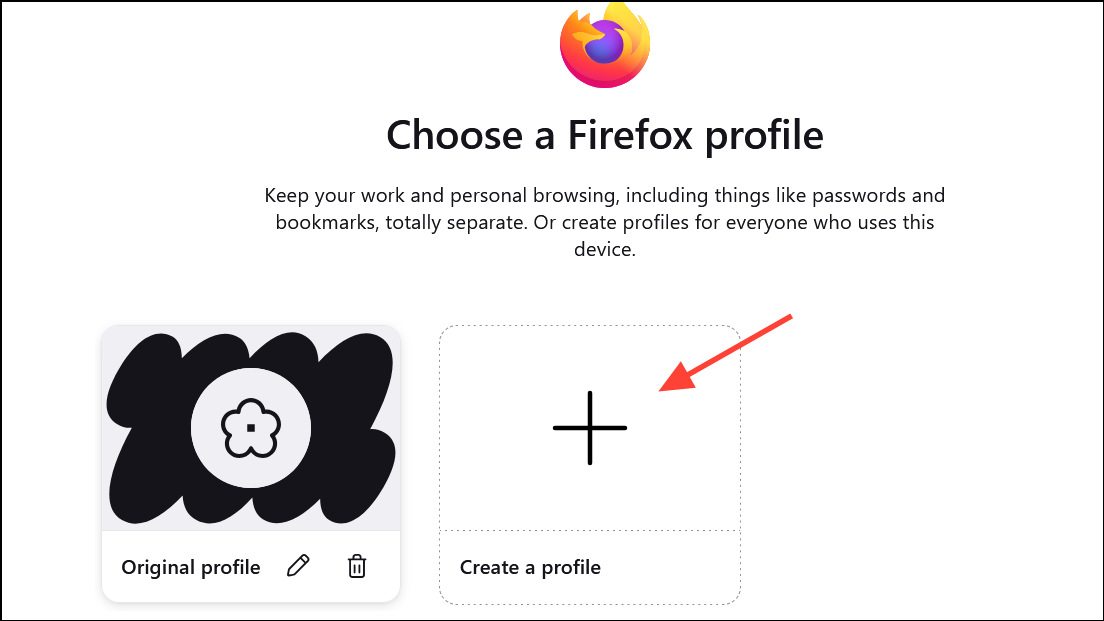
Method 5: Completely Uninstall and Reinstall Firefox
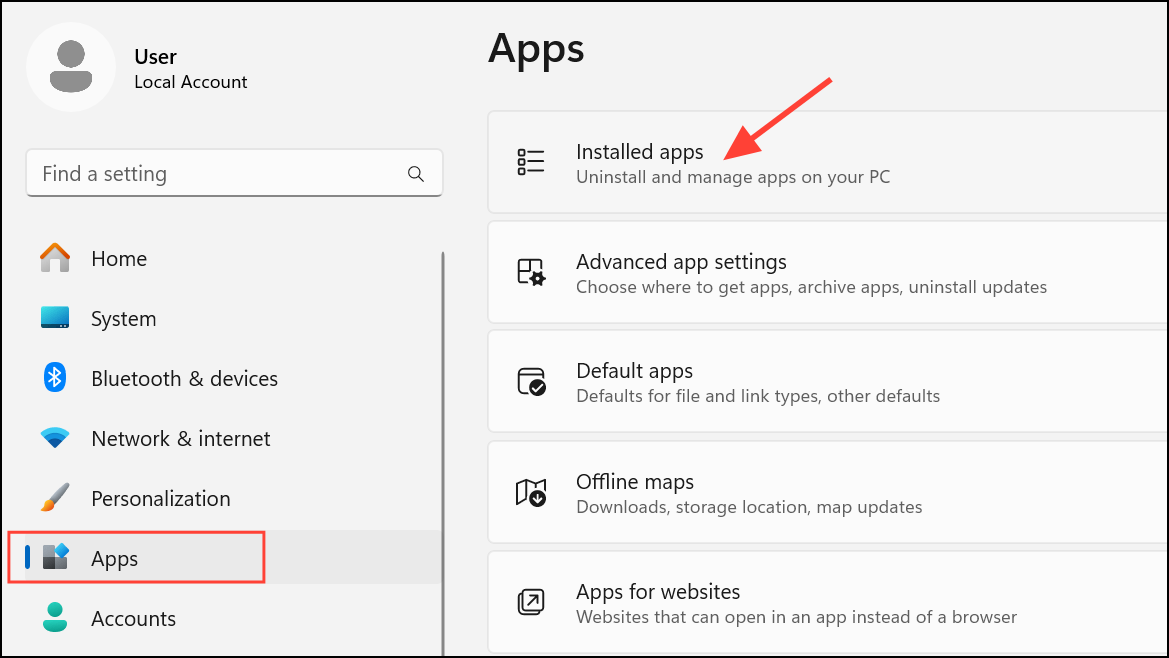
Find Mozilla Firefox, and select Uninstall. On Mac, drag the Firefox application from the Applications folder to the Trash. On Linux, use your package manager or run
sudo apt-get remove firefox.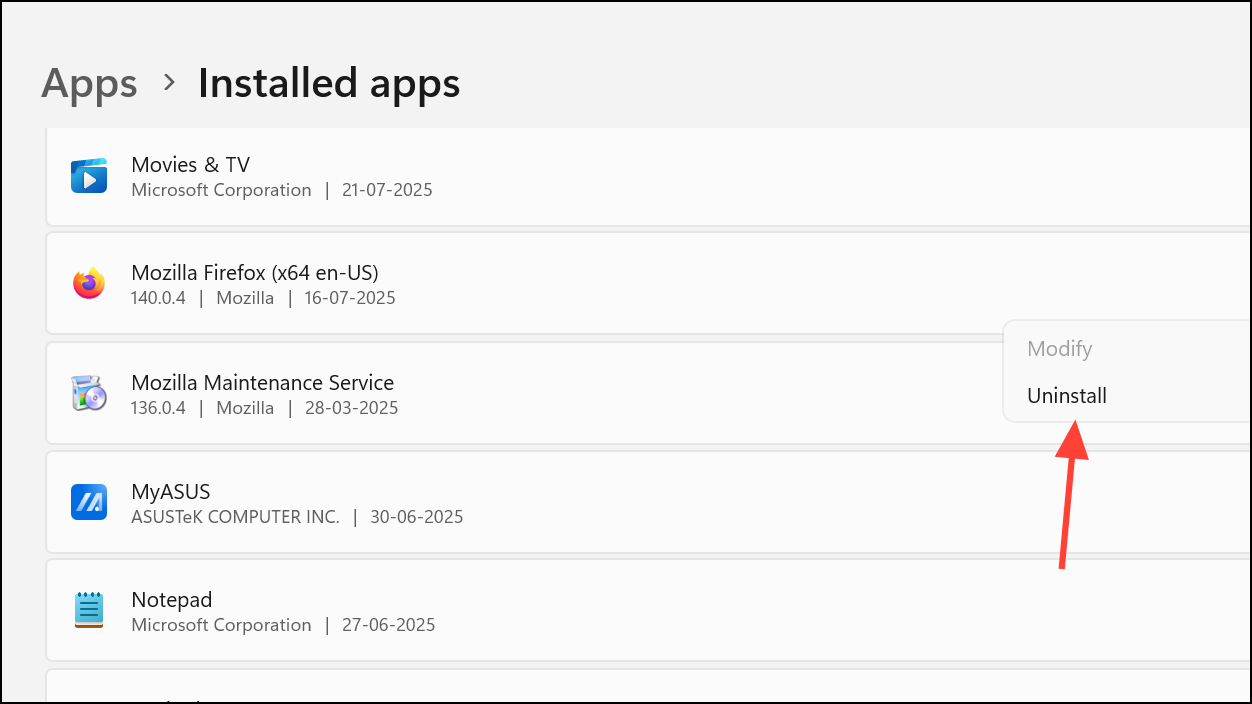
After uninstalling, manually delete leftover Firefox folders to remove corrupted files. On Windows, delete the
C:\Program Files\Mozilla Firefox and C:\Program Files (x86)\Mozilla Firefox folders if they exist.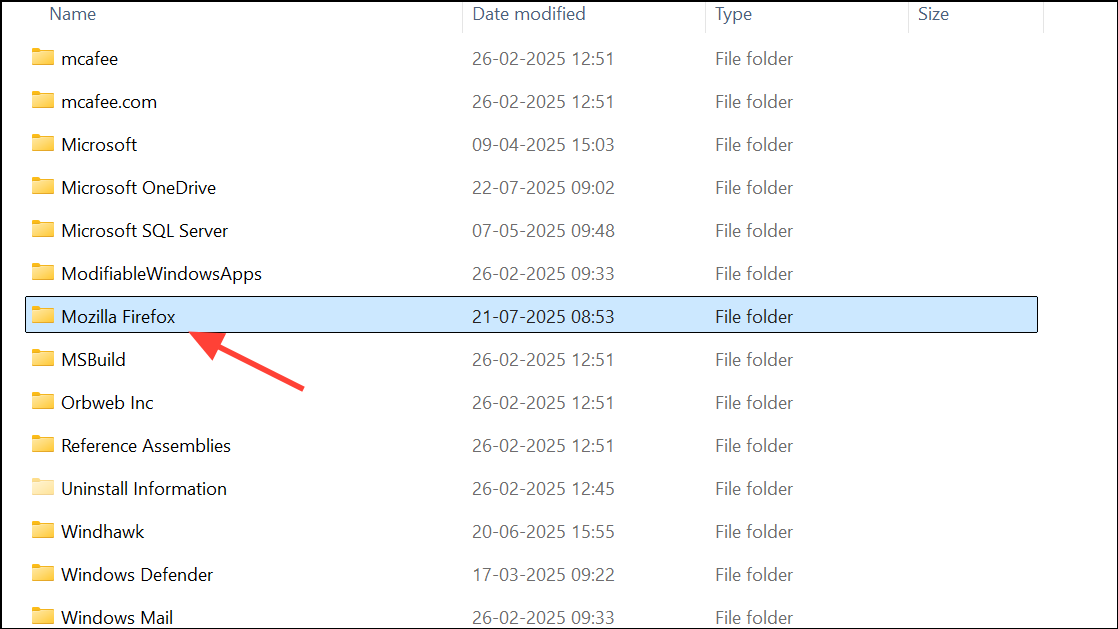
Also, clear profile data by typing
%appdata% in the Start menu, opening the Mozilla folder, and deleting it. Repeat this in %localappdata%. On Mac and Linux, remove ~/.mozilla from your home directory.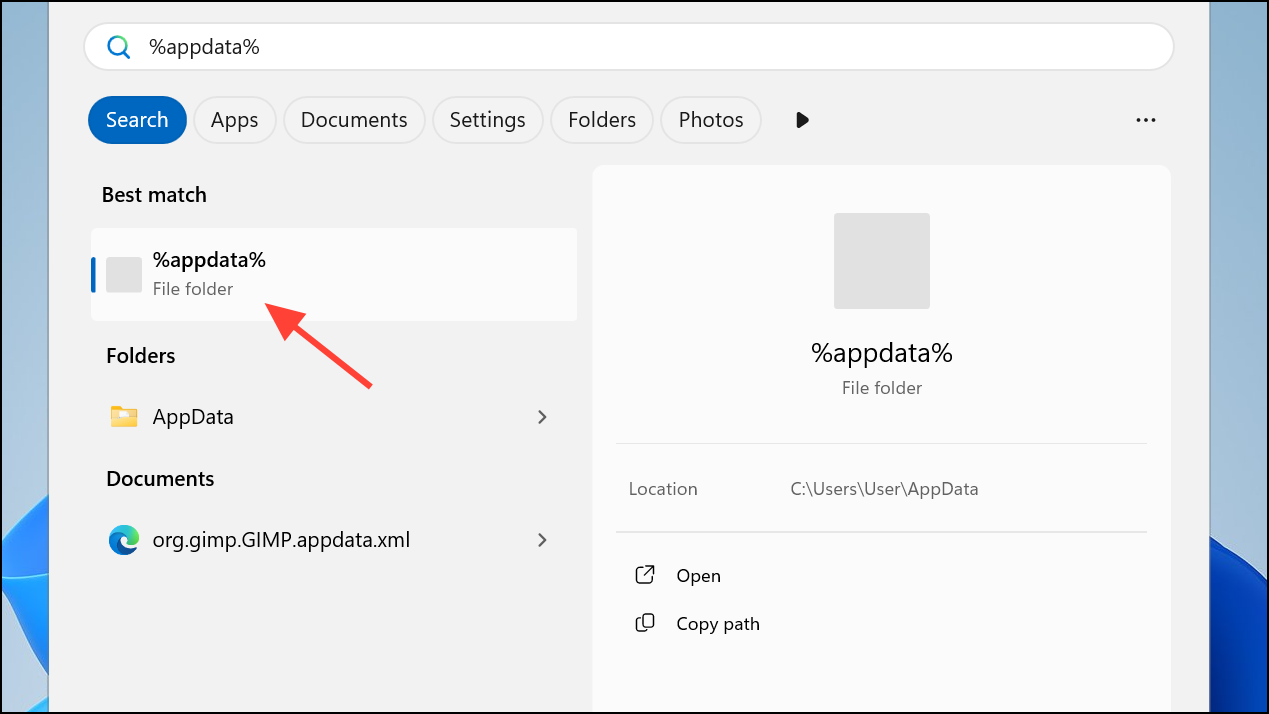
Download the latest Firefox installer from the official Mozilla website. Install Firefox, launch it, and check if the issue is resolved.
Method 6: Address Profile or Permission Issues
If you see messages like “Your Firefox profile cannot be loaded. It may be missing or inaccessible,” your profile folder may be corrupted or have incorrect permissions. Create a new profile via the Profile Manager as described above, and copy over important data from your old profile if possible.
On Windows, parental controls or Microsoft Family features can block browser access. If Firefox only opens when you rename
firefox.exe, adjust your content filtering settings or remove your account from family restrictions. Note that running a renamed executable may prevent DRM-protected content from working.Method 7: Check for Security Software or Malware Conflicts
Some antivirus or firewall programs block Firefox from launching. Temporarily disable third-party security software and try launching Firefox. If it works, add Firefox to the trusted or allowed list in your security software’s settings.
Scan your computer for malware using a reputable scanner. Malware can prevent browsers from opening or redirect their processes.
Method 8: Fix Installation or System Dependency Problems (Linux/Mac)
On Linux, if Firefox fails to start or shows “command not found,” check if it’s installed by running
which firefox or dpkg -l | grep firefox. Install or reinstall Firefox using sudo apt-get update && sudo apt-get install --reinstall firefox. For a complete reset, use sudo apt-get purge firefox and delete ~/.mozilla before reinstalling.For Mac users, ensure Firefox is in the Applications folder and not blocked by Gatekeeper. If Firefox still fails to open, remove it from Applications, delete
~/Library/Application Support/Firefox, and reinstall.Following these steps resolves most cases where Firefox will not launch, restoring browser access and saved data. If the issue persists after all methods, consider seeking help from Mozilla’s support forums or your system administrator for deeper troubleshooting.