How to Fix Hard Drive Not Installed Error on Dell Laptop
Follow these detailed steps to resolve the "Hard Drive Not Installed" error on your Dell laptop.
Follow these detailed steps to resolve the “Hard Drive Not Installed” error on your Dell laptop.
by Pallav Pathak
The “Hard Drive Not Installed” error message appears when your Dell laptop cannot detect its internal storage device during startup, causing it to fail to boot into Windows. Common causes include incorrect BIOS settings, loose hardware connections, or a damaged hard drive. Below are the most effective methods to fix this issue.
Inside BIOS, navigate to the “Boot Sequence” or “Boot Configuration” settings. Ensure the primary boot device is set to “Windows Boot Manager” or your laptop’s internal hard drive or SSD. Use the arrow keys to move the correct boot device to the top of the list.
Pay attention to the results of the hard drive test. If the diagnostic reports a failure or error code such as “2000-0155,” your hard drive likely needs replacement. If the hard drive passes, proceed to the next method.
Method 3: Physically Check and Reconnect the Hard Drive
A loose or disconnected hard drive can trigger the “Hard Drive Not Installed” error.
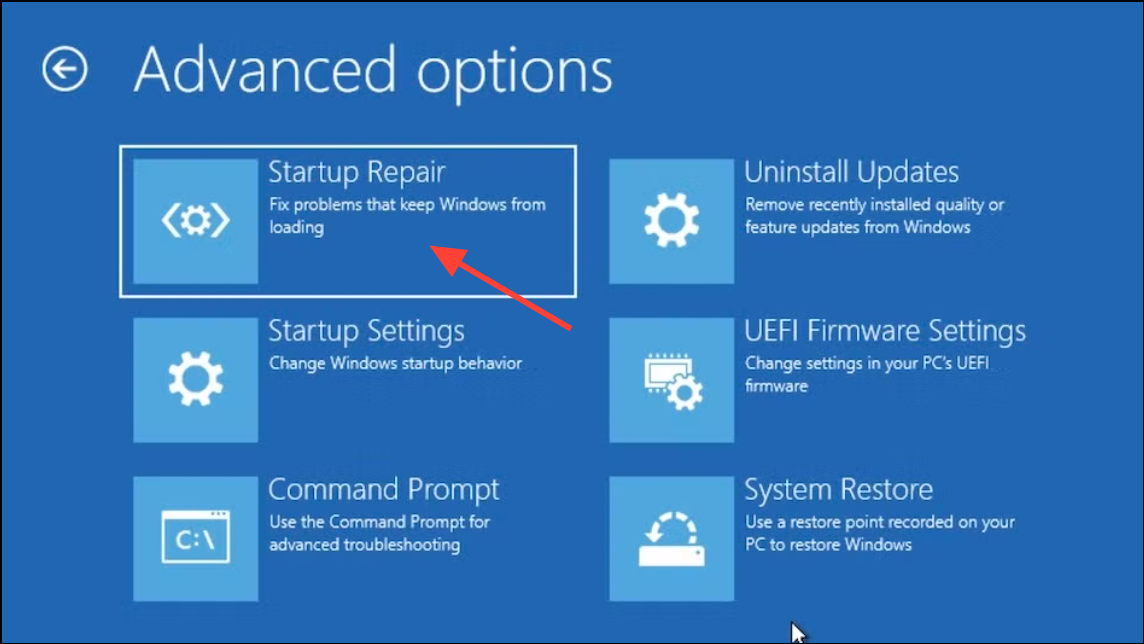
When the Windows installation screen appears, select “Repair your computer” and navigate to “Troubleshoot” > “Advanced Options” > “Startup Repair.” Follow the prompts to repair Windows boot files.
Reinstall Windows 11 using a bootable USB drive and restore your data from backups afterward.
After following these detailed steps, your Dell laptop should once again detect the hard drive and boot normally. If you continue to face issues, contacting Dell Support or a professional technician is recommended.