How to Fix Hard Drive Not Installed Error on Dell Laptop
Follow these seven methods to resolve the "Hard Drive Not Installed" error on your Dell laptop.
Follow these seven methods to resolve the “Hard Drive Not Installed” error on your Dell laptop.
by Pallav Pathak
The “Hard Drive Not Installed” error on Dell laptops typically occurs when your laptop fails to detect the internal storage drive at startup. Common reasons include loose connections, incorrect BIOS configurations, or hardware failure. Below are several reliable methods you can use to resolve this issue and get your laptop booting again.
Turn off your Dell laptop completely and disconnect all external devices, including USB drives, printers, and docking stations. Unplug the AC adapter and remove the battery if your laptop has a removable battery.
Carefully disconnect and reconnect the hard drive, ensuring it is securely attached to the SATA connector and properly seated in its bracket. Replace the back panel securely.
Note any error codes that appear. If the diagnostic detects a hardware issue with your hard drive, you may need to replace it or contact Dell Technical Support for further assistance.
Method 3: Verify and Adjust BIOS Settings
Incorrect BIOS settings can cause your Dell laptop to fail to recognize the hard drive.
Within BIOS, navigate to the “General” tab and select “Date/Time.” Ensure the date and time settings are accurate, as incorrect settings can cause boot issues.
Next, navigate to “General” > “Boot Sequence” and verify that the boot mode matches your operating system installation (UEFI or Legacy). For modern Windows installations, set the boot mode to “UEFI,” enable “Secure Boot,” and disable “Legacy Option ROMs.”
When the Windows installation screen appears, select “Repair your computer,” then navigate to “Troubleshoot” > “Advanced Options” > “Startup Repair.” Follow the prompts to complete the repair.
Method 6: Scan and Repair Hard Drive Errors
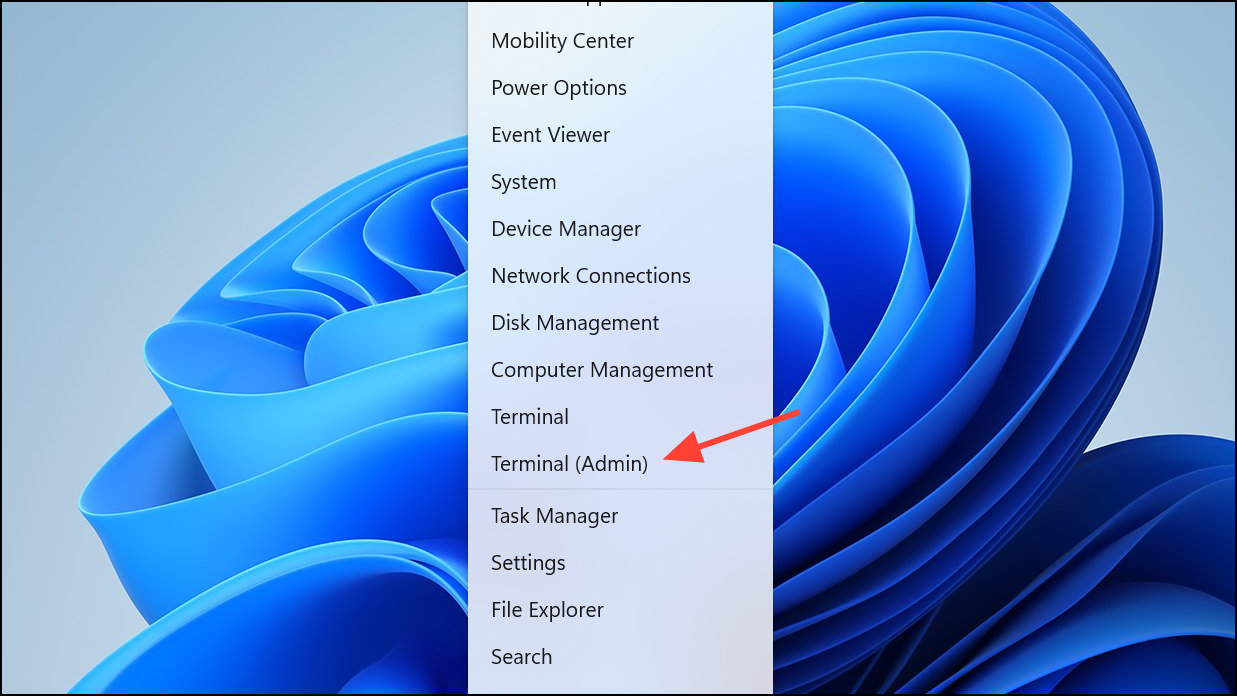
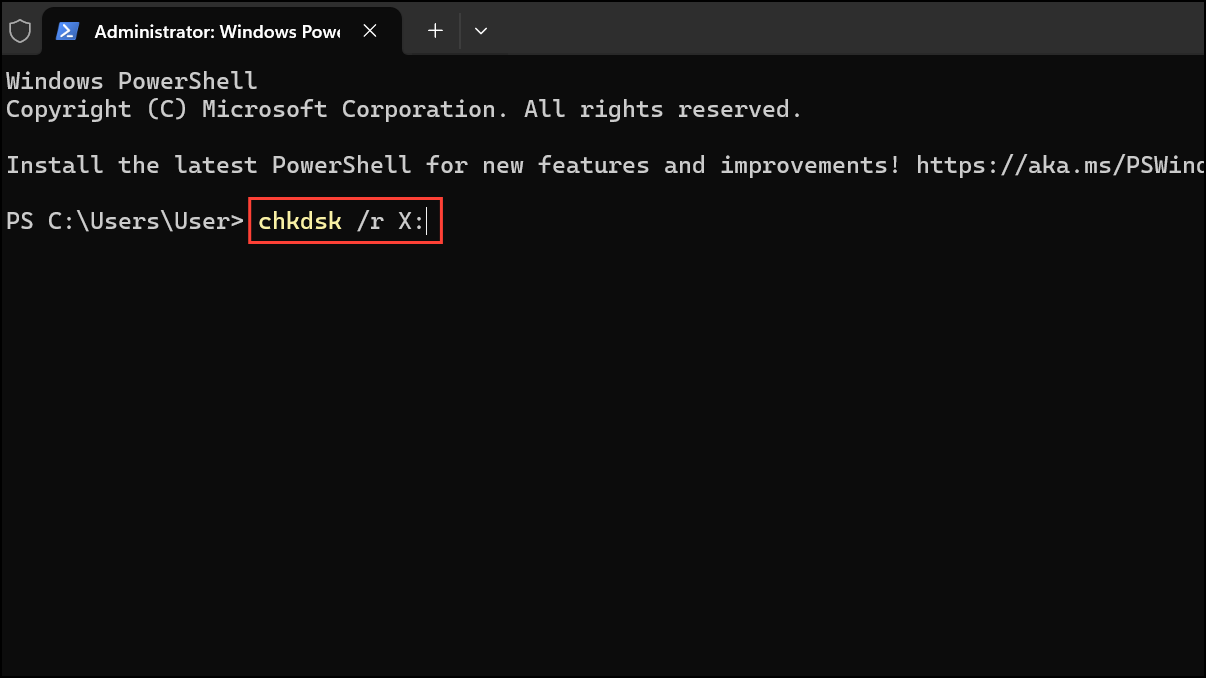
If you suspect the hard drive has bad sectors or errors, remove the hard drive and connect it to another working computer.
After the scan completes, reconnect the hard drive to your Dell laptop and check if the issue is resolved.
Method 7: Replace the Hard Drive
If none of the above methods work and diagnostics confirm a hardware failure, the final solution is to replace the hard drive entirely. Consider upgrading to a solid-state drive (SSD) for better performance and reliability. After installing the new drive, reinstall Windows and restore your data from backup.
These methods will help you effectively resolve the “Hard Drive Not Installed” error on your Dell laptop. If you continue experiencing issues, consider contacting Dell Technical Support or a professional data recovery service for further assistance.