
The Windows 11 install error 0x80070103 typically occurs when the system attempts to install a driver that’s either already present or incompatible with your hardware. This issue can prevent updates from completing successfully, leaving your system potentially outdated or missing important driver improvements. To resolve this, you can follow several effective methods outlined below.
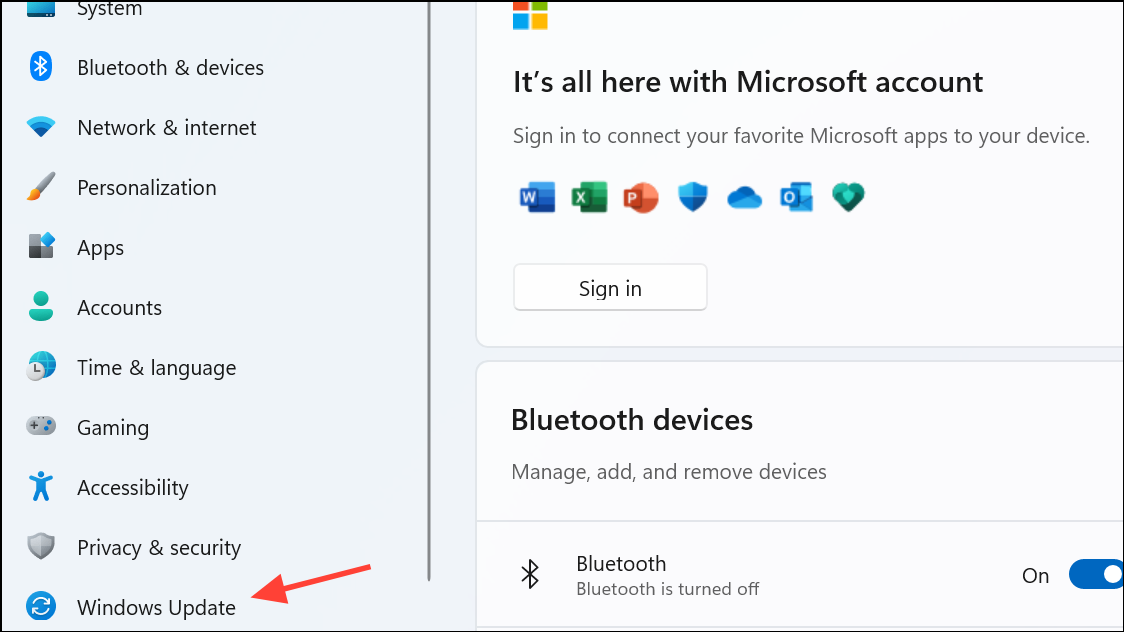
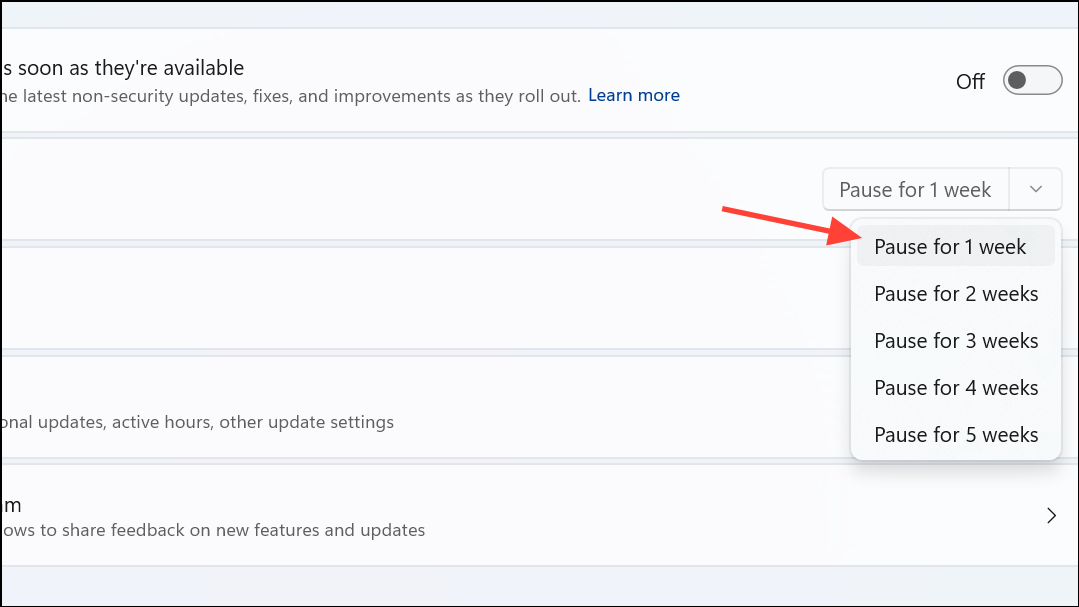
Method 1: Pause and Resume Windows Updates
This straightforward approach refreshes the update process, clearing minor conflicts or corrupted update files.
Method 2: Manually Install the Update
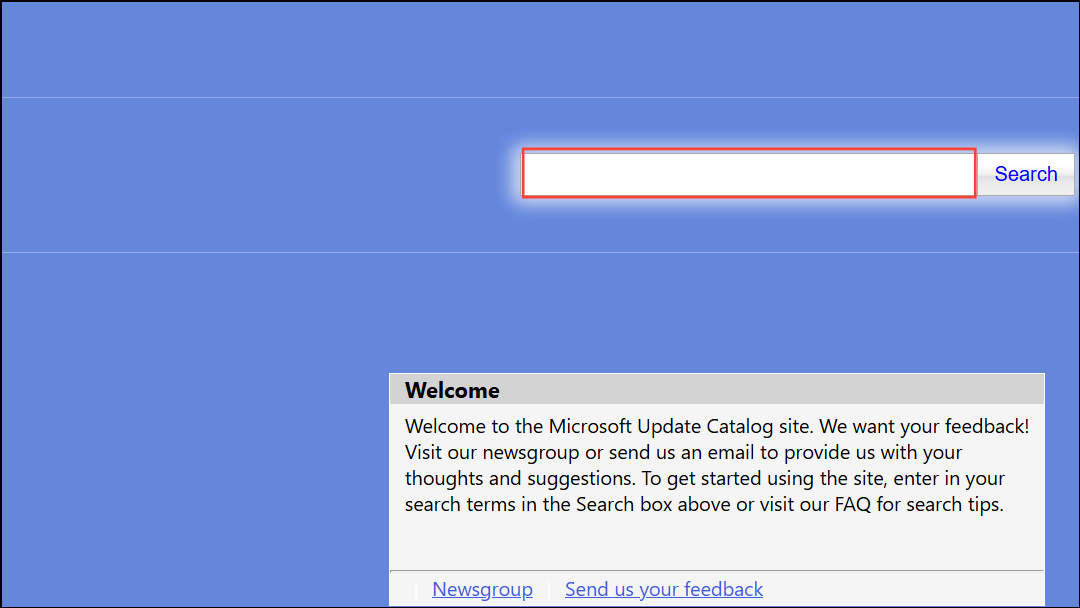
If automatic updates repeatedly fail, manually installing the problematic update from Microsoft’s Update Catalog can resolve the issue.
Windows + I), navigate to “Windows Update,” and select “Update history.” Identify the failed update and note its KB number.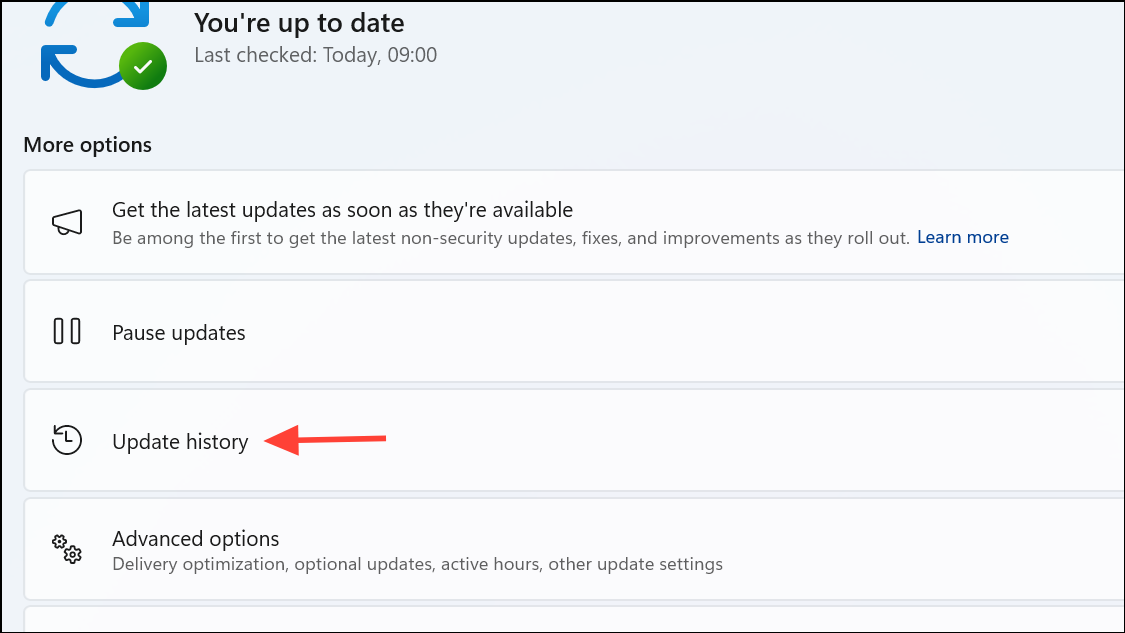
Method 3: Run the Windows Update Troubleshooter
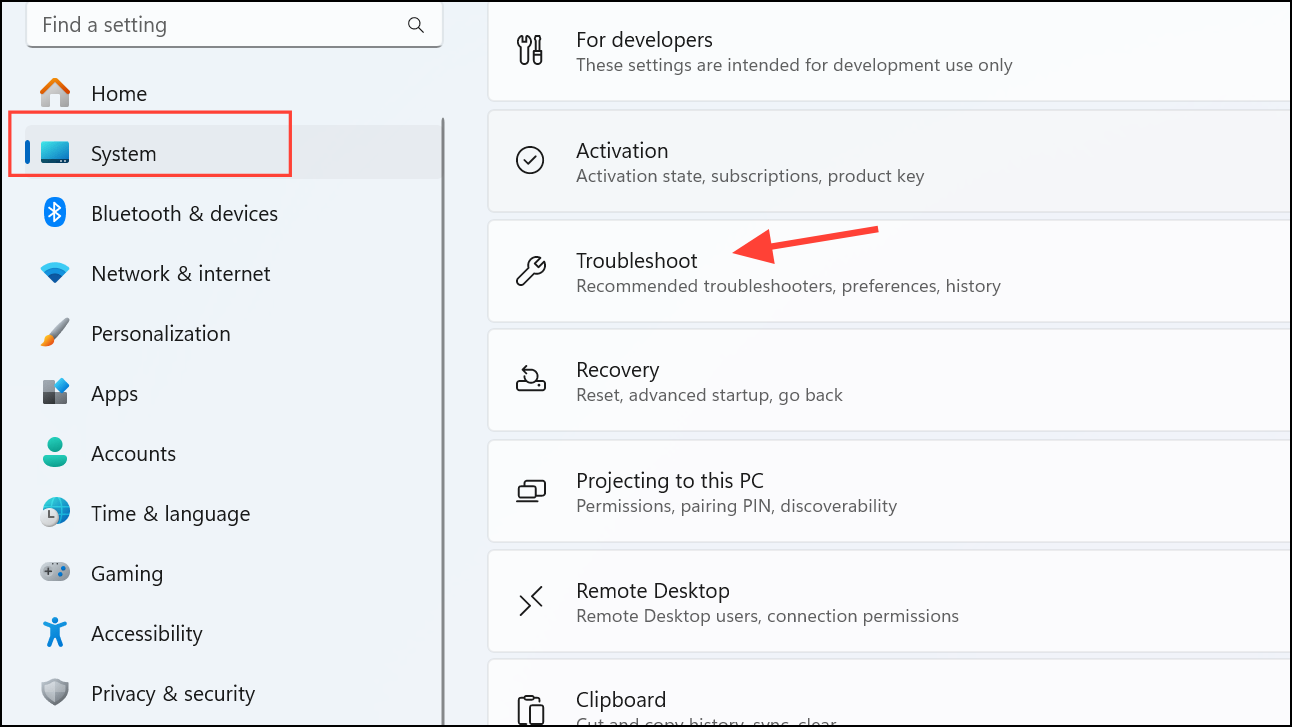
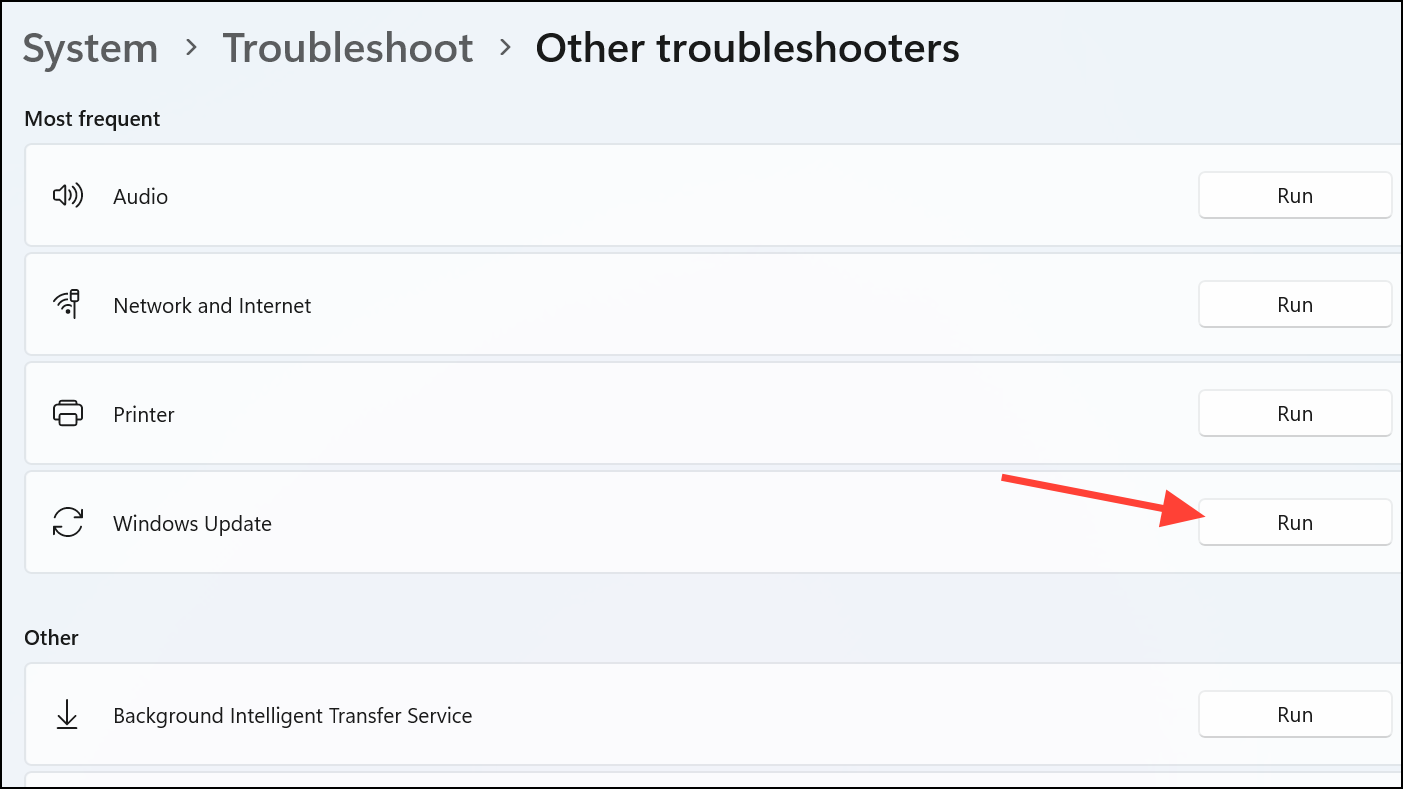
The built-in troubleshooter automatically detects and resolves common update-related issues.
Method 4: Restart the Windows Update Service
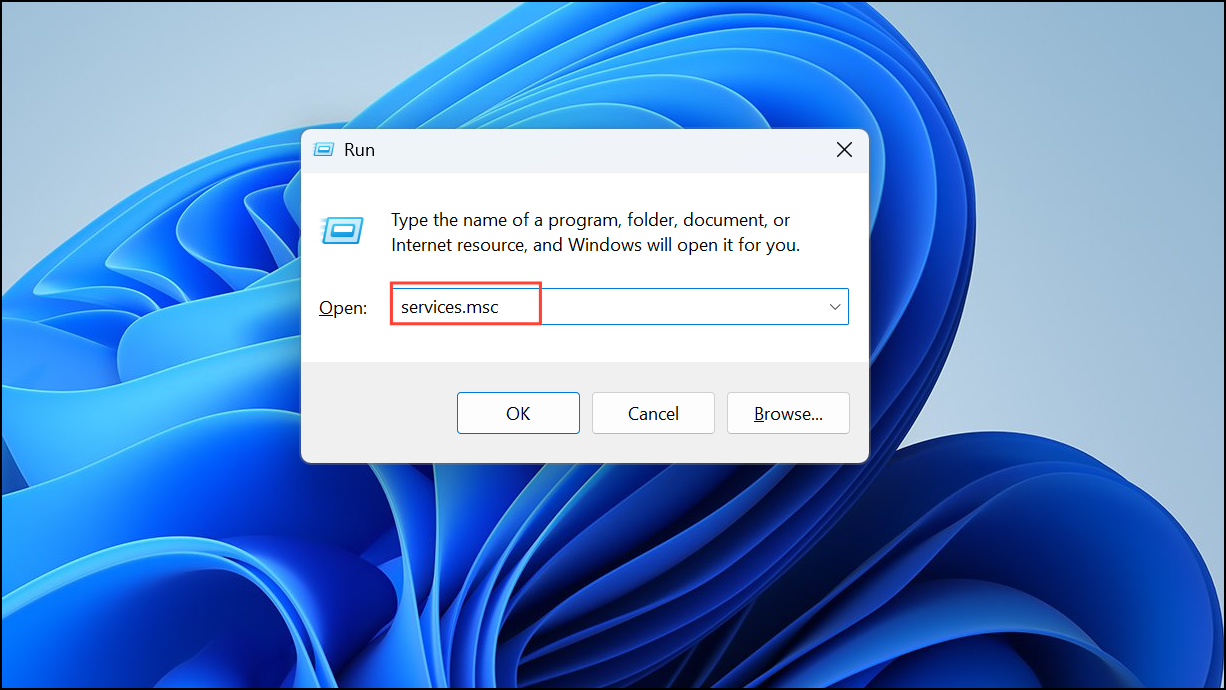
Restarting the update service clears temporary glitches and allows the update process to function properly.
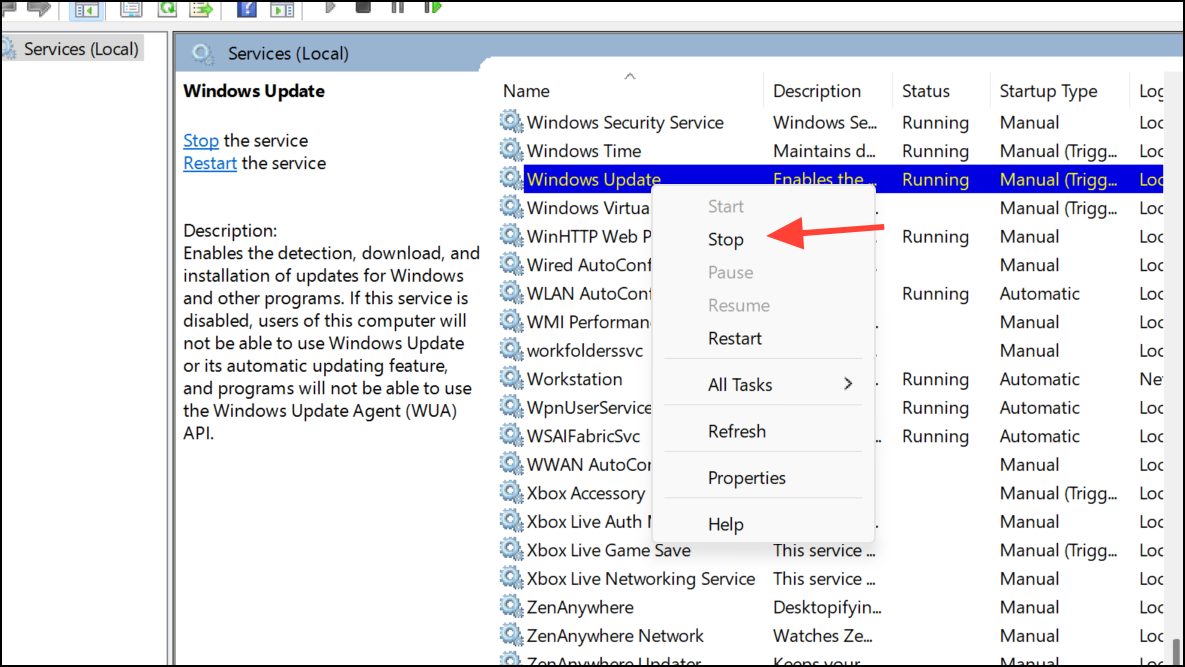
Method 5: Clear the SoftwareDistribution Folder
Corrupted files in the SoftwareDistribution folder can block updates. Clearing this folder resolves such issues.
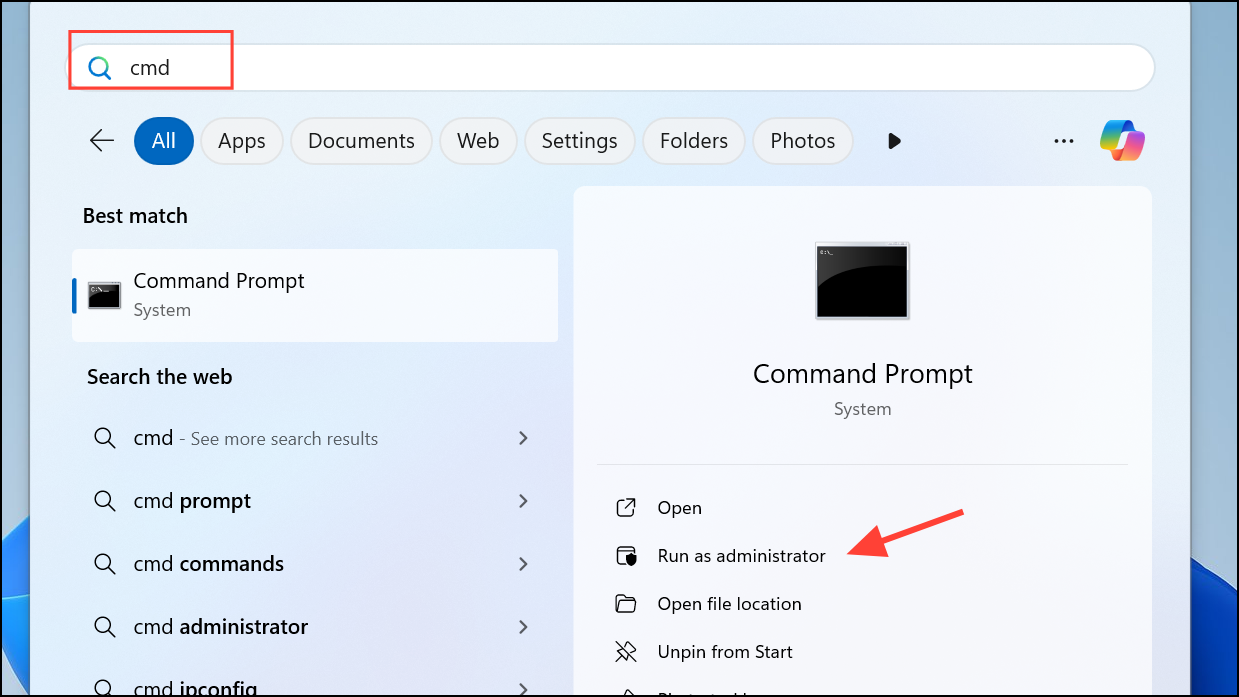
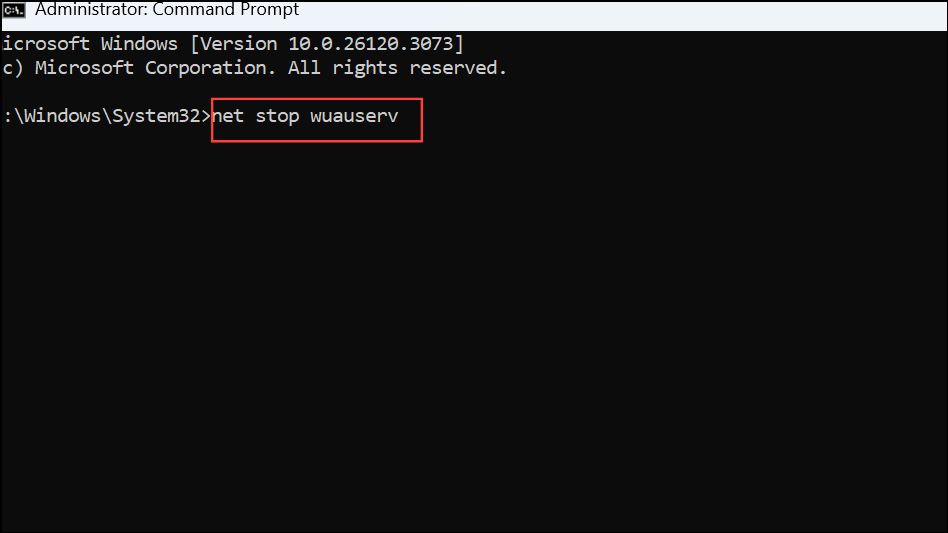
net stop wuauserv
net stop cryptSvc
net stop bits
net stop msiserver
C:\Windows\SoftwareDistribution.Select all contents and delete them.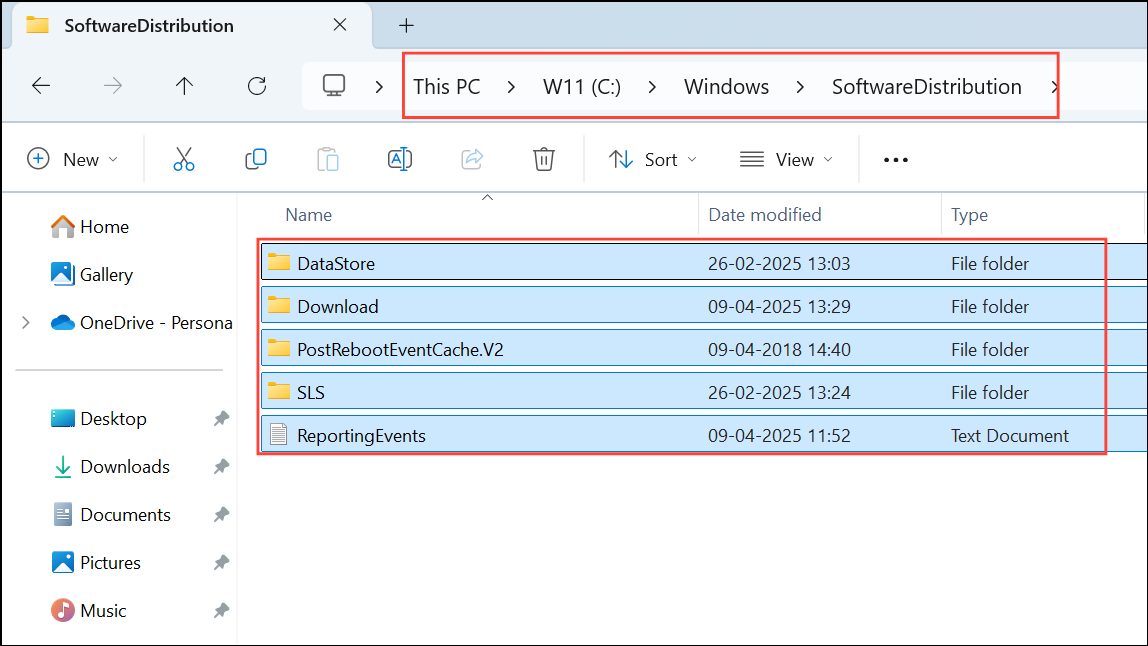
net start wuauserv
net start cryptSvc
net start bits
net start msiserver
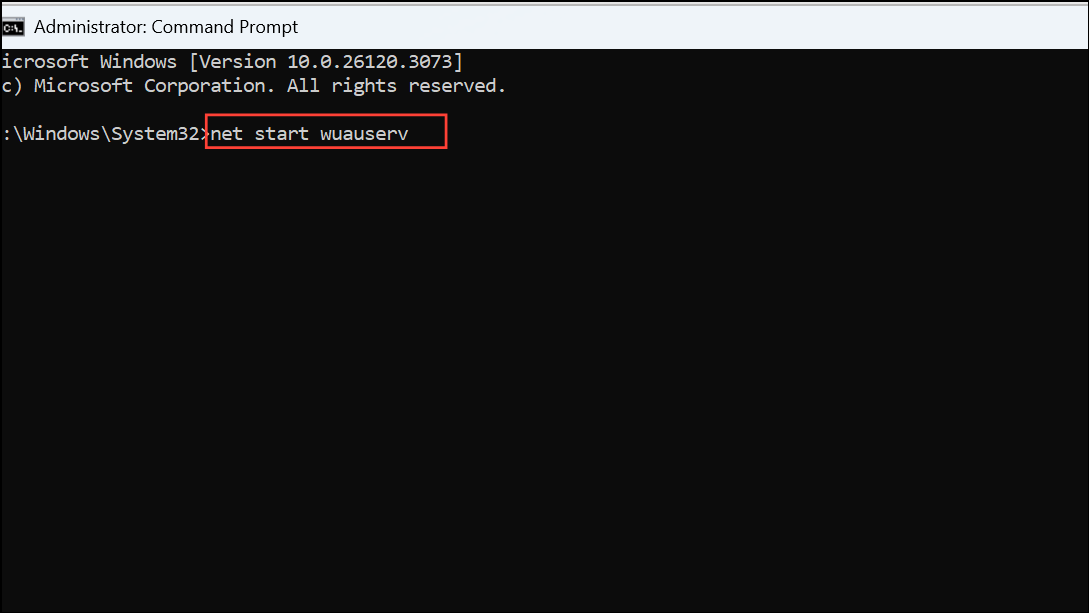
Finally, restart your PC and retry the update.
Method 6: Perform SFC and DISM Scans
System file corruption can trigger update errors. Utilizing built-in repair tools can fix these issues.
DISM.exe /Online /Cleanup-image /Restorehealth and pressing Enter.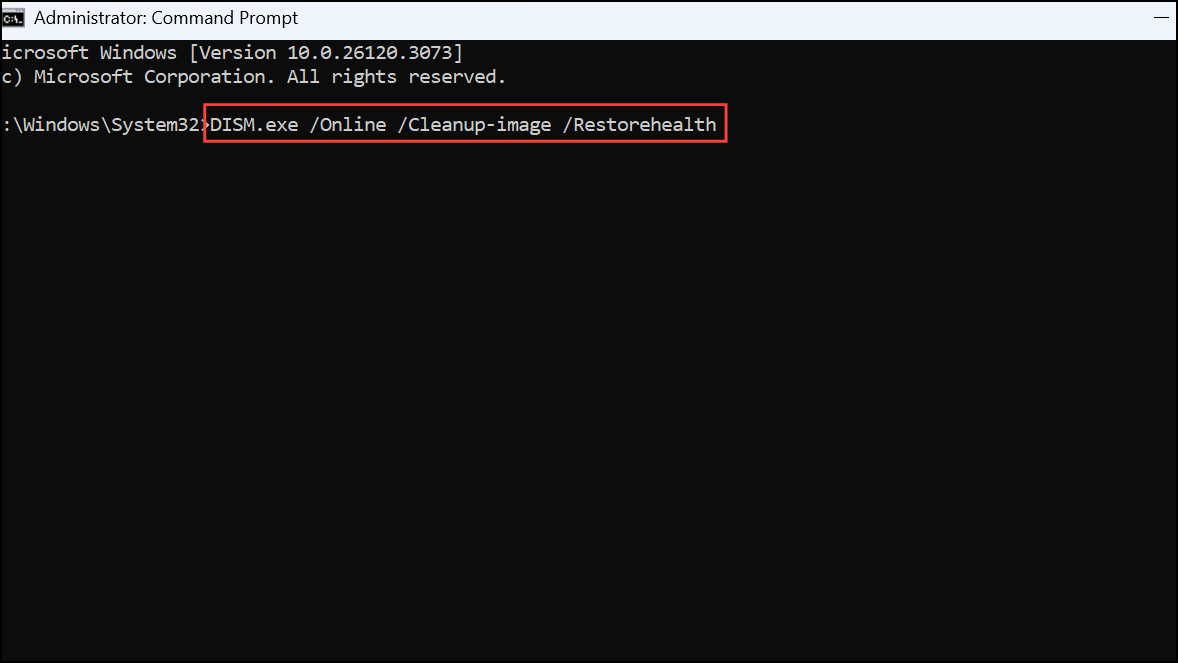
sfc /scannow and press Enter. Restart your system after completion.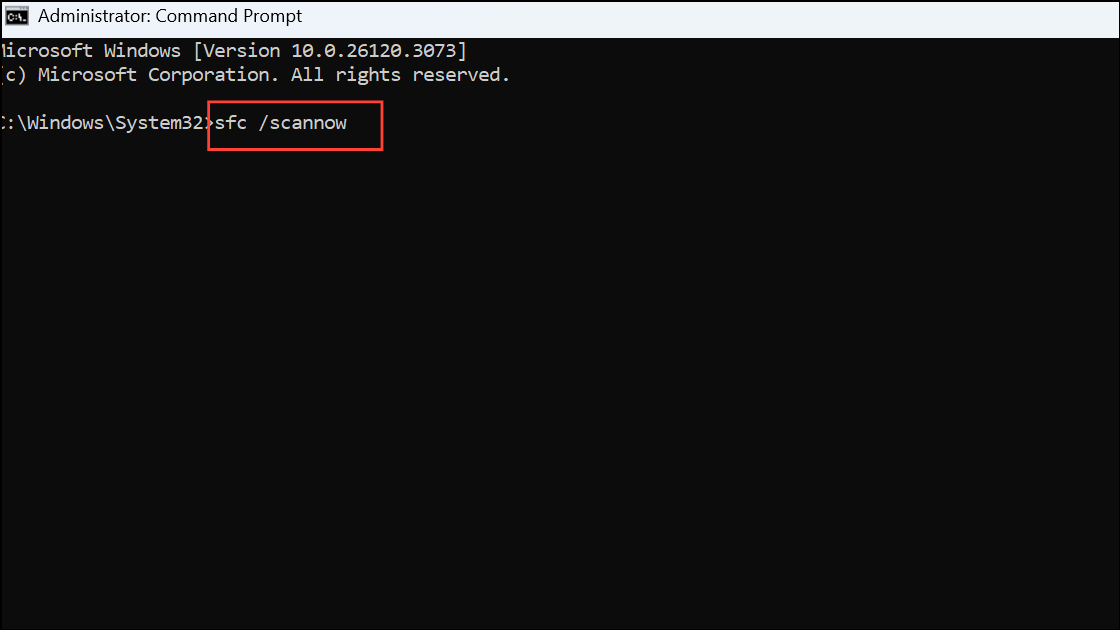
Method 7: Temporarily Disable Antivirus Software
Sometimes antivirus software interferes with the update process. Temporarily disabling it can resolve conflicts.
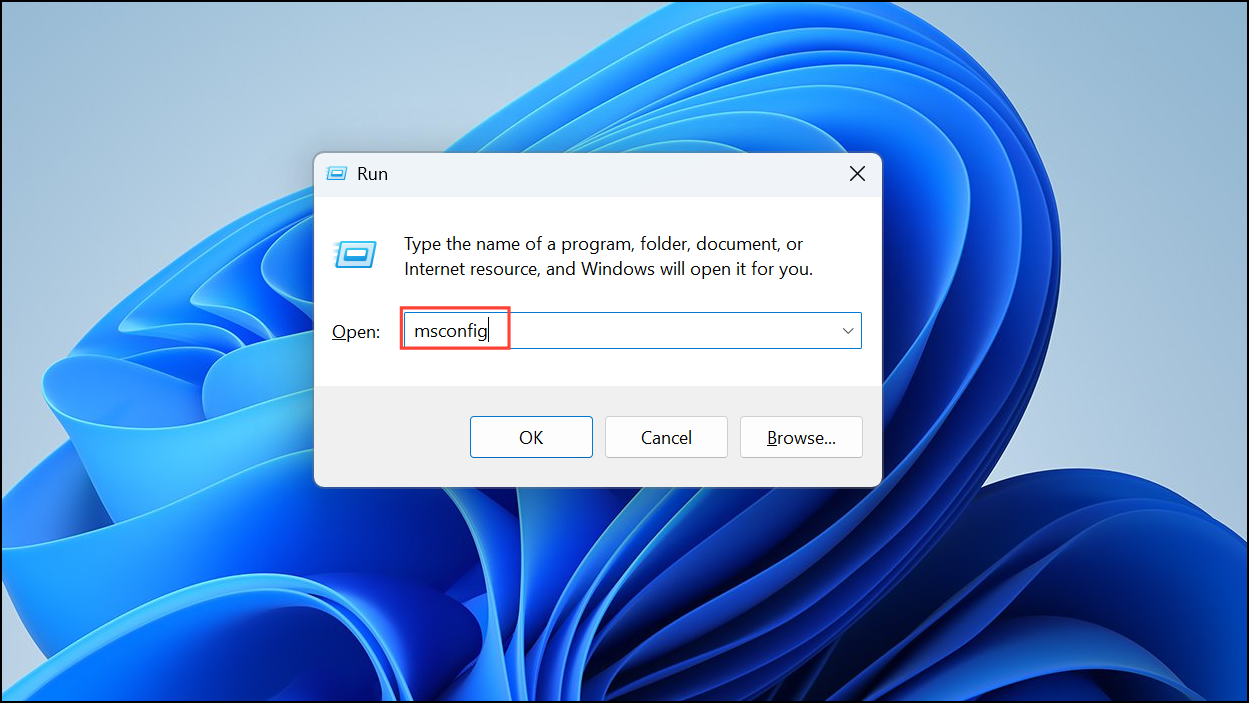
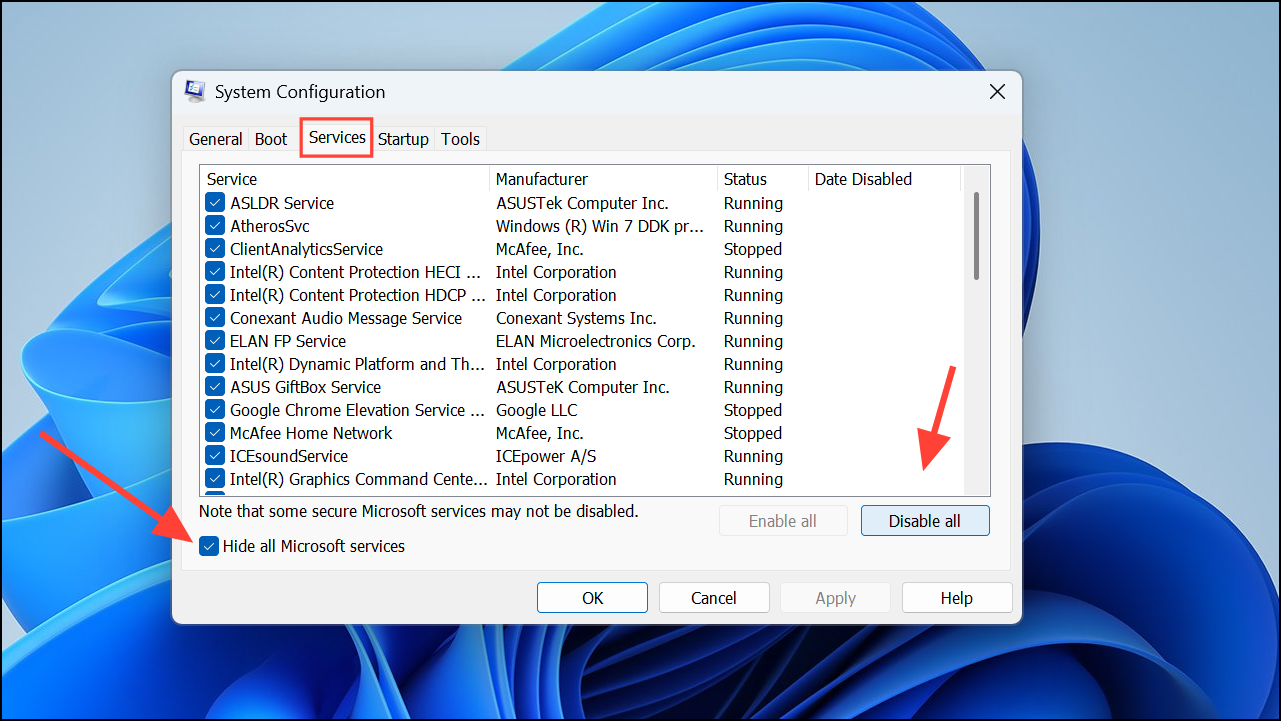
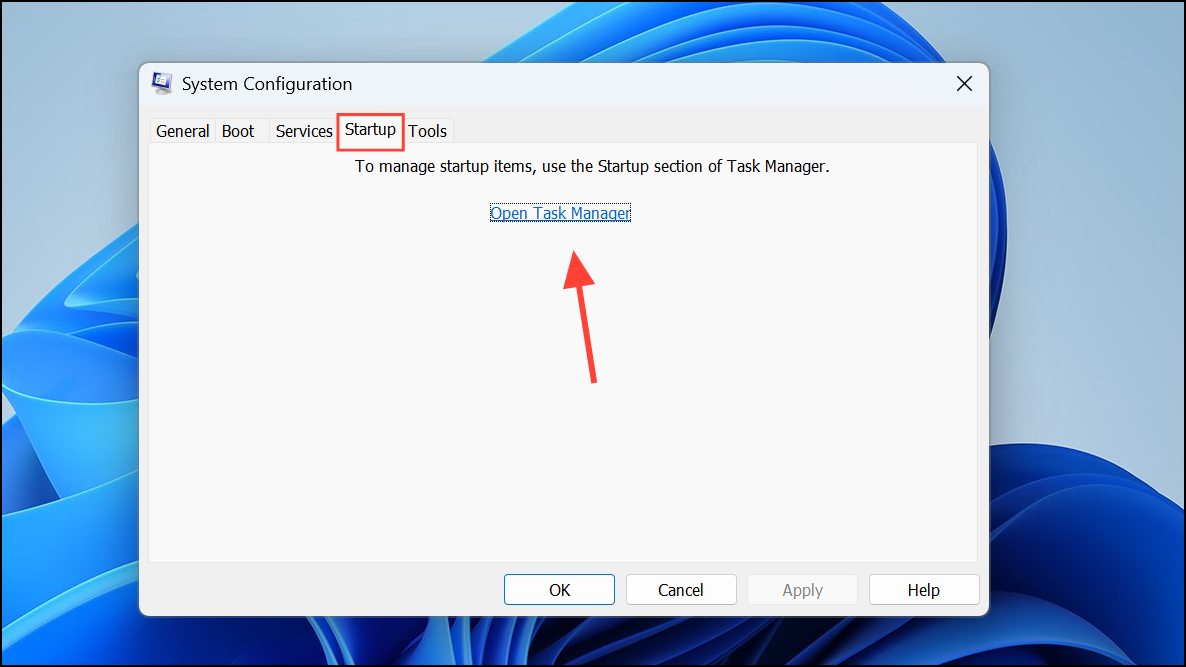
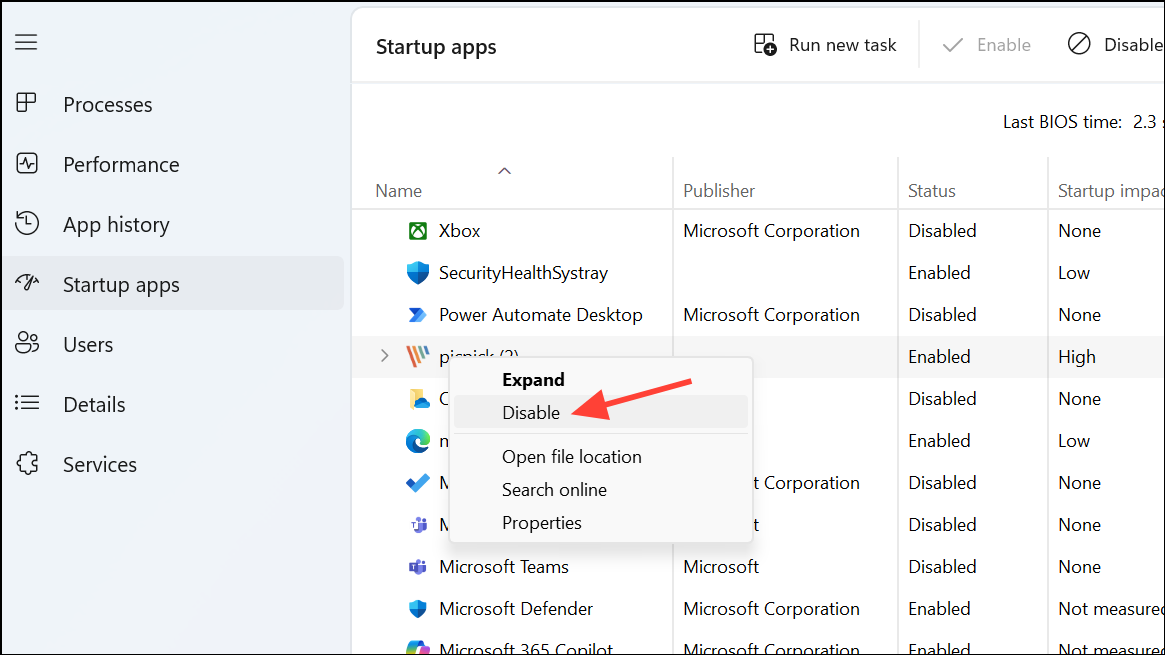
Method 8: Perform a Clean Boot
A clean boot starts Windows with minimal services, eliminating potential software conflicts causing the update error.
By following these methods, you should be able to resolve the installation error 0x80070103 in Windows 11 and keep your system up-to-date without further issues.





