
Experiencing Excel crashing when attempting to save a file can be frustrating, especially when you’re working on important data. This issue can occur due to various reasons, such as problematic add-ins, corrupted files, or conflicts with other software. In this guide, we’ll explore several methods to resolve this problem and help you get Excel running smoothly again.
Possible Causes of Excel Crashing When Saving
Understanding the root causes can assist in effectively addressing the issue. Common reasons include:
- Corrupted Excel files.
- Faulty or incompatible add-ins.
- Excessive formatting or styles in the workbook.
- Conflicts with antivirus software.
- Problems with the Microsoft Office installation.
- Issues with network drives or external locations.
Methods to Fix Excel Crashing When Saving
Method 1: Repair the Corrupted Excel File
If Excel crashes when saving a specific file, the file might be corrupted. You can use the built-in ‘Open and Repair’ feature to fix it.

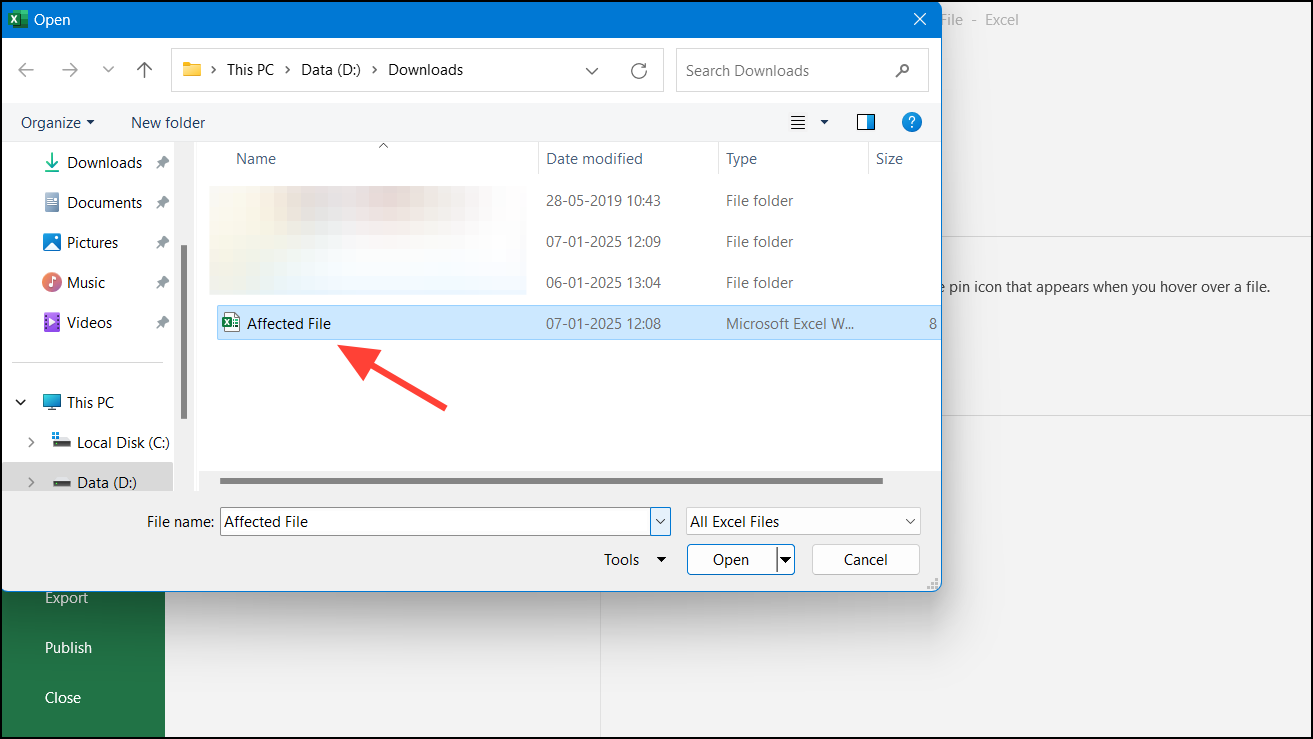
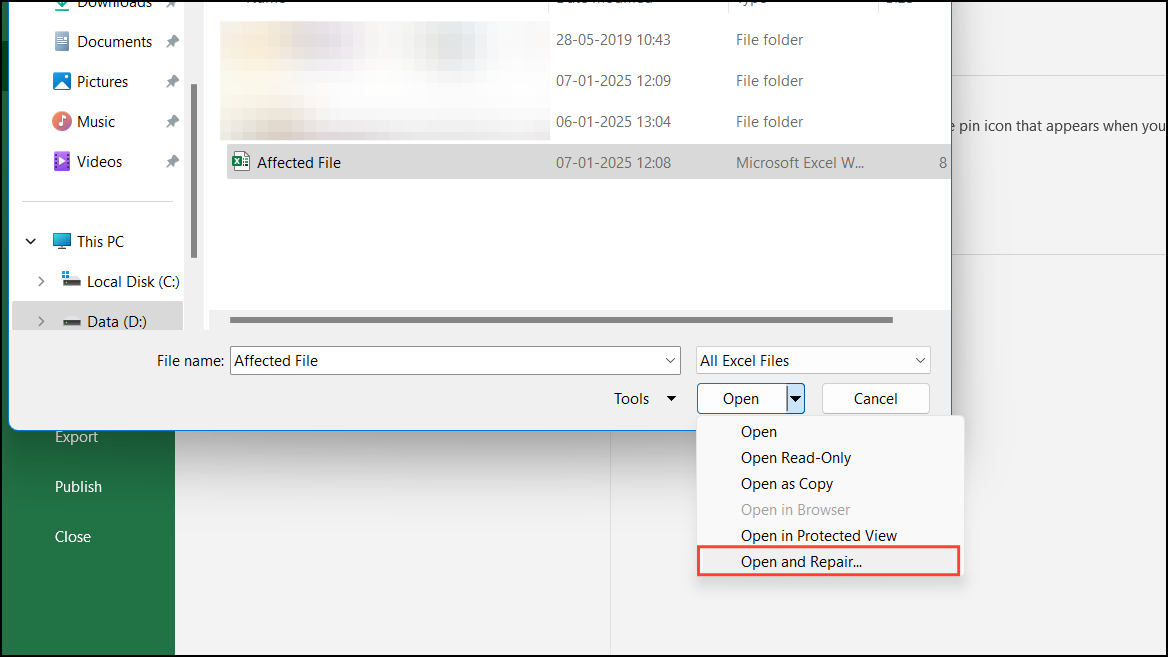
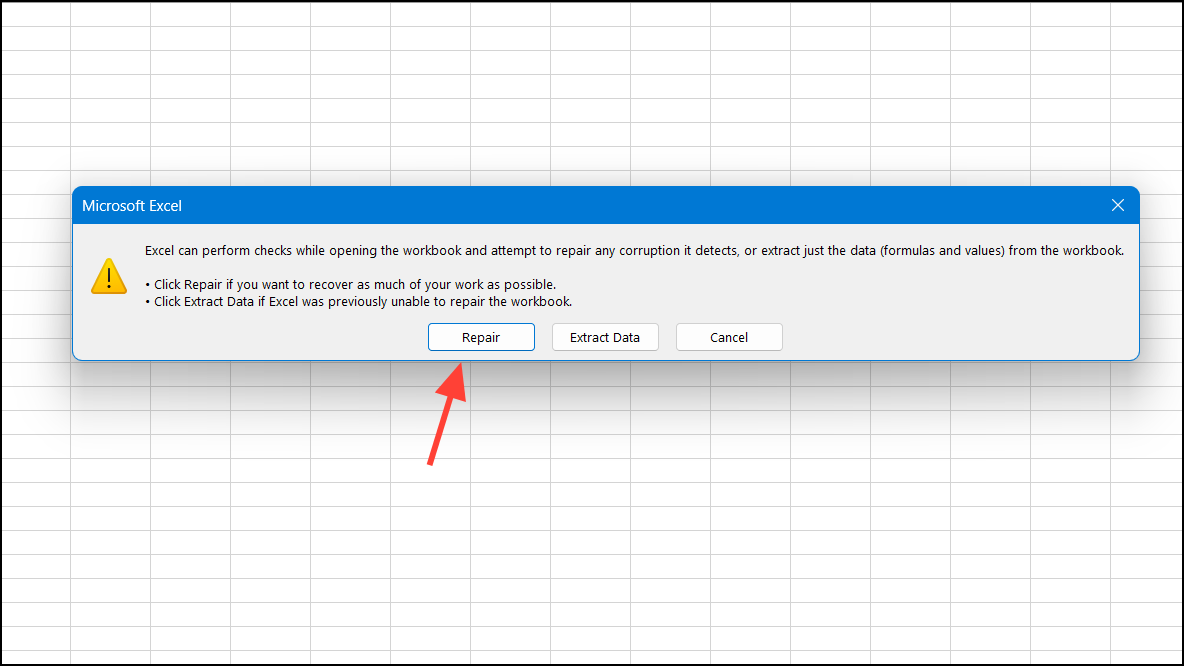
Extract Data to recover the underlying values and formulas.Method 2: Disable Faulty Add-ins
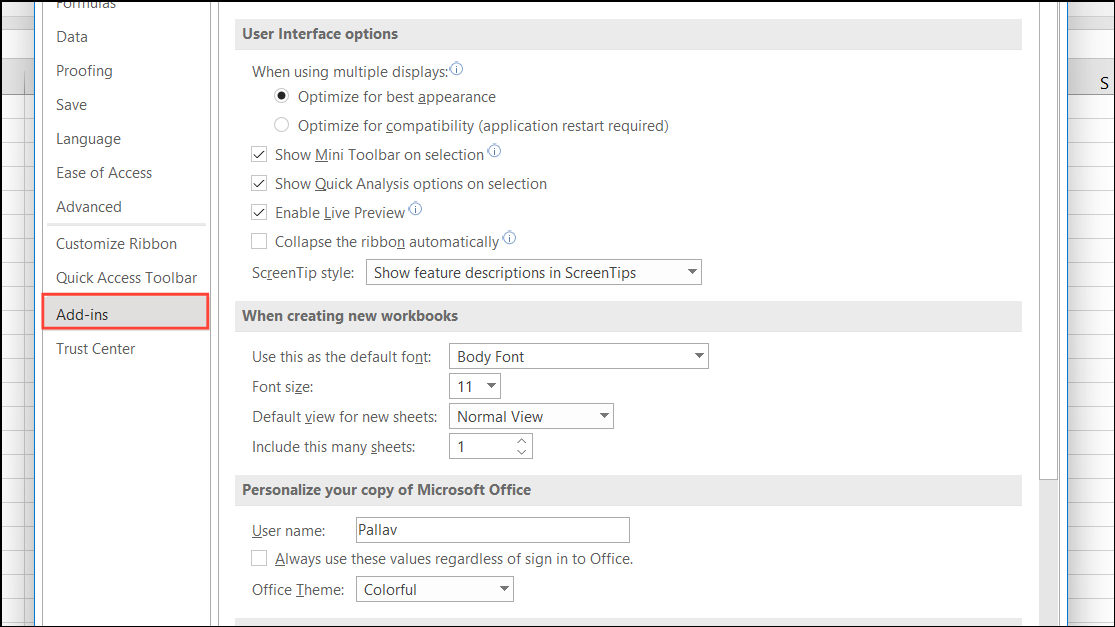
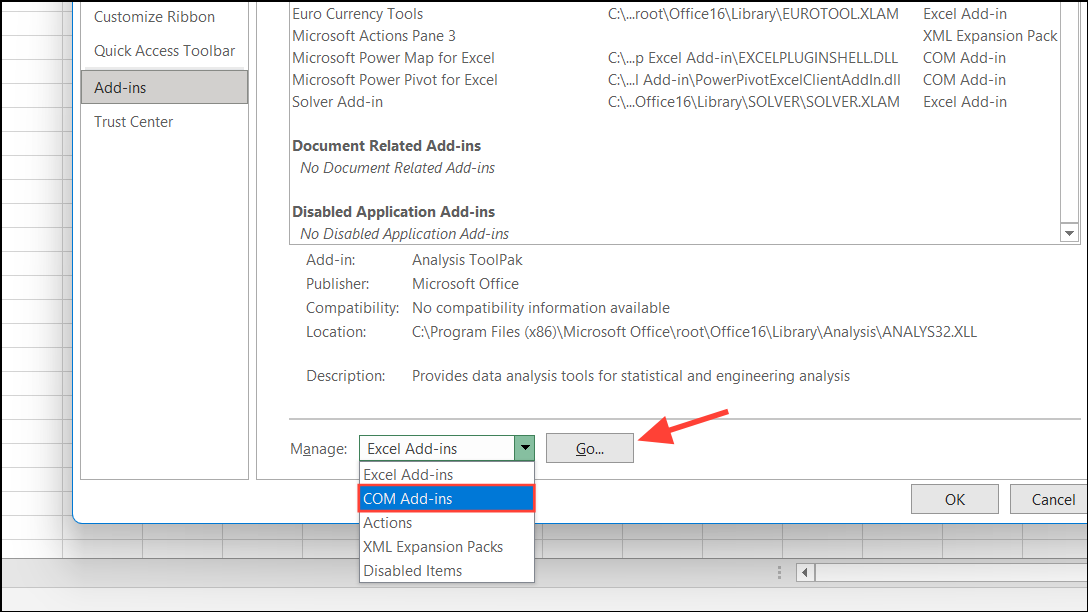
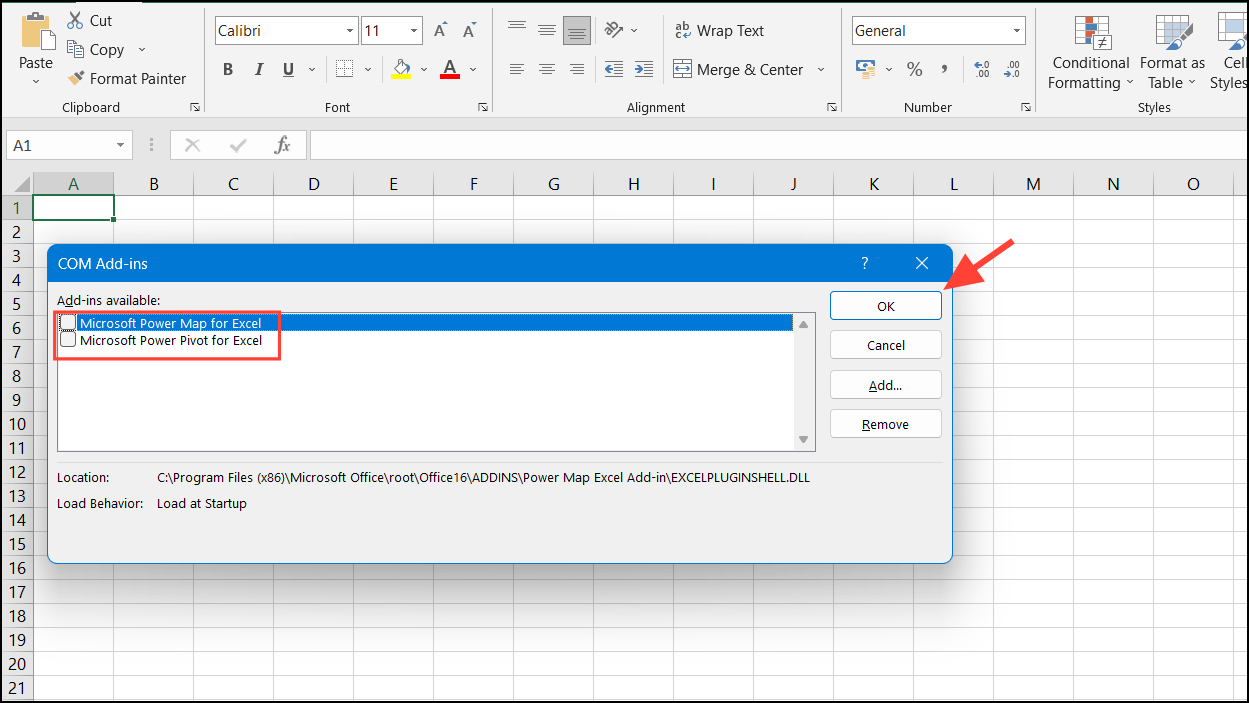
Sometimes, incompatible or faulty add-ins can cause Excel to crash. Disabling them can resolve the issue.

Method 3: Update Microsoft Office
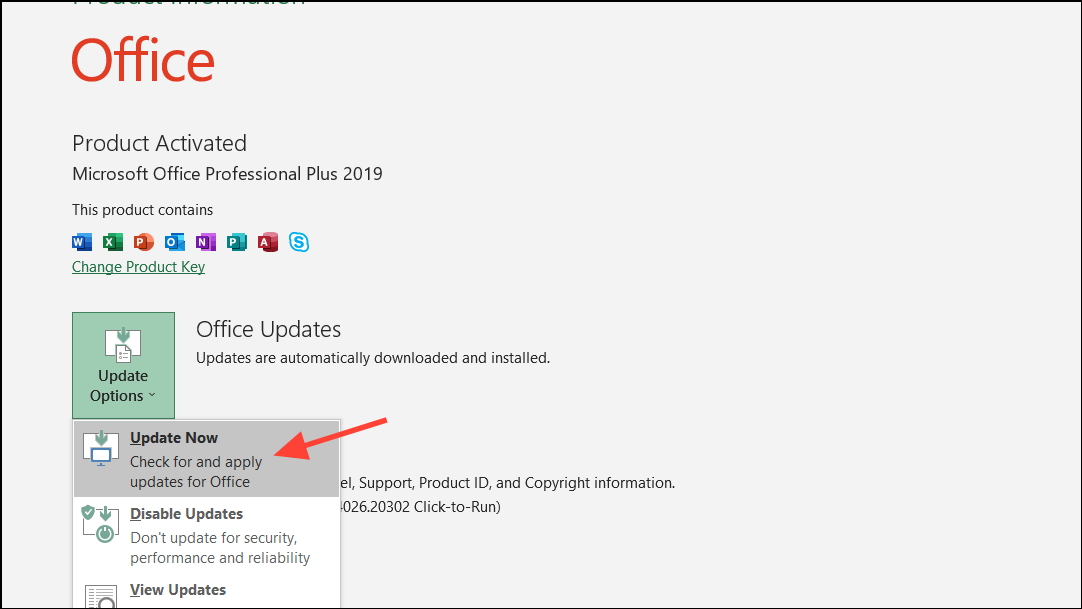
Outdated versions of Excel may have bugs that cause crashes. Updating to the latest version can fix known issues.

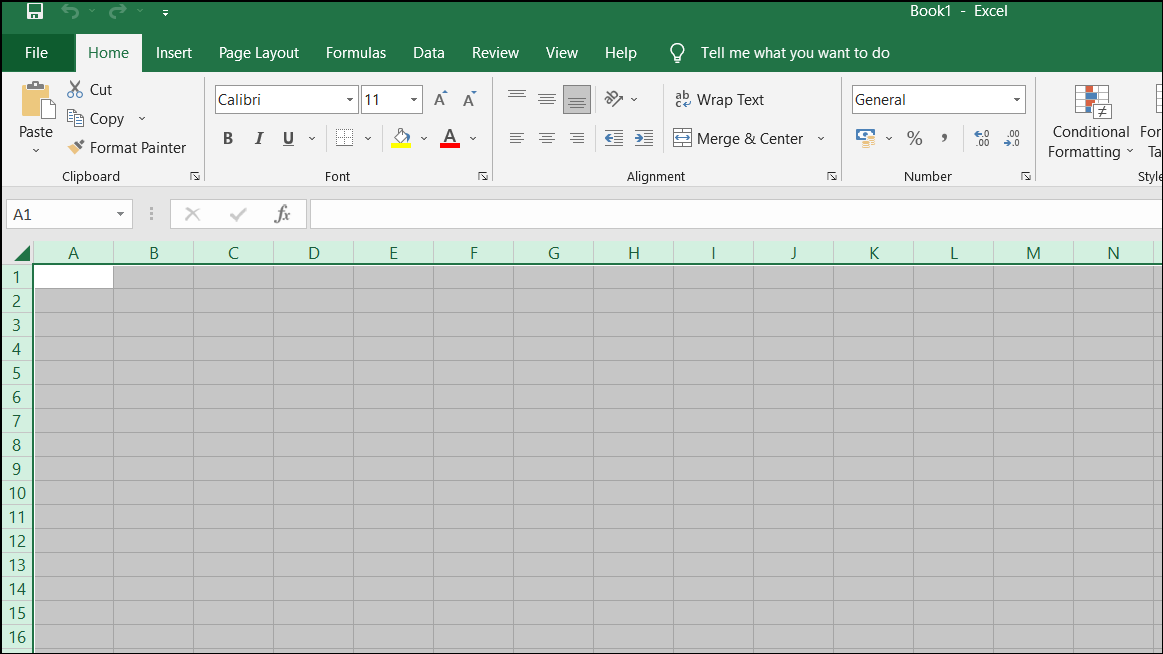
Method 4: Start Excel in Safe Mode
Launching Excel in Safe Mode runs the program without certain features and can help identify if startup programs are causing the issue.
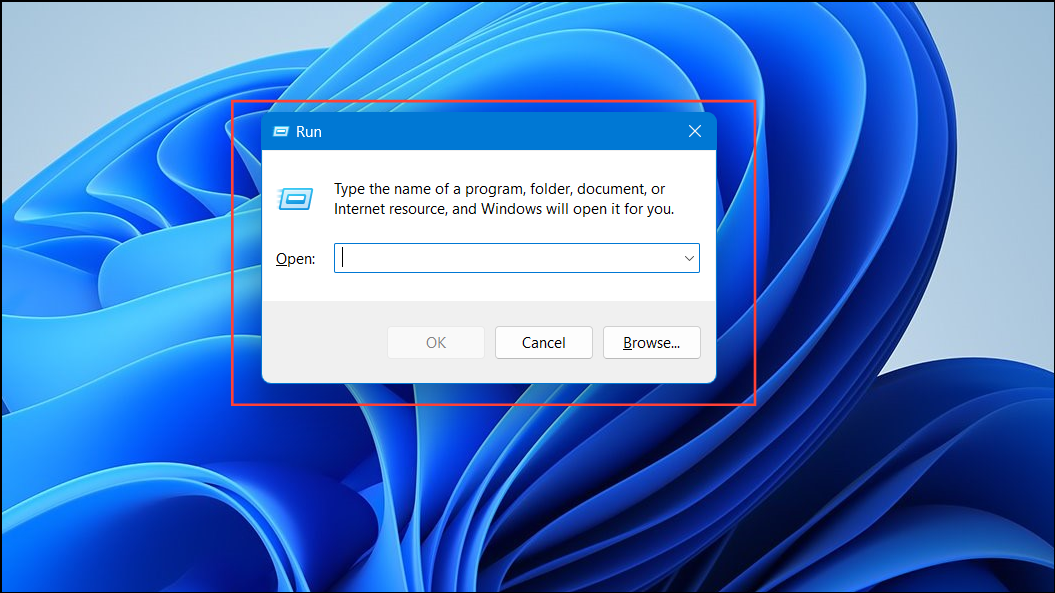
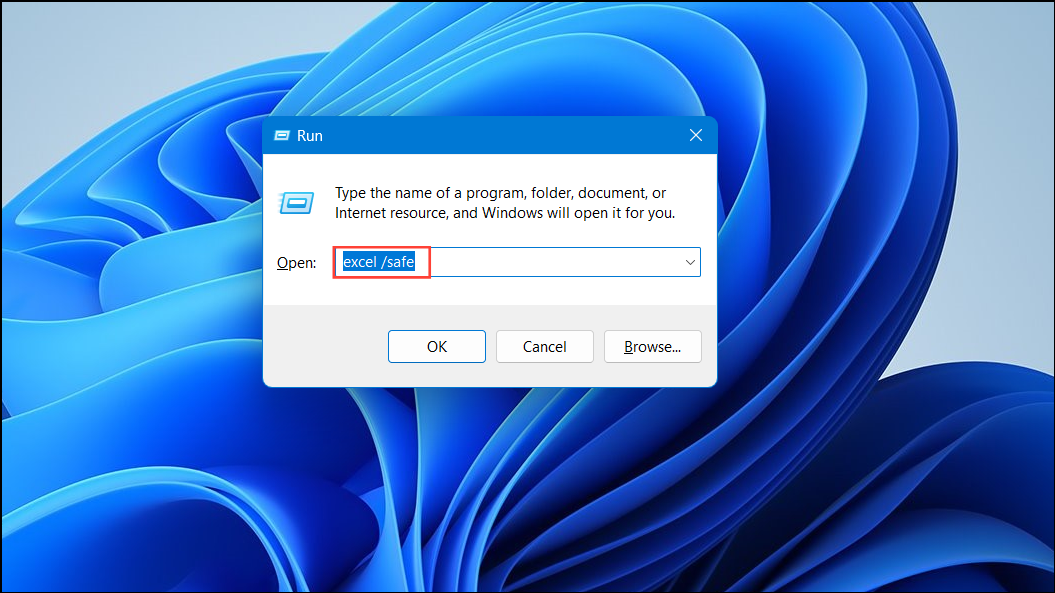
If Excel doesn’t crash, the problem may be related to add-ins or startup files.
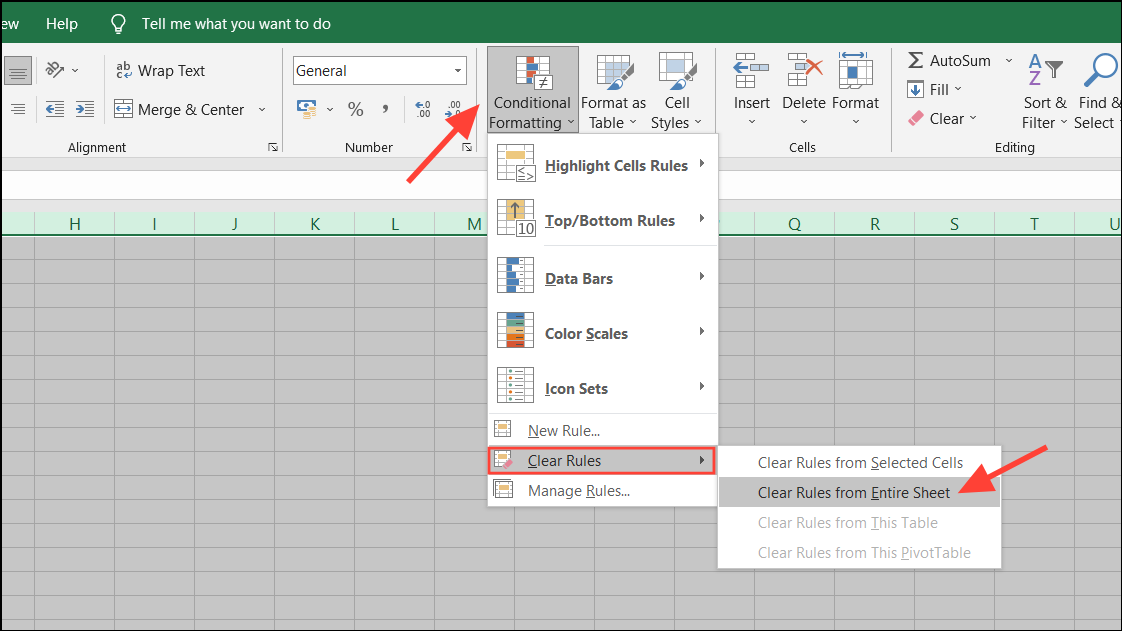
Method 5: Check for Excessive Formatting and Styles
Workbooks with excessive formatting can cause instability in Excel.
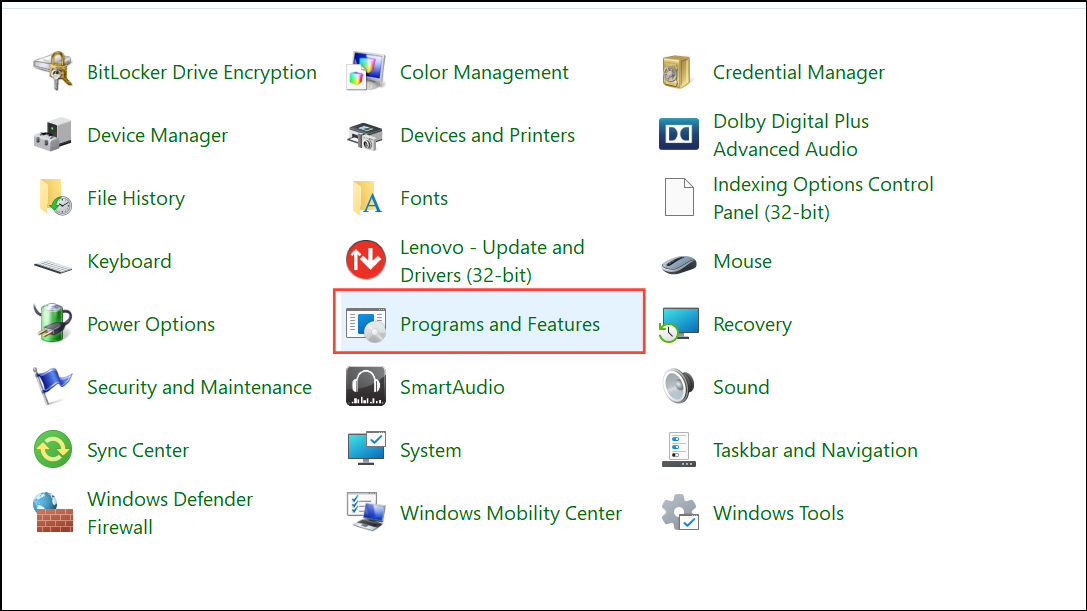
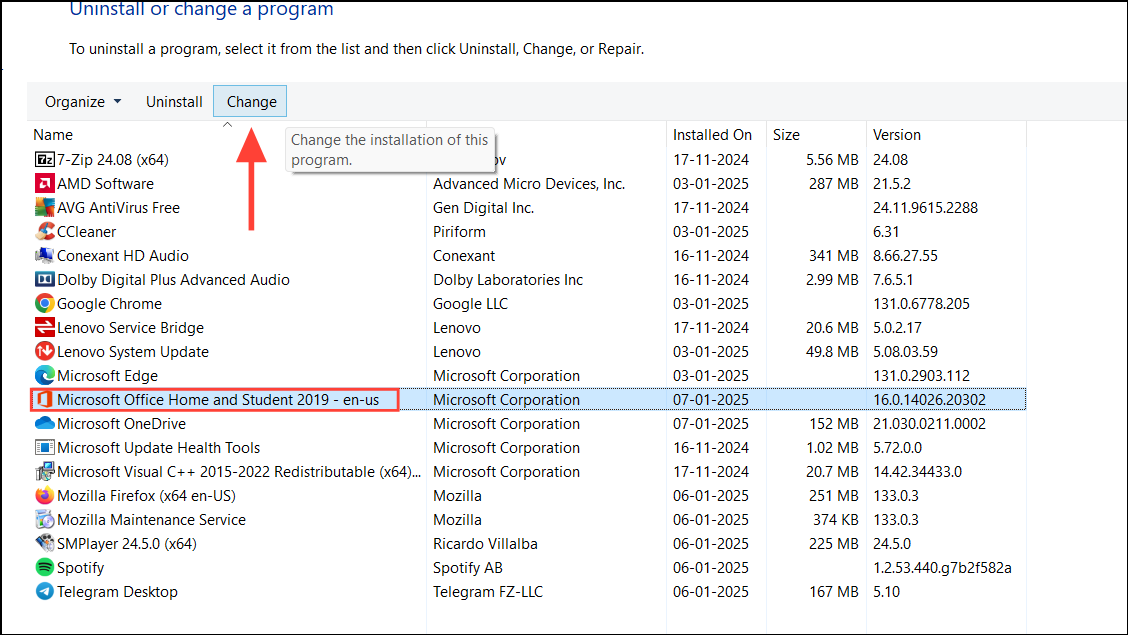
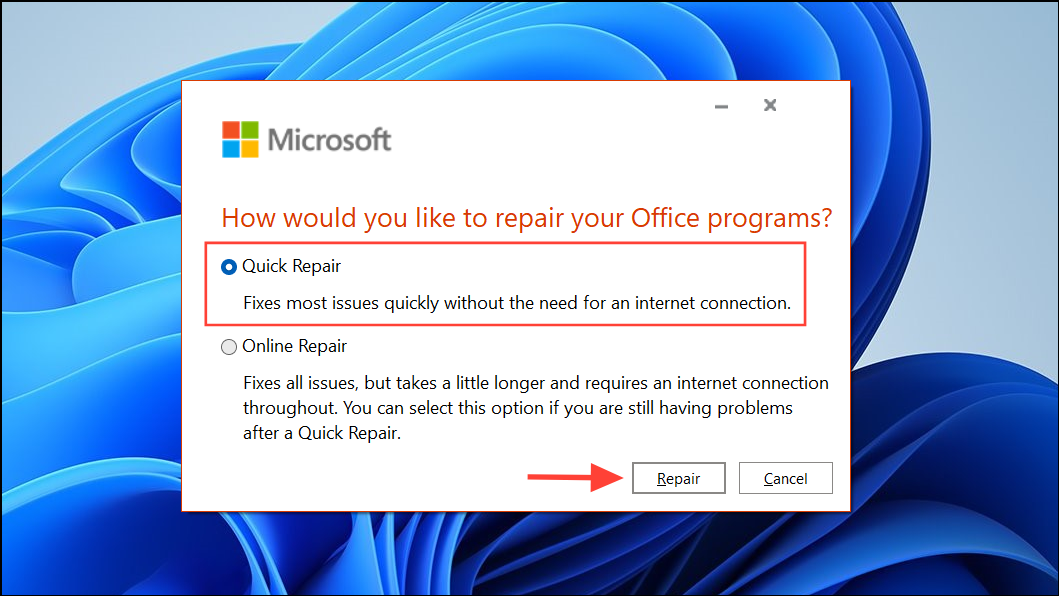
Method 6: Repair Microsoft Office
Repairing your Office installation can fix issues caused by corrupted program files.
Method 7: Move the File to a Local Drive
Saving or working with files over a network or external drive can cause issues. Try moving the file to your local drive.
Method 8: Check for Conflicts with Antivirus Software
Sometimes, antivirus programs can interfere with Excel’s operations.
Method 9: Perform a Clean Boot
A clean boot can help identify if background services or startup programs are causing the problem.
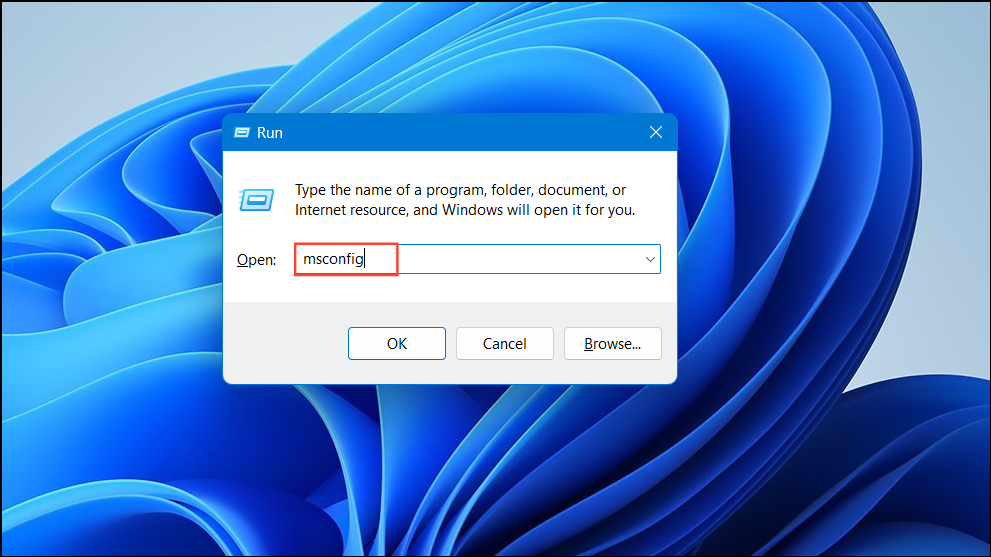
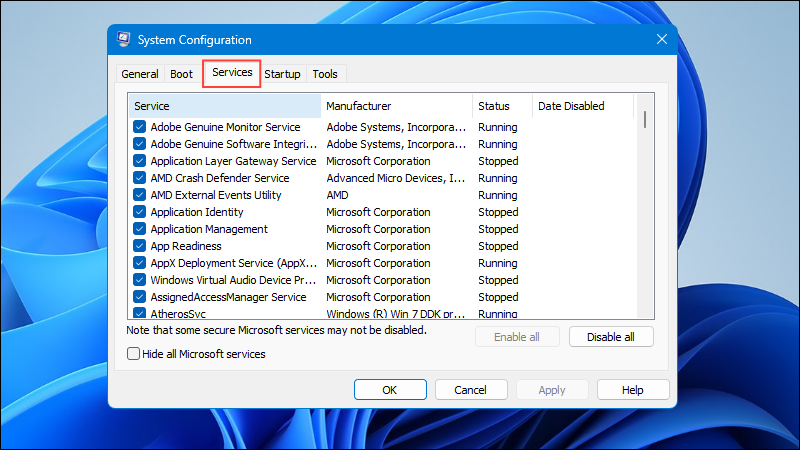
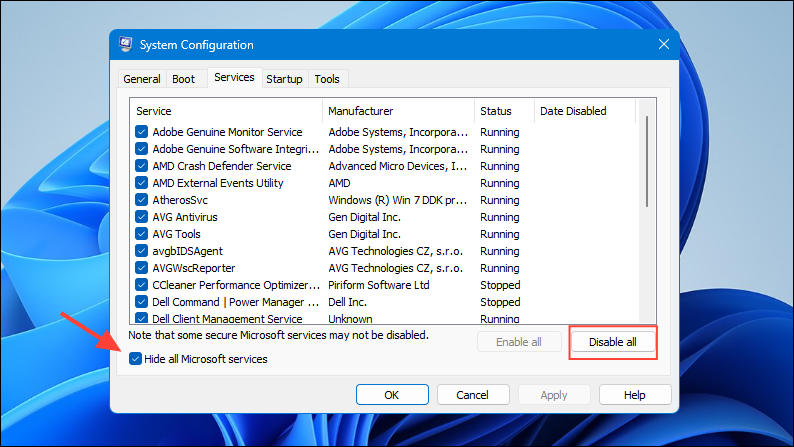
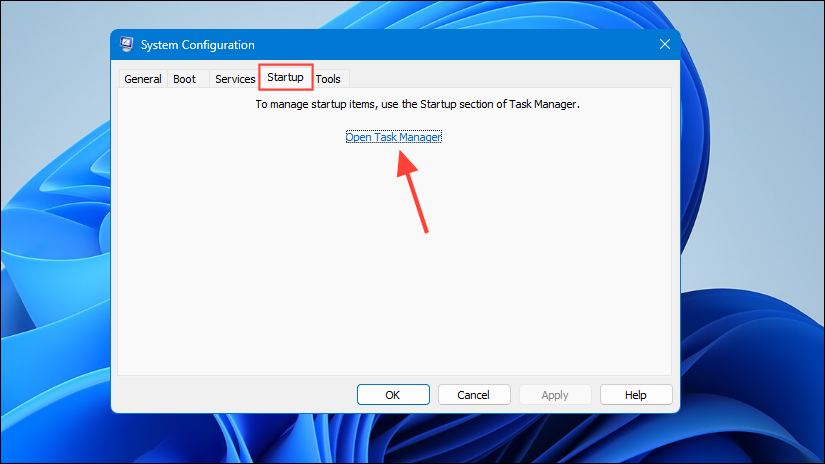
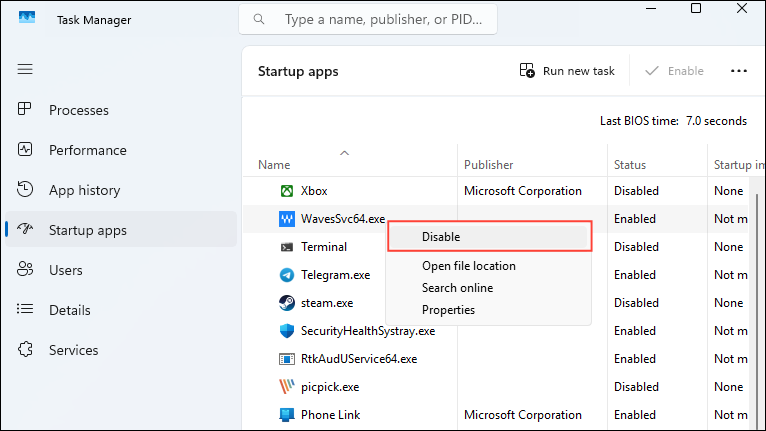
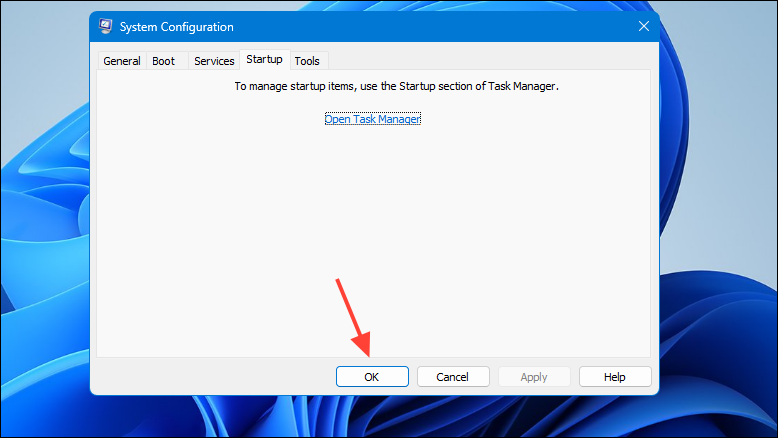
If Excel works correctly after a clean boot, enable services and startup items one at a time to identify the conflicting program.
Method 10: Increase Available Memory
Large Excel files can require significant memory. Ensuring your system has enough resources can prevent crashes.
By applying these methods, you should be able to resolve issues with Excel crashing when saving files. If the problem persists, consider reaching out to Microsoft Support or using specialized Excel repair tools to recover your files.





