

Microsoft Edge sometimes fails to open PDF files, displaying errors like “Can’t Open File” or showing a blank page instead of the document. This issue disrupts workflows, especially for users who rely on Edge as their primary PDF viewer. The problem can stem from outdated browser versions, corrupted cache, misconfigured settings, or conflicts with other PDF software. The following methods address these causes, starting with the most effective solutions.
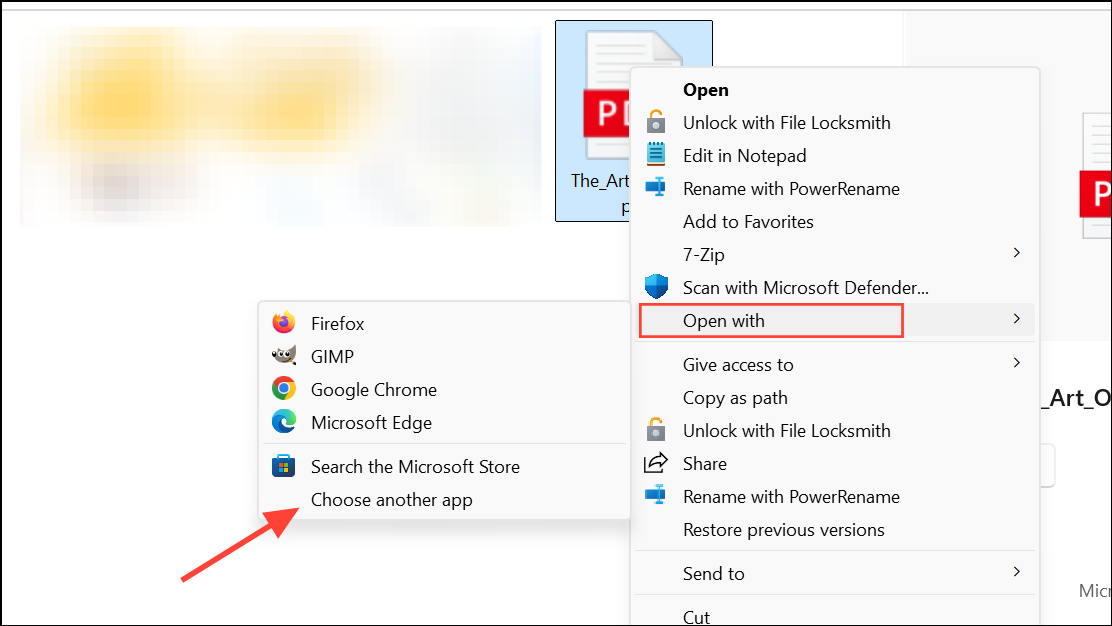
Open the PDF File in Another Application to Rule Out File Corruption
Corrupted or damaged PDF files will not open in Edge or any other PDF viewer. Testing the file in a different application helps determine if the issue is with the file itself or with Edge.
Open with and select an alternative PDF reader (such as Adobe Acrobat Reader) or another web browser like Chrome or Firefox.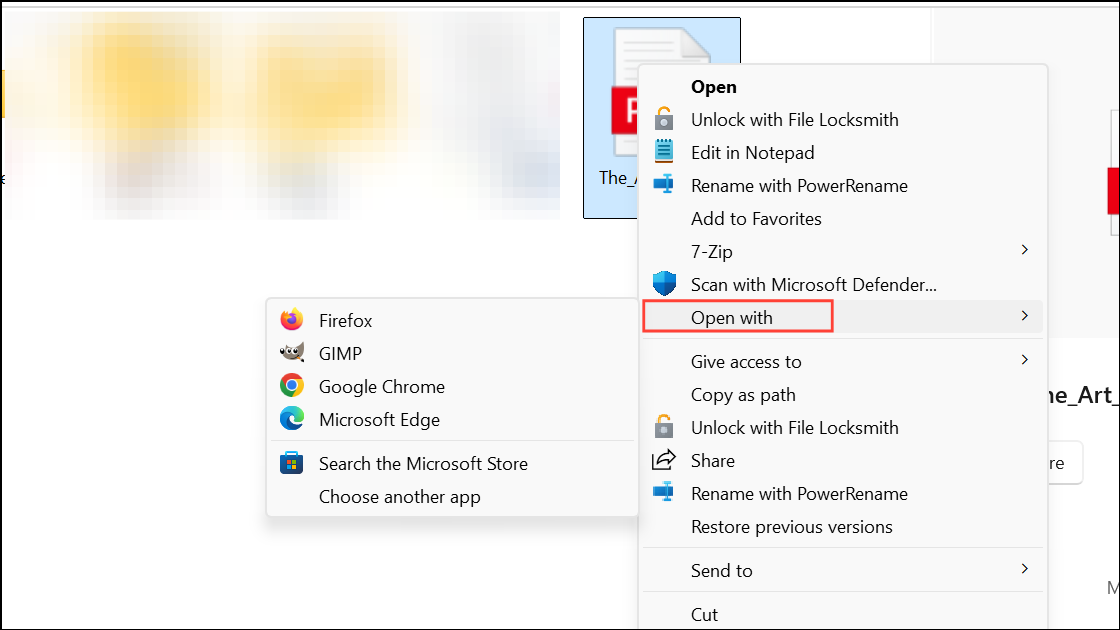
Update Microsoft Edge to the Latest Version
Outdated versions of Edge may have bugs that prevent PDF files from loading correctly. Updating ensures you have the latest fixes and compatibility improvements.
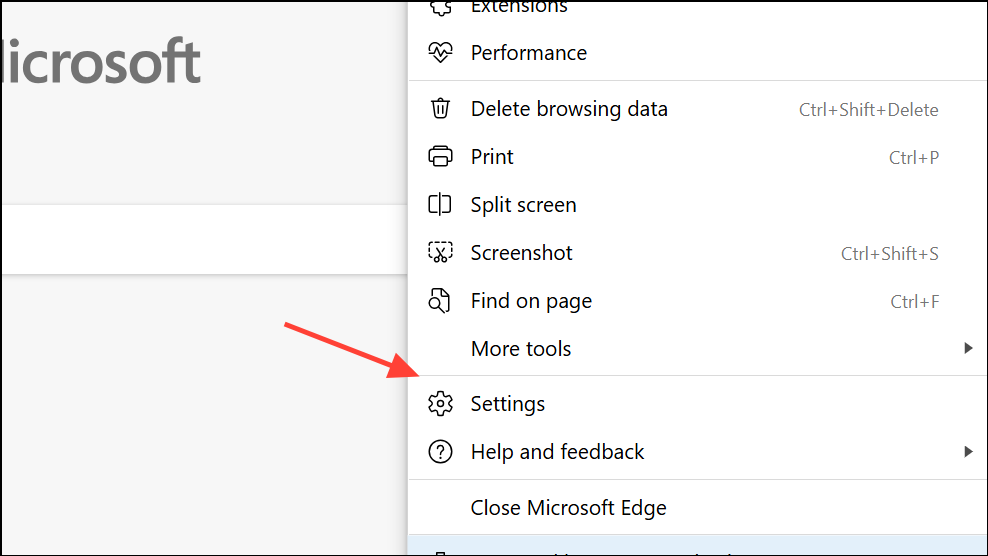
About Microsoft Edge. Edge will automatically check for updates and install them if available.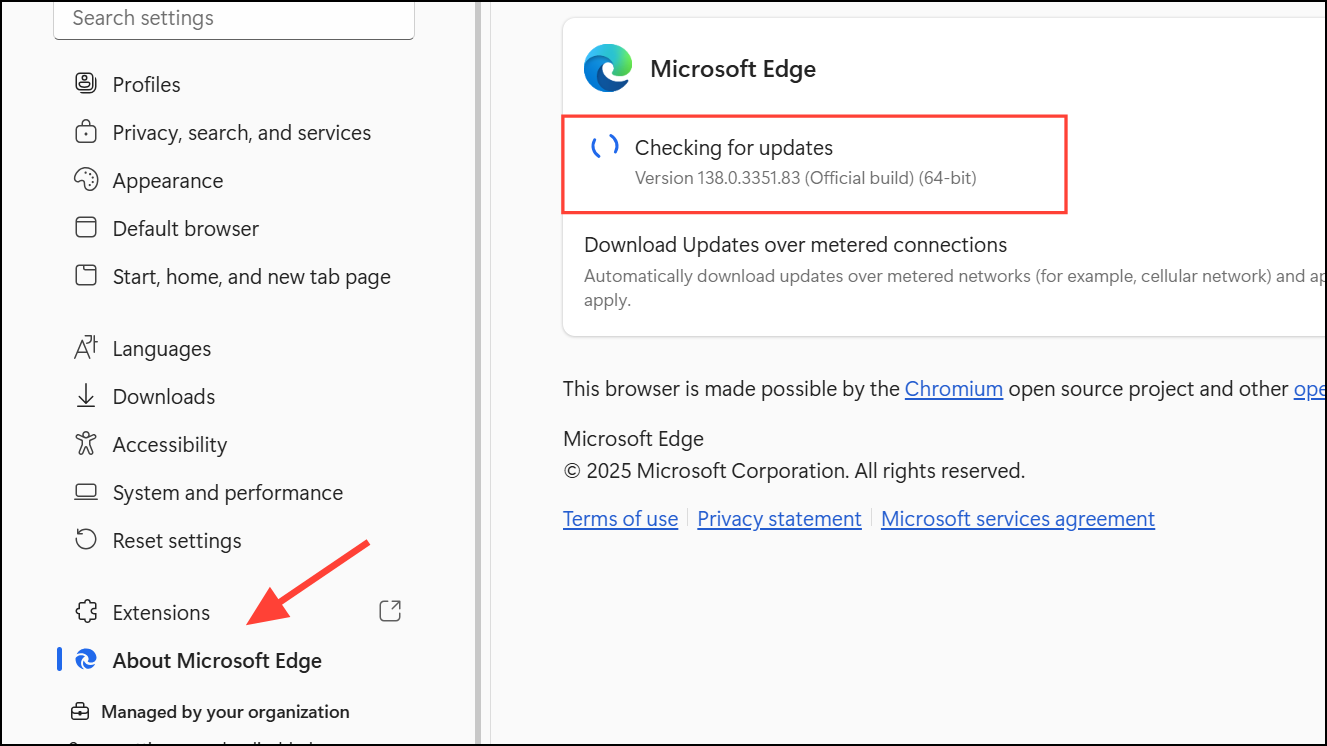
Clear Cached Data in Microsoft Edge
Accumulated cache can cause Edge to malfunction, including failing to load PDFs. Clearing the cache removes temporary files that may be causing conflicts.
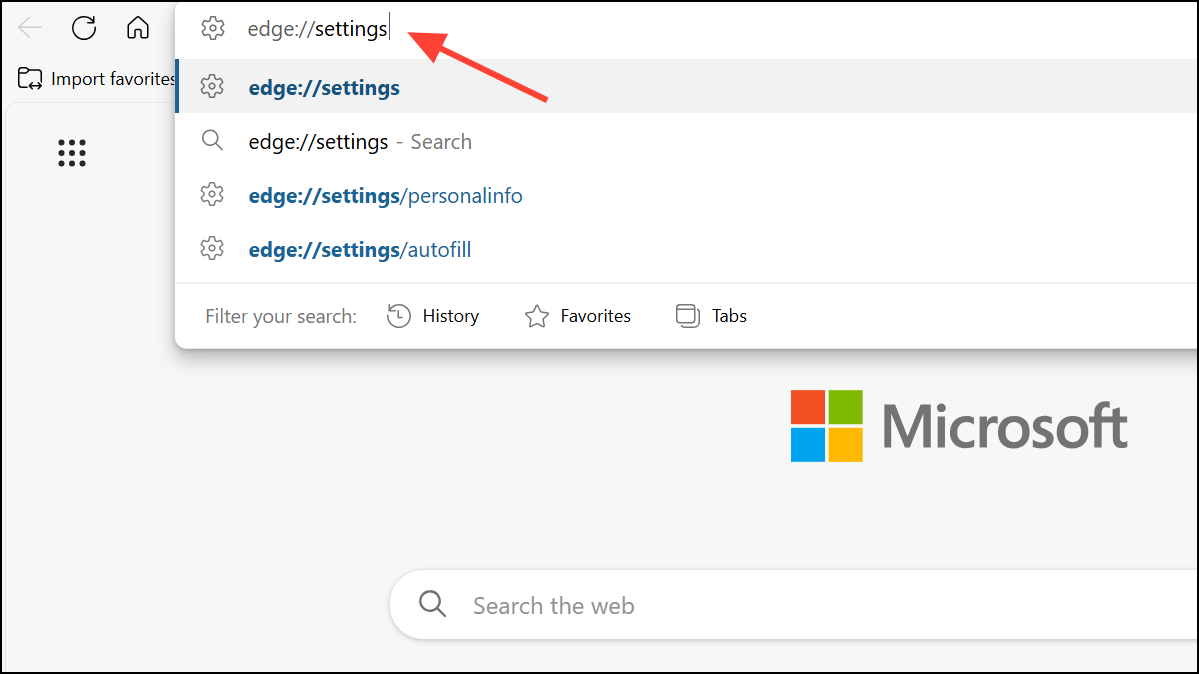
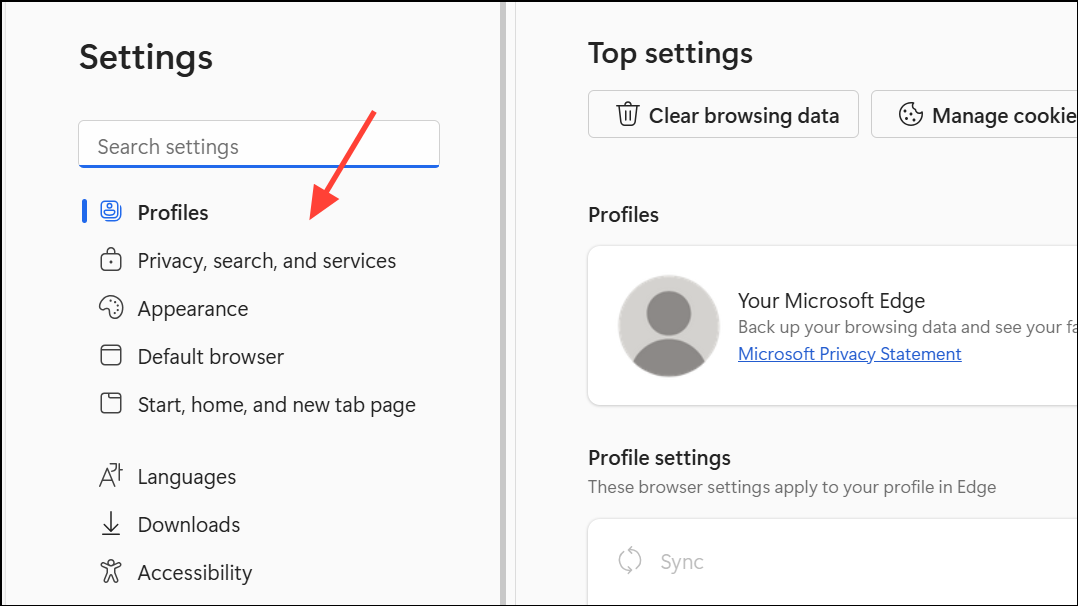
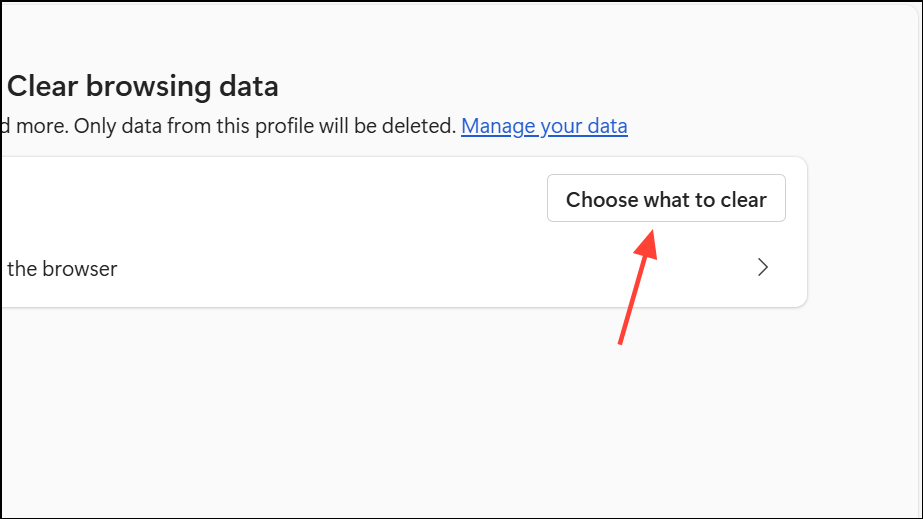
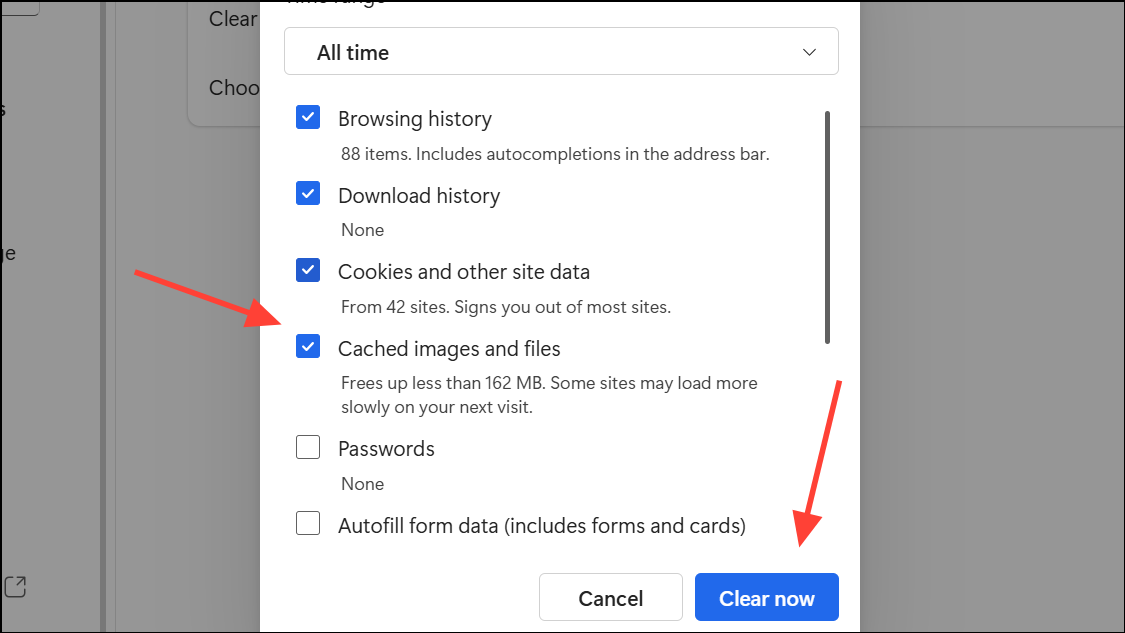
Check PDF Document Settings in Edge
Edge may be set to download PDF files instead of opening them in the browser. Adjusting this setting allows PDFs to open directly in Edge.
Privacy, Search, and Services in the left menu as before and then select Site permissions from the right side.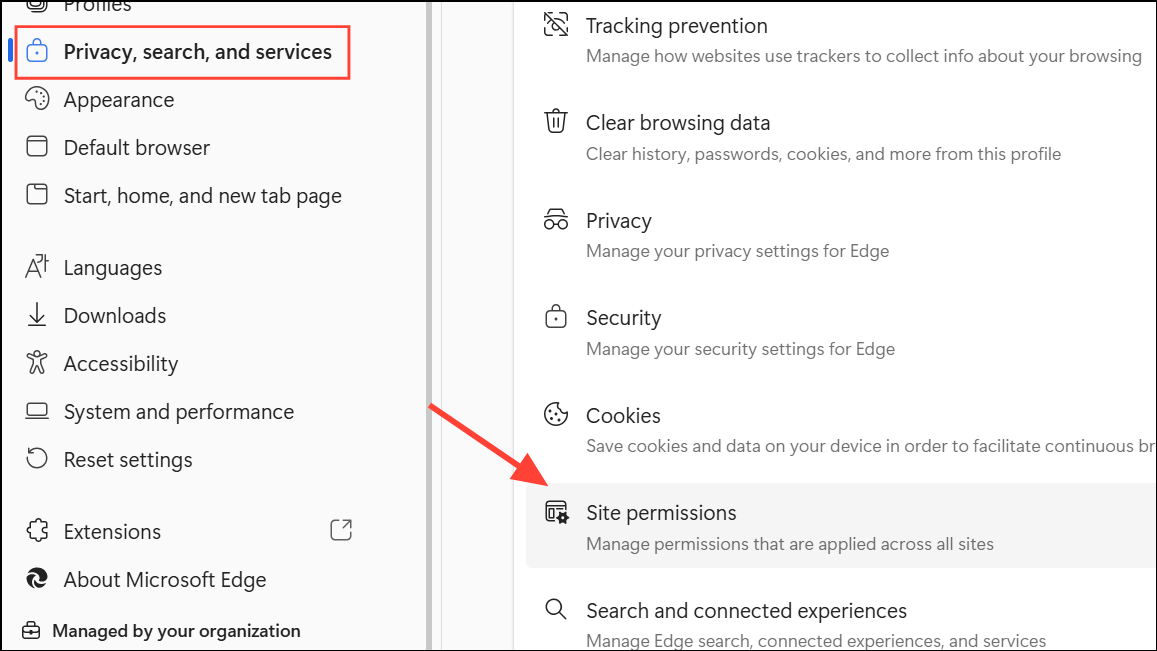
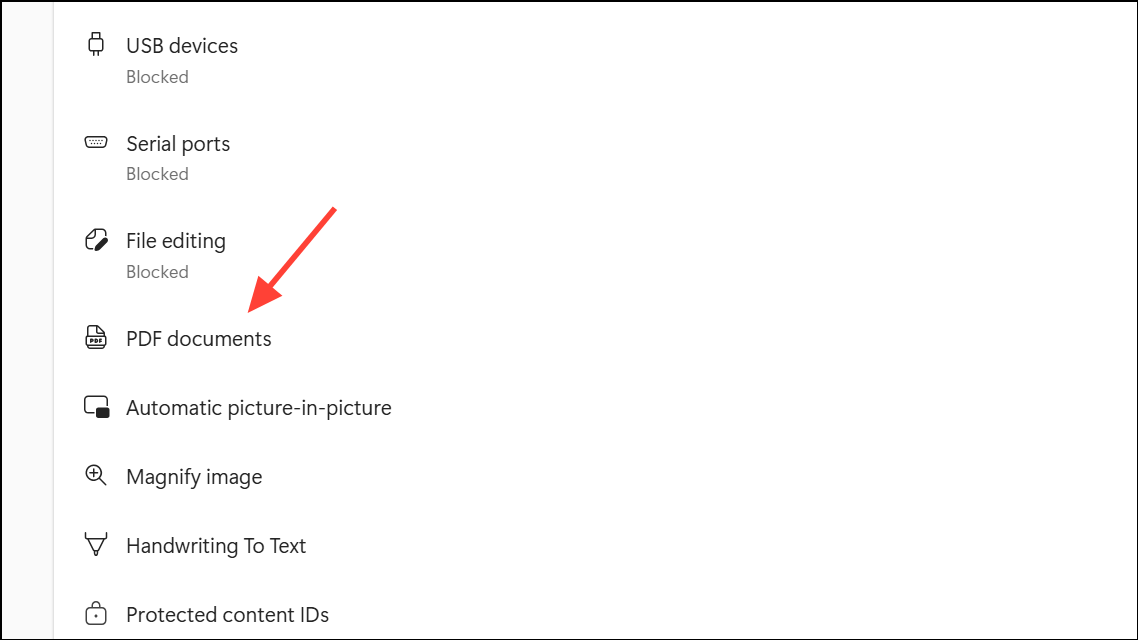
Always download PDF files is turned off. This ensures PDFs open within Edge instead of being downloaded.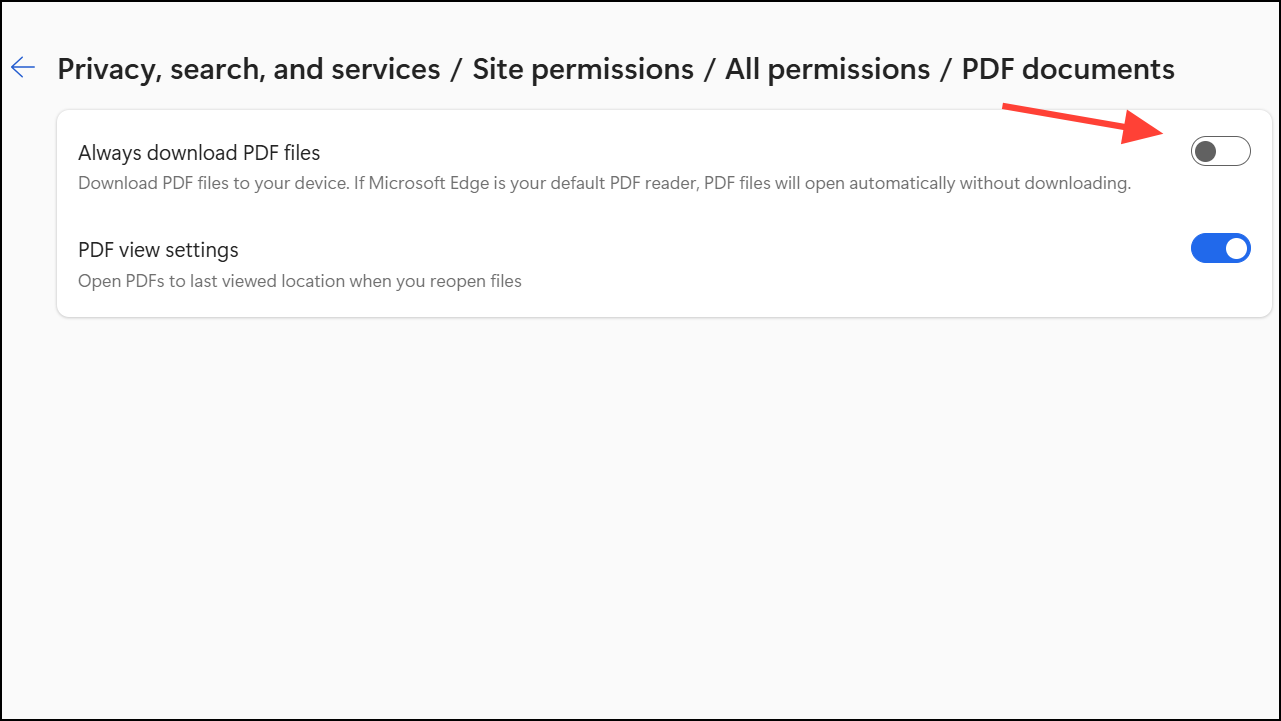
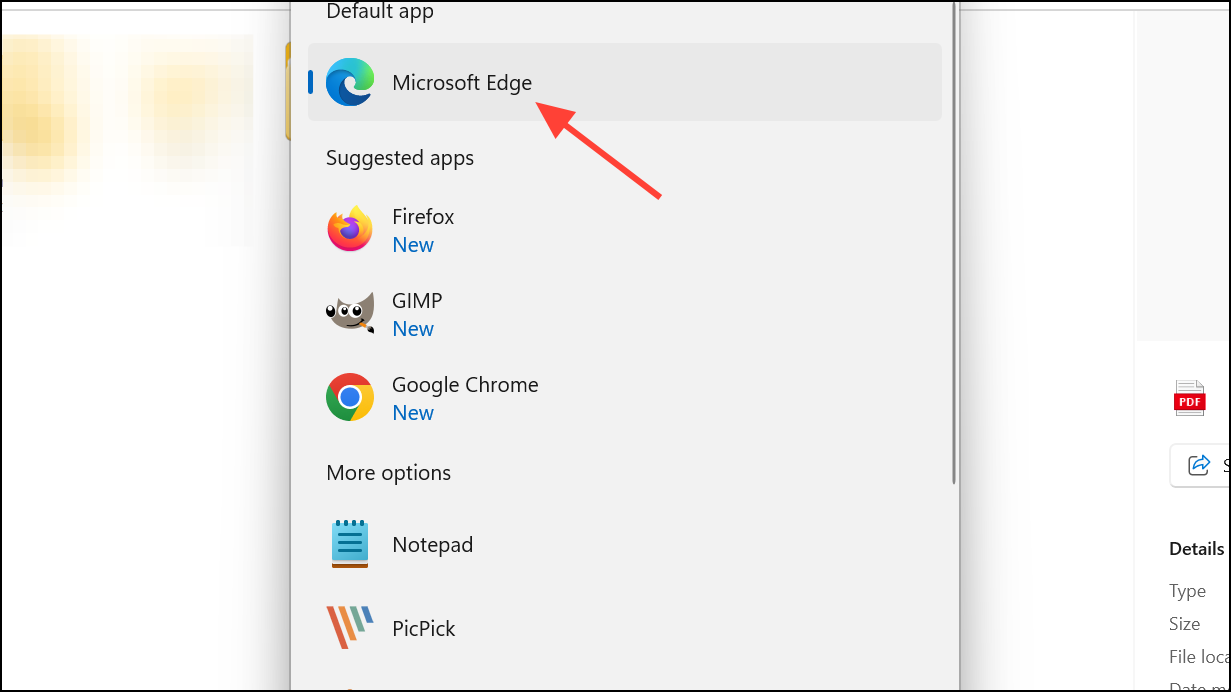
Set Microsoft Edge as the Default PDF Viewer
Conflicts can occur if another PDF viewer is set as the default application. Setting Edge as the default ensures PDFs open in your browser.
Repair Microsoft Edge Using Windows Settings
If the above steps do not resolve the issue, Edge itself may be corrupted. Windows provides a built-in repair tool for Edge.
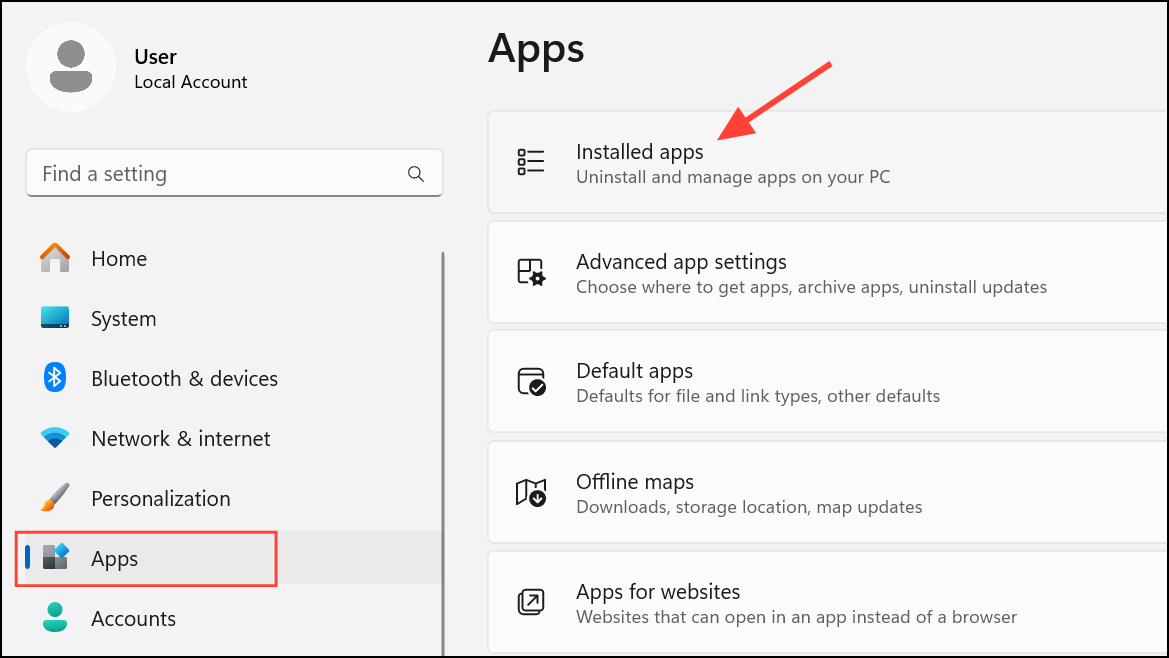
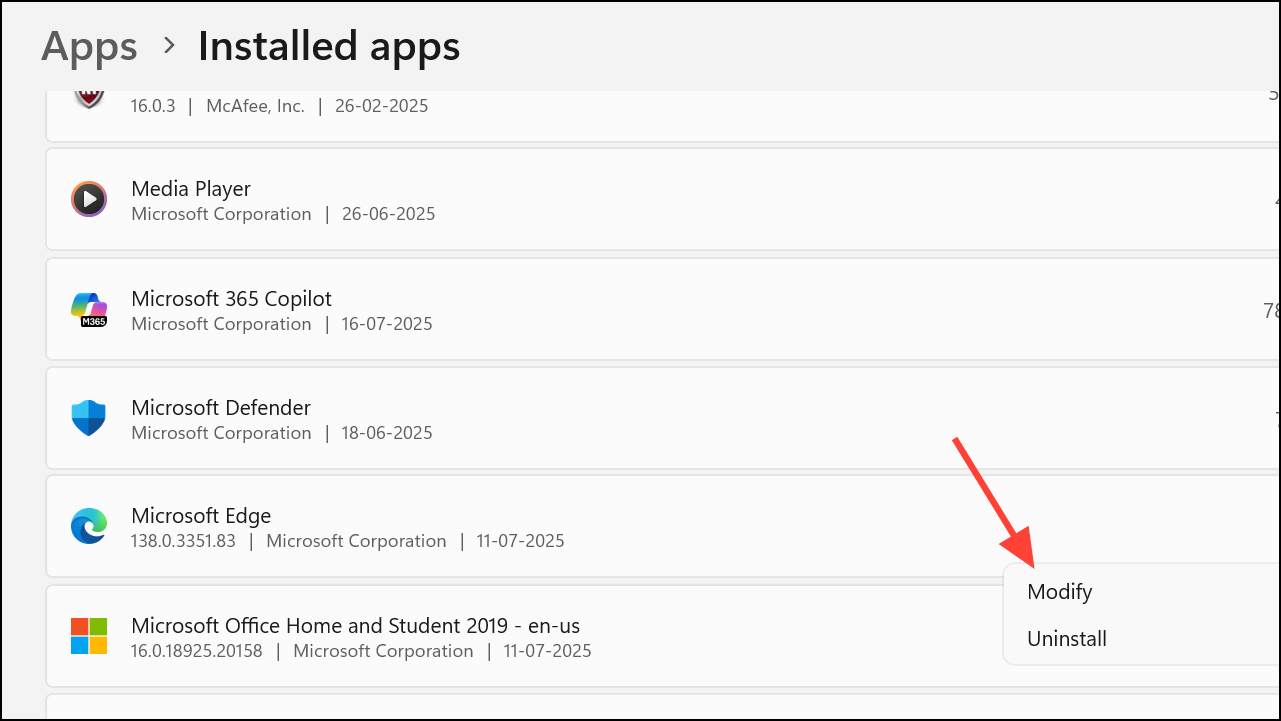
Repair. Windows will reinstall Edge without affecting your data or settings.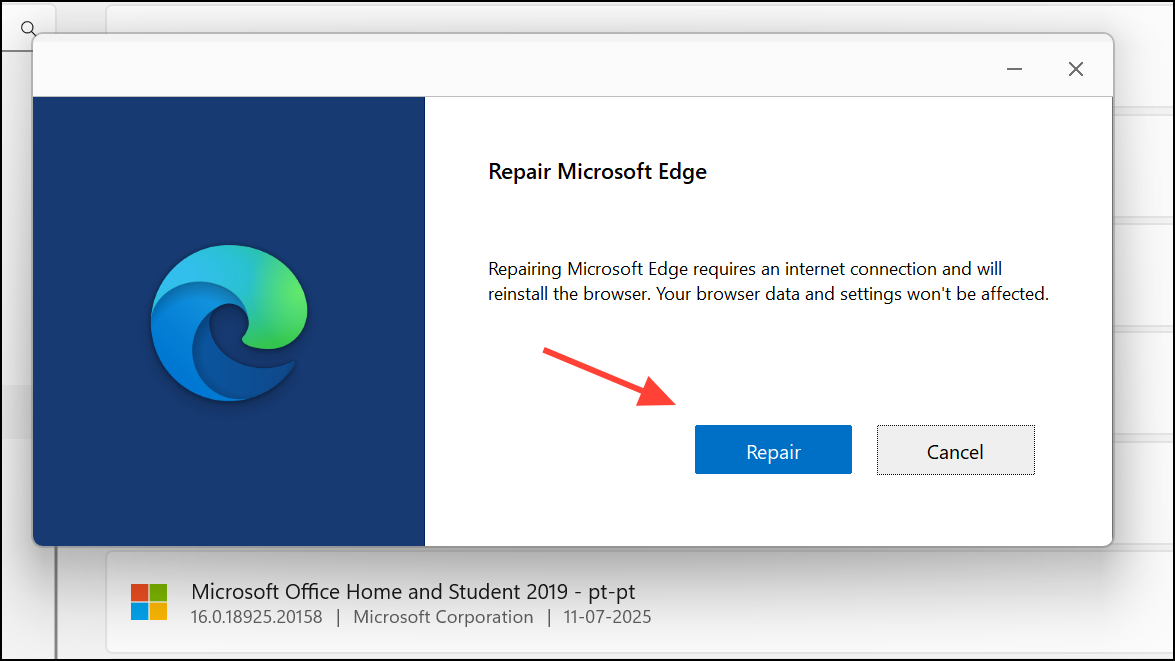
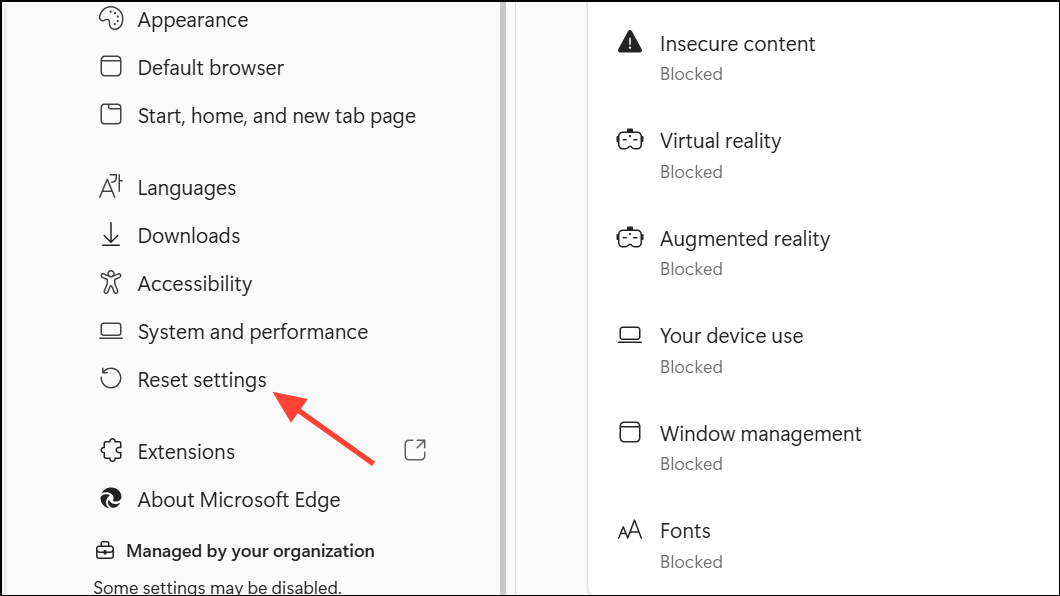
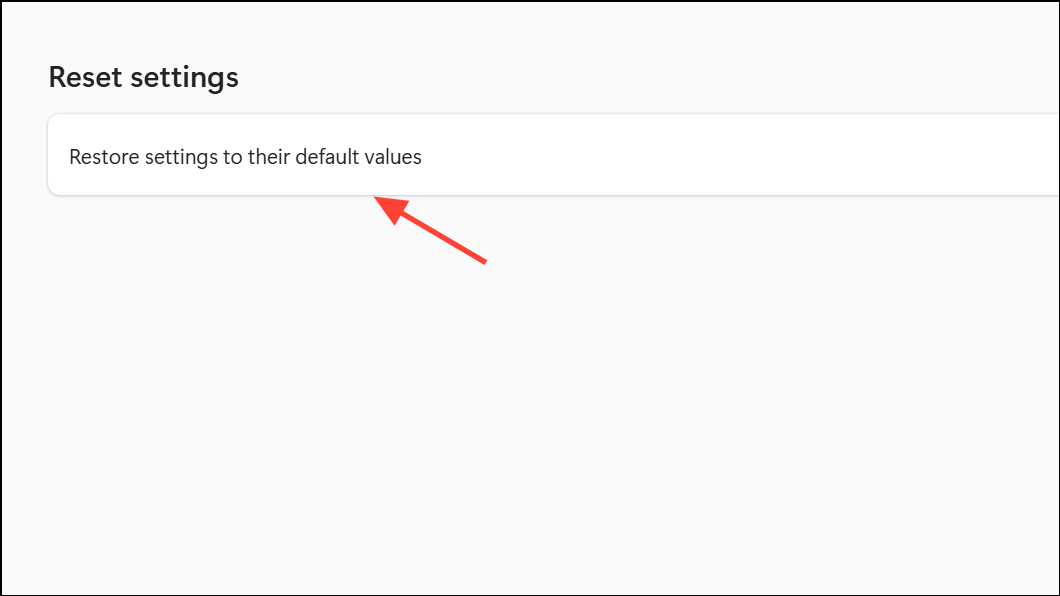
Reset Microsoft Edge to Default Settings
Resetting Edge restores browser settings to their original state, disables extensions, and clears temporary data. This step is helpful if previous methods fail and persistent settings or extensions are causing the issue.
Resolving PDF loading issues in Microsoft Edge usually requires updating the browser, clearing cache, and checking settings. If these steps do not work, repairing or resetting Edge typically restores PDF functionality without losing your browsing data.





