

Microsoft Word freezing or showing “not responding” on Windows 11 interrupts document editing and puts unsaved work at risk. This issue often results from system overload, problematic add-ins, or corrupted software files, but targeted troubleshooting can restore Word’s stability and prevent future disruptions.
Quick Solutions for Microsoft Word Not Responding
Ctrl + Shift + Esc to open Task Manager. Locate Microsoft Word under the Processes tab, right-click it, and select End Task. Wait a few seconds, then reopen Word to check if it is responsive again.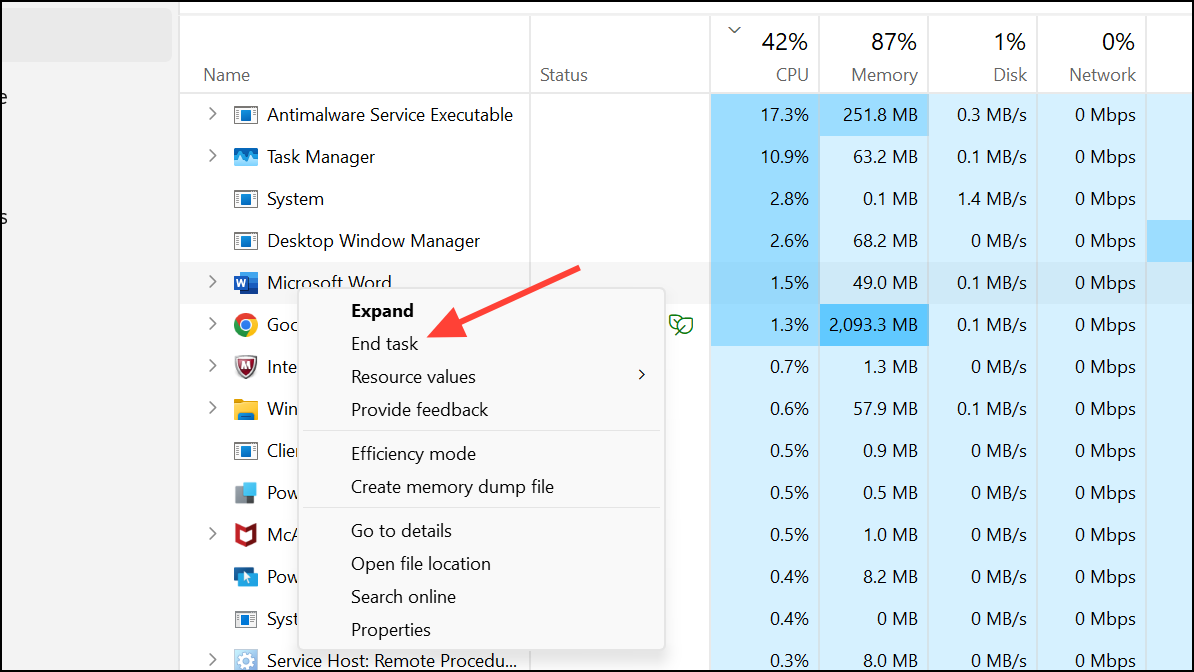
Ctrl + Alt + Delete and select Restart. After rebooting, launch Word to see if the problem is resolved.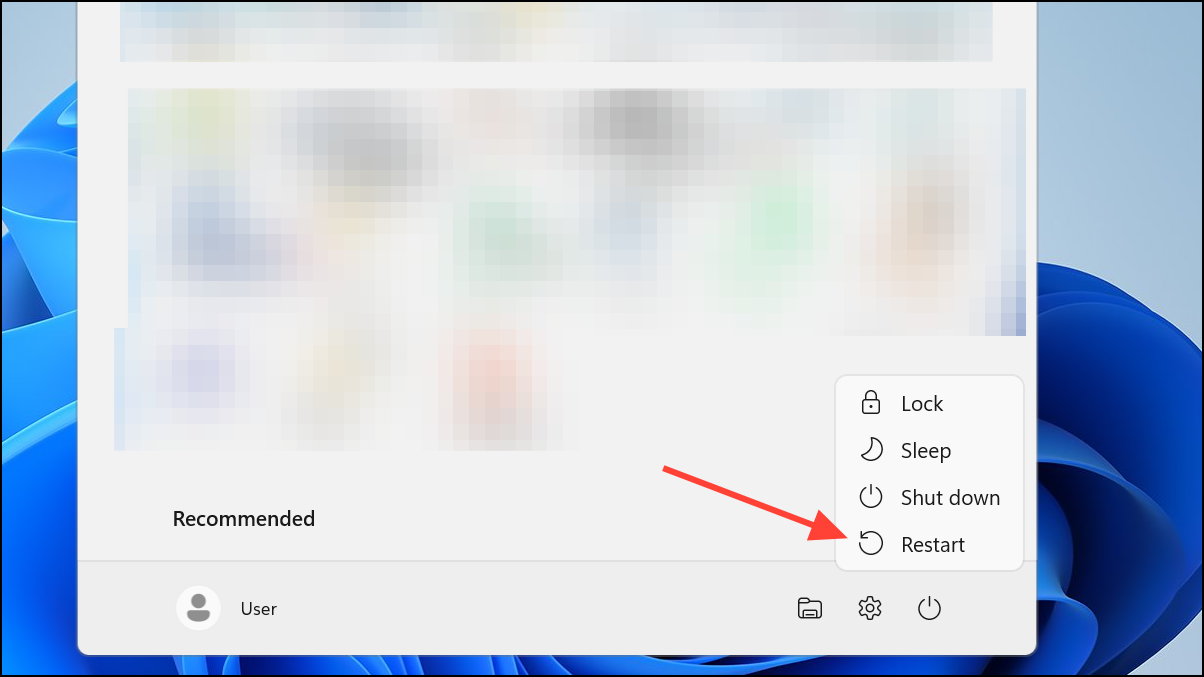
Ctrl + Shift + Esc) and viewing the Performance tab. If CPU, memory, or disk usage is near 100%, switch to the Processes tab, identify apps using high resources (such as browsers or games), and right-click to End Task for non-essential programs. This frees up memory and processing power for Word.Open Microsoft Word in Safe Mode and Disable Add-Ins
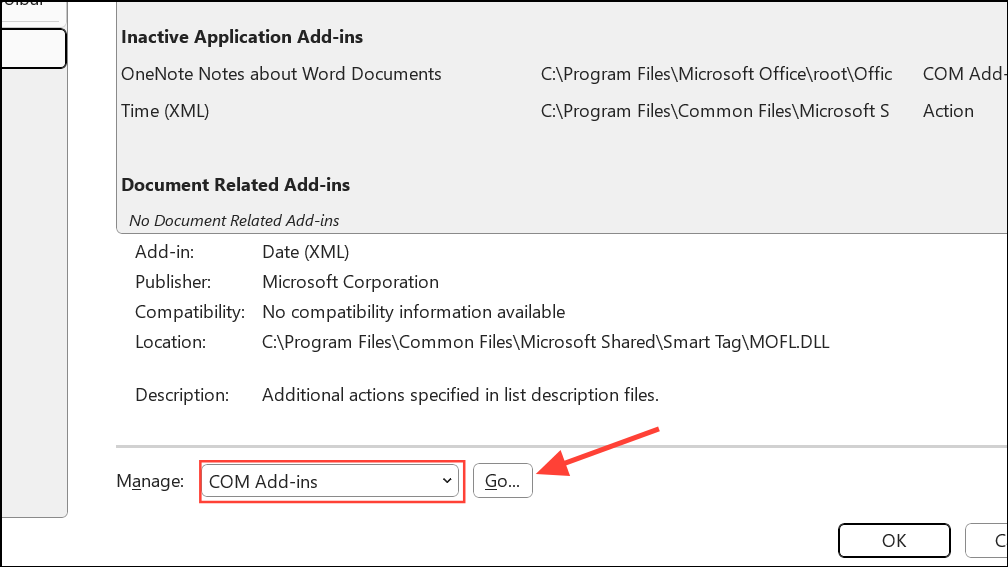
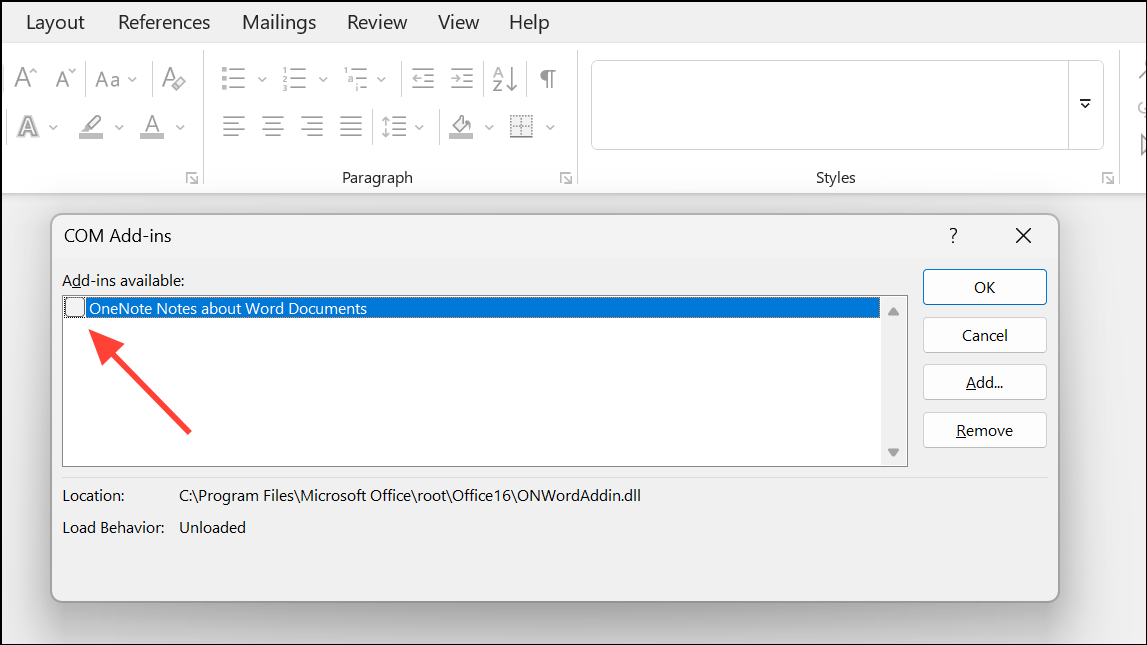
Faulty add-ins or custom settings can cause Word to freeze. Safe Mode loads Word without these extras, making it easier to diagnose the problem.
Windows + R to open the Run dialog. Type winword /safe and press Enter. If Word opens and works correctly in Safe Mode, the issue likely comes from an add-in.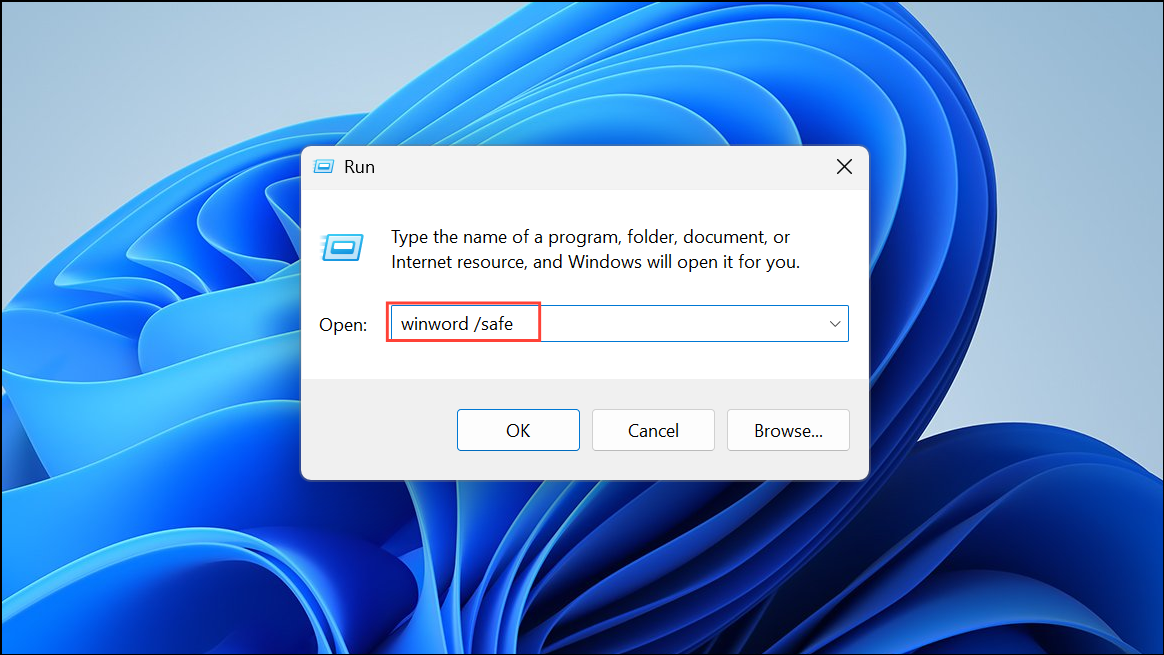
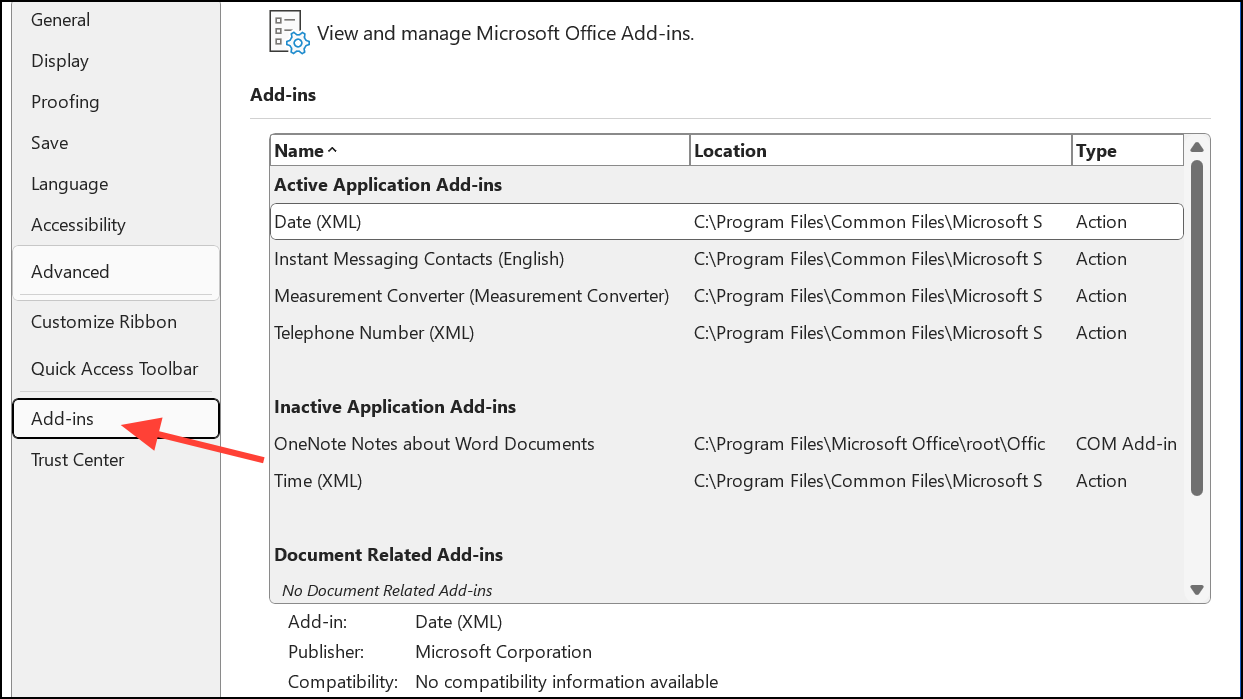
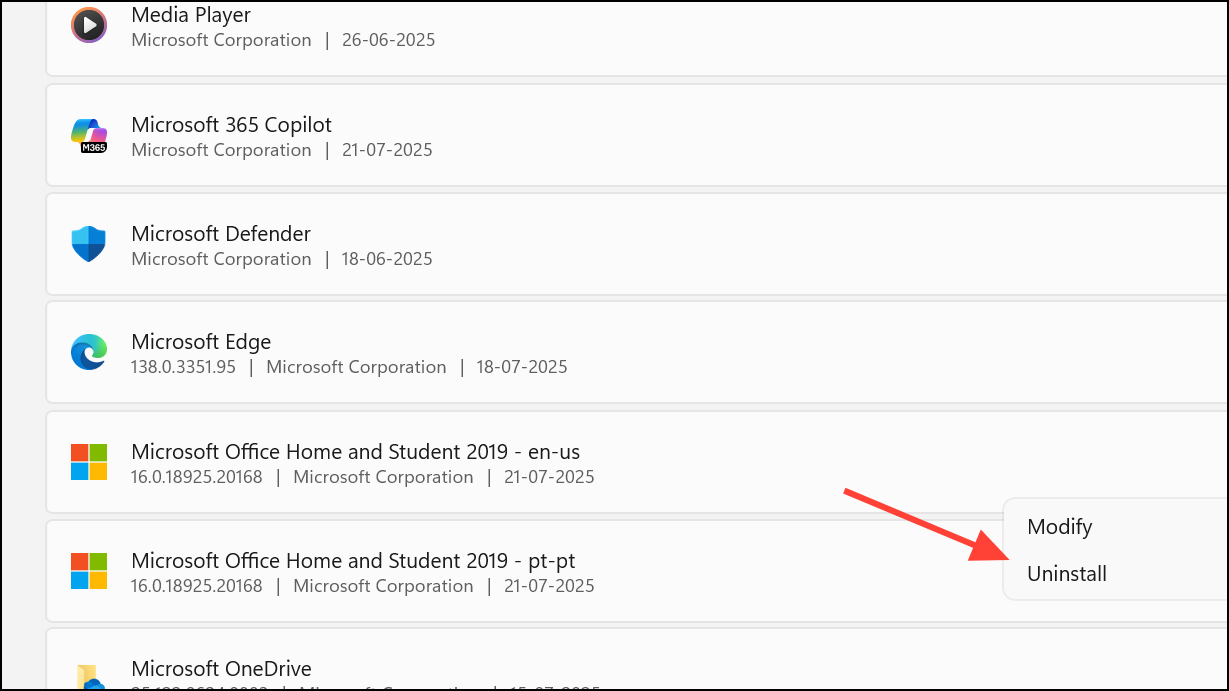
Repair or Reinstall Microsoft Office
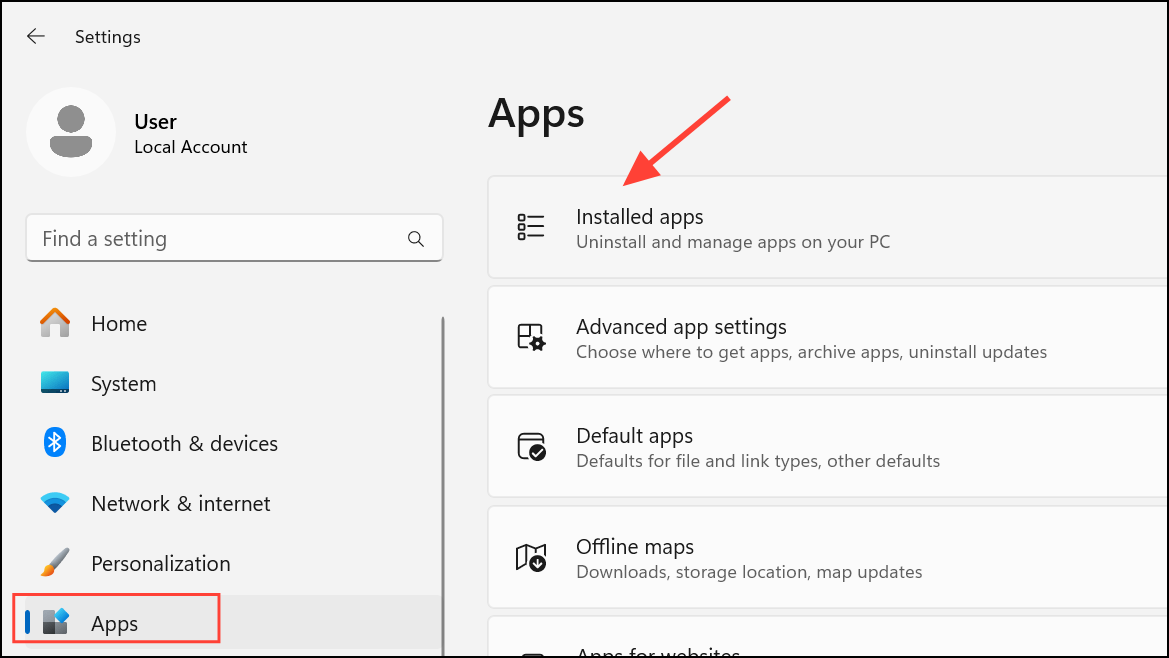
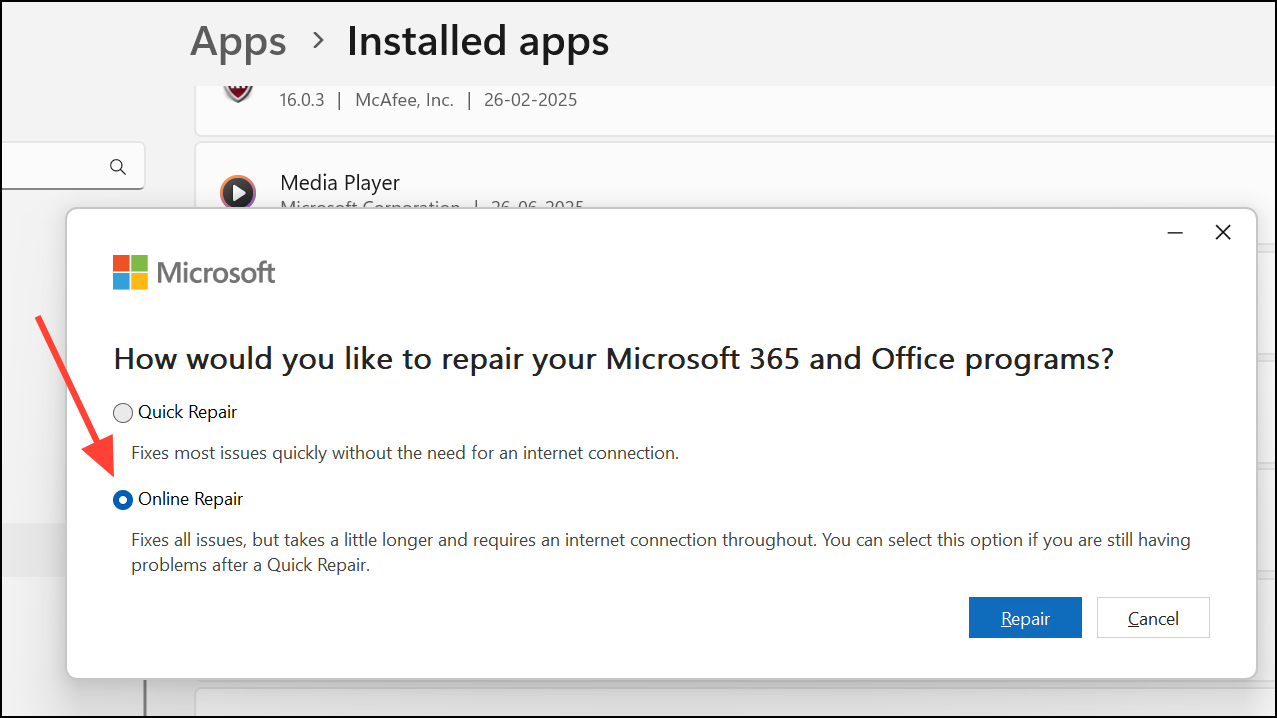
Persistent unresponsiveness may indicate corrupted Office files. Repairing or reinstalling Microsoft Office can restore normal operation without deleting your documents.
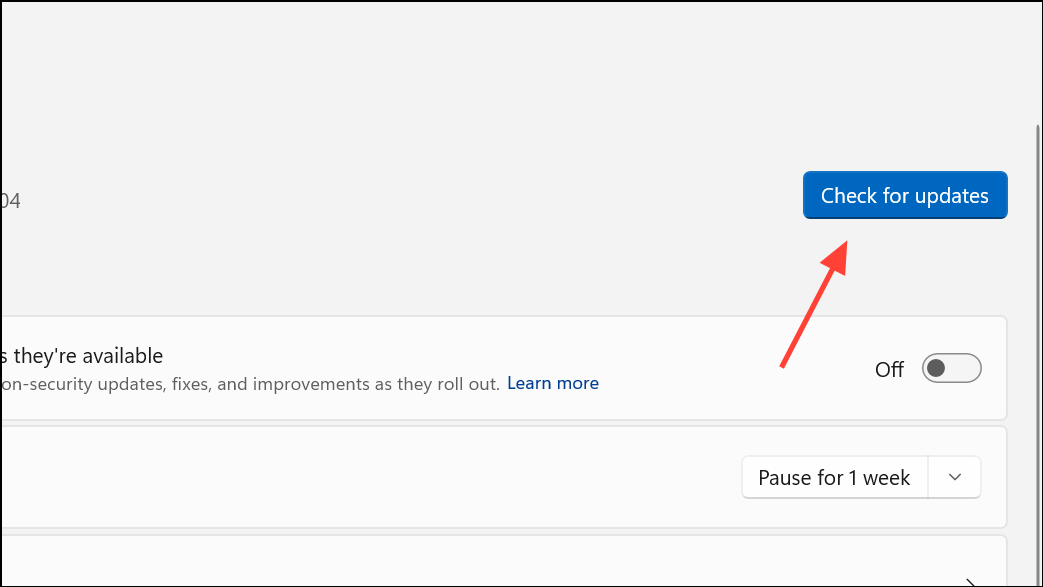
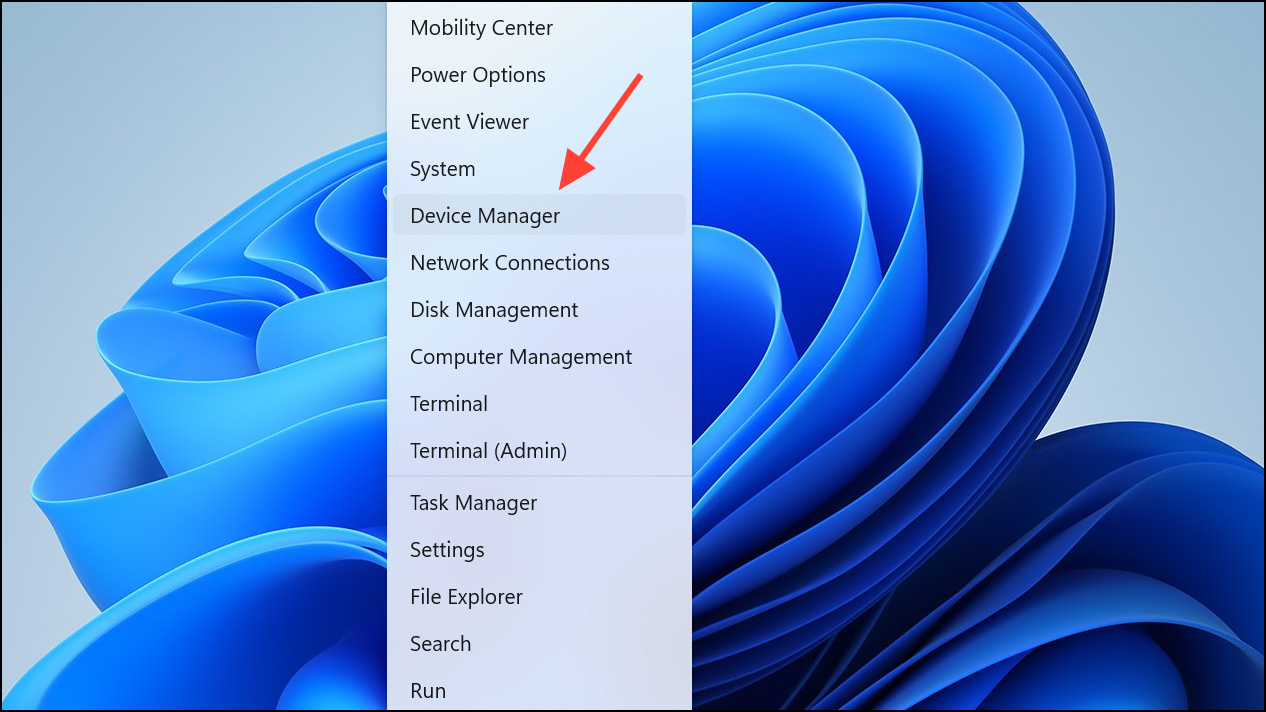
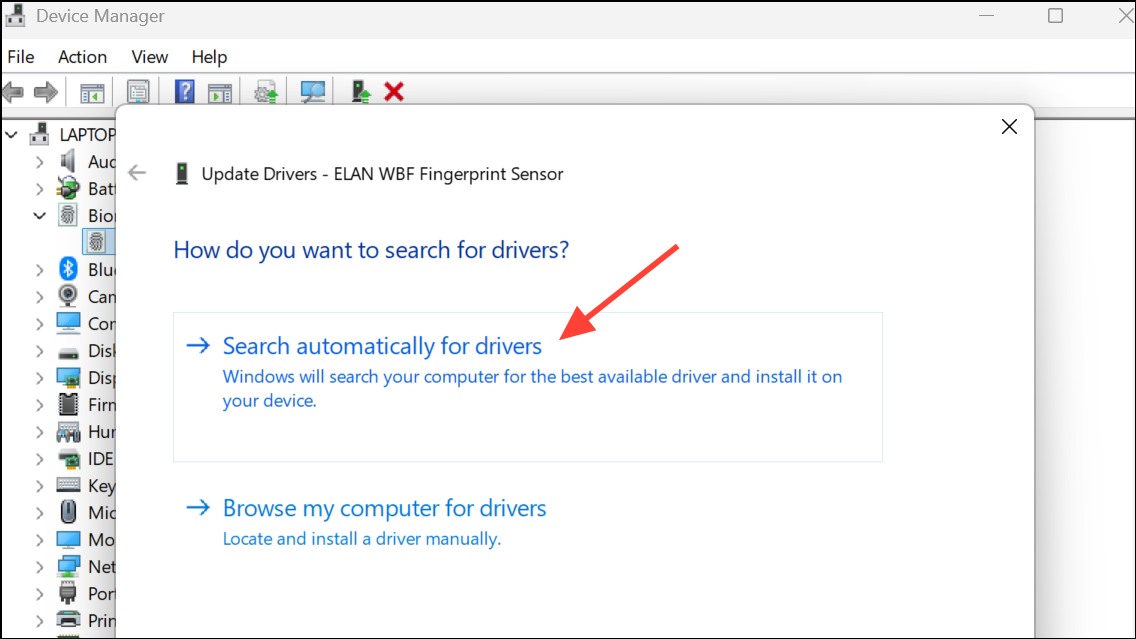
Update Windows and Device Drivers
Outdated Windows or device drivers can cause compatibility problems, leading to Word crashes or freezes. Regular updates optimize system stability and fix known bugs.
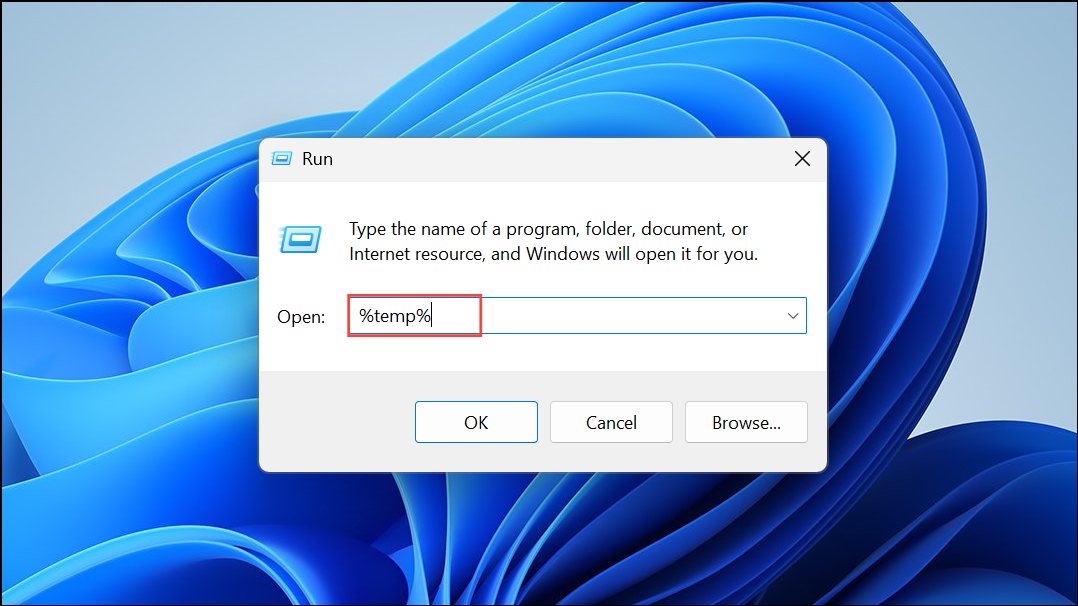
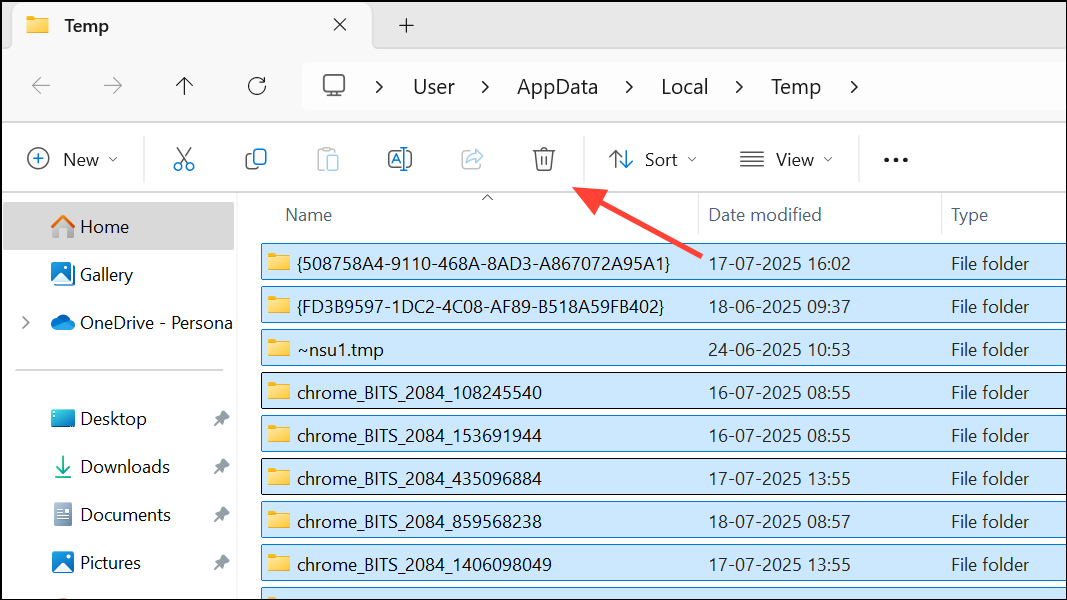
Clear Temporary Files and Cache
Accumulated temporary files can interfere with Word’s performance. Clearing these files frees up storage and eliminates potential sources of software conflict.
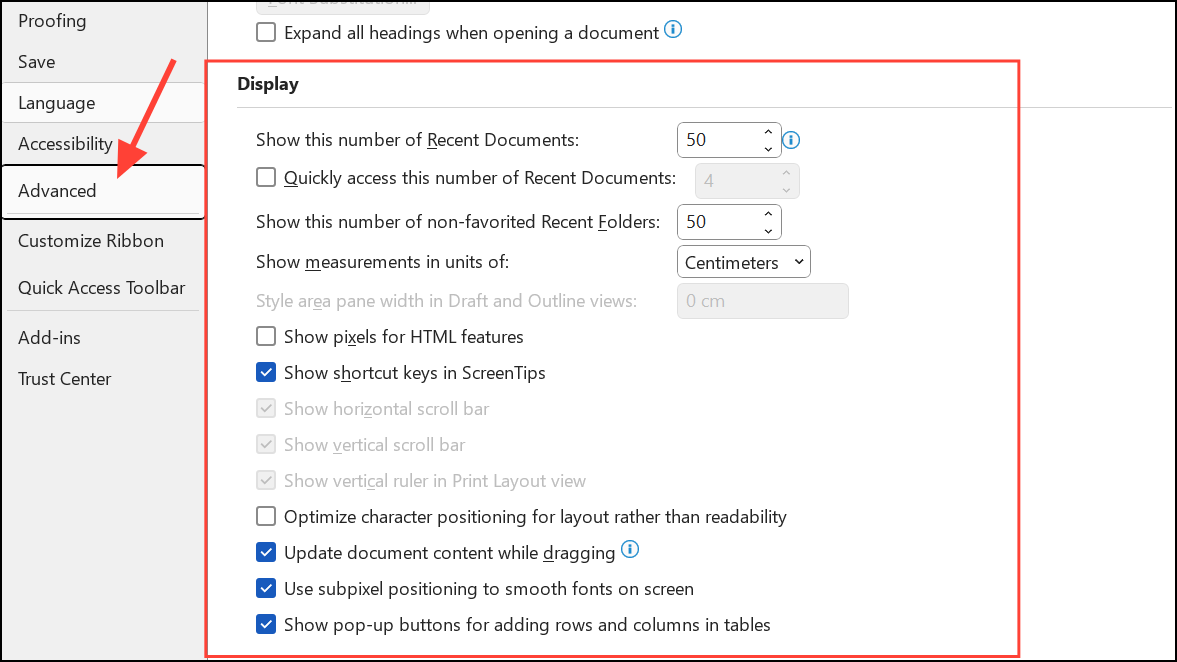
Reset Microsoft Word Settings
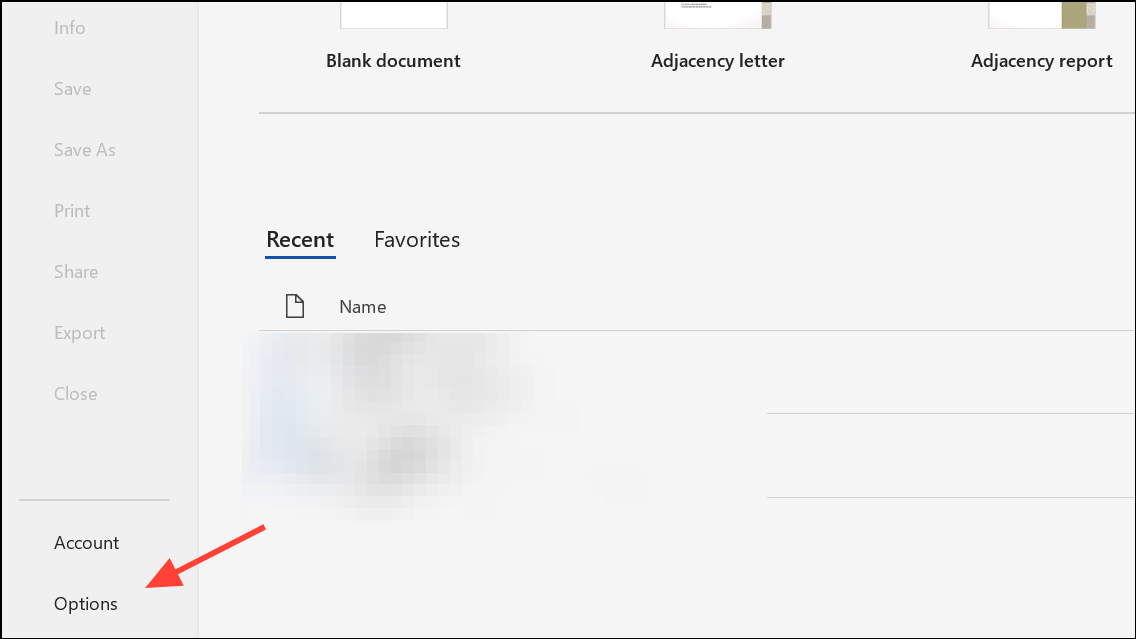
Corrupted or misconfigured settings may cause persistent freezing. Resetting Word to its default configuration can resolve stubborn issues.
Additional Tips to Prevent Word Freezing
- Save your work frequently using
Ctrl + Sto avoid data loss. - Keep both Word and Windows updated to address known bugs and security vulnerabilities.
- Limit the number of open applications to prevent system overload.
- Regularly clean up temporary files and unnecessary documents.
- Use trusted add-ins and update them for compatibility.
Stabilizing Microsoft Word on Windows 11 is achievable with a mix of system checks, software updates, and targeted repairs. Consistent maintenance and prompt troubleshooting help keep your documents accessible and your workflow uninterrupted.





