Resolve Microsoft Word freezing at the "Processing" screen when opening documents, especially with OneDrive integration, on Windows 11.
Resolve Microsoft Word freezing at the “Processing” screen when opening documents, especially with OneDrive integration, on Windows 11.
by Pallav Pathak
Microsoft Word sometimes freezes at the “Processing” screen when opening .docx files, particularly when files are synced with OneDrive. This issue can disrupt document access and slow down productivity, especially in environments relying on cloud storage. Resetting OneDrive and clearing Office file caches usually restores normal operation and allows files to open without delay.
Close all Microsoft Office applications, including Word, Excel, and PowerPoint. This prevents conflicts while making changes to Office or OneDrive settings.
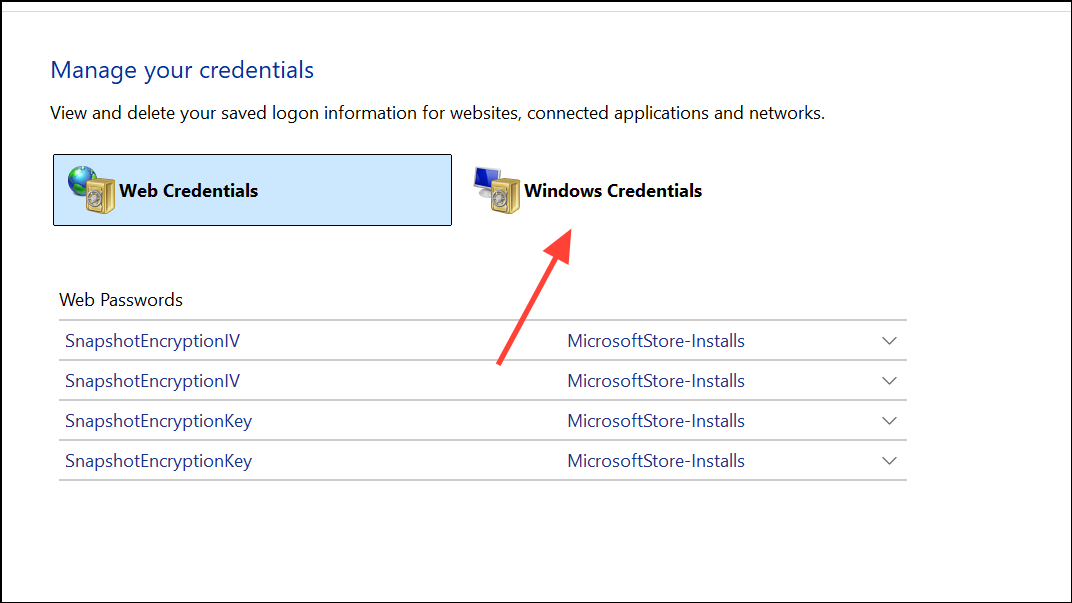
Open Control Panel and navigate to Credential Manager > Windows Credentials. Delete any saved credentials associated with your organization or university account.
Restart your computer, then open Word and sign in using your Microsoft credentials. When prompted, select This App Only if you prefer not to allow your organization to manage your device.
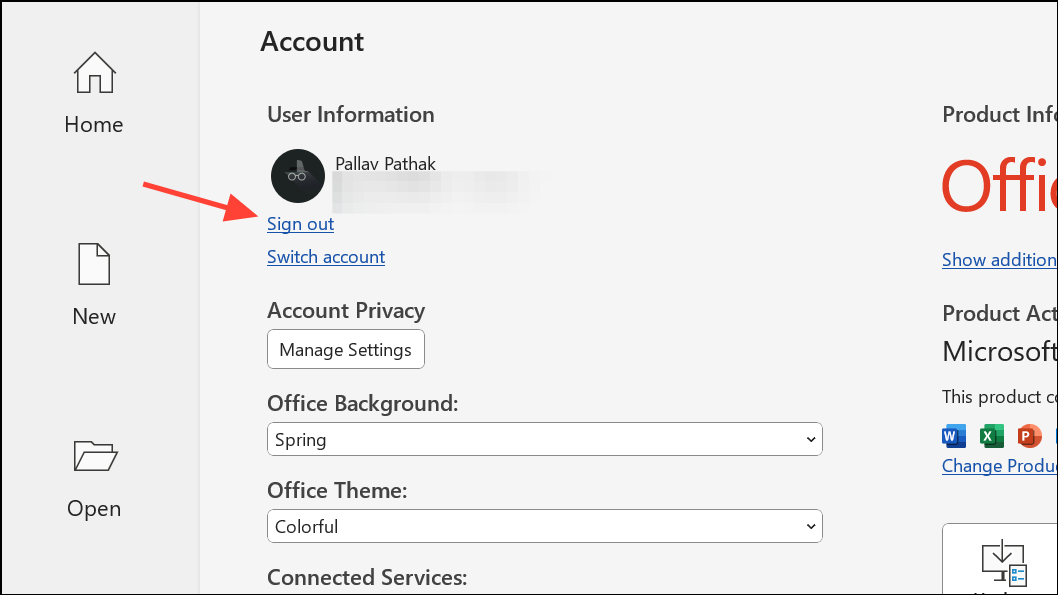
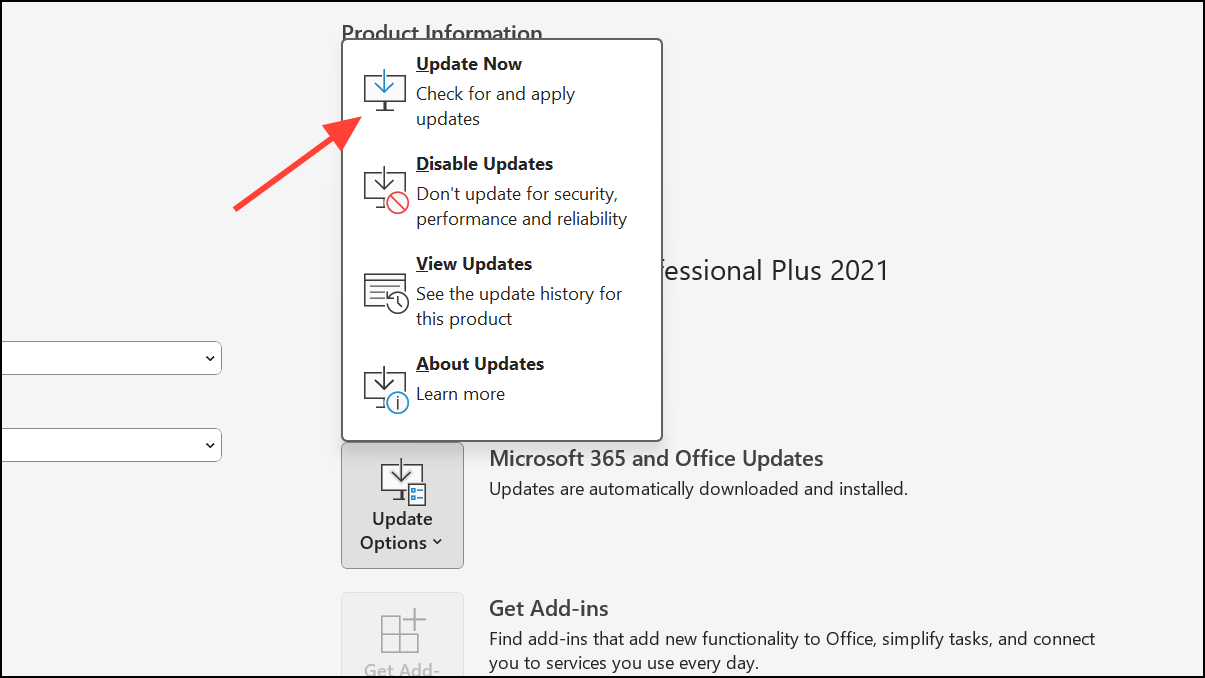
Update Office to the latest version to fix bugs that may cause the “Processing” hang. Open any Office app, go to File > Account, and select Update Options > Update Now.
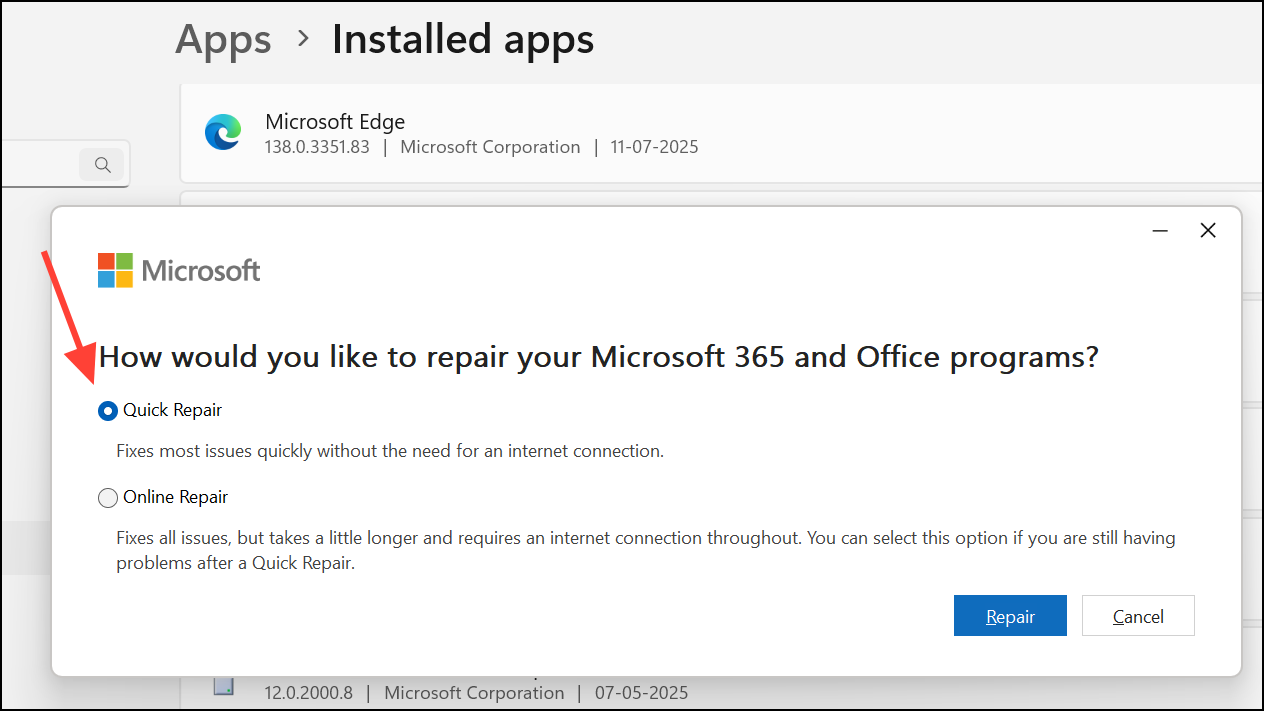
Run a Quick Repair if problems persist. Open Settings > Apps > Installed apps, find Microsoft Office, select Modify, then choose Quick Repair. If this does not resolve the issue, try the Online Repair option for a more thorough fix.
Following these steps should resolve Microsoft Word being stuck on “Processing” when opening documents, especially when OneDrive is involved. Regularly updating Office and managing your OneDrive settings can prevent similar issues in the future.